What Is WiFi Calling and Why Does Your iPhone Need It?
I remember standing in my kitchen trying to make an important call when my iPhone suddenly showed “No Service.” That’s when I discovered WiFi calling on iPhone and honestly, it completely changed how I stay connected every day.
If you’ve ever struggled with weak signal at home, in your office, or in a basement, WiFi calling can fix that instantly
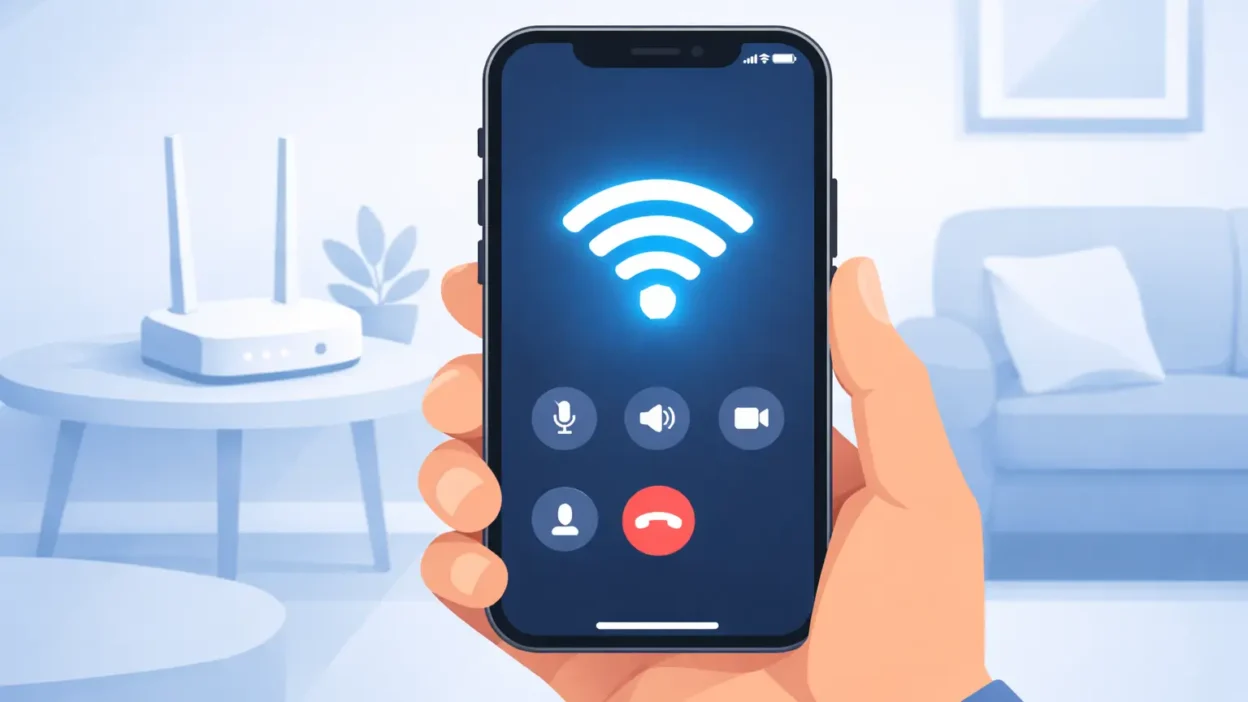
WiFi calling is a built-in iPhone feature that lets you make and receive phone calls using your internet connection instead of your carrier’s cell tower signal. WiFi calling on iPhone is a built in feature that lets you make and receive calls using a WiFi connection instead of a cellular network.
This means your iPhone can still make calls even when your signal is weak or unavailable.
The best part is you do not need any extra app, no special subscription, and no complicated setup. It is already inside your iPhone settings waiting to be turned on.
If you live in an area with spotty cell coverage, work in a building with thick concrete walls, or spend time in a basement where signals struggle to reach, WiFi calling is something your iPhone genuinely needs. It fills the gap your carrier’s cell tower simply cannot cover.
If you prefer visual guidance, watch this quick step-by-step video:
How WiFi Calling Actually Works on iPhone
Here is the simple version. When you enable WiFi calling on your iPhone, your device checks the strength of your cellular signal. If the signal is weak or unavailable, your iPhone automatically routes your call through your WiFi network instead of the cell tower.
Of course this only works when you are connected to a WiFi network. If you are at a friend’s house or new location and need to connect, here is how to share WiFi password on iPhone quickly
When WiFi calling is enabled, your iPhone automatically switches to WiFi for calls if your signal is weak.
You don’t need to do anything manually it happens in the background. The person you are calling does not notice any difference. They do not see a different number. They do not hear any different quality. It just works like a normal call.
Your carrier handles the entire process in the background. This is why WiFi calling still requires an active carrier plan. Your iPhone is not making calls independently. It is using your carrier’s network but through a WiFi pathway instead of a cellular signal pathway.
One thing I really appreciate is that if you start a call on WiFi and then walk outside where cell signal is strong, your iPhone smoothly switches from WiFi to cellular without dropping the call. That seamless handover is genuinely impressive.
WiFi Calling vs Regular Cell Calls What’s the Difference?
A lot of people ask me if there is any real difference between a WiFi call and a regular cell call. The honest answer is that in most situations you will not notice any difference at all.
Both use the same phone number. Both show up the same way on the other person’s screen. Both count toward your plan’s regular calling minutes.
The only real difference is the pathway. A regular cell call travels through your carrier’s cell tower signal. A WiFi call travels through your internet connection when that cell signal is weak or missing.
Call quality on WiFi calling can actually be better than a weak cellular signal because a strong stable WiFi connection delivers cleaner audio than a struggling one bar of cell signal.
Think of it this way. A regular cell call is like driving on a highway. WiFi calling is like taking a back road that gets you to the exact same destination when the highway is blocked. Same result, different route.
The bottom line is WiFi calling makes your iPhone more reliable in places where cell coverage lets you down. And that is something every iPhone user should have turned on.
| Feature | WiFi Calling | Regular Call |
|---|---|---|
| Network | WiFi | Cellular |
| Call Quality | Better in weak signal | Depends on signal |
| Works Indoors | ✅ Yes | ❌ Often weak |
Before You Start: Does Your Carrier Support WiFi Calling?
Before you go into your iPhone settings and start toggling things on, there is one important thing you need to check first. Not every carrier supports WiFi calling, and if yours does not, the option simply will not appear in your settings no matter what you do.
I have seen so many people spend time troubleshooting their iPhone thinking something is broken, when the real answer was that their carrier just does not offer WiFi calling on their plan. Checking this first saves you a lot of frustration.
So before anything else, let us confirm whether your carrier actually supports this feature in 2026.
Carriers That Support WiFi Calling in 2026
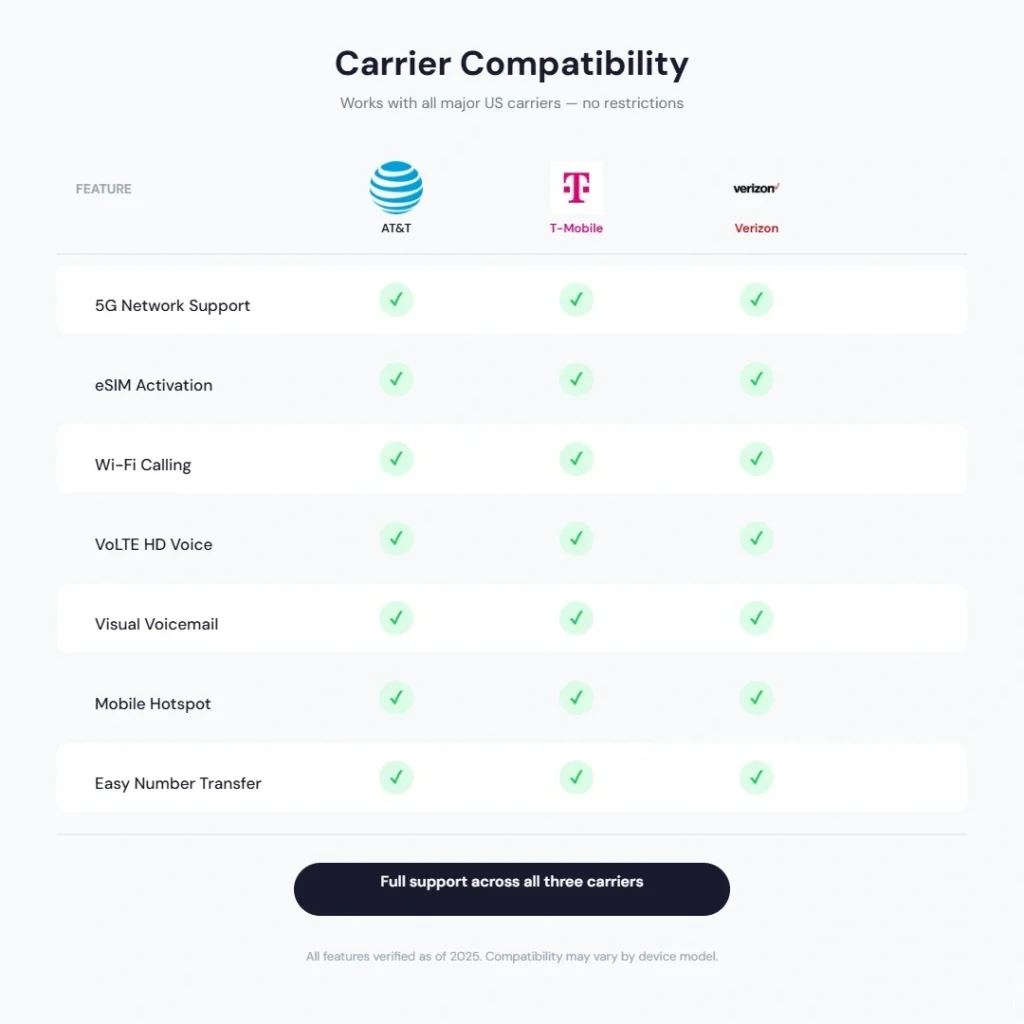
The good news is that most major carriers now fully support WiFi calling on iPhone. Here is a quick overview of where things stand in 2026.
AT&T supports WiFi calling on iPhone across all its postpaid and most prepaid plans. You do not need to call customer support or add anything extra. It is included by default.
T-Mobile has supported WiFi calling for years and continues to offer it on all standard plans. If you are on a T-Mobile plan, you are almost certainly covered.
Verizon also fully supports WiFi calling on iPhone. Most Verizon postpaid plans include it, though some older legacy plans may need a quick check.
US Mobile, Mint Mobile, Cricket Wireless, Metro by T-Mobile, and Visible all support WiFi calling in 2026 as well. These are popular budget carriers and MVNOs, and most of them have added WiFi calling support over the past few years.
Google Fi supports WiFi calling natively since their entire service is built around WiFi and cellular switching.
If you are outside the United States, the carrier support list varies by country. Most major carriers in the UK, Canada, Australia, and the UAE now support WiFi calling on iPhone too. I recommend checking your carrier’s official website or calling their support line if you are unsure.
One thing to keep in mind is that even if your carrier supports WiFi calling, your specific plan tier may restrict it. Some entry level or prepaid plans occasionally exclude this feature.
How to Check If Your Carrier Plan Supports It
There are three simple ways to check whether your carrier plan supports WiFi calling before you try to enable it on your iPhone.
The first way is to open your iPhone Settings, tap on Phone, and look for a WiFi Calling option. If you see it, your carrier supports it. If it is not there at all, your carrier or plan likely does not.
The second way is to log into your carrier account online or through their app. Look under plan details or features. WiFi calling will usually be listed there if it is available on your plan.
The third way is the most direct. Call or chat with your carrier’s customer support and simply ask them if WiFi calling is included in your current plan. It takes two minutes and gives you a definite answer.
I always recommend doing the Settings check first since it is the fastest. If the option shows up, you are ready to move on to the setup steps.
How to Enable WiFi Calling on iPhone Step by Step
This is the section you came here for. Once you have confirmed your carrier supports WiFi calling, enabling it on your iPhone takes less than two minutes. I have done this on multiple iPhone models and the process is very straightforward.
The steps are slightly different depending on which iPhone model and iOS version you are running. I will walk you through each one so you know exactly what to tap and where to find it.
Steps for iPhone 15, 15 Pro, and 15 Pro Max
Apple updated the Settings layout in iOS 17 and iOS 18, so if you are on an iPhone 15 model the path looks a little different from older iPhones. Here is exactly what to do.
- Open the Settings app on your iPhone.
- Scroll down and tap Apps.
- Inside Apps, scroll down and tap Phone.
- Under the Calls section, tap WiFi Calling.
- Toggle on WiFi Calling on This iPhone.
- A popup will appear asking you to confirm. Tap Enable.
That is it. Your iPhone 15 is now set up for WiFi calling. You will notice the change almost immediately in your status bar when you are connected to a WiFi network.
One thing I want to point out is that the Apps section in Settings is new as of iOS 18. If you do not see it, make sure your iPhone 15 is running the latest iOS version available.
Steps for iPhone 14 and iPhone 13
If you are on an iPhone 14, iPhone 13, or an earlier model running iOS 16 or iOS 17, the steps follow a more familiar path.
- Open the Settings app.
- Tap Phone.
- Tap WiFi Calling.
- Toggle on WiFi Calling on This iPhone.
- Tap Enable when the confirmation prompt appears.
The process is simple and takes about thirty seconds. I personally prefer this older layout because everything is one level closer without the extra Apps menu in between.
Both paths lead to the exact same result. Once that toggle is on, your iPhone will automatically use WiFi for calls whenever your cellular signal is weak or unavailable.
How to Set Up the E911 Emergency Address
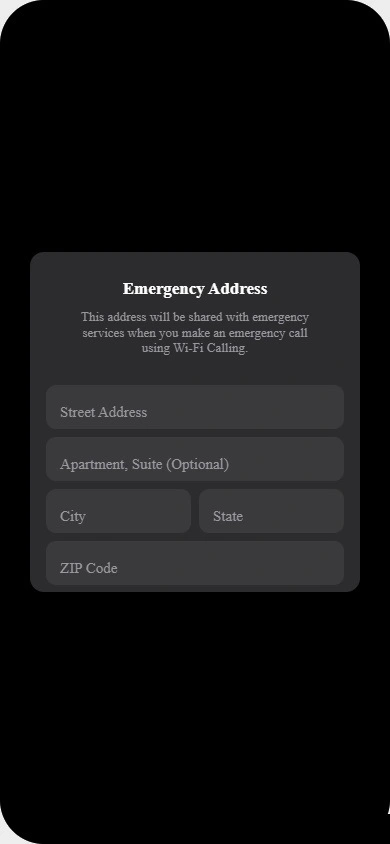
When you first enable WiFi calling, your iPhone will ask you to enter an E911 emergency address. This step surprises a lot of people but it is actually very important.
E911 stands for Enhanced 911. When you call emergency services over a WiFi connection, your carrier cannot automatically detect your location the same way it does over a cell tower. So your iPhone asks you to register a physical address so emergency responders know where to reach you.
Enter your home address or the address where you use WiFi calling most often. You can always update this later by going to Settings, tapping Phone, and selecting WiFi Calling.
Do not skip this step. It only takes a moment and it ensures that if you ever need to call emergency services over WiFi, help can reach you at the right location.
How to Check If WiFi Calling Is Actually Working
A lot of people enable WiFi calling, put their iPhone down, and just assume it is working. I did the same thing the first time I set it up. But taking thirty seconds to verify it is actually active will save you from discovering it was never on when you really needed it.
The good news is that checking whether WiFi calling is working on your iPhone is very simple. There are two reliable ways to confirm it.
What the WiFi Calling Icon Looks Like on Your Status Bar
Once WiFi calling is enabled and your iPhone is connected to a WiFi network, your status bar will show you a clear visual signal.
Look at the top of your iPhone screen where your carrier name appears. When WiFi calling is active, you will see your carrier name followed by the word “WiFi” right next to it. On most iPhones it looks something like “AT&T WiFi” or “T-Mobile WiFi” depending on your carrier.
This small label is your confirmation that your iPhone is currently routing calls through your WiFi connection rather than the cellular network.
If you are connected to WiFi but the WiFi label is not showing next to your carrier name, your cellular signal is probably strong enough that your iPhone does not need to switch to WiFi calling yet. That is completely normal. Your iPhone only displays the WiFi calling indicator when it is actively using WiFi for calls.
I always do this quick status bar check right after enabling WiFi calling. It gives me instant peace of mind that the feature is set up correctly.
How to Make a Test Call to Confirm It’s Working
The most reliable way to confirm WiFi calling is working is to make a quick test call while connected to WiFi.
Here is what I recommend doing. Turn your cellular data off temporarily by enabling Airplane Mode, then manually turn WiFi back on. This forces your iPhone to use only the WiFi connection.
Now make a short call to a friend or family member. If the call connects clearly and goes through without any issues, your WiFi calling setup is working perfectly.
Once you finish the test call, simply turn Airplane Mode off and your iPhone returns to normal. Your WiFi calling stays enabled in the background and activates automatically whenever your cellular signal drops.
WiFi Calling on iPhone With Dual SIM Extra Steps You Need
If you use your iPhone with two SIM cards, there are a few extra things you need to know before WiFi calling will work properly. This is one of the most overlooked parts of the setup process and I barely see any other guides covering it properly.
Most articles just explain the basic toggle and move on. But if you have a dual SIM iPhone and you skip these extra steps, WiFi calling may only work on one line or not work at all on the line you actually need it on.
Let me walk you through exactly what to do.
How to Enable WiFi Calling for Each SIM Line
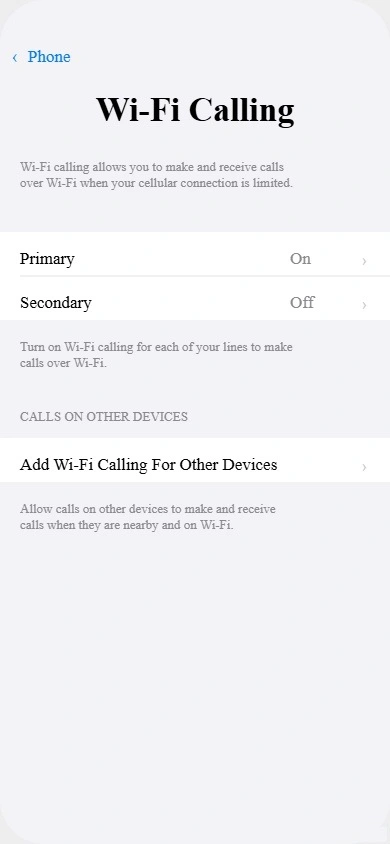
When you have two SIM lines active on your iPhone, WiFi calling needs to be enabled separately for each line. Turning it on for one line does not automatically apply it to the other.
Here is how to set it up for both lines:
- Open the Settings app on your iPhone.
- Tap Phone.
- Tap WiFi Calling.
- You will see both of your SIM lines listed separately.
- Tap on your primary line and toggle on WiFi Calling.
- Go back and tap on your second line and toggle it on as well.
- Confirm each one when the prompt appears.
Both lines now have WiFi calling enabled independently. Your iPhone will use WiFi for whichever line is active during a call when the cellular signal is weak.
One thing I want to point out from my own experience is that some carriers support WiFi calling on dual SIM iPhones and some do not. If you toggle on WiFi calling for one line and the option is missing for the second line, it usually means your second carrier does not support the feature on their plan. In that case you need to contact that carrier directly.
Also keep in mind that both lines need to be set up with their own E911 emergency address separately. Do not skip this for either line.
Does WiFi Calling Work With eSIM on iPhone?
Yes, WiFi calling works with eSIM on iPhone and it works really well. In 2026 eSIM is incredibly common, especially on iPhone 14 and iPhone 15 models sold in the United States which are eSIM only with no physical SIM card tray at all.
If your iPhone uses an eSIM, the setup process is exactly the same as a physical SIM. You go to Settings, tap Phone, tap WiFi Calling, and enable it for your eSIM line just like any other line.
The only requirement is that your carrier must support WiFi calling on eSIM plans specifically. Most major carriers including AT&T, T-Mobile, and Verizon fully support WiFi calling on eSIM in 2026. However some smaller MVNOs are still catching up, so it is worth a quick check with your carrier if you are unsure.
I personally use an eSIM on my iPhone 15 and WiFi calling works without any issues. The experience is identical to using it on a physical SIM card. Your iPhone handles everything automatically in the background once it is enabled.
If you have both a physical SIM and an eSIM active at the same time, remember to enable WiFi calling for both lines separately using the steps I shared above. Missing one line is the most common mistake dual SIM users make.
WiFi Calling Not Showing on Your iPhone? Here’s Why
This is the section I wish existed when I first tried to set up WiFi calling. I spent almost twenty minutes looking through my Settings before I figured out why the option was not appearing. If you are in the same situation right now, do not worry. There is always a clear reason and almost always a simple fix.
Let me go through the three most common problems people run into.
WiFi Calling Option Is Grayed Out How to Fix It
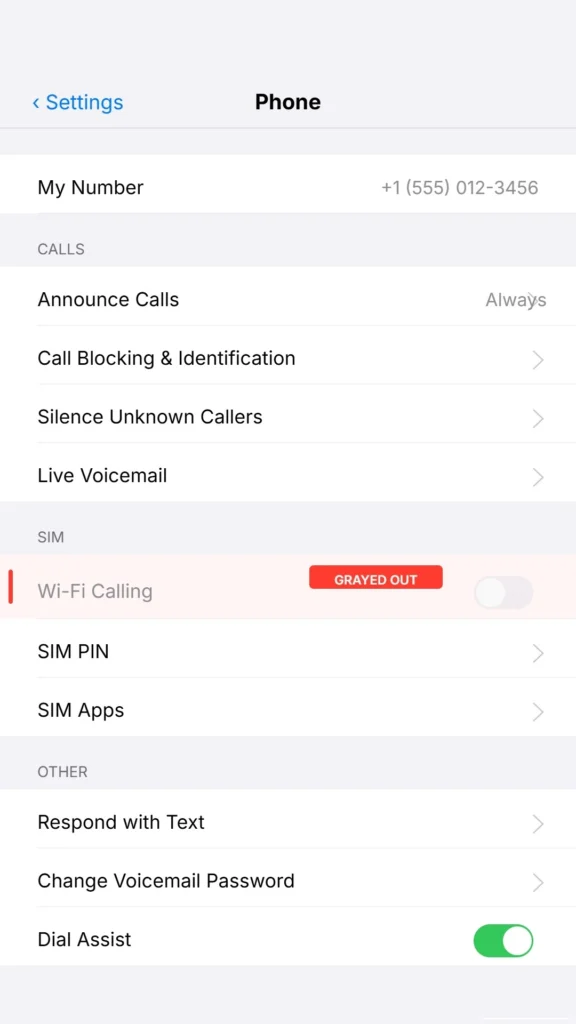
If you can see the WiFi Calling option in your Settings but it appears grayed out and you cannot tap it, this usually means one of two things.
The first possibility is that your carrier settings are outdated. Your iPhone receives carrier setting updates separately from iOS updates and these small updates often unlock features like WiFi calling. To check for a carrier settings update go to Settings, tap General, tap About, and wait a few seconds. If an update is available your iPhone will prompt you to install it automatically.
The second possibility is that Screen Time or a device management profile is restricting your cellular settings. This happens most often on iPhones set up through an employer or school. If someone else manages your iPhone settings they may have locked this feature. Contact whoever manages your device to get it unlocked.
After checking both of these, restart your iPhone and check again. A simple restart fixes the grayed out issue more often than people expect.
WiFi Calling Not Showing in Settings at All
If you go to Settings, tap Phone, and the WiFi Calling option is completely missing with no sign of it anywhere, the most likely reason is that your carrier does not support WiFi calling on your current plan.
Here is what I recommend doing in this situation:
- Contact your carrier and ask directly whether your plan includes WiFi calling
- Ask if a carrier settings update is available for your account
- Check whether your iPhone model supports WiFi calling on that specific carrier
Before assuming your carrier is the problem, also make sure your Settings app and Phone section are fully visible. Sometimes apps and options get hidden accidentally. Check out this guide on how to unhide apps on iPhone to rule that out first.
It is also worth checking that your iPhone is running the latest version of iOS. Older iOS versions occasionally hide or restrict features that newer versions display properly. Go to Settings, tap General, tap Software Update, and install any available update.
If your carrier confirms they support WiFi calling but the option still does not appear, ask them to refresh your account settings on their end. This sometimes pushes the feature through to your device within a few minutes.
WiFi Calling Not Working After Setup Quick Fixes
You turned on WiFi calling, everything looked correct, but calls are still dropping or going through cellular even with strong WiFi. Here are the quick fixes I always try first.
- Restart your iPhone completely and reconnect to WiFi
- Forget your WiFi network and reconnect to it fresh
- Toggle WiFi calling off and back on again in Settings
- Make sure your WiFi router is working properly and the connection is stable
- Check that your carrier account is active and in good standing
In most cases one of these steps resolves the issue within minutes. WiFi calling not working after setup is almost always a temporary glitch rather than a serious problem.
If restarting does not fix it, it is also worth doing a quick maintenance check on your iPhone. Clearing old app cache can sometimes resolve background connectivity glitches. Here is exactly how to clear app cache on iPhone in 2026
Where WiFi Calling Helps the Most (and Where It Won’t)
One thing I learned after using WiFi calling for a while is that it is genuinely brilliant in certain situations and completely useless in others. Understanding where it works best helps you get the most out of it and stops you from being frustrated when it does not deliver what you expect.
Let me share exactly where WiFi calling shines and where it simply cannot help you.
Best Places to Use WiFi Calling on iPhone
WiFi calling solves a very specific problem. It steps in when your cellular signal is too weak to make a reliable call but you still have access to a stable internet connection. These are the situations where it makes the biggest difference.
Inside your home. This is the most common use case. Many homes have dead zones where cell signal barely reaches, especially rooms far from windows or in the center of the building. With WiFi calling your iPhone connects calls through your home router instead and the call quality is noticeably better than struggling on one bar of cellular signal.
In office buildings and large indoor spaces. Thick concrete walls, steel structures, and underground floors all block cellular signals effectively. I have been in office buildings where my phone showed no service at all, but WiFi calling kept me fully reachable the entire time through the building’s WiFi network.
In basements. Basements are one of the worst places for cellular signal. WiFi calling is often the only reliable way to make and receive calls when you are working or spending time below ground level.
In rural areas with home internet. If you live somewhere with limited cell tower coverage but you have a broadband internet connection at home, WiFi calling is genuinely a practical solution for staying connected without switching carriers.
During travel in WiFi equipped spaces. Hotels, airports, cafes, and co-working spaces all offer WiFi. If you are traveling and your roaming cellular signal is weak, connecting to local WiFi and making calls through WiFi calling can work very well.
When WiFi Calling Won’t Work Even With WiFi
This is just as important to understand. WiFi calling is not a universal fix for every connectivity problem and there are clear situations where it will not help you at all.
When your WiFi connection itself is unstable. WiFi calling needs a steady and reasonably fast internet connection to deliver good call quality. If your WiFi signal is weak or your internet speed is very slow, call quality will be poor and calls may drop just as they would on a weak cellular signal.
When you are outdoors without WiFi access. WiFi calling only works when your iPhone is connected to a WiFi network. If you are outside with no WiFi nearby, your iPhone falls back entirely to cellular. There is no WiFi calling without an actual WiFi connection.
When your carrier’s servers are down. Since your carrier still manages the call routing even over WiFi, any outage on their end affects WiFi calling too.
On completely unknown or restricted public networks. Some public WiFi networks block VoIP traffic entirely. This means certain hotel networks, airport networks, or workplace networks may prevent WiFi calling from working even though you appear connected to WiFi.
Understanding these limitations helps you set realistic expectations and plan accordingly whenever you are relying on your iPhone to stay connected.
What Happens When You Leave Home During a WiFi Call?
This is one of the most common questions I get and the answer is genuinely impressive once you understand how your iPhone handles it.
When you are on an active WiFi call and you walk out of your home or move out of range of your WiFi network, your iPhone does not drop the call. Instead it automatically hands the call over to your cellular network in the background. The transition happens seamlessly and the person you are speaking with does not notice any interruption at all.
I have tested this multiple times by walking out of my front door mid call. The call stays connected the entire time. Your iPhone detects that the WiFi signal is fading and switches to cellular before the connection actually breaks.
The only situation where this handover does not work smoothly is if you have no cellular signal at all in the area you are walking into. In that case the call will eventually drop because there is no network available to take over from WiFi. But as long as you have even a basic cellular signal outside, your call will continue without any issues.
This seamless call handover between WiFi and cellular is one of the most practical and underappreciated things about WiFi calling on iPhone.
Does WiFi Calling Use Your Data or Phone Minutes?
This is probably the most frequently asked question about WiFi calling and I want to give you a clear and direct answer.
WiFi calling does not use your mobile data allowance. It uses your internet connection to carry the call but it does not count against your cellular data plan.
However WiFi calls do count as regular minutes from your carrier plan. So if your plan includes unlimited calling you have nothing to worry about. If your plan has a limited number of minutes each month your WiFi calls will count toward that limit just like any other phone call.
How to Turn Off WiFi Calling on iPhone
Turning off WiFi calling on your iPhone is just as simple as turning it on. The whole process takes about fifteen seconds and you can switch it back on anytime you want.
Here is exactly what to do:
- Open the Settings app on your iPhone.
- Tap Phone.
- Tap WiFi Calling.
- Toggle off WiFi Calling on This iPhone.
That is all it takes. Your iPhone will immediately stop routing calls through WiFi and return to using your cellular network exclusively.
When You Should Turn WiFi Calling Off
Most of the time I recommend keeping WiFi calling enabled because it works silently in the background and only activates when your cellular signal actually needs it. But there are a few specific situations where turning it off makes sense.
When you are traveling internationally. Some carriers charge extra fees for WiFi calling when you are roaming abroad. Before you travel internationally I always recommend checking with your carrier whether WiFi calling on foreign networks affects your bill in any way.
When call quality sounds poor on a specific network. Occasionally a particular WiFi network delivers inconsistent call quality. If you notice this happening regularly on a specific network, temporarily disabling WiFi calling and switching back to cellular can improve your call experience.
When your employer or IT policy requires it. Some workplace networks restrict VoIP traffic and your IT team may ask you to disable WiFi calling while connected to the company network.
Outside of these situations there is really no reason to turn WiFi calling off. It is a background feature that helps you stay connected and does not interfere with anything else on your iPhone.
Is WiFi Calling on iPhone Safe and Secure?
I get asked this question regularly and the answer is straightforward. Yes, WiFi calling on iPhone is safe and secure.
When you make a WiFi call your carrier encrypts the call using the same security protocols they use for regular cellular calls. The encryption happens at the carrier level which means your conversation is protected regardless of which WiFi network you are connected to.
You do not need to worry about someone on the same public WiFi network intercepting your call. The carrier’s encryption handles that protection automatically.
One practical tip I always share is to make sure your iPhone is running the latest iOS version. Apple regularly releases security updates and keeping your software current ensures you always have the strongest available protection for every feature including WiFi calling.
Mistakes People Make When Setting Up WiFi Calling
Even though enabling WiFi calling on iPhone is straightforward, I have seen the same mistakes come up again and again. Some of these confused me personally when I first started using the feature. Knowing these common errors upfront will save you time and prevent unnecessary frustration.
Confusing WiFi Calling With FaceTime or WhatsApp
This is probably the most common misunderstanding I come across. A lot of people think WiFi calling is the same thing as making a FaceTime audio call or a WhatsApp call. They are actually very different and understanding the difference matters.
FaceTime and WhatsApp are internet based calling apps. They work through their own platforms and the person you call also needs the same app installed on their device. These calls do not use your carrier at all and they do not show up as phone calls on either person’s bill.
WiFi calling is completely different. It uses your regular phone number and works through your carrier just like a normal phone call. The person you call does not need any app. They just receive a standard call on their phone. The only difference is that your iPhone routes that call through WiFi instead of a cell tower when your signal is weak.
I always explain it this way. FaceTime and WhatsApp replace your phone call. WiFi calling improves your phone call. They serve different purposes and both have their place.
So if someone tells you to just use WhatsApp instead of enabling WiFi calling, they are solving a different problem. WiFi calling keeps your regular phone number working reliably everywhere.
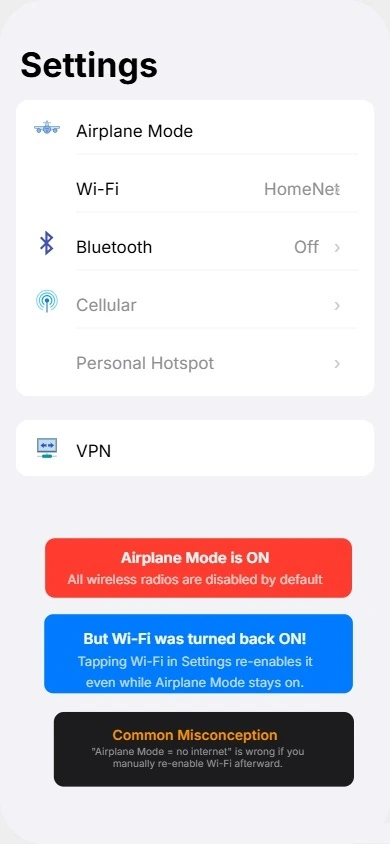
Thinking WiFi Calling Works in Airplane Mode
This mistake catches a lot of people off guard and I completely understand why. The logic seems to make sense at first. If WiFi calling works over the internet, surely it should work in Airplane Mode with WiFi turned on?
Unfortunately it does not work that way. When you enable Airplane Mode your iPhone disconnects from your carrier’s network entirely. And since WiFi calling still requires your carrier to authenticate and route the call, no carrier connection means no WiFi calling.
You can turn WiFi back on manually while in Airplane Mode and still browse the internet or use messaging apps. But WiFi calling specifically will not function because the carrier side of the connection is completely off.
If you need to make a phone call and you are in Airplane Mode, turn Airplane Mode off completely. WiFi calling will then work normally as long as you are connected to a WiFi network.
Frequently Asked Questions
Does WiFi Calling Work Without a SIM Card?
No. WiFi calling still requires an active SIM card and a valid carrier plan. Your carrier authenticates every call even when it travels over WiFi. Without a SIM card your iPhone has no carrier connection to route the call through, so WiFi calling simply will not work.
Is WiFi Calling Free on iPhone?
Enabling WiFi calling itself is completely free. There is no extra charge or subscription required to turn it on. However WiFi calls count as regular minutes from your existing carrier plan. If your plan includes unlimited calling you will not pay anything extra. If your plan has a fixed minute limit your WiFi calls count toward that limit just like any standard phone call.
Does WiFi Calling Drain iPhone Battery Faster?
Slightly, but not in any significant way you will notice in daily use. WiFi calling keeps your WiFi radio active during calls which uses a small amount of extra power. However it is actually less battery intensive than your iPhone constantly searching for a weak cellular signal in a dead zone. In most real world situations WiFi calling is better for your battery than struggling on poor cellular coverage.
Can I Use WiFi Calling on My iPad or Mac Too?
Yes. Apple allows you to extend WiFi calling to your iPad and Mac through a feature called iPhone Cellular Calls. Both devices need to be signed into the same Apple ID and connected to the same WiFi network as your iPhone. Once set up you can make and receive calls on your iPad or Mac using your iPhone number without picking up your phone.
Does WiFi Calling Work in Airplane Mode?
No. Airplane Mode disconnects your iPhone from your carrier network entirely. Since WiFi calling needs your carrier to authenticate and route calls it cannot function without that carrier connection. You can turn WiFi back on manually in Airplane Mode for browsing but WiFi calling will still not work until you turn Airplane Mode completely off.
Final Thoughts: Start Making Calls Even Without Cell Signal
WiFi calling is one of those iPhone features that quietly makes your life better the moment you turn it on. It works in the background, asks nothing of you, and steps in exactly when your cellular signal lets you down.
I have been using WiFi calling for years and honestly I forget it is even running most of the time. That is exactly how a good feature should work. You enable it once and your iPhone handles everything automatically from that point forward.
Whether you spend time in a basement, work in a building with poor reception, live in a rural area, or simply have a dead zone somewhere in your home, WiFi calling fills that gap reliably and without any extra cost.
The setup takes less than two minutes. Your carrier does all the heavy lifting. And you never have to worry about missing an important call just because your cell signal is weak.
Go to your Settings right now, tap Phone, and turn on WiFi calling. It is genuinely one of the simplest and most useful things you can do for your iPhone today.