
Can You Really Get Deleted Android Apps Back?
Yes, you can recover deleted apps on Android. And honestly, this is one of those situations where the answer is much simpler than most people expect.”
When I first accidentally deleted app on my Android phone that I had been using for months, my immediate reaction was panic. I thought it was gone forever along with everything connected to it. But here is what I learned quickly about android app recovery: Android does not actually delete your app history when you uninstall something.
Google Play Store keeps a permanent record of every single app you have ever downloaded to your Google Account, regardless of when you deleted it.
That last part matters more than people realize. It does not matter if you deleted the app yesterday or over a year ago. The history stays attached to your Google Account and the app remains available for reinstallation whenever you need it.
You can recover deleted apps on Android in almost every situation because the Play Store tracks your download history permanently, not temporarily.
So if you are sitting here worried that your deleted app is gone for good, take a breath. In most cases it is not.
What This Guide Actually Covers
Before you dive in, I want to be upfront about one thing. Recovering the app itself and recovering your app data are two completely different things.
Reinstalling a deleted app is usually straightforward and takes about two minutes. Getting your data back, such as your saved game progress or stored files, depends on whether a backup was active before the deletion. I cover app data recovery separately later in this article so you do not confuse the two.
This guide also covers a few scenarios that most other articles skip entirely:
- What to do if you forgot the name of the app you deleted
- How to recover apps that are no longer available in the play store
- Samsung app recovery steps for Galaxy devices and android tablet app recovery for tablets
Whether you accidentally deleted an app five minutes ago or cleared out your phone months back and now regret it, the methods in this article will help you get it back.
The Fastest Way to Recover Deleted Apps on Android (1-Minute Method)
This is the method I recommend to everyone first because it works in almost every situation, costs nothing, and requires no extra tools or apps.
The Google Play Store keeps a complete download history tied to your Google Account and you can use that history to reinstall apps android users have ever downloaded, completely free to recover deleted apps without backup.
Before you start, make sure you have a stable internet connection. This sounds obvious but it is the one thing people overlook and then wonder why the download is not starting. Connect to WiFi if you can, open the Play Store, and then follow the steps below based on your situation.
There are two paths depending on whether you remember the name of the app you deleted or not. Both paths end in the same place: your app downloading back onto your phone.
If You Remember the App Name
This is the fastest possible route to reinstall apps android users need and it takes about 20 seconds
Open the Google Play Store on your Android phone. Tap the search bar at the top and type the name of the app you deleted.
When the app appears in the search results, tap on it and you will see an Install button instead of a price or an Open button. That Install button confirms the app is not currently on your device. Tap Install and the app will start downloading immediately.
That is genuinely all there is to it when you know the name. The Google Play Store recognizes your account history and reinstalls the app just as it was before.
If You Forgot the App Name (Browse Your Full App History)
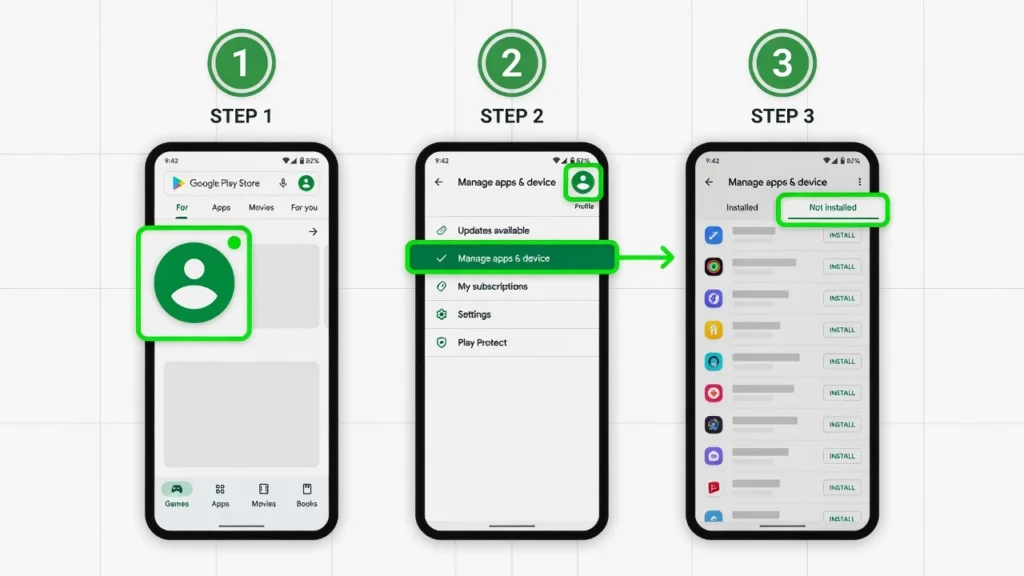
This is where most people get stuck and where the real magic of the app history android system comes in. Even if you have absolutely no idea what the app was called, you can still find deleted apps on android by browsing your complete download history.
If you’re more of a visual learner, this video walkthrough shows the entire process in real-time on an actual Android device:
Here is the exact step-by-step path:
Step 1: Open the Google Play Store on your Android device.
Step 2: Tap your profile icon in the top right corner of the screen. This is the circular icon showing your account photo or initial.
Step 3: From the menu that appears, tap “Manage apps and device.”
Step 4: At the top of the next screen you will see two tabs. Tap the one labeled “Manage.”
Step 5: You will now see a list of apps currently installed on your phone. Tap the button that says “Installed” to open a small dropdown menu.
Step 6: Select “Not installed” from the dropdown options.
Your full Play Store download history will now appear. This list shows every app you have ever downloaded to your Google Account that is not currently installed on your device.
The Play Store download history is permanent, meaning recently deleted apps android users removed months ago or even over a year ago will still appear in this list.
One thing I want to point out here: recently deleted apps usually appear near the top of the list, so if you deleted something in the past few days or weeks you will likely spot it quickly without much scrolling.
Step 7: Scroll through the list and find the app you want to recover. Tap the checkbox next to the app name to select it.
Step 8: Tap the download icon that appears in the top right corner of the screen to begin reinstalling the selected app.
The app will start downloading and reinstalling onto your Android device automatically.
Pro tip worth knowing: You can select multiple apps at the same time by tapping the checkbox next to each one before hitting the download icon. If you deleted several apps and want them all back, you do not need to reinstall them one by one. Select all of them first and then tap download once to restore everything in a single batch.
This entire process works without any backup, without connecting to a computer, and without any third-party tools. The Google Play Store app history is all you need, and it is available to every Android user with a Google Account.
3 More Ways to Find Hidden Apps Android Users Think Are Deleted
Before you go through the full recovery process, I want to save you some time by pointing out something important. Sometimes an app is not deleted at all. It is just hidden somewhere on your device.
I have seen this happen more times than I can count. Someone thinks they deleted an app and starts searching through their Google Play Store history, only to discover later that the app was sitting in their Android settings the entire time, either disabled or tucked away in a hidden apps folder.
Android allows apps to be disabled, hidden, or simply removed from the home screen without being uninstalled. If any of these things happened, the app is still on your phone and you do not need to download anything. You just need to know where to look.
Here are three quick checks you should do before assuming the app is fully deleted.
Check for Disabled Apps Android Settings
Disabled apps android users often forget about are still installed on your Android device but they stop running and disappear from your app drawer. This happens most often with pre-installed apps that came with your phone, especially system apps you tried to remove but could only disable instead.
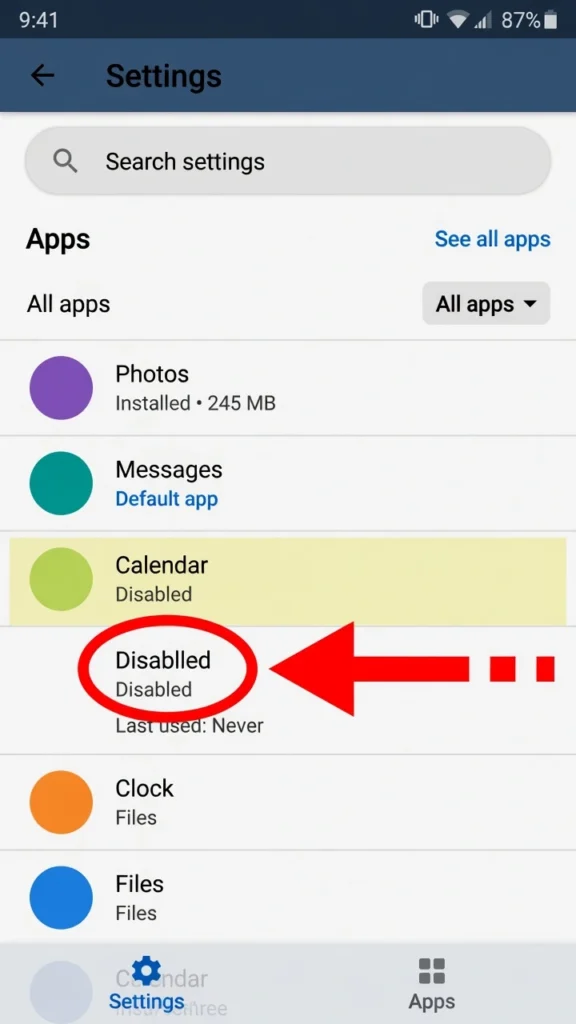
To check if an app is disabled rather than deleted, open your Android settings and tap on “Apps” or “Applications.” On most Android devices you will see a list of installed apps. Tap the three-dot menu icon in the top right corner and select “Show system apps” or “Show all apps.”
Scroll through the full list of apps and look for the one you think is missing. If you find the app listed there and it says “Disabled” next to the name, that means the app was never deleted.
Tap on the app name and then tap the “Enable” button. The app will reappear in your app drawer and on your home screen within a few seconds.
This is the most common reason people think an app is gone when it is actually just turned off in the Android settings.
Look for Hidden Apps Android Launchers Can Hide
Some Android launchers, including Samsung One UI, Xiaomi MIUI, and third-party launchers like Nova Launcher, let you hide apps from the app drawer without uninstalling them. Hidden apps android users accidentally hide are fully functional and still installed, but they do not show up when you swipe up to view your apps.
If you or someone else using your phone accidentally enabled the hide apps feature, the missing app might be sitting in a hidden apps list.
To check for hidden apps, open your app drawer and look for a settings icon, usually represented by three dots or a gear icon. Tap that icon and look for an option labeled “Hide apps,” “Hidden apps,” or “App hiding.” The exact wording depends on your device manufacturer and launcher.
If you find a hidden apps section, open it and check the list. If your missing app is there, simply uncheck the box next to the app name or tap “Unhide” to bring the app back to your normal app drawer.
This feature exists to help people keep certain apps private, but it can also cause confusion when someone forgets they hid something.
Restore Missing Home Screen Shortcut Android Users Need
This is the simplest situation of all and it happens more often than you would think. The app is fully installed and working perfectly fine, but the home screen shortcut for the app got deleted. When that happens, people open their home screen, do not see the app icon, and assume the entire app is gone.
A missing home screen icon does not mean the app itself is deleted. The app could still be sitting in your app drawer waiting to be opened.
Swipe up from the bottom of your home screen to open your full app drawer. Scroll through the list and look for the app you think is missing. If you find the app there, the problem is not that the app was deleted. The problem is just that the shortcut disappeared from your home screen.
To restore the home screen shortcut on Android, long-press the app icon in your app drawer. After a second, your home screen will appear in the background. Drag the app icon to the spot on your home screen where you want it to sit, then release your finger. The app icon will stay there and you can open the app directly from your home screen again.
Some Android devices also have an “Add to Home Screen” option that appears when you long-press an app in the app drawer. If you see that option, tap it and the icon will be added automatically.
Recovering Deleted Apps on Specific Devices (Samsung, Tablets, Android TV)
The standard Google Play Store method I covered earlier works on nearly every Android device, but certain devices have extra features or quirks that are worth knowing about. If you use a Samsung Galaxy phone, an Android tablet, or an Android TV box, there are a few device-specific tips that can make app recovery easier or give you additional options the standard method does not cover.
I want to highlight these because most recovery guides ignore device differences completely and assume everyone is using the exact same version of Android on the exact same type of phone. That is not how the real world works, and knowing your specific device can save you from unnecessary frustration.
Recovering Apps on Samsung Devices (Check Galaxy Store Too)
Samsung Galaxy phones and tablets have access to two app stores instead of one. Most people know about the Google Play Store, but Samsung devices also come with the Galaxy Store, which is Samsung’s own app marketplace.
If you originally downloaded an app from the Galaxy Store rather than the Google Play Store, that app will not appear in your Google Play Store download history. Samsung app recovery for Galaxy Store apps requires checking the Galaxy Store separately.
To check your Galaxy Store download history, open the Galaxy Store app on your Samsung device. Tap the menu icon, usually represented by three horizontal lines in the top left or bottom right corner depending on your version. Look for an option labeled “My apps” or “My page” and tap it.
You will see a list of apps you downloaded from the Galaxy Store. If the app you are looking for appears in this list and is not currently installed, tap the download or install button next to the app name to recover it.
This applies to Samsung Galaxy S series, A series, Note series, and Z series devices. The Galaxy Store is pre-installed on all Samsung Galaxy phones and tablets, so if you own a Samsung device, you have access to this option.
Recovering Apps on Android Tablets
The good news is that Android tablet app recovery works exactly the same way as it does on Android phones. The Google Play Store method I described earlier applies to tablets without any changes to the actual steps.
The only difference is visual. Tablets have larger screens and the Google Play Store interface adjusts to take advantage of that extra space. Buttons and menus might appear in slightly different positions compared to what you see on a phone, but the navigation path remains identical.
Open the Google Play Store on your Android tablet, tap your profile icon in the top right corner, select “Manage apps and device,” switch to the “Manage” tab, and change the filter from “Installed” to “Not installed.” Your full download history will appear and you can reinstall any app from that list just like you would on a phone.
If you use a Samsung Galaxy Tab, remember that you also have access to the Galaxy Store as a second app source, just like Samsung phones do.
How to Recover Pre-Installed System Apps You Disabled
This is a tricky situation that confuses a lot of people. Pre-installed apps that came with your Android device, such as the default Phone app, Messages app, or Camera app, cannot be fully deleted the way regular downloaded apps can. Android system apps can only be disabled, not uninstalled.
When you disable a system app, the app disappears from your home screen and app drawer, which makes it look like the app was deleted. But the app is still on your device, just turned off.
To recover system apps on Android, open your device settings and tap “Apps” or “Applications.” Tap the three-dot menu icon in the top right corner and select “Show system apps” to display the full list of apps including hidden system apps.
Scroll through the list and find the app you want to recover. If the app shows a status of “Disabled,” tap on the app name to open the app info page. You will see a button labeled “Enable” or “Turn on.” Tap that button and the Android system app will be restored to your app drawer and home screen immediately.
One important warning here. Some system apps, especially core components like the Settings app or system launcher, can be extremely difficult or even impossible to re-enable once disabled. If you disabled a critical system app and the Enable button is grayed out or missing, a factory reset might be the only way to fully restore the app.
That is why I always recommend being very careful before disabling any app labeled as a system app. Regular downloaded apps can be deleted and reinstalled freely, but system apps are a different situation entirely.
What If the App Is No Longer Available on the Play Store?
This is one of the most frustrating situations you can run into when trying to recover a deleted app. You search for the app in the Google Play Store, and nothing shows up. You check your download history using the “Not installed” filter, and the app is either missing from the list or shows up but has no install button available.
When an app is not available in the Play Store, it usually means the developer removed the app, Google pulled it for policy violations, or the app was region-locked and is no longer accessible in your country. Whatever the reason, the standard Play Store recovery method will not work in this case.
But that does not mean the app is completely unrecoverable. There are still a few legitimate options you can try, and I want to walk you through each one so you know exactly what to do and how to stay safe while doing it.
Option 1: Check Your Downloads Folder for the APK File
If you originally installed the app by downloading an APK file instead of installing it directly from the Google Play Store, there is a chance the APK file is still sitting in your phone’s Downloads folder. An APK file on Android is the installation package for an app, similar to an EXE file on Windows.
Open your file manager app on Android. Most Android devices come with a built-in file manager, often labeled as “Files,” “My Files,” or “File Manager.” If you cannot find one, you can download a free file manager from the Play Store such as Files by Google.
Once the file manager is open, navigate to the “Downloads” folder. Look through the list of files for anything ending with the .apk extension. If you find an APK file with a name that matches the app you are looking for, tap on the file to begin installation.
Android will ask you to confirm that you want to install the app. Tap “Install” and the app will be reinstalled onto your device exactly as it was before, without needing the Google Play Store at all.
This method only works if the APK file is still on your device. If you have cleared your downloads or the app was originally installed from the Play Store rather than sideloaded, the APK file will not be there.
Option 2: Download the APK from Trusted Sources (Safety Tips)
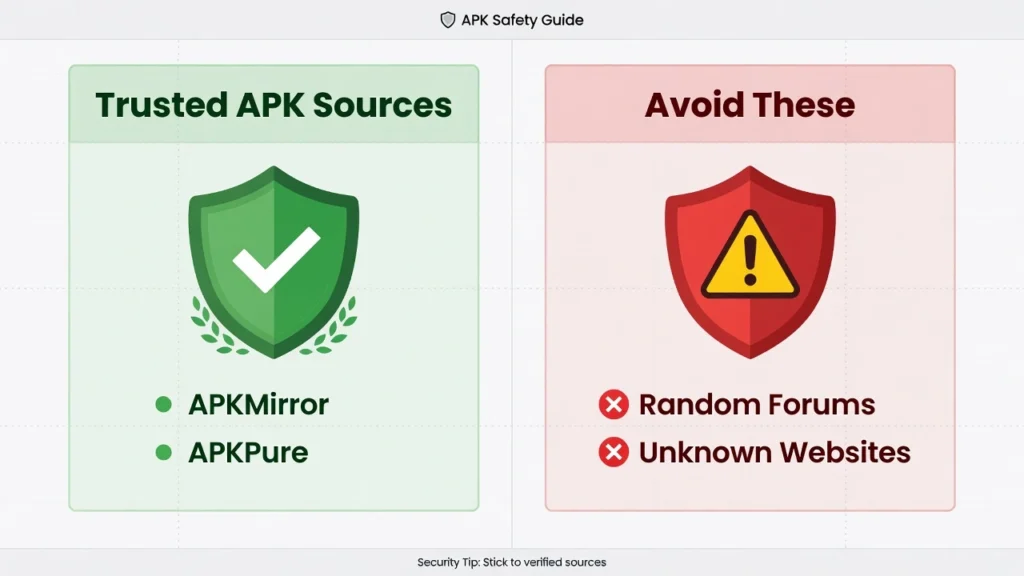
If the APK file is not in your Downloads folder, your next option is to download the APK file from a trusted third-party source. I want to be very clear here: downloading APK files from random websites can be risky. Some sites distribute modified or infected APK files that can harm your device or steal your data.
However, there are a few well-known and reputable sites that host verified APK files for legitimate apps. The two I trust most are APKMirror and APKPure. Both of these sites verify the APK files they host to ensure they have not been tampered with, and they clearly label app versions, developers, and file sizes.
To download an APK file safely, visit APKMirror or APKPure using your phone’s web browser. Search for the app you want to recover, select the correct version, and tap the download button. The APK file will download to your phone’s Downloads folder.
Before you can install the APK file, you need to give your browser or file manager permission to install apps from unknown sources. Go to your Android settings, tap “Apps” or “Security,” and look for an option labeled “Install unknown apps” or “Unknown sources.” Find your browser or file manager in the list and enable the permission.
Once the permission is enabled, open your file manager, navigate to the Downloads folder, tap the APK file, and follow the on-screen prompts to install the app.
A few safety warnings I want to mention:
- Only download APK files from trusted sources like APKMirror or APKPure. Avoid random forums, file-sharing sites, or unfamiliar websites.
- Check the app permissions before installing. If a simple calculator app is asking for access to your contacts and messages, something is wrong.
- If you have antivirus software on your Android device, scan the APK file before installing it.
APK files are completely safe when downloaded from legitimate sources, but they do require more caution than installing apps directly from the Google Play Store.
Option 3: Contact the App Developer Directly
If the app was removed from the Play Store but the developer is still active, reaching out to the developer directly can sometimes help. Some developers remove apps from the Play Store temporarily due to policy issues or rebranding but continue to offer the app through their own website or a different platform.
Search for the app developer’s official website or social media pages. Many developers have contact forms, support emails, or community forums where you can ask about app availability. Explain that you are looking for the app and ask if they offer a direct download link or have moved to a different app store.
In some cases, developers have migrated their apps to alternative platforms or rebranded under a new name. If that happened, the developer can point you to the new version so you can continue using the app without interruption.
How to Recover Deleted App Data on Android (What’s Possible and What’s Not)
Recovering the app itself and recovering your app data are two completely different challenges, and I think this is where most people get disappointed. You can reinstall a deleted app in about 30 seconds using the methods I covered earlier, but getting your data back, such as your game progress, saved files, or app settings, depends entirely on whether a backup was active before you deleted the app.
How to recover deleted app data on Android depends on whether Google backup was enabled or whether the app uses its own cloud storage. If neither of those things was set up before deletion, most app data is permanently lost and cannot be recovered.
I know that is not the answer people want to hear, but I would rather be honest with you upfront than give you false hope. Let me break down what is actually possible and what is not so you know exactly where you stand.
What App Data Google Backup Actually Saves
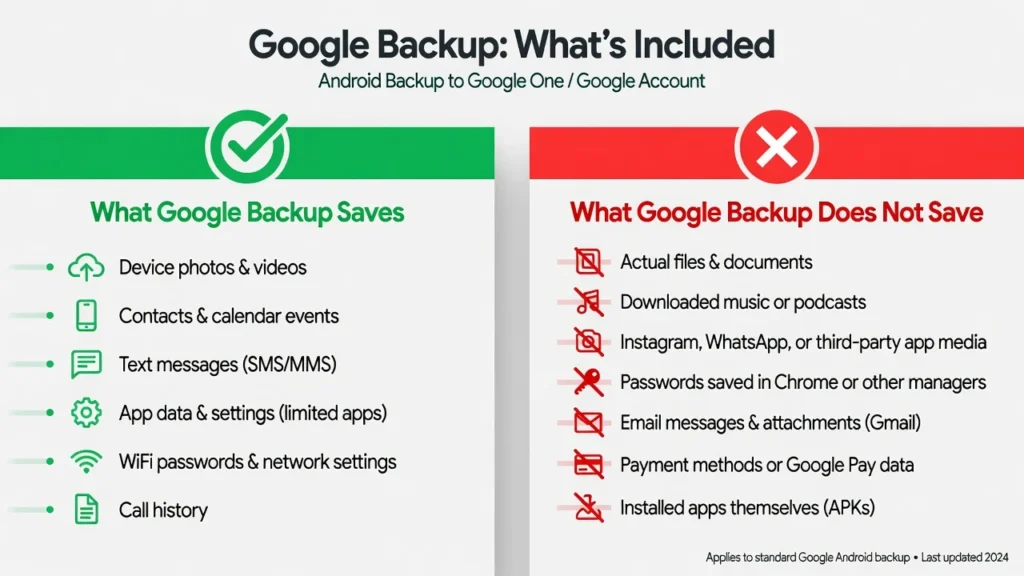
Google provides a built-in backup feature through your Google Account that automatically backs up certain types of data from your Android device. This feature is called Android Google Account Backup, and when it is enabled, Google saves some app data to Google Drive automatically in the background.
Here is what Google Backup typically includes:
- Your app list, meaning which apps were installed on your device
- Some app settings and preferences, but only if the app developer programmed the app to support Google’s backup system
- Text messages and call history on some Android devices depending on your manufacturer
- Device settings such as WiFi passwords and wallpaper choices
- Contacts, calendar events, and photos if Google Contacts, Calendar, and Photos sync is turned on
Now here is what Google Backup does NOT include:
- Game progress unless the game uses its own cloud save feature tied to an account login
- Media files stored locally inside apps unless those files were also synced to Google Photos or Google Drive separately
- Login credentials and passwords for most apps, meaning you will need to sign in again after reinstalling
- Large app files or downloaded content within apps
One critical thing to understand: even if you reinstall an app that was previously backed up, you will almost always need to sign in again. Social media apps, banking apps, email apps, and games that require accounts do not restore your login session automatically. This is a security feature, not a flaw, but it catches people off guard.
If the app you deleted required a login and you do not remember your username or password, recovering the app will not help you access your account. You will need to recover your login credentials separately through the app’s password reset process.
How to Restore Apps and Data from Google Backup
If Google Backup was enabled on your Android device before you deleted the app, there is a chance some of your app data can be restored. The restoration process depends on how much data you want to recover and whether you are willing to reset your device.
To check if a Google Backup exists for your device:
Open your Android settings and tap “Google.” Look for an option labeled “Backup” or “Backup and Restore.” Tap on that option and you will see a list of what was last backed up and when the last backup occurred.
If the backup date is recent and shows app data included, your data might be recoverable.
Full restore during device setup:
The most reliable way to restore apps from Google Backup is during the initial setup of a new or factory-reset Android device. When you turn on a new phone or reset your current phone, Android will ask if you want to restore from a previous backup. Select your Google Account and choose the most recent backup. Android will reinstall your apps and attempt to restore any app data that was included in the backup.
This method works well but requires a factory reset, which means erasing everything currently on your device. I only recommend this option if you are setting up a new phone or if the lost app data is critical enough to justify wiping your current device.
Selective app restore without factory reset:
If you do not want to reset your device, you can try a selective restore by reinstalling the app manually and hoping the app data syncs automatically. Reinstall the app using the Google Play Store method I described earlier. Open the app and sign in with the same account you used before deleting the app.
If the app uses cloud storage or the developer enabled Android backup and restore support, your data may sync back automatically within a few seconds or minutes. Apps like Google Keep, Spotify, and most popular games with account login features handle this well.
However, if the app stored data locally without cloud sync, reinstalling will give you a fresh installation with no data carried over.
What to Do If No Backup Exists (Data Is Lost)
If Google Backup was not enabled before you deleted the app and the app did not use its own cloud storage, the data is almost certainly gone permanently. Android does not keep hidden copies of app data after an app is uninstalled, and there is no system-level trash bin or recently deleted folder for app data the way there is for photos on some devices.
Some third-party recovery tools claim they can recover app data from deleted apps, but in my experience, the success rate is extremely low unless the app was deleted very recently and the phone’s storage has not been written over yet. Even then, these tools often require rooting your Android device, which voids warranties and introduces security risks.
If you’ve also accidentally deleted important contacts while cleaning up your phone, you might be wondering about recovering those too. I’ve written a comprehensive guide on how to recover a deleted phone number on iPhone and Android that covers both free and paid recovery methods.
The best thing you can do at this point is prevent this from happening again
How to Prevent Accidental App Deletions in the Future
Now that you have recovered your deleted app, I want to help you make sure this situation does not happen again. There is nothing more frustrating than accidentally deleting an app you use regularly and then having to go through the recovery process every few months because it keeps happening.
The best way to prevent accidentally deleted app scenarios on Android is to enable automatic Google backup and organize your home screen to reduce the chance of mistaken taps. These two steps alone will eliminate about 90% of accidental deletion problems.
Most people delete apps by accident in one of three ways: they long-press an app icon and accidentally hit “Uninstall” instead of moving it, they are trying to clear storage space and delete the wrong app, or someone else using their device deletes something without realizing it was important.
If other people frequently use your Android device and you’re worried about them accidentally (or intentionally) deleting your important apps, you might want to consider protecting those apps entirely. I’ve written a detailed guide on how to lock apps on Android using 5 different methods that can prevent unauthorized access and deletion.
All of these situations are preventable with the right settings and organization
Turn On Automatic Google Backup (The #1 Safety Net)
This is the single most important thing you can do to protect yourself from data loss. Even if you accidentally delete an app again in the future, having Android Google Account Backup enabled means your app list and some app data will be preserved automatically without you having to think about it.
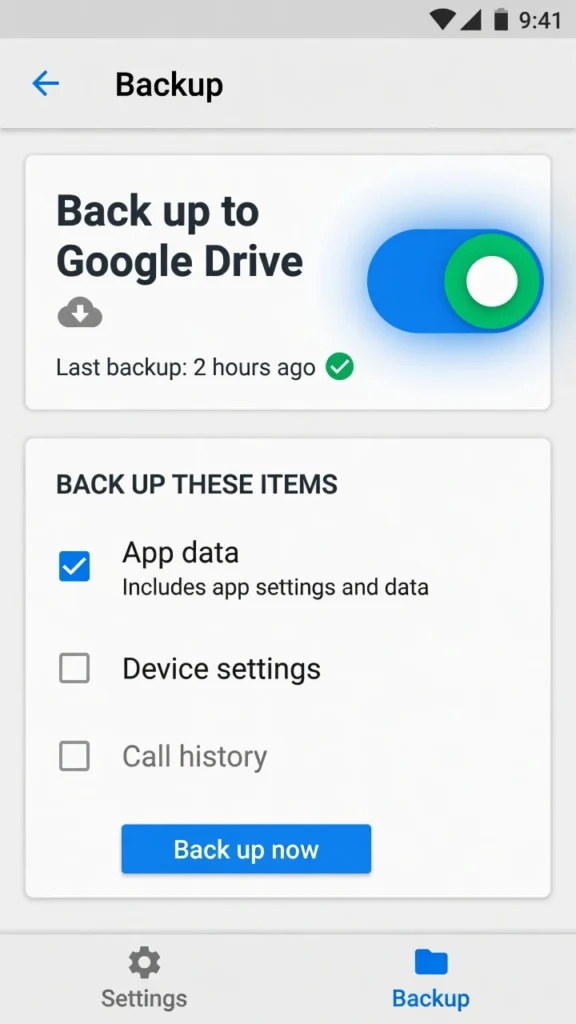
Open your Android settings and tap “Google.” Look for an option labeled “Backup” and tap on it. You will see a toggle switch labeled “Back up to Google Drive.” Turn this toggle on if it is not already enabled.
Below the main toggle, you will see additional backup options. Make sure “App data” is checked so that app settings and some app information get included in your backup. The backup also includes your device settings, SMS messages on some devices, and other important data.
Google performs this backup automatically in the background when your device is connected to WiFi and charging. You do not need to remember to back up manually because Android handles the entire process for you. For complete details about what Google backs up and how to manage your backup settings, you can check Google’s official backup documentation
Once this backup is active, even if you delete an app and lose the data, you will have a recent backup that you can restore from. The backup will not save everything, but it will save enough that losing an app becomes an inconvenience rather than a disaster.
This feature is free, uses your existing Google Account storage, and works on every Android device. There is no reason not to have it enabled.
Organize Your Home Screen to Avoid Accidental Taps
A cluttered home screen with apps scattered everywhere makes it much easier to accidentally tap the wrong thing when you are trying to move or organize apps.
Create folders for similar apps instead of having individual app icons covering your entire home screen. Put all your social media apps in one folder, all your productivity apps in another folder, and all your games in a third folder. This reduces the total number of icons on your home screen and makes everything easier to find.
Keep your most important apps, the ones you would be devastated to lose, in spots that are harder to accidentally tap. Avoid placing critical apps right at the edge of your screen or in the bottom dock where your thumb naturally rests while holding the phone.
If you have apps that you rarely use but do not want to delete, move those apps to a secondary home screen page or put them in a folder labeled “Utilities” or “Other.” This keeps your main home screen focused on the apps you actually use regularly.
Enable Uninstall Confirmation (If Available on Your Device)
Some Android devices and launchers include a setting that requires you to confirm before uninstalling an app. This extra confirmation step can prevent accidental deletions caused by mistaken taps.
Check your Android settings by going to “Apps” or “Applications” and looking for an option labeled “Confirm before uninstall” or “Require confirmation to uninstall.” The exact location of this setting varies depending on your device manufacturer and Android version.
If you use a third-party launcher like Nova Launcher or Microsoft Launcher, check the launcher settings for uninstall protection options. Many custom launchers include features that make it harder to accidentally delete apps by requiring you to hold down the uninstall button for several seconds instead of just tapping it once.
This setting is not available on every Android device, but if your device has it, enabling the confirmation requirement is a simple way to add an extra layer of protection against accidental deletions.
Quick Recap: Your Deleted Apps Are Recoverable
The main thing I want you to remember from this guide is that accidentally deleting an app on Android is almost never a permanent problem. The Google Play Store keeps a complete record of every app you have ever downloaded, and that history does not disappear when you delete apps from your device.
How to recover deleted apps on Android comes down to one primary method that works in nearly every situation: open the Play Store, go to your profile, select “Manage apps and device,” switch to the “Not installed” filter, and reinstall whatever you need. This process works whether you deleted the app five minutes ago or five years ago because your download history is permanently tied to your Google Account.
The most important distinction to understand is that recovering the app and recovering your app data are two separate things. App recovery through the Play Store is reliable and fast. Data recovery depends entirely on whether backup was active before deletion, and in many cases, you will need to sign in to your accounts again after reinstalling.
For the edge cases where the standard method does not work, such as apps that are no longer available on the Play Store or device-specific recovery situations, alternative solutions exist. APK downloads from trusted sources, Samsung Galaxy Store recovery, and system app re-activation can handle most unusual scenarios.
Going forward, enable Google backup on your Android device to protect against future data loss. The backup feature runs automatically in the background and provides a safety net for both your app list and some app data.
Most importantly, do not panic if you accidentally delete an app again in the future. Android app recovery is straightforward once you know where to look, and your apps are almost always recoverable with a few taps.
Frequently Asked Questions About Recovering Deleted Android Apps
Can I recover an app I deleted months or even years ago?
Yes, absolutely. The Google Play Store keeps a permanent record of every app you have ever downloaded, regardless of how long ago you deleted it.
Your app history on Android is tied to your Google Account with no time limit, so even very old deletions will appear in your “Not installed” list.
Will my app data (game progress, logins, settings) come back automatically?
Usually no. Reinstalling the app brings back the app itself, but your data depends on whether backup was enabled before deletion.
Most apps will start fresh after reinstallation, meaning you will need to sign in again with your username and password.
What if I can’t remember the app name?
Use the Google Play Store “Not installed” list to browse your complete download history visually instead of searching by name.
Recently deleted apps usually appear near the top of the list, so you likely will not need to scroll very far.
Can I recover multiple apps at once?
Yes, tap the checkbox next to each app you want to recover in your “Not installed” list.
Once you have selected all the apps you need, tap the download icon once and all selected apps will reinstall automatically.
What if the app is no longer on the Play Store?
Download the APK file from trusted sources like APKMirror or APKPure, or contact the developer directly for alternative download methods.
You can also check if the developer released the app under a new name or moved to a different platform.