What Kind of Sticker Do You Have? (This Changes How You Delete It)
Not all iPhone stickers work the same way and that matters before you delete anything. The method you use depends entirely on which type you have and picking the wrong path just wastes your time.
I learned this the hard way. I spent a few minutes hunting for a delete option in completely the wrong place because I had no idea there were different sticker types with different deletion paths.
Once I understood the four sticker types, everything clicked.
So let me walk you through each one before we get into the actual steps.
Your iPhone sticker library can hold up to four distinct sticker types, each stored in a slightly different place with its own deletion path. Knowing which one you have before you start saves you from chasing the wrong method..
Custom Photo Cutout Stickers (The Most Common Ones)
These are almost certainly the stickers causing confusion for most people, including me when I first noticed them.
Custom photo stickers on iPhone are created through a feature called Photo Cutout. Open the Photos app, find any image, and long-hold your finger on the main subject. Your iPhone analyzes the image, isolates that subject, and gives you the option to save it. Tap Add Sticker and it goes straight into your sticker library.
The reason so many people find stickers they do not remember making is simple. The Photo Cutout feature is sensitive. A slightly too-long press on any image in your Photos app can trigger it. You tap “Add Sticker” out of curiosity, forget about it, and suddenly your sticker collection has ten faces of your dog that you never intentionally created.
These photo stickers on iPhone are stored in your keyboard sticker panel and show up every time you open stickers in Messages or any other app. They are the most personal type and usually the ones people most want to delete.
The good news is they are also the easiest to remove once you know the right method, which I cover in the next section.
Emoji Keyboard Stickers and Third Party Packs
The remaining three sticker types have nothing to do with your Photos app, which is exactly why people look in the wrong place for the delete option.
Emoji keyboard stickers, including Memoji stickers on iPhone, come built into the iOS keyboard itself. Memoji are the animated characters you create to look like yourself, and iOS automatically generates a full set of sticker poses for each Memoji you make. These do not come from the Photos app. They live inside the emoji keyboard and need a different approach to manage.
Third-party sticker packs are apps you install from the App Store. Developers create themed sticker collections and you download them as standalone apps. Once installed, they connect to your iMessage keyboard and appear alongside your other stickers. Removing these involves uninstalling the app rather than deleting individual stickers one by one.
Finally there are standard emoji-style stickers that Apple includes by default. These are part of the system and cannot be fully deleted, only hidden or reordered.
Once you know which type you have, the rest is straightforward. Jump to the section that matches your situation and follow the steps there.
How to Delete Custom Stickers on iPhone Step by Step
This is the section you came here for. Deleting custom stickers on iPhone is straightforward once you know exactly where to go and what to do. I have done this dozens of times on my own device, and the process takes less than a minute when you follow the right steps.
The most reliable path goes through the Messages app. Whether you are on iOS 17 or dealing with iOS 18 stickers, this method works consistently across both versions.
Let me show you exactly how it works.
How to Remove Stickers From iMessage The Right Starting Point
Open the Messages app and tap into any existing conversation. You do not need to start a new one. The sticker panel only appears from inside the message input area, so being in a chat is the required first step.
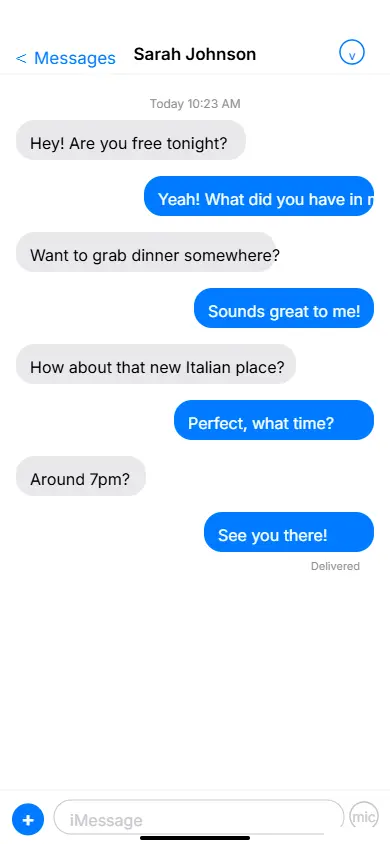
Once you are inside a conversation, look at the bottom of the screen. You will see a text field where you type messages. To the left of that field there is a small plus icon. Tap it.
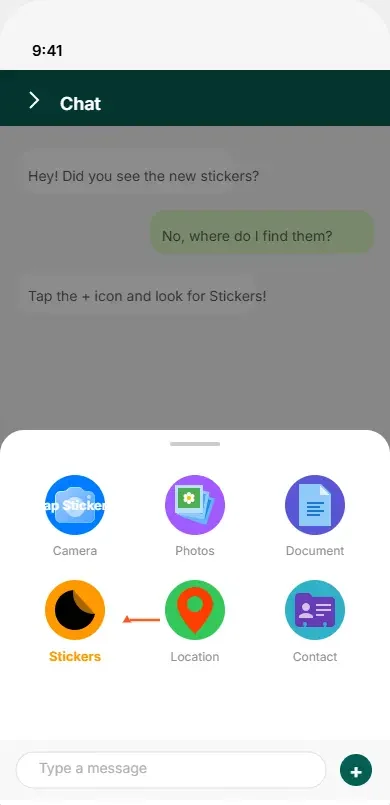
A vertical menu will slide up showing several options. Look for “Stickers” in that list and tap it. This opens your full iphone messages app sticker collection, including every custom photo sticker you have ever created or saved.
Now scroll through the panel until you find the sticker you want to remove.
Delete a Single Sticker (The Exact Steps That Actually Work)
Here is the complete step by step process:
- Open the Messages app on your iPhone
- Tap into any existing conversation
- Tap the plus icon to the left of the text input field
- Select Stickers from the menu that appears
- Scroll through your collection to find the sticker you want to delete
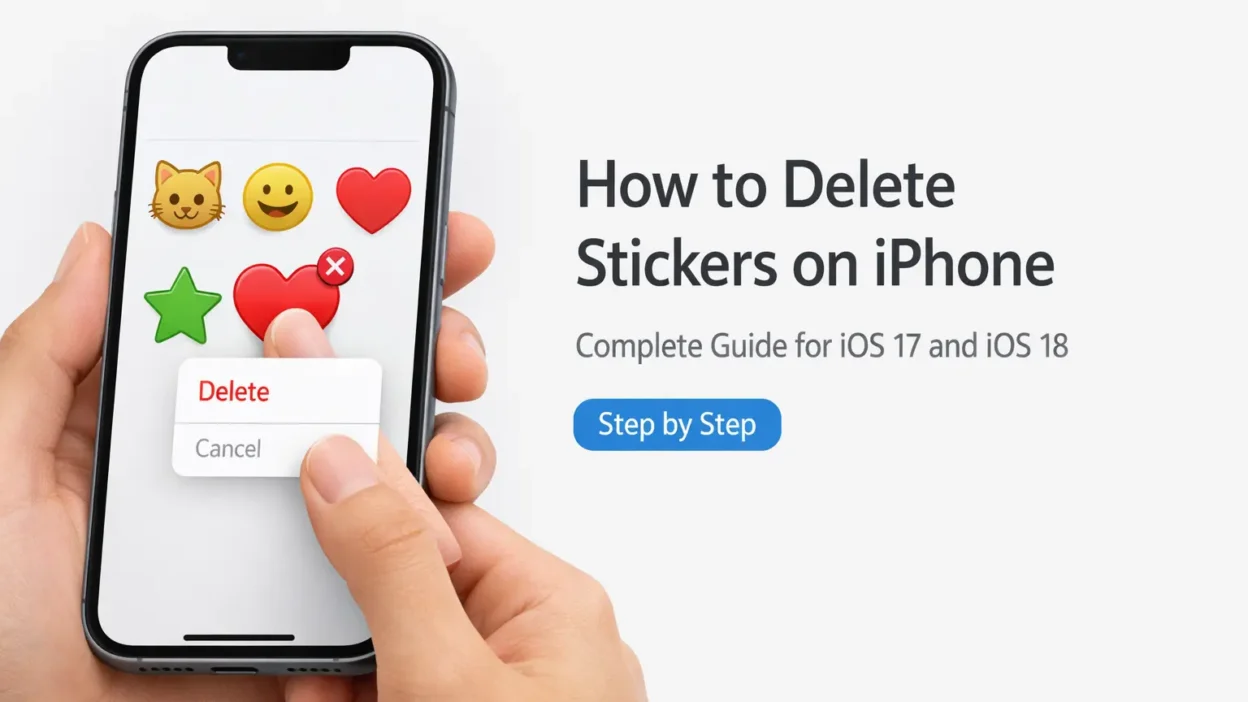
- Press and hold your finger on that sticker for about one second
- Lift your finger and release it
- A small popup menu will appear with a Delete option
- Tap Delete and the sticker is gone immediately
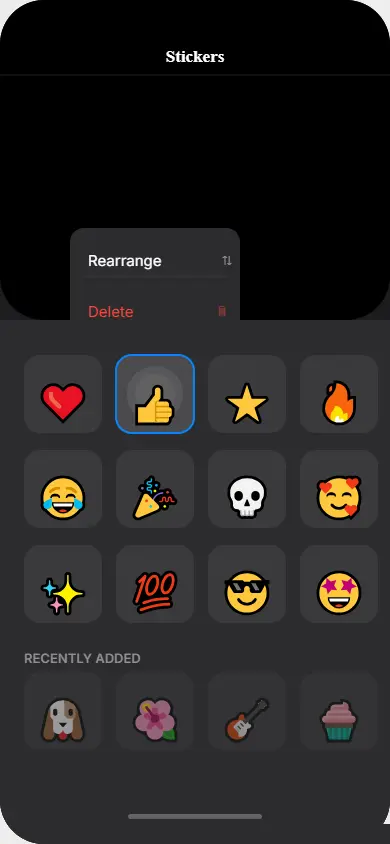
the Delete option appears in a popup menu above the sticker
Pro Tip: Step 7 is where most people get stuck. The delete menu does not appear while you are still pressing. It appears the moment you release your finger after holding. I have seen people hold too long or tap too quickly and wonder why nothing happens. The key is press, hold for one second, then release. The popup shows up right after you lift your finger.
This detail makes all the difference. Once I figured out that the release triggers the menu rather than the hold itself, I never had trouble with it again.
If you are using iOS 18, the navigation path looks exactly the same as described above. On iOS 17, the plus icon may sit in a slightly different position depending on your keyboard layout, but the sticker panel access and the long press to delete sticker method work identically on both versions.
Delete Several Stickers at Once (Batch Clearing)
Here is something worth knowing before you start a big cleanup session. There is no multi-select option for sticker deletion on iPhone. You cannot check multiple stickers and delete them all in one tap. Each sticker has to be removed individually using the same long press method.
I know that sounds tedious if you have a large collection, but it is actually faster than it sounds once you get into a rhythm. The process takes about five seconds per sticker when you know what you are doing.
The most efficient approach I have found is to start from the most recently added stickers first. They tend to appear near the top of your panel, so you do not have to scroll far. Work your way through them one by one.
For each sticker you want to remove, repeat the same steps:
- Press and hold the sticker for one second
- Release your finger
- Tap Delete from the popup menu
- Move to the next one
You can go through your entire sticker collection this way in just a few minutes. Doing this regularly helps you clear sticker history on iPhone and keeps your collection from becoming overwhelming over time.
Think of it like your camera roll you would not let it grow to thousands of unwanted photos, and your sticker library deserves the same occasional cleanup
A quick monthly cleanup of your immessage stickers keeps everything tidy and makes it easier to find the ones you actually use.
Once you delete all iphone stickers you no longer want, your panel will feel noticeably cleaner and easier to navigate.
Deleting Emoji Keyboard Stickers (Memoji and Built In Stickers)
Custom photo stickers are not the only type living inside your iPhone keyboard. There is a whole separate category of emoji keyboard stickers that many people do not think about until they want to clean things up. These stickers work differently from custom ones, and the deletion process is not exactly the same.
This section is slightly different because what you can delete depends on the specific type of emoji sticker you are looking at.
The path you use and what you can actually delete depends on which type of emoji sticker you are dealing with.
Let me break it down clearly so you do not waste time looking for a delete button that may not exist where you expect it.
How to Delete Emoji Stickers From the Keyboard
When you open the emoji keyboard on your iPhone, you will notice a dedicated sticker section sitting alongside the standard emoji panel. This is a separate area from the plus icon path we covered in the last section. It is part of the keyboard itself and shows up in any app where you use the emoji keyboard, not just Messages.
To access it, tap the emoji face icon on your keyboard (the smiley face button). Once the emoji keyboard opens, look along the bottom row of category icons. You will see a sticker icon that looks like a folded corner page or a small square with a peel effect. Tap that to open the sticker drawer from the keyboard interface.
From here the deletion method is familiar. Find the sticker you want to remove, press and hold it for about one second, release your finger, and tap Delete from the popup that appears.
The key difference is where you access it. You are going through the emoji keyboard path rather than the Messages plus icon path. For keyboard customization purposes, this is the better route when you are already typing in an app other than Messages and want to remove a sticker on the spot.
One thing worth noting is that this section and the Messages sticker panel both pull from the same underlying iphone sticker library. Deleting a sticker from the keyboard sticker drawer removes it everywhere, not just from that one access point.
Can You Delete Memoji Stickers? Here’s What You Can and Can’t Do
This is the question I see come up often and the answer has an important distinction.
Memoji stickers on iPhone are automatically generated by iOS based on the Memoji characters you create. When you make a Memoji that looks like you, your iPhone instantly produces a full set of sticker poses using that character. These appear in your emoji keyboard under the Memoji section.
Here is the honest answer: you cannot delete individual Memoji sticker poses. If your Memoji has 30 different expression stickers, there is no way to remove just five of them while keeping the rest. Apple does not give you that level of control over the built-in Memoji sticker set.
What you can do is delete the entire Memoji character from your collection, which removes all of its associated stickers at once.
To do this:
- Open the Messages app and tap the compose button or enter any conversation
- Tap the emoji keyboard icon and navigate to the Memoji section
- Swipe through your Memoji characters to find the one you want to remove
- Tap the three dots icon below that Memoji
- Select Delete and confirm
Once you delete the Memoji itself, every sticker pose that was generated from it will disappear from your iphone sticker library completely.
If you want to keep the Memoji but simply do not want it cluttering your sticker view, there is no built-in hide option for individual Memoji at the sticker level. Your best option in that case is to edit the Memoji’s appearance so it looks the way you want, rather than deleting it entirely.
For standard built-in emoji style stickers that Apple includes by default, those cannot be deleted at all. They are part of the iOS system and are not removable. The only stickers you have full control over are your custom photo stickers and the Memoji characters you personally created.
Knowing this saves you a lot of frustration. If you cannot find a delete option for a particular sticker, it is likely a system sticker and that is completely normal behavior, not a bug.
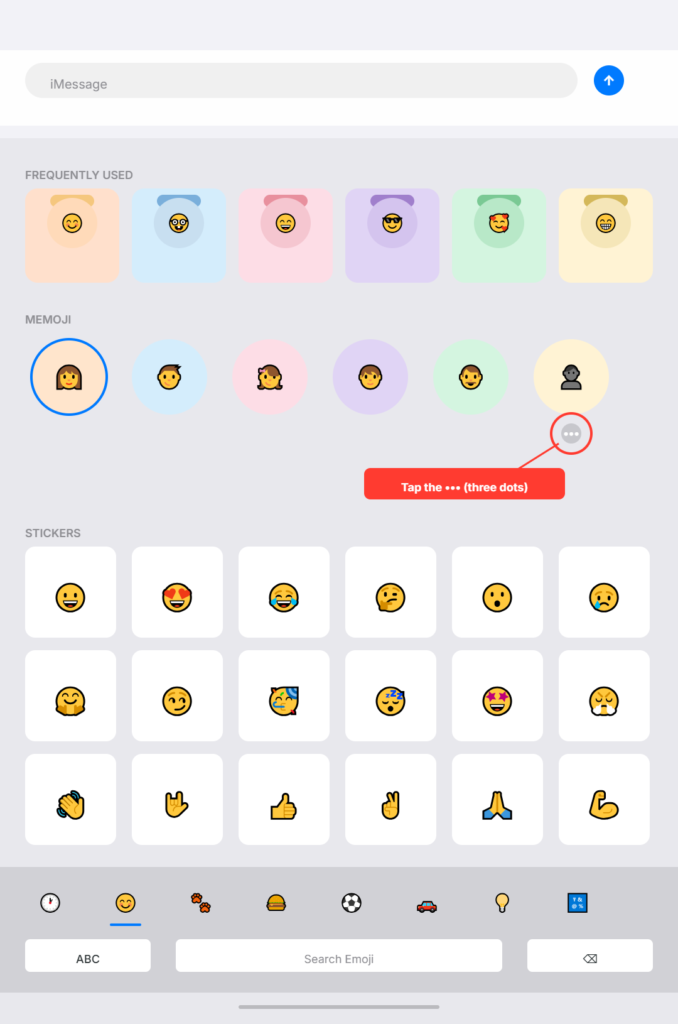
you want to remove to access the Delete option
How to Clear Recently Used and Saved Stickers on iPhone
Most guides only cover permanent deletion. But a lot of iPhone users actually want something more specific they want to clear a sticker from the recently used tray without removing it from their collection entirely.
You might not want to permanently delete a sticker. You might just want to clear it from the recently used tray so it stops showing up every time you open your keyboard. Or you have stickers saved that you added weeks ago and simply forgot about. These are two different things and they need two different approaches.
Let me explain how the recently used system works on iPhone and what your actual options are.
Clearing Your Recently Used Stickers
When you use a sticker in a conversation, your iPhone automatically adds it to a recently used section at the top of your sticker panel. This makes it faster to reuse stickers you send often. Think of it like your recently used emoji row but specifically for stickers.
The frequently used stickers on iPhone update automatically based on what you send most. The more you use a particular sticker, the higher it stays in that section. Stickers you stop using gradually drop off as you use other ones more frequently.
Here is the honest part that most articles skip.
As of iOS 18, there is no dedicated button to manually clear sticker history on iPhone this has been a consistent limitation across iOS 16, 17 and 18. Apple does not give you a direct “clear recently used stickers” option in Settings or anywhere else in the sticker interface.
The recently used tray refreshes itself over time as your usage patterns change. If you stop tapping a particular sticker, it will eventually stop appearing in that section on its own.
If you want to delete recently used stickers from the tray more quickly, the most effective approach is to permanently delete the sticker itself using the long press method. Once the sticker no longer exists in your library, it automatically disappears from the recently used section too. This is currently the only reliable way to remove a specific sticker from that frequently used area.
I know that is not the answer everyone wants to hear. But understanding this saves you time searching for a setting that simply does not exist yet on iOS.
Removing Stickers You Saved But No Longer Need
This one is more straightforward and gives you full control.
Your iPhone sticker library holds every custom sticker you have created or saved over time. These live in the main sticker panel and do not automatically go away unless you delete them. Unlike the recently used tray, saved stickers stay in your collection indefinitely until you manually remove them.
To delete saved stickers on iPhone that you no longer want, follow these steps:
- Open the Messages app and tap into any existing conversation
- Tap the plus icon to the left of the text input field
- Select Stickers from the menu
- Scroll through your saved sticker collection to find the ones you want to remove
- Press and hold on a sticker for about one second
- Release your finger and wait for the popup menu to appear
- Tap Delete to remove it from your library permanently
Repeat this for every saved sticker you want to clear out. There is no bulk select option so you go through them one at a time.
I find it helpful to do a sweep through the entire library every few weeks rather than deleting stickers one by one as I notice them. Setting aside five minutes to scroll through and clear out stickers I no longer use keeps the collection small and easy to navigate.
Most guides only cover permanent deletion. But a lot of iPhone users actually want something more specific they want to clear a sticker from the recently used tray without removing it from their collection entirely.
Regular maintenance is the practical solution here. A smaller, curated sticker collection is far more useful than a large cluttered one you rarely scroll through.
Why Do I Have Stickers I Never Made? (The Photo Cutout Explanation)
This is the question I wish someone had answered for me a lot sooner.
You open your sticker panel one day and find a collection of images you never intentionally saved as stickers. A close-up of your cat. A random object from an old photo. Maybe your own face in a slightly unflattering angle from a picture taken two years ago. You did not make these. You have no memory of adding them. Yet there they are, sitting in your iphone sticker library like they belong there.
You are not imagining things and your phone has not done something wrong. There is a very specific iOS feature responsible for this and once I explain it, everything will make sense immediately.
The iOS Feature That Creates Stickers Without You Realizing It
Apple introduced Photo Cutout as part of iOS 16, released in September 2022. It works on iPhone XS and later models running iOS 16 or newer
Here is how it happens. You open the Photos app on your iPhone and start browsing your camera roll. You press and hold your finger on the main subject of a photo, whether that is a person, a pet, an object, or anything with a clear foreground. After about one second, your iPhone analyzes the image and automatically isolates that subject from the background. A glowing outline appears around it and a small popup menu gives you options.
One of those options is “Add Sticker.”
If you tap it, even just out of curiosity, that image gets saved directly to your sticker collection. It becomes a custom iphone photo cutout sticker that now lives in your keyboard panel permanently until you delete it.
The tricky part is how easy it is to trigger this by accident. You might be zooming in on a photo and hold your finger slightly too long on the wrong spot. You might be showing someone a picture and they press it while looking. You might tap “Add Sticker” just to see what happens and forget you did it five minutes later.
Every single one of those moments adds a new photo sticker to your iphone sticker library without any further confirmation or reminder.
Why Your Collection Grew Without You Noticing
The Photo Cutout feature is genuinely useful when you use it on purpose. I have made some great custom stickers from my own photos this way. But the problem is that there is no notification or badge that says “three new stickers were added to your collection today.” It all happens silently.
Over a few months of casually browsing your camera roll, it is entirely possible to accumulate dozens of unintentional stickers. Each one was created in a moment you barely registered.
This is exactly why so many people search for how to delete custom stickers on iPhone. Almost every time, the stickers they want gone are accidental Photo Cutout creations, not ones they made on purpose.
How to Delete the Photo Cutout Stickers You Found
Once you understand where these mystery stickers came from, deleting them becomes much simpler.
Every sticker you find in your collection that you do not recognize is almost certainly a Photo Cutout sticker created from your camera roll. You can remove each one using the long press method covered in the earlier section. Press and hold the sticker, release your finger, then tap Delete. It is gone immediately.
To avoid adding more accidental stickers in the future, just be mindful of how long you press on subjects in your Photos app. A short tap opens an image normally. A long hold triggers the Photo Cutout tool. Knowing that difference puts you back in control of your sticker collection going forward.
Now that you understand why those stickers appeared, you have everything you need to clean them up and keep your library exactly the way you want it.
How to Delete Stickers on iPhone From Any App’s Keyboard
Here is something that almost nobody talks about and I only discovered it by watching someone demonstrate it on screen.
You do not have to open the Messages app to delete stickers from your iPhone. Every guide I have seen sends you straight to Messages as the starting point. And yes that method works perfectly well. But there is a second path that most people never find because it is tucked inside the keyboard itself and it works in any app you are already using.
This matters more than it sounds. If you are typing in Notes, replying to someone on WhatsApp, or composing anything in any app that uses the standard iPhone keyboard, you can access and delete your stickers right there without switching apps at all.
Let me show you exactly how this works.
Finding the Sticker Icon on Your iPhone Keyboard
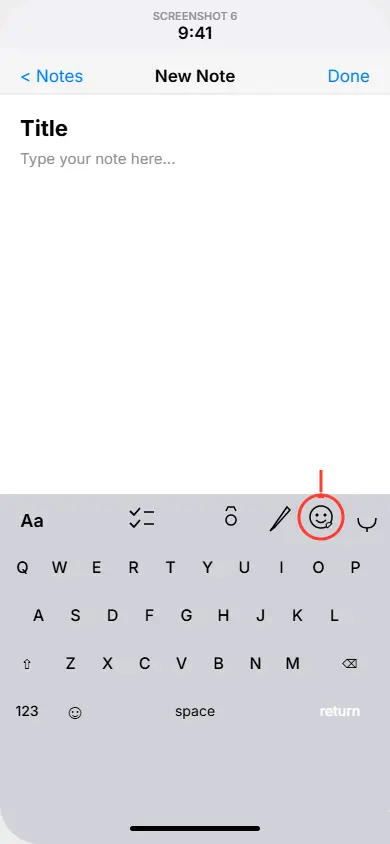
When you have any app open and your keyboard is visible, look at the row of icons that sits just above the keyboard keys. This is the keyboard toolbar. You will see several small icons there depending on your keyboard configuration.
Look toward the right side of that toolbar. The sticker section icon is typically the second button from the right side of the keyboard menu. It looks like a small square with a peeled corner, similar to a sticker peel effect.
Tap that icon and your full sticker drawer opens directly from the keyboard, without ever leaving the app you are in. This is the same sticker collection you see when you go through Messages. It pulls from the same library so any changes you make here apply everywhere.
Once the sticker drawer is open, the deletion method is identical to what I described earlier. Find the sticker you want to remove, press and hold it for about one second, release your finger, and tap Delete from the popup that appears.
Once you know where that icon sits, managing your sticker collection from any app takes seconds
This keyboard path is genuinely useful for keyboard customization on the go. If you notice a sticker you want to remove while you are already typing somewhere, you can handle it immediately instead of mentally noting it and forgetting about it later.
Delete Stickers While Using WhatsApp, Notes, or Other Apps
This is where the keyboard sticker path becomes especially practical for everyday use.
A lot of iPhone users have custom stickers showing up inside WhatsApp conversations. WhatsApp on iPhone integrates with the iOS keyboard, which means your custom photo stickers and saved stickers from your iPhone library appear in the sticker drawer when you open the keyboard inside WhatsApp.
If you want to handle WhatsApp sticker deletion for stickers that came from your iPhone library rather than WhatsApp’s own sticker packs, you can do it directly from within WhatsApp without jumping to a different app.
Here is how to do it:
- Open WhatsApp and tap into any conversation so your keyboard appears
- Look at the keyboard toolbar above the keys
- Find the sticker icon (second from the right in the keyboard menu)
- Tap it to open the sticker drawer from the keyboard interface
- Scroll through to find the sticker you want to remove
- Press and hold the sticker for about one second
- Release your finger and wait for the popup
- Tap Delete
The sticker is now removed from your iPhone sticker library entirely and will no longer appear in any app including WhatsApp, Messages, Notes, or anywhere else.
The same steps apply in Notes, Mail, or any third party app that uses the standard iOS keyboard. The sticker drawer in the keyboard toolbar gives you access to your full collection regardless of which app you are in.
One thing I want to be clear about is the scope of this method. It works specifically for stickers stored in your iPhone’s own sticker library. WhatsApp has its own separate sticker packs that you install and manage inside the WhatsApp app itself. Those do not appear in the iOS keyboard sticker drawer and need to be removed through WhatsApp’s settings directly.
For sticker pack management across iOS apps in general, this keyboard path is honestly the more convenient option once you know about it.It saves you from closing your current app, jumping to Messages, finding the sticker, deleting it, and then retracing your steps back to where you started.
Having this shortcut available makes it much easier to stay on top of your collection without interrupting whatever you were already working on.
The Delete Menu Isn’t Appearing? Here’s What You’re Probably Doing Wrong
If you tried the long press method and nothing happened, you are not alone. This is actually the most common sticking point I hear about when people try to delete custom stickers on iPhone for the first time.
The frustrating part is that the steps look simple on paper. Press and hold a sticker, then tap Delete. But when people try it themselves, the popup menu just does not show up. They press again. Still nothing. They start wondering if their iPhone is broken or if sticker deletion is not available on their device.
The phone is fine. The method works. There is just one specific detail that almost every guide leaves out, and it is the exact thing causing the problem.
The One Step Most People Miss
Here is what is actually happening when the delete menu fails to appear.
Most people press and hold a sticker and keep holding their finger down, waiting for the menu to show up while they are still pressing. They hold for two seconds, three seconds, sometimes even longer. The menu never comes and they give up.
The issue is that the delete menu on Apple iPhone does not appear while your finger is still pressing. It appears the moment you release your finger after the hold.
The correct sequence for long press to delete sticker is this:
- Press your finger down on the sticker
- Hold it there for approximately one second
- Lift your finger and release completely
- The popup menu appears right after you release
That release is the trigger. Not the hold itself. The hold tells your iPhone you want more options. The release is what actually surfaces the menu.
Once I understood this, sticker deletion became completely effortless. I had made the same mistake myself, holding too long and waiting for something to happen mid-press. The moment I started releasing my finger after the one second hold, the popup appeared instantly every single time.
Other Reasons the Menu Might Not Be Showing
If you are doing the press, hold, and release correctly and the menu still does not appear, here are a few other things to check.
Make sure you are pressing directly on the sticker image itself. If your finger lands slightly outside the sticker or on empty space in the sticker panel, the long press will not register on the right element. Try pressing more precisely on the center of the sticker.
Also check that you are in the sticker panel and not accidentally pressing on the Messages app conversation area. The context matters for where the long press registers.
If you are using a thick screen protector or one with air bubbles near the edges, it can sometimes affect touch sensitivity. Try pressing with slightly more pressure if you keep having issues.
Finally make sure your iPhone is not running a process in the background that is slowing the interface response. Close other apps and try again.
In almost every case though, the fix is simply remembering that release triggers the menu. Practice it once on a sticker you want to delete anyway and you will feel the mechanic click into place. From that point on, the sticker deletion process on your Apple iPhone will feel completely natural.
How to Delete or Hide Third-Party Sticker Packs on iPhone
Not every sticker on your iPhone came from your camera roll or the built-in keyboard. A whole separate category exists that many people overlook when trying to clean up their sticker collection. These are third-party sticker packs and they work differently from everything covered so far.
Third-party sticker packs are apps. Someone builds a themed sticker collection, publishes it on the App Store, and you install it just like any other app. Once installed, it connects to your iMessage keyboard and its stickers appear alongside your custom and emoji stickers in the sticker panel.
Because they are apps at their core, managing them requires a different approach than the long press deletion method.
Delete a Sticker Pack App Completely
If you want to fully remove a third-party sticker pack from your iPhone, you are uninstalling an app. The process is the same as deleting any other app from your device.
Here is how to do it:
- Find the sticker pack app on your iPhone home screen or App Library
- Press and hold the app icon until a small menu appears
- Tap Remove App from the options
- Select Delete App to confirm
Once you complete these steps, the app is uninstalled and all of its sticker pack content is removed from your device. The stickers will no longer appear in your keyboard panel in Messages or any other app.
It is worth knowing that this removes all app data along with it. If the sticker pack offered any customization or saved preferences, those disappear too. For a simple sticker pack that just provides images, this is a clean and complete removal with no leftover data.
Once you complete these steps, the app is uninstalled and all of its sticker pack content is removed from your device. The stickers will no longer appear in your keyboard panel in Messages or any other app. It is worth knowing that this removes all app data along with it. If the sticker pack offered any customization or saved preferences, those disappear too. For a simple sticker pack that just provides images, this is a clean and complete removal with no leftover data. If you want to make sure no residual files remain after uninstalling any app on your iPhone, clearing your iPhone app cache is a good follow-up step that takes less than two minutes.
Hide a Sticker Pack Without Deleting It
Sometimes you want a sticker pack out of sight without fully committing to deleting it. Maybe you use it occasionally for certain conversations but find it cluttering your keyboard the rest of the time.
iPhone gives you a way to handle this through sticker pack management in the keyboard settings. Open the Messages app and go into any conversation. Tap the plus icon and select Stickers. At the top of the sticker panel you will see your collection organized by pack. Press and hold on a sticker pack icon and look for an option to hide or reorder it.
You can also go to Settings, tap General, then tap Keyboard, and look for any installed sticker packs listed there. Some packs include a visibility toggle that lets you hide them without uninstalling
Hiding a pack keeps the app installed on your device but removes it from the visible sticker drawer until you choose to show it again.
iPhone gives you a way to handle this through sticker pack management in the keyboard settings. Open the Messages app and go into any conversation. Tap the plus icon and select Stickers. At the top of the sticker panel you will see your collection organized by pack. Press and hold on a sticker pack icon and look for an option to hide or reorder it. If you find that hiding things on your iPhone is something you do often, you might also want to know how to unhide apps on iPhone the same logic of hiding versus deleting applies across several iPhone features.
Deleting WhatsApp Stickers on iPhone
WhatsApp sticker deletion on iPhone works completely separately from the iOS sticker system. WhatsApp manages its own sticker packs inside the app and they do not appear in your iPhone keyboard sticker drawer at all.
To remove a WhatsApp sticker pack, open WhatsApp and go to any conversation. Tap the emoji icon in the text field and then tap the sticker icon. Find the sticker pack you want to remove and look for the delete or remove option next to that pack. Tap it and the pack is gone from your WhatsApp collection.
This does not affect your iPhone sticker library in any way. The two systems operate independently and each one needs to be managed on its own terms.
Does Deleting a Sticker Remove It Permanently?
This is a question I see come up often and it deserves a clear and honest answer rather than a vague response that leaves you guessing.
When you delete a sticker from your iPhone, what exactly happens to it? Is it truly gone? Can someone still see it in old conversations? Will it come back after an iCloud sync? These are all legitimate concerns and I want to address each one directly.
What Actually Happens When You Delete a Sticker
When you use the long press method to delete a custom sticker, it is removed from your iPhone sticker library immediately. The sticker disappears from your sticker panel and you can no longer send it in new conversations. From your perspective as the sender, it is gone.
This applies whether you delete one sticker or work through the process to delete all iPhone stickers from your custom collection. Each deletion is final the moment you tap the Delete button.
On iOS 18, the deletion behavior is consistent with earlier iOS versions. The sticker is removed at the library level and the change takes effect immediately without any waiting period or confirmation step beyond the popup you already tapped.
Does It Disappear From Old Conversations?
Here is the part that surprises some people. Deleting a sticker from your library does not remove it from past conversations where you already sent it.
If you sent a sticker to a friend last month and then delete that sticker today, the sticker will still appear in your conversation history exactly as it did when you sent it. The same is true on the recipient’s end. They will still see the sticker in the thread.
This is how iMessage works generally. Sent content stays in conversation history unless you use the unsend feature for recent messages. Deleting a sticker from your library is an app data removal action that affects your collection going forward. It does not reach back and alter your past messages.
So if your concern is about a sticker appearing in an old chat, deleting it from your library will not solve that. You would need to delete the individual message or use unsend if the message was sent recently enough to qualify.
Will iCloud Bring the Sticker Back?
This is a fair concern and I want to give you an accurate answer.
Custom stickers you create through the Photo Cutout feature are stored locally on your device. Deleting them removes them from your local sticker collection. If you use iCloud to restore your device or set up a new iPhone from a backup, stickers that existed at the time of that backup may reappear.
However under normal daily use, deleting a sticker and clearing your sticker history on iPhone through the standard method is permanent. The sticker will not spontaneously return on its own.
Can You Recover a Deleted Sticker?
There is no recycle bin or undo option for sticker deletion. Once you delete a sticker and close the panel, it is gone.
The only way to get it back is to recreate it. For custom photo stickers, go back to the original image in your Photos app, long press the subject again, and tap Add Sticker. It will return to your collection as a new sticker.
So while deletion is effectively permanent in terms of immediate recovery options, recreating a custom sticker is always possible as long as you still have the original photo.
Keep Your Sticker Library Clean Simple Ongoing Management
Most people think about sticker deletion only when things get out of hand. Their panel is full of images they never use, scrolling takes forever to find anything, and the whole experience starts to feel cluttered. Then they do a big cleanup and feel better for a few weeks until the same problem builds up again.
I used to do the same thing. Now I treat sticker management the way I handle my inbox a quick scan every so often keeps it from turning into a chore.
The habit is simple and takes almost no time once it becomes automatic. Every time you notice a sticker you would never actually send, remove it on the spot. That is it. No scheduled cleanup sessions, no scrolling through hundreds of images in one go. Just a small decision in the moment repeated consistently.
This approach to managing stickers on iPhone keeps your collection genuinely useful rather than just technically complete.
Managing your sticker library does not have to be complicated. A few small actions done consistently will keep your collection exactly the way you want it going forward. If you enjoy keeping your iPhone running smoothly, you might find it useful to explore other iPhone features you may not have set up yet like how to enable WiFi Calling on iPhone, which can significantly improve your call quality in low signal areas.
How Much Storage Do Stickers Actually Use?
This is a question worth answering honestly because the answer affects how urgently you need to manage your collection.
Individual custom stickers take up a small amount of storage on their own. A single photo cutout sticker is essentially a compressed image file. One sticker is not going to noticeably affect your available space.
The situation changes with scale. If you have accumulated hundreds of custom stickers over months of accidental Photo Cutout triggers, or if you have installed several large third-party sticker pack apps, the combined sticker storage on iPhone can become meaningful.
To check what your sticker-related apps are using, go to Settings on your iPhone, tap General, then tap iPhone Storage. Scroll through the list to find any sticker pack apps you have installed. Each one will show you its exact storage footprint. This gives you a clear picture of what is worth keeping and what you can remove.
For custom photo stickers built into the keyboard, their storage is bundled with the Messages app data. You will not see them listed separately, but doing a general cleanup of your custom sticker collection as part of broader storage management is always a good habit.
If your iPhone is running low on space, deleting all iPhone stickers from third-party pack apps you no longer use is one of the faster ways to recover storage without losing photos or important data.
To check what your sticker-related apps are using, go to Settings on your iPhone, tap General, then tap iPhone Storage. Scroll through the list to find any sticker pack apps you have installed. Each one will show you its exact storage footprint. This gives you a clear picture of what is worth keeping and what you can remove. If you want to go further with freeing up space, clearing your app cache is one of the most effective next steps — here is exactly how to clear app cache on iPhone without losing any of your data.
How to Turn Off Sticker Suggestions Completely
Some people simply do not want stickers appearing in their keyboard at all. If that is you, there is a way to disable sticker suggestions on iPhone so they stop showing up without you having to delete each one individually.
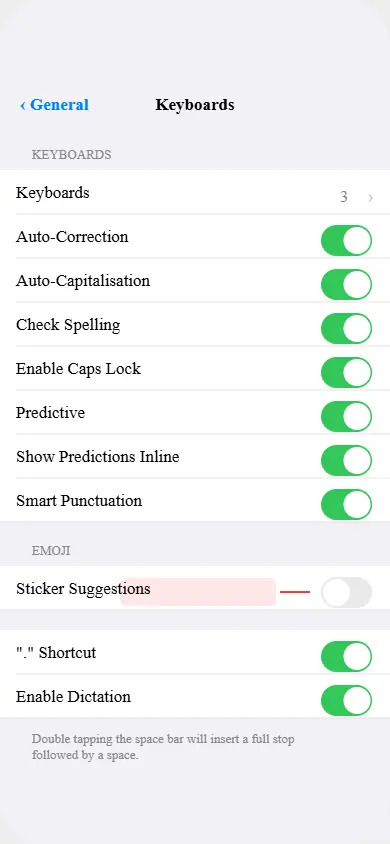
To turn off sticker suggestions from the keyboard, go to your iPhone Settings. Tap General and then tap Keyboard.
Look for a toggle labeled Sticker Suggestions. On some iOS versions this may appear under different terminology, so look for any sticker related toggle in the Keyboard settings and turn it off.
With this setting disabled, iOS will stop suggesting stickers automatically as you type. Your keyboard customization becomes simpler and the sticker drawer will not push suggestions into your keyboard toolbar without your input.
This is a good option for people who find stickers distracting or who never use them and just want a cleaner typing experience. It does not delete your existing stickers but it removes the proactive suggestion behavior that can feel intrusive.
If you want to go further and remove the sticker section from your keyboard entirely, uninstalling all third-party sticker pack apps and deleting your custom stickers through the long press method will leave you with only the system stickers that iOS includes by default.
Managing your sticker library does not have to be complicated. A few small actions consistently done will keep your collection exactly the way you want it going forward.
Frequently Asked Questions
Why do I have stickers on my iPhone that I never made?
iOS creates stickers automatically through a feature called Photo Cutout. When you long-hold your finger on any subject in a photo inside the Photos app, your iPhone isolates that subject and offers to save it as a sticker. If you tap Add Sticker even once out of curiosity, it saves permanently to your collection. Many people trigger this without realizing it. You can delete these accidental stickers the same way as any other custom sticker using the long press method.
Why won’t the delete option appear when I tap and hold a sticker?
The delete menu appears after you release your finger, not while you are still pressing. Press and hold the sticker for about one second, then lift your finger completely. The popup with the Delete option appears right after you release. If it still does not show up, make sure you are pressing directly on the sticker image itself and not on empty space around it.
Will deleting a sticker remove it from messages I already sent?
No. Deleting a sticker only removes it from your sticker library going forward. Any conversation where you already sent that sticker will still display it exactly as it appeared when you sent it. The recipient can still see it too. Deleting from your library does not affect past messages in any way.
Can I delete multiple stickers at once on iPhone?
There is no multi select or bulk delete option for stickers on iPhone. Each sticker must be deleted individually using the long press and release method. If you have a large collection to clear, start from the top of the panel where your most recently added stickers appear and work your way down.
Can I get back a sticker I deleted by mistake?
There is no undo button for sticker deletion. However you can recreate a custom photo sticker by opening the original image in your Photos app, long-holding the subject again, and tapping Add Sticker. It will return to your collection as a new sticker. Third-party sticker pack apps can be reinstalled from the App Store at no cost if they were free originally.
How do I delete stickers from WhatsApp or other apps on my iPhone?
For stickers stored in your iPhone library, open the keyboard in any app, tap the sticker icon in the keyboard toolbar (second button from the right), find the sticker, long press and release it, then tap Delete. This works in any app including Notes and WhatsApp. For WhatsApp’s own sticker packs, those are managed separately inside the WhatsApp app through its sticker settings.