
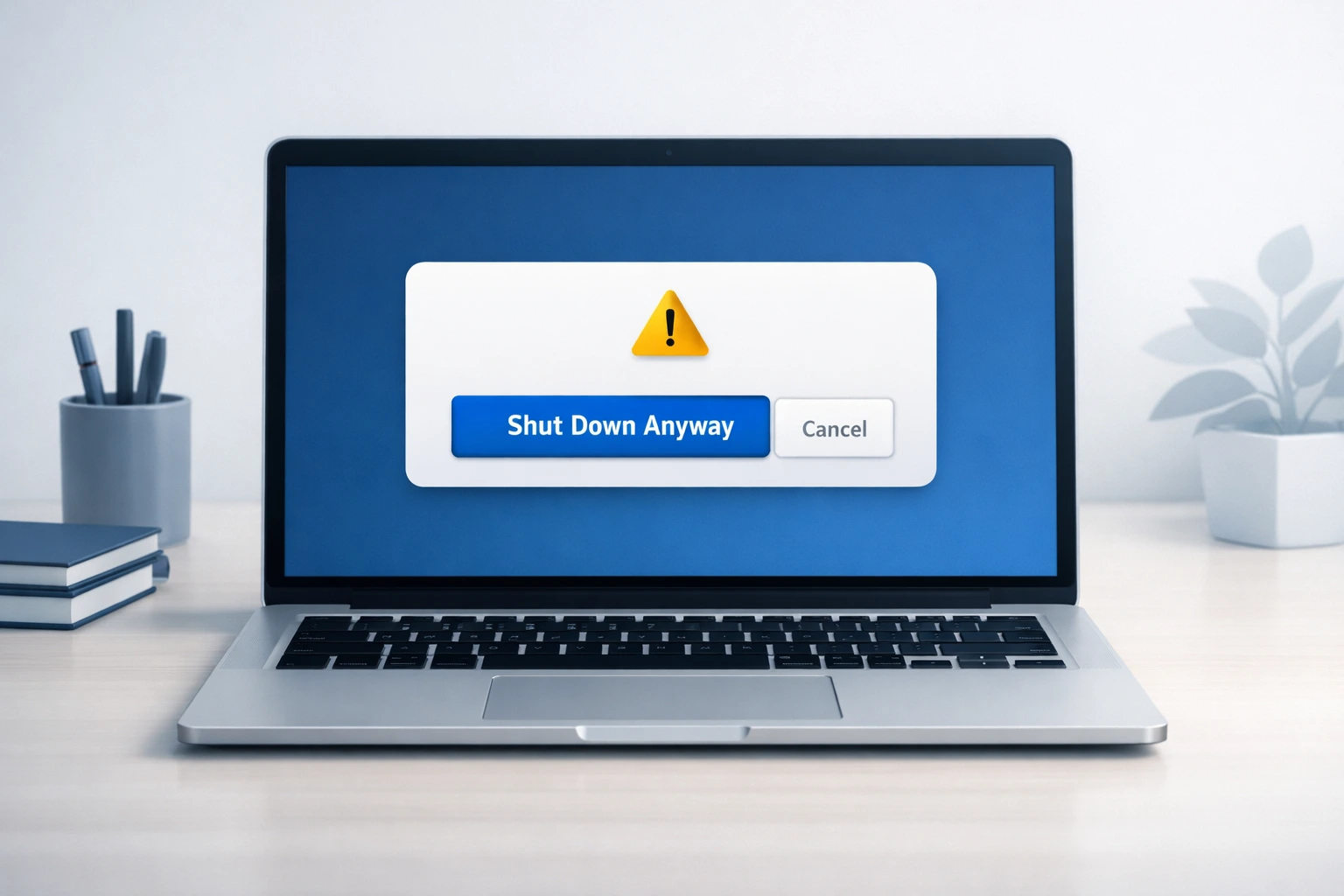
Is It Safe to Click “Shut Down Anyway?
You are trying to shut down your PC and suddenly a message pops up saying “this program is preventing Windows from shutting down” or sometimes “this app is preventing shutdown.
You did not leave anything open. You closed everything. But Windows refuses to turn off and just sits there waiting for you to do something.
I have dealt with this exact error more times than I can count on my own PC, on family laptops and on fresh Windows 11 installs. The good news is this problem is not serious and it is surprisingly easy to fix once you understand what is actually going on.
In this guide I will show you exactly what causes this error, how to find the app that is blocking your shutdown even when no app name is showing, and five proven fixes for safely shutting down Windows without interruptions. Every step is written for beginners with zero technical experience needed.
When that message pops up and you see the “Shut Down Anyway” button, your first thought is probably should I click it or not?
I get it. It feels risky. Like you might break something.
Short answer? Yes I click it myself all the time, and it’s almost always safe.
This message is just a warning not something that blocks your shutdown It simply means one or more apps did not close on their own before the shutdown started. When you click that button, Windows forces those apps to close and then shuts down normally.
Windows only waits a few seconds before closing services if they’re slow, you’ll see this message.
I have done this dozens of times on my own PC and never had a single issue. Your files, your system, your settings they stay exactly as they were.
When Is “Shut Down Anyway” Safe to Click?
| Situation | Safe to Click “Shut Down Anyway”? | What to Do |
|---|---|---|
| Chrome or Edge did not close | Yes | Click Shut Down Anyway |
| Media player is still running | Yes | Close it or continue shutdown |
| Notepad/Word shows a blank app | Usually yes | Save work first if possible |
| All visible apps are closed | Yes | Windows may be waiting for a background process |
| Windows is installing an update | No | Let the update finish |
| You see “Working on updates” | No | Do not interrupt the process |
If you’re wondering whether it’s safe to click ‘Shut Down Anyway’ in Windows
You can safely click “Shut Down Anyway” in almost every everyday situation. Here are the most common ones where there is nothing to worry about:
- A browser like Chrome or Edge did not close properly
- A media player or music app was still running in the background
- A document app like Notepad or Word showed a blank unnamed process
- You closed all your apps but Windows still showed the message
In these situations, no data is at risk. Windows just needed a little push to finish what you started.
When Is It NOT Safe to Click “Shut Down Anyway”?
There is only one time I would tell you to pause before clicking that button and that is when Windows is in the middle of installing an update.
If you see any indication that updates are being downloaded or installed, do not force a shutdown. Cutting power mid-update can corrupt your Windows update files and sometimes cause your PC to get stuck on a black screen on the next boot.
How do you know if an update is running? Look for a message like “Working on updates” or a progress percentage on the shutdown screen itself. If you see that, let it finish.
Outside of that one scenario, go ahead and click “Shut Down Anyway” without worry. It is there for a reason.
Close Apps Before Clicking “Shut Down Anyway”
Before you touch any settings or open any registry editor, try this first.
Most of the time, the “this program is preventing Windows from shutting down” error shows up simply because one app did not close fast enough.
Here is exactly what I do when this happens on my PC.
How to Force Quit Using Task Manager
Task Manager is your best friend in this situation. It shows you every app and background process running on your PC right now, and lets you shut them down instantly.
Here is how to open it and close the problem app:
- Press Ctrl + Shift + Esc on your keyboard at the same time
- The Task Manager window will open immediately
- Look at the list under the Processes tab
- Find any app that shows “Not Responding” or looks unfamiliar
- Click on that app once to select it
- Click the End Task button at the bottom right corner
- Try shutting down your PC again
That is it. In most cases this fixes the problem on the spot.
If you are not sure which app to close, look for anything with a yellow triangle icon or anything labeled “Not Responding” in the Status column. Those are your culprits.
The Alt + F4 Trick Most People Forget
Here is a quicker method that most people completely overlook.
Click anywhere on your desktop first so no app window is in focus. Then press Alt + F4 on your keyboard.
This shortcut tells Windows to close whatever is currently active. When you press it on the desktop, Windows actually opens the shutdown dialog box. But more importantly, if you press it while a hung app is open in the background, it forces that specific app to close immediately.
I use this one a lot when the error appears and I can still see the app icon on the taskbar. Just click the app to bring it into focus and then press Alt + F4. The app closes and the shutdown completes without any extra steps.
Try these two methods first before anything else. They solve the problem in the majority of cases without any advanced fixes needed.
Why Does “Shut Down Anyway” Keep Appearing in Windows?
| Possible Cause | What Happens | Typical Action |
|---|---|---|
| Background service | A Windows task has not finished | Wait or identify the process |
| Task Host Window | Background tasks are still closing | Check Event Viewer if recurring |
| Fast Startup | Can contribute to recurring shutdown behavior | Test by disabling Fast Startup |
| Third-party software | App or driver does not close correctly | Update, reinstall or remove it |
| Cloud sync | Files are still syncing | Let sync finish or pause it |
| Windows Update | Update processes are still active | Install or finish pending updates |
If you keep seeing the “this program is preventing Windows from shutting down” message (sometimes shown as “this app is preventing shutdown”) every time you shut down your PC
The real problem is deeper than that similar to other Windows system errors, it often has underlying causes that need proper diagnosis. And once you understand what is actually causing it, the fix becomes much easier to choose.
Here are the most common reasons this error keeps coming back.
Background Services That Refuse to Stop
When you click the shutdown button, Windows does not just close your apps. It also tries to stop dozens of background services that run silently behind the scenes.
One of the most common culprits here is something called Task Host Window. You may have seen it mentioned in the error message itself.
Task Host is a Windows process that manages background tasks. When it cannot finish stopping those tasks in time, Windows throws up the blocking message and waits for your input.It’s not a virus. It’s just Windows playing it safe sometimes a little too safe.
The issue is that Windows gives these services a very short window of time to shut down. If they need even a few extra seconds, the whole shutdown process gets interrupted.
Fast Startup: The Hidden Windows Setting Behind This
This one surprises a lot of people.
Windows 10 and Windows 11 both come with a feature called Fast Startup turned on by default. It sounds like a good thing but it actually changes the way your PC shuts down.
Instead of doing a full proper shutdown, Windows saves a snapshot of your system state and goes into a kind of deep sleep. This makes your next startup faster but it also means background processes do not get a clean chance to close properly.
In my experience this single setting is responsible for the majority of recurring shutdown blocking errors. I will show you exactly how to turn it off in the fix section below.
Specific Software Known to Cause This
Sometimes the issue is not Windows itself. It is a third party app that simply does not behave well at shutdown time.
The most commonly reported one is Logitech Options+ software, which is used with Logitech mice and keyboards. Many users on Microsoft forums have reported that the app called refuses to stop during shutdown and shows up as the blocking program.
Other apps that commonly cause this include:
- Cloud sync tools like OneDrive or Google Drive finishing a sync
- Antivirus programs running a last minute background scan
- Older printer or hardware driver software
- Windows Update completing a background download
If you use any of these regularly, one of them is likely the reason you keep seeing this error.
Windows Update Running in the Background
Here is one that catches people off guard. Sometimes Windows is quietly downloading or preparing an update in the background while you are working.
When you try to shut down, Windows realizes the update process is still running and does not want to interrupt it. So it throws up the blocking message instead of forcing a shutdown that could corrupt the update files.
If this is the cause you will often see a slightly different message mentioning updates. The fix here is simple: let the update finish, or check Settings and install any pending updates before shutting down.
No App Name Showing? Here’s How to Find the Mystery Program
This is the situation that frustrates people the most.
You see the this program is preventing Windows from shutting down message but there is no app name. No icon. Just a blank entry staring back at you. Sometimes this blank entry is labeled GDI Window in Task Manager a background rendering process tied to a hung app rather than a real program you can recognize. You have no idea what to close or where to even start.
I have been through this exact situation myself and I know how confusing it feels. The good news is Windows actually keeps a record of exactly what blocked your shutdown. You just need to know where to look.
That place is called Event Viewer.
How to Use Event Viewer to Catch the Invisible App
Event Viewer is a built in Windows tool that logs everything that happens on your PC including what stopped your shutdown from completing. Most people have never opened it but it is surprisingly easy to use.
Here is how to find the mystery app step by step:
- Press the Windows key + R on your keyboard to open the Run box
- Type and press Enter
- Event Viewer will open on your screen
- On the left side panel look for Windows Logs and click the small arrow next to it to expand it
- Click on System underneath it
- Now look at the list of events on the right side
- Click on the column that says Date and Time to sort by most recent first
- Look for any event with a level marked as Warning or Error that appeared right around the time you tried to shut down
- Click on that event to see its details at the bottom of the screen
- The description will mention the name of the process or service that blocked the shutdown
It sounds like a lot of steps but once you are inside Event Viewer the whole thing takes less than two minutes. The event details usually show you the exact file name or process name responsible.
Common entries I have seen here include things like logioptionsplus_agent.exe, OneDrive.exe, and various Windows service names. Once you have that name you know exactly what to deal with.
What to Do Once You Identify the App
Now that you have a name, you have three clear options depending on what it is.
If it is a third party app like Logitech software or a cloud storage tool:
- Check if there is an update available for that app and install it
- If updates do not help, uninstall the app and reinstall a newer version
- If you do not use the app regularly, uninstall it completely
If it is a Windows system service or process:
- Do not delete or disable Windows system processes on your own
- Instead move on to the registry fixes in the sections below which are designed specifically to handle these cases safely
If the Event Viewer shows nothing useful or the entries are unclear, that is also normal. Some background processes clear their logs quickly. In that case skip straight to Fix 1 which solves the problem regardless of which app is causing it.
| What You See | First Thing to Try | Difficulty |
|---|---|---|
| One app is blocking shutdown | End Task in Task Manager | Easy |
| App name is visible | Close that specific app | Easy |
| No app name appears | Check Event Viewer | Moderate |
| Problem happens repeatedly | Disable Fast Startup | Moderate |
| Same app appears every time | Update or reinstall the app | Easy |
| You suspect Windows settings | Run Power Troubleshooter | Easy |
| Nothing else works | Registry fixes | Advanced |
Fix 1 Turn Off Fast Startup (Fix “Shut Down Anyway” Issue)
If the “this program is preventing Windows from shutting down” error keeps coming back no matter what you do
Disabling Fast Startup is the single most effective permanent solution I have found for this problem. It solved the recurring shutdown blocking error on my own PC and I have recommended it to others with the same result.
Here is why it works before I show you how to do it.
Fast Startup tells Windows to skip a proper full shutdown and instead save a partial system snapshot to your hard drive. This speeds up your next boot but it also means background services and apps never get a clean chance to fully close. Over time this causes exactly the kind of shutdown conflicts that trigger this error repeatedly.
Turning it off forces Windows to do a complete shutdown every single time. Apps close properly. Services stop cleanly. The blocking message stops appearing.
Step by Step for Windows 10 and Windows 11
The steps are nearly identical on both versions.
- Press Windows key + R to open the Run box
- Type
powercfg.cpland press Enter to open Power Options - On the left side of the window click “Choose what the power buttons do”
- At the top of the next page click “Change settings that are currently unavailable”
- You will now see a section called Shutdown settings at the bottom
- Find the checkbox that says “Turn on fast startup (recommended)” and uncheck it
- Click Save changes and close the window
- Restart your PC once and then try shutting down normally
That is all it takes. From this point on Windows performs a full clean shutdown every time you turn off your PC.
Will This Affect My PC Startup Speed?
Honestly yes, but only slightly.
With Fast Startup turned off your PC may take a few extra seconds to boot up compared to before. On a modern SSD the difference is barely noticeable. On an older hard drive you might notice a few more seconds.
In my opinion that small trade off is completely worth it. A clean shutdown every time is far more valuable than saving three seconds on startup.
Fix 2 Automatically Close Apps Before “Shut Down Anyway” Appears
This fix is a game changer for people who regularly leave apps running in the background.
Instead of showing you the blocking message and waiting for your input, Windows will automatically force close any stuck app the moment you click shutdown. No more interruptions. No more waiting.
This works by adding a small instruction to the Windows registry called AutoEndTasks. When this setting is active Windows stops asking for permission and just closes whatever is in the way.
Let me show you exactly how to set it up safely.
How to Add AutoEndTasks to Your Registry Safely
| Registry Setting | What It Does | Your Article’s Value | Main Effect |
|---|---|---|---|
| AutoEndTasks | Automatically closes stuck apps | 1 | Less shutdown interruption |
| WaitToKillServiceTimeout | Gives services more time to stop | 10000 | Allows up to 10 seconds |
| WaitToKillServiceTimeout | Gives services even more time | 15000 | Allows up to 15 seconds |
Before you start I want to reassure you about something.
Is Editing the Registry Dangerous for Beginners?
The registry sounds intimidating but what you are doing here is simply adding one new value. You are not changing or deleting anything that already exists. As long as you follow these steps exactly you cannot cause any harm to your system.
Here is how to do it:
- Press Windows key + R to open the Run box
- Type
regeditand press Enter - Click Yes on the permission prompt that appears
- In the left panel navigate to this location:
HKEY_CURRENT_USERthenControl PanelthenDesktop - Click on the Desktop folder to select it
- Right click on any empty space in the right side panel
- Select New and then click String Value
- A new entry will appear in the list. Name it
AutoEndTasksexactly as written with a capital A, capital E, and capital T - Double click the new AutoEndTasks entry you just created
- In the Value data field type the number
1and click OK - Close the Registry Editor
- Restart your PC to apply the change
After your PC restarts the setting is active. The next time you shut down Windows will automatically close any stuck apps without showing you the blocking message.
Fix 3 Shut Down Anyway by Increasing Shutdown Time
Here is something most people do not realize.
Windows only gives background services a very short amount of time to shut down on their own. If a service takes even slightly longer than that window allows, Windows interrupts the shutdown and shows you the blocking error.
The fix here is simple: you give Windows a bit more time to wait. This means services that need a few extra seconds to close properly can do so without interrupting your shutdown.
You do this by changing a registry value called WaitToKillServiceTimeout.
Here is how to change it:
- Press Windows key + R and type
regeditthen press Enter - Click Yes on the permission prompt
- Navigate to
HKEY_LOCAL_MACHINEthenSYSTEMthenCurrentControlSetthenControl - In the right side panel find the entry called
WaitToKillServiceTimeout - Double click it to open it
- You will see the current value is set to
5000which means 5 seconds - Change this value to
10000for 10 seconds or15000for 15 seconds - Click OK and close the Registry Editor
- Restart your PC
What Value Should You Set It To?
I recommend setting it to 10000 as your first choice. Ten seconds gives most services plenty of extra time to close cleanly without making your shutdown feel slow.
If you still see the blocking error after that, try 15000 instead.
One important warning: do not set this value below 2000. If you give Windows less than 2 seconds it can start cutting off services before they finish critical tasks which can actually create new problems. Stay within the 10000 to 15000 range and you will be completely safe.
Fix 4 Update or Remove the App That’s Causing It
Sometimes the “this program is preventing Windows from shutting down” error is not caused by Windows at all. It is one specific app on your PC that simply does not know how to shut down properly.
Once you identify the app using Event Viewer or by recognizing the name on the blocking screen, the fix is usually straightforward. Here is what I recommend based on which type of app it is.
Logitech Options+ Users: Here Is Your Specific Fix
If you use a Logitech mouse or keyboard and have the Logitech Options+ software installed, there is a very good chance this is your culprit.
The process responsible is called logioptionsplus_agent.exe and it is known to hang at shutdown time. This issue has been reported by hundreds of users on Microsoft Community forums and the fix is simple.
Here is what to do:
- Open Settings and go to Apps
- Search for Logitech Options+ in the list
- Click on it and select Uninstall
- Once uninstalled go to the Logitech website and download the older software called Logi Options instead of Options+
- Install it and restart your PC
The older Logi Options software handles shutdown correctly and does not cause the blocking error. Many users including myself have switched back to it and the problem disappeared immediately.
If you prefer to stick with Options+ check for any available updates first. Logitech has released patches that address this issue in newer versions.
Turn Off the Sign-In Auto-Finish Setting
This is a lesser known Windows setting that can cause shutdown blocking especially after system updates.
Here is how to turn it off:
- Click the Start button and open Settings
- Go to Accounts and then click Sign-in options
- Scroll down until you see the setting that says “Use my sign-in info to automatically finish setting up my device after an update”
- Toggle this setting to Off
- Close Settings and restart your PC
This setting tells Windows to use your sign-in information to finish configuring things after updates. When it is active it can keep background processes running during shutdown. Turning it off removes that conflict completely.
What About Other Apps?
For any other third party app showing up as the blocker the process is the same. Check for updates first. If updates do not help uninstall and reinstall the app. If you no longer use the app remove it completely.
Cloud sync apps like OneDrive and Google Drive are also common culprits. You can right click their system tray icons and pause syncing before shutting down to avoid the blocking message.
Fix 5 Run the Power Troubleshooter (Let Windows Diagnose Itself)
Not comfortable editing the registry? That is completely fine.
Windows has a built in troubleshooter specifically for power related issues and it can sometimes detect and fix the cause of shutdown problems automatically. It is worth running before you try any registry edits especially if you are new to Windows settings.
When to Use This vs the Registry Fixes
I recommend the Power Troubleshooter as your first stop if you want Windows to do the work for you. Think of it as asking Windows to check itself before you step in manually.
If it finds and fixes the problem great. If not then move on to the registry fixes above which give you more direct control.
Here is how to run it:
- Click the Start button and open Settings
- Go to System and then click Troubleshoot
- Click Additional troubleshooters or Other troubleshooters depending on your Windows version
- Find Power in the list and click Run
- Follow any on screen instructions and let Windows complete the scan
- Restart your PC after the troubleshooter finishes
The whole process takes about two minutes. It will not always find the exact cause but it is a completely safe starting point that requires no technical knowledge at all.
Mistakes That Make This Problem Worse (Stop Doing These)
I want to be honest with you here. Some of the quick fixes people try when they see the “this program is preventing Windows from shutting down” error actually make things worse over time.
Here are the most common mistakes I see people make and why you should avoid them.
Why Holding the Power Button Is a Last Resort Not a Habit
When the shutdown blocking message appears, the temptation to just hold the power button until the PC turns off is real. I understand it. But doing this regularly is genuinely bad for your PC.
A forced power cut means Windows does not get a chance to write unsaved system data to your drive properly. Over time this can cause file system errors, corrupt temporary files, and in some cases lead to a slow startup on your next boot.
Use the “Shut Down Anyway” button instead. It is a controlled forced shutdown and a much safer choice than cutting the power completely.
The Registry Value That Can Make Shutdown Slower
If you followed Fix 3 and changed the WaitToKillServiceTimeout value, make sure you stayed within the safe range.
I have seen people set this value to 500 or even 200 thinking a shorter wait time will speed things up. It actually does the opposite. When you give Windows less than 2000 milliseconds to stop services it starts cutting them off before they finish their tasks. This can cause new errors on shutdown and make your system less stable over time.
Always keep this value between 10000 and 15000. Do not go below 2000 under any circumstances.
Ignoring Windows Update as a Possible Cause
A lot of people troubleshoot this error for weeks without realizing their PC simply has pending updates that need to install.
When Windows has updates waiting, it sometimes keeps background processes active to prepare for the installation. This directly causes shutdown blocking. Before trying any of the fixes above I always check for pending updates first.
Go to Settings, click Windows Update, and install anything that is waiting. Then restart normally. In many cases that single step makes the error disappear completely without any registry edits needed.
The “this program is preventing Windows from shutting down” error looks scary but it is one of the easiest Windows problems to fix permanently.
| Problem | Likely Cause | Recommended Fix |
|---|---|---|
| “This program is preventing Windows from shutting down” | App did not close | End Task or close the app |
| No app name is shown | Background process/service | Check Event Viewer |
| Message appears every shutdown | Recurring software/service issue | Disable Fast Startup and identify the culprit |
| Logitech software keeps blocking shutdown | Logitech Options+/agent issue | Update, reinstall or change software |
| Cloud app is still syncing | OneDrive/Google Drive activity | Let sync finish or pause it |
| Shutdown is blocked during update | Windows Update is active | Let the update finish |
| Apps keep refusing to close | AutoEndTasks not enabled | Consider AutoEndTasks |
| Services need more time | Shutdown timeout is too short | Increase WaitToKillServiceTimeout |
What is preventing my PC from shutting down if no app name is shown?
If no app name is shown a hidden background Windows service or a system process like Task Host is usually blocking the shutdown.
You can easily identify this exact “mystery program” by checking the System logs inside the Windows Event Viewer.
Is it safe to click “Shut down anyway” every time?
Yes, it is completely safe in almost all cases. Clicking this button simply forces stuck apps to close. The only time it is dangerous is if Windows is actively installing an update forcing a shutdown then can corrupt your system files.
Why does this keep happening even after I close all apps?
This happens because Windows is struggling to close invisible background services, not the visible apps on your taskbar.
The most common cause for this recurring issue is the Windows “Fast Startup” feature, which prevents your PC from performing a clean, complete shutdown.
Will disabling Fast Startup make my PC start slower?
Yes, but only slightly. Disabling Fast Startup may add a few extra seconds to your boot time but the trade off is worth it because it ensures a clean shutdown every time and permanently stops background app conflicts.
Is it safe to edit the Windows registry for a beginner?
Yes, it is perfectly safe as long as you follow the exact steps provided and only change the specific values mentioned.
However if you are a beginner it is highly recommended to create a System Restore point before opening the Registry Editor just to be completely safe.
How do I find which program is blocking shutdown in Windows 11?
To find the blocking program, press Windows Key + R, Type it and press Enter. Go to Windows Logs > System sort the list by the time you tried to shut down, and look for a Warning or Error event. The event details will name the exact app.