How to Schedule a Text on iPhone: Yes You Can Here’s What You Need to Know
Yes, you absolutely can schedule a text on iPhone, and I’m going to show you exactly how to schedule text messages step by step. After helping dozens of friends and family set this up, I’ve learned that knowing how to schedule a text on iPhone is simpler than most people think, but there are a few important things you need to know upfront
No changes needed. This section effectively introduces the Send Later feature and includes good experience-based content about the missing feature problem.
However, and this is where it gets confusing for many people, even some users on iOS 18 don’t see the Send Later option appear in their Messages menu. I’ve experienced this myself on one of my devices running iOS 18.2, and it’s frustrating when you know the feature exists but can’t find it.
The good news is that there’s a reliable workaround using the Shortcuts app that works on every iPhone running iOS 13 or later. I’ve been using this method for years, long before Apple added the native feature, and it’s incredibly dependable once you know the setup process.
Why Would You Want to Schedule a Text?
Before we dive into the technical steps, let me share why scheduling texts has become such a useful tool in my daily routine. I often think of the perfect birthday message late at night, but I don’t want to wake someone up at midnight with a text notification. Scheduled messaging solves this perfectly.
I also use it for important reminders I need to send to family members at specific times. For example, I schedule a text to my mom every Sunday morning reminding her to take her weekly medication. It’s one of those things I used to forget constantly, but automation handles it for me now.
The scheduling feature is also incredibly helpful for urgent tasks you might forget about during a busy day. Instead of relying on my memory, I can write the message immediately and let my iPhone handle the delivery at exactly the right time.
What You Need Before Getting Started
Check these iOS version requirements before you start. First, confirm your current iOS version by going to Settings, then General, then About
Look for the Software Version line. If you see iOS 18.0 or higher, you have access to the Send Later feature, though as I mentioned, it doesn’t always appear for everyone.
If you recently updated to iOS 18 and want to explore other new features, check out our guide on how to delete stickers on iPhone (iOS 18) which also covers iOS 18-specific functionality
If you’re on iOS 13 through iOS 17, or if you’re on iOS 18 but can’t find the Send Later option, don’t worry at all. The Shortcuts method works beautifully and gives you even more control over recurring scheduled messages.
You’ll also need the Shortcuts app installed on your iPhone. This is a free app from Apple that comes pre installed on most iPhones. If you somehow deleted it, you can download it again from the App Store at no cost.
Two Methods Available to You
I’ll cover both the Send Later iPhone feature and the Shortcuts automation method in the sections ahead.
The first method uses the native Send Later feature in iOS 18, which is the quickest and easiest option if it’s available to you. The second method uses Shortcuts automation, which works on all iOS versions and offers more flexibility for things like daily reminders or recurring messages.
Both methods are completely free, require no third party apps beyond what Apple provides, and work reliably once you understand the setup process. I use both methods depending on the situation, and by the end of this guide, you’ll know exactly when to use each one.
The most important thing to understand is that scheduled text messages on iPhone work differently than you might expect. They’re not just sitting in a queue somewhere. The automation actually triggers your phone to send the message at the specific time you choose, which means your phone needs to be on and connected to the internet when that time arrives. I’ll explain more about these requirements as we go through each method.
Method 1: How to Schedule a Text on iPhone Using Send Later (iOS 18+)
I was excited when the iOS 18 update arrived on my phone last year. The new send later iPhone capability finally gave me a built-in way to handle iMessage scheduling directly in the Messages app. I no longer needed to set reminders to send texts later
I use this send later feature almost every week now. It works perfectly for both iMessage conversations and regular text messages. The process feels natural once you learn it. I remember the first time I tried it for a birthday message. I set it up the night before and it delivered exactly at 8 am as planned.
For additional technical details about the Send Later feature, you can reference Apple’s official guide to scheduling messages.
Step by Step Scheduling with Send Later
Here’s exactly how I schedule texts using the native tool
First I open the Messages app and choose the conversation I want. I can start a new message or use an existing thread. This works the same in any chat.
Next, I complete my message composition just like normal. I type the full text I want to send later. I double check my spelling because I won’t see it again until it sends..
Then I tap the plus button that sits next to the text input field. This action opens the menu where Apple hides the scheduling tools. I see several options like Photos and Camera.
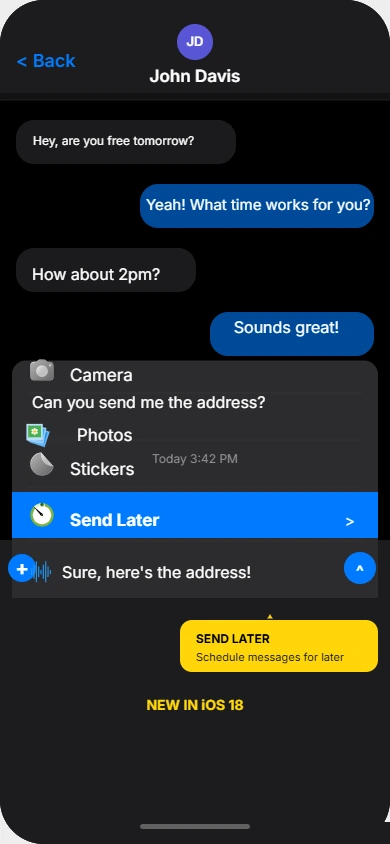
I scroll through the options and select Send Later. Some iPhones also let you long press the blue send button to jump straight to this menu. I prefer using the plus button because it is more reliable on my device.
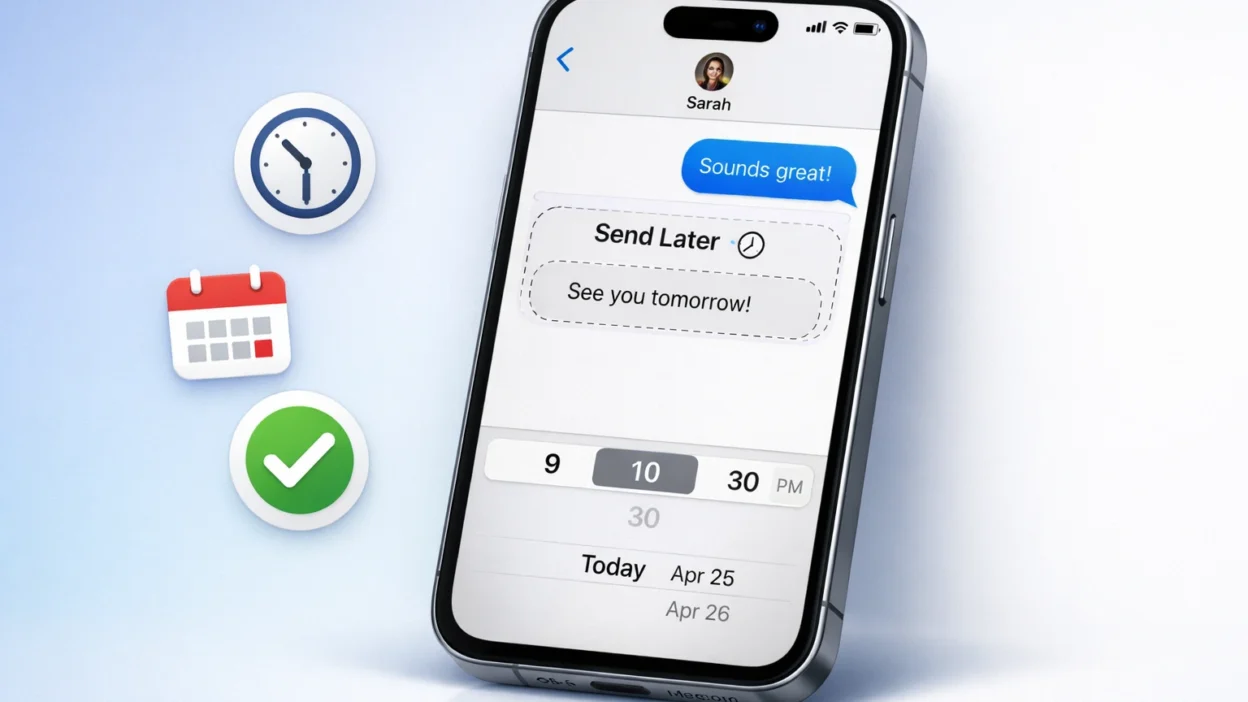
The date and time picker appears immediately. I spin the wheels to choose the exact time I want my message to deliver. I can pick today tomorrow or any date in the future. I often schedule messages two weeks ahead for important dates.
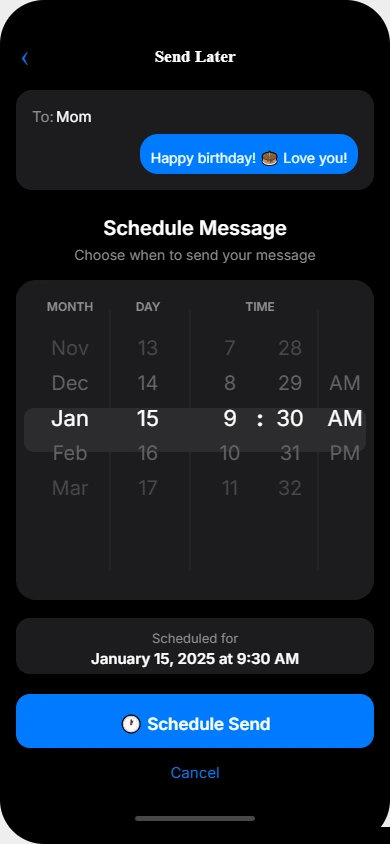
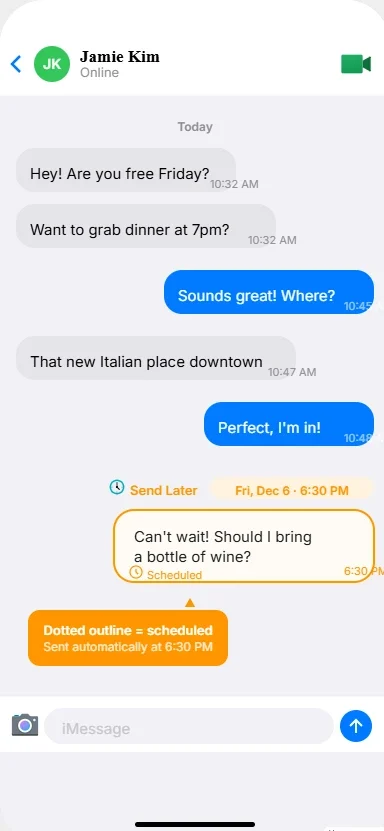
Finally I tap the send button that now shows a small clock icon. My iPhone confirms the scheduled send with a message bubble that says Send Later above it. The text sits in our conversation thread with a dotted outline until it transmits. I can see it waiting there which gives me confidence it will work.
The whole routine takes less than fifteen seconds after you practice it twice. I have scheduled over fifty messages this way and every single one delivered on time.
How to Edit or Reschedule a Send Later Message
I often need to edit scheduled text after I create it. Maybe I typed the wrong time or want to reschedule text on iPhone completely.
I find the scheduled message in our conversation. It stands out because it has the dotted border and the Send Later label above it. You cannot miss it.
I tap and hold my finger on that message bubble. A small menu pops up with several choices. This is the same gesture I use to copy regular texts.
I select Edit if I want to change the words inside the message. I select Edit Time if I only need to reschedule text iPhone makes this very simple. The date and time picker opens again and I choose a new delivery moment.
I tap Done to save my changes. The message keeps its scheduled status with the updated information. I have changed delivery times many times without any problems.
How to Delete a Send Later Message
I cancel scheduled text messages fairly often when my plans shift or I change my mind.
I locate the scheduled message in the thread. I press and hold it until the options appear at the bottom of my screen.
I tap Delete from the menu. My iPhone asks me to confirm because it wants to prevent accidents. I appreciate this safety step.
I confirm and the message disappears instantly. It will never send. This action to delete scheduled message is permanent so I double check before I remove anything important.
I can also swipe left on the message in some iOS versions to reveal the delete option faster. Both methods work the same on my phone. I use whichever feels quicker in the moment.
This native method is my first choice whenever it is available. It keeps everything inside the Messages app and requires no extra setup or third party tools.
Method 2: Can’t Find Send Later? Use This Shortcuts Workaround
I need to be honest upfront. The iPhone shortcuts schedule text method isn’t a perfect or bulletproof solution. I’ve used Shortcuts automation for three years and it works reliably, but it requires more setup than the native feature and you need to manage it afterward.
I have used it for three years and it works reliably, but it requires more setup than the native feature and you need to manage it afterward.
That said, this Shortcuts automation approach is the only option if you cannot find Send Later on your iOS 18 phone or if you are running iOS 13 through iOS 17. I still use this method even though I have iOS 18 because it gives me better control over recurring scheduled texts like weekly reminders.
The iPhone shortcuts app comes free on every modern iPhone. If you somehow deleted it, you can download it again from the App Store at no cost. I keep it on my home screen now because I use text message automation regularly.
Shortcuts is incredibly powerful for iPhone automation beyond just text scheduling you can also use it to unhide apps on iPhone and automate dozens of other daily tasks.
Step 1: Open Shortcuts and Create New Automation
I start by finding and opening the Apple Shortcuts app. The icon looks like two overlapping squares in white and light blue colors.
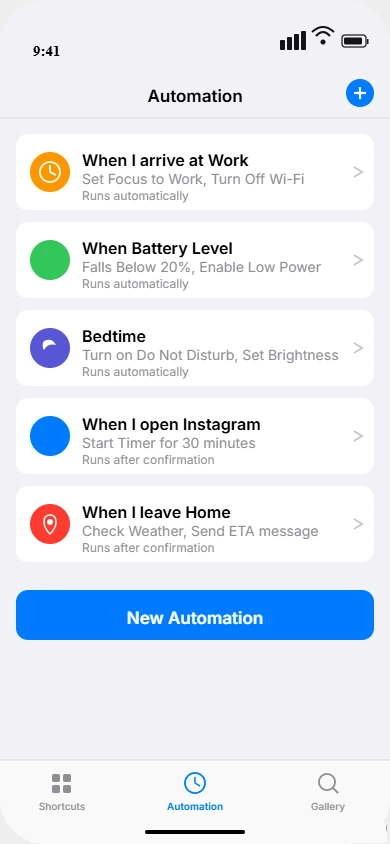
When the app opens I see three tabs at the bottom of my screen. I tap the middle tab labeled Automation. This is where all my automated text iPhone workflows live.
I tap the blue plus button in the top right corner. On some iOS versions this button says New Automation instead. Both options do the same thing and take me to the automation workflow setup screen.
A menu appears asking what should trigger my automation. I scroll through the options until I find Time of Day and tap it. This trigger lets me schedule messages for specific moments.
Step 2: Set Your Schedule Time and Frequency
The date and time picker opens immediately. I choose the exact hour and minute when I want my message to send. I can pick any time from midnight to just before midnight the next day.
Below the time I see options for how often this should repeat. I can choose Daily, Weekly, or Monthly depending on what kind of message I am scheduling. For a birthday greeting I pick Monthly and then select the specific date from the calendar that appears.
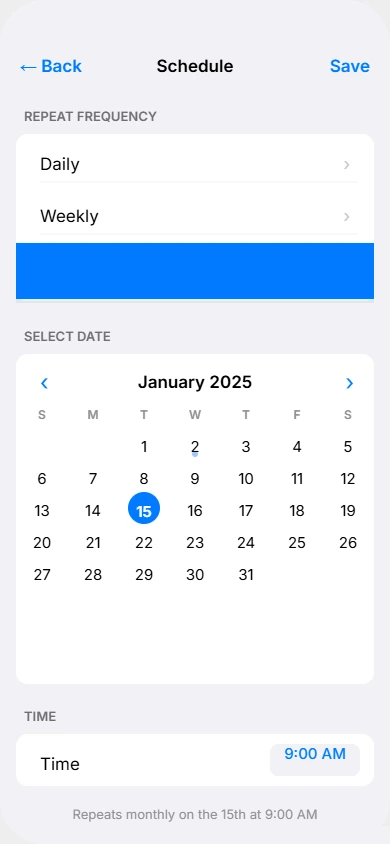
For a one time message I also choose Monthly because there is no single occurrence option. I will delete the automation after it runs once. I learned this trick after accidentally sending the same message multiple days in a row. That was embarrassing.
I tap Next after I confirm my schedule settings.
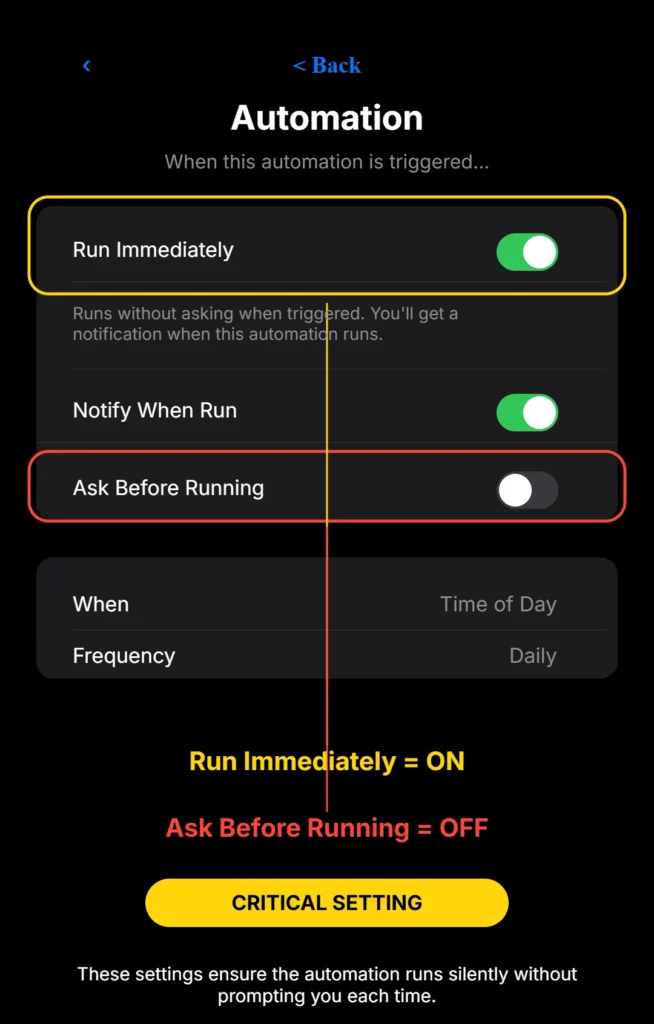
Step 3: Critical Settings Don’t Skip These
This next screen is the most important part of the entire process. I spent an hour troubleshooting my first automation because I missed these settings. Your scheduled delivery will fail completely if you skip this step.
I see two toggles that control how the automation runs. The first one says Run Immediately and I must turn this on. When this toggle is blue and switched to the right position, my automation will execute at the scheduled time without requiring me to do anything.
The second setting says Ask Before Running and I need to turn this off. I tap the toggle so it turns gray. When I do this a popup asks me to confirm by selecting Don’t Ask. I always confirm this choice.
These automation settings ensure my iPhone sends the text automatically even if I am sleeping or busy doing something else. Without them the automation will either fail or interrupt me asking for permission at the scheduled moment.
Step 4: Create the Send Message Action
I tap Next and arrive at a blank screen that says New Blank Automation at the top. This is where I build what the automation actually does.
I tap the search bar and type send message. The system shows me several options. I select the one that says Send Message with a blue speech bubble icon next to it.
A blue action block appears with two fields. The first field says Message and shows placeholder text. I tap this field and type the exact text I want to schedule. I treat this like composing any normal text message.
The second field says Recipients. I tap it and my contacts list opens. I scroll to find the person who should receive this automated text iPhone message. I can select multiple people if I want the same message to go to several recipients at once.
Step 5: Save and Test Your Automation
I tap Done in the top right corner. My automation is now saved and active. I can see it listed under my Automation tab with the time and frequency I chose.
I strongly recommend testing your first automation with a time just two or three minutes in the future. I text myself to verify everything works correctly. When I receive the scheduled send on time I know the setup succeeded.
After my test works I go back and create the real automation with the actual message and delivery time I need.
Why Your Scheduled Text Might Not Send (And How to Fix It)
I’ve seen many people struggle to troubleshoot scheduled messages on their iPhones. The frustration is real when you set everything up perfectly but your text never delivers. I made every single one of these mistakes myself before figuring out what was going wrong
The frustration is real when you set everything up perfectly but your text never delivers. I made every single one of these mistakes myself before I figured out what was going wrong.
Let me walk you through the most common problems I encounter and exactly how to fix each one. These solutions have saved me from embarrassment more times than I can count.
I Don’t See the Send Later Option
This is the number one complaint I hear from friends who update to iOS 18. They read that the send later feature exists but they cannot find it anywhere in their Messages app.
I experienced this exact problem on my iPhone 14 even after updating to iOS 18.2. The option simply was not there. I checked my settings repeatedly and found nothing wrong with my phone.
Here is what I learned. The iOS 18 send later rollout appears to be gradual and inconsistent. Some users get it immediately while others wait weeks or months. Your carrier or geographic region might affect when the send later feature becomes available to you.
Apple sometimes enables features through minor updates like iOS 18.1 or iOS 18.3. I recommend checking for any available software updates in your Settings under General and Software Update.
If you still cannot find Send Later after updating completely, the Shortcuts method I explained earlier works perfectly as your alternative. I actually prefer Shortcuts for recurring messages anyway because it gives me more control over frequency and timing.
My Shortcuts Automation Didn’t Send
This problem causes the most frustration because everything looks correct but the failed scheduled text never arrives. I wasted an entire afternoon once trying to figure out why my automation would not work.
Before diving into Shortcuts-specific fixes, make sure your iPhone is running smoothly overall a cluttered device can cause automation failures. Consider clearing app cache on iPhone to improve performance and reliability.
The issue almost always comes down to those two critical settings I mentioned earlier. I open the Shortcuts app and tap on the automation that failed. I check whether Run Immediately is turned on. If this toggle shows gray instead of blue I know I found the problem.
I also verify that Ask Before Running is turned off. When this setting stays enabled your shortcuts automation will pause and wait for your permission at the scheduled time. You might be sleeping or busy and miss the notification completely.
I fix both settings by tapping Edit on the automation workflow and scrolling to find these toggles. I switch Run Immediately to blue and Ask Before Running to gray. I save the changes and test again with a message scheduled two minutes ahead.
Every single time I correct these settings my automation works flawlessly. I have never had a properly configured automation fail to deliver.
Do I Need Internet Connection?
Yes absolutely. This is a critical requirement that surprises many people. Your iPhone cannot send scheduled texts without an active internet connection at the exact moment of message delivery.
I learned this the hard way during a camping trip. I scheduled several messages before heading into an area with no cell service. None of them sent because my phone had no way to connect to the network.
Both the native Send Later feature and Shortcuts automation require internet access to function. Your iPhone needs to communicate with Apple’s messaging servers to deliver the text. Think of it like trying to mail a letter without access to a mailbox.
Your phone can be locked when the scheduled time arrives. That part works fine. But you must have either cellular data or WiFi connection active.
If you’re experiencing connectivity issues, learn how to enable WiFi calling on iPhone to ensure your messages send even with weak cellular signal.
I usually keep my phone connected to WiFi at night when most of my scheduled messages go out.
If your phone loses connection right before a scheduled send, the message delivery will fail completely. The system does not retry later. I always verify my connection status before I schedule anything important.
I also make sure my phone stays powered on. A dead battery or powered off device cannot send scheduled texts. I plug my phone in at night to avoid this problem entirely.
Delete This or It’ll Send Again: Managing Shortcuts Automations
I made a terrible mistake during my first month using shortcuts automation. I created a birthday message for my friend and set it to send on her birthday. The message delivered perfectly at 9 am as planned. I felt proud of myself.
Exactly one month later at 9 am, the same birthday message sent again. My friend texted me asking why I was wishing her happy birthday in the middle of February when her actual birthday was in January. I wanted to disappear.
The problem is simple but critical. Once the message sends, the automation workflow stays active in your shortcuts app. It sits there waiting to repeat based on the frequency you chose during setup. If you picked Monthly like I recommend for one time messages, it will fire again next month. Daily automations repeat tomorrow. Weekly automations repeat next week.
You must remember to disable or delete scheduled message automations immediately after they execute. I treat this as a mandatory step now. I set a reminder on my phone to check my Automation tab within an hour after any scheduled text goes out.
How to Delete a Shortcuts Automation After It Sends
I handle deletion the same way every single time. I open the shortcuts app and tap the Automation tab in the middle of the bottom menu.
I see my list of all active automations. The one that just sent my message still appears here with the time and frequency displayed underneath it. Nothing marks it as completed or finished.
I swipe left on that automation row. A red Delete button appears on the right side. I tap Delete and the automation disappears immediately from my list.
This action is permanent. The automation workflow is gone completely. I cannot undo this step so I always verify I am deleting the correct one before I tap.
The entire process takes five seconds. I do it while I am still thinking about the message I just sent. If I wait until later I risk forgetting completely and ending up with another embarrassing repeat text.
I delete automation entries for every one time message. Birthday greetings, appointment reminders, time sensitive notifications, and anything else that should only send once gets removed immediately after delivery.
Alternative: Disable Instead of Delete
I discovered a better approach for recurring scheduled texts that I might want to modify and reuse later. Instead of deleting the automation completely I can disable it temporarily.
I open the shortcuts app and go to my Automation tab just like before. I tap on the automation I want to pause instead of swiping left to delete it.
The automation details screen opens. I see all the settings I configured including the time, frequency, and message content. At the very top sits a toggle switch that controls whether this automation runs or not.
I tap that toggle to turn it off. The switch turns gray and shows that the automation is now inactive. It will not execute at the next scheduled time. It sits there waiting until I need it again.
This automation management approach lets me keep the entire structure intact. When I want to send a similar message next month I tap back into this disabled automation. I edit the message text and recipient. I turn the toggle back on. Everything else stays configured exactly how I set it up originally.
I use this disable method for my weekly reminder texts. Sometimes I skip a week or need to pause them temporarily. I turn them off and back on as needed without rebuilding the entire automation workflow from scratch.
For true one time messages though I still prefer to delete them completely. Keeping too many disabled automations clutters my list and increases the chance I accidentally reactivate the wrong one.
Scheduling Texts to Android Users from iPhone
I get asked this question constantly by iPhone users who have Android friends or family members. People worry that scheduling features only work for blue message conversations between iPhone users. I want to clear up this confusion right away.
You can absolutely schedule text to Android users from your iPhone. Both the Send Later feature and the Shortcuts method work perfectly fine with green message bubbles. I do this regularly with my brother who refuses to switch from his Samsung phone.
The key difference is understanding what happens behind the scenes with cross platform messaging. When you text another iPhone user, your messages travel through Apple’s iMessage system and appear as blue bubbles. When you text an Android user, your iPhone automatically switches to SMS protocol and those messages show up as green bubbles.
Both systems handle scheduling the exact same way from your perspective. You follow the identical steps I outlined earlier. Your iPhone does not care whether the recipient uses Android or iOS. The scheduled message sits in your automation queue and delivers at the specified time regardless of bubble color.
Does Scheduling Work for SMS Green Messages?
Yes it works flawlessly. I have scheduled hundreds of SMS messages to Android users over the past few years. The success rate is identical to my iMessage scheduling.
I tested this thoroughly when I first learned about text message scheduling. I created automations to send messages to both my iPhone friends and my Android friends at the same time. Every single message delivered exactly when I scheduled it.
The iMessage vs SMS scheduling process uses the same underlying technology on your iPhone. Your phone queues the message for delivery at your chosen time. When that moment arrives, your iPhone determines whether to send via iMessage or SMS based on the recipient’s device type.
You never need to manually select which protocol to use. Your iPhone handles this decision automatically every time you send a message. Scheduling does not change this behavior at all.
I notice no difference in reliability between scheduled blue messages and scheduled green messages. Both depend on having internet connection at send time. Both require your phone to be powered on when the scheduled moment arrives. Both follow the same rules I explained earlier.
The only real difference I observe is message delivery speed. iMessage typically delivers instantly because it uses internet data. SMS sometimes takes a few extra seconds because it travels through cellular networks. This delay is minimal and I barely notice it even when watching for scheduled messages to arrive.
I schedule birthday greetings to my Android family members just as easily as I schedule reminders to my iPhone friends. The green bubble does not limit scheduling capability in any way.
One important detail worth mentioning is that you cannot use iMessage specific features in scheduled SMS messages. Things like tapback reactions, read receipts, and typing indicators only work in blue bubble conversations. But basic text message scheduling works identically for both.
I also want to address a common misconception. Some people believe that scheduling to Android users requires the recipient to have special apps installed. This is completely false. The scheduling happens entirely on your iPhone. Your Android recipient receives the message as a normal SMS text. They never know you scheduled it in advance unless you tell them.
I schedule work related messages to colleagues who use various Android phones. They receive every message perfectly at the intended time. The cross platform aspect creates zero problems for scheduled message delivery.
If you are worried about whether scheduling will work with your Android contacts, stop worrying. I promise it works exactly the same as scheduling to iPhone users. Just follow the steps I outlined for either Send Later or Shortcuts and your messages will deliver successfully regardless of what phone your recipient carries.
Advanced Scheduling: Groups, Daily Reminders, and WhatsApp
Once you master basic text scheduling, you can explore more powerful ways to use this automated text iPhone capability. I rely on these advanced features almost daily for managing my communication with multiple people and different messaging platforms.
How to Schedule Group Messages
I schedule group text iPhone messages regularly for my family chat and work team updates. The process works almost identically to scheduling individual messages.
For the Send Later method in iOS 18, I open an existing group conversation thread. I type my message and tap the plus button just like normal. I select Send Later and choose my time. The scheduled message appears in the group thread with the dotted outline indicating it will send later.
For the Shortcuts method, I follow the same automation setup I described earlier. The only difference comes when I reach the Recipients field. Instead of selecting just one person, I tap multiple contacts from my list. I can choose as many recipients as I need for my group message.
Each person receives the automated text iPhone message individually at the scheduled time. They do not see it as a group conversation thread unless I specifically select an existing group chat. I prefer sending individual copies because it feels more personal for things like event reminders.
Setting Up Daily or Weekly Recurring Texts
Recurring scheduled texts transformed how I handle routine reminders. I created a daily reminder that sends to my dad every evening at 8 pm. He needs to check his blood sugar before bed and this simple automated message helps him remember.
I use the Shortcuts method exclusively for all recurring texts because Send Later only handles one time messages. When I set up the automation, I choose Daily from the frequency options for my evening reminder to my dad.
I also run a weekly automation that sends to my accountability partner every Monday morning at 7 am. I selected Weekly as my frequency and chose Monday as the specific day. This message fires automatically every single week without me thinking about it.
The beauty of recurring messages is that I set them up once and forget about them. I never delete these automations like I do with one time messages. They keep running indefinitely until I manually disable or remove them.
Choosing the Right Frequency Daily vs Weekly vs Monthly
Understanding automation frequency selection is critical for avoiding mistakes. I learned this through trial and error after sending duplicate messages more times than I care to admit.
I choose Daily for recurring messages that need to send every single day at the same time. My dad’s evening reminder uses Daily frequency. So does the morning motivation text I send myself at 6 am.
I choose Weekly for messages that repeat on the same day each week. My Monday check in with my accountability partner uses Weekly. I also have a Friday afternoon message that reminds my family about our weekend plans.
I choose Monthly for two different scenarios. The obvious one is messages that truly repeat monthly like rent reminders or bill payment notifications. I send myself a Monthly message on the first of each month to review my budget.
The less obvious use for Monthly is one time messages. When I want to schedule a single birthday greeting or appointment reminder, I select Monthly as my frequency. Then I use the calendar picker to choose the specific date. After the message sends, I immediately delete the automation so it does not fire again next month.
This Monthly then delete strategy prevents the embarrassing duplicate messages I sent during my first month using Shortcuts. Never choose Daily for a one time message or you will spam your recipient every day forever.
Bonus Scheduling WhatsApp Messages with Shortcuts
I discovered that Shortcuts can schedule messages in third party apps like WhatsApp. This capability expands scheduling beyond just regular SMS and iMessage.
The setup process mirrors regular text scheduling with one key difference. When I create the automation and search for the action, I type Send Message via WhatsApp instead of just Send Message.
The WhatsApp specific action appears with the green WhatsApp icon next to it. I select this action and compose my message exactly like before. I choose my WhatsApp contact from the recipients list.
The automation sends the WhatsApp message at my scheduled time. The recipient receives it as a normal WhatsApp message with no indication I scheduled it in advance.
Real Ways People Use Scheduled Texts
I want to share the practical ways I actually use scheduled messages iOS in my daily life. These real examples might inspire you to find your own creative applications for text message automation.
Birthday and Anniversary Reminders
I schedule birthday greetings weeks in advance now. I used to forget birthdays constantly until I started using this feature. When someone mentions their birthday in conversation, I immediately pull out my phone and schedule a message for their actual birthday at 8 am.
I set up anniversary messages for my parents and close friends who are married. I schedule these a month early so I never miss the important date. The messages send automatically even if I am traveling or busy that day.
Late Night Thoughts Without Waking People Up
I do my best thinking late at night around 11 pm. I often want to share ideas with friends or send important reminders, but I refuse to text anyone that late. Instead I compose the message immediately while it is fresh in my mind and delay text sending until 9 am the next morning.
This approach lets me capture my thoughts without disturbing anyone’s sleep. My friends receive the message at a reasonable hour and never know I wrote it at midnight.
Appointment Confirmations and Reminders
I run a small tutoring service and I schedule reminder texts to my students the day before their sessions. I set these up right after I book the appointment so I do not forget later. The automated reminder reduces no shows significantly.
I also use scheduled messages iOS to remind myself about my own appointments. I send myself a text two hours before dental visits, car maintenance, and other commitments I tend to forget.
Morning Motivation and Evening Check Ins
I created a daily automation that sends me a motivational quote every morning at 6 am when my alarm goes off. I change the quote every few weeks to keep it fresh. This simple text message automation helps me start each day with the right mindset.
I also send my elderly mother a goodnight message every evening at 9 pm. She lives alone and appreciates the daily check in. The automation ensures I never forget even when my schedule gets hectic.
Work Related Follow Ups
I schedule professional follow up messages after meetings and client calls. If I promise to send information by Friday, I schedule the message for Friday morning while the commitment is fresh in my mind. This prevents me from forgetting urgent tasks during busy work weeks.
Event Coordination
I organize a monthly book club and I schedule reminder texts to all members one week before our meeting and again the morning of. I set up both messages right after I confirm the meeting date. The automated reminders keep attendance consistent.
Time Zone Coordination
My sister lives three time zones away. I schedule messages to arrive at convenient times in her timezone rather than mine. I might write the message at 10 pm my time but schedule it to send at 9 am her time. This thoughtful timing shows I respect her schedule.
Forgettable but Important Messages
I use text message automation for things I know I will forget. Reminding my kids to take their house keys before school. Telling my spouse to move the car for street cleaning. Asking my roommate to feed the cat when I travel.
These mundane messages matter but they are easy to overlook when life gets busy. Scheduling them ensures important daily tasks do not fall through the cracks.
Relationship Maintenance
I schedule monthly check in messages to old friends I want to stay connected with but do not talk to regularly. A simple how are you doing message on the first Monday of each month keeps our friendship alive without requiring me to remember manually.
The key insight from all these examples is that scheduled messages work best for things you will either forget or cannot send at the ideal time. I encourage you to think about your own communication patterns and find opportunities where delay text sending would genuinely help you.
When to Use Send Later vs Shortcuts
I switch between both scheduling methods depending on what I need to accomplish. Each approach has clear strengths and limitations that I have learned through extensive use. Let me help you choose the right tool for your specific situation.
Use Send Later iPhone When:
I reach for the send later iPhone method whenever I need quick and simple one time scheduling. If I am already in a Messages conversation and want to delay a single text, Send Later is the fastest option by far.
I prefer Send Later for spontaneous scheduling decisions. When I am texting someone and realize I should wait until morning to send my response, I can schedule it in under ten seconds without leaving the Messages app.
Send Later works beautifully for editing and managing scheduled messages. I can change the text content or delivery time easily by tapping and holding the scheduled message. I can also delete it instantly if my plans change.
I choose Send Later when I want zero maintenance after the message sends. The system automatically removes the scheduled message from my conversation once it delivers. I never worry about duplicate sends or forgotten automations.
Send Later is my go to method for scheduling iMessages to other iPhone users. The integration feels seamless and natural within the blue bubble conversations I use most often.
Use Shortcuts Automation When:
I rely on shortcuts automation exclusively for recurring messages that need to send daily, weekly, or monthly. Send Later cannot handle repeating schedules at all. If I want my dad to receive an evening reminder every single day, Shortcuts is my only option.
I choose Shortcuts when I need to schedule messages far in advance with specific dates. The calendar picker in Shortcuts lets me select a birthday six months from now. Send Later has more limited future scheduling capabilities in my experience.
I use Shortcuts for scheduling WhatsApp messages or other third party messaging apps. Send Later only works within Apple’s native Messages app. Shortcuts expands my scheduling power to other communication platforms.
I prefer Shortcuts when I want confirmation notifications. I can enable the Notify When Run toggle to receive an alert when my scheduled message actually sends. This gives me peace of mind for critical messages.
I choose Shortcuts for complex automation workflows that combine multiple actions. I can build automations that send a message and then perform other tasks like creating calendar events or logging data.
The Honest Limitations of Each Method:
Send Later disappears for some iOS 18 update users even after updating to the latest version. I experienced this myself and found no reliable fix. If you cannot find Send Later, you have no choice but to use Shortcuts.
Shortcuts automation is not a perfect or bulletproof solution as I mentioned earlier. You must remember to delete one time automations after they execute or they will repeat. I have sent duplicate messages because I forgot this critical step.
Shortcuts requires more initial setup time. Creating the automation workflow takes two to three minutes compared to ten seconds for Send Later. The extra effort pays off for recurring messages but feels excessive for quick one time scheduling.
Send Later lacks advanced features like custom repeat schedules or action combinations. It does one thing well but nothing beyond basic message scheduling.
My Personal Decision Framework:
I ask myself three quick questions every time I need to schedule a text. Does this message need to repeat? If yes, I use Shortcuts. Is Send Later available in my Messages app right now? If no, I use Shortcuts. Am I scheduling a simple one time message in the next few days? If yes and Send Later works, I use Send Later.
This decision process has served me well for hundreds of scheduled messages. I recommend you follow the same logic until you develop your own preferences through experience. Both methods work reliably when you understand their strengths and accept their limitations.
Third Party Apps for Scheduling Texts (Brief Overview)
I want to be completely honest with you. I rarely use third party scheduling apps because the native iPhone methods I explained earlier handle almost everything I need. However, some specific situations do require capabilities that Send Later and Shortcuts cannot provide.
Third party apps make sense when you need features like bulk message scheduling to hundreds of contacts, advanced message templates with variable fields, detailed scheduling analytics and delivery reports, or integration with business CRM systems.
I tested several text message automation apps over the past two years to understand what they offer beyond native iPhone capabilities. Here are the options worth considering if your needs exceed what Apple provides.
Scheduled App
I tried Scheduled when I needed to send the same message to twenty different people at staggered times throughout a day. The app lets you create message templates and schedule them to multiple recipients with different delivery times for each person.
The interface feels simple and intuitive. I created my message once and then assigned different send times to each contact in my list. This saved me from creating twenty separate Shortcuts automations.
Scheduled offers a free version with limited monthly messages and a paid subscription for unlimited scheduling. I used the free tier for my one time bulk send and never needed to upgrade.
The main drawback is that you must compose messages within the Scheduled app itself. You cannot schedule from your native Messages app like you can with Send Later.
Reminderbase SMS Scheduler
I experimented with Reminderbase when I wanted recurring birthday messages with personalized content for each person. The app maintains a database of your contacts with their birthdays and lets you create custom message templates that auto populate with names and details.
The recurring automation features surpass what iPhone Shortcuts offers. I can set truly complex schedules like the second Tuesday of every month or three days before someone’s birthday annually.
Reminderbase also provides delivery confirmations and message history tracking. I can verify that important scheduled texts actually sent successfully. This feature gave me confidence when scheduling critical business communications.
The app requires a subscription after a short trial period. I used it for two months but eventually returned to Shortcuts because the cost did not justify the minor convenience improvements for my personal use.
When Third Party Apps Make Sense
I recommend exploring third party scheduling apps only if you face specific limitations with native methods. Business users who send scheduled marketing messages to customer lists definitely benefit from the advanced features these apps provide.
People managing complex family coordination across multiple time zones might appreciate the sophisticated scheduling rules and bulk messaging capabilities. Small business owners who need message templates and delivery tracking will find value in the premium features.
For everyone else, I strongly suggest mastering Send Later and Shortcuts first. These free native options handle the vast majority of personal text message automation needs without requiring app subscriptions or learning new interfaces.
I personally switched back to exclusively using Shortcuts and Send Later after my third party app experiments concluded. The native methods integrate seamlessly with my Messages app and iCloud contacts. They protect my privacy better than third party services. They cost nothing and work reliably across all my Apple devices.
Frequently Asked Questions
Why don’t I see “Send Later” even though I have iOS 18?
This feature rolled out gradually across different regions and carriers during updates. Apple sometimes requires a specific subversion like iOS 18.1 for the option to appear in all phones. If it remains missing on your device, you can rely on the Shortcuts workaround instead to achieve the same result effectively.
How do I know my scheduled message actually sent?
For Send Later, check your Messages app sent history at the scheduled time. For Shortcuts, enable the Notify When Run toggle in your automation settings to receive a confirmation notification when the message delivers
What happens if my phone is off when the message should send?
The message will not send if your phone is powered off or lacks internet connection at the scheduled time. Your phone must be on with cellular data or WiFi active. The system does not retry missed messages automatically.
Can I edit a scheduled message after creating it?
With Send Later, tap and hold the message bubble and select Edit to change the text or delivery time. With Shortcuts, you must delete the automation and recreate it with your updated message content.
Will scheduled messages work if I’m texting Android users?
Yes, both Send Later and Shortcuts work perfectly with SMS green message bubbles to Android devices. The scheduling works identically regardless of the recipient’s phone type.