
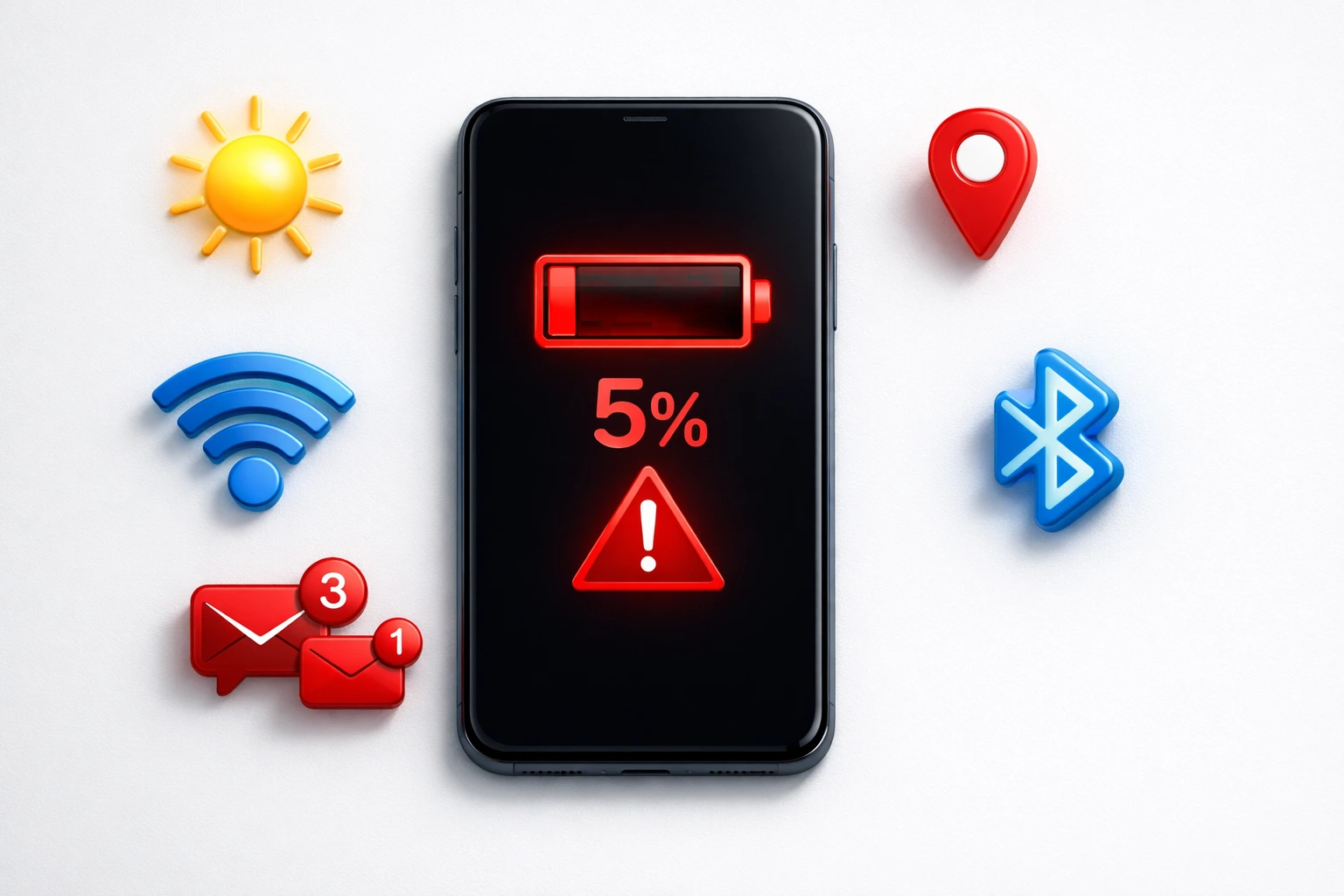
Why Does My Phone Battery Drain So Fast? 5 Hidden Causes + Fixes
If you’re wondering why your phone battery drains fast even when not in use, the cause is usually not your screen or usage but hidden background processes and system settings.
Here’s the truth: your phone battery draining fast usually isn’t about your screen or heavy usage. It’s about hidden background processes running 24/7 without your knowledge.
These silent battery killers work behind the scenes, constantly draining battery power even when your phone sits idle in your pocket.
The good news? You can fix most battery drain problems in under five minutes by changing a few simple settings. No apps to download. No technical skills needed. Let’s dive into the real reasons your phone battery won’t last and exactly how to stop it.
5 Hidden Settings That Kill Your Battery Life
Your Screen Is Working Overtime (Even on Auto-Brightness)
Your display is the single biggest battery consumer on your phone, eating up 30-50% of total power. But here’s what most people miss: it’s not just brightness that matters.
Quick fixes:
- Turn on Dark Mode if you have an OLED or AMOLED screen (most modern Samsung, Pixel, and iPhone 12+ models). Black pixels are actually turned off, saving 15-30% battery.
- Set Screen Timeout to 15 or 30 seconds. Every extra second your screen stays on wastes power.
- Enable Adaptive Brightness so your phone automatically adjusts based on ambient light instead of blasting at full brightness indoors.
These three changes alone can add 1-2 hours to your daily battery life.
Background Scanning You Never Turned On
This is the hidden battery killer nobody talks about. Your phone constantly scans for nearby Wi-Fi networks and Bluetooth devices even when both appear “turned off” in your quick settings menu.
On Android, disable these immediately:
- Go to Settings > Location > Wi-Fi and Bluetooth scanning and toggle both OFF
- Search “Nearby device scanning” in settings and turn it OFF
- Go to Settings > Google > Devices & Sharing > Devices and disable “Scan for nearby devices”
These background scans run periodically in the background and contribute to gradual battery drain, especially when multiple services are active.Turning them off is one of the most impactful changes you can make.
Apps Refreshing Behind Your Back
Even when you’re not using them, apps like Facebook, Instagram, email, and news apps constantly refresh in the background to fetch new content. Every refresh cycle uses battery, data, and processing power.
How to stop this:
- On iPhone: Go to Settings > General > Background App Refresh and set it to “Wi-Fi” or “Off” for apps you don’t need updating constantly.
- On Android: Go to Settings > Apps > [App Name] > Battery > Restricted for apps that drain too much power.
Pro tip: Check which apps actually drain your battery by going to Settings > Battery. Look at the “Battery Usage” list to identify the real culprits on your specific phone.
Location Services Running Nonstop
Many apps request “Always” access to your location, meaning they track your GPS position around the clock. Weather apps, social media, shopping apps, and even games often do this unnecessarily.
Fix it now:
- Go to Settings > Privacy > Location Services (iPhone) or Settings > Location > App permissions (Android)
- Change apps from “Always” to “While Using” or “Never”
- Only maps and navigation apps truly need constant location access
This single change can dramatically reduce battery drain, especially if you have 10+ apps with “Always” location permission enabled.
The “Digital Wellbeing” Feature Nobody Need
Here’s a hidden drain that almost no one mentions: Digital Wellbeing. This built-in feature tracks your screen time, app usage, and phone unlocks constantly in the background. If you don’t actively use these reports, it’s just wasting battery for nothing.
To disable on Android:
- Go to Settings > Digital Wellbeing and parental controls
- Tap the three-dot menu > Manage your data
- Toggle off Daily device usage
Most users check these stats once, forget about them, and let the feature drain battery forever. Turn it off unless you genuinely use it.
When to Stop Blaming Settings and Check Battery Health
If you’ve tried all these fixes and your phone battery still drains fast, the problem might not be settings at all. Your battery itself may be degraded.
Smartphone batteries have a lifespan of 500-800 full charge cycles. After 2-3 years of daily use, most batteries retain only 80% or less of their original capacity. This means a battery that once lasted all day now dies by early afternoon — and no setting change can fix that.
How to check your battery health:
- iPhone: Go to Settings > Battery > Battery Health & Charging. Look at “Maximum Capacity.” Below 80% means significant degradation.
- Android: Go to Settings > Battery > Battery Health (some brands). Or dial *#*#4636#*#* to access hidden battery stats on many Android phones.
Signs your battery needs replacement:
- Phone dies when showing 20-30% charge remaining
- Battery percentage jumps erratically (50% to 20% suddenly)
- Phone overheats frequently during normal use
- Battery visibly swollen (stop using immediately if this happens)
If your battery health is below 80%, consider getting a battery replacement. It’s usually $50-100 and can make your phone feel brand new again far cheaper than buying a new device.
4 Overlooked Reasons Your Phone Battery Drains Fast
Battery Drains Nobody Talks About
You’ve already turned down your brightness. You’ve closed background apps. You’ve disabled location services. But your phone battery still drains fast.
Here’s what most guides miss: some of the biggest battery killers aren’t in your settings menu at all. They’re hidden causes that drain power without any obvious signs. Let’s look at four overlooked reasons your battery won’t last — and what you can actually do about each one.
4 Hidden Causes Draining Your Phone Battery
Weak Cell Signal Forces Your Phone to Work Harder
When your phone struggles to find a strong cellular signal, it boosts its radio transmission power to maintain connection. This constant power boost drains battery significantly especially in basements, rural areas, or buildings with poor reception.
Quick test: Turn on Airplane Mode for 30 minutes. If battery drain slows dramatically, weak signal is likely your problem. Consider using Wi-Fi calling when signal is poor.
That Recent Software Update Might Be the Culprit
Did your battery start draining fast right after an iOS or Android update? That’s actually normal. After updates, your phone re-indexes files, optimizes apps, and runs background processes to adapt to the new system.
What to expect: This typically resolves within 24-72 hours. If battery drain continues beyond three days, there may be a bug in the update. Try restarting your phone or check for a follow-up patch.
Your Battery Has a Lifespan (And It Might Be Ending)
Smartphone batteries don’t last forever. After 500-800 charge cycles (roughly 2-3 years of daily use), battery capacity drops significantly. A battery that once lasted all day now dies by afternoon and no setting change can fix chemical degradation.
Check your battery health:
- iPhone: Settings > Battery > Battery Health & Charging
- Android: Settings > Battery > Battery Health
If your battery health shows below 80%, it’s time to consider a replacement.
Features You Forgot Were Even Running
Some features run 24/7 in the background without you realizing:
- NFC constantly scanning for contactless payments
- Always-On Display lighting pixels around the clock
- Digital Wellbeing tracking every app and unlock
Turn off any features you don’t actively use. These small drains add up fast.
Quick Recap Is It Settings or Battery Health?
If you’ve tried all the fixes and your phone still dies quickly, check your battery health percentage. Above 80%? Settings changes can help. Below 80%? Your battery is degraded and likely needs replacement to perform normally again.
How to Check Which App Is Draining My Battery
Before you start changing settings randomly it is important to identify the real culprit on your specific phone. Every smartphone has a built-in battery usage monitor that shows exactly which apps consume the most power. This simple check takes 30 seconds and tells you precisely where your battery is going.
Most people skip this step and just disable random features hoping something works. But when you actually see the data you might be surprised. Sometimes a game you played once three days ago is still running in the background eating 25% of your battery. Other times it is your email app constantly syncing every few minutes.
Let me show you exactly how to find this information on both iPhone and Android.
On iPhone (iOS Battery Settings)
Finding your battery draining apps on iPhone is straightforward. Apple provides detailed insights right in your settings.
Follow these steps:
Open the Settings app on your iPhone. Scroll down and tap on Battery. Wait a few seconds for the battery usage data to load completely.
You will see a list of apps sorted by how much battery they consumed. By default it shows the last 24 hours but you can tap Last 10 Days to see a longer pattern.
What to look for:
Pay attention to apps showing high percentage but low screen time. This means the app is draining battery in the background without you even using it. You will also see a label that says Background Activity under some apps. This indicates the app was running behind the scenes.
If any app shows more than 20% battery usage and you barely used it that day something is wrong. Consider deleting the app or restricting its background activity.
On Android (Battery Usage Settings)
Android also provides detailed battery usage information though the exact location varies slightly between phone brands.
Follow these steps:
Open Settings on your Android phone. Tap on Battery or Battery and Device Care depending on your phone brand. Look for Battery Usage or View Details option and tap it.
You will see a list showing which apps and system services used the most battery since your last full charge.
What to look for:
Check for any app using more than 15% that you did not actively use for long periods. This signals background drain. On Samsung phones tap the three dot menu and select Show System Apps to see hidden processes too.
Some Android phones let you tap individual apps and choose Restricted mode which prevents them from running in the background entirely.
Pro tip: Check this screen once a week to catch problematic apps early before they drain your battery for days without you noticing.
What To Do After You Find the Culprit
Once you identify which app drains the most battery you have three options. First you can simply delete the app if you do not need it. Second you can restrict its background activity in your battery settings. Third you can check if an app update is available since developers often fix battery drain bugs in newer versions.
The key is actually checking instead of guessing. Five minutes of investigation saves hours of frustration from a dying phone.
How to Stop My Phone Battery From Draining So Fast
Now that you know what drains your battery the most it is time to fix it. The good news is that most battery drain problems can be solved in just a few minutes by adjusting simple settings. You do not need any apps or technical knowledge. Just follow these four proven fixes and watch your battery life improve dramatically.
These are not the generic tips you see everywhere. These are specific hidden settings that actually make a measurable difference. Most people never touch these features because they do not even know they exist.
Let me walk you through each fix step by step.
Fix 1 Optimize Display Settings for Maximum Battery Life
Your screen is the single biggest battery consumer on any smartphone accounting for 30 to 50 percent of total power usage. Even small changes here create massive improvements in battery life, with proper display optimization being one of the most effective methods for saving battery life without sacrificing functionality
First enable Dark Mode if your phone has an OLED or AMOLED screen. Most modern Samsung phones Google Pixel phones and iPhone 12 or newer models use OLED technology. On these displays black pixels are actually turned completely off which saves 15 to 30 percent battery compared to light mode.
To enable Dark Mode on iPhone go to Settings then Display and Brightness and select Dark. On Android go to Settings then Display and toggle Dark Theme on.
Next adjust your Screen Timeout setting. This controls how long your screen stays on when you are not touching it. Every extra second wastes power. Set it to 15 or 30 seconds maximum.
On iPhone go to Settings then Display and Brightness then Auto Lock and select 30 Seconds. On Android go to Settings then Display then Screen Timeout and choose 15 or 30 seconds.
Finally enable Adaptive Brightness. This lets your phone automatically adjust screen brightness based on ambient light instead of maintaining high screen brightness indoors where it wastes power unnecessarily..
On iPhone go to Settings then Accessibility then Display and Text Size and toggle Auto Brightness on. On Android go to Settings then Display and enable Adaptive Brightness.
These three display changes alone can add one to two hours to your daily battery life without affecting usability at all.
Fix 2 Disable Background Wi-Fi and Bluetooth Scanning
This is the hidden battery killer almost nobody knows about. Your phone constantly scans for nearby Wi-Fi networks and Bluetooth devices even when both features appear turned off in your quick settings. This 24/7 scanning drains battery for zero benefit to most users.
On Android phones you need to disable this in multiple places because Google and phone manufacturers both enable scanning by default.
First go to Settings then tap Location. Scroll down and find Wi-Fi scanning and Bluetooth scanning. Toggle both of these completely off.
Next search for Nearby device scanning in your Settings search bar. When you find it toggle it off. This stops your phone manufacturer from scanning separately.
Finally go to Settings then Google then tap Devices and Sharing. Tap Devices and disable Scan for nearby devices.
On iPhone the process is simpler. Go to Settings then Privacy and Security then Location Services. Scroll all the way down to System Services at the bottom. Tap it and then disable Networking and Wireless.
Disabling these background scans is one of the most impactful battery saving changes you can make. Your phone will still connect to Wi-Fi and Bluetooth when you actively turn them on. It just stops the pointless constant scanning when you are not using them.
Fix 3 — Turn Off Default Printing Service
This feature is completely useless for 99 percent of smartphone users yet it runs constantly in the background scanning for nearby printers. Unless you regularly print documents directly from your phone this is just wasting battery all day every day.
On Android use the search bar in Settings and type Printing. Tap on Default Print Service when it appears. Toggle the switch at the top to turn it completely off.
Most people have never printed anything from their phone in their entire life yet this service scans continuously. Turning it off has zero downside and measurable battery improvement.
Fix 4 Disable Digital Wellbeing Tracking
Digital Wellbeing is a feature that tracks your screen time app usage and phone unlocks. While it sounds helpful most people check it once and never look at it again. Meanwhile it runs constantly in the background monitoring everything you do which drains battery and uses processing power.
On Android phones go to Settings and find Digital Wellbeing and Parental Controls. Tap the three dot menu icon in the top right corner. Select Manage Your Data and toggle off Daily Device Usage.
If you genuinely use Digital Wellbeing reports regularly then keep it on. But if you are like most people who enabled it once out of curiosity and forgot about it you are wasting battery for no reason.
These four fixes take less than five minutes total but can easily add two to three hours to your battery life every single day.
Fix 5 Manage App Notifications Aggressively
Every notification that appears on your phone wakes up the screen activates the processor and uses battery power. If you receive 50 to 100 notifications per day that adds up to significant battery drain.
Most apps request notification permission during installation and most people just tap Allow without thinking. Soon you have dozens of apps sending constant alerts you do not even read.
On iPhone go to Settings then Notifications. You will see a complete list of every app with notification access. Go through the list and disable notifications for any app you do not need immediate alerts from. Keep notifications on for messaging apps like WhatsApp and important apps like Calendar but turn off everything else.
On Android go to Settings then Notifications then App Notifications. Review each app and disable notifications for games shopping apps news apps and any service you can check manually when you want updates.
This simple cleanup can reduce battery drain by 10 to 15 percent while also giving you a more peaceful phone experience.
Fix 6 Restrict Background App Activity
Apps refreshing data in the background is one of the biggest hidden battery drains. Social media apps email clients and news apps constantly fetch new content even when you are not using them.
On iPhone go to Settings then General then Background App Refresh. You can turn it completely off or set it to Wi-Fi only. Better yet leave it on but go through the list and disable it for individual apps you do not need constantly updating.
On Android the process varies by phone brand. Go to Settings then Apps then select the app draining battery. Tap Battery and choose Restricted. This prevents the app from running in the background at all.
For apps like email where you want new messages you can leave background refresh on. For everything else restricting background activity saves massive amounts of battery.
Fix 7 Control Location Services Per App
Many apps request Always access to your location meaning they track your GPS position around the clock. This constant location tracking drains battery extremely fast.
On iPhone go to Settings then Privacy and Security then Location Services. Review every app and change Always to While Using the App or Never for apps that do not truly need your location.
On Android go to Settings then Location then App Permissions. Check which apps have location access and change unnecessary ones from Allow all the time to Allow only while using the app.
Only navigation apps like Google Maps truly need constant location access. Everything else should be restricted.
Fix 8 Enable Battery Saver or Low Power Mode
Both iPhone and Android have built in battery saving modes that reduce background activity lower performance slightly and extend battery life significantly.
On iPhone go to Settings then Battery and toggle Low Power Mode on. Your phone will disable background app refresh reduce visual effects and stop automatic downloads.
On Android go to Settings then Battery and enable Battery Saver or Power Saving Mode depending on your phone brand.
You can use these modes all day for maximum battery life or enable them automatically when battery drops below 20 percent.
Fix 9 Enable Battery Protection for Long-Term Health
Charging your phone to 100 percent and leaving it plugged in overnight damages battery health over time. Battery Protection features limit charging to 80 to 85 percent which is the optimal range for lithium ion battery longevity.
Lithium-ion batteries degrade over time according to official battery health guidelines, their capacity reduces after repeated charge cycles.
On iPhone go to Settings then Battery then Battery Health and Charging and enable Optimized Battery Charging.
On Android go to Settings then Battery then Battery Protection and enable it. Some Samsung phones call this Protect Battery.
This feature helps your battery maintain good health for years instead of degrading rapidly after 12 to 18 months.
Phone Battery Draining Fast After Software Update? Here’s Why
Did your phone battery suddenly start draining fast right after installing the latest iOS or Android update? You are not alone. This is one of the most common complaints after every major software update and it happens for a very specific reason.
When your phone installs a new operating system version it does not just apply the update and stop. Behind the scenes your phone runs dozens of background processes to adapt to the new system. It re-indexes all your photos and files to make search work properly. It optimizes every installed app for compatibility with the new OS version. It rebuilds system caches and updates security databases.
All of these processes consume significant battery power and processing resources. Your phone is essentially working overtime in the background even when the screen is off and you are not actively using it.
Here is what you need to know: This post-update battery drain is completely normal and temporary. In most cases it resolves itself within 24 to 72 hours once all the background optimization processes finish running.
During this period your battery might drain 20 to 30 percent faster than usual. Your phone might also feel slightly warmer than normal because the processor is working harder. Both of these signs are expected behavior after a major update.
When should you actually worry? If your battery drain continues beyond three full days after the update then something else might be wrong. It could be a bug in the new software version or an app that is not compatible with the updated OS.
If drain persists try these steps: First restart your phone completely by powering it off and back on. This often clears temporary glitches. Second check your battery usage settings to see if one specific app is suddenly consuming way more power than before. Third check if a follow-up patch update is available since developers often release quick fixes for battery drain bugs within the first week.
Most importantly do not panic if your battery life drops immediately after an update. Give it two to three days to stabilize. The optimization processes will complete and your battery performance will return to normal without you needing to do anything.
Apps That Drain Phone Battery the Most
Not all apps drain battery equally. Some apps are designed in ways that constantly consume power even when you are not actively using them. Knowing which app categories drain the most battery helps you make smarter decisions about what to keep on your phone and what to restrict or delete.
Let me break down the biggest battery draining app categories and explain exactly why they consume so much power.
Social Media Apps (Facebook, Instagram, TikTok)
Social media apps are among the worst battery drainers on any smartphone. Facebook Instagram TikTok Snapchat and Twitter constantly run in the background refreshing your feed checking for new notifications and uploading data about your activity.
These apps use multiple battery draining features simultaneously. They access your location to tag posts and show local content. They auto play videos as you scroll which uses processing power and data. They keep your camera and microphone permissions active for quick story posting. They send constant push notifications that wake your screen dozens of times per day.
Facebook is particularly notorious for background battery drain. Even when you close the app it continues running background processes. Many users report 15 to 25 percent battery usage from Facebook alone despite only actively using it for 20 to 30 minutes per day.
Quick fix: Go to your battery settings and restrict background activity for social media apps. You will still receive notifications but the apps cannot refresh content when you are not using them.
Navigation and Maps Apps
Google Maps Waze and Apple Maps drain battery extremely fast but for understandable reasons. Navigation apps use GPS continuously for real time location tracking. They keep your screen on at full brightness for visibility. They process live traffic data and recalculate routes constantly. They use speakers or Bluetooth for turn by turn directions.
A typical one hour navigation session can drain 20 to 30 percent of your battery. If you use navigation daily this adds up quickly.
Quick fix: Download offline maps for areas you frequent. This reduces data usage and processing load. Also lower screen brightness during navigation since you do not need maximum brightness in most conditions.
Streaming Apps (YouTube, Netflix, Spotify)
Video streaming apps like YouTube Netflix and Disney Plus are massive battery drains because they combine screen usage data streaming and audio processing all at once. Watching one hour of video can consume 15 to 20 percent battery depending on screen brightness and video quality.
Music streaming apps like Spotify Apple Music and YouTube Music are much lighter on battery when your screen is off. However streaming music over mobile data instead of downloaded content uses more power because of constant data transmission.
Quick fix: Download videos and music for offline playback when you are on Wi-Fi. This eliminates data streaming drain and significantly extends battery life during commutes or travel.
Games and Resource Intensive Apps
Mobile games especially graphics heavy games like PUBG Genshin Impact Call of Duty Mobile and racing games drain battery faster than almost any other activity. These games push your processor and graphics chip to maximum performance while keeping the screen on at high brightness.
Just 30 minutes of intensive gaming can drain 15 to 25 percent battery which is equivalent to several hours of normal phone usage.
Quick fix: There is no real way to reduce gaming battery drain without affecting performance. If you game frequently consider keeping a portable charger handy or only playing while plugged in.
Phone Battery Health Tips to Prevent Future Drain
Fixing battery drain problems is great but preventing them from happening again is even better. Your phone battery has a limited lifespan and how you treat it today directly affects how long it will last tomorrow.
Most people charge their phones the same way for years without realizing they are slowly killing the battery. Small daily habits add up over time. A battery that could have lasted three years might only survive 18 months because of poor charging practices and environmental stress.
Think of these habits as ongoing battery optimization rather than a one-time fix. A few minutes of attention now prevents most of the drain problems covered earlier in this guide. Health requires just a few simple changes to your routine.
These tips will help your battery maintain good performance for years instead of degrading rapidly after the first year.
Charge Between 20% and 80% When Possible
Lithium ion batteries which power all modern smartphones perform best when kept in the middle of their charge range. Constantly charging to 100 percent or draining to zero percent creates stress on the battery cells that accelerates chemical degradation.
Here is what happens at the extremes: When your battery reaches 100 percent and stays plugged in the cells experience high voltage stress. When it drops to zero percent the cells can enter a deep discharge state that damages their capacity. Both extremes reduce the total number of charge cycles your battery can handle before it degrades significantly.
The ideal charging range is 20 to 80 percent. This sweet spot minimizes stress and maximizes battery lifespan. If you can avoid letting your phone drop below 20 percent and stop charging around 80 percent your battery will maintain better health for much longer.
Many modern phones now include Battery Protection features that automatically limit charging to 80 or 85 percent. On iPhone this is called Optimized Battery Charging. On Android it is called Battery Protection or Protect Battery depending on your phone brand. Enable this feature if your phone has it.
Avoid Extreme Temperatures
Heat is the number one enemy of lithium ion batteries. High temperatures accelerate chemical reactions inside battery cells that permanently reduce capacity. Even a few hours in extreme heat can cause measurable damage.
Never leave your phone in direct sunlight especially in a hot car during summer. Interior car temperatures can reach 140 to 160 degrees Fahrenheit which can damage your battery in less than an hour.
Do not charge your phone in hot environments. Charging already generates heat and doing it in a warm room or inside a thick phone case makes it worse. If your phone feels hot while charging remove the case and move it to a cooler location.
Cold temperatures also affect battery performance but the damage is usually temporary. Your phone might show reduced battery life in freezing weather but capacity typically returns to normal once it warms up. However extreme cold below 32 degrees Fahrenheit for extended periods can cause permanent damage.
Keep your phone between 32 and 95 degrees Fahrenheit whenever possible for optimal battery health.
Use Original or Certified Chargers Only
Cheap third party chargers might save you money upfront but they can damage your battery over time. Low quality chargers deliver inconsistent power voltage spikes and fluctuations that stress battery cells and reduce their lifespan.
For iPhone always use Apple branded chargers or chargers with MFi certification which stands for Made for iPhone. The MFi certification means Apple has tested and approved the charger for safe use.
For Android phones use the original charger that came with your phone or buy certified replacements from reputable brands. Check that the charger matches your phone recommended wattage. Using a charger with too high wattage can generate excessive heat. Using one with too low wattage makes charging extremely slow.
Wireless chargers are convenient but they generate more heat than wired charging. If you use wireless charging regularly make sure your phone has good ventilation and is not inside a thick case.
Check Battery Health Regularly
Monitoring your battery health helps you catch degradation early and know when replacement might be needed. Most modern smartphones include built in battery health features that show your current maximum capacity.
On iPhone go to Settings then Battery then Battery Health and Charging. Look at the Maximum Capacity percentage. A healthy battery shows 100 percent when new. Anything above 80 percent is considered acceptable. Below 80 percent means your battery has degraded significantly and you might notice shorter battery life.
On Android the process varies by manufacturer. Go to Settings then Battery then look for Battery Health. On some phones you can dial star hash star hash 4636 hash star hash star to access hidden battery diagnostics. This shows detailed information including charge cycles and current health status.
Check your battery health every three months. If you notice a sudden drop in capacity something might be wrong. Rapid degradation can indicate a faulty battery that should be replaced under warranty if your phone is still covered.
When your battery health drops below 80 percent consider getting a professional battery replacement. It typically costs 50 to 100 dollars and can make your phone feel brand new again.
Frequently Asked Questions
Why does my phone battery drain so fast even when I’m not using it?
Battery drain when your phone is idle happens because of background activities like apps syncing data email fetching location tracking and push notifications running without your knowledge. Weak cellular signal also forces your phone to boost its radio power constantly which drains battery even when the screen is off.
Does closing apps save battery on my phone?
No closing apps does not save battery and can actually drain more power because when you reopen a closed app your phone uses more energy to reload it from scratch than to resume it from memory. Both Apple and Google have confirmed that modern smartphones manage background apps efficiently so you should disable background app refresh instead of force closing apps.
Can a virus cause my phone battery to drain fast?
Yes malware and viruses can significantly drain your phone battery by running hidden processes in the background such as mining cryptocurrency sending spam or transmitting your data to hackers. If your battery drain is sudden and accompanied by unusual data usage unexpected pop-ups overheating or apps you did not install then scan your phone with a reputable mobile security app immediately.
How long should a phone battery last in a day?
A healthy smartphone battery should last a full day which is 16 to 18 hours of normal use with around 4 to 6 hours of actual screen on time. If your phone struggles to last half a day under normal usage the battery may be degraded and could need replacement or your settings need optimization.
Does dark mode really save battery?
Dark mode saves battery only on phones with OLED or AMOLED screens which include most modern Samsung phones Google Pixel phones and iPhone 12 or newer models because black pixels are actually turned off completely. On LCD screens found in older iPhones and budget phones dark mode makes no difference to battery life because the backlight stays on regardless of displayed colors.
When Should You Replace Your Phone Battery?
If your battery health shows below 80 percent or your phone dies when showing 20 to 30 percent charge remaining it is time for a replacement. Battery replacement typically costs 50 to 100 dollars and can make your phone feel brand new again instead of buying a completely new device.