
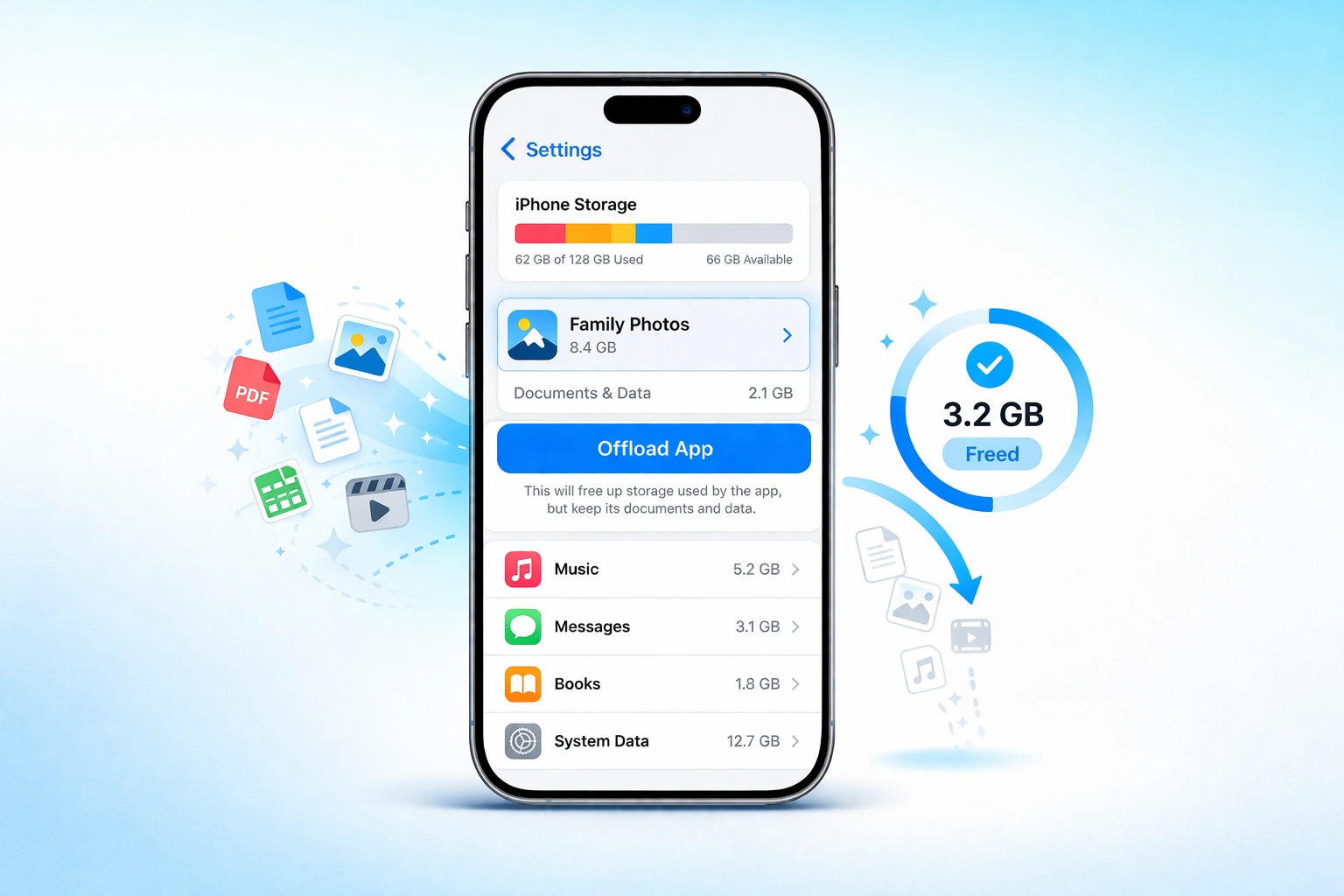
Why There Is No “Clear Cache” Button on iPhone
Managing cached data can be confusing, especially if you recently switched from Android. Unlike Android phones, iPhones don’t have a dedicated “Clear Cache” button, which leaves many users wondering how to manage temporary files effectively.
It feels confusing at first, but there is a good reason for this. Apple designed iPhones to handle cache differently, and once you understand how it works, it actually makes a lot more sense.
When I first switched to iPhone,When I first switched to iPhone, I couldn’t find this option anywhere either. It was not there. After digging into how iOS actually works under the hood I realized Apple designed the entire system differently from the ground up. It is not a missing feature.
iPhone is built to manage your app cache automatically. The iOS operating system monitors your storage in the background and clears temporary files on its own when your device needs more space. You do not have to think about it.
That sounds great in theory. And for most everyday iPhone users it works perfectly fine. But there are situations where an app starts crashing, running slow, or eating up way too much storage and you genuinely need to step in and clear that cached data yourself.
“If you’re also curious about finding hidden apps on your iPhone, check out our guide on how to unhide apps on iPhone for all working methods in 2026.
How iPhone Handles App Cache Differently Than Android
On Android phones, every app has a dedicated storage section inside Settings where you can tap “Clear Cache” with a single button press. It’s fast, direct, and gives you full control over temporary files whenever you need it.
Apple takes a completely different approach with iOS. Instead of giving you a manual clear cache button for every app, the iPhone handles temporary file management at the system level. iOS relies on a built-in cache system at the operating-system level, which means individual apps do not store cache in a way that you can directly access and wipe with one tap.
Think of it this way. Android lets you manually clear cache with one tap. iPhone handles it automatically in the background. iPhone quietly sends a cleaning service in the background while you are sleeping. Most of the time you never even notice it happened.
This system-level approach actually has real benefits. It means your apps generally run smoothly without you having to manually maintain them every week. It also prevents users from accidentally deleting important information by confusing temporary storage with personal files
However the trade-off is that when you do need to manually clear app cache on iPhone, the process is a little different from what Android users are used to. Instead of a one-tap clear cache button, iOS gives you a feature called Offload App, which sits inside your iPhone Storage settings and does the job effectively without touching your personal data.
The good news is that once you know where to look, clearing app cache on iPhone is actually just as simple as it is on Android. It just lives in a different place. In the next section I will walk you through exactly what happens to your data when you use this method, so you know exactly what to expect before you start.
What Actually Happens When You Clear App Cache on iPhone
This is the question I get asked the most. People want to clear their app cache but they are scared. They think they will lose their photos, their login details, their saved progress, or their messages. I completely understand that fear because I had it too the first time I did this.
So let me tell you exactly what happens when you do this. Nothing scary. Nothing permanent. And definitely nothing that will make you regret pressing that button.
When you remove these temporary files, you’re only clearing data the app created to help itself load faster. These are things like stored images, login tokens that refresh automatically, and background data the app saved to avoid reloading everything from scratch each time you open it.
Your personal data is completely untouched. Your account stays logged in. Your photos stay exactly where they are. Your progress in any app remains saved. The app simply starts fresh with a clean temporary storage slate, which is actually a good thing.
Think of it like clearing the table after a meal. You remove the empty plates and leftover bits to make space. But the kitchen itself, all your ingredients, your recipes, everything you actually care about is still right there exactly where you left it.
What Gets Deleted vs What Stays Safe (Simple Breakdown)
Here is a clear breakdown so you know exactly what to expect before you clear app cache on your iPhone:
What gets deleted:
- Temporary image and video files the app stored locally
- Background refresh data the app cached automatically
- Stored website previews and thumbnail files
- Corrupted temporary files causing crashes or freezing
- Junk data that built up over weeks or months of use
What stays completely safe:
- Your account login and password
- Personal photo and video files saved to your camera roll.
- App settings and preferences you configured
- Game progress, scores, and saved data
- Messages, chats, and conversation history
- Downloaded content you saved inside the app
The difference between cache and app data is simple. Cache is temporary. App data is permanent. Clearing cache only removes the temporary layer. Your real information never gets touched.
Once I understood this clearly, I stopped being nervous about clearing cache and started doing it regularly. It is one of the safest maintenance steps you can take to keep your iPhone running smoothly.
How to Clear App Cache on iPhone 3 Methods That Actually Work
I’ve tested every method out there and honestly, most guides only show you one approach. The problem is that one method does not work perfectly for every situation. Some apps respond better to one approach than another. So I am going to walk you through all three methods I personally use, starting with the best one and ending with the nuclear option you only need when nothing else works.
Method 1 Offload the App (Best Method, Zero Data Loss)
This is my go-to method and the one I recommend to everyone. Offloading an app removes all temporary files and frees up storage without deleting a single byte of your personal data.
Your photos stay safe. Your login stays active. Your progress stays intact. When you reinstall the app everything comes back exactly as you left it.
Here is how to do it step by step:
- Open the Settings app on your iPhone
- Scroll down and tap General
- Tap iPhone Storage
- Wait a few seconds for the app list to fully load
- Scroll through the list and tap the app you want to clear cache for
- Tap the Offload App button shown in blue
- Tap Offload App again on the confirmation popup that appears
- Once offloaded tap Reinstall App to get it back fresh and clean
The whole process takes about 30 seconds per app, and once you know the path through General iPhone Storage settings, you can repeat it for any app in seconds. After reinstalling you will notice the app feels noticeably snappier and the storage size it shows will be significantly smaller than before. I personally do this once a month for my heaviest apps like social media and streaming apps and it makes a real difference.
Method 2 Clear App Usage Data Through the App Store
This method is less well known but genuinely useful. It clears the usage data that the App Store collects about how you interact with apps on your iPhone. This does not clear the same deep cache as offloading but it resets your personalized recommendations and clears some background tracking data that builds up over time.
Here is how to do it:
- Open the App Store on your iPhone
- Tap your profile picture in the top right corner
- Tap Personalized Recommendations
- Scroll down to the section that says Your Usage of Apps
- Tap Clear App Usage Data
- Tap Clear App Usage Data again on the confirmation popup
This takes about 10 seconds and you will not lose anything important. I use this method alongside Method 1 for a more thorough cleanup. Think of Method 1 as cleaning the room and Method 2 as emptying the bin outside.
Method 3 Delete and Reinstall the App (Last Resort)
I only use this method when an app is seriously misbehaving and offloading has not fixed the problem. Deleting and reinstalling completely wipes the app and all its stored data from your iPhone and gives you a completely fresh installation.
Before you use this method make sure you know your login details for the app because you will need to sign back in from scratch.
Here is how to do it:
- Press and hold the app icon on your home screen
- Tap Remove App from the menu that appears
- Tap Delete App and confirm
- Open the App Store and search for the app
- Download and install it again fresh
This method clears absolutely everything including cached data, stored files, and temporary junk that was causing problems. It is the most thorough option but it is also the most disruptive so I treat it as a last resort rather than a regular maintenance step.
Between these three methods you have a complete toolkit for managing app cache on your iPhone in any situation. Start with Method 1 for regular maintenance, use Method 2 occasionally for a deeper clean, and save Method 3 for when an app is giving you serious trouble.
Clear App Cache on iPhone 13, 14 and 15
One of the most common questions I see from readers is whether the steps differ depending on which iPhone model they have. I get it. You search for a solution on your iPhone 13 and you’re not sure if the guide you’re reading actually applies to your specific device.
So let me clear this up right away.
The steps to clear app cache on iPhone 13, iPhone 14 and iPhone 15 are exactly the same. Apple uses the same iOS operating system across all three models and the iPhone Storage section inside Settings looks and works identically on every one of them. Whether you are holding an iPhone 13 mini or an iPhone 15 Pro Max the process is the same.
Here is the exact path you follow on any of these models:
- Open Settings
- Tap General
- Tap iPhone Storage
- Select the app you want to clear cache for
- Tap Offload App
- Confirm by tapping Offload App again
- Tap Reinstall App to bring it back fresh
I have personally done this on an iPhone 13 and the experience is identical to doing it on newer models. The interface looks the same, the buttons are in the same place, and the result is the same. No confusion needed.
One thing worth mentioning is that iPhone 15 models tend to show a more detailed storage breakdown per app compared to older models. You might see a slightly more informative screen but the core offload process remains unchanged.
How to Clear App Cache on iOS 18 (Updated Steps)
If you just updated to iOS 18 and you’re wondering whether the process changed, I have good news. The core steps are exactly the same as before. But iOS 18 did bring a few small improvements to the Storage section that actually make the whole process easier and smarter than it was in iOS 17.
Let me walk you through everything so you know exactly what to expect.
What Changed in iOS 18 for Cache and Storage
The first thing I noticed after updating to iOS 18 was that the iPhone Storage screen looks a little more polished. Apple improved the Recommendations panel at the top of the screen. It now gives you more personalized suggestions based on how you actually use your phone.
For example if you have not opened an app in 30 days iOS 18 will proactively suggest offloading it to recover space. I found this genuinely useful because it pointed me toward apps I had completely forgotten about that were quietly eating up storage in the background.
iOS 18 also shows a cleaner breakdown of what each app is using. You can now see more clearly how much space is taken up by the app itself versus the documents and data it has stored. This makes it much easier to spot which apps are worth targeting when you want to free up space fast.
How to Clear App Cache on iOS 18 Step by Step
The steps below work on every iPhone running iOS 18 including iPhone 13, iPhone 14 and iPhone 15 models.
Open the Settings app on your iPhone
Tap General
Tap iPhone Storage
Wait a moment for the full app list to load
Scroll down and tap the app you want to clear cache for
Tap Offload App
Tap Offload App again to confirm
Once the process finishes tap Reinstall App to get it back fresh and clean
The entire process takes about 30 seconds. After reinstalling you will notice the app feels faster and the storage number it shows will be much smaller than before.
The New Auto Offload Feature in iOS 18
One of my favourite additions in iOS 18 is the improved Auto Offload Unused Apps recommendation. When you enable this Apple automatically offloads apps you have not used in a while without touching any of your personal data.
Here is how to enable it:
Open Settings and tap General
Tap iPhone Storage
Look for the Recommendations section at the top
Tap Enable next to Offload Unused Apps
Once this is turned on iOS 18 quietly handles the cleanup in the background while you go about your day. I enabled it on my own iPhone and it recovered noticeable storage within just a few days without me doing anything manually.
Does Safari Cache Clearing Work Differently in iOS 18?
Yes and this is worth knowing. Safari has its own dedicated cache clearing option that sits separately from the Offload App method. In iOS 18 Apple kept this option inside Safari settings but made it slightly easier to find.
Here is how to clear Safari cache specifically on iOS 18:
Open Settings
Scroll down and tap Apps
Tap Safari
Scroll down and tap Clear History and Website Data
Tap Clear History and Data to confirm
This clears out stored website data, browsing history, and other browsing data Safari has built up, including cached page files. Your bookmarks and saved passwords stay completely safe.
Do the Steps Change Between iOS 17 and iOS 18?
This is another question I see constantly and the answer is no. The steps to clear app cache on iPhone do not change between iOS 17 and iOS 18.
Apple has kept the iPhone Storage section consistent across both iOS versions. The Settings path is identical. The Offload App button is in the same place. The confirmation popup looks the same. Everything works the same way regardless of whether your iPhone is running iOS 17 or the latest iOS 18.
If you updated your iPhone recently and you are worried the steps might have changed I want to reassure you that they have not. I checked this personally after updating to iOS 18 and the entire process was exactly what I expected.
One small difference you might notice in iOS 18 is that Apple added slightly improved storage recommendations at the top of the iPhone Storage screen. These recommendations suggest which apps to offload based on how often you use them. I actually find this feature really helpful because it does some of the thinking for you and points you toward the apps eating the most space.
If your iPhone is still on iOS 17 you will see a similar recommendations panel but with fewer suggestions. Either way the manual offload method works perfectly on both versions.
The bottom line is simple. Whether you have an iPhone 13, 14 or 15 and whether you are running iOS 17 or iOS 18 the steps in this guide work for you right now without any changes.
How to Clear App Cache on iPhone 13, 14 and 15
One of the most common questions I see from readers is whether the steps are different depending on which iPhone model they have. I get it. You search for clear app cache on iPhone 13 and you are not sure if the guide you are reading actually applies to your specific device.
So let me clear this up right away.
The steps to clear app cache on iPhone 13, iPhone 14 and iPhone 15 are exactly the same. Apple uses the same iOS operating system across all three models and the iPhone Storage section inside Settings looks and works identically on every one of them. Whether you are holding an iPhone 13 mini or an iPhone 15 Pro Max the process is the same.
Here is the exact path you follow on any of these models:
- Open Settings
- Tap General
- Tap iPhone Storage
- Select the app you want to clear cache for
- Tap Offload App
- Confirm by tapping Offload App again
- Tap Reinstall App to bring it back fresh
I have personally done this on an iPhone 13 and the experience is identical to doing it on newer models. The interface looks the same, the buttons are in the same place, and the result is the same. No confusion needed.
One thing worth mentioning is that iPhone 15 models tend to show a more detailed storage breakdown per app compared to older models. You might see a slightly more informative screen but the core offload process remains unchanged.
Do the Steps Change Between iOS 17 and iOS 18?
This is another question I see constantly and the answer is no. The steps to clear app cache on iPhone do not change between iOS 17 and iOS 18.
Apple has kept the iPhone Storage section consistent across both iOS versions. The Settings path is identical. The Offload App button is in the same place. The confirmation popup looks the same. Everything works the same way regardless of whether your iPhone is running iOS 17 or the latest iOS 18.
If you updated your iPhone recently and you are worried the steps might have changed I want to reassure you that they have not. I checked this personally after updating to iOS 18 and the entire process was exactly what I expected.
One small difference you might notice in iOS 18 is that Apple added slightly improved storage recommendations at the top of the iPhone Storage screen. These recommendations suggest which apps to offload based on how often you use them. I actually find this feature really helpful because it does some of the thinking for you and points you toward the apps eating the most space.
If your iPhone is still on iOS 17 you will see a similar recommendations panel but with fewer suggestions. Either way the manual offload method works perfectly on both versions.
The bottom line is simple. Whether you have an iPhone 13, 14 or 15 and whether you are running iOS 17 or iOS 18 the steps in this guide work for you right now without any changes.
How to Clear Cache on All iPhone Apps at Once
I know exactly what you are thinking. Is there a way to clear cache on all iPhone apps at once with a single tap? It is the most logical question and honestly the first thing I looked for myself when I started managing my iPhone storage more seriously.
Here is the honest answer. iOS does not have a single button that clears cache across every app simultaneously the way some third party tools advertise. Anyone promising you a one-tap solution that deep cleans every app at once including most third-party cleaner apps sold on the App Store, is overselling it. But the good news is that Apple built something into iOS that gets you very close to that result with minimal effort.
The Fastest Way to Free Up iPhone Storage in One Go
The fastest built-in method I’ve found is using the Recommendations panel inside iPhone Storage. Apple analyzes your app usage patterns and suggests which apps you should offload to recover the most space quickly.
Here is how to use it:
- Open Settings
- Tap General
- Tap iPhone Storage
- Look at the Recommendations section near the top
- Tap Enable next to any recommendation that suits you
- Let iOS handle the offloading automatically in the background
The most useful recommendation Apple typically shows is Auto Offload Unused Apps. When you enable this iOS quietly offloads apps you have not opened in a long time while keeping all your personal data completely safe. It is the closest thing to a bulk cache clearing option that iPhone currently offers.
I enabled this feature on my own iPhone and recovered over 3GB of storage within a week without doing anything manually. It genuinely works.
Does Clearing Cache Actually Make Your iPhone Faster?
I want to give you an honest answer here rather than just telling you what sounds good. Yes clearing app cache on iPhone can make your device feel faster but it depends on the situation.
If an app has been accumulating corrupted temporary files over months of heavy use clearing that cache makes a noticeable difference. The app opens quicker, scrolls smoother and stops freezing mid-action. I have experienced this myself with social media apps that I use daily. After offloading and reinstalling them the difference in speed was immediate and obvious.
However, if your iPhone is already running smoothly and you do this just for the sake of it, you probably won’t notice much change. It’s not a magic speed boost. It is more like a targeted fix for apps that are specifically struggling due to bloated temporary storage.
The apps that benefit most from regular cache clearing are the ones you use every single day. Streaming apps, social media apps and messaging apps tend to build up the largest cache files over time and respond the best to being offloaded and reinstalled.
Does Clearing App Cache Improve iPhone Battery Life?
This one surprises a lot of people but yes it can make a modest difference to your battery life.
When an app carries a heavy load of cached data it tends to work harder in the background. It processes more files, uses more RAM and puts extra demand on your processor. All of that extra activity drains your battery faster than it should.
After clearing cache on my heaviest apps I noticed my iPhone lasting slightly longer between charges. It was not a dramatic change but it was real and consistent. If your battery feels like it is draining faster than usual clearing cache on your most used apps is absolutely worth trying before doing anything more drastic.
“Clearing cache can help slightly, but if your iPhone battery still drains quickly, read our detailed guide on why your phone battery drains fast and 9 proven fixes.”
Mistakes People Make When Clearing iPhone App Cache
I have made some of these mistakes myself so I am sharing them from real experience. Knowing what not to do is just as important as knowing the right steps. These are the most common errors I see people make when trying to clear app cache on iPhone.
Deleting the app instead of offloading it
This is the biggest mistake by far. A lot of people delete the app completely when they actually just need to offload it, not realizing offloading achieves the same storage cleanup without wiping their data.. A lot of people go straight to deleting an app completely when they actually just need to offload it. Deleting removes everything including your personal data, saved progress and account information.
Offloading only removes the temporary cached files and keeps everything else perfectly safe. Always choose offload first unless you have a specific reason to do a full delete.
Clearing cache when the real problem is something else
Sometimes people try this hoping it will fix an issue that has nothing to do with temporary files at all. If your iPhone is slow because your battery health has dropped significantly or because you are running too many background processes clearing cache will not solve that. Always check your iPhone Storage screen first to understand what is actually consuming your space before jumping to solutions.
Ignoring the iOS Recommendations panel
Apple built a smart recommendations system directly into iPhone Storage and most people scroll right past it. This panel tells you exactly which apps are worth offloading based on your personal usage patterns. Ignoring it means you are doing extra manual work that iOS could handle for you automatically. I always check this panel first before doing anything manually.
Clearing cache too aggressively on apps you use daily
Some people clear cache on every single app every week thinking more is better. For apps you open multiple times a day this actually slows things down temporarily because the app has to rebuild its cache from scratch each time. Focus your cache clearing on apps you use heavily but not daily or on apps that are clearly misbehaving.
Not reinstalling the app after offloading
Offloading removes the app and its cache but the app icon stays on your home screen as a placeholder. Some people see the icon still there and think the process did not work. You need to tap that icon to reinstall the app and complete the cache clearing process properly. Skipping this step leaves you with a non-functional app placeholder sitting on your screen.
How Often Should You Clear App Cache on iPhone?
This is a question I genuinely wish more guides answered directly. Most articles tell you how to clear cache but nobody tells you how often you should actually do it.
Here is the simple schedule I personally follow and recommend.
For heavy daily use apps like social media, streaming and messaging, I do this once a month. These apps accumulate the most temporary data the fastest and benefit the most from regular maintenance.
For apps you use a few times a week, every two to three months is more than enough
For apps you rarely open let iOS handle these automatically through the Auto Offload Unused Apps feature. There is no need to manually touch them.
The clearest sign that it is time to clear cache right now regardless of your schedule is when an app starts crashing repeatedly, loading slower than usual, or when your iPhone shows a low storage warning out of nowhere. These are your iPhone telling you it needs a cleanup.
I also make it a habit to check my iPhone Storage screen every month just to see which apps have grown unusually large. If any app is showing a cache or documents size that seems way bigger than it should be that is my cue to offload it immediately.
The key takeaway is this: it’s not something you need to obsess over weekly. A monthly check on your heaviest apps combined with the Auto Offload feature running in the background is more than enough to keep your iPhone running smoothly all year round.
Frequently Asked Questions
Does Clearing App Cache on iPhone Delete My Personal Data?
No it does not. Clearing app cache only removes temporary files the app stored to load faster. Your photos, login details, saved progress and personal information stay completely safe and untouched.
Will This Fix an App That Keeps Crashing?
Yes in most cases it will. App crashes are usually caused by corrupted temporary cache files building up over time. Offloading and reinstalling the app clears all that corrupted data and gets the app running smoothly again.
Can I Clear Cache on iPhone Without Offloading the App?
For most apps you cannot. iOS does not provide a standalone clear cache button for individual apps. Some apps like Safari have a built-in clear cache option inside their own settings but for everything else offloading is the only reliable method.
What Is the Difference Between Cache and App Data on iPhone?
Cache is temporary data the app stores to load faster such as images and background files. App data is your personal information like your account details and saved progress. Clearing cache removes only the temporary layer while your personal app data stays completely safe.
Does iPhone Automatically Clear App Cache on Its Own?
Yes iOS does manage cache automatically in the background especially when your storage runs low. However it does not clear all app cache on its own so manual offloading is still the most reliable way to free up storage when you need it.
Final Thoughts Clear Your iPhone Cache the Right Way
When you clear app cache on iPhone, only temporary files are removed. Your personal data like photos, logins, and messages stay completely safe.
Clearing app cache on iPhone is one of the simplest and most effective ways to keep your device running smoothly. It takes less than a minute and the results are genuinely worth it.
The key thing I want you to remember is that iOS handles cache differently from Android. There is no single clear cache button and that is perfectly fine. The Offload App method inside iPhone Storage gives you everything you need to clear cached data safely without losing anything important.
Start with Method 1 for your heaviest apps. Enable Auto Offload Unused Apps in your settings so iOS handles the rest automatically in the background. Check your iPhone Storage screen once a month and offload anything that has grown unusually large.
When you do this, only temporary files are removed. Your personal data like photos, logins and messages stay completely safe.
This process is one of the simplest and most effective ways to keep your device running smoothly.
Use the Offload App method for best results and enable automatic offloading for long-term storage management.
Just a few taps can free up space and keep your iPhone running smoothly.