
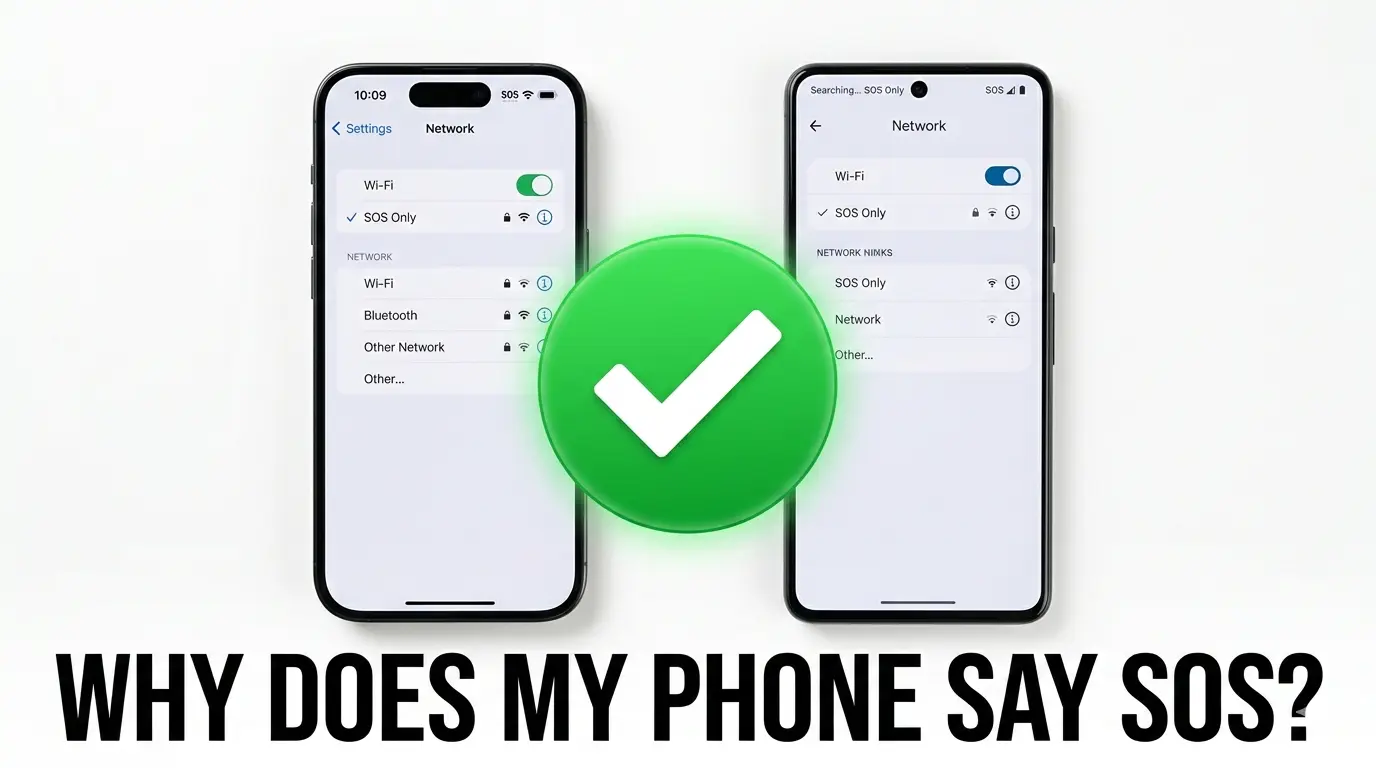
What Does It Mean When Your Phone Says SOS?
When your phone displays SOS at the top of your screen, it means your device has lost connection to your carrier’s cellular network but can still make emergency calls. I want to reassure you right away: your phone is not broken and this is almost always a temporary issue that you can fix yourself in minutes
The SOS indicator appears in your status bar where you normally see signal bars. Instead of showing your carrier’s name and signal strength, your phone displays SOS in the status bar to let you know that regular cellular service is unavailable.
This is what people mean when they talk about iPhone SOS mode or SOS only mode.
Here’s something important I need to clarify because it’s the number one misconception I see. SOS is not a setting you can toggle off. It’s a status indicator that shows your device lacks a functional SIM card or active cellular plan.
You can’t go into your settings and turn off SOS mode like you would disable WiFi or Bluetooth. The SOS message disappears on its own once your phone reconnects to your carrier’s network.
When your phone says SOS Only or No Service, you cannot make regular calls, send text messages, or use mobile data. However, emergency services like 911 remain accessible in the US, Canada, and Australia even when SOS appears.
Your phone can connect to any available cell tower for emergency calls, regardless of which carrier owns that tower.
On newer iPhones like the iPhone 14 and later, you might also see a small satellite icon alongside SOS. This indicates Emergency SOS via Satellite, which is a separate feature that lets you send emergency messages through satellite when you’re completely outside cellular coverage.
For complete official information about this feature, check Apple’s Emergency SOS via Satellite documentation That’s different from the regular SOS indicator we’re discussing here
The good news is that understanding what SOS means on your phone makes fixing the problem much simpler. Most causes have straightforward fixes you can try right now
The good news is that what does SOS mean on phone has a straightforward answer, and most causes have simple fixes you can try right now.
SOS vs. SOS Only Is There Actually a Difference?
If you’re wondering why does my phone say SOS only instead of just SOS, I have good news. There is no functional difference between the two. Both messages mean exactly the same thing your phone has lost its connection to your carrier’s cellular network.
The difference comes down to which iOS version your iPhone is running. Older iPhones displayed SOS Only in the status bar, while newer iOS versions simplified the message to just SOS. Apple changed the phrasing across different software updates, but the meaning stayed identical.
Whether your SOS only iPhone shows the full phrase or the shortened version, the situation is the same. Your phone cannot make regular calls, send text messages, or use mobile data. Emergency calls to 911 still work because your device can connect to any available cell tower regardless of your carrier
Emergency calls to 911 still work because your device can connect to any available cell tower regardless of your carrier.
I’ve seen people worry that SOS only mode sounds more serious than regular SOS, but that’s not the case. Both indicate the same temporary loss of carrier service.
The wording difference is simply cosmetic based on your iOS version, not a sign of a different or worse problem.
The Real Reasons Your Phone Shows SOS
Understanding why your phone lost cellular service helps you fix the problem faster. I’ve identified seven main causes that trigger the SOS indicator, including some that most troubleshooting guides completely miss.
You’re Outside Your Carrier’s Coverage Area
The most common reason for seeing SOS is that you’ve moved outside your carrier’s coverage area. When your phone signal is lost from your primary carrier, the SOS message appears because your device can still detect cell towers from other carriers for emergency use only.
This carrier network issue happens in rural areas, inside certain buildings with thick walls, or when traveling between cities. Your phone is working perfectly fine,
but your specific carrier’s network coverage simply doesn’t extend far enough to provide service in that location
Your Carrier Has a Temporary Outage or Network Maintenance
Even in places where you normally have full bars, a network outage can suddenly cause your phone to show SOS. Carriers perform scheduled maintenance on their towers, and during these windows your cellular network becomes temporarily unavailable.
I’ve seen this happen to people at home where they always have perfect reception. The SOS message appeared out of nowhere, and they didn’t change anything. The issue usually resolves itself within 15 to 60 minutes once the carrier completes their maintenance work.
Your Account Has a Payment or Plan Issue
Unpaid bills or expired service plans will cause your carrier to suspend your account, which immediately triggers the SOS indicator. Sometimes financial issues with your carrier go beyond just SOS they can also affect other phone functions.
If you’re experiencing multiple issues with your device after payment problems, check our guide on why your phone won’t charge as some charging issues are also linked to account or service problems
Here’s something important I learned from user experiences. Even after you pay your bill, the SOS message may stick around for another 15 to 30 minutes. The carrier’s network needs time to re-register your device and restore service, so don’t panic if SOS doesn’t disappear instantly after payment.
Your SIM Card Has a Problem
When your phone shows no service alongside SOS, the culprit is often a SIM card issue. Your device lacks a functional SIM card or the card isn’t making proper contact with the internal reader.
Physical SIM cards can become loose, collect dust in the tray, or get damaged from repeated removal. Sometimes the SIM is from a different carrier and isn’t compatible with your current network. This creates the same effect as having no SIM at all.
Data Roaming Is Off While Traveling
Traveling outside your carrier’s home coverage area requires data roaming to be enabled. When you cross into another country or even certain regions within your own country, your phone attempts to connect to partner networks through roaming agreements.
If data roaming is turned off in your settings, your phone cannot connect to these partner towers. This roaming issue causes the SOS indicator to appear even though you’re in an area with perfectly good cellular coverage from other carriers.
A Recent iOS Update Caused It
Here’s something most troubleshooting guides won’t tell you. iOS updates don’t just fix connectivity problems sometimes they create them. When iOS 16 was released, it triggered widespread SOS reports from users who had perfect service the day before.
Software updates can introduce bugs that interfere with network registration or carrier settings. If SOS appeared immediately after you updated your iPhone’s iOS, the update itself may be the cause
Apple typically releases a follow-up update to fix these connectivity bugs within a few weeks. If you’ve also noticed your phone battery draining faster after an update iOS updates can cause multiple connectivity and power issues simultaneously—both should resolve with the next update.
Your Phone Is Too Old for Your Carrier’s Current Network
Older iPhones and Android devices may physically lack the radio hardware needed to support modern cellular networks. Carriers have moved from 3G to 4G LTE to 5G over the past decade, and phones more than five years old often can’t connect to these newer frequencies.
This hardware limitation means your cellular network is not available to your device even though the towers are broadcasting signal all around you. Your phone simply doesn’t have the internal components to receive and decode those modern network signals. If you’re using a phone from 2018 or earlier, this could be why SOS keeps appearing no matter what you try.
Why Does My Brand New Phone Say SOS?
If you just unboxed a brand new phone and immediately see SOS in the status bar, don’t worry. Your device is not defective. New phones display SOS because the activation process hasn’t been completed yet.
To replace the SOS message with standard signal bars, you must have an active SIM card that’s been registered with your carrier. When you first power on a new phone, the SIM card is either not inserted, not activated by your carrier, or not properly configured if you’re using an eSIM.
For older phone models with physical SIM trays, the issue is usually that your SIM card has not been detected by the system yet. You may need to insert the SIM card if it came separately, or your carrier may need to activate the card on their end before service begins. This activation can take anywhere from a few minutes to a couple of hours depending on your carrier.
For newer models like the iPhone 14 and iPhone 15, the situation is slightly different. These phones sold in the United States don’t have a physical SIM card tray at all.
They use eSIM technology exclusively, which means you need to set up or convert your service to an eSIM during the phone setup process
If you skipped the eSIM setup steps or your carrier hasn’t completed the eSIM activation yet, your phone will show SOS. The network registration process has failed because there’s no active cellular plan linked to your device.
The good news is this almost always resolves itself once you complete the activation steps your carrier provides. You might need to scan a QR code, enter an activation code, or wait for your carrier to push the eSIM profile to your device remotely. Some carriers can complete this instantly, while others may take up to 24 hours.
If SOS persists on your new phone beyond the first day, contact your carrier directly. They can confirm whether your account transfer is complete and manually push a carrier settings update to your device if needed
Your Phone Says SOS but You Have WiFi Here’s Why
This is one of the most confusing situations people face, and I understand the frustration. You’re connected to Wi-Fi, you have internet access, but your phone still shows SOS. The reason is simple: Wi fi connectivity and cellular networks are completely separate systems that don’t overlap.
Your cellular network is not available when your phone displays SOS, but that doesn’t affect your Wi-Fi connection at all. Wi-Fi comes from your router and uses a different technology entirely. Having a strong Wi-Fi signal does nothing to restore your carrier’s cellular connection, which is what the SOS indicator specifically monitors
Think of it like having power but no water. WiFi is your power source, but SOS only mode means your water line is shut off. One doesn’t fix the other. Your phone can use WiFi for internet data, but the cellular network needed for regular phone calls and text messages remains disconnected.
The good news is you’re not completely cut off from communicating. Several features still work perfectly over Wi-Fi connectivity even when SOS appears on your status bar.
You can send and receive iMessage, use WhatsApp, send emails, and make video calls through apps like FaceTime or Zoom. These all rely on WiFi data, not cellular service.
What doesn’t work over WiFi are regular phone calls on your cellular network and standard SMS text messages. These require an active connection to your carrier’s cellular towers, which is exactly what SOS indicates you’ve lost.
I’ve seen people with terrible cell coverage enable WiFi calling as their primary solution. This feature lets you make regular phone calls and send text messages through your WiFi connection instead of cellular. Your carrier may charge you normally for these calls, or they might be included in your plan.
For international travel, WiFi calling becomes especially valuable. You can call and text back home over WiFi without paying expensive international roaming charges. As long as you’re connected to stable WiFi, your phone works normally for calling and texting despite showing SOS.
To enable Wi-Fi calling on your iPhone, go to Settings, tap Phone, then toggle on Wi-Fi Calling. This Wi-Fi-based calling feature lets you make regular calls and send text messages even when SOS appears.
On Android devices, the exact steps vary by manufacturer, but you’ll find a similar option in your network settings. Once enabled, your phone will automatically use WiFi calling when cellular is unavailable.
What Does “SOS and No SIM” Mean and How to Fix It
When your phone displays both SOS and a “No SIM” message, it means your device cannot detect a SIM card at all. This is different from regular SOS, which indicates signal loss. A SIM card not detected error means your phone has no cellular identity to register with any network.
Your device lacks a functional SIM card or the card isn’t making proper contact with the internal reader. This SIM failure error prevents your phone from even attempting to connect to your carrier’s network, which is why you see the combined SOS and No SIM indicators together.
The fix depends on whether your phone uses a physical SIM card or the newer eSIM technology. I’ll walk you through both scenarios so you can get your phone back online quickly.
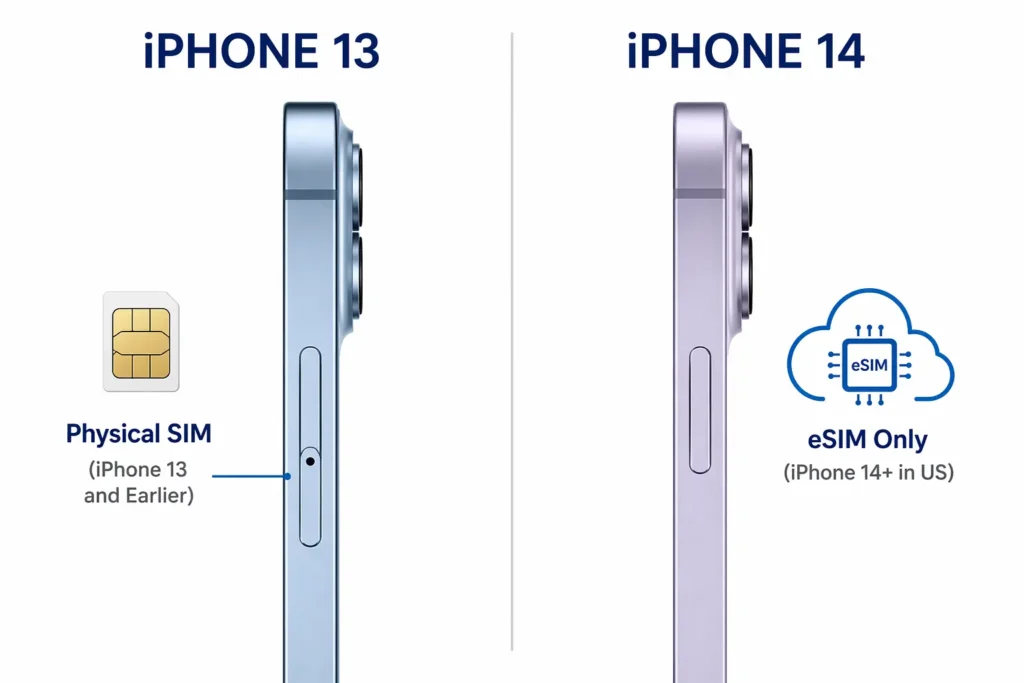
Physical SIM Fix (iPhone 13 and Older, Most Androids)
If you have an iPhone 13 or older, or most Android phones, your device has a physical SIM tray. Start by powering off your phone completely before touching the SIM card.
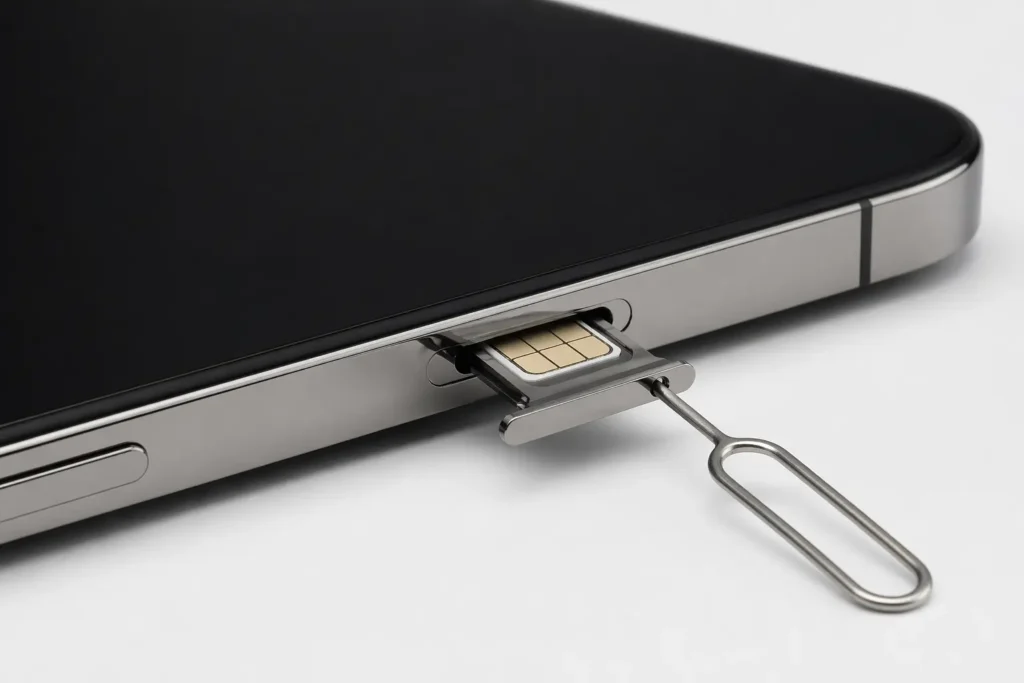
Look for a small hole on the side of your phone. Insert a SIM ejector tool or straightened paperclip into that hole and gently push until the SIM tray pops out. You’ll find a small rectangular card inside, or the tray might be empty if your SIM is missing.
Inspect the SIM card carefully for visible damage like cracks, bending, or corrosion. Look inside the tray for dust or debris that might prevent proper contact. If you see debris, gently wipe both the tray and the SIM card contacts with a clean, dry cloth.
Reinsert the SIM card into the tray making sure it sits flat and properly aligned. Slide the tray back into your phone until it clicks into place. Power your phone back on and wait 30 seconds for it to search for the network. The SOS message should be replaced by your carrier’s signal bars.
If the SIM card appears damaged or cracked, contact your carrier to request a replacement SIM. Most carriers can mail you a new one or have you pick one up at a store. Activation is usually free or costs a small fee.
eSIM Fix (iPhone 14 and Newer No Physical SIM Tray in US)
iPhone 14, iPhone 15, and iPhone 16 models sold in the United States have no physical SIM tray whatsoever. These phones use only eSIM technology, which is a digital SIM stored in your phone’s software.
If your iPhone 14 or newer shows SOS and No SIM, your eSIM hasn’t been activated or configured yet. The fix is simple and doesn’t require any tools. Go to Settings and tap Cellular, then look for a line that says “Turn On This Line” or shows your carrier name.
Toggle that option off and wait five seconds. Then toggle it back on. This refreshes your eSIM connection and forces your phone to re-register with your carrier’s network. Power cycling after this step can help complete the registration.
If toggling the eSIM line doesn’t resolve the issue, contact your carrier directly. They can confirm your eSIM is active on their system and may need to resend the eSIM profile to your device remotely. This remote provisioning usually takes just a few minutes.
How to Fix It When Your Phone Says SOS Step by Step
Most SOS problems disappear within minutes using these fixes. I’ve arranged them from fastest to most advanced, so start with Fix 1 and work your way down only if needed.
Fix 1:Toggle Airplane Mode On and Off (30 Seconds, Try This First)
This is the single fastest way to fix SOS and every tech expert recommends it first. Yet almost no troubleshooting guide mentions it, which is why I’m putting it at the top.
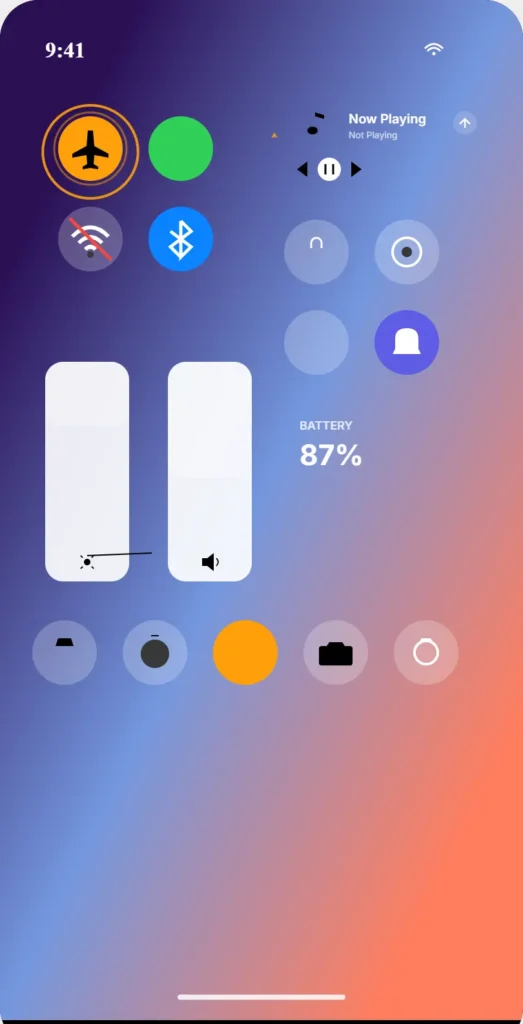
Swipe down from the top right of your iPhone screen or down twice from the top on Android to access your Control Center. Tap the airplane icon to turn Airplane Mode on. You’ll see the airplane symbol appear in your status bar. Wait 20 seconds, then tap the airplane icon again to turn Airplane Mode off.
Your phone immediately begins searching for a new network connection. In most cases, the SOS message disappears within seconds and is replaced by your carrier’s signal bars. This works because it forces your phone to drop its current connection and start fresh.
If your phone was stuck in SOS even after returning to an area with good coverage, this fix is especially effective. Sometimes your phone doesn’t automatically re-register with the network after regaining signal, and the Airplane Mode toggle forces that re-registration to happen.
Fix 2: Restart Your Phone
A standard restart clears temporary software glitches that might be causing the SOS indicator to stay on longer than it should. This is your second fastest option if Airplane Mode didn’t work.
For iPhone, press and hold the power button and either volume button until the power off slider appears. Drag to power off, wait 10 seconds, then press and hold the power button again until you see the Apple logo.
For Android, press and hold the power button until a menu appears, tap Restart, and wait for your device to boot back up. The entire process takes about 60 seconds.
During restart, your phone clears network cache and reestablishes its connection to your carrier’s towers. Minor software conflicts that prevented SOS from resolving get cleared out in the process.
Fix 3: Turn Data Roaming On
If you recently traveled or crossed into a different carrier’s coverage area, your data roaming setting might be disabled. This causes SOS because your phone cannot connect to partner networks outside your home carrier’s area.
Go to Settings, tap Cellular, then tap Cellular Data Options. Look for Data Roaming and toggle it on. If you’re in a different country, you may see a prompt about international roaming charges. Confirm that you want to enable roaming.
This fix works instantly for travel-related SOS issues. If you’re back home and don’t need roaming anymore, you can turn it back off to avoid accidental international charges during future travel.
Fix 4: Check for a Carrier Settings Update
Your carrier periodically releases updates to the network settings stored on your phone. Most of the time these install automatically, but sometimes they don’t, and outdated carrier settings can cause SOS to persist.
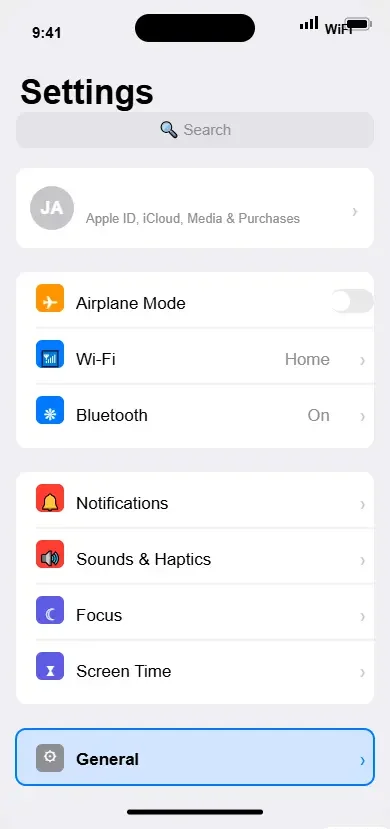
Go to Settings, tap General, then tap About. Your phone will check for available updates and display them if any are pending. Wait 10 to 15 seconds while your phone communicates with your carrier’s servers. If an update is available, a popup will appear asking you to install it.
Tap Install if the popup appears. The update takes just a few seconds and doesn’t require WiFi, though having WiFi during the update is helpful. After installation completes, check whether the SOS message has been replaced by your signal bars.
Most users never realize this manual check exists because Apple doesn’t make it obvious. Carrier settings updates are separate from iOS updates, and they’re crucial for maintaining your phone’s connection to the network.
Fix 5: Reset Network Settings (Warning: Saves WiFi Passwords First)
This is a more aggressive fix that clears all your phone’s network configurations and forces it to rebuild from scratch. Before you do this, write down or take screenshots of any important WiFi passwords you’ve saved, because this reset will erase all of them.
Go to Settings, tap General, then tap Transfer or Reset. Tap Reset, then tap Reset Network Settings. Your phone will ask for your passcode. Enter it and confirm. Your device will restart and rebuild all network settings from the ground up.
After restart, you’ll need to rejoin your WiFi networks by selecting them and entering passwords again. Your phone will automatically reconnect to your carrier’s cellular network. This fix resolves deeply rooted network issues that simple restarts can’t fix.
Reset Network Settings is one of the most reliable fixes for persistent SOS, but it’s aggressive enough that you should try the first four fixes before using it.
Fix 6: Switch from 5G to 4G/LTE
In areas where 5G coverage is incomplete or unstable, your phone might oscillate between weak 5G and no signal, causing SOS to appear. Switching to 4G LTE can instantly resolve this issue.
Go to Settings, tap Cellular, then tap Cellular Data Options. Look for Voice & Data and tap it. You’ll see options including 5G, LTE, and sometimes 4G. Select LTE and confirm your selection.
Your phone will stay on 4G LTE and avoid connecting to the unstable 5G network in your area. In many cases, this immediately eliminates SOS because LTE coverage is more complete and reliable than partial 5G rollouts.
You can switch back to 5G later when you’re in an area with full 5G coverage. This fix is especially useful if SOS only appears in specific locations.
Fix 7: Remove Leftover Configuration Profiles
After international travel, your phone might have carrier or VPN profiles left behind that interfere with your home network connection. These hidden profiles can cause persistent SOS that survives every other fix.
Go to Settings, tap General, then tap VPN & Device Management. You’ll see a list of profiles installed on your device. Look for anything you don’t recognize or profiles from carriers you don’t use anymore.
Tap on the suspicious profile and select Remove or Delete. Your phone will ask for your passcode. After removal, your phone will reconnect to your home carrier’s network. If SOS persists after trying all other fixes, removing leftover profiles often solves the problem.
If SOS still appears after trying all seven fixes, contact your carrier directly. The issue may involve your account, your SIM card, or a network problem on their end that requires their technical support.
Android Phone Showing SOS? Here’s What’s Different
If you’re using an Android phone and seeing a signal indicator that says “Emergency calls only” or “No service,” you’re experiencing the Android equivalent of SOS. The situation is the same as iPhones, but Android displays it differently and has some unique features that might confuse you.
Android phones don’t typically show “SOS Only” the way iPhones do. Instead, you’ll see text like “Emergency calls only,” “No service,” or “Searching for signal” in your status bar. The meaning is identical to iPhone SOS—your cellular network is not available, but emergency calls remain accessible.
Here’s something important I need to clarify because it causes real confusion. Android has a completely separate Emergency SOS feature that is a safety tool, not a signal indicator. This feature lets you quickly call emergency services by pressing the power button three times.
It’s a deliberate action you take, not something that happens automatically when you lose signal.
If you’re seeing the signal indicator problem on your Android phone, the fixes are essentially the same as for iPhones. The Airplane Mode toggle works exactly the same way. Go to Settings, find Airplane Mode, toggle it on for 20 seconds, then toggle it back off.
Your Android phone will search for a new network connection just like an iPhone does.
Restart your Android phone by pressing and holding the power button until a menu appears. Tap Restart and wait for the device to boot back up. This clears temporary glitches affecting your cellular registration, which resolves most Android SOS situations quickly.
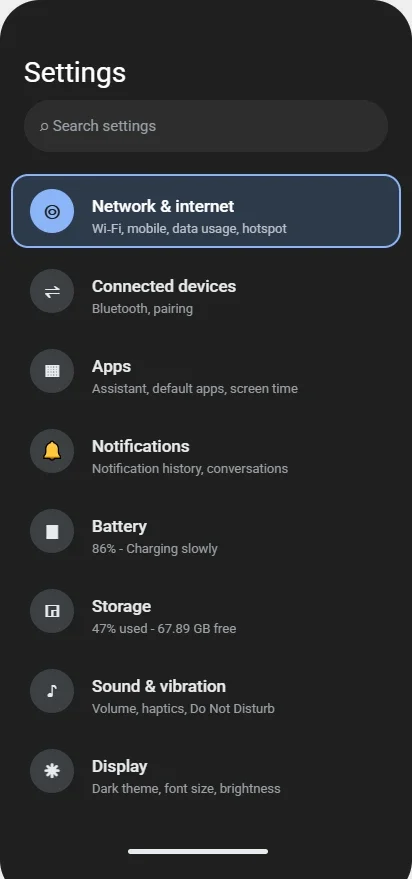
Check your Android phone’s data roaming setting if you recently traveled. Go to Settings, tap Connections, then Mobile Networks. Look for Roaming and make sure it’s enabled if you’re outside your home network coverage area.
Disable it when you return home if you want to avoid accidental international charges. You can also use Wi-Fi calling through compatible Android apps as an alternative to cellular roaming when traveling
Disable it when you return home if you want to avoid accidental international charges.
Reset your network settings on Android through Settings, then System, then Reset Options. Look for Reset WiFi, Mobile & Bluetooth or a similar option depending on your device manufacturer. This clears all network configurations and forces your phone to rebuild its connection from scratch, similar to the iPhone fix.
The main difference between Android and iPhone SOS troubleshooting is navigation. Android settings vary significantly between manufacturers like Samsung,
OnePlus, Google Pixel, and others. Some devices organize network settings under Connections, others use Mobile Networks, and Samsung specifically labels the section as Safety and Emergency.
If you own a Samsung Galaxy phone, look for Settings, then Safety and Emergency, then Emergency SOS to access emergency features. For other Android brands, Settings, then Connections, then Mobile Networks is the standard path to network and roaming options.
After trying these Android-specific fixes, if the signal indicator still shows emergency calls only, the underlying cause is usually the same as iPhones.
You might have a carrier outage, your account has a payment issue, your SIM card isn’t recognized, or your phone is outside coverage. The troubleshooting steps I covered earlier in this guide apply equally to Android devices.
Why Does Your Phone Keep Going Back to SOS?
If you’ve fixed SOS multiple times only to have it return, you’re experiencing a recurring problem that has specific causes. Understanding why SOS keeps coming back helps you determine whether it’s something you can fix or something your carrier needs to address.
The most common reason SOS returns is that you’re in a location where your carrier genuinely has no coverage. If you commute through an area with spotty signal or live near a coverage gap, your phone will show SOS every time you enter that zone. This isn’t a problem with your phone—it’s a limitation of your carrier’s network in that specific location.
Here’s what many people don’t realize. Sometimes your phone fixes the SOS issue but then gets stuck in SOS mode again even after you return to an area with good signal. Your phone doesn’t automatically re-register with the network after regaining coverage in certain situations. The Airplane Mode toggle fixes this instantly by forcing your phone to search for a new connection.
If SOS keeps returning in the same location repeatedly, try switching to 4G LTE instead of 5G in that zone. Weak or unstable 5G coverage can cause your phone to oscillate between signal and no signal, showing SOS frequently. LTE networks tend to have more complete coverage in transitional areas.
Persistent SOS that returns despite trying all fixes might indicate a hardware limitation. Older iPhones and Android phones lack the radio hardware to support modern LTE and 5G bands. If your phone is more than five years old and SOS appears everywhere, not just specific locations, your device’s hardware may be incompatible with your carrier’s current network.
A phone stuck in SOS pattern that repeats in the same location needs a different approach. Contact your carrier directly and describe exactly where SOS appears. They can check their coverage maps, identify dead zones near you, and potentially improve coverage in that area. Some carriers offer femtocells or signal boosters for customers in weak coverage areas.
If SOS returns frequently and you’ve tried all the fixes in this guide, your account or SIM card might have an underlying issue. Your carrier can verify your account status, confirm your SIM is properly registered, and check whether any service restrictions are applied. Sometimes payment issues or account glitches cause recurring SOS that won’t resolve without carrier intervention.
Keep a record of when and where SOS appears if it’s a recurring problem. Share this information with your carrier support it helps them pinpoint whether the issue is a coverage gap, an account problem, or a device compatibility issue.
Most carriers will work with you to resolve recurring signal problems that affect your ability to make calls and send texts.
Carrier-Specific SOS Verizon, AT&T and T-Mobile
The fixes I’ve covered work for any carrier, but some carriers have specific issues that trigger SOS more frequently than others. Understanding your carrier’s network situation helps you troubleshoot more effectively.
Verizon SOS only issues often stem from their ongoing transition away from older network technology. Verizon has been aggressively retiring their CDMA network and consolidating everything onto LTE and 5G. If your phone is older or your carrier settings haven’t updated to reflect this transition, you might see SOS in areas where Verizon considers coverage complete but your phone doesn’t have the right settings to access it.
If you’re on Verizon, make sure to check for carrier settings updates by going to Settings, General, About, and waiting 15 seconds. Verizon pushes these updates frequently to help phones transition to their newer network infrastructure. An outdated carrier settings file on a Verizon phone is one of the most common causes of persistent SOS.
AT&T phone SOS issues frequently relate to their 3G network sunset. AT&T discontinued 3G service in early 2022, meaning older phones that relied on 3G for fallback connectivity now show SOS in areas where they previously had service.
If you’re using an older iPhone or Android device on AT&T, this network sunset might be the reason SOS appears.
AT&T customers should verify their device is compatible with modern LTE and 5G bands. Contact AT&T support and ask whether your specific phone model is approved for their current network. If your device is too old to support their modern frequencies, upgrading to a newer phone becomes necessary.
T-Mobile SOS issues tend to appear in areas where their network coverage is still expanding or where coverage remains spotty. T Mobile has been rapidly rolling out 5G coverage, but in some regions, their LTE network coverage still has significant gaps.
If you see SOS on T Mobile in specific locations, try switching from 5G to LTE if available, as T Mobile’s LTE network coverage is more complete and reliable than their newer 5G rollout.
Regardless of which carrier you use, the troubleshooting steps remain the same. Toggle Airplane Mode, restart your phone, check for carrier settings updates and reset network settings if needed.
If SOS persists after trying all fixes, contact your carrier’s technical support. They can confirm whether the issue is a coverage gap, an account problem, or a device compatibility issue specific to their network.
Frequently Asked Questions
Can I still call 911 if my phone says SOS?
Yes. Emergency calls to 911 remain accessible even when your phone shows SOS. The SOS indicator literally means your phone has lost regular cellular service but retained emergency only access. In the US, Canada and Australia, you can dial 911 at any time, regardless of what your status bar displays.
On iPhone 14 and newer, you might also see a satellite icon alongside SOS in remote areas with zero cellular coverage. This indicates Emergency SOS via Satellite is available, which lets you send emergency text messages through satellite when no cell towers exist nearby.
Is SOS a setting I can turn off on my phone?
No. SOS is a status indicator that your phone displays automatically when it loses cellular service, not a toggle you can switch off. There is no “turn off SOS mode” setting anywhere in your phone’s menu.
The SOS message disappears on its own once your phone reconnects to your carrier’s network. Fix the underlying connectivity problem and the indicator vanishes automatically.
Why does my phone say SOS even though I’m home where I always have signal?
A temporary carrier outage, a recent iOS update glitch, or leftover configuration profiles from travel can cause SOS even in normally covered areas.
The fastest fix is toggling Airplane Mode on for 20 seconds then off again, which usually resolves the issue within 30 seconds by forcing your phone to search for a fresh network connection.
Will resetting network settings delete my photos or apps?
No. Resetting network settings only clears WiFi passwords, Bluetooth pairings and cellular configurations. Your photos, apps, contacts, messages and all personal data remain completely unaffected.
Before resetting, write down or take screenshots of any important WiFi passwords you’ve saved, since you’ll need to re-enter them after the reset completes.
My phone says SOS even after I paid my bill why?
After you make a payment, your carrier’s network needs 15 to 30 minutes to re-register your device and restore service. If SOS persists after an hour, contact your carrier directly to confirm the payment processed successfully and that service has been restored on your account.