
Before You Panic: Is This Actually a Virus? (Or Just a Scary Pop-Up)
If you’re seeing constant pop-up ads on your screen, there’s a good chance that’s what you’re interpreting as a virus. Pop-up ads are annoying but usually not malware. I’ve written a detailed guide on how to stop pop-up ads on Android that covers 10 different fixes depending on where your ads are coming from. Many people solve their “virus” problem simply by removing the app causing the pop-ups. Check out that guide if pop-ups are your main symptom.
Here’s what I’ve learned from looking at dozens of these situations: your first instinct when you see a scary pop-up is usually to panic. You think your device is infected with malware. You consider factory resetting everything and losing all your photos and messages.
But in reality, what you’re dealing with is often just a hijacked browser notification or an aggressive ad from an app you installed without realizing it would be this annoying.
The good news is that you can usually tell the difference in about 30 seconds. And if you can figure out whether this is a real threat or just an annoying pop-up, you can avoid doing something drastic that you don’t need to do.
Let me show you how to tell the difference.
Real Virus Warning vs Fake Ad: How to Tell the Difference
Here’s the thing: real Android system security warnings never appear as pop-up ads or notifications from Chrome. They just don’t work that way.
Real Android system warnings appear in one specific place: your Settings app. If your phone actually has a malware problem, you’ll see an alert when you open Settings and go to Security. That’s where Android puts its official security notifications. The system doesn’t pop notifications up in your face saying “YOUR PHONE IS INFECTED.” That’s not how it works.
Fake virus warnings, on the other hand, are designed to look scary and urgent. They’re coming from one of two places: either they’re hijacked Chrome browser notifications, or they’re aggressive ads embedded inside an app you installed.
Here’s how to tell which one you’re dealing with:
Look at the notification itself. Does it say “Advertisement” in the corner? If it does, congratulations, you don’t have a virus. That’s just an ad. Seriously, that’s it. The Reddit users who solved this exact problem for someone else immediately spotted the word “Advertisement” and said “She has no viruses.” They were right.
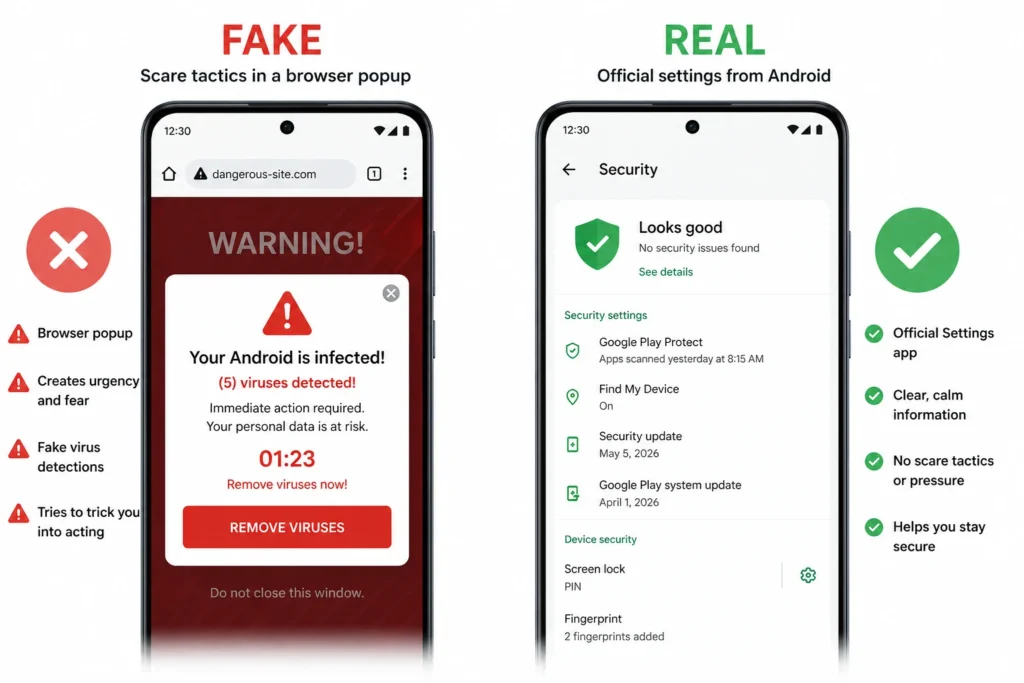
If the notification doesn’t say “Advertisement,” check where it’s coming from. Is it coming from Chrome? Is it coming from a specific app like a weather app or news app? If so, it’s not a real system warning. Real warnings don’t come from these apps.
Here’s the key insight: even apps that look legitimate, like weather apps or news readers, can show aggressive ads that try to trick you into thinking your phone is infected. They make these fake warnings look official and scary. They add fake system sounds. They use urgent language. But at the bottom, if you look closely, you’ll see it’s coming from the app itself, not from Android.
When you clear all the data from your Chrome browser (not just the cache, but all data), these fake notifications disappear completely. I’ve seen this work on phones that looked hopeless. Within two minutes of clearing Chrome data, every single “virus” notification was gone. That proves right there that it was never a real virus. It was a browser notification that someone hijacked to show you ads.
Real malware shows different signs:
If someone actually stole money from your bank account, or your credit card has unauthorized charges, or your phone is opening apps and sending messages by itself while it’s sitting on the table, then you might have a real virus. Random app installations and strange text messages? Not usually a sign of serious malware. These things happen for other reasons too.
The severity changes what you should do next. A real virus that’s stealing your money requires different action than an annoying pop-up. And that’s why the first step is always to figure out which one you actually have.
7 Signs Your Android Phone Might Have a Virus (And What Each One Means)
Not every problem on your Android phone means you have a virus. I’ve seen people panic over issues that turned out to be something completely different. That’s why it helps to know what actual phone virus symptoms look like versus what’s just a normal glitch or a sign of something else entirely.
The tricky part is that real malware and other Android problems can look very similar at first. A slow phone might be a virus, or it might just be that your storage is full. Your battery might be draining because of malware in the background, or it might be an aging battery that needs replacement. Pop-up ads could be adware, or they could be coming from a legitimate app that just has aggressive advertising.
Here’s what I’ve learned: the key is understanding not just what the symptom is, but how serious it actually is. Some signs mean you should act immediately. Others are annoying but not urgent. And some things that look scary are actually pretty minor problems.
Let me walk you through the seven most common signs I see, and I’ll explain what each one actually means and how worried you should be.
Sign #1 — Pop-Up Ads Everywhere (Even When You’re Not Using Apps)
Pop-up ads appearing on your screen when you’re not even in an app is usually adware or an aggressive notification. You’ll see these ads popping up randomly throughout the day, even when you’re just looking at your home screen or using your phone normally.
The thing about pop-up ads android malware is that they’re annoying but usually not dangerous in the serious sense. Most of the time, these ads are coming from an app you installed that has aggressive advertising built into it. Sometimes they’re browser notifications that got hijacked by a website.
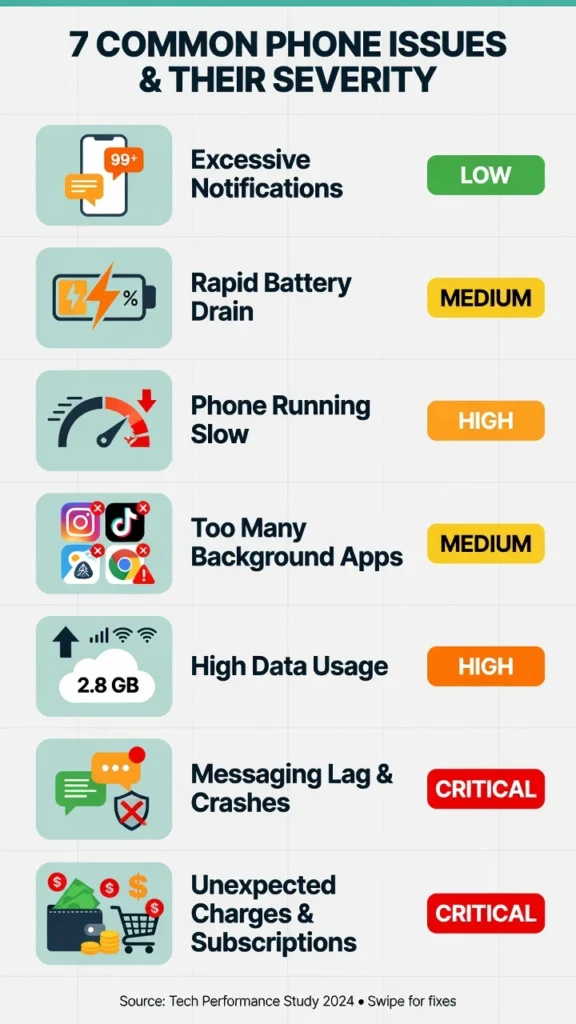
Severity: Low to Medium. You should remove whatever’s causing it, but this isn’t a situation where your financial information is at risk. It’s more about reclaiming your phone’s peace and quiet.
Sign #2 — Battery Draining Faster Than Normal
Your battery used to last all day, and now it’s dead by afternoon. Battery drain android virus is definitely something to pay attention to, but here’s the catch: it might not be a virus at all.
Background malware can absolutely drain your battery by running processes you don’t see. But so can a phone that’s getting old, a battery that’s aging, too many apps running at once, or brightness set too high. The real clue is whether the drain is sudden. If it happened overnight, something changed. If your battery has been getting worse gradually over months, it’s probably just the battery itself getting worn out.
Severity: Medium. If it’s sudden, investigate. If it’s gradual, it might just be normal aging. Either way, keep reading to learn how to check what’s running on your phone.
Sign #3 — Phone Running Slow or Apps Crashing
An android phone running slow virus is one of the most common complaints I hear. But slow performance has so many possible causes. Low storage space makes your phone sluggish. An outdated Android version can slow things down. Too many apps open at once will make everything feel laggy. Apps crashing repeatedly could be a virus, but it could also be a corrupted app, or an app that doesn’t work well with your Android version.
The thing that matters is whether the slowness came out of nowhere. If your phone gradually got slower over time, it’s probably storage or too many apps. If it suddenly turned into a snail, something changed and you should investigate.
Severity: Medium. This is worth checking out, but it’s not necessarily an emergency.
Sign #4 — Apps You Didn’t Install Appearing on Your Phone
You open your app drawer and see apps there that you definitely didn’t download. This feels scary, like someone hacked into your phone. And malware can sometimes install apps quietly in the background.
But here’s something most people don’t know: Samsung and Google can both auto-download promotional apps to your phone. Samsung especially has done this for promotional partnerships. You didn’t click anything to install them. They just appeared. So before you assume you have a virus, check where these apps came from. If they’re coming from Samsung or Google with promotional names, they’re not malware.
Severity: Low to Medium. If the apps are from unknown sources or developers, that’s more serious. If they’re from Samsung or Google, disable them and move on.
Sign #5 — Unexplained Data Usage or High Phone Bill
You get your phone bill and the charges are way higher than normal. Or you check your data usage and realize something is eating through your data without you doing anything. This is different from the other signs because it’s more concrete.
Malware sending data in the background is one of the things that actually causes serious harm. The data being transmitted could be your location, your contacts, information about your browsing habits, or anything else on your phone. This isn’t just annoying. This is malware actually working against you.
Severity: High. If you see unexplained data usage spikes or charges on your bill that you can’t explain, this needs immediate attention. This is one of the signs where I would recommend running a full security scan right away.
Sign #6 — Contacts Receiving Strange Messages from You
Your friends are texting you asking why you sent them weird messages you don’t remember sending. Or you get screenshots of messages sent from your number that you never wrote.
This means something is accessing your messaging app and sending messages out. This is spyware or malware that’s actively using your phone to spread itself or to do other things. Your device is being used without your control.
Severity: High. This is serious. Your phone is compromised enough that something is actively using it. You should treat this like the urgent problem it is.
Sign #7 — Unauthorized Charges or Account Access
You notice charges on your bank account that you didn’t make. Or you try to log into an important account like email or social media and can’t get in because the password changed. Maybe you get alerts that your account was accessed from somewhere you’ve never been.
This is the most serious sign on this entire list. This means someone or something has access to your financial information or your accounts. Your phone isn’t just infected anymore. Something is actively stealing from you or compromising your accounts.
Severity: Critical. This requires immediate action. Don’t wait. This is what qualifies as a real virus that needs emergency treatment. You should contact your bank, change your passwords from a different device, and take steps to secure your accounts right away.
Why Severity Matters
Understanding these severity levels helps you decide what to do next. A low severity problem like pop-up ads can usually wait until you have time to clean up your phone properly. A high severity problem like data spikes means you should run a security scan today. A critical severity problem like unauthorized charges means you need to act right now before you do anything else.
The first three signs on this list? Most people deal with those without ever needing a factory reset. The middle signs usually need some cleanup but are manageable. The last sign means you’re dealing with something that requires serious action.
Now that you know which signs point to what, let’s move on to how you actually fix these problems
How to Remove a Virus from Android Phone Manually (No Antivirus Needed)
You don’t need to buy expensive antivirus software to remove malware from your Android phone. I’m going to walk you through six steps that use only the tools built into Android itself. These steps have worked for countless people dealing with unwanted apps, pop-ups, and actual malware.
The key is doing these steps in the right order. Some steps help you diagnose the problem. Other steps actually remove the threat. And some steps prevent it from coming back. If you follow this process carefully, you’ll likely solve your android malware removal problem without spending a cent or losing any of your personal data.
Most people skip steps or do them out of order and then wonder why the problem persists. That’s why I’m going to explain not just what to do, but why you’re doing it. When you understand the logic, you’re more likely to stick with the process and see it through to the end.
Let’s start.
Step 1 — Turn Off WiFi and Mobile Data First
Before you do anything else, turn off your internet connection. Go to your Settings, find WiFi, and turn it off. Then go to Mobile Data and turn that off too.
Why does this matter? Malware running in the background needs an internet connection to send stolen data or to receive commands. Pop-up ads need internet to load. By disconnecting your phone from the internet, you stop the malware from communicating while you work. You also stop ads from showing up, which makes it easier to see what you’re doing.
This is a trick people don’t think of, but it makes the whole process cleaner and faster. You’ll still be able to navigate your phone’s settings and uninstall apps. You just won’t have ads interrupting you every few seconds.
Step 2 — Boot Your Phone into Safe Mode to Test and Disable Third-Party Apps
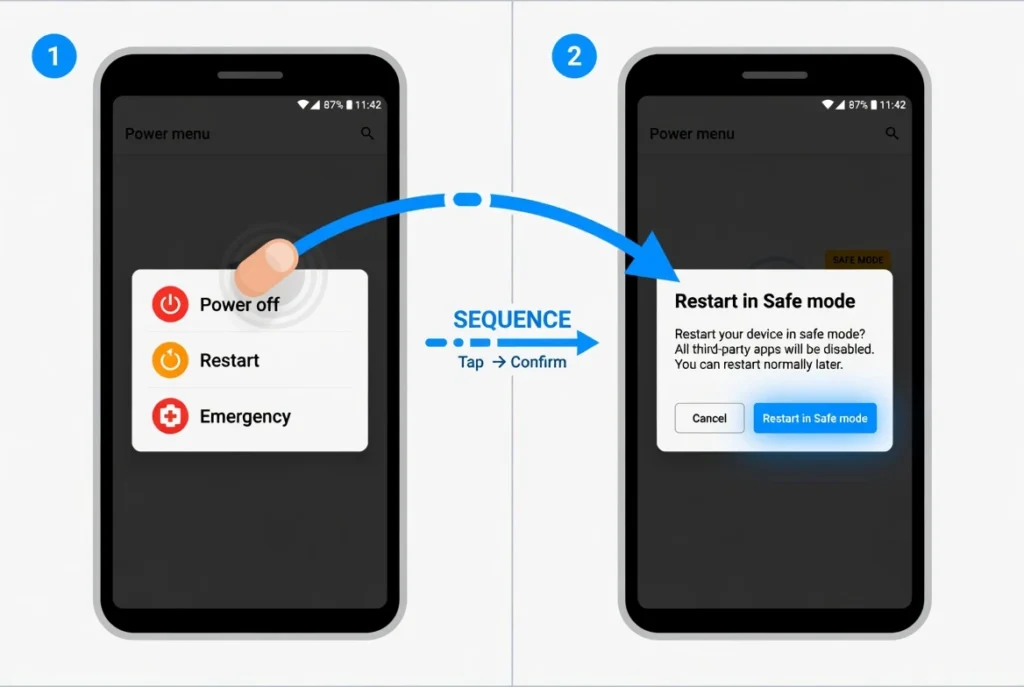
Safe Mode is a special startup mode where Android disables all the apps you installed yourself. Only the apps that came with your phone keep running. This is incredibly useful because it lets you test whether a third-party app is actually the problem.
To enter Safe Mode, hold down your phone’s power button until you see the power menu on screen. You’ll see options like Power Off and other choices. Long-press on the Power Off button (not a quick tap, but hold it down). A few seconds later, you’ll see a Safe Mode option appear.
Tap Safe Mode and your phone will restart. Once it’s back on, open it up and use it for a minute. Does it run smoothly? Are there no pop-ups? Does the battery seem normal? If everything works perfectly in Safe Mode, then you know for certain that one of your installed apps is the culprit. If your phone still has problems even in Safe Mode, the issue might be something else entirely, like a system issue or full storage.
Safe Mode is your diagnostic tool. It tells you whether you’re dealing with a third-party app problem or something deeper. Don’t skip this step.
Step 3 — Find and Uninstall Suspicious Apps (Including “Ghost Apps”)
Go to your Settings app. Scroll down and tap Apps or Application Manager. Then tap See All Apps. This shows you every single app on your phone, including the ones hiding in the background.
Now here’s where most people miss the real culprits: scroll all the way to the bottom of that list. Look carefully at every entry. You’re looking for apps that don’t have a name or apps with just a generic Android robot icon. These are called ghost apps, and malware loves to hide this way. The developers intentionally make them invisible so you won’t find them and delete them.
If you see any app that looks suspicious, unknown, or that you definitely didn’t install, tap it and select Uninstall. Be careful not to uninstall system apps that came with your phone. If you’re not sure whether something is a system app, don’t touch it. But anything you don’t recognize should go.
Also check for recently installed apps. If your problems started a few weeks ago, look at what you installed around that time. Sometimes the malware came in with a legitimate app that also had something nasty bundled with it.
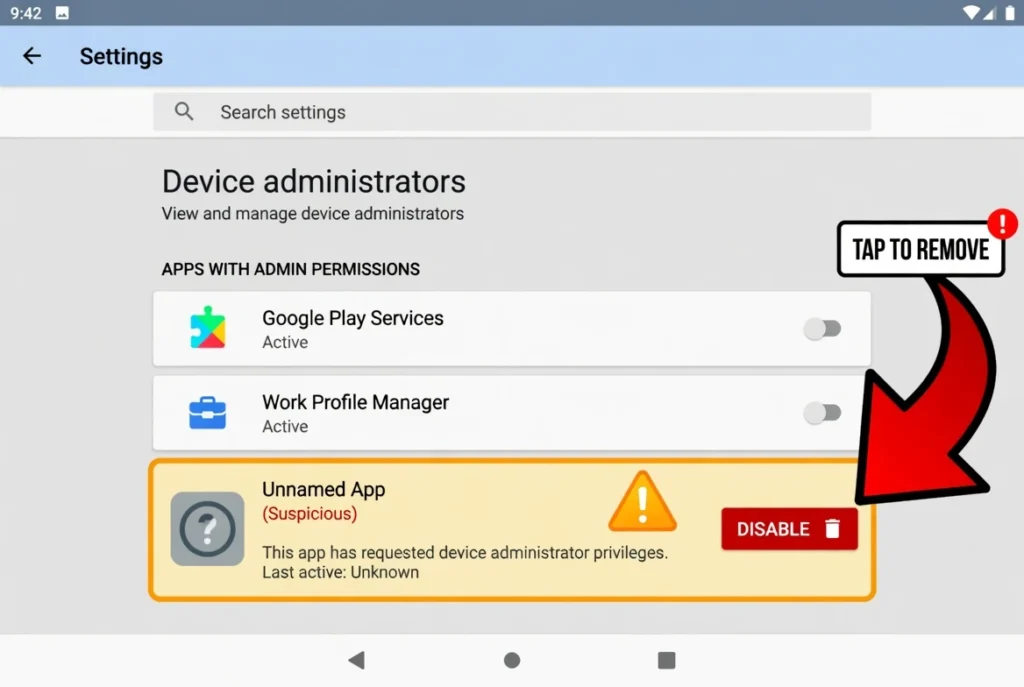
Step 4 — Disable Device Administrator Permissions for Stubborn Apps
Some malware is clever enough to give itself admin permissions on your phone. When an app has device administrator access, Android prevents you from uninstalling it. That’s why some malicious apps refuse to delete even when you tap the Uninstall button.
To fix this, go to Settings, find Security, and look for Device Administrators. Tap that option. You’ll see a list of apps that have admin access. If you see any app in that list that you don’t recognize or that you’re suspicious of, tap it and select Disable or Remove Admin Access.
Once you disable admin access, go back to Settings Apps and try uninstalling that app again. This time it should work.
Step 5 — Stop Fake Virus Warnings in Chrome (Clear All Browser Data)
If you’re seeing constant notifications saying “Clean your Phone to avoid a system crash” or similar messages, this step is your solution. These notifications are coming from your Chrome browser, not from Android itself.
Here’s the important part: you need to clear all Chrome data, not just the cache. Clearing cache alone leaves the notification permissions in place. You need to fully reset the browser to factory settings.
Go to Settings, tap Apps, and find Chrome. Open Chrome’s settings and look for Storage. Tap Storage and you’ll see options like Clear Cache and Clear Data. Tap Clear Data or Clear All Data (the exact wording varies depending on your Android version). A confirmation message will pop up. Confirm that you want to delete all data.
Once you do this, all those fake virus notifications will disappear. This works because you’re removing the permissions that allowed those malicious websites to send you notifications in the first place.
If you want to target specific websites instead of clearing everything, you can also go to Chrome Settings Site Settings All Sites, find the suspicious site, and tap Clear & Reset for just that site. But if you’re seeing notifications from multiple websites, clearing all data is faster.
Step 6 — Delete Everything in Your Downloads Folder
Malware often hides in your Downloads folder. These are APK files (Android installation files) that are just sitting there waiting. If you accidentally open one, it installs malware on your phone.
Open your Files app. Find the Downloads folder. Select all the files in that folder and delete them. Don’t worry about deleting important files here. The Downloads folder is meant to be temporary. Anything important should be saved somewhere else on your phone or in cloud storage.
This step removes potential malware that’s just waiting to be accidentally installed.
If you want to understand more about how APK files work and why sideloading from outside the Play Store is risky, Google’s official Android security documentation provides detailed technical information. The Android Security & Privacy Year in Review report from Google explains current threats and how the system protects against them. This gives you deeper context on why the steps you’re taking actually matter at a technical level
When to Move On to the Next Step
If you’ve completed all six of these steps and your android malware removal is done and your phone is running smoothly again, congratulations. You fixed it without spending any money on antivirus software.
If your phone still has problems after all six steps, that’s when you move on to scanning with Google Play Protect or considering a third-party antivirus tool. But honestly, most people find that these manual removal steps solve their problem completely.
The reason these steps work is that they target the most common ways malware gets onto Android phones. They’re not fancy or complicated. They’re just effective because they attack the problem from multiple angles. You’re removing the apps themselves, removing their permissions, stopping them from communicating online, and clearing out any leftover files.
Use Google Play Protect to Scan for Malware (Built-In, Free)
Google Play Protect is Android’s built-in security scanner, and it’s free. Most people don’t even know it exists. Even more people know it exists but have never actually used it because they don’t know where to find it or what it does.
Here’s what matters: Google Play Protect is the official security tool from Google itself. It runs on your device and scans your apps for known malware. Best of all, you don’t have to pay anything for it. It comes with every Android phone. If you just completed the manual removal steps from the previous section and you still want to run a scan to make sure everything is clean, this is the tool to use.
The trick is knowing that Google Play Protect has two different scan modes. Most people use the basic scan without realizing there’s a more thorough option called Deep Scan that checks places the regular scan misses. Let me show you how to use both.
How to Run a Deep Scan (Not Just Regular Scan)
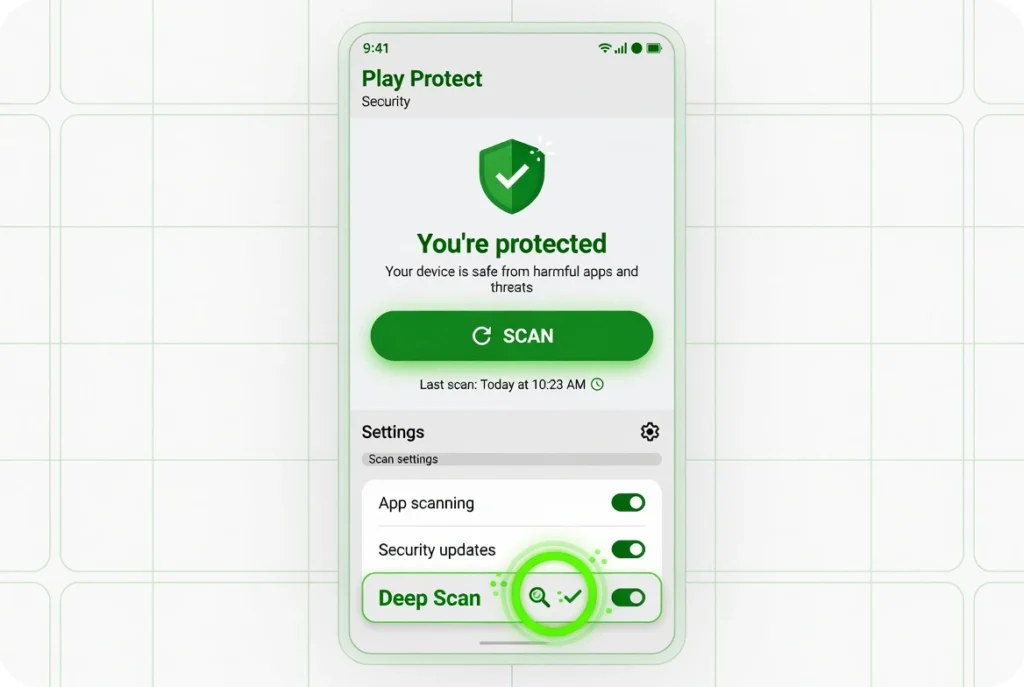
Open your Google Play Store app and tap your profile icon in the top right corner. From there, look for Play Protect. When you open Play Protect, you’ll see a Scan button.
Now here’s the thing most people don’t know about an android virus scan: there’s a difference between a regular scan and a Deep Scan. When you tap that Scan button, Google Play Protect runs a regular scan. It checks all the apps you have installed on your phone. If it finds anything suspicious, it will tell you and give you the option to uninstall the app.
A Deep Scan is more thorough. It doesn’t just check your installed apps. It also checks your Downloads folder for malicious APK files that might be sitting there waiting to be installed. It scans your files more deeply. It looks for threats that a regular scan might miss.
To run a Deep Scan, tap the Scan button and let the regular scan complete. Then look for a Deep Scan option in the same Play Protect menu. The Deep Scan takes a bit longer than a regular scan, but it’s more thorough. This is especially useful if you’ve been downloading files from websites or if you’re not sure whether your phone is completely clean.
If Google Play Protect finds anything during either type of scan, it will notify you and recommend that you uninstall the problematic app. Follow that recommendation. Google’s system has analyzed millions of apps and knows what’s dangerous.
Turn On Daily Auto-Scanning (Set It and Forget It)
Once you’ve run a scan and cleaned up your phone, you want to make sure you don’t get infected again. The best way to do that is to enable automatic daily scanning in Google Play Protect.
In the Play Protect menu, look for Settings. You’ll see toggle switches for different options. There should be a toggle for “Scan apps with Play Protect” and another toggle for “Show security warnings.” Make sure both of these toggles are turned on.
When you enable these settings, Google Play Protect automatically scans your apps every single day without you having to do anything. You don’t have to remember to run the scan. You don’t have to open Play Protect and tap the button. The scan just happens in the background every day. If Play Protect detects a problem, it will send you a notification and let you know what needs to be removed.
Most people have these toggles turned off by default without realizing it. That’s why many phones never get scanned. You’re taking five seconds to flip these switches, and suddenly your phone has daily protection running automatically.
This is the easiest way to prevent future infections. Once you turn on daily auto-scanning, you can forget about it. Google Play Protect does the work for you.
Why Google Play Protect Is Enough for Most People
After you’ve done the manual removal steps and run a Deep Scan with Google Play Protect, your phone should be clean. For most people, this is enough. You don’t need to buy antivirus software. You don’t need to pay for a premium security app. Google Play Protect is made by Google, the company that operates the Play Store and creates Android itself. They have the data and expertise to know what’s malicious and what isn’t.
The reason Google Play Protect exists is to protect people like you. It’s an investment Google makes in Android’s security because they want the platform to be trustworthy. Use it.
How to Remove a Virus Without Factory Reset (Keep Your Data Safe)
The biggest fear people have when dealing with malware is losing everything. You’re thinking about all your photos, your messages, your contacts, your saved passwords. The idea of factory resetting your phone and watching all that disappear is terrifying. So people delay dealing with the problem or they accept it as inevitable.
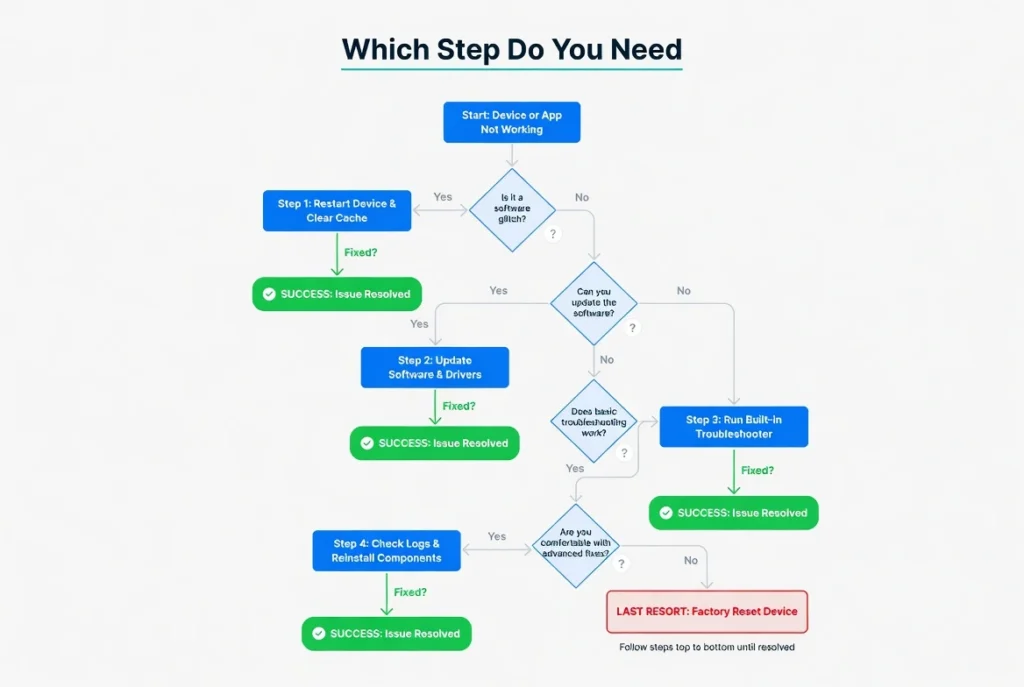
Here’s what I want you to know: you can remove most Android malware without factory resetting your phone. I’m talking about 90 percent of cases. Factory reset should be your absolute last resort, not your first option. The steps you’ve already read through in the previous sections solve most virus problems completely.
The key is understanding that factory reset is nuclear. It erases everything on your phone and starts it from scratch. You don’t want to do that if you don’t have to. And the truth is, you usually don’t have to.
Let me show you the escalating path. Try these steps in order. Only move to the next step if the previous one didn’t work.
Try These Steps Before Factory Reset
You’ve already done most of the heavy lifting if you followed the manual android malware removal section. You booted into Safe Mode to diagnose the problem. You found and uninstalled suspicious apps including any ghost apps hiding in your app list. You disabled device administrator permissions that malware was using to protect itself. You cleared all your browser data to stop fake virus notifications. You deleted everything in your Downloads folder.
You also ran a Deep Scan with Google Play Protect to check for any remaining threats. If Google Play Protect didn’t find anything serious, your phone is likely clean.
Most people stop here and their problem is solved. The malware is gone. Their phone runs smoothly again. Their battery isn’t draining. The pop-ups have stopped. They kept all their photos, messages, and personal data. Everyone is happy.
This is why I always tell people to start with these manual removal steps before even thinking about factory reset. Factory reset is destructive. The steps I described earlier are surgical. They target the problem without wiping your entire phone.
If Manual Methods Don’t Work: Use a Free Antivirus Scan
Let’s say you completed all the manual steps and you’re still having problems. The pop-ups are still there. The phone is still slow. Something doesn’t feel right. That’s when you use a dedicated antivirus app to run a more comprehensive scan.
I recommend two free options that you can download from the Google Play Store. Malwarebytes is excellent for detecting spyware that hides itself by disguising malicious code as system processes. Bitdefender is great if you want real-time protection that blocks malicious links before you even click them.
Here’s what matters: download these apps only from the Google Play Store. Fake security apps exist outside the official store, and if you download an antivirus from a sketchy website, you might actually be installing malware while trying to remove it. Stick to Google Play Store. That’s where you’re safe.
Open whichever app you choose and run a full scan. Let the scan finish completely. If the antivirus finds anything, follow its recommendation to remove the threat.
What Data Stays Safe During Cleanup vs What Gets Deleted
People often ask me what happens to their stuff when they’re clearing cache, clearing data, or uninstalling apps. They’re scared they’ll lose everything.
Here’s the truth: when you clear cache, you’re only deleting temporary files. Think of cache like the trash bin. Your actual photos, videos, messages, and documents are safe. Clearing cache frees up storage space. It doesn’t delete anything important.
When you clear data from an app like Chrome, you’re resetting that app to the state it was when you first installed it. You’re removing its login information and its settings. But you’re not deleting your actual photos or videos or messages. Those are stored separately on your phone.
When you uninstall an app, that app disappears and any data specific to that app disappears with it. But if you had photos saved inside that app, some might be gone. Usually you can recover them from your Google Photos backup. Your other photos, the ones you took with your camera app, stay on your phone.
Factory reset is different. Factory reset deletes everything except the Android operating system itself. That’s why it’s a last resort. But the steps you’re taking before factory reset are safe. You can be confident that your important data is staying put.
When Factory Reset Actually Becomes Necessary
If you’ve tried all the manual removal steps and Google Play Protect scan still finds nothing but your phone is still behaving strangely, then you might have a rootkit or system-level malware that’s too deep to remove without factory reset. That’s when factory reset becomes the answer.
But honestly, most people never reach that point. Most malware gets removed through the methods in Section 3. You prioritize your data safety first, and you only resort to wiping everything if nothing else works. That’s the right approach.
When Nothing Works: Factory Reset as Last Resort (And How to Do It Right)
If you’ve completed all the previous steps and your phone still has serious problems, factory reset is your answer. A factory reset is when you erase everything on your Android phone and restore it to the condition it was in when you first bought it. It’s the nuclear option for malware because it removes absolutely everything, including any malware that’s hiding deep in your system.
But factory reset is destructive, which is why you only do it when nothing else works. Before you press that button, you need to back up your important data the right way. And after you reset, you need to be careful about what you restore and reinstall. Get this wrong and you could re-infect your phone with the same malware you just removed.
Let me walk you through how to do a factory reset correctly.
Back Up Your Data the Right Way (Don’t Re-Infect Yourself)
This is the critical step that people rush through or skip entirely. Before you factory reset your Android phone, you need to save the things that matter to you. But here’s the catch: you can’t just use automatic Google backup because that backup might contain the infected app that caused the problem in the first place.
When you restore from an automatic Google backup, you’re restoring everything including potentially malicious apps. Your phone gets reset, but then you reinstall the very app that was causing the trouble. Congratulations, you’re infected again.
Instead, manually transfer your important data. Connect your phone to a computer with a USB cable. Copy your photos and videos to a folder on your computer. Export your contacts as a VCF file that you can import later. Screenshot any important messages or information you want to keep. If you have documents or files that matter to you, copy those too.
For things you’ve saved in cloud services like Google Photos or Gmail, you don’t need to back them up. They’re already safe in the cloud. When you set up your phone after the factory reset, you can log back into these services and everything will be there waiting for you.
The key is this: manually back up only the data you know is safe. Don’t rely on automatic backups that might restore an infected app.
How to Perform a Factory Reset on Android
Once you’ve backed up your data, you’re ready to reset your phone. Go to your Settings app. Look for System or About Phone depending on your Android version. Find Reset Options or Factory Reset.
You’ll see an option that says something like Erase All Data or Factory Reset. Tap that option. Android will ask you to confirm. You might need to enter your PIN or password. Android wants to make sure you really want to do this because you can’t undo a factory reset.
Once you confirm, your phone will restart and begin the reset process. Don’t turn off your phone or interrupt this process. Let it run completely. The whole process takes about five to ten minutes. You’ll see a progress bar or a spinning icon. Your phone might restart several times during the reset.
When the reset finishes, your phone will restart and show you the initial setup screen like you just took it out of the box. That’s how you know the reset worked. Your phone is now completely clean. All the malware is gone. Everything else is gone too.
Will Factory Reset Remove ALL Viruses? (Yes, But…)
Yes, factory reset removes absolutely every virus, every piece of malware, every corrupted file on your phone. Nothing survives a factory reset. Your Android phone is completely wiped and restored to factory condition.
But here’s the critical part: if the malware was inside an app and you reinstall that app, you’ll get infected again. Let’s say the malware was hidden inside an app called “Cool Weather App.” You factory reset your phone and the malware is gone. But then you download Cool Weather App again from Google Play Store. If the app still contains the malware, you’re infected again.
That’s why you need to be careful about what you reinstall after a factory reset. Don’t immediately restore everything from your backup. Instead, reinstall apps one by one from the Google Play Store. Use your phone normally for a few days. Monitor it for symptoms. Does it run smoothly? Is the battery draining fast? Are there pop-ups showing up again?
If everything works fine after a few days of using basic apps, then you can feel confident that those apps are safe. Gradually reinstall more apps and keep monitoring. If you notice symptoms coming back after installing a specific app, that’s the culprit. Don’t install that app again.
This process takes patience, but it ensures you don’t re-infect yourself with malware that came from an app you’re about to reinstall.
The Right Mindset About Factory Reset
Factory reset is powerful because it completely removes the problem. But it’s also extreme because it costs you time and effort to set everything back up. That’s why I always recommend trying everything else first.
Most people never need to factory reset. They complete the manual removal steps, run Google Play Protect, and their problem is solved. Factory reset is for the small percentage of cases where malware is so deeply embedded in the system that it resists every other removal method.
If you’re at this point, factory reset will work. Just do it carefully and back up your data correctly. You’ll have a clean phone and peace of mind knowing the malware is completely gone.
Do You Really Need Antivirus on Android in 2026?
Here’s a question that most tech websites won’t answer honestly: do you actually need antivirus software on your Android phone? Every other guide tells you to install Malwarebytes or some other antivirus app. I’m going to tell you the truth instead.
For most people, the answer is no. If you follow the steps I’ve already given you for how to remove virus from android phone and you practice basic security habits, Google Play Protect is enough protection. Installing additional antivirus apps can actually slow down your phone without providing much real benefit.
But there are specific situations where antivirus software makes sense. Let me break down when you need it and when you don’t.
When You DON’T Need Antivirus (Most People)
If you’re like most people, you only download apps from the Google Play Store. You keep your Android operating system updated. You don’t click on suspicious links in text messages or emails. You don’t visit sketchy websites looking for pirated movies or cracked software.
In that situation, you don’t need antivirus software. Google Play Protect is built into Android and it’s constantly scanning your apps. Google has millions of apps in the Play Store and the company actively monitors them for malware. Before an app even reaches the store, Google’s systems analyze it. If you stick to the Play Store, your exposure to malware is minimal.
Installing additional antivirus apps on top of Google Play Protect creates resource drain. These apps run in the background consuming battery, using RAM, and slowing down your phone’s performance. You’re trading speed and battery life for protection you probably don’t need.
Most security professionals agree that if you practice safe habits and use the official Play Store, Google Play Protect is sufficient. That’s why I included Play Protect in the manual removal steps. It’s the tool you should be using regularly anyway.
When You SHOULD Consider Antivirus
Now, there are situations where an antivirus app makes sense. If you sideload APK files, you’re downloading apps from outside the Google Play Store. These files come from sources that Google hasn’t vetted. The risk is much higher. If you’re downloading APKs from random websites, you should use antivirus.
If you visit risky websites frequently or you share your phone with family members who might click on dangerous links, extra protection is reasonable. If you want real-time scanning that blocks malicious links before you click them, that’s a legitimate use case for antivirus software.
The key question is this: are you doing anything that puts your phone at higher risk than average? If the answer is yes, then consider an android antivirus app. If the answer is no, you’re probably fine with just Google Play Protect.
Best Free Antivirus Options If You Want Extra Protection
If you decide you want antivirus protection, here are two solid free options. Both have free versions and both are available on the Google Play Store.
Malwarebytes is excellent for detecting spyware. Spyware hides by disguising itself as system processes or legitimate app components. It’s particularly good at finding threats that try to stay invisible. If you’re worried about spyware specifically, Malwarebytes is your best choice.
Bitdefender offers real-time protection with a feature called Autopilot that blocks malicious links before you even click them. If you want proactive protection that stops threats in real-time rather than scanning after the fact, Bitdefender is strong.
Here’s what matters: download whichever app you choose exclusively from the Google Play Store. Fake antivirus apps exist outside the official store. If you download antivirus software from a sketchy website, you might install malware while trying to remove it. That defeats the entire purpose. Always use Google Play Store.
Once you install your chosen antivirus app, run a scan. Let it finish completely. If it finds anything, follow its recommendations. Then use it for ongoing protection if you want that extra layer of security.
The Bottom Line on Antivirus in 2026
The way Android security works has changed over the years. Modern versions of Android are more secure than older versions. The Google Play Store’s vetting process is stronger. Your phone’s built-in protections are better.
This is why I can honestly tell you that most people don’t need additional antivirus software. Google Play Protect works. Using the Google Play Store works. Keeping your Android updated works. Not clicking suspicious links works.
When you’re trying to figure out how to remove virus from android phone, antivirus is just one tool in your toolbox. The manual removal steps are usually more important. Google Play Protect scanning is more important. Careful habits are more important.
Use antivirus if it makes you feel more confident. But don’t feel like you must have it. That’s what separates honest advice from marketing.
6 Ways to Protect Your Android Phone from Viruses (2026 Edition)
Prevention is always easier than treatment. Now that you know how to remove a virus from your Android phone, let’s make sure you don’t get infected in the first place. These six tips will dramatically reduce your risk of ever needing to follow the removal steps you just read.
The good news is that protecting your Android phone from viruses doesn’t require complicated or expensive solutions. Most of these protection methods are free and built into your phone. Some just require you to change a few settings or develop better habits. If you follow these six strategies consistently, your risk of infection drops dramatically.
Let me walk you through each one.
Keep Your Android OS and Apps Updated
Updates aren’t just about new features. They’re about security. Every time Google releases an Android update, many of those updates patch security vulnerabilities that malware could exploit.
Here’s the important part: older versions of Android have much weaker security than newer versions. Android 6 has significant security gaps compared to Android 14. The difference isn’t minor. It’s substantial. If you’re still running an old version of Android, you’re exposing yourself to threats that newer versions have already patched.
Go to your Settings app. Look for System. Then find System Update. If there’s an update available, install it immediately. Don’t put it off. Don’t ignore the notifications. Update your Android operating system as soon as new versions are available.
The same goes for apps. Open the Google Play Store and tap your profile icon. Go to Manage Apps & Devices, then the Manage tab. Look for Updates Available. Install all of those updates. Apps get security patches just like your operating system does.
For your own convenience, enable automatic updates in the Play Store settings. This way your apps update in the background without you having to do anything manually.
Only Download Apps from Google Play Store
The Google Play Store isn’t perfect, but it’s vetted. Google scans apps before they appear in the store. They have systems in place to detect malware. It’s not foolproof, but it’s much better than downloading apps from random websites.
When you download an APK file from a website instead of the Play Store, you’re skipping Google’s security checks. That APK could contain anything. It could be exactly what it claims to be, or it could be malware disguised as something legitimate.
If you absolutely must download an APK file from outside the Play Store, scan it with antivirus software before installing it. But honestly, the safest approach is to stick exclusively to the Google Play Store. Everything you need is there. There’s no legitimate reason to sideload apps from other sources.
Disable “Install Unknown Apps” Permission
Your Android phone has a security setting that controls which apps can install other apps. By default, many apps have permission to install unknown apps. This is dangerous because malware can use this permission to quietly install other malicious software without your knowledge.
Go to Settings. Look for Security. Find the option for Install Unknown Apps. You’ll see a list of apps that have permission to install unknown apps. Turn off permission for everything except apps you absolutely trust.
Most of your apps don’t need this permission anyway. A flashlight app doesn’t need to install other apps. Your calculator doesn’t need to install things. Your photo app doesn’t need this permission. Disable it for everything except maybe a few apps like your web browser or file manager where you might actually need it.
This simple setting change blocks one major attack vector malware uses.
Review App Permissions Regularly
Apps request permissions to access different parts of your phone. A camera app needs access to your camera. A messaging app needs access to your contacts. These permissions make sense. But sometimes apps request permissions they don’t need, and sometimes that’s a red flag.
Go to Settings and look for Privacy or Apps. Find Permission Manager. Look at what each app has permission to access. Does your flashlight app need access to your location? No. Does your weather app need access to your calendar? Probably not. Does a simple note-taking app need access to your photos? Probably not.
If you see permissions that don’t make sense, revoke them. Your phone will ask the app for permission again if it actually needs something, but many apps won’t complain if you deny unnecessary permissions. This reduces your exposure.
Review your app permissions every few months. Apps change over time and sometimes their permissions expand.
Don’t Click Links in Suspicious Texts or Emails
This is the simplest and most effective protection of all. Malware often reaches your phone through phishing links. Someone sends you a text message claiming to be from your bank asking you to click a link and verify your account. Or an email pretending to be a delivery service asking you to click a link to track your package.
These are phishing attempts. Clicking the link takes you to a malicious website that either steals your information or installs malware on your phone.
If you get a text or email from someone claiming to be your bank, delivery service, or social media company, don’t click the link. Instead, open the official app or website for that company directly. Go there without clicking any links from the message. Check your account legitimately. This way you avoid any malicious links.
Your bank will never ask you to click a link in a text message. Legitimate companies know better. If someone is asking you to click a link, it’s phishing.
Samsung Users: Disable Auto-Download Promotional Apps
If you have a Samsung phone, you need to know something. Samsung has agreements with companies to auto-download promotional apps to your phone. You didn’t install these apps. You didn’t click anything. Samsung downloaded them automatically as part of a business arrangement.
Most people don’t know this feature exists. When they see unfamiliar apps appearing on their phone that they definitely didn’t install, they panic and think they have a virus. The apps are usually harmless promotional software, but they’re annoying and they use storage space.
You can disable this feature. Go to your Samsung account settings or your Play Store settings and look for promotional apps or Samsung marketing. Disable auto-downloads. This prevents Samsung from automatically installing promotional apps on your phone without your permission.
This is a Samsung-specific issue, but it’s worth knowing about because these auto-downloaded apps often trigger people to think their phone is infected with something dangerous.
Making These Habits Stick
These six android phone virus protection tips are simple individually, but the real protection comes from doing all of them consistently. It’s the combination that creates strong android phone security.
You don’t need to do everything today. Pick one tip and implement it. Next week, pick another. Within a month, you’ll have all six in place. From that point forward, your phone will have layers of protection that make infection unlikely.
Prevention is the best solution. Once you’re infected, you’re dealing with removal, backup concerns, and potential data loss. It’s much easier to prevent infection in the first place.
Can’t Remember What You Installed? Here’s How to Find Recent Apps
One of the biggest obstacles people face when trying to troubleshoot malware is memory. You know something is wrong with your phone, but you can’t remember what apps you installed or when you installed them. This makes it hard to identify which app is causing the problem.
I’ve heard this complaint from countless people. They say “I don’t remember downloading anything new” or “I have no idea when this started happening.” The good news is that your phone keeps records of everything you’ve installed, even if your memory is fuzzy. You can use these records to narrow down the culprit.
Let me show you two ways to find recently installed apps on your Android phone.
Check Recently Installed Apps
Your Google Play Store keeps a complete history of every app you’ve ever downloaded or installed. You can access this history anytime.
Open your Google Play Store app. Tap your profile icon in the top right corner. From the menu, select Manage Apps & Devices. Go to the Manage tab. You’ll see a list of all your installed apps.
Look for sorting options. You want to sort by “Last Used” or “Recently Updated.” This shows you which apps you’ve used recently or updated recently. If your phone problems started a few weeks ago, look at the apps that were installed or updated around that timeframe. Those are your suspects.
Even if you don’t remember installing an app, if it appears in the recently updated list with a date that matches when your problems started, that’s a clue. You can uninstall suspicious apps and see if your phone improves.
Sort Apps by Installation Date
Not all Android versions display installation dates the same way, but many phones let you sort your app list by when apps were installed.
Go to your Settings app. Find Apps or Application Manager. Look for a sorting option. Some Android versions let you sort by Install Date. If you see this option, use it to sort your apps from most recently installed to oldest.
Look at the apps installed around the time your problems started. If you remember that your phone started acting strange about three weeks ago, look at the apps installed three weeks ago. One of those apps is likely causing your problem.
You might see apps you don’t recognize. You might see apps you definitely didn’t install intentionally. Those are prime candidates to uninstall and test. Go back to the manual removal section and follow the steps to uninstall suspicious apps.
This simple detective work often points directly to the culprit without you having to remember anything. Your phone’s records do the remembering for you.
Why This Matters for Troubleshooting
When you’re trying to uninstall suspicious apps android devices, the biggest challenge is knowing which apps to suspect. If you can narrow it down to a specific timeframe, you’ve done half the work already.
Most malware comes packaged with legitimate apps that you thought you were downloading. You wanted a cool weather app or a new game, and you installed it. Weeks later you realize something is wrong. By checking your installation history, you can identify which apps were installed right before your problems started. That’s where your focus should be.
This is especially helpful if you’re helping someone else troubleshoot their phone. You might not remember what they installed, but the phone remembers. Show them how to check their app history and you’ve given them the power to solve their own problem.
Frequently Asked Questions
Will clearing my cache delete my photos and messages?
No. Cache is temporary app data like thumbnails and website files. Your photos stay in internal storage, and messages stay in your messaging app. Clearing cache only removes junk files to free up space. Your personal data is safe.
Does factory reset remove ALL viruses from Android?
Yes, factory reset wipes everything including malware. But if you restore from a Google backup that contained the infected app, you’ll re-infect your phone. After reset, reinstall apps one by one from the Play Store and monitor for symptoms first.
Can a virus hide on Android without showing any symptoms?
Yes. Spyware and trojans can run silently in the background stealing data. To detect hidden malware, run a Google Play Protect Deep Scan. Also check Settings > Battery > Battery Usage for apps draining power when you’re not using them
How do I know if it’s a real virus warning or just an ad?
Real Android warnings appear only in Settings > Security, never as pop-ups. If the notification says “Advertisement” in the corner, it’s an ad. If it comes from Chrome or a specific app instead of “Android System,” it’s not real.
Do I really need antivirus on my Android phone?
Not if you only download from Google Play Store and keep Android updated. Google Play Protect is sufficient for most users. Antivirus apps can slow down your phone. Only consider antivirus if you sideload APK files from outside the official store.