
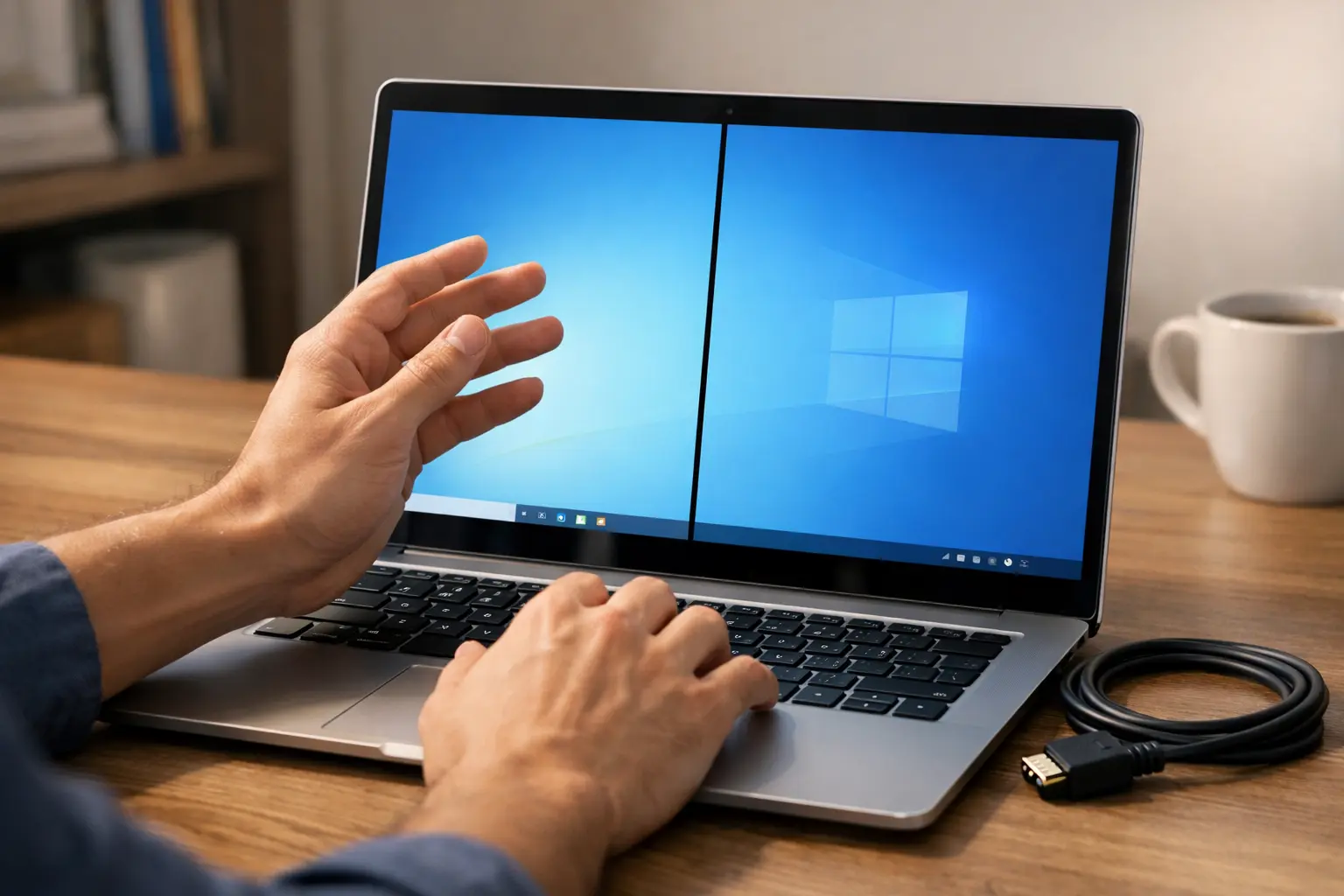
Seeing a Black Line on Your HP Laptop? Start Here
I still remember the exact moment a thin black line on my HP laptop screen appeared mid-work. No warning. No reason. Just a line cutting straight down the display. My first thought was that I had broken something expensive. Sound familiar?
Here is what I discovered after dealing with this myself: a black line on laptop screen HP issues are far more common and far more fixable than most people realize. In many cases, you do not need a new screen or a costly repair visit
You Are Not Alone in This
This problem shows up constantly on HP Pavilion, HP Envy, HP Spectre, and other models. I have personally spoken with users dealing with vertical black lines, horizontal ones, and lines that flicker in and out randomly.
What most people do not realize is that the cause determines the fix. Sometimes it is a graphics driver conflict. Other times it is a loose display cable or a damaged LCD panel. Knowing which one you are dealing with saves you hours of guesswork.
What You Should Know Right Now
Before you start worrying about expensive repairs, let me give you some quick facts based on what I discovered.
Before jumping to expensive repairs, it helps to understand what you are actually dealing with. After researching and fixing this problem myself, here are the three most common causes I found.
A loose display cable is the most overlooked cause. It disconnects gradually from regular use and vibration. An outdated or corrupted graphics driver is the most common software cause and often the easiest to fix. Physical damage to the LCD panel is the most serious cause and usually requires screen replacement.
The shape of the line also tells you a lot. A single vertical black line almost always points to hardware. A flickering horizontal line usually means a driver or software issue. Multiple lines spreading over time strongly suggest LCD panel failure.
Do Not Jump to Conclusions Yet
When I first saw that black line, I almost took my laptop to a repair shop immediately. Thankfully, I decided to do some research first. I tried a few simple fixes at home, and one of them actually worked.
That is why I want you to hold off on any big decisions right now. There are several things you can test yourself before considering professional help or screen replacement.
What This Guide Will Do for You
This guide covers everything from quick one-second fixes to permanent screen replacement options. Whether your black line appeared after a Windows update, a physical bump, or for no obvious reason at all, you will find the right answer here.
A Simple First Step
Before anything else, restart your laptop completely. It sounds obvious, but a fresh restart clears temporary display glitches more often than people expect. If the black line disappears after rebooting, your problem was a minor software hiccup and nothing more. If it is still there, keep reading
If the black line is still there after restarting, do not worry. That just means we need to dig a little deeper. The next section will help you understand what is actually happening with your screen so you can choose the right fix.
Take a breath. You have already taken the first step by looking for answers. Let me guide you through the rest.
Why Is There a Black Line on My HP Laptop Screen?
Understanding what causes a black line on your HP laptop screen is the key to fixing it properly. I learned this the hard way by jumping to conclusions before investigating the actual problem. Once I figured out the real cause, finding the solution became much easier.
A black line can come from several different sources. Some are easy to fix yourself at home. Others require professional attention. Let me break down the most common causes I have encountered.
Software Issues: Drivers and Updates
The first thing I checked was my graphics driver. Your HP laptop relies on this driver to control everything you see on screen. When it becomes outdated or corrupted, you can end up with black lines, flickering, or a distorted display.
If you are wondering how to fix black lines on your HP laptop screen caused by software, updating the graphics driver through Windows Device Manager is the fastest place to start. In my case, that single update fixed everything immediately.
I discovered that Windows sometimes installs automatic updates that affect your display settings. These updates can conflict with your current graphics driver and cause strange visual issues. In my case, updating the graphics driver through Windows Device Manager solved the problem immediately.
Another software related issue is your screen resolution or refresh rate settings. If these settings are not compatible with your display, you might see black lines or other visual glitches. I have seen this happen after a Windows update changes these settings without asking.
Loose Display Cable
This was actually what caused my friend’s black line problem. Inside your HP laptop, a thin ribbon cable called the display cable connects your screen to the motherboard. Over time, this cable can become loose due to vibration from regular use or from closing the lid repeatedly.
When the display cable is loose, it does not send the correct signal to your screen. This causes display problems like black lines, flickering, or even a completely black screen. Once you understand what is actually causing the line, the fix becomes obvious. That is the part most people skip.
The tricky part is that accessing this cable requires opening your laptop. If you are not comfortable doing this yourself, a technician can handle it quickly and affordably.
Screen Damage or Dead Pixels
Physical damage to your laptop screen can also cause black lines. If you accidentally bumped your laptop or closed the lid on something, the LCD panel inside might have suffered internal damage.
Dead pixels are another possibility. A dead pixel is a single point on your screen that stops working. When multiple dead pixels form a line, you see a black line on your display. Unlike software issues, dead pixels cannot be fixed with updates or driver changes.
I learned that even small pressure on the screen during transport can damage the delicate LCD panel inside.
GPU Problems
Your graphics processing unit controls every pixel rendered on your screen. When it starts failing, the display errors it produces can look exactly like a hardware screen problem, which makes GPU issues tricky to diagnose. If you have invested in a gaming laptop, understanding GPU health is even more critical since gaming laptops depend heavily on graphics performance.
I once spent an entire afternoon assuming a loose cable was the issue on a friend’s laptop.
The external monitor test revealed the GPU was actually failing because the line appeared on the external screen too. GPU failures are less common, but when they happen they usually come with other symptoms like color distortion, random flickering, and crashes during graphics-heavy tasks.
Putting It Together
The cause of your black line comes down to three questions: When did it appear? Does it change position or stay fixed? And does it show up on an external monitor? Your answers to those three questions will point you directly to the right fix.
First Check: Is It a Hardware or Software Problem?
Before you try any fixes, you need to know whether your black line is caused by a software issue or a hardware problem. This single test will save you hours of troubleshooting and help you avoid wasting money on unnecessary repairs.
I learned this diagnostic method the hard way. I spent two days updating drivers and changing settings when my actual problem was a loose display cable. A quick test at the beginning would have told me exactly what to focus on.
The External Monitor Test
This is the most reliable way to diagnose your problem. I always start with this method because it gives you a clear answer in just a few minutes.
Here is what you do. Connect an external monitor to your HP laptop using an HDMI cable or USB-C adapter, depending on your model. Then power on the external monitor and look at the display.
Pay close attention to whether the black line appears on the external monitor screen. This answer tells you everything.
If the black line shows up on the external monitor too, then your problem is software related. Your graphics driver or display settings are causing the issue, not your physical screen. This is actually good news because software problems are usually fixable with simple updates or adjustments.
If the black line disappears on the external monitor and only appears on your laptop screen, then you have a hardware problem. Something is wrong with your laptop display itself, like a loose cable or physical damage to the LCD panel.
I used this test on my own laptop and it immediately revealed that my issue was hardware related. That one test saved me from spending days trying software fixes that would never have worked.
The Safe Mode Test
Another diagnostic method I found helpful is booting your laptop into Safe Mode. Safe Mode loads Windows with only essential programs and drivers, bypassing many of your normal startup processes.
To enter Safe Mode on your HP laptop, restart the computer and press F8 repeatedly as it boots. If that does not work, restart and press the Windows key plus X, then select Restart options and choose Safe Mode.
Once you are in Safe Mode, check your screen carefully. Does the black line still appear? If it disappears in Safe Mode, then a software program or driver running in normal mode is causing the problem.
If the line persists in Safe Mode, you are likely dealing with a hardware issue that no software fix will solve.
The Task Manager Method
Open Task Manager by pressing Ctrl + Shift + Esc.
Click on the Performance tab and then GPU. If you see GPU usage sitting near 100 percent while you are not running any demanding programs, something is overloading your graphics card.
Switch to the Processes tab to find which program is responsible. Sometimes a misbehaving program forces your graphics card to work too hard, causing display glitches like black lines.
If you spot a program using excessive resources, that could be your culprit. For a more comprehensive hardware diagnostic beyond Task Manager, HP provides a built-in tool called HP PC Hardware Diagnostics UEFI Hardware that can test your display and GPU in detail. This official HP tool is free and often catches issues that Task Manager misses
You can access it by restarting your laptop and pressing F10 or F12 (depending on your HP model) during startup. Close the problematic program and watch if the black line goes away. This method helped me rule out software conflicts before investigating hardware causes.
What These Tests Tell You
Between the external monitor test, Safe Mode check, and Task Manager review, you now have enough information to know exactly what type of problem you are dealing with. Software issues move forward with driver fixes. Hardware issues move toward cable reseating or screen replacement.
Once you know which category your problem falls into, the rest becomes straightforward. Software problems need driver updates or settings adjustments. Hardware problems require either cable reseating or professional repair.
In the next section, I will walk you through the specific fixes for each type of problem so you can move forward with confidence.
Try This 5 Second Fix Before Anything Else
Before you update drivers, open your laptop, or think about screen replacement, there is one simple trick I always suggest trying first. It takes only a few seconds, it does not cost anything, and in some cases it fixes the black line problem right away.
The shortcut is this:
Press Windows + Ctrl + Shift + B
The first time I used it, I honestly did not expect much. But after seeing it work on a display glitch, I started treating it as my go to first step whenever an HP laptop screen starts acting strangely.
This step-by-step video shows the exact path through Windows Device Manager to find, update, and install the latest graphics driver. If you're unsure about any of the steps above, watching this will clarify the process.What This Shortcut Actually Does
This keyboard shortcut resets your graphics driver without restarting the entire laptop. In simple words, it tells Windows to refresh the display system.
When you press these keys together, your screen may go black for a second. You might also hear a small beep. That is normal. It means Windows is resetting the graphics driver and trying to restore the display properly.
If your black line on laptop screen HP issue is caused by a temporary graphics glitch, this quick reset can sometimes remove it instantly.
Why It Works
Most display problems people panic about are not caused by physical damage at all.
The graphics driver simply gets stuck in a bad state and stops sending the correct signal to your screen. This shortcut forces Windows to restart that communication instantly without touching anything else on your system
When that happens, you may see:
• A black line on the screen
• Flickering
• Display freezing
• Strange visual artifacts
Instead of rebooting the whole system, this shortcut refreshes the graphics connection directly. I like it because it is fast and low risk. If it works, you save yourself a lot of time.
How to Use It the Right Way
Here is exactly how I do it:
- Step 1: Keep your laptop powered on and running normally.
- Step 2: Make sure you are on the standard Windows desktop, not in a full screen app.
- Step 3: Press Windows + Ctrl + Shift + B simultaneously.
- Step 4: Wait three to five seconds and watch your screen carefully for the line to disappear
If the line disappears, the issue was likely linked to the graphics driver or a temporary software problem. If nothing changes, that does not mean the laptop is beyond repair. It only means you need to move on to the next troubleshooting step.
When This Fix Helps Most
In my experience, this shortcut helps most when the black line appeared suddenly and there are no signs of screen damage. It is especially useful if:
• The line showed up after waking the laptop from sleep
• The display started acting up after a Windows update
• You noticed flickering along with the black line
• The laptop screen problem seems random, not constant
These are all signs that the issue may be software related rather than a damaged LCD display panel.
When It Probably Will Not Help
I want to be honest here. This shortcut is not a magic fix for every case. If your HP laptop screen has physical damage, dead pixels, or a loose display cable, resetting the graphics driver will not solve it.
For example, if the black line stays in the exact same spot all the time and never changes, that often points to a hardware issue. In that case, you will need deeper checks.
My Advice Before You Move On
Try this shortcut first. It costs nothing, takes five seconds, and if it works you have saved yourself hours of troubleshooting
Even if it does not fix the problem, it helps rule out a temporary graphics driver issue.
If the black line is still there after using this shortcut, do not worry. The next step is to move on to more targeted fixes like driver updates, Safe Mode testing, and external monitor checks. That is where you can narrow down the exact cause and choose the right solution.
Step-by-Step Fixes That Actually Work
How to Fix Black Lines on HP Laptop Screen: Step by Step
Work through each fix below in order. Start at the top and move down until the black line disappears I am going to walk you through each method in order. Start with the first one and work your way down until the black line disappears.
Restart Your Laptop
I know this sounds obvious, but restarting your laptop is genuinely the first thing you should do. A simple restart can clear temporary memory issues and reset your display driver without any extra effort.
Here is how to do it properly. Save your work, close all programs, and shut down your laptop completely. Wait at least 30 seconds before turning it back on. This pause is important because it allows your hardware to fully power down and reset.
When the laptop boots back up, check your screen immediately. Many people find that a black line disappears after this simple restart. If it does, your problem was likely a temporary software glitch that has been resolved.
Update or Roll Back Your Graphics Driver
If restarting did not help, your graphics driver may be outdated or corrupted. I fixed my own display issue by updating the driver through Windows Device Manager.
Right click on your Windows Start button and select Device Manager. Look for Display adapters and click the arrow next to it to expand the list. You should see your graphics card listed there, like Intel UHD Graphics or NVIDIA GeForce.
Right click on your graphics card and select Update driver. Choose Search automatically for updated driver software. Windows will check for the latest version and install it if available.
After the update finishes, restart your laptop and check the screen.
Sometimes the newest driver causes problems instead of fixing them. If updating made things worse, you can roll back to the previous version. Go back to Device Manager, right click your graphics card, select Properties, go to the Driver tab, and click Roll Back Driver.
Adjust Your Refresh Rate
A refresh rate that is too high for your display can cause visual glitches like black lines. I discovered this when adjusting my screen settings revealed the problem.
Right click on your desktop and select Display settings. Scroll down and click Advanced display settings. Look for Refresh rate and try lowering it. Many HP laptops work best at 60Hz. Change the setting and click Apply. If you encounter error codes while accessing Windows 11 settings or after making display adjustments, we have a complete guide to resolving them.
If the black line disappears at a lower refresh rate, you have found your answer. You may need to keep the refresh rate at this lower setting, or wait for a driver update that fixes the compatibility issue.
Test With an External Monitor
Connect an external monitor to your HP laptop using an HDMI cable or USB adapter. Turn on the external monitor and observe whether the black line appears there.
If the line shows on the external monitor too, your problem is software or GPU related. If it only appears on your laptop screen, the issue is with your display hardware.
This test narrows down whether you need to continue with software fixes or move toward hardware solutions.
Boot Into Safe Mode
Safe Mode loads Windows with minimal drivers and programs. This helps identify whether a third party program is causing your display problem.
Restart your laptop and press F8 repeatedly as it boots, or press Windows key plus X and choose Restart options, then Safe Mode. Once in Safe Mode, check if the black line still appears.
If the line is gone in Safe Mode, something in your normal startup is causing the issue. A program, driver, or service is interfering with your display. In that case, you might need to uninstall recent programs or update drivers.
If the line persists in Safe Mode, your problem is likely hardware related and requires professional inspection or repair.
Vertical vs Horizontal Black Lines on HP Laptop Screen: What Each One Means
Not all black lines on your HP laptop screen are created equal. The direction of the line, whether it is vertical or horizontal, actually tells you something important about what is happening inside your display. Understanding this difference helps you decide whether to keep troubleshooting at home or seek professional repair.
I learned this lesson when I noticed my friend had a vertical line while my own laptop showed a horizontal one. We both assumed we had the same problem, but they required completely different solutions.
Vertical Black Lines: Usually Hardware Damage
A vertical black line running from top to bottom of your screen almost always points to a hardware problem. In my experience, this type of line is caused by physical damage to the LCD panel or a problem with the display cable connection.
When you see a single vertical line that stays in the exact same place every time you restart, the LCD panel inside your screen likely has internal damage. The pixels in that vertical column have stopped working. This damage is permanent and cannot be fixed with driver updates or software adjustments.
I have also seen vertical lines appear when the display cable becomes loose inside the laptop. The cable connects your screen to the motherboard and carries the signal that tells pixels what to display. A loose connection in one part of the cable can affect one vertical section of the screen.
The good news is that a loose cable is fixable. The bad news is that it requires opening your laptop, which many people prefer not to do themselves. A technician can reseat the cable in about 15 minutes.
If the vertical line is caused by pixel damage, only screen replacement will fix it. The damaged pixels cannot be repaired individually.
Horizontal Black Lines: Often Software Related
Horizontal lines that run across your screen from left to right are more likely to be software related. I have seen these disappear after driver updates, refresh rate adjustments, or even just a simple restart.
However, horizontal lines can also indicate hardware problems, so do not assume it is always fixable with software. The key difference is whether the line is stable or flickering.
A stable horizontal line that never changes usually means LCD panel damage. A flickering or intermittent horizontal line often points to a graphics driver issue or loose display cable.
Multiple Lines and Spreading Patterns
If you notice multiple black lines or a line that seems to grow over time, this typically signals LCD panel failure. The LCD panel inside your screen contains millions of tiny pixels arranged in rows and columns. When the panel starts failing, entire rows of pixels stop working.
I watched this happen on an older laptop where one line appeared, then two weeks later there were three lines. Within a month, the screen became unusable. This is the pattern of progressive LCD panel failure.
Once pixel damage starts, it rarely stops. The damage spreads as the LCD panel continues to deteriorate. This is permanent damage that cannot be reversed.
Lines That Come and Go
If your black line appears sometimes but not always, this is almost certainly a software or cable issue. The line would not disappear and reappear if it was permanent pixel damage.
An intermittent line usually means a loose display cable that loses connection when the laptop moves or vibrates. It can also indicate a graphics driver that crashes and recovers randomly.
These intermittent issues are worth investigating with the troubleshooting steps I covered earlier. Software fixes might resolve the problem completely.
The Bottom Line
Pay attention to your black line pattern. Is it vertical or horizontal? Does it stay in one place or move around? Does it appear all the time or randomly? These details reveal whether your problem is fixable at home or if you need professional help.
Real Fix: How Some People Temporarily Remove Lines
If you have tried the software fixes and your black line is still there, some people have found a temporary workaround that can help while you figure out your next steps. I want to share this method with you, but I also need to be honest about what it is and what it is not.
This is not a permanent solution. It is a temporary fix that works for some people in specific situations. It requires opening your laptop, which can be risky if you are not comfortable with that kind of work.
The Pressure Shim Method
Some people have discovered that applying gentle pressure to certain areas of the laptop screen can temporarily improve the display. The idea is that a loose display cable inside the screen bezel might reconnect briefly when you apply pressure from outside.
Here is how some people have tried it. They gently press on the area around the black line, usually near the edges of the screen or along the hinge. In some cases, the black line disappears or becomes less visible.
The pressure supposedly pushes the internal display cable back into better contact, allowing the signal to flow properly again. I have heard stories of people who kept a small shim or thin piece of material between the screen and keyboard to maintain that pressure.
Why This Works Sometimes
When the display cable inside your laptop becomes loose, it does not always lose connection completely. Sometimes it is just barely disconnected. Applying external pressure can reconnect it temporarily.
This explains why some people see their black line disappear for a while after trying this method. It genuinely does work in certain situations, but only as a stopgap measure.
The Big Limitations
Here is what I need to tell you honestly. This method does not fix the underlying problem. The display cable is still loose. You are just holding it in place with pressure.
Eventually the pressure will not be enough anymore. The cable will shift again and the black line will return. You cannot rely on this as a permanent solution.
The Real Risks
Opening your laptop to apply a shim means you are working with delicate internal components. You could accidentally damage the display cable further or disconnect other internal connections.
If your laptop is still under warranty, opening it yourself might void that warranty. You lose your right to free or discounted repairs from HP.
Even small static electricity from your fingers can damage sensitive electronics inside the laptop. Without proper grounding, you could cause more damage than you started with.
When This Might Help
This method is useful as a temporary fix while you save money for professional repair or screen replacement. If you can live with the black line for a few weeks while you arrange a repair appointment, the shim method can make your screen usable in the meantime.
It is also worth trying if you want to confirm that a loose cable is actually your problem. If applying pressure removes the line, you know for certain that your issue is hardware related and not a software problem.
Your Next Steps
If the pressure shim works for you, consider it temporary relief only. Your best long term solution is either professional cable reseating or screen replacement, depending on what your diagnostics revealed.
Contact an HP technician or authorized repair shop to get a permanent fix. It will cost more than a shim, but it will be worth it for a screen that works reliably again.
When You Have No Choice But to Replace the Screen
At some point, you might realize that your black line cannot be fixed with software updates or temporary workarounds. The line persists no matter what you try. The display cable is damaged beyond reseating. The pixels are permanently dead. When you reach this point, screen replacement becomes your only real option.
I know this is not what you want to hear. Screen replacement feels expensive and complicated. But sometimes it is the most practical solution. Let me walk you through what you need to know before making this decision.
How to Know When Replacement Is Necessary
If you have tried all the software fixes and your black line is still there, it is time to accept that your problem is hardware damage. A vertical black line that never changes position usually means dead pixels. Multiple lines that spread over time definitely indicate LCD panel failure.
When the external monitor test showed that the line only appears on your laptop screen and not on the external display, you know the issue is with your screen itself, not the graphics card. This confirms that your LCD panel needs replacement.
If you opened the laptop and reseated the display cable without success, the cable itself might be damaged. In that case, both the cable and possibly the screen panel need replacement.
Screen Replacement Costs
The cost varies depending on your HP laptop model. Replacement screens typically range from $60 to $200 If you pay a technician to install it, you might spend another one hundred to one hundred fifty dollars for labor.
Some people find cheaper options through third party repair shops or online retailers. Others pay more by going through official HP service centers. Compare prices from multiple sources before deciding.
Budget conscious users sometimes buy a used replacement screen online and have a local technician install it. This saves money compared to buying new parts through official channels.
Do It Yourself vs Professional Repair
Opening your laptop to replace the screen yourself is possible but risky. You need the right tools, a steady hand, and patience. One mistake can damage the new screen or other internal components.
I recommend professional installation unless you have experience with laptop repairs. A technician completes the job in thirty minutes to an hour. You get a warranty on their work. If something goes wrong, they fix it for free.
Check Your Warranty First
Before paying for screen replacement, verify whether your HP laptop is still under warranty. If you purchased your laptop within the last year, accidental damage coverage might be included depending on your plan.
Contact HP support with your laptop serial number. Ask specifically about screen replacement coverage. You might qualify for a free or discounted repair that saves you significant money.
Moving Forward
Screen replacement is not ideal, but it is the permanent solution when your LCD panel is damaged. Once you have a new screen installed, your HP laptop will work like new again. The black line problem disappears completely.
Do not delay too long if you know replacement is necessary. Continuing to use a laptop with a failing screen can cause additional damage over time. Get it fixed and move on.
How to Prevent Black Lines on Your HP Laptop Screen
After dealing with a black line on my HP laptop, I became very conscious of how I treat my screen. I realized that many of the problems people face are preventable with simple care habits. If you just fixed your screen issue or want to avoid this problem in the future, these prevention tips will help you keep your display healthy.
Be Careful When Closing the Lid
The number one way black lines appear is through pressure on the screen when closing the lid. I learned this lesson the hard way. Closing your laptop with something between the screen and keyboard can damage the delicate LCD panel or the display cable inside.
Make sure nothing is sitting on your keyboard before you close the lid. Keep pens, papers, and other objects away from the laptop. Even a thin piece of paper can cause internal damage over time if it gets pressed between the screen and keyboard repeatedly.
Close the lid slowly and gently. Do not slam it shut or apply pressure to the screen. Your laptop display is fragile despite looking sturdy from the outside.
Avoid Pressing on the Screen
Your laptop screen should never feel pressure from your fingers or hands. I see people tap or press on their screens all the time, and it makes me uncomfortable. That pressure can damage pixels and stress the LCD panel.
If you need to point at something on your screen, use your mouse or trackpad instead. Never poke or apply pressure directly to the display. Treat your screen like it is precious because it really is.
Keep Your Laptop Cool
Heat damages LCD panels over time. I noticed that my laptop screen problems got worse during hot summer months. Make sure your laptop has proper ventilation and does not overheat during use.
Do not cover the cooling vents with blankets or pillows. Do not use your laptop on soft surfaces like beds that block airflow. Keep the laptop on hard, flat surfaces that allow air to circulate underneath.
If your laptop gets hot, take a break and let it cool down. Prolonged heat exposure accelerates LCD panel degradation.
Handle Transportation Carefully
Moving your laptop roughly increases the risk of loose display cables. When I started being more careful during transport, I avoided a lot of screen problems. Use a padded laptop bag or case when traveling.
Do not toss your laptop around or drop it. Even small bumps can loosen internal connections over time. The same care applies if you use external peripherals like PS5 controllers or wireless adapters connected to your PC—rough handling can damage both your laptop and accessories
Keep Your Drivers Updated
Software problems that cause display issues are preventable with regular maintenance. I now check for graphics driver updates monthly through Windows Device Manager.
Updated drivers fix bugs and compatibility issues that cause black lines and other display glitches. Set a calendar reminder to check for updates quarterly, or enable automatic driver updates if your system supports it.
Small Habits, Big Difference
These prevention tips are simple but effective. The care you give your laptop screen now prevents expensive repairs later. Your future self will appreciate the effort.
Frequently Asked Questions
Can a black line disappear on its own?
It depends on the cause. If the black line is caused by a software glitch or loose display cable connection, it might disappear temporarily after a restart or driver update.
However, if it is caused by dead pixels or LCD panel damage, it will not disappear on its own. Permanent pixel damage does not heal.
If the line keeps reappearing, you are likely dealing with hardware damage that requires professional repair
Is it safe to keep using the laptop?
Yes, it is safe to use your laptop with a black line on the screen. The line itself will not damage your computer or cause it to stop working.
However, if the line is caused by a loose display cable, continued use and movement might worsen the connection over time.
If the LCD panel is failing, the damage will gradually spread to more pixels.
For your own comfort and to prevent further deterioration, I recommend addressing the problem sooner rather than later.
Will the line spread?
If the black line is caused by dead pixels or LCD panel failure, it will likely spread over time. I have seen this happen where one line becomes two, then three, until the entire screen becomes unusable.
The LCD panel continues to degrade as you use the laptop. If the line is caused by a software issue or loose cable, it probably will not spread.
The spread pattern actually helps you diagnose whether your problem is permanent hardware damage or a temporary software glitch.
Can drivers really fix it?
Yes, updating or rolling back your graphics driver can fix black lines if they are caused by software issues. I have personally fixed display problems by updating the driver through Windows Device Manager.
However, drivers cannot fix dead pixels or physical damage to the LCD panel.
If you tried driver updates and the line is still there, your problem is likely hardware related and will need professional repair or screen replacement.
How much does repair cost?
Screen replacement typically costs between sixty and two hundred dollars for the part, plus one hundred to one hundred fifty dollars for professional installation.
A loose display cable can often be reseated for fifty to one hundred dollars in labor. If your HP laptop is still under warranty, you might qualify for free or discounted repairs.
Always check your warranty status and get quotes from multiple repair shops before committing to any work.