
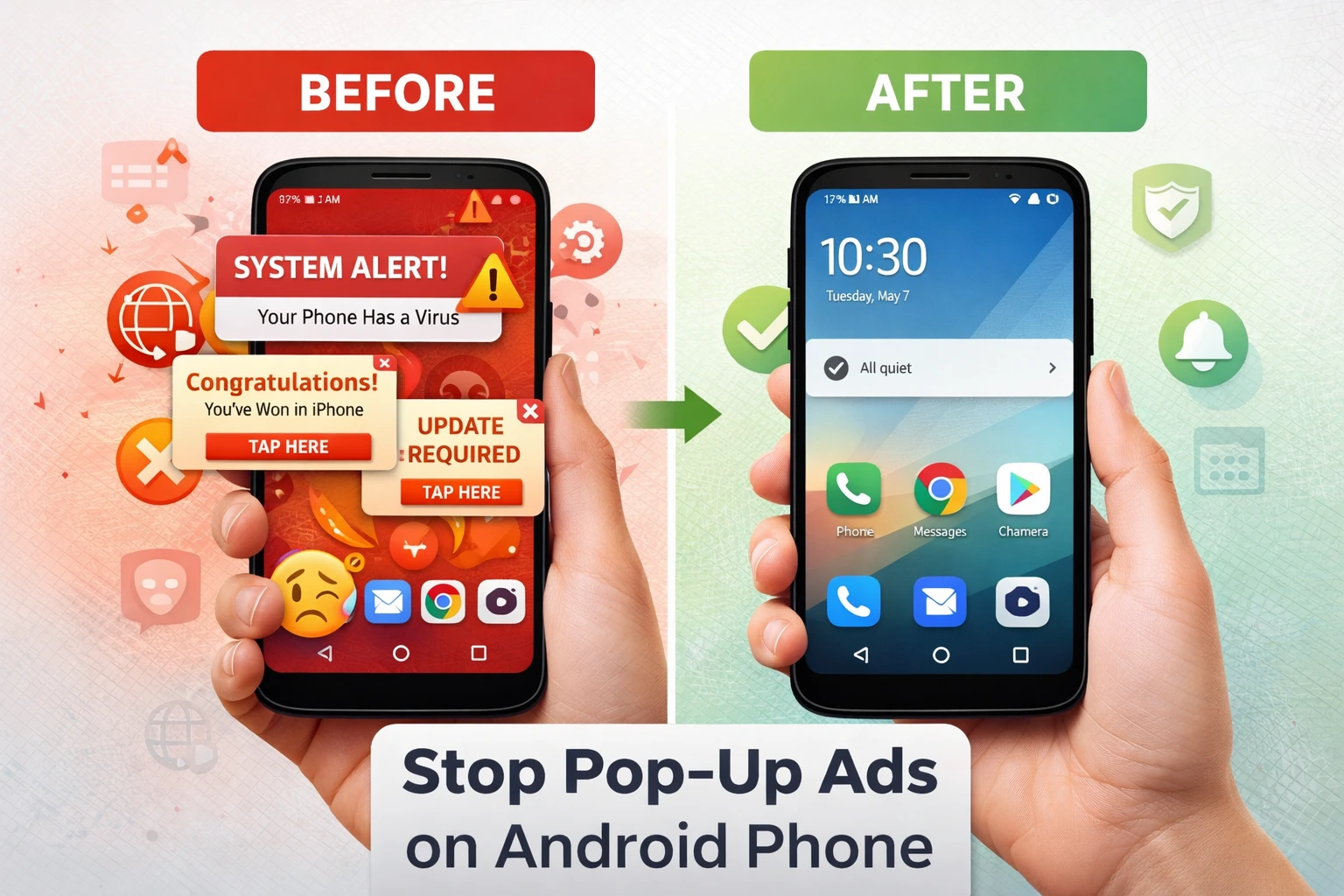
What Type of Pop-Up Ad Do You Have? (Find Your Fix Faster)
Before you start trying random fixes, I want you to take a minute to identify exactly what kind of pop-up ads on Android you’re dealing with. Trust me, this will save you a lot of time and frustration.
When I first started helping people fix unwanted ads Android, I noticed most of them were jumping straight into Chrome settings without understanding where the ads were actually coming from. The problem is, not all pop-ups are the same. Some come from your browser, some from sketchy apps running in the background, and others from notification permissions you accidentally gave to websites.
Each type needs a different fix. So let me walk you through the three main types of pop-ups you might be seeing, and how to tell them apart.
Browser Pop-Ups (Appear Only in Chrome, Firefox, or Samsung Internet)
These are the easiest to spot. If the ads only show up when you’re actively using Google Chrome or another browser, and they disappear when you close the browser, then you have a browser pop-up problem.
Usually, these happen because of Android browser pop-up settings that aren’t configured properly. Sometimes a website tricks you into allowing notifications, and suddenly ads start appearing while you browse. Other times, it’s just that your pop-up blocker isn’t turned on.
I’ve seen this happen most often when people visit streaming sites or download pages. One wrong tap on “Allow” and boom, ads everywhere.
The good news is that browser pop-ups are the simplest to fix. You just need to adjust a few settings in Chrome or whatever browser you use, and you’re done.
Home Screen Pop-Ups (Appear Even When You’re Not Browsing)
Now, if you’re getting ads that pop up on your home screen, or over other apps like WhatsApp or YouTube, that’s a completely different situation. These are what I call overlay ads, and they’re way more annoying.
These pop-ups appear even when your browser is closed. You could be scrolling through Instagram, and suddenly a full screen ad covers everything. That’s because some app on your phone has something called display over other apps Android permission.
Basically, a shady app installed itself and now has permission to show content on top of everything else. I’ve helped people who had these for weeks and couldn’t figure out which app was causing it. Sometimes the app doesn’t even have a name or icon, which makes it super hard to find.
If this is what you’re experiencing, you’ll need to stop ads on Android home screen by finding that app and either removing its permission or uninstalling it completely.
Notification Ads (Appear in Your Status Bar or Pull-Down Panel)
The third type is notification style ads. These show up in your notification bar at the top of your screen, or when you swipe down your notification panel.
A lot of people confuse these with real app notifications. But if you’re seeing random ads about prizes, deals, or weird alerts from websites you don’t recognize, those are push notifications ads.
This happens in two ways. Either you gave a website permission to send you notifications through Chrome, or an ad-supported app is spamming you with promotional alerts disguised as regular notifications.
Android notification ads like these are sneaky because they look somewhat legitimate. But once you know they’re just ads, they’re easy to turn off through your notification settings.
Now that you know which type you have, you can jump straight to the fix that actually works for your situation. No more guessing or wasting time on solutions that don’t match your problem
Why Do Ads Keep Popping Up on Your Android Phone?
I get this question all the time, and I completely understand the frustration. One day your phone is fine, and the next day you’re bombarded with unwanted ads Android that pop up out of nowhere. Let me explain exactly why this happens, based on what I’ve seen over and over again.
The truth is, these ads don’t just appear randomly. There’s always a specific reason, and once you understand what caused them, fixing the problem becomes much easier.
You Downloaded an App From Outside the Play Store
This is hands down the number one cause I see. Someone wants a paid app for free, or they click a link that promises some special version of a popular app. They download an APK file from a random website,
install it, and boom, the ads start.
If you recently switched from an iPhone to Android, this is one of the biggest adjustments you need to understand. Android gives you more freedom than iOS, which means you have more responsibility for your own security. Installing apps from outside the Google Play Store is a primary way adware gets onto Android devices. If you just switched from iPhone, read our guide on transferring from iPhone to Android it includes important security setup steps that would have prevented this problem from happening in the first place
I’ve talked to so many people who didn’t even realize they did this. Sometimes these apps look completely normal at first. You install what you think is a useful tool or game, and a few days later, pop-ups start taking over your screen.
These are what people call Android adware. The app itself might even work, but in the background, it’s serving you constant ads to make money. And the worst part is, some of these apps hide themselves so well that you can’t even find them in your app list.
Here’s my advice. If you downloaded anything from outside the Google Play Store, that’s almost always your culprit. And I’m not just talking about shady websites. Even apps shared through messaging apps can carry this stuff.
You Accidentally Tapped “Allow” on a Notification Prompt
This one catches people off guard because it happens so fast. You’re browsing a website, maybe trying to watch a video or download something and a little box pops up asking if you want to allow notifications.
Most people tap “Allow” without reading it, thinking it’s part of the website’s normal function. This is especially common for users who just switched from iPhone, where browser notification permissions work differently and are less commonly abused. If you’re new to Android, understanding how app and website permissions work is critical to staying safe. Our guide on transferring from iPhone to Android explains the permission differences you need to know about when switching phones
Most people tap “Allow” without reading it, thinking it’s part of the website’s normal function. But what you actually just did was give that website permission to send you push notifications whenever they want.
And trust me, they want to send a lot. Suddenly you’re getting spammed with ad notifications about deals, prizes, and all kinds of random stuff. These show up in your notification bar and look like they’re coming from legitimate apps, but they’re not.
I’ve done this myself by accident. I was trying to close a pop-up on a sketchy streaming site, tapped the wrong button, and ended up with notification spam for days until I figured out how to turn it off.
Free Apps That Monetize Through Aggressive Ads
Not all ad-supported apps are malware, but some take it way too far. You download a free game, wallpaper app, or cleaner tool from the Play Store, and it seems fine at first. But then the ads start.
Some free apps are designed to show you an ad every few minutes, or worse, full screen ads that pop up even when you’re not using the app. This is how they make money, and technically it’s allowed, but it makes your phone almost unusable.
I’ve seen launcher apps, battery saver apps, and even flashlight apps that do this. They’re not technically malware, but they’re definitely intrusive. The app developer gets paid every time you see an ad, so they maximize how many ads you’re forced to watch.
Clicking Sketchy Links in WhatsApp or Facebook Messages
This is another big one that people don’t talk about enough. You get a message from a friend or a random contact saying you’ve won a prize, or there’s a special offer just for you. You click the link out of curiosity, and that’s when things go bad.
These links often redirect you to websites that try to install malicious software or trick you into downloading something. Sometimes the site will say your phone is infected and you need to download a cleaner app. That “cleaner” is actually the source of your new ad problem.
I had a family member fall for one of these. The message looked like it came from a delivery service saying there was a package waiting. One click later, and ads started popping up on the home screen constantly.
The bottom line is this. Those unwanted ads didn’t just appear by magic. Something you downloaded, some permission you gave, or some link you clicked opened the door. And now that you know the cause, you can focus on the right solution to get rid of them for good.
How to Stop Pop-Up Ads in Your Browser (Chrome, Firefox, Samsung Internet)
If your pop-ups only appear when you’re browsing, then your browser is the problem. The good news is, fixing Android browser pop-up settings is pretty straightforward once you know where to look.
I’m going to walk you through exactly how to block pop-ups Android in every major browser. I’ll start with Google Chrome since that’s what most people use, then cover Samsung Internet, Firefox, and a quick mention of Microsoft Edge Android.
Stop Pop-Up Ads in Google Chrome (3 Settings Most Guides Miss)
Most tutorials tell you to turn off one setting in Chrome and call it a day. But I’ve learned that’s not enough. There are actually three layers you need to disable pop-ups Chrome Android completely.
Here’s what I do every time I help someone with this issue.
Step 1: Block Pop-ups and Redirects
Open Google Chrome on your phone. Tap the three dots in the top right corner and go to Settings. Scroll down and tap on Site Settings. Find Pop-ups and Redirects and make sure it’s toggled off. This is the basic layer most people know about, but it’s not the only one.
Step 2: Turn Off Intrusive Ads
While you’re still in site settings Chrome, scroll down a bit more and look for a setting called Intrusive Ads or Ads. Tap on it and block it. A lot of guides skip this step, but I’ve found that some intrusive ads Android slip through even when pop-ups and redirects are blocked.
Step 3: Block Protected Content
This one is rarely mentioned anywhere, but it makes a difference. In the same Site Settings menu, find Protected Content and set it to block. This stops certain types of media-based ads from loading.
Step 4: Disable Ad Privacy Tracking
Now go back to the main Settings page in Chrome. Tap on Privacy and Security, then scroll down to Ad Privacy. You’ll see three options here: Ad Topics, Site-Suggested Ads, and Ad Measurement. Turn all three of them off.
These Google Chrome settings Android control how Chrome tracks your activity to show you targeted ads. Disabling them reduces the number of personalized ads that follow you around.
Stop Pop-Up Ads in Samsung Internet
If you’re using Samsung Internet instead of Chrome, the process is a little different but just as easy.
Open Samsung Internet and tap the three lines at the bottom right to open the menu. Go to Settings, then tap on Privacy Dashboard. You’ll see an option to Block Pop-ups. Make sure that’s turned on.
Samsung Internet also lets you install ad blockers directly from the browser. In the same menu, look for Ad Blockers or Content Blockers. You can choose from a few options and enable them right there. This Samsung Internet pop-up block feature is actually pretty effective.
Stop Pop-Up Ads in Firefox for Android
Firefox for Android takes a different approach. Instead of a dedicated pop-up blocker, it uses something called Enhanced Tracking Protection.
Open Firefox and tap the three dots, then go to Settings. Tap on Enhanced Tracking Protection and set it to Strict. This mode blocks most trackers, ads, and pop-ups automatically. It’s not as customizable as Chrome, but it works well for most situations.
Clear Your Chrome Cache and Reset Notification Permissions
Even after changing all those settings, old cached data can still cause problems. That’s why I always clear Chrome cache Android as a final step.
Go back to Chrome Settings, tap on Privacy and Security, then tap Clear Browsing Data. Select Cached Images and Files, then tap Clear Data.
While you’re in Privacy and Security, also tap on Site Settings again and go to Notifications. Here you’ll see a list of websites that have permission to send you notifications. Go through the list and remove any sites you don’t recognize or don’t want hearing from.
This step alone has solved notification spam issues for so many people I’ve helped.
How to Stop Notification Ads on Android (The Ones in Your Pull-Down Bar)
Android notification ads are sneaky because they don’t look like typical pop-ups. Instead, they show up in your notification bar at the top of your screen, or when you swipe down your notification panel. A lot of people think these are legitimate app alerts, but they’re actually just push notifications ads disguised as regular notifications.
I see this all the time. Someone will tell me they’re getting random notifications about deals, prizes, or updates from websites they’ve never heard of. When I check their phone, it’s always the same issue. Either they accidentally gave a website permission to send notifications, or an app is spamming them with promotional alerts.
The good news is, stopping these Android notification ads is pretty simple once you know where to look. Let me show you exactly how I do it.
Turn Off Website Notification Permissions in Chrome
Most notification spam comes from websites, not apps. You probably don’t even remember allowing it. You were browsing, a little pop-up asked if you wanted to enable notifications, and you tapped Allow without thinking. Now that site is sending you ads constantly.
Here’s how to block ads on phone notifications from websites.
Open Google Chrome and tap the three dots in the top right corner. Go to Settings, then tap on Site Settings. Scroll down and tap Notifications. You’ll see a list of websites that currently have permission to send you notifications.
Go through this list carefully. If you see any websites you don’t recognize or don’t want to hear from, tap on them one by one and select Block. This stops those sites from sending you any more browser notification settings spam.
I recommend blocking all of them unless there’s a site you genuinely want updates from. Most of the time, these permissions were granted by accident anyway.
While you’re in the site settings Chrome menu, you can also check for any other suspicious permissions websites might have. It’s worth taking a minute to review everything.
Turn Off Notification Ads from Apps
If blocking website notifications didn’t solve the problem, then the ads are coming from an app. Some apps are designed to send you promotional notifications constantly, even when you’re not using them. This is especially common with free apps that rely on advertising to make money.
Here’s how to manage app notification settings Android and stop the spam.
Go to your phone’s main Settings app. Tap on Notifications, then tap on App Notifications. You’ll see a full list of every app on your phone that has notification permissions.
Now here’s the trick I use. At the top of the screen, tap on the sorting option and change it to Most Recent. This will show you which apps have sent notifications recently. If you’ve been getting spam notifications, the culprit app will be near the top.
Tap on the app that’s sending unwanted alerts, and you’ll see a toggle for notifications. Turn it off completely. If you’re not sure which app is causing the problem, start turning off notifications for apps you don’t use often. You can always turn them back on later if needed.
Another method is to go to Settings, then Apps, and manually select each suspicious app. Once you’re in the app’s settings page, tap Notifications and toggle it off. This gives you full control over which apps can send you push notifications and which ones can’t.
I’ve helped so many people fix notification spam this way. Once you identify the app or website sending the ads, turning it off takes less than a minute. The key is knowing where to look, and now you do.
If you’re still getting notification ads after trying both of these methods, it’s possible a hidden app is running in the background. In that case, you’ll need to dig a little deeper into your app list to find the source.
How to Stop Pop-Up Ads on Android Phone Home Screen
Home screen pop-ups are by far the most frustrating type of ad. You’re not even using your browser. You could be scrolling through your photos, texting a friend, or just sitting on your home screen, and suddenly a full screen ad takes over everything.
I know how annoying this is because I’ve dealt with it myself and helped countless people fix it. The reason you’re seeing these ads is because some app on your phone has a special permission called display over other apps Android. This permission lets an app show content on top of everything else, including your home screen.
Let me show you exactly how to stop ads on Android home screen using two methods. The first one is through your settings, and the second is a trick I learned that lets you catch the app in the act.
Revoke “Display Over Other Apps” Permission (Settings Method)
This is the most reliable way to find and stop random pop-ups Android that appear outside your browser.
Open your phone’s Settings app. Tap on Apps, then scroll down and look for an option called Special App Access. The exact name might vary slightly depending on your phone brand, but it’s usually something like Special Access or Advanced Settings.
Tap on Special App Access, then find and tap on Display Over Other Apps. Some phones call this Draw Over Other Apps or Overlay Permission, but it’s the same thing.
You’ll now see a list of every app that currently has permission to display content over other apps. This is where things get interesting.
Go through this list carefully. Any app that has this Android app permissions enabled can technically show ads on your home screen. If you see apps you don’t recognize, or apps that have no business showing overlays like random games, weather apps, or utilities, toggle them off immediately.
Legitimate apps like Facebook Messenger or your phone’s built-in caller ID might need this permission to function properly, so don’t turn off everything. Just focus on suspicious or unfamiliar apps.
I’ve seen people have a dozen apps with overlay permission enabled, and they had no idea. Once you start turning these off, the home screen ads usually stop within minutes.
Catch the Ad App in Real Time Using Recent Apps
Now here’s a trick that most people don’t know about, and honestly, it’s one of the fastest ways to identify exactly which app is causing the problem.
The next time a pop-up ad appears on your home screen, don’t close it right away. Instead, immediately press the Recent Apps button. This is the square icon or the three-line icon at the bottom of your screen, depending on your phone’s navigation style.
When you open Recent Apps, look carefully at the list of open apps. If you see an entry with no name, or just a blank space where the app name should be, that’s your culprit. That nameless entry is the app serving you ads.
Now here’s what you do. Long-press on that blank entry. A menu will pop up with options. Tap on App Info. This will take you directly to the settings page for that app, even though it has no visible name.
From here, you can see exactly how much storage it’s using and when it was installed. Tap Uninstall and get rid of it immediately. This method works because you’re catching the app while it’s actively running and showing you an ad.
I’ve used this trick so many times, and it works almost every time. The reason it’s so effective is because you don’t have to guess which app is the problem. You’re identifying it in real time while it’s doing exactly what you want to stop.
If for some reason you can’t uninstall the app right away, you can also restrict its battery usage. In the same App Info screen, tap on Battery and set it to Restricted. This stops the app from running in
the background, which should stop the ads temporarily until you can remove it.
Quick note: If you’ve noticed your phone battery draining unusually fast alongside these pop-ups, know that hidden adware apps are often the culprit. These same apps that serve you ads also consume battery power running background processes. If you’re experiencing both problems simultaneously, check outour complete guide on why your phone battery drains so fast many readers discover that removing the ad serving app solves their battery drain issue at the same time
The Free Method That Blocks Ads Across Your Entire Phone (Private DNS)
If you want one powerful solution that works everywhere on your phone without downloading anything, this is it. Private DNS ad blocking Android is honestly one of the best kept secrets for stopping ads system-wide.
Here’s what makes this method so effective. Instead of blocking ads in just one browser or one app, DNS filtering works at the network level. This means it blocks ads before they even load, across every app and every browser on your phone. Gmail, Instagram, YouTube, Chrome, Firefox, everything.
I was skeptical the first time I tried this, but it genuinely works. No app installation needed. No complicated setup. Just a few taps in your settings and you’re done.
The way it works is simple. Your phone normally uses a DNS service to translate website names into addresses. By changing your DNS provider to one that filters ads, you’re essentially telling your phone to block known ad servers before it even connects to them.
How to Block Ads on Android With Private DNS (Free Method That Works System-Wide)Private DNS Setup on Stock Android
This is the most straightforward method for standard Android devices. It takes about two minutes.
Open your Settings app and go to Network and Internet. Look for Private DNS. Tap on it.
You should see an option that says Private DNS Provider Hostname. This is where you enter the address that will block ads for you.
Type in dns.adguard.com and tap Save. That’s it.
Now here’s the important part. After you save, you should see a blue checkmark or confirmation that the setting is active. This means your DNS filtering is working. If you don’t see any confirmation, try entering the setting again.
Some people ask me if they can use a different hostname instead. The answer is yes. You can also use dns.adguard-dns.com if you prefer. Both work equally well. They’re just different servers from the same service. I recommend trying the first one first, and if you have any issues, switch to the second one.
After you enable this, you might notice a slight delay the first time you open certain apps or websites as the system adjusts. This is completely normal and goes away after a few seconds.
Private DNS Setup on Samsung Phones
Samsung phones have a slightly different menu layout, but the process is basically identical.
Open your Settings app and tap on Connections. Then tap on More Connection Settings. Look for Private DNS and tap on it.
You’ll see the same option to enter a Private DNS Provider Hostname. Type dns.adguard.com here as well.
Once you save, you should see a confirmation that it’s active. Samsung usually shows a blue indicator or a status message confirming everything is working.
The beauty of this method is that it requires zero maintenance. You set it once and forget about it. Your phone automatically uses this DNS service every time it connects to the internet.
I’ve recommended this to dozens of people, and they’re always amazed at how much cleaner their browsing experience becomes. Ads that used to pop up in apps simply stop appearing. Notification spam from sketchy websites dries up. It’s genuinely one of the most effective free ad blocker Android solutions available.
One thing to keep in mind. While this method blocks most ads, some apps serve ads from the same servers as their content. In those rare cases, the DNS filter can’t distinguish between the two, so the ad might still appear. But overall, you’ll see a massive reduction in unwanted ads across your entire phone.
If you combine this with the Chrome settings we covered earlier, you’ll have multiple layers of ad blocking working together. That’s when things get really quiet.
Is Your Pop-Up a Virus Warning or Just a Fake Ad? Here’s How to Tell
I understand why this question scares people. When you see a pop-up that says your phone has a virus or your security is compromised, your heart probably skips a beat. You start wondering if your data is at risk, if someone is stealing from you, or if your phone is completely broken.
Let me put your mind at ease right now. If you’re seeing a pop-up that claims your phone has a virus, that pop-up itself is the problem. It’s not a real warning. It’s a fake ad designed to scare you into downloading something dangerous.
This is one of the most important things I can tell you about Android malware pop-ups. Real security warnings from Google or Android never appear as browser pop-ups. They never tell you to download something. They never ask you to call a number. Real system alerts work completely differently.
Fake “Your Phone Has a Virus” Pop-Ups
These are what people call scareware. They’re specifically designed to frighten you into taking an action that makes things worse, not better.
Here’s what a typical fake virus alert looks like. You’re browsing a website or watching a video, and suddenly a pop-up appears. It usually mimics the Android system design so it looks official. The message might say something like “Google Security Alert” or “System Warning” or “Your Device Is Infected.”
The pop-up will tell you to download a cleaner app, update your system, or call a specific number for support. Sometimes it says your payment information is at risk. Other times it claims your photos are compromised. The threats vary, but the goal is always the same. They want you to panic and do something.
Here’s the critical truth. Google and Android never warn you about viruses through browser pop-ups. If your phone actually had a security issue, the warning would come from your phone’s actual settings app, not from a website you’re visiting. It would come from Google Play Protect, which is Android’s built-in security system.
I’ve seen these fake alerts so many times, and they’re incredibly convincing if you don’t know what to look for. They use official logos, professional design, and scary language. But they’re all fake.
If you see one of these pop-ups, do not tap anything on it. Do not download anything it suggests. Do not call any number it shows. Just close the browser tab or press the back button to exit.
The only exception is if the warning came from Google Play Protect, which you access through your settings. That one is real. Everything else appearing in a browser is a fake ad trying to trick you.
Fake Prize and Survey Pop-Ups
These are slightly different but equally deceptive. You’ve probably seen them. “Congratulations, you’ve won an iPhone” or “You’re our lucky winner, claim your prize now.”
These pop-ups look harmless compared to the virus warnings, but they’re designed to steal your information or redirect you to dangerous websites. If you tap on them, you might be asked to enter your email address, phone number, or personal details. That information gets sold to scammers.
Sometimes these fake prize pop-ups try to get you to install an app. That app isn’t a real prize claiming tool. It’s actually the source of future ads and Android adware problems.
I’ve had people tell me they saw these pop-ups on legitimate websites and thought they might actually be real. The websites look professional, so the prizes seem believable. But no legitimate company runs contests where random website visitors win expensive prizes just by clicking a pop-up.
These intrusive ads Android are usually what leads to the serious malware problems that require app removal and system scans later.
The Bottom Line About Fake Pop-Ups
The key thing to remember is this. If a pop-up is trying to scare you, convince you to download something, or claim you’ve won something, it’s fake. Just close it and move on.
Your phone’s real security features don’t work through pop-ups. They work quietly in the background. Google Play Protect is always scanning your apps. Your Android system updates happen automatically. You don’t need to respond to any urgent pop-up warnings because real warnings don’t come that way.
If you accidentally tapped one of these fake pop-ups and downloaded something, don’t panic. Jump ahead to the section on finding and removing suspicious apps. You can fix this.
How to Find and Remove the App Causing Pop-Up Ads
If the browser fixes and home screen permission adjustments didn’t stop your ads, then you have an app problem. Some application on your phone is serving you pop-ups, and we need to find it and get rid of it.
This is where a lot of people get stuck because they don’t know where to look. Your phone has hundreds of apps, and identifying which one is the culprit can feel impossible. But I’m going to walk you through several methods, starting with the easiest and moving to more advanced techniques that work even when the app is hiding.
Check Recently Installed Apps First
This is always my starting point because it works more often than you’d think.
Open your Settings app and go to Apps. Look for a sorting option, usually represented by three lines or a filter icon. Tap it and select Sort by Last Installed. This shows you the apps you’ve installed most recently at the top.
If your pop-ups started recently, the culprit is almost always in this list. Go through the recent apps one by one. If you see anything you don’t remember installing, or anything suspicious like random utility apps or games you never use, tap on it.
Once you’ve selected an app, tap Uninstall and confirm. Don’t hesitate. If it’s causing ads, you don’t need it.
I’ve found the problem this way countless times. People install something they thought looked useful, and within hours the ads start. The connection is usually obvious once you see the timeline.
Run a Google Play Protect Scan
Sometimes you can’t identify the problematic app just by looking at your install list. That’s where Google Play Protect comes in.
Open the Google Play Store app on your phone. Tap your profile icon in the top right corner. Go to Play Protect. You should see a Scan button.
Tap Scan and let it run. This is Google’s built in security system and it’s specifically designed to catch malicious apps. If it finds anything suspicious, it will tell you immediately and give you the option to
uninstall.
This method is powerful because it scans your apps against Google’s database of known malware and adware. You don’t have to be a detective. Google does the detective work for you. For more detailed information about how Play Protect works and what it scans for, check out Google’s official documentation on Play Protect security features
Use Safe Mode to Confirm It’s an App Problem
Safe Mode is a diagnostic tool that disables all third-party apps while keeping your phone’s core functions running. If your pop-ups stop in Safe Mode, you’ve confirmed the problem is definitely an app.
To enter Safe Mode, press and hold the power button until the power menu appears. Now tap and hold the Power Off option. After a moment, a Safe Mode option will appear. Tap it and confirm.
Your phone will restart in Safe Mode. Wait a minute or two for everything to load, then use your phone normally. If the pop-ups completely stop, you know for certain a third-party app is the cause. If they continue, the problem might be something system-level.
Once you’ve confirmed it’s an app, restart your phone normally to exit Safe Mode.
How to Find a Hidden Adware App With No Name
This is where things get tricky. Some malicious apps hide by removing their name and icon completely. They show up in your app list as blank spaces or with no identifying information.
Here’s a technique that works. Go to your Apps list and look for any entry that shows storage usage like 64 MB or 128 MB but has no app name. This is suspicious because every legitimate app displays a name.
Try enabling Dark Mode on your phone. This is the trick most people don’t know about. Malicious apps often use transparent or white icons. Against a dark background, these become visible even though they’re invisible in normal mode. You might see a faint icon or a blank space that becomes noticeable.
Once you’ve identified the hidden app, tap it. Go to Storage and tap Clear All Data. Then tap Clear Cache. Finally, uninstall it completely.
Important: Clearing app data and cache is one of the most effective ways to remove all traces of malicious apps before uninstalling them. If you want to learn more advanced techniques for clearing app data across your entire phone (which can also improve performance), our guide on how to clear app cache on iPhone has principles that apply to Android as well, particularly around understanding what cached data does and why clearing it matters
Check Accessibility Settings for Hidden Services
Some adware hides itself by running as an accessibility service. This gives it deep system access while remaining invisible in your normal app list.
Go to Settings and search for Accessibility. Tap Accessibility and look for Installed Apps or Services. Scroll through and look for anything you don’t recognize. If you see an unfamiliar service, disable it immediately and uninstall the associated app.
How to Stop Pop-Up Ads on Samsung Android Phones
If you own a Samsung phone, you’re in luck. Samsung has built some powerful tools right into its system that can help you stop pop-up ads more effectively than standard Android alone. The problem is, most Samsung users don’t even know these features exist.
I’ve worked with Samsung phones for years, and I’ve learned that Samsung One UI has some genuinely useful security and ad-blocking features that generic Android guides completely ignore. Let me show you exactly how to use them.
Samsung phones are incredibly popular, especially in certain parts of the world. If you’re in South Africa, India, or many other countries, Samsung is probably the phone you’re using. That means these Samsung-specific steps are exactly what you need.
Block Pop-Ups in Samsung Internet Browser
If you use Samsung Internet instead of Google Chrome, the pop-up blocking process is slightly different but just as straightforward.
Open Samsung Internet and tap the three lines at the bottom right corner to open the menu. Go to Settings and look for Privacy Dashboard. You should see an option that says Block Pop-ups. Make sure this is toggled on.
While you’re in the settings, you can also look for Ad Blockers or Content Blockers. Samsung Internet lets you install ad blockers directly from within the browser without needing to download a separate app. Look through the available options and enable one that looks reputable.
The Samsung Internet pop-up block feature is actually pretty comprehensive. Once you enable it, most intrusive ads stop appearing when you’re browsing. It’s one of the reasons I recommend Samsung Internet to people who want a more secure browsing experience.
If you’re still seeing some ads even with these settings enabled, the problem is probably not your browser. It’s likely an app on your phone or a home screen overlay, which means you’ll need to follow the other sections in this guide.
Enable Samsung Auto Blocker
This is the feature that separates Samsung phones from regular Android devices when it comes to ad protection. Auto Blocker is a Samsung One UI exclusive feature, and it’s genuinely powerful.
Open your Settings app and go to Security and Privacy. Look for a setting called Auto Blocker. Tap on it and enable it.
What Auto Blocker does is monitor your apps for suspicious activity in real time. If an app tries to inject ads into your system, run unwanted background processes, or engage in sketchy behavior, Auto Blocker detects it and blocks it automatically. You don’t have to do anything. It just works.
I’ve tested this feature on multiple Samsung phones, and it’s impressive how effective it is. Apps that would normally serve you constant pop-ups get blocked before they can do any damage. The difference is noticeable within minutes of enabling it.
The reason most Samsung users don’t know about this is because Samsung doesn’t advertise it heavily. But it’s right there in your security settings, ready to use.
Review App Permissions in Samsung’s Permission Manager
Samsung also has a Permission Manager that gives you more control over what apps can access than standard Android settings.
Go to Settings and tap on Privacy. Look for Permissions and tap on it. You should see a Start option or a button to review permissions.
Tap on this and Samsung will show you which apps have accessed permissions in the last 24 hours. This is incredibly useful because you can see exactly which apps are being active on your phone. If you see an app accessing your location, camera, microphone, or other sensitive features when you’re not using it, that’s a red flag.
From this permission review screen, you can tap on individual apps and revoke permissions you don’t think they should have. This prevents apps from doing things in the background that might be serving you ads or collecting your data.
Samsung Private DNS Setup
Don’t forget to set up Private DNS on your Samsung phone using the Samsung-specific menu path. Go to Settings, then Connections, then More Connection Settings, then Private DNS. Enter dns.adguard.com as the hostname.
This adds another layer of system-wide ad blocking that works across all your apps and browsers.
Between Samsung Internet’s pop-up blocking, Auto Blocker’s real-time threat detection, Permission Manager’s access monitoring, and Private DNS filtering, you’ve created a comprehensive defense system against ads. Most Samsung users who enable all of these features see a dramatic reduction in unwanted pop-ups within the first day.
Stop Personalized Ads by Deleting Your Google Advertising ID
Here’s something almost nobody knows about. Google assigns your phone a unique identifier called an Advertising ID. Every app on your phone can see this ID, and advertisers use it to track you across all your apps and build a profile of your interests and behavior.
This is why you see ads that feel weirdly personal. You were thinking about buying shoes, and suddenly shoe ads follow you everywhere. That’s not magic. That’s your Advertising ID being tracked across multiple apps and websites.
Most guides tell you that you can reset your Advertising ID to break this tracking. But resetting isn’t enough. Google will just assign you a new ID and start tracking again. The real solution is to delete it permanently. This stops cross-app ad personalization completely.
I’m sharing this because it’s one of the most effective things you can do to remove ads from Android phone, and it’s something zero other guides mention. Once you understand how this works, you’ll want to do it immediately.
What Is Your Advertising ID and Why Does It Matter
Your Advertising ID is essentially a tracking number that Google creates for your phone. It’s different from your Google account. Even if you don’t use Google services, your phone has an Advertising ID.
Think of it like a name tag. Every app developer and advertiser can see your name tag. They use it to recognize you when you’re using their app, and they sell that information to ad networks. Those ad networks build a detailed profile of everything you search for, watch, buy, and click on.
That’s why ads feel targeted. They’re not guessing. They know you because they’ve been tracking your Advertising ID everywhere you go.
The good news is, you can delete this ID. Once it’s gone, advertisers can’t track your activity across apps. You’ll still see ads, but they’ll be random instead of targeted. And random ads are far less effective and far less annoying.
How to Delete Your Google Advertising ID
This process varies slightly depending on your Android version, but it’s essentially the same everywhere.
Open your Settings app and tap on Google. You might need to tap Manage Your Google Account first. Once you’re in your Google settings, look for All Services or Services and Preferences.
Scroll down until you find Ads or Ad Settings. Tap on it. Now look for Advertising ID or Advertisement ID. You should see two options here. One says Reset Advertising ID and another says Delete Advertising ID.
Tap Delete Advertising ID. Confirm when it asks if you’re sure. That’s it. Your old Advertising ID is now gone.
If this menu structure doesn’t match your phone exactly, try searching for Ads in your Settings search bar. This usually takes you directly to the right place regardless of your Android version.
One thing to know. Deleting your Advertising ID doesn’t break anything. Apps will still work normally. You can still use the Google Play Store. Everything functions exactly the same. The only difference is that advertisers can’t track you across apps anymore.
Turn Off Ad Personalization in Google Play Store
While you’re dealing with Android ad settings, you should also disable ad personalization in the Play Store.
Open the Google Play Store app. Tap your profile icon in the top right. Go to Settings, then look for General or Notifications. Find the option that says Deals and Promotions or Show Personalized Ads.
Toggle this off. This prevents the Play Store from sending you targeted promotional notifications based on your browsing history.
Why You Should Do This Right Now
The Advertising ID tracking system is completely legal and completely normal. Google does it, Apple does it, and most app developers participate in it. But that doesn’t mean you have to accept it.
Deleting your Advertising ID is your right. You’re not breaking anything. You’re not doing anything wrong. You’re just choosing to opt out of a tracking system that most people don’t even know exists.
I’ve done this on my own phone and I notice the difference immediately. Ads become less relevant, which sounds bad until you realize it means they’re also less intrusive and less personalized. The whole experience becomes less creepy.
Combined with all the other fixes in this guide, deleting your Advertising ID creates a comprehensive privacy and ad-blocking system that works across every app and every browser on your phone.
How to Stop Lock Screen Ads on Android
You know what’s frustrating? Getting ads on your lock screen. You haven’t even unlocked your phone yet, and there’s already an ad staring at you. It feels invasive because it happens before you’ve even used your phone.
Here’s the thing most people don’t realize. Lock screen ads usually aren’t from malware or sketchy apps. They’re actually from pre-installed features that came with your phone. Services like Glance, Carousel, or built-in Lock Screen Stories are put there by manufacturers like Samsung, Xiaomi, and Realme to make money.
These aren’t dangerous, but they’re definitely annoying. The good news is you can turn them off in about thirty seconds.
Find and Disable Lock Screen Wallpaper Services
This is where lock screen ads come from. Your phone has a setting that controls what appears on your lock screen, and it usually defaults to showing ads from wallpaper services.
Open your Settings app and look for Lock Screen. The exact name might vary. On some phones it’s called Home Screen and Lock Screen, or Display, but you’re looking for anything related to your lock screen.
Once you’re in the Lock Screen settings, scroll down and look for Wallpaper Services, Glance, Carousel, or Lock Screen Stories. Any of these could be the source of your ads.
When you find it, tap on it and you should see an option to disable it or set it to None. Select None or Disable. This immediately stops those ads from appearing on your lock screen.
I’ve tested this on multiple Samsung and Xiaomi phones, and it works instantly. The moment you make this change, your lock screen becomes clean and ad-free.
Some phones might have multiple wallpaper service options. If you see more than one, disable all of them. Check every lock screen option to make sure none are set to show promotional content.
Verify the Change Took Effect
After you’ve disabled the wallpaper services, lock your phone and wait a moment. Then unlock it. Your lock screen should now show just the time, date, and maybe your wallpaper, with no ads.
If you’re still seeing ads, go back into Lock Screen settings and double-check that you’ve disabled everything. Sometimes there are multiple places where these services can be enabled, and you need to turn them all off.
Why Manufacturers Add These Services
This is worth understanding. Phone manufacturers like Samsung pre-install these wallpaper services because they get paid by the ad networks. Every time you see an ad on your lock screen, the manufacturer makes a tiny amount of money.
It’s not malicious exactly, but it is a way for manufacturers to monetize your phone beyond just selling it to you. Once you understand that, it becomes easier to justify turning it off. It’s your phone. You bought it. You shouldn’t have to look at ads just to unlock it.
How to Stop Pop-Up Ads From Coming Back (Prevention That Actually Works)
Congratulations. You’ve fixed your pop-up problem. But now you need to make sure it doesn’t happen again. Prevention is just as important as the fix itself.
I’ve helped people clean their phones of ads only to see the same problem come back a month later because they didn’t change their habits. So let me share the strategies that actually prevent future problems.
Disable “Install Unknown Apps” From All Sources
This is the single most important prevention step. Unknown Apps is a setting that controls which apps can install other apps on your phone. Disabling this closes the biggest door that adware uses to get installed in the first place.
Open Settings and search for Install Unknown Apps. You’ll see a list of apps that currently have permission to install other apps. This list includes Chrome, your file manager, NFC settings, and potentially others.
Go through each one and tap it. Make sure the toggle is set to Not Allowed. Pay special attention to Chrome. Most people don’t realize that Chrome can be configured as an installation source. By disabling this, you prevent someone from tricking you into installing an app through a browser link.
After you’ve disabled all of these, no app can sideload another app onto your phone without your explicit permission through the Play Store. This is huge for prevention.
Never Click Links Promising Prizes or Free Packages
This is behavioral prevention. You need to change your habits to stay safe.
Never click links in WhatsApp, Facebook, or text messages that promise prizes, free packages, or special deals. These are the primary delivery method for adware. Someone sends you a message saying you’ve won a phone or a free package, you click it out of curiosity, and the next thing you know, ads are taking over your device.
I know it’s tempting to click. These messages are designed to be tempting. But train yourself to just delete them. Real giveaways don’t work this way.
Never Tap “Allow” on Browser Notification Prompts
Be extremely cautious when websites ask for notification permission. Read what they’re asking for. If you don’t recognize the site or you’re not sure you want notifications from them, tap Block.
Most people tap Allow without thinking, and that’s how notification spam starts.
Avoid Ad Blocker Apps From the Play Store
Here’s something counter-intuitive that could save you a lot of trouble. Many apps labeled as ad blockers, pop-up stoppers, or RAM cleaners in the Play Store are themselves adware or spyware.
Your first instinct when you start getting ads might be to download an ad blocker app. Don’t. The built-in methods in this guide are safer and more effective. Private DNS, Chrome settings, and permission management are all free and don’t require installing anything.
If an app claims to block ads, there’s a good chance it’s collecting your data in exchange. Use the system tools your phone already has instead.
Keep Your Android System Updated
Every time Google releases an Android update, it includes security improvements and bug fixes. Updates patch vulnerabilities that adware exploits.
Go to Settings, scroll down to About Phone, and check for System Updates. Keep your phone updated automatically. This is passive prevention that happens in the background.
Enable Background Usage Limits
Android has a feature that lets you put unused apps to sleep. This stops them from running in the background and doing things you don’t want.
Go to Settings, search for Battery, and look for Battery Usage or App Battery Usage. You should find an option to put unused apps to sleep automatically. Enable this.
You can also manually add specific apps to a deep sleep mode if you want. This is useful if you’ve installed something you’re not sure about but aren’t ready to uninstall yet.
By combining all of these prevention steps, you’re creating multiple layers of protection. Future adware has to get through all of these barriers to succeed. Most won’t even try.
Frequently Asked Questions
Why am I suddenly getting pop-up ads on my Android phone when I didn’t have them before?
A sudden change almost always means you recently installed an app that’s serving ads. Check your apps sorted by last installed and see if the timeline matches. You might also have accidentally tapped “Allow” on a browser notification prompt from an unfamiliar website. Either way, the problem started with something you installed or a permission you granted.
Is a pop-up saying “Your phone has a virus” actually a real warning?
No. Real Android security warnings never appear as browser pop-ups. If you see a pop-up claiming your phone has a virus, that pop-up itself is the fake ad. Do not tap it, do not call the number it shows, and do not download anything it recommends. Just close the tab or press back.
Will deleting my Google Advertising ID stop all ads on my phone?
Deleting your Advertising ID stops personalized ad targeting, so ads become random instead of targeted. It won’t eliminate all ads completely, but it dramatically reduces aggressive tracking. Your apps will still work normally. Nothing breaks.
Do I need to install an ad blocker app to stop pop-up ads on Android?
No. Downloading ad blocker apps from the Play Store often makes things worse because many of them are themselves adware. Use the built-in methods in this guide instead. Private DNS with AdGuard is the most powerful free option and requires no app installation.
How do I stop pop-up ads that appear on my home screen instead of just in the browser?
Home screen pop-ups come from an app with “Display over other apps” permission. Go to Settings → Apps → Special App Access → Display Over Other Apps and revoke permission from any suspicious app. The fastest way to catch it: when an ad pops up, immediately press the Recent Apps button to see which app is running.
How do I stop lock screen ads on my Android phone?
Lock screen ads come from pre-installed services like Glance or Carousel, not malware. Go to Settings → Lock Screen and find Wallpaper Services. Set it to None. Your lock screen will be clean immediately.