
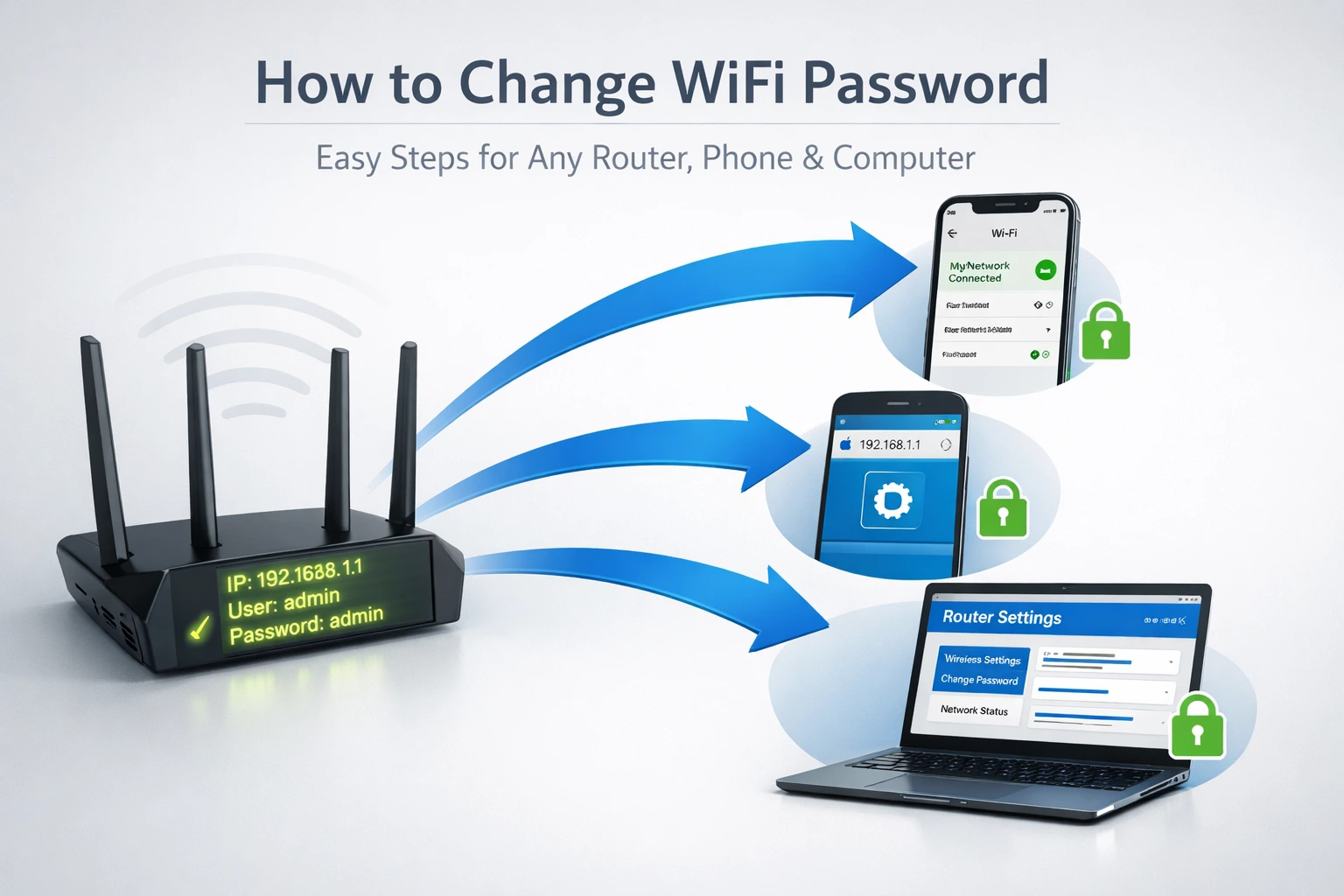
Changing your WiFi password is something I’ve helped countless people do over the years, and I’ve noticed something interesting: most people struggle not because the process is difficult, but because they don’t know where to start.
They get confused about what a router IP address is, which password they’re looking for, or why their devices won’t reconnect after making the change.
The good news is that it can be done in just a few minutes, regardless of whether you’re using a phone, laptop, Windows computer, or Mac.
In this guide, I’m going to walk you through this step by step, and I’ll note where different routers might have slightly different labels or button positions. The core idea is always the same, though: you log in to your router admin panel, find the wireless security settings, change the password, and save the changes.
Let me start by sharing what I’ve learned works best, and then we’ll go through each method step by step.
Before You Start 3 Things You’ll Need Ready
Before you even open a browser or touch your router, you need three things. I’m putting this upfront because in my years of helping people with this exact problem, the number one reason they get stuck is that they skip this preparation step and then hit a wall
Here’s what you absolutely need:
The first thing is a device that’s already connected to your WiFi. This could be your phone, tablet, or computer whichever you’re most comfortable using. You’ll use this device to access your router’s settings page from your browser.
The second thing is your router’s IP address. This is the web address you’ll type into a browser to access your router’s admin panel. Don’t worry if you don’t know what this is yet I’ll explain how to find it in the next section.
The third thing is your router’s admin password this is critically different from your WiFi password. Your WiFi password is what you give to guests or use to connect devices to the network.
Your router admin password is what you use to log into the router admin panel where you actually change the WiFi settings.
Think of it this way: the WiFi password protects your network from outsiders, while the admin password protects your router’s settings from being changed.
Let me show you how to find these last two things, because honestly, it’s much simpler than most people think
Where to Find Your Router’s IP Address
The easiest place to find your router’s IP address is right on the router itself. I’m serious. Look at the back or bottom of your physical router.
There’s usually a sticker there with important information printed on it this is where you’ll find your router’s IP address and login credentials.
On that sticker, you’ll see something that looks like this: 192.168.1.1 or 192.168.0.1. That’s your router’s IP address. Write it down or take a photo of it with your phone you’ll need this number to access your router login page.
The most common router IP addresses are:
192.168.1.1 (this is the most popular one)
192.168.0.1 (also very common)
192.168.100.1 (used by some brands like Huawei)
If you can’t find the IP address on the sticker, or if you’re working from your computer and want to find it using the command line, I’ve got a trick for you.
On Windows: Open Command Prompt (search for “cmd” in your start menu), type ipconfig, and press Enter. Look for something called “Default Gateway” that’s your router’s IP address and the access point to your router login page
On Mac: Open Terminal, type netstat -nr | grep default, and press Enter. The IP address listed there is your router’s IP address, which you’ll use to access your router admin panel.
On your phone, the process is different, and I’ll cover that in detail when we get to the mobile method section
Default Login Credentials Where to Find Them
Just like the IP address, your default login credentials are usually printed on that same sticker on the back of your router.
You’re looking for a username and password. In most cases, the username is admin and the password is also admin.
I know it seems too simple to be real, but this is the factory default for most routers which is actually why changing it is important for security.However, some routers use different default credentials.
Here are the most common combinations I’ve seen in my years helping people access their routers:
Username: admin | Password: admin
Username: admin | Password: password
Username: admin | Password: (blank/nothing)
If your router is from your Internet Service Provider (like Xfinity, Spectrum, or Verizon), the sticker will have the specific broadband password and admin credentials you need. Always check the sticker first it’s your fastest path to accessing your router admin panel.
I want to mention something important: if you have a Huawei router (especially one provided by your ISP), the default credentials might be telecomadmin with the password admintelecom.
This caught me completely off guard the first time I encountered it during my years helping people, so I’m sharing it now to save you the frustration
If none of these work, don’t worry I have troubleshooting steps for exactly this problem later in the article.
How to Change Your WiFi Password Using a Browser (Any Router)
This is the core method that works on virtually every wireless router no matter what brand you own. Whether you have a TP-Link, ASUS, Netgear, D-Link, or any other router, this general process for changing your wireless network password will work on your device.
I’m going to walk you through this step by step, and I’ll note where different routers might have slightly different labels or button positions. The core idea is always the same, though: you log in, find the wireless security settings, change the password, and save.
Step-by-Step: Log In to Your Router Admin Page
Here’s exactly what to do.
Step 1: Open any web browser on your device. Chrome, Safari, Firefox, Edge—any browser works.
Step 2: Click on the address bar at the top (where you normally type websites like google.com).
Step 3: Type your router’s IP address. Use the one you found on the sticker. For example, type 192.168.1.1 and press Enter.
If the page loads successfully, you’ll see a login screen. It might have a logo from your router brand (TP-Link, ASUS, Netgear, etc.).
Step 4: Enter your admin username and password. If you’re using the defaults, that’s admin and admin.
Step 5: Click the Login button.
If you see an error message or a blank page, don’t panic. This is actually one of the most common problems, and I have an entire troubleshooting section dedicated to it later. For now, keep following along, and I’ll show you fixes.
Once you successfully log in, you’ll see your router’s control dashboard. This is where the magic happens. Different routers look different, but they all have similar sections.
Finding the WiFi Password Field (It’s Not Always Obvious)
Now that you’re logged into your router, you need to find where the WiFi password setting is. This varies by router brand, but I’ll give you the most common locations.
Look for a menu item called:
- Wireless
- WiFi
- WLAN
- Wireless Settings
- Wireless Security
Once you click on that section, you might see additional options. You’re looking for something labeled:
- Security
- Wireless Security
- Authentication
- Encryption
- WPA Settings
When you click into the wireless security area, you’ll see several fields. The one you care about is called:
- Password
- Passphrase
- PSK (Pre-Shared Key)
- Network Security Key
- WPA Password
I know this sounds like a lot of different names, but routers really do use different terminology. The key is that you’re looking for a text field where you can type a password. It’s usually one of the longer text boxes on the page.
Some routers ask you to enter the password twice for verification—once in a “Password” field and once in a “Confirm Password” field. That’s totally normal.
One Step Most Guides Skip The Reboot Requirement
Here’s something I learned the hard way that most online guides don’t mention: some routers won’t fully apply your password change until you reboot them.
After you click the Save or Apply button, watch the screen carefully. On some routers (especially TP-Link), you’ll see a message that says something like “Please click here to restart” or “Reboot router now.”
Don’t ignore this. Actually click it. The router will restart, which typically takes about 20 to 30 seconds.
Your WiFi will disconnect temporarily during this reboot—that’s completely normal. Your internet connection will come back once the router finishes restarting. All your devices will lose connection during this time, and they’ll all need to reconnect with the new password (which I’ll cover in detail in a later section).
This reboot step is critical. I’ve seen people change their password, skip the reboot prompt, think the change didn’t work, and then change the password again—creating unnecessary confusion. So pay attention to that reboot message and follow through.
How to Change Your WiFi Password from Your Phone
Most people search for how to change their WiFi password while standing right next to their router with nothing but their phone in hand. This section is for you.
The good news is that you can absolutely do this from your phone. The slightly tricky part is that finding your router’s IP address on your phone is a bit different from finding it on a computer.
On Android Finding Your Router IP and the “Manage Router” Shortcut
Let me walk you through the Android process because Android phones have a couple of ways to do this.
Method 1: Using WiFi Settings
Step 1: Open your phone’s Settings app.
Step 2: Go to WiFi or Network settings (the exact location varies by Android version and phone brand, but search for “WiFi” if you can’t find it).
Step 3: You should see your connected WiFi network listed. Look for a gear icon or settings icon next to your network name, and tap it.
Step 4: A detailed menu will open showing information about your connected network. Look for a field labeled:
- Router
- Gateway
- Default Gateway
- Routing address
This is your router’s IP address. Write it down or remember it.
Step 5: Open your browser and type this IP address into the address bar, then follow the browser login steps I outlined in Section 2.
Now, here’s the shortcut many Android users don’t know about:
Method 2: Using the Manage Router Shortcut (Fastest)
On some Android phones, there’s a direct shortcut. Go back into your WiFi settings, find your network, and look for an option that says:
- Manage Router
- Router Settings
- Advanced
- Advanced Options
If you see “Manage Router,” tap it. This will automatically take you to your router’s login page without you having to remember or type the IP address. It’s honestly the fastest method if your phone supports it.
The DHCP to Static Trick (If You’re Stuck)
Here’s something I discovered that saves the day when the router information isn’t showing up in your WiFi settings.
Go back into your WiFi network settings and look for an option that says “IP Settings” or “DHCP.” Change it from DHCP to Static or Manual. When you do this, the settings screen will suddenly show you additional information, including your router’s IP address (called the Gateway).
Once you have the IP address, you can switch it back to DHCP if you want. This trick just temporarily reveals the information your phone normally hides.
On iPhone How to Find the Router IP in iOS Settings
iPhone’s process is slightly different from Android, so let me break it down separately.
Step 1: Open your Settings app.
Step 2: Go to WiFi.
Step 3: You’ll see your connected network listed. Tap the “i” icon (information icon) next to your network name.
Step 4: A detailed screen will open. Look for a field labeled:
- Router
- Default Gateway
- IPv4 Address (your router’s IP is usually close to this)
The router field will show your router’s IP address (usually 192.168.1.1 or 192.168.0.1).
Step 5: Open Safari (or any browser), type this IP address into the address bar, and follow the login steps from Section 2.
That’s really all there is to it. iPhone’s settings screen is actually quite clear once you know where to look.
Once you’ve successfully changed your password, you’ll probably want to share it with family members or guests we have a complete guide on how to share your WiFi password securely on iPhone.
If Your Default IP Address Doesn’t Work Try This
I want to address this head-on because it’s one of the most frustrating problems people run into.
You’ve typed 192.168.1.1 into your browser, and either nothing loads, or you get a completely different page than expected. This is actually more common than most people realize, and there are several reasons it can happen.
First, try the other common IP address: 192.168.0.1
Sometimes routers use one, sometimes the other. If your first attempt didn’t work, try the second one.
Second, try 192.168.100.1 if you have a Huawei router.
Huawei routers, especially those provided by ISPs in certain countries, don’t use the standard IP addresses. They use 192.168.100.1 instead. If you’re having trouble, and your router is a Huawei model, definitely try this.
Third, some routers use a URL instead of an IP address.
Certain router brands like TP-Link have started using friendly URLs instead of numbers. Common ones include:
- tplinkwifi.net
- routerlogin.net
- myrouter.local
- asus.com
Try typing these into your browser address bar. When you find the right one, you’ll see your router’s login screen.
Fourth, use Command Prompt on Windows to find the actual gateway address.
If none of the above work, open Command Prompt (search for “cmd”), type ipconfig, and press Enter. Look through the results for something called “Default Gateway.” That’s definitely your router’s real IP address.
Once you find the correct address, you’ll be able to access your router settings and change your password using the steps I outlined in Section 2.
Have a Dual Band Router? You Need to Change Both Passwords
Here’s something that confuses a lot of people, and I want to make sure you understand it clearly because it affects whether your password change actually works correctly for all your devices.
Most modern routers are “dual-band” routers. This means they broadcast two separate WiFi networks at the same time:
- A 2.4GHz network
- A 5GHz network
These are not the same network. They have completely separate settings, and most importantly, they have completely separate passwords.
When you change your WiFi password using the steps I’ve outlined, you’re probably only changing one of these two. This means that devices connected to the other band will still have the old password.
So imagine you change the 2.4GHz password but not the 5GHz password. Your phone might be on 5GHz and will disconnect immediately. You’ll try to reconnect with the new password, it won’t work (because you only changed the 2.4GHz password), and you’ll think something went wrong. But actually, you just need to change the 5GHz password too.
Here’s how to change both:
When you’re in your router’s wireless settings, look carefully at the menu. You should see options for:
- 2.4GHz or 2.4G
- 5GHz or 5G
Navigate to the 2.4GHz settings, go to Wireless Security, and change the password. Click Save.
Then go back and do the exact same thing for 5GHz. Navigate to 5GHz settings, go to Wireless Security, and change the password again (it can be the same password or different—your choice). Click Save.
Now both bands have the new password, and all your devices will be able to reconnect properly.
I know this sounds tedious, but trust me, it’s worth doing both. The confusion and frustration of thinking something didn’t work when actually you just missed one band is not worth saving a couple of minutes.
Changing Your WiFi Name and Password at the Same Time
Many people want to change more than just the password. They want to change the network name (also called SSID) too. Maybe your network is called “Linksys_2023” and you want something more personal, or you want to match a new password with a new name for privacy reasons.
The good news is that you can absolutely do both at the same time in the same settings panel.
When you’re in your router’s wireless settings, alongside the Password field, you’ll see another field called:
- Network Name
- SSID
- WiFi Name
- Wireless Network Name
You can change this field just like you change the password field. Type in whatever name you want your network to be called. This is what other people will see when they search for WiFi networks on their phones.
Here’s something important to know: when you change your network name, even if you keep the same password, all your devices will see it as a completely different network. They’ll disconnect, and you’ll have to manually reconnect by selecting the network from the list and entering the password again.
So if you’re changing both the name and password, expect all devices to disconnect and require reconnection (which I’ll cover in detail in the next section).
How to Change Your WiFi Password Through Your ISP App
If your router is provided by your Internet Service Provider (like Comcast/Xfinity, Spectrum, Verizon, T-Mobile, Cox, or AT&T), there’s often a faster way to change your password than using the browser method.
Your ISP usually provides a mobile app that lets you manage your router directly from your phone. This app automatically knows your router’s IP address, so you don’t have to remember or look it up. It’s genuinely faster than the browser method.
Xfinity / Comcast
If you have an Xfinity router, download the Xfinity app on your phone. Log in with your Xfinity username and password. In the app, look for “WiFi,” “Home Network,” or “Internet” settings. You should see an option to change your WiFi name and password directly from there.
Spectrum
Spectrum customers can use the Spectrum Mobile app. Download it, log in, and look for Home Network or WiFi settings. The password change option should be visible on the main screen or in the WiFi section.
Verizon Fios
Verizon provides the My Fios app. Download it, log in with your Verizon account, and look for Network or WiFi settings. You can change your WiFi password directly from the app.
T-Mobile Home Internet
T-Mobile Home Internet customers can use the T-Mobile Home Internet app. It’s actually one of the most intuitive apps for this. Open the app, tap your gateway (router), and you’ll see WiFi settings right there. Changing the password is straightforward.
Cox, AT&T, Optimum (Brief Guide)
Cox has the Cox app, AT&T has the AT&T Internet app, and Optimum has the Optimum app. All of them follow the same basic pattern: download, log in, find WiFi or Network settings, and change the password.
If you have one of these ISPs, your account login credentials will work in their apps. The interface varies, but the functionality is the same.
How to Make a Strong WiFi Password That’s Actually Hard to Crack
Changing your password is a perfect opportunity to create a strong one. A strong password does more than just prevent people from randomly guessing it—it protects your network from serious security risks.
Here’s what makes a WiFi password actually strong:
Length matters first. I recommend a minimum of 12 characters, but 16 or more is even better. The longer the password, the harder it is to crack.
This recommendation aligns with the National Institute of Standards and Technology (NIST), which publishes official guidelines on password security and recommends using longer passphrases instead of complex passwords.”
Use mixed character types. Include uppercase letters, lowercase letters, numbers, and special characters like !@#$%. This dramatically increases the number of possible combinations.
Avoid personal information. Don’t use your name, address, birthdate, or anything else someone could know about you. Avoid common words that appear in the dictionary. Avoid number sequences like 1234 or 0000.
Make it random if you can. A completely random password like “Kj7!mP2x@Qr9vB” is more secure than something like “MyDog2024!” because the latter follows patterns.
Here’s my practical recommendation: Use a password manager like Bitwarden, 1Password, or LastPass to generate and store a strong password. Then you only need to remember one master password to access them all. Your WiFi password will be incredibly secure, and you won’t have to memorize it.
If you must remember it without a password manager, choose a long phrase and include numbers and symbols, like “ILove2ReadBooks@Home!” Even though that’s somewhat memorable to you, it’s still very hard to crack because of its length and character variety.
One last note: when choosing your password, think about the security protocol your router is using. Modern routers use WPA2 or WPA3 encryption.
If you have an iPhone, maintaining a strong WiFi connection is also important for features like WiFi calling, which allows you to make calls over WiFi instead of your mobile network especially useful in areas with poor cellular coverage.”
After You Change the Password Getting All Your Devices Back Online
You’ve successfully changed your password. You feel good. And then… nothing works. Your devices won’t reconnect to the WiFi. You’re frustrated.
This is actually one of the most common things that happens after a password change, and it’s much simpler to fix than you might think.
The reason your devices won’t reconnect is that they’re trying to use the old password. The old password is saved in their memory (called “cached credentials”), and they keep attempting to connect with it, failing every time.
The solution is to essentially tell your devices to forget the old network so they can start fresh with the new password.
Why Your Phone Won’t Reconnect (And the 30-Second Fix)
Let me walk you through the exact steps because this is so important.
On Android or iPhone:
Step 1: Go to Settings.
Step 2: Go to WiFi.
Step 3: Find your WiFi network in the list. You should see it, but with a warning symbol or exclamation mark indicating a problem.
Step 4: Tap on the network.
Step 5: Look for an option that says “Forget,” “Remove,” “Disconnect and Forget,” or something similar. Tap it.
Step 6: Confirm that you want to forget the network.
Step 7: Now your phone has completely removed the old network from its memory. Look for your WiFi network again in the available networks list and tap it.
Step 8: When prompted for the password, enter your new password (the one you just set).
Step 9: Your phone will connect. Once it does, you’re golden.
This entire process takes maybe 30 seconds, and it solves the “won’t reconnect” problem 95% of the time.
For Computers (Windows and Mac):
The process is similar but happens in a different place.
On Windows, go to Settings > Network & Internet > WiFi > Manage Known Networks. Find your network, click it, and select “Forget.” Then reconnect with your new password.
On Mac, go to System Preferences > Network > WiFi. Click “Advanced,” find your network in the list, select it, click the minus button to remove it, and then reconnect with your new password.
For Smart TVs, Printers, and Smart Home Devices:
These devices might have their own process. Usually, you go into the device’s settings, find WiFi settings, and look for a “Forget Network” or “Remove Network” option.
For smart home devices like Alexa or Google Home speakers, the app that controls them usually has a WiFi management section where you can tell the device to reconnect and enter the new password.
If you’re having trouble with a specific device, the manufacturer’s support website usually has clear instructions.
Can’t Change Your WiFi Password? Fix These 5 Common Problems
Even with all the guidance I’ve provided, sometimes things don’t go smoothly. That’s completely normal. Sometimes the issue isn’t with changing the password, but with connectivity itself.
If you’ve changed your password successfully but now your devices can’t access the internet, that’s a separate issue covered in our WiFi connectivity troubleshooting guide.
The IP Address Opens a Different Site or a Blank Page
You typed 192.168.1.1, and either you got a page that doesn’t look like a router interface, or the page is completely blank.
What’s happening: You’re either using the wrong IP address, or your computer is misinterpreting what you typed.
Fix 1: Make sure you’re typing it correctly. It’s 192 (dot) 168 (dot) 1 (dot) 1. All numbers, with periods between them. No www, no slashes, nothing else.
Fix 2: Try the other common IP address: 192.168.0.1
Fix 3: Try 192.168.100.1 if you have a Huawei router.
Fix 4: Try typing a URL instead: tplinkwifi.net, routerlogin.net, or asus.com, depending on your router brand.
Fix 5: Use the Command Prompt method I mentioned earlier to find your actual gateway IP address. Open cmd, type ipconfig, and look for Default Gateway.
Once you find the correct address and see the actual router login page, you can proceed with changing your password.
I Forgot My Router Admin Password
You’ve found the right IP address, you see the login screen, but you don’t remember the admin password.
First, try the defaults: admin/admin is the most common. If that doesn’t work, try admin/password or admin/(blank—just don’t enter anything).
Second, check the sticker: Look on the back or bottom of your router again. Some routers have the default credentials printed right there. If someone changed the admin password before, the sticker will still show the original defaults, but it’s worth checking.
Third, for ISP routers: If you have a router from Xfinity, Spectrum, Verizon, etc., your ISP account login credentials might work instead of router defaults. Try logging in with your ISP username and password.
If nothing works, you’ll need to reset: Most routers have a small reset button (sometimes in a tiny hole that requires a paperclip to press). Hold this button for 10-15 seconds while the router is powered on. This resets the router to factory settings, which means everything goes back to defaults, including the admin password and your WiFi network name and password.
Be aware that resetting your router means you’ll have to set up your WiFi again from scratch, including reconnecting all your devices. But if you’re truly stuck, this is the nuclear option that always works.
I Changed the Password But Nothing Changed
You followed all the steps, clicked Save, and… nothing seems different. Your WiFi is still broadcasting with what looks like the old network, or devices connect using what you think is the old password.
Reason 1: You didn’t reboot. As I mentioned earlier, some routers require a reboot for the change to fully take effect. Look for a reboot link or button on the screen after you save. Click it. Wait 30 seconds. Then test.
Reason 2: You changed the wrong band. If you have a dual-band router, you might have changed the 2.4GHz password but not the 5GHz, or vice versa. Go back into the wireless settings and make sure both bands have the new password.
Reason 3: Your browser cached the old page. Try clearing your browser’s cache or just closing the browser completely and opening a fresh session. This resets what your browser remembers.
Reason 4: Try a different device. If you changed the password on your computer but you’re testing reconnection on your phone, the phone still has the old password in memory. Forget the network on your phone and reconnect with the new password. This is actually what I described in detail in Section 9.
Frequently Asked Questions
Do I need to change the 5GHz password separately from the 2.4GHz?
Yes, on dual-band routers, you absolutely do. Each band has its own wireless security settings. Navigate to your 2.4GHz settings, update the password, and save.
Then navigate to 5GHz settings, update the password there, and save again. If you only change one band, devices on the other band will still be trying to use the old password.
This is one of the most common sources of confusion, so definitely change both if your router has both bands.
Why won’t my phone reconnect after I changed the WiFi password?
Your phone saved the old password and keeps trying to use it. Go to WiFi settings, find your network, tap “Forget” or “Remove,” then tap the network again and enter the new password.
This clears the cached credentials from your phone’s memory. It’s a 30-second fix and solves the problem almost every time.
What if 192.168.1.1 doesn’t open my router settings?
Try 192.168.0.1 or 192.168.100.1 (for Huawei routers). On a Windows computer, open Command Prompt, type ipconfig, and look for Default Gateway.
On Android, go to WiFi settings, tap your network, and the gateway IP is listed there. Some routers use a URL like tplinkwifi.net instead of an IP address.
There’s almost always a way to find it—it just might take trying a few options
Can I change my WiFi password from my phone without a computer?
Yes, completely. Open your phone’s browser, type your router’s IP address, log in with admin credentials, and go to Wireless > Security to change the password.
On some Android phones, you can tap the gear icon next to your WiFi network and select “Manage Router” to skip typing the IP address.
It works just as well as doing it from a computer.
How often should I change my WiFi password?
Security experts generally recommend changing your WiFi password every three to six months for home networks.
However, you should change it immediately if you suspect an unauthorized user is on your network, after a guest visit where you shared the password, or if you shared the password widely.
You should also change it when you move to a new home or when switching ISPs. Think of it as routine maintenance for your home network security.
Will changing my WiFi password affect my internet speed?
No, changing the password has absolutely no effect on your internet speed. However, if there were unauthorized devices using your bandwidth on the old password, changing the password removes them from your network, which can restore your full speed.
So while the password change itself doesn’t affect speed, what it enables (removing unwanted devices) can improve your experience
Conclusion
Changing your WiFi password might seem intimidating if you’ve never done it before, but honestly, you now have everything you need to do it successfully. The process is straightforward: find your router’s IP address, log in with your admin password, navigate to wireless settings, change the password, save, and reconnect your devices.
The key things to remember are:
One, always check the sticker on your router first—it has your IP address and usually your default credentials.
Two, be prepared for all devices to disconnect when you change your password. This is completely normal.
Three, if a device won’t reconnect, forget the network and reconnect fresh with the new password.
Four, if you have a dual-band router, change both the 2.4GHz and 5GHz passwords.
Five, create a strong password using mixed characters and decent length.
And six, if something doesn’t work, try the troubleshooting section—there’s almost always a simple fix.
You’ve got this. Change that password with confidence, and enjoy the security of knowing your home network is protected.