
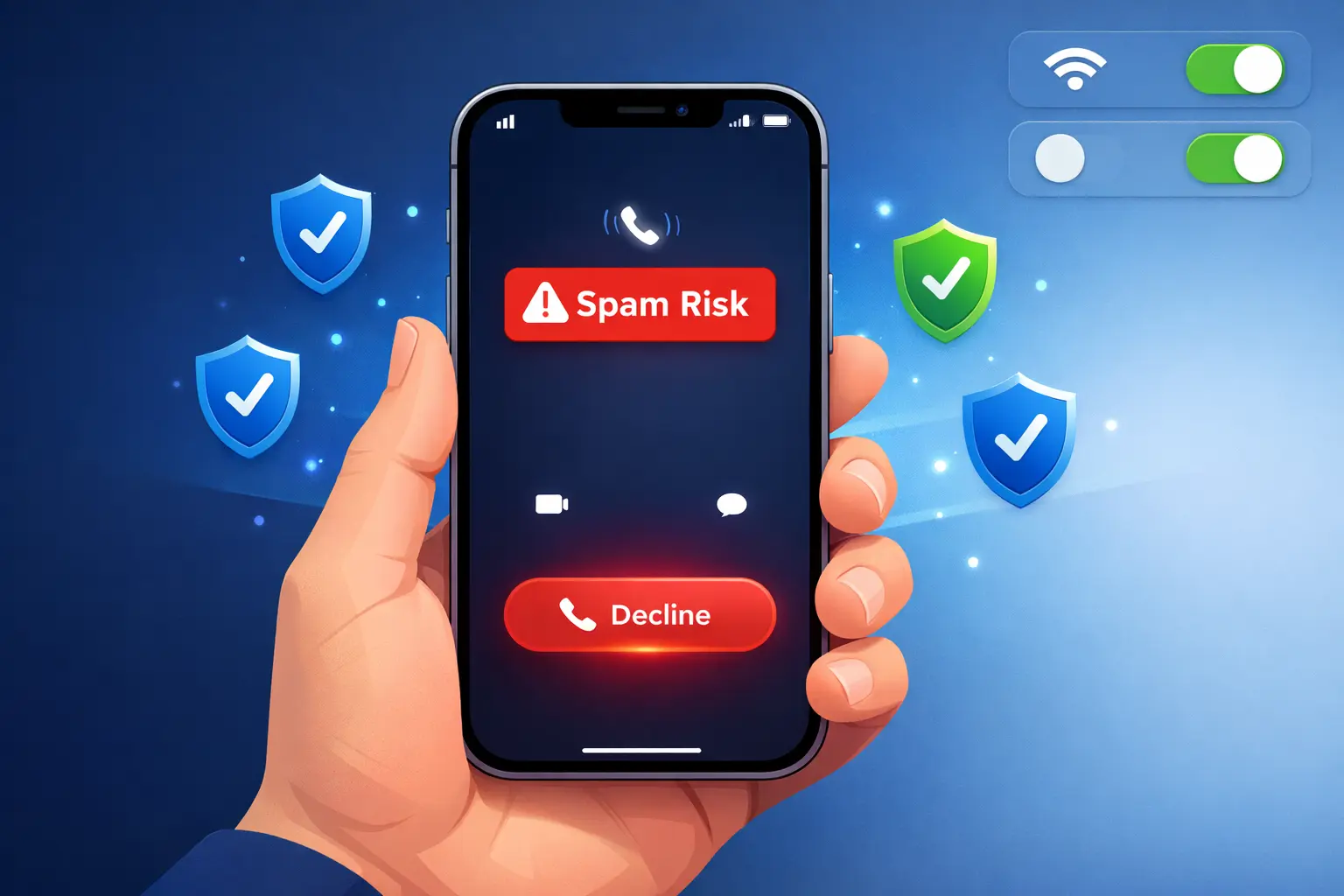
Why Spam Calls Keep Hitting Your iPhone (And What You Can Actually Do)
If your iPhone rings multiple times a day from numbers you do not recognize, I get it. I spent weeks dealing with the same thing before I figured out how to block spam calls on iPhone properly. This problem has gotten significantly worse over the past few years and millions of people across the United States are dealing with it right now.
I want to explain why this is happening before we jump into the fixes, because understanding the problem actually helps you choose the right solution for your situation.
Scammers Have Gotten Really Good at Spoofing Numbers
The main reason spam calls feel so hard to stop is number spoofing. Scammers use automated software to make their call appear to come from a local number, a government agency, or sometimes a number that looks almost identical to yours.
This is why simply ignoring unknown numbers does not fully solve the problem. The calls keep coming because each one appears to come from a different number.
Why iPhone Users Get Targeted More
iPhone users tend to be a frequent target for spam callers for a straightforward reason. iPhones dominate the US smartphone market, and the US consistently ranks among the countries with the highest robocall volume worldwide.
According to data tracked by robocall analytics firms, tens of billions of robocalls are placed in the US every single year.
Scammers buy phone number lists, use auto-dialers, and rotate through thousands of numbers per hour. Your number likely ended up on one of these lists at some point, whether from a data breach, a sweepstakes entry, or even a public directory.
iPhone Handles Spam Calls Differently Than Android
Here is something important to understand before we get into the methods. iPhone does not fully block spam calls the way some Android phones do. When you enable silencing features on an iPhone, the call is silenced and sent to voicemail, but it still gets logged in your Recent calls list.
This is not a flaw. It is actually a deliberate design choice by Apple so you never completely miss a call from someone who might be legitimate.
If you want to get the most out of your iPhone’s calling features, you might also want to enable WiFi calling on your iPhone so you stay connected even in areas with weak cellular signal.
The Good News: There Are Multiple Layers of Protection Available
You do not have to just accept spam calls as the price of owning an iPhone. Apple has built real spam call tools directly into iOS. Your carrier offers free spam blocking at the network level. And third-party apps can add another layer of robocall blocking on top of all of that
By the time you finish this guide, your iPhone will be set up with the right combination of these protections for your specific situation. Some methods take 30 seconds to enable. Others take a couple of minutes. All of them are free or low cost.
Let me walk you through every option, starting with the fastest fix you can use right now.
The Fastest Fix: Turn On Silence Unknown Callers Right Now
This is the first thing I recommend to anyone who asks me about spam calls on iPhone. The Silence Unknown Callers feature is built directly into iOS, it costs nothing, and you can turn it on in under a minute.
I have tested this on multiple iPhones and the difference is immediate. Your phone simply stops ringing for numbers that are not saved in your contacts. No more interruptions from random numbers during work, dinner, or sleep.
Here is exactly how to turn it on.
Step by Step: How to Enable Silence Unknown Callers on iPhone
The navigation path changed slightly in newer versions of iOS, so I want to give you the correct steps based on your iOS version.
If you are running iOS 18 or later (most iPhone users):
- Open the Settings app on your iPhone
- Scroll down and tap Apps
- Tap Phone
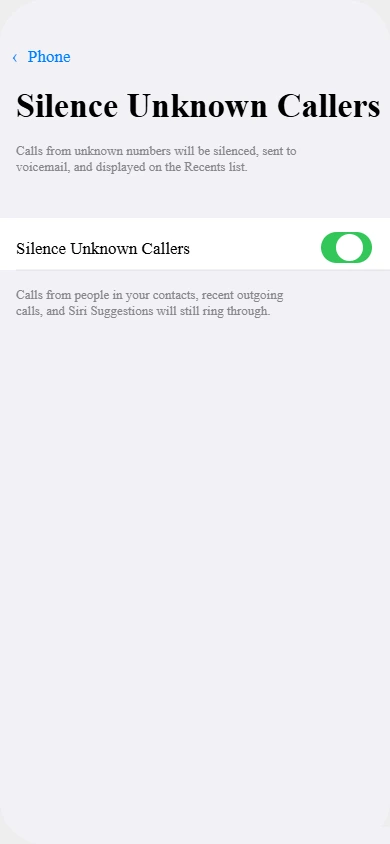
- Scroll down until you see Silence Unknown Callers
- Toggle it on so it turns green
That is it. The setting is now active.
If you are running an older version of iOS:
- Open the Settings app
- Tap Phone directly (you will not see an Apps option)
- Scroll down to Silence Unknown Callers
- Toggle it on
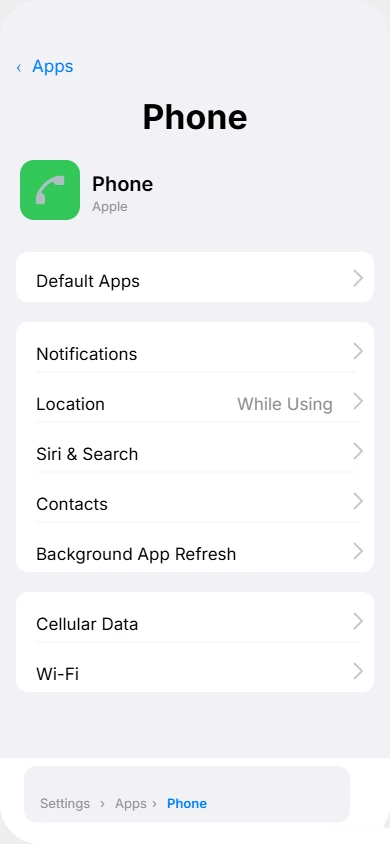
Both paths lead to the exact same feature. The only difference is where Apple placed it in the menu after the iOS 18 update.
Watch this quick video walkthrough to see exactly how to block spam calls on iPhone using the Silence Unknown Callers setting follow along step by step on your own deviceWhat This Setting Actually Does
Once you enable silence unknown callers on iPhone, any incoming call from a number not saved in your contacts gets automatically silenced. The call does not ring out loud. It goes straight to voicemail.
Your iPhone also uses Siri suggestions to allow calls through from numbers you have recently contacted. For example, if you called a business earlier that day and they call you back, that call rings through normally.
That is a smart safeguard Apple built in so you do not miss genuinely important calls.
This setting works quietly in the background with zero ongoing effort from you. Once it is on, it stays on until you turn it off.
What Happens to Silenced Calls? (This Confuses a Lot of People)
This is the question I get most often after people turn on this setting. Let me answer it clearly because the answer is not what most people expect.
After you turn on Silence Unknown Callers, you will still see missed call entries from spam numbers appearing in your Recent calls list. Your first reaction might be that the setting is not working. It is working perfectly.
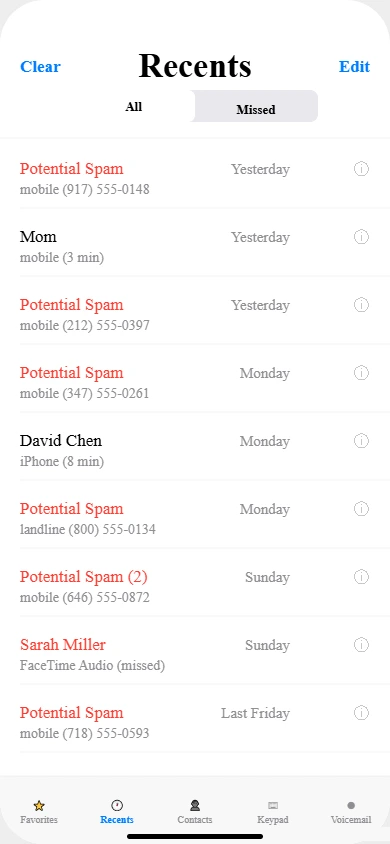
Here is what is actually happening. The call came in, your iPhone silenced the ring immediately, and the call was sent to voicemail. Your iPhone then recorded that call attempt in your Recents list so you have a record of it.
This is intentional behavior by Apple. The idea is that if someone legitimate called you from an unsaved number, you can still see it in your Recents and call them back. You just never had to hear the phone ring.
Think of it this way. The filter unknown calls feature does not pretend the call never happened. It just handles it silently so your day is not interrupted. The iphone spam notification that appears in your Recents is actually a helpful log, not a sign of failure.
To summarize what happens after a call is silenced:
- Your iPhone does not ring
- The caller is sent to voicemail
- You see the missed call in your Recent calls list
- You can check voicemail and decide whether to call back
Once I understood this, I stopped worrying about the entries in my Recents and just let the feature do its job.
iPhone 17 Users Your Settings Screen Looks a Little Different
If you have an iPhone 17 running iOS 26, your iphone ios call settings screen may look slightly different from the screenshots you see in older tutorials online.
On iPhone 17 with iOS 26, Apple renamed the section. Instead of the older label that simply said Silence Unknown Callers or Call Blocking, the same settings now appear under a section called Call Filtering.
The call filtering iphone function is identical. Everything works exactly the same way. Apple simply updated the label to better describe what the section does.
So if you open your Settings app and cannot find the older label, look for Call Filtering instead. Tap on it and you will find the same toggle right there waiting for you.
The steps are:
- Open Settings
- Tap Apps
- Tap Phone
- Look for the Call Filtering section
- Enable the toggle for silencing unknown callers
Same result, slightly different name. Do not let the updated label throw you off.
How to Manually Block a Specific Number on iPhone
Silence Unknown Callers is great for stopping random numbers from ringing through. But sometimes a specific number keeps calling you repeatedly and you want to make sure that exact number never reaches you again.
This is where manual blocking comes in. I use this method whenever a particular number calls me more than once. It takes about ten seconds and it is permanent until you decide to unblock it.
When Manual Blocking Makes More Sense
The Silence Unknown Callers setting silences any number not in your contacts. But what if you actually want to receive calls from unknown numbers in general, just not from one specific caller that keeps bothering you?
Manual blocking on iPhone lets you block unwanted calls from one specific number without affecting calls from any other unknown number. You are targeting a single caller precisely instead of applying a blanket filter across all unknown numbers
This is also useful for numbers that somehow get through your other filters. If a spam number calls you and you want to make sure it never rings your phone again, this is the method to use.
How to Block a Number from Your Recent Calls
The easiest way to block a number on iPhone is directly through your Recent calls list inside the Phone app. You do not need to download anything or go into Settings. Everything happens right inside the app you already use for calls.
Here are the exact steps:
- Open the Phone app on your iPhone
- Tap the Recents tab at the bottom of the screen
- Find the number you want to block in your recent calls list
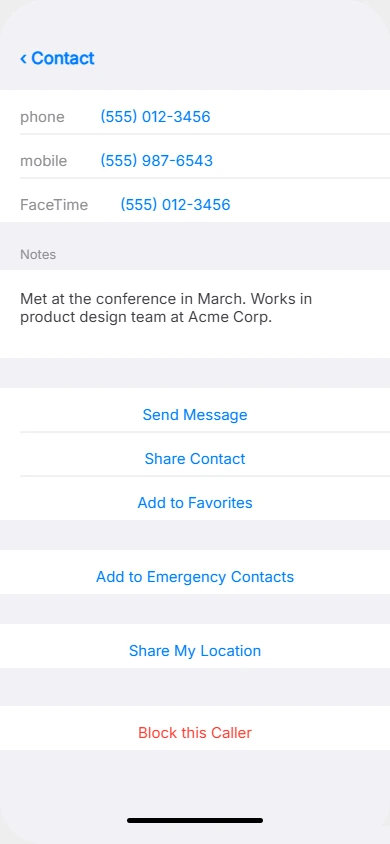
- Tap the small “i” icon on the right side of that number
- Scroll all the way down to the bottom of that screen
- Tap Block this Caller
- Tap Block Contact on the confirmation prompt that appears
That number is now permanently blocked on your iPhone.
What Happens After You Block a Number
Once you block a number on iPhone, three things happen immediately and they are all permanent until you manually unblock that number.
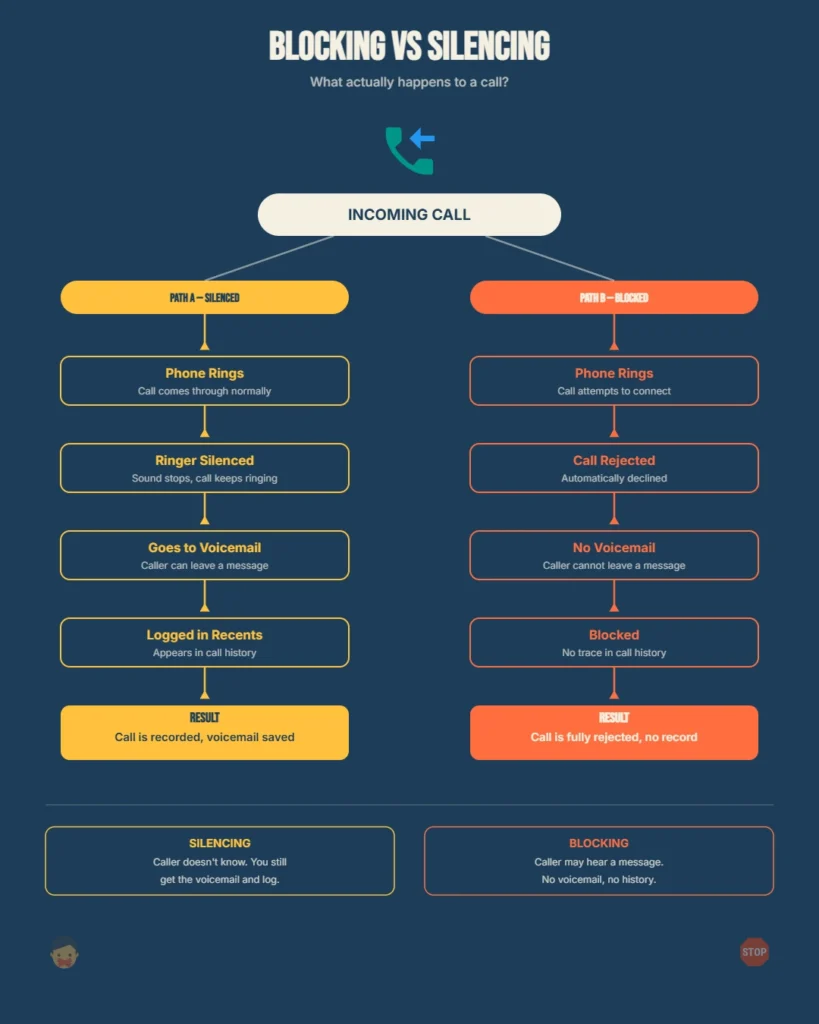
Calls: The blocked number can no longer make your phone ring. Their calls are automatically rejected.
Text messages: Any text message from that number is delivered to a separate filtered section in your Messages app under Unknown and Spam. You will not get a notification for it.
FaceTime: The blocked number cannot reach you through FaceTime either. All three communication channels are cut off at once.
This is more thorough than silencing a call. When you use the call screening feature to silence unknown callers, the person can still leave a voicemail. When you manually block a number, the caller cannot leave a voicemail at all. They receive a generic rejection with no explanation
How to Block a Number from Your Contacts or Keypad
If the spam number is not showing in your Recents for some reason, you can also block it manually through your contacts or by entering it directly.
From your Contacts:
- Open the Phone app
- Tap Contacts
- Find the contact you want to block
- Scroll to the bottom of their contact page
- Tap Block this Caller
From the Contacts Tab (if you want to add and block a new number):
- Open the Phone app
- Tap Contacts
- Tap the plus icon to create a new contact
- Enter the spam number and save it with any name
- Open that new contact
- Scroll down and tap Block this Caller
It is a small extra step but it works well when you want to block a number you know but that is not appearing in your recent calls.
How to See and Manage Your Blocked Numbers
Over time you might block several numbers and want to review or remove some of them. Your iPhone keeps a full list of every number you have blocked.
To find it:
- Open Settings
- Tap Apps
- Tap Phone
- Tap Blocked Contacts
Here you can see every blocked number and contact. If you want to unblock any of them, tap Edit in the top right corner and remove the ones you no longer want blocked.
I check this list occasionally to clean it up, especially if I accidentally blocked a number I actually needed. It is good to know the list is always there and easy to manage.
The #662# Code What It Does and How to Use It on AT&T and Verizon
If you have searched for how to block spam calls on iphone #662# and landed here, I want to give you a clear and honest explanation of what this code actually does, because there is a lot of confusion around it online.
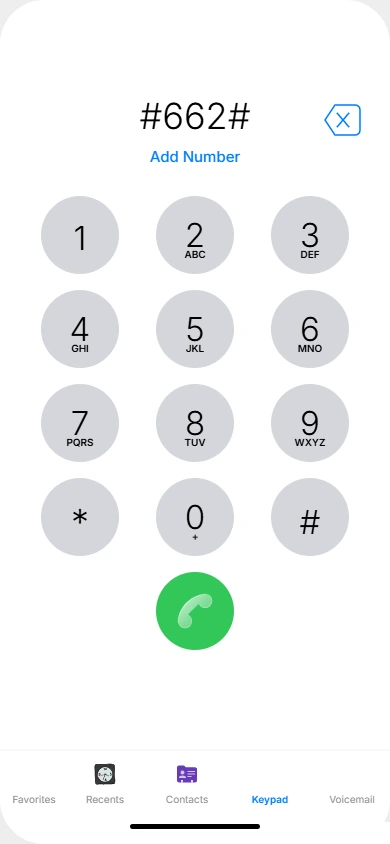
The #662# code is not a universal iPhone feature and Apple did not build it into iOS. It is a shortcode that works at the carrier level, meaning it only activates if you are on a specific mobile network that supports it.
Dialing it sends a signal directly to your carrier’s system to activate their spam filtering service on your account.
This is actually a powerful method because it works at the network level. Spam calls get filtered before they even reach your iPhone, which means your phone does not have to do any of the work.
Let me break down exactly how this works for each major carrier.
AT&T Users How to Activate Call Protect With #662#
If you are an AT&T customer, the #662# code is the shortcut to activate AT&T Call Protect on your account. This is AT&T’s built-in carrier spam blocking service and it runs quietly in the background once you turn it on.
If you are on AT&T and want to block spam calls on your iPhone, this code is the quickest way to get carrier level protection activated on your line
Here are the exact steps:
- Open the Phone app on your iPhone
- Tap the Keypad tab
- Dial #662# exactly as written
- Tap the green Call button
- The call will connect briefly and then end automatically
- You will receive a text message from AT&T confirming that Call Protect has been activated on your line
Once you get that confirmation text, AT&T Call Protect is running on your account. You do not need to do anything else.
What AT&T Call Protect actually does:
AT&T Call Protect uses AT&T’s own database of known spam and fraud numbers to filter calls before they reach your phone. When a call comes in from a number flagged in their system, it gets automatically blocked or labeled so you know what you are dealing with.
The free version of AT&T Call Protect includes automatic fraud blocking and spam labeling. This means your iPhone will display a warning label on suspicious incoming calls, similar to what you see when your phone shows “Potential Spam” on the screen.
AT&T also offers a paid upgrade called Call Protect Plus which adds more features like custom block lists and a reverse number lookup tool. But the free version activated by the #662# code is genuinely useful on its own and costs you nothing extra beyond your existing plan.
To turn it off if you ever want to deactivate it:
Dial #632# on your AT&T iPhone and tap Call. You will receive a confirmation that Call Protect has been deactivated. Keep this in mind in case you ever want to switch it off or troubleshoot any issues with your calls.
Verizon and T-Mobile Your Equivalent Options
If you are on Verizon or T-Mobile, the #662# code does not apply to your account. But both carriers offer their own free spam blocking services that work just as well at the carrier level.
Verizon Call Filter
Verizon’s spam blocking service is called Call Filter. Verizon spam blocking works similarly to AT&T Call Protect in that it filters known spam numbers at the network level before your iPhone even rings.
For how to block spam calls on verizon iphone, here is what to do:
- Open the App Store on your iPhone
- Search for Verizon Call Filter
- Download and install the app
- Sign in with your Verizon account
- Follow the in-app setup to activate filtering on your line
The free version of Verizon Call Filter includes spam detection and the ability to report numbers. Verizon also offers Call Filter Plus as a paid upgrade, which adds caller ID and a personal block list feature. For most people the free version handles telemarketer blocking on iphone very well.
You can also activate Call Filter by logging into your My Verizon account online and enabling it from your plan settings if you prefer not to use the app.
T-Mobile — Scam Shield
T-Mobile customers have access to a service called Scam Shield. This is T-Mobile’s free carrier spam blocking tool and in my experience it is one of the more robust free options available among US carriers.
To set up T-Mobile Scam Shield:
- Open the App Store on your iPhone
- Search for T-Mobile Scam Shield
- Download and install the app
- Sign in with your T-Mobile account
- Turn on Scam Block inside the app
Scam Shield labels incoming calls so you can see when a call is flagged as a potential scam. The free version includes scam blocking and caller ID for many numbers. T-Mobile also offers a paid tier called Scam Shield Premium for additional features.
One thing I appreciate about T-Mobile’s approach is that their carrier spam blocking data is also what powers the “Silence Junk Callers” toggle inside your iPhone’s own settings when you are on the T-Mobile network. So if you are a T-Mobile user and you have that toggle enabled in your iPhone settings, you are already benefiting from their spam database without even opening the Scam Shield app.
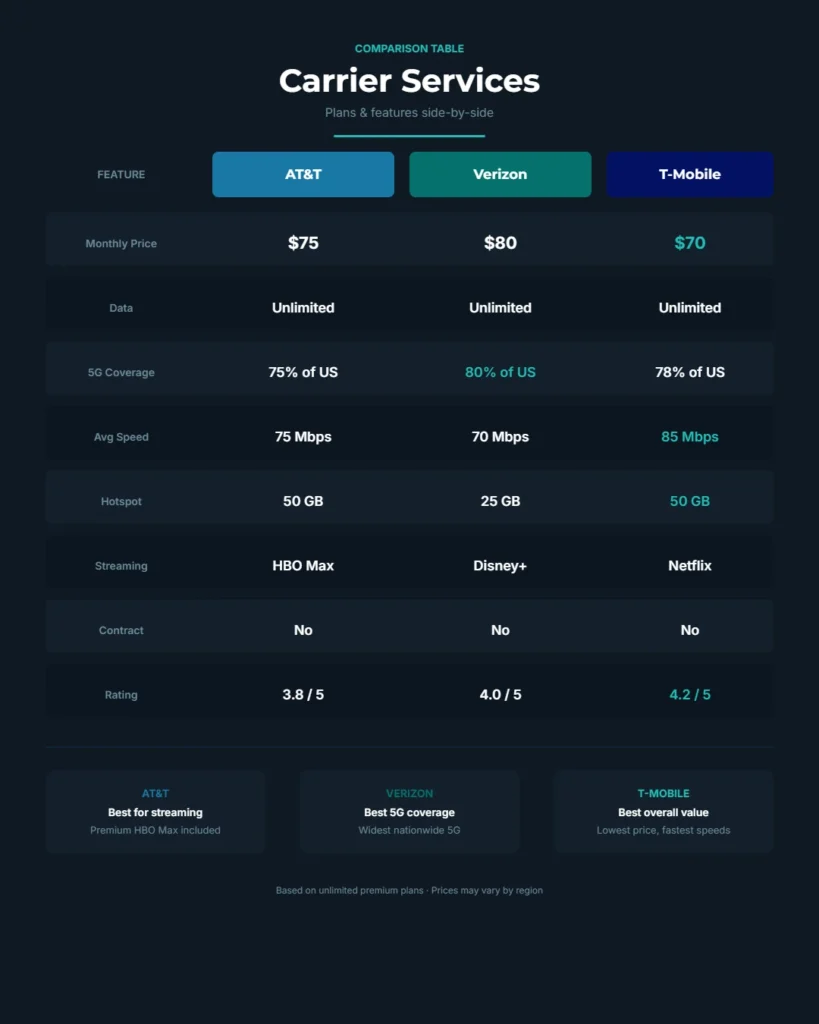
Quick Carrier Comparison:
| Carrier | Service Name | Activation Method | Free Version Available |
|---|---|---|---|
| AT&T | Call Protect | Dial #662# | Yes |
| Verizon | Call Filter | Download app | Yes |
| T-Mobile | Scam Shield | Download app | Yes |
All three carriers offer solid free spam protection. I recommend activating whichever one applies to your carrier today, then layering it on top of the iPhone settings methods covered earlier in this guide for the strongest possible protection.
How to Stop Spam Calls on iPhone Without Blocking Anyone
This is honestly one of the most common questions I get. People want to stop spam calls on iPhone without blocking anyone because they are genuinely worried about missing a call from a doctor’s office, a delivery driver, a school, or any other unfamiliar number that matters.
The good news is that you do not have to choose between stopping spam and staying reachable. iPhone gives you smart ways to silence unwanted calls without permanently blocking any number. Every call still gets received by your phone. You just do not have to hear it ring.
Let me explain the difference clearly and then show you exactly how to set this up.
Silencing Is Not the Same as Blocking
This is the most important distinction to understand before I walk you through the setup.
When you block a number on iPhone, that number is rejected entirely. The caller cannot leave a voicemail. The call record may not even appear in your Recents. It is a hard stop.
When you silence a call, your iPhone accepts the call quietly. The caller gets sent to voicemail and can leave you a message. The call appears in your Recents list. You can check it later and call back if you want to.
Silencing gives you the peace and quiet of not hearing your phone ring constantly, while still keeping a complete record of everyone who tried to reach you. Nothing gets permanently cut off.
This is actually how Apple designed the Silence Unknown Callers feature to work from the beginning. As I mentioned in the earlier sections, iPhone’s approach is silence first, not block first. That design philosophy is intentional and it is genuinely useful once you understand it.
Method 1: Use Silence Unknown Callers as Your Primary Filter
If you have already enabled Silence Unknown Callers using the steps I covered earlier in this guide, you are already stopping spam calls without blocking anyone.
Every unknown caller gets silenced and sent to voicemail automatically. No numbers are permanently blocked. You can still check your Recents and return any call you want.
This is the simplest and most effective way to handle spam without blocking on iPhone. Most people do not realize this is already how it works until I explain it to them.
If you have not turned it on yet, go back to Section 2 for the exact steps. It takes less than a minute.
Method 2: Combine Silence Junk Callers With Silence Unknown Callers
For an even stronger layer of protection without blocking anyone, I recommend enabling both available silencing toggles together inside your iPhone settings.
Here is how to do it:
- Open the Settings app
- Tap Apps
- Tap Phone
- Look for the Call Blocking and Identification or Call Filtering section
- Enable Silence Junk Callers if it is available on your carrier
- Also make sure Silence Unknown Callers is toggled on
When both of these are active at the same time, your iPhone uses two separate layers of filtering. Silence Junk Callers uses your carrier’s spam database to catch known fraud numbers. Silence Unknown Callers catches everything else that is not saved in your contacts.
Together they create near complete silence from spam without a single number being permanently blocked. Every silenced caller can still leave a voicemail and you can still call anyone back from your Recents list.
Method 3: Use Focus Mode to Filter Calls During Specific Times
If your concern is mainly about spam calls during certain parts of your day, like during work hours or at night, iPhone Focus Mode gives you very precise control over who can reach you and when.
Focus Mode lets you create custom call filtering rules based on your situation. You can set it so only your saved contacts can ring through, while everyone else gets silently routed to voicemail. The moment you turn Focus off, your phone returns to normal completely.
Here is how to set up iphone focus mode calls filtering:
- Open Settings
- Tap Focus
- Tap an existing Focus like Do Not Disturb or tap the plus icon to create a new one
- Tap People under the Allowed Notifications section
- Tap Allow Calls From
- Select Contacts Only or Favorites depending on how strict you want it
Now when this Focus is active, only people in your chosen group can make your phone ring. Everyone else is silenced without being blocked.
You can also schedule your Focus to turn on and off automatically at set times. For example, I have mine set to activate automatically at night so spam calls never ring through while I sleep. The Do Not Disturb Focus handles it completely in the background,
but my closest contacts can still get through if something urgent comes up.
How to Let Repeated Callers Through Even During Focus
One helpful setting inside Focus Mode is the option to allow repeated callers through. If someone calls you twice within three minutes, iPhone assumes it might be urgent and lets the second call ring even if they are not in your contacts.
To enable this:
- Go to Settings
- Tap Focus
- Select your active Focus mode
- Tap People
- Scroll down and turn on Allow Repeated Calls
This gives you a practical safety net. Legitimate callers who really need to reach you will call again. Spam callers almost never do. So this setting naturally filters out the noise while keeping you reachable for anything genuinely urgent.
The Bottom Line on Stopping Spam Without Blocking
You have at least three solid options available to you and none of them require blocking a single number permanently.
Here is a quick summary of your choices:
- Silence Unknown Callers handles spam automatically and sends callers to voicemail without blocking them
- Silence Junk Callers combined with Silence Unknown Callers gives you double layer filtering for stronger protection
- Focus Mode with Do Not Disturb gives you scheduled control so only your chosen contacts ring through during specific hours
I personally use a combination of Silence Unknown Callers for everyday protection and a scheduled Do Not Disturb Focus at night. It has made a noticeable difference in how often my phone rings from numbers I do not recognize, and I have never missed an important call because of it.
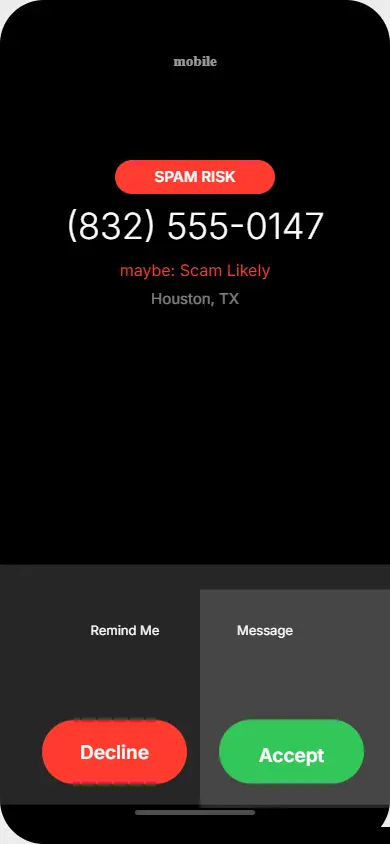
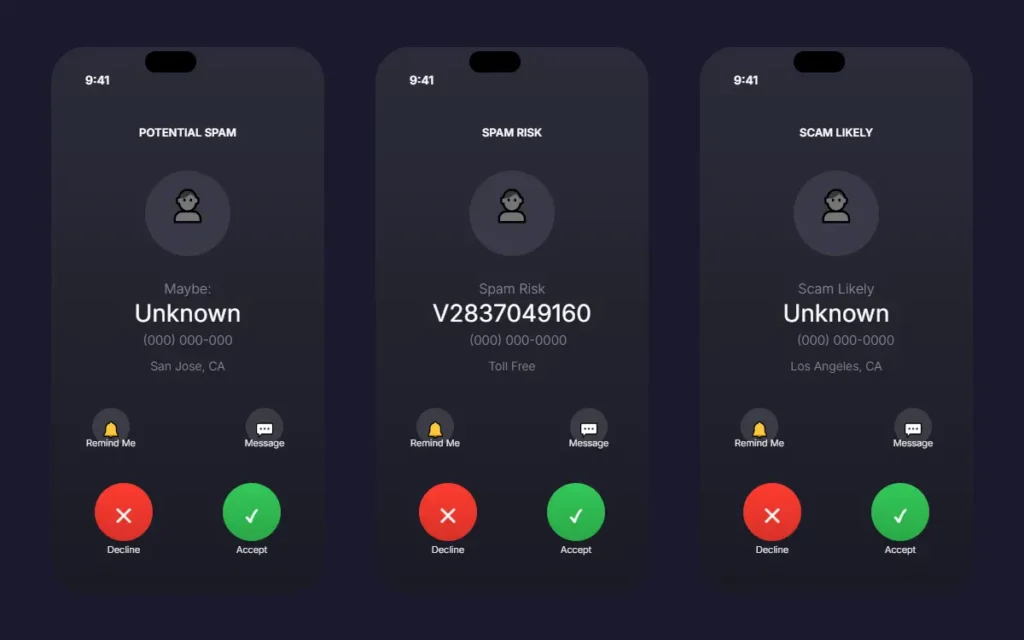
What “Potential Spam,” “Spam Risk,” and “Scam Likely” Labels Mean on iPhone
If you have ever seen a warning label appear on your iPhone screen when a call comes in, you probably wondered what it actually means and whether you should answer. These labels confuse a lot of people because they look similar but they actually come from different sources and carry different levels of certainty.
I want to break each one down clearly so you know exactly what you are looking at when your iPhone screen lights up with one of these warnings.
Where These Labels Actually Come From
This is the part most people do not know. These warning labels are not all generated by Apple. They come from three different sources depending on your setup.
Your carrier’s spam database is the most common source. Networks like T-Mobile, AT&T, and Verizon maintain massive databases of known spam and fraud numbers. When a call comes in from a number in their database, your carrier sends a signal to your iPhone to display a warning label. This happens at the network level before the call even fully connects.
Third-party apps like Truecaller add an additional layer of caller identification on top of what your carrier provides. These apps maintain their own independent databases built from user reports and number tracking. When you install one and enable it in your iPhone settings, it can display its own warning labels for numbers your carrier might not have flagged yet.
Apple’s own intelligence plays a smaller role, mainly through Siri suggestions and patterns from your own usage, but Apple does not run a large independent spam database the way carriers and third-party apps do.
Understanding where the label comes from helps you know how much to trust it.
“Potential Spam” What This Label Means
The potential spam iphone label is the most common warning you will see. This label means that your carrier has flagged the incoming number as suspicious based on calling patterns, user reports, or other signals in their network data.
“Potential” is the key word here. The carrier is not completely certain this is a spam call. It is a warning, not a verdict. The number has shown some characteristics that match known spam behavior, like calling a high volume of people in a short time, but it has not been definitively confirmed as fraud.
What I recommend when you see this label:
If you are not expecting a call and you do not recognize the number, let it go to voicemail. A legitimate caller will leave a message. If no voicemail is left, that tells you something important about the nature of that call.
If you are expecting a call from a new number, like from a business or service you recently contacted, it is reasonable to answer even if the label appears. Legitimate businesses sometimes get flagged incorrectly.
“Spam Risk” What This Label Means
A spam risk call carries a stronger warning than Potential Spam. This label means the number has been more definitively identified in your carrier’s database as a source of unwanted calls. More people have reported it, or the calling patterns are a clearer match for known spam activity.
When I see Spam Risk on my screen, I almost never answer. The confidence level behind this label is higher than Potential Spam. It is not a guarantee, but it is a strong signal.
What to do when you see Spam Risk:
The safest action is to let it go to voicemail. You can also block that specific number immediately after using the manual blocking method I covered in Section 3. If you want to know who it was, check your voicemail. If they left nothing, you have your answer.
You can also report the number to your carrier directly from the call entry in your Recents list. This helps improve the carrier’s database for everyone.
“Scam Likely” What This Label Means
Scam Likely is the strongest warning label your iPhone displays. This label means the number has been flagged with high confidence as a source of fraudulent activity. T-Mobile uses this label prominently as part of their Scam Shield service, and it is one of the more recognizable warnings iPhone users see.
When Scam Likely appears, the carrier is telling you clearly that this number has a strong track record of suspicious or harmful calling behavior based on network-wide data from millions of calls.
What to do when you see Scam Likely:
Do not answer. Let it go to voicemail. If you want to take it a step further, block the number immediately after it appears in your Recents. You can also report it to the FTC at reportfraud.ftc.gov to help protect other people from the same number.
How to Block All Potential Spam and Spam Risk Calls Automatically
If you want your iPhone to handle how to block potential spam calls on iphone automatically without you having to make a decision every time one comes in, there are two effective ways to set this up.
Option 1: Enable Silence Junk Callers in Your iPhone Settings
This is the most direct way to automatically block all spam calls on iphone that carry carrier-identified spam labels. When Silence Junk Callers is active, your carrier’s flagged numbers get silenced automatically. You never see the warning label because the call is already being handled before it rings.
To enable it:
- Open Settings
- Tap Apps
- Tap Phone
- Find Silence Junk Callers under the Call Filtering or Call Blocking section
- Toggle it on
Once this is on, numbers your carrier has flagged as spam or junk get automatically silenced and sent to voicemail. You can still check your Recents to see if any of them tried to reach you.
Option 2: Use a Third-Party App for Broader Automatic Coverage
Carrier databases are good but they are not exhaustive. Third-party apps like Truecaller and Hiya maintain their own independent databases and can automatically block all potential spam calls on iphone that your carrier might not have caught yet.
When you install one of these apps and enable it through Settings under Call Blocking and Identification, the app works in real time to screen incoming calls against its database. Numbers it identifies as spam get labeled or silenced automatically depending on your settings within the app.
This combination of carrier-level filtering through Silence Junk Callers and app-level filtering through a third-party tool gives you the most comprehensive automatic protection available on iPhone today.
A quick note on accuracy:
No system is perfect. Occasionally a legitimate number gets flagged as spam. This is called a false positive. I always recommend checking your voicemail and Recents regularly so you never permanently miss a call that genuinely mattered. The combination of automatic filtering plus manual review of your call log gives you the best of both worlds.
Best Free Apps to Block Spam Calls on iPhone (And How to Set Them Up Right)
The built-in iPhone settings cover a lot of ground on their own. But if you want an extra layer of protection that goes beyond what your carrier and Apple provide natively, a third-party call blocker app is worth adding to your setup.
I want to share something important before we get into the apps themselves. It is a detail that trips up a lot of iPhone users and I have not seen any other guide mention it clearly.
Once those toggles are on, Truecaller works directly inside your iPhone’s native call screen. When a spam
number calls you, Truecaller identifies it in real time and either labels it or blocks it depending on your
settings inside the app. If you ever install an app and cannot find it on your home screen afterward,
here is how to unhide apps on iPhone quickly.
The Hidden Setting Most People Never Find
If you have ever gone into your iPhone Settings looking for something called “Call Blocking and Identification” and could not find it, you are not alone. This setting is completely invisible in your iPhone Settings until you install a third-party call blocker app first.
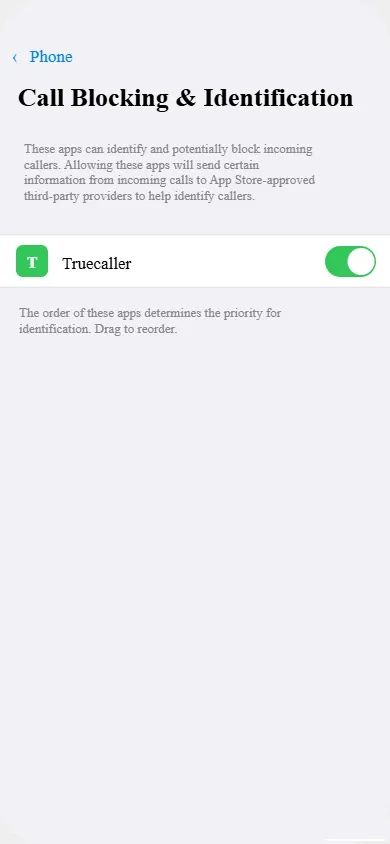
This is not a bug. Apple designed it this way intentionally. The Call Blocking and Identification section only appears in your Settings once your iPhone detects that a compatible app has been installed. If no app is present, the section simply does not show up.
This means a lot of people assume their iPhone does not have this feature. It does. You just need to install an app first to unlock it.
Once you install any of the apps I am about to cover, go to Settings then Apps then Phone and you will see Call Blocking and Identification appear right there waiting for you. Enable all the toggles you see under that section for the app to work properly in real time.
This single step is what makes the difference between an app that just sits on your phone and one that actually screens calls as they come in.
How to Set Up Truecaller on iPhone (Step by Step)
Truecaller is one of the most widely used caller ID and spam blocking apps in the world. It works by cross-referencing incoming numbers against a large community-powered database of reported spam numbers.
Here is exactly how to set it up correctly on your iPhone:
- Open the App Store on your iPhone
- Search for Truecaller
- Tap Get to download and install it
- Open the app and create a free account or sign in
- Grant the permissions the app requests so it can identify callers
- Now go to your Settings app
- Tap Apps
- Tap Phone
- Tap Call Blocking and Identification (this section now appears because Truecaller is installed)
- Enable all the toggles you see for Truecaller
Once those toggles are on, Truecaller works directly inside your iPhone’s native call screen. When a spam number calls you, Truecaller identifies it in real time and either labels it or blocks it depending on your settings inside the app.
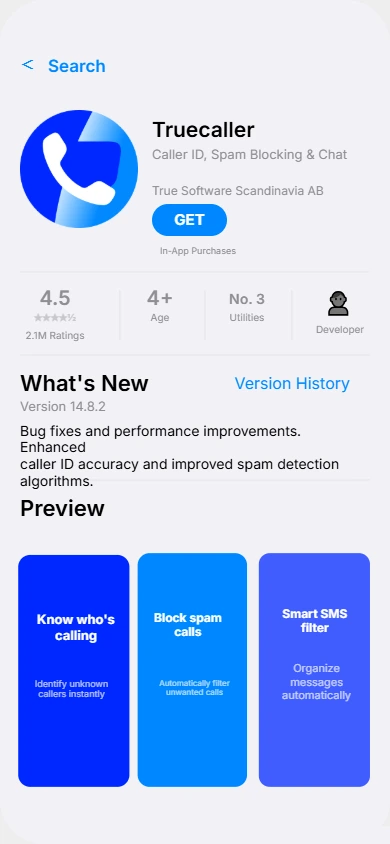
The free version of Truecaller includes caller ID for unknown numbers and spam detection. It is genuinely useful without spending anything.
Hiya Clean Interface and Strong Spam Detection
Among all the call blocking options available on iPhone, Hiya offers one of the most straightforward experiences I have come across.
Hiya focuses on caller ID and automatic spam detection without a lot of extra features cluttering the interface.
What I like about Hiya is that it integrates very cleanly with iOS. Once you install it and enable it through the Call Blocking and Identification setting in your iPhone’s Phone settings, it quietly works in the background without requiring you to open the app constantly.
Setting up Hiya:
- Download Hiya from the App Store
- Open the app and follow the quick setup
- Go to Settings then Apps then Phone
- Tap Call Blocking and Identification
- Enable the toggle next to Hiya
Hiya’s free version includes spam call blocking and caller ID for numbers in their database. They also offer a paid version called Hiya Premium that adds more detailed information about incoming callers, but the free tier handles the core job of automatically blocking calls very well for most people.
Nomorobo: Built Specifically for Robocall Blocking
Nomorobo iphone is a service that was originally built to tackle robocalls specifically. It gained a strong reputation for catching automated calling systems that flood people with unwanted calls throughout the day.
The way Nomorobo works is slightly different from the others. When a call comes in, it rings once on your iPhone. Nomorobo checks the number against its database almost instantly. If it is a known robocall, the call is terminated before the second ring. If it passes the check, the call rings through normally.
This one-ring behavior is normal and expected with Nomorobo. It is not a glitch.
Setting up Nomorobo:
- Download Nomorobo from the App Store
- Open the app and create an account
- Follow the in-app setup instructions
- Go to Settings then Apps then Phone
- Tap Call Blocking and Identification
- Enable the toggle for Nomorobo
Nomorobo offers a free trial period. After that it moves to a paid subscription. If robocalls are your biggest problem specifically, the subscription cost is worth considering given how targeted the service is.
RoboKiller: The Most Aggressive Spam Blocker
The RoboKiller app takes a more aggressive approach to spam blocking than the other options on this list. Beyond just blocking spam calls, RoboKiller uses what they call “Answer Bots” to actually answer spam calls and waste the caller’s time with automated responses. The idea is to discourage spam callers by making each call less profitable for them.
RoboKiller is a paid app with a subscription fee, but it does offer a free trial so you can test it before committing.
Setting up RoboKiller:
- Download RoboKiller from the App Store
- Open the app and start your free trial
- Complete the in-app setup steps
- Go to Settings then Apps then Phone
- Tap Call Blocking and Identification
- Enable the toggle for RoboKiller
If you are dealing with an unusually high volume of spam calls and the other free methods are not keeping up, RoboKiller is the most powerful option available for iPhone users who want maximum protection.
Quick Comparison: Which App Should You Choose?
Here is a simple breakdown to help you decide which app fits your situation best:
| App | Cost | Best For | Standout Feature |
|---|---|---|---|
| Truecaller | Free (with paid option) | General caller ID and spam blocking | Huge community database |
| Hiya | Free (with paid option) | Clean simple setup | Seamless iOS integration |
| Nomorobo | Paid after trial | Robocall blocking specifically | One-ring termination system |
| RoboKiller | Paid after trial | Maximum spam protection | Answer Bot feature |
For most people I recommend starting with either Truecaller or Hiya since both are free and integrate well with iPhone’s native settings. If you find that spam calls are still getting through after using those, move up to Nomorobo or RoboKiller for stronger coverage.
For most people I recommend starting with either Truecaller or Hiya since both are free and integrate
well with iPhone’s native settings. If you find that spam calls are still getting through after using those,
move up to Nomorobo or RoboKiller for stronger coverage. And if you notice your iPhone feeling a little slower after installing new apps, it is worth taking a moment to clear app cache on iPhone to keep everything running smoothly.
The Most Important Step People Skip
I want to come back to the setup step that makes or breaks all of these apps because it is that important.
After installing any of these apps, you must go into Settings then Apps then Phone then Call Blocking and Identification and enable the app’s toggles manually. If you skip this step, the app cannot screen your calls in real time. It will sit on your phone doing nothing useful.
This is the number one reason people install a call blocker app and then say it is not working. The app is fine. The system permission toggle just was not turned on.
Take thirty extra seconds to do this after installation and your chosen app will automatically block calls properly from that point forward.
How to Block Spam Calls on iPhone 13, 14, 15, and 16 — Does Anything Change?
This is one of the most common questions I see from people reading guides like this one. They want to know if the steps are different depending on which iPhone model they own. It is a fair question because Apple releases new hardware every year and tutorials online can sometimes feel model-specific even when they do not need to be.
Let me give you a straight answer right away.
The core methods to block spam calls on iPhone work the same way across the iPhone 13, iPhone 14, iPhone 15, and iPhone 16. The hardware model does not change the steps. What matters is the version of iOS you are running, not which iPhone you have in your hand.
What Actually Determines Your Settings Path
Apple updates iOS every year and sometimes moves settings around in the process. This is why you might follow an older tutorial and find that your Settings screen looks slightly different from what is shown.
Here is the simple rule I always tell people:
If your iPhone is running iOS 18 or later, your path is:
Settings → Apps → Phone → Silence Unknown Callers
If your iPhone is running an older version of iOS, your path is:
Settings → Phone → Silence Unknown Callers
Every iPhone model from the iPhone 13 onwards is capable of running iOS 18. So if your phone is updated to the latest iOS, the steps are identical regardless of whether you have a 13, 14, 15, or 16.
The model number on the back of your phone is not what you need to check. Check your iOS version instead. Go to Settings then General then About and look at your Software Version to confirm which iOS you are running.
How to Block Spam Calls on iPhone 13
If you are on an iPhone 13 and wondering whether these methods apply to your device, they absolutely do. The iPhone 13 supports iOS 18 without any issues, which means you have full access to every setting and feature covered in this guide.
To block spam calls on iPhone 13, use the same steps I covered in the Silence Unknown Callers section earlier in this guide
Open Settings, tap Apps, tap Phone, and enable Silence Unknown Callers. Every carrier method, manual blocking step, and third-party app covered in earlier sections works exactly the same on your device.
The iPhone 13 also supports the Call Blocking and Identification section in Settings once you install a third-party app, just like any other modern iPhone.
How to Block Spam Calls on iPhone 14
The iPhone 14 is in the same position as the iPhone 13. Nothing changes in terms of how you access or use the spam blocking features. The steps are identical.
To block spam calls on iphone 14, follow the iOS 18 navigation path if your device is updated. Settings then Apps then Phone then Silence Unknown Callers. If you have not updated to iOS 18 yet on your iPhone 14, consider doing so. Apple’s newer iOS versions have continued to improve how call filtering and spam detection work, so staying updated gives you better protection overall.
All carrier methods including the #662# code for AT&T users and the Verizon Call Filter and T-Mobile Scam Shield apps work the same on the iPhone 14 as on any other model.
How to Block Spam Calls on iPhone 15
The iPhone 15 runs iOS 18 smoothly and every method in this guide applies in full. I have seen step-by-step demonstrations done specifically on an iPhone 15 Pro Max and the navigation path and feature behavior are exactly as described throughout this article.
To block spam calls on iphone 15, use Settings then Apps then Phone then Silence Unknown Callers as your starting point. Then layer on whichever additional methods fit your situation, whether that is a carrier service, a third-party app, or the manual blocking method for specific numbers.
One thing worth knowing is that iPhone 15 and newer models run the latest iOS versions natively from the start, which means they benefit from the most current spam filtering improvements Apple builds into each iOS update.
This means the Silence Junk Callers feature can be more responsive on newer hardware when your carrier supports it.
How to Block Spam Calls on iPhone 16
The iPhone 16 is Apple’s most recent generation before the iPhone 17 and it runs iOS 18 natively right out of the box. Everything in this guide applies fully to the iPhone 16.
To block spam calls on iphone 16, the path is Settings then Apps then Phone then Silence Unknown Callers. This has been confirmed directly through hands-on demonstrations on the iPhone 16 hardware. The feature works exactly as expected and silenced calls are handled the same way as on every other model, sent to voicemail and logged in your Recents without ringing your phone.
The iPhone 16 also supports all third-party call blocking apps covered in Section 8, and the Call Blocking and Identification setting appears in your Phone settings as soon as you install any of those apps.
A Quick Reference for Every Model
Here is a simple summary so you can find the right information for your device at a glance:
| iPhone Model | Supports iOS 18 | Settings Path | All Methods Apply |
|---|---|---|---|
| iPhone 13 | Yes | Settings → Apps → Phone | Yes |
| iPhone 14 | Yes | Settings → Apps → Phone | Yes |
| iPhone 15 | Yes | Settings → Apps → Phone | Yes |
| iPhone 16 | Yes | Settings → Apps → Phone | Yes |
| iPhone 17 | Yes (iOS 26) | Settings → Apps → Phone → Call Filtering | Yes |
The Only Real Difference Across Models
The only meaningful difference I want you to know about is the one between older and newer iOS versions, not between hardware models. And the only model where you might notice a visual difference in your settings is the iPhone 17 running iOS 26, where the relevant section is labeled Call Filtering instead of the older label.
Everything else, including every method covered in this entire guide, works the same way whether you are holding an iPhone 13 or an iPhone 16. The spam calls are the same problem and Apple’s solution is the same across all of them.
If a tutorial you found elsewhere tells you that the steps are completely different for your specific model, that is almost certainly outdated information based on an older iOS version rather than a genuine model-specific difference. Trust the iOS version, not the model number, when you are looking for the right navigation path.
Report the Call and Register on the Do Not Call List — Does It Actually Help?
I want to be completely honest with you about this section before we get into the steps. Reporting spam calls and registering on the Do Not Call list will not stop spam calls from hitting your iPhone tomorrow morning. These are longer-term actions that contribute to a bigger system working in the background.
But they do matter. And if enough people take them, they genuinely make a difference for everyone over time.
Here is what reporting actually does and how to do it correctly from your iPhone.
What Is the Do Not Call Registry and Who Runs It
The Do Not Call Registry is an official government program managed by the Federal Trade Commission. The FTC is the primary consumer protection agency in the United States and the Do Not Call list is one of their most widely used tools for protecting people from unwanted telemarketing calls.
When you register your phone number on the do not call registry, legitimate businesses and telemarketers are legally required to remove your number from their calling lists within 31 days. Reputable companies check the registry before making marketing calls and they honor the list.
The important word there is legitimate. The registry works well against lawful telemarketers who follow the rules. It is less effective against spam callers and robocall operators who are already operating outside the law and do not check the list in the first place.
So registering your number is worth doing, especially if you are getting calls from legitimate companies. Just do not expect it to instantly stop all spam activity.
How to Register Your Number on the Do Not Call List
Registering is free and takes about two minutes. You can do it directly from your iPhone browser.
Here is how:
- Open Safari or any browser on your iPhone
- Go to donotcall.gov
- Tap Register Your Phone
- Enter your phone number and your email address
- Check your email for a confirmation link from the FTC
- Tap the confirmation link to complete your registration
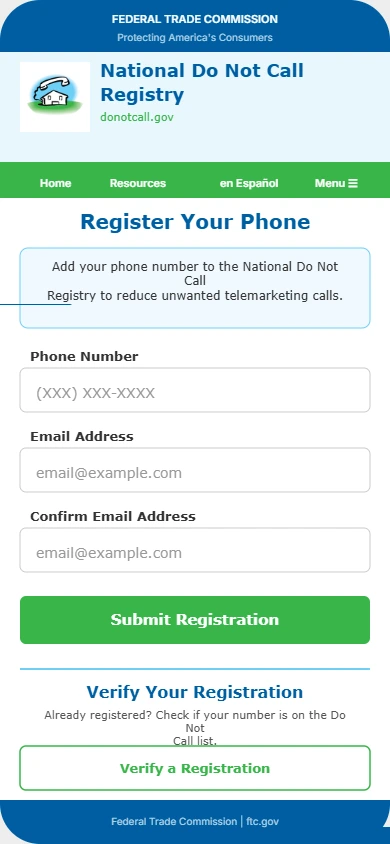
Your number is officially registered once you confirm via email. The FTC will send you a confirmation and your number stays on the registry permanently. You do not need to renew it each year. It does not expire.
I registered my number a while back and I do notice fewer calls from companies running legitimate marketing campaigns. The persistent spam callers were a separate problem that I handled using the iPhone settings and carrier methods covered earlier in this guide.
Registering is free and takes about two minutes. You can do it directly from your iPhone browser. Go to the National Do Not Call Registry tap Register Your Phone, enter your phone number and email address, then confirm via the link they send to your inbox. Your number stays on the registry permanently and you never need to renew it.
How to Report a Spam Call Directly From Your iPhone
Reporting a spam call on iPhone takes just a few taps and you can do it right from your Recent calls list. This report goes to your carrier and in some cases feeds into shared spam databases that help label these numbers for other users too.
Here is how to report a spam call iphone directly through the Phone app:
- Open the Phone app
- Tap the Recents tab
- Find the spam number in your list
- Tap the “i” icon next to that number
- Scroll down and tap Report as Spam if that option appears
Not all carriers display the Report as Spam option natively inside the Phone app. If you do not see it, you can still report the number through your carrier’s own app such as AT&T Call Protect, Verizon Call Filter, or T-Mobile Scam Shield. Each of those apps includes a report feature inside them.
You can also block the number on iphone at the same time using the Block this Caller option on the same screen. I always recommend doing both together. Blocking gives you immediate relief while reporting contributes to the longer-term picture of reducing these calls for everyone.
How to Report Spam Calls to the FTC Directly
Beyond reporting through your carrier, you can also file a complaint directly with the Federal Trade Commission. The FTC uses these reports to track calling patterns, identify repeat offenders, and take enforcement action against the worst spam and robocall operations.
To report a spam call to the FTC:
- Open your browser on iPhone
- Go to reportfraud.ftc.gov
- Select the option related to unwanted calls or robocalls
- Fill in the details including the number that called you, the date and time, and what the call was about if you answered
- Submit the report
The more detail you provide, the more useful your report is. If you noticed a pattern, like the same number calling multiple times or calls coming from slightly different numbers each time, include that information too.
The FTC does not follow up with individual reporters but they do use the data. Major enforcement actions against robocall networks have been built on patterns identified through thousands of consumer reports just like the one you would be filing.
Setting Honest Expectations About Reporting
I want to close this section the same way I opened it, with honesty.
Reporting is the right thing to do but it is the slowest of all the methods in this guide. If your phone is ringing ten times a day from spam numbers right now, reporting alone will not give you the relief you need today.
Here is how I think about the two layers of action:
For immediate relief: Use the iPhone settings, carrier services, and apps covered in Sections 2 through 8 of this guide. These give you results within minutes of setting them up.
For long-term impact: Report spam numbers to your carrier and to the FTC. Register on the do not call registry. These actions take time to show results but they feed into the systems that make spam calling less profitable and more legally risky for the people behind it.
Using both layers together is the most complete approach. The settings protect you today. The reports help protect everyone over time.
Frequently Asked Questions About Blocking Spam Calls on iPhone
Why can I still see spam calls in my Recent calls even after turning on the setting?
This is completely normal and not a sign that the setting is broken. When Silence Unknown Callers is active, your iPhone silences the ring and sends the call to voicemail, but it still logs the call in your Recents list so you have a record of who tried to reach you. This is intentional behavior by Apple, not a glitch
What is the difference between “Silence Junk Callers” and “Silence Unknown Callers”?
Silence Junk Callers uses your carrier’s spam database to identify and silence numbers already flagged as known fraud or spam. Silence Unknown Callers silences any number not saved in your contacts regardless of whether it has been flagged as spam. For the strongest protection I recommend enabling both toggles at the same time.
Why don’t I see “Call Blocking and Identification” in my iPhone Settings?
This section is hidden in your Settings until you install a third-party call blocking app like Hiya or Truecaller. Once you install a compatible app, the option appears automatically under Settings then Apps then Phone. Enable all the toggles there to activate the app properly.
Does blocking spam calls on iPhone actually stop them completely?
Not entirely. iPhone silences the ring and routes the call to voicemail but it does not prevent the call from being recorded in your Recents. The caller can still leave a voicemail and the call entry still appears in your list, which is different from how some Android devices handle full blocking.
What does the #662# code do on iPhone?
Dialing #662# on an AT&T iPhone activates AT&T Call Protect, which is a free carrier-level spam filtering service that screens calls before they reach your phone. This code only works on AT&T accounts and has no effect on Verizon or T-Mobile lines, which use their own separate activation methods.