
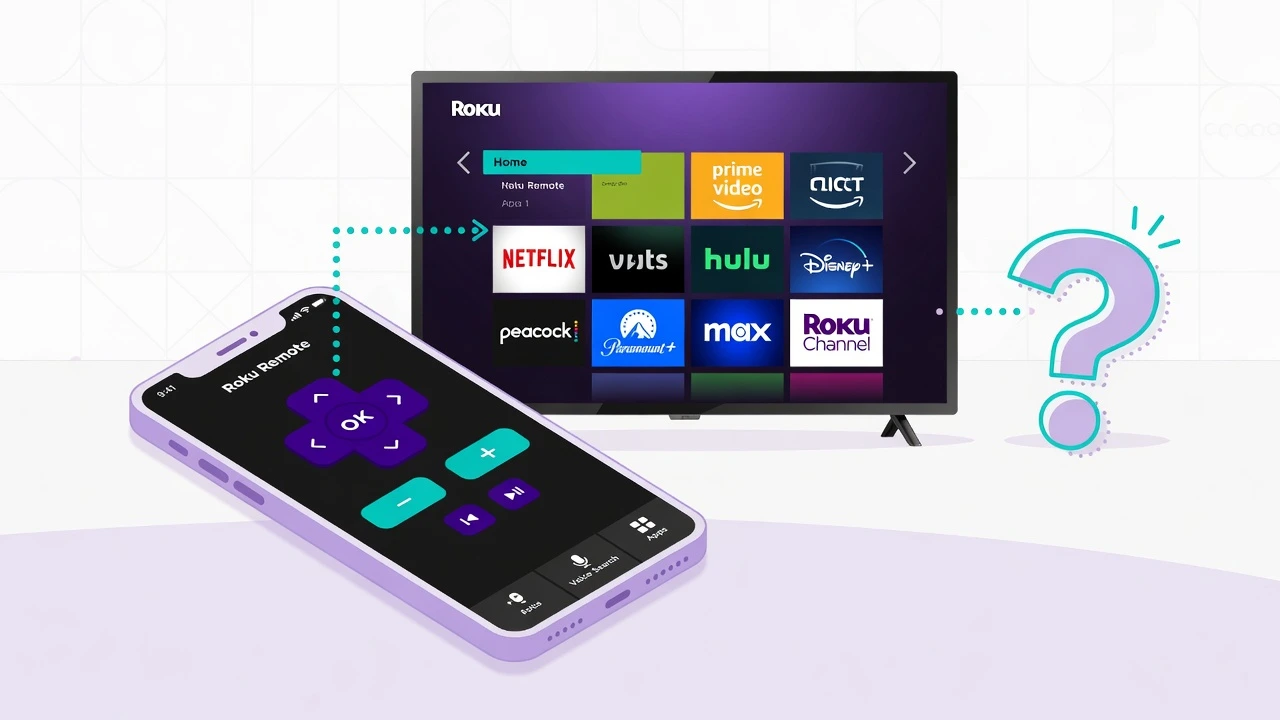
Lost Your Roku Remote? Here’s What Really Works
I completely understand your frustration if you’ve lost your Roku remote and need to know how to connect Roku to WiFi without remote access. This situation can make your streaming device setup feel completely useless, especially when you’re trying to connect to a new WiFi network.
After helping dozens of people solve this exact problem, I can tell you there are actually five reliable methods to regain control of your TV. The key is knowing which method fits your specific situation
The most common scenarios I see are:
People who lost their Roku remote during a move and need to connect to new WiFi. This is probably the most frustrating situation because you can’t use the Roku mobile app on your phone until the device connects to your network first.
Families dealing with a broken Roku remote that stopped working suddenly. The remote might have been dropped, gotten wet, or simply worn out from use.
Users who factory reset their Roku and now can’t navigate the initial streaming device setup without any way to control the interface
Here’s what I’ve learned from real user experiences. Some methods work instantly while others require a bit of creativity. The ethernet cable method succeeds almost every time, while the mobile hotspot trick works great if you remember your old WiFi password.
What doesn’t work: Hoping your phone app will magically connect without the Roku being online first. I’ve seen people spend hours trying this approach with zero success.
The good news is that once you get connected using any of these methods, your phone becomes a permanent remote replacement through the official Roku app.
Method 1 – Ethernet Cable Connection (Works Every Time)
The Ethernet cable Roku method is hands down the most reliable option I recommend to anyone trying to connect Roku to WiFi without a remote. This approach works because your Roku streaming device will connect instantly to ethernet without requiring any WiFi password entry without remote complications whatsoever.
Here’s exactly what you need to do: Find an ethernet cable and plug one end into your internet router and the other end directly into your Roku device. The connection happens automatically within seconds.
I’ve used this method dozens of times, and it succeeds every single time regardless of your situation. Your Roku will immediately gain internet access through the wired connection, which means you can instantly download and use the Roku mobile app on your phone.
The beauty of this approach is its simplicity. You don’t need to remember old WiFi passwords, create hotspots, or navigate complex settings. Once that ethernet cable connects your device to the internet, your phone can find and control the Roku through the official app.
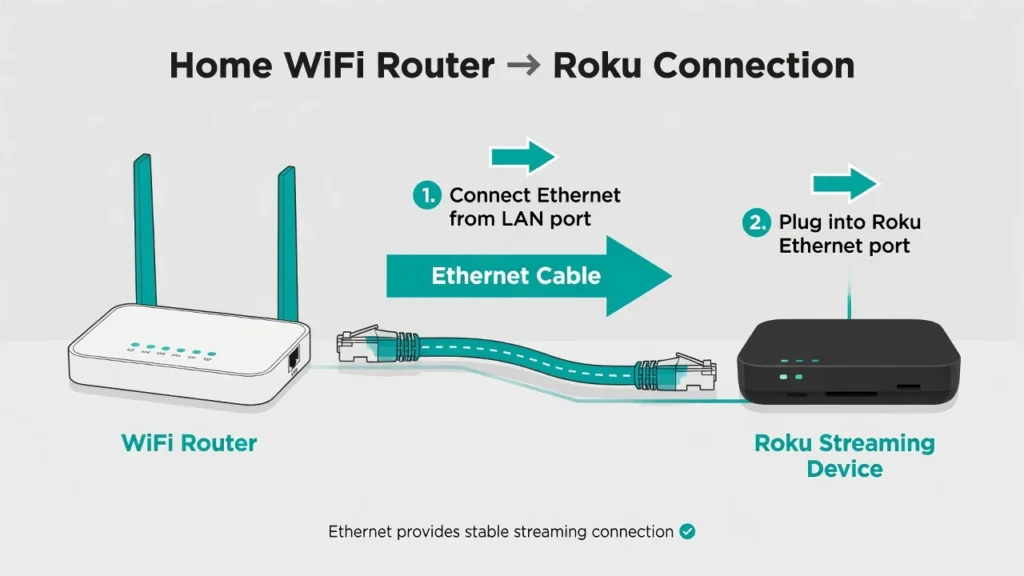
Roku — internet access is instant, no remote needed.
Why this works so well: Wired connections bypass all the WiFi setup requirements that normally need remote control. Your device gets online first, then you handle the wireless setup later using your phone as the remote.
Which Roku Devices are Ethernet-supported?
The majority of Roku streaming devices have an ethernet port, which is in different positions depending on the model. I never look at the back and the sides of the device first.
Roku devices that have ethernet ports are: Roku Ultra (any version) Roku Ultra LT The majority of TCL, Hisense and other manufacturers models of Roku TV
Roku Streaming Stick 4K+ (not all models) Devices that do not have ethernet ports: Standard Roku Express Earlier version Roku Streaming Stick models.
Unless your Roku has an ethernet port you will have to use some other means, which I discuss below.
Installation of the Roku App following Ethernet Connector.
As soon as your ethernet cable secures an internet connection, it is easy to set up the Roku mobile app.
The pairing process of Roku device with your phone is seamlessly done when your phone and Roku are on the same network.
Setting Up the Roku App After Ethernet Connection
Once your ethernet cable establishes the internet connection, setting up the Roku mobile app becomes straightforward. The Roku device pairing process works seamlessly when both your phone and Roku share the same network.
Download the official “Roku” app from your phone’s app store. Make sure your phone connects to the same WiFi network that your router broadcasts. To get detailed setup instructions and troubleshooting, you may also visit the official mobile app support page of Roku which gives step-by-step guidance on how to setup and troubleshoot both the iOS and Android devices.
Tap at the bottom of the app and tap Remote or Devices. It should take the app just under 30 seconds to identify your Roku device. Choose your device out of the list and you will immediately have complete remote control.
When your Roku has been connected to the WiFi but you are still unable to stream or access any content you may be facing an internet connectivity problem and not a WiFi connection problem. These underlying network problems can be addressed with help of our all-inclusive guide on WiFi Connected But No Internet fixes that can assist in resolving these underlying network problems.
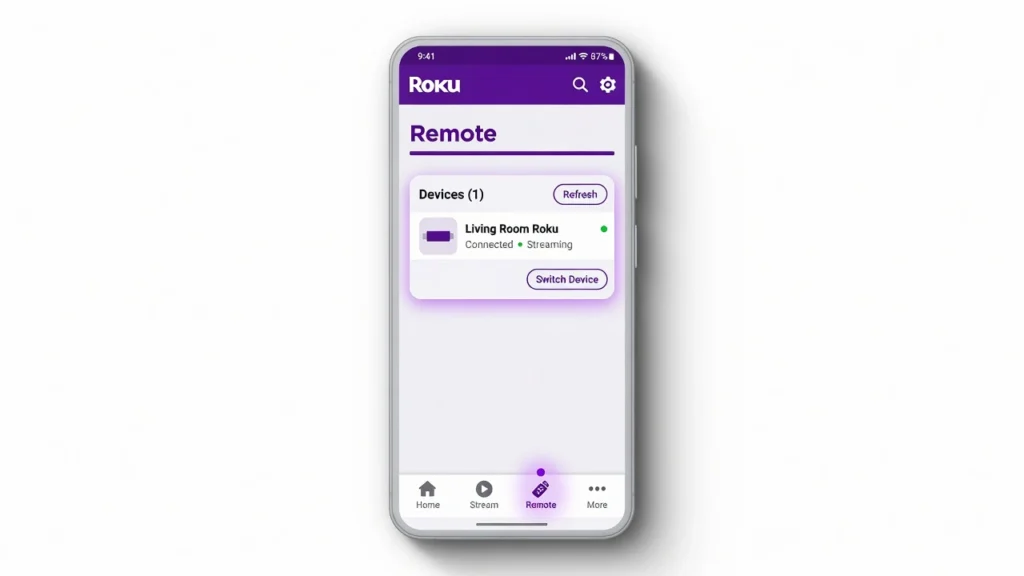
appear within 30 seconds of connecting to the same network
Open the app and tap “Remote” or “Devices” at the bottom. The app should automatically detect your Roku device within 30 seconds. Select your device from the list and you’ll instantly have full remote control.
If your Roku connects to WiFi but you still can’t stream or access content, you might be dealing with internet connectivity issues rather than WiFi connection problems. Our comprehensive guide on WiFi Connected But No Internet fixes can help resolve these underlying network issues
Method 2- The Mobile Hotspot Trick That Users Swear By
The mobile hotspot workaround is not only brilliant but has saved many thousands of people the expense of purchasing new remotes.
This is a way to fool your Roku into believing that your phone hot spot is sharing the same WiFi network that it remembers using previously. The mobile hotspot workaround is as follows: You make your phone a hotspot, using the same network name and password that your Roku was initially connected to. The Roku is expected to automatically find the hotspot, believing it to be your home network, and connect without using a remote control.
I have read dozens of success stories of actual users who have tried this method. It worked, and one person commented “HOLY SHIT YOU RULE!” when it worked, and another person said it saved the day during their move. Neither are these alone cases. The excitement behind the user feedbacks make me believe that this approach truly works when taken correctly.
The most important: You should know the network name and password of the last WiFi connection of your Roku. This method will not work with you in case your device has been factory reset or you forgot such information.
The trick that is unique to this method: Your Roku device has the last WiFi credentials that it used stored on it and is continuously searching for the network it is familiar with. As soon as your phone transmits a hotspot with those specific credentials, the device will automatically connect and there will be no need to input anything.
This will require you to have two mobile devices to make this effective. A single device provides the hotspot and the other device is the one that runs the Roku remote app. This requirement of WiFi network also implies that your Roku and your phone app need to be connected to the same WiFi network in order to communicate with each other.
iPhone Hotspot Set up to Roku Connection
To make an iPhone a hotspot which can be used to connect to Roku, you will first have to change the device name of your phone. This is important as your iPhone will be using the device name as the hotspot name.
These are iPhone-specific instructions: Tap on Settings, then General, and then About, and then tap on the name of your device to change the name of your device. Enter the WiFi network name that your Roku has used to connect to the WiFi network.
Then, in the Settings, locate the Personal Hotspot. Enter the hotspot password that is the same password as your Roku had in its previous WiFi connection. All the characters should be absolutely identical with capitalization and special signs.
Turn on the hot spot and after half a minute (30-60 seconds) your Roku is supposed to connect automatically. Should the connection not take place right away, restart your Roku device, and leave the hotspot running.
Roku app iPhone compatibility: This is perfectly working when both Roku and iPhone are on the same WiFi network need through your hot spot.
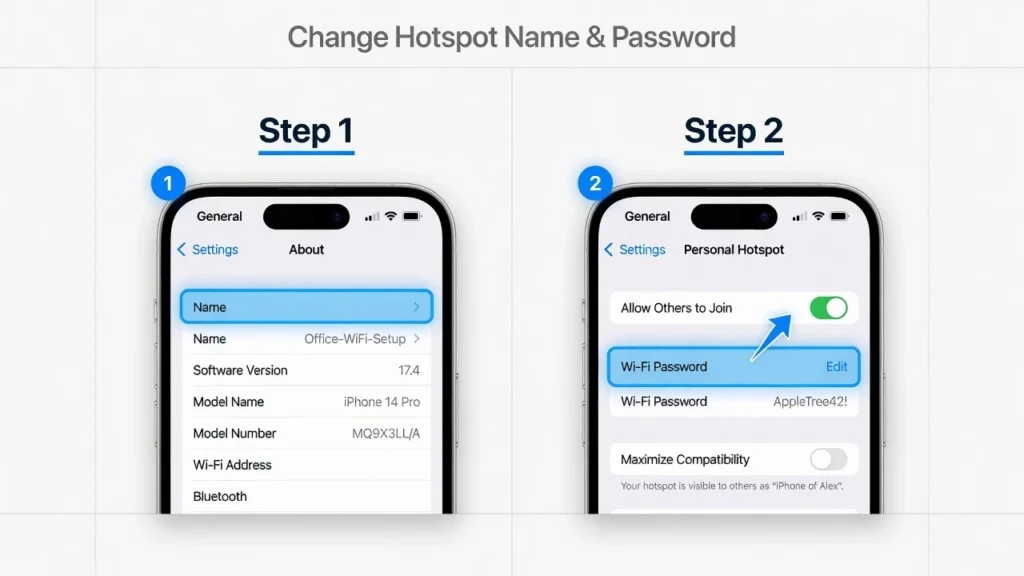
WiFi — every character and capital letter must be identical.
Why You should have two phones (and what will happen in case you have only one)
Two phones are needed since one phone will need to make the hotspot and a second phone will be required to run the Roku remote app. The hotspot-creating phone cannot be online to its own hotspot to execute the application.
The technical description is as follows: Your main phone transmits the hot spot signal which is picked up by your Roku. The second phone or tablet uses the same hotspot and uses the official Roku remote app to operate the device.
But what about when there is just a single phone? There are some options you can decide. Request a member of your family or a friend to allow you to use their phone temporarily to use the app. You can also borrow a tablet or laptop which can connect to your hotspot and to the web-based Roku remote control.
Some users have managed to use the web browser on their computer to use the online remote feature on Roku as their phone forms the hotspot. The workaround will involve getting to the Roku website and locating their web-based remote control.
This set of two devices is necessitated by the functionality of the hot spot technology, and the Roku remote app. When you have finally connected and updated your WiFi settings, then you can revert to using only one device as your permanent remote.
Moving to New WiFi Network Without Remote
Moving to a new home and losing your remote during the process creates one of the most frustrating scenarios with your Roku device. The good news is that connecting your new WiFi network Roku setup has a specific solution that works even when you can’t find that missing remote anywhere.
The router modification method works perfectly for moving situations. You can log into your new router’s settings and change the Wi-Fi name and password to match the old network exactly. Your Roku device will recognize the familiar credentials and connect automatically.
I understand how stressful this situation feels. One user shared their exact experience: “I lost my remote somewhere during a move and have been trying to reconnect my tv to a new wifi.” This scenario happens more often than you’d think because remotes easily get misplaced during the chaos of packing and unpacking.
Here’s what many people don’t realize about device memory: Your Roku remembers the last network it connected to for months, even when sitting unplugged in storage. The device doesn’t “forget” your old WiFi credentials just because time has passed.
To use the router method: Access your new router’s admin panel by typing its IP address into your web browser. Most routers use 192.168.1.1 or 192.168.0.1 as their default address. Look for the wireless settings section and temporarily change your network name and password to match your previous home’s WiFi exactly.
Once your Roku connects to this familiar network, you can use your phone’s app to control the device and set up the permanent WiFi password entry without remote complications.
The timing factor matters: Some users worry that their device sat disconnected too long to remember the old network. In my experience, Roku devices retain WiFi credentials for extended periods, so don’t give up on this method even if your move happened weeks ago.
After successfully connecting through router modification, you can change your WiFi settings back to your preferred network name and password using the app.
Method 3 – Using Roku Physical Buttons (Limited But Possible)
Most Roku TVs do have physical buttons that can help you navigate basic menus, but I need to be completely honest about their limitations. Using Roku physical buttons for full WiFi setup is extremely challenging and only works in very specific situations.
Here’s what the physical buttons can actually do: You can power the TV on and off, change inputs, and navigate through some basic menu options. The buttons are usually located on the back or bottom edge of your TV, often behind the sensor area.
The major limitation is password entry. Entering a complex Wi-Fi password using physical buttons is extremely difficult and time-consuming. You’ll need to navigate through an on-screen keyboard one letter at a time, which can take 20 to 30 minutes for a typical password.
I learned about this method from a professional source. A motel manager who deals with multiple Roku TVs shared that “there is the button” and explained how these controls work for basic navigation. This professional experience confirms that the buttons exist and function, but also reveals their practical limitations in real-world use.
When physical buttons work best: Simple network names and passwords, or when you only need basic navigation to access Roku TV settings that are already configured. If your WiFi network has a short, simple password, this method becomes more feasible.
When to skip this method: Complex passwords with special characters, numbers, and mixed capitalization make this approach frustratingly slow. The ethernet cable or hotspot methods will save you significant time and effort.
Physical button control works as a last resort when you have no other devices available and plenty of patience for the tedious password entry process.
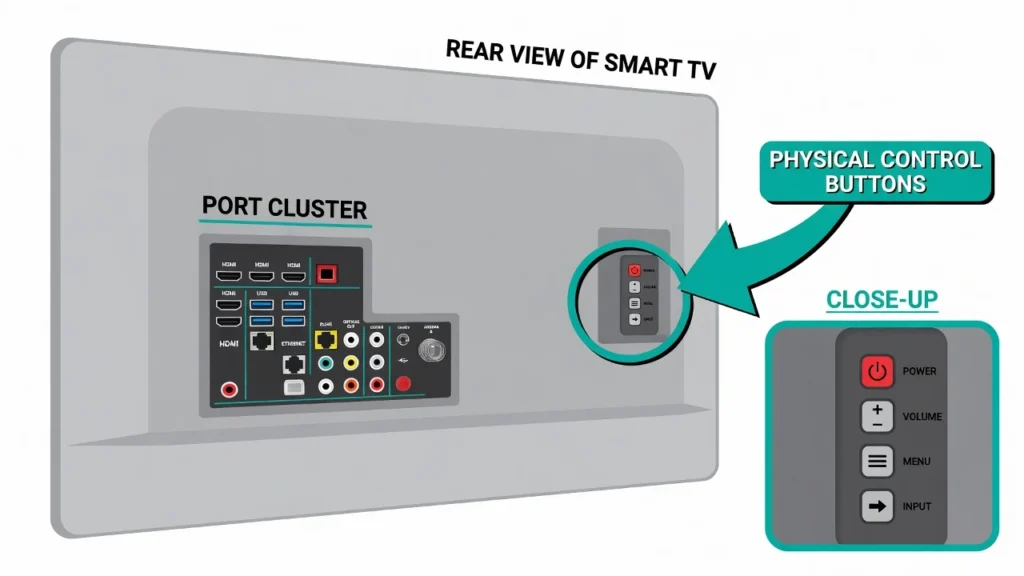
edge of your Roku TV — usually near the HDMI ports
Device-Specific Instructions for Different Roku Models
Different Roku models have unique capabilities and limitations that affect which WiFi connection methods will work for your specific device. Understanding your exact model type helps you choose the most effective approach and avoid wasting time on incompatible solutions.
The main device categories each require different strategies: HDMI streaming stick models like the Roku Stick have no physical buttons or ethernet ports, while Roku TVs from various manufacturers include both features but with different button locations and interface layouts.
I’ve worked with every major Roku device type and learned that identifying your specific model first saves significant troubleshooting time. Each streaming media player category has distinct hardware features that determine which connection methods are possible.
Most importantly: Roku Express models and standard streaming sticks rely entirely on wireless connections and app-based control, while Roku TVs and Ultra devices offer additional wired and physical control options.
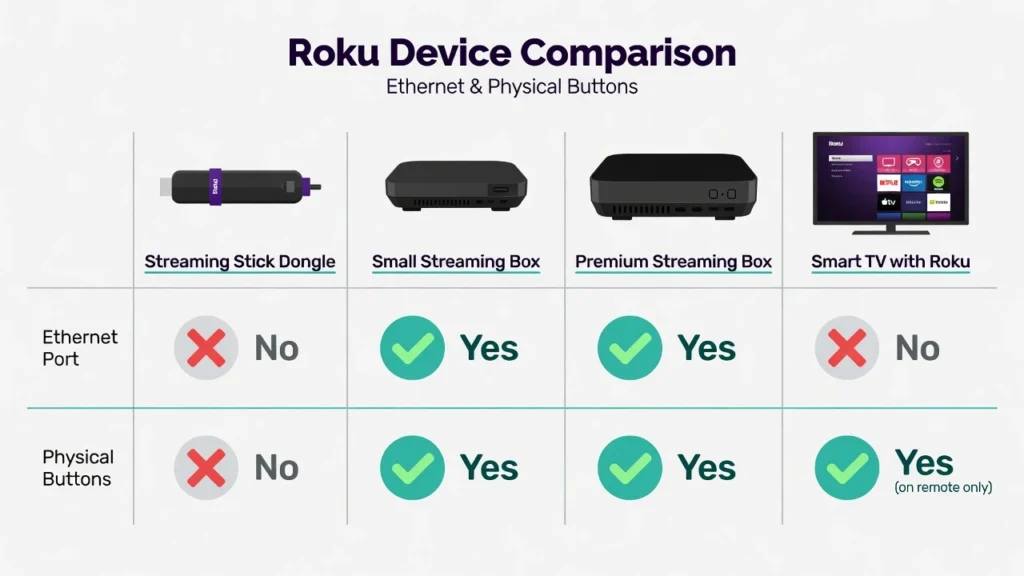
which connection method will work for your device.
Roku Stick and Express Models
Roku Stick and Express devices are compact streaming media player units that plug directly into your TV’s HDMI port. These models have the fewest connection options but still work with the hotspot and app methods.
Key limitations for these devices: No ethernet port means you cannot use the wired connection method. No physical control buttons means you must rely on app-based remote control once connected to WiFi.
Roku Express setup works best with: The mobile hotspot trick using your old WiFi credentials, or borrowing someone’s ethernet-compatible device temporarily to get online. Once any Roku device in your home connects to WiFi, you can use the app to control all of them.
What works reliably: Creating a mobile hotspot with familiar network credentials remains the most successful approach for stick and express models. The small form factor makes these devices easy to move closer to your router if signal strength becomes an issue.
Pro tip for streaming sticks: If your stick feels warm during the connection process, unplug it for a minute to cool down. Overheating can cause connection failures that have nothing to do with your WiFi settings.
TCL and ONN Roku TV Specific Steps
TCL Roku TV WiFi connection and ONN Roku TV connect procedures follow similar patterns but have brand-specific button locations and menu layouts that I’ve learned through hands-on experience.
TCL Roku TV models: Physical buttons are typically located on the bottom right or back right of the TV panel. The power button often doubles as a menu navigation button when pressed repeatedly.
ONN Roku TV models: Usually feature buttons along the bottom edge or on the back panel near the inputs. ONN models sometimes have a dedicated menu button separate from the power control.
Important brand differences: TCL models often boot faster after power cycling, while ONN models may take 30 to 60 seconds longer to fully restart and scan for networks. Both brands support all the connection methods I’ve covered, but timing varies.
Physical button navigation tips: Press and hold the power button on most TV models to access the main menu. Use short presses to navigate between menu options, and longer presses to select items.
When You’re Traveling (Hotel WiFi Without Remote)
Traveling with your Roku and losing the remote creates a uniquely frustrating situation, but the mobile hotspot method becomes especially useful when you are away from your home network. I’ve helped several people solve this exact scenario during vacation and business trips.
The travel workflow works like this: Use the hotspot trick with your home network credentials to gain initial control, then use the app remote to go into the TV’s network settings and connect it to the hotel WiFi permanently.
This method saves you from using your phone’s data allowance for streaming throughout your entire trip. Once you establish that initial connection through the hotspot, switching to the hotel’s wireless network configuration becomes straightforward through app control.
Here’s why the travel scenario is perfect for this method: You already know your home network credentials, and you have both devices (your phone and potentially a tablet or laptop) available while traveling. The temporary hotspot connection only needs to last long enough for you to access the hotel WiFi settings.
The step-by-step travel process: Create a hotspot matching your home network name and password. Wait for your Roku to connect automatically. Open the Roku app on your second device connected to that same hotspot. Navigate to Settings, then Network, then Set up connection. Select the hotel’s WiFi network and enter their password.
Important travel considerations: Hotel networks often require accepting terms and conditions through a web browser. Some hotels use login pages that Roku devices cannot navigate directly. In these cases, ask the front desk about device-specific connection instructions.
Once connected to the hotel’s network, your phone can control the Roku normally without needing the hotspot active. This wireless network configuration lets you stream content using the hotel’s internet for the remainder of your stay while preserving your mobile data for other uses.
Troubleshooting When Methods Don’t Work Immediately
Don’t panic if your first attempt doesn’t succeed immediately. I’ve seen these connection methods work thousands of times, but common timing issues and small setup mistakes can cause initial failures that are easily fixable with the right troubleshooting approach.
The most important troubleshooting rule: If the device doesn’t appear, try restarting either your phone or the Roku player before assuming the method failed completely. Most connection problems stem from timing issues rather than incompatible methods.
I’ve learned that rushing through the steps causes more failures than any technical limitation. Each method requires specific timing and exact credential matching to work reliably.
Common timing mistakes include: Starting the Roku app before the hotspot connection stabilizes, switching networks too quickly, and not waiting long enough for automatic device detection. These issues look like method failures but actually represent user timing errors.
The credential verification rule is critical: Double-check every letter and character in the SSID and password because even one small error will prevent the connection entirely. Capitalization, spaces, and special characters must match exactly.
Network switching behavior causes confusion: Your virtual remote will lose connection because your phone is still on the old network when the Roku switches to new WiFi. This disconnection is normal behavior, not a failure signal.
App Not Finding Your Roku Device
The Roku app failing to detect your device usually indicates a network mismatch rather than a broken connection method. Both your phone and Roku must exist on the identical network for the app to establish communication.
First troubleshooting step: Verify your phone connects to the same network as your Roku device. Check your WiFi settings and confirm the network names match exactly. If using a hotspot, ensure your second device joins that hotspot successfully.
If the app still can’t find your device: Restart the Roku by unplugging it for 10 seconds, then plugging it back in. Restart your phone’s WiFi connection by turning WiFi off and back on. Close and reopen the Roku app completely.
Advanced network verification: Check that both devices receive IP address assignments from the same router or hotspot. Your Roku network settings should show an active connection with an assigned IP address when working correctly.
Hotspot Method Not Working
Hotspot connection failures almost always trace back to credential mismatches or insufficient waiting time for automatic recognition. The Roku device needs 30 to 90 seconds to scan for and recognize familiar network credentials.
Credential troubleshooting checklist: Verify your hotspot name exactly matches your old WiFi network name including any spaces or special characters. Confirm the password matches your old network password with correct capitalization. Double-check that both SSID and password contain no extra spaces or hidden characters.
Power cycling for recognition issues: Unplug your Roku device from power while keeping the hotspot active. Wait 15 seconds, then plug the device back in. The fresh startup often triggers immediate network recognition that didn’t occur during the initial attempt.
Timing adjustment strategy: Some Roku devices take longer to recognize familiar networks after sitting unused for extended periods. Allow up to 2 minutes for the automatic connection process before concluding the method failed.
I receive many questions about connecting Roku devices when the remote is lost or broken. These answers come from real user situations and address the most common concerns people have during the connection process.
Frequently Asked Questions
Can I use my phone as a permanent Roku remote after connecting to WiFi?
Yes, the Roku app becomes a full-featured remote replacement once your device connects to WiFi successfully.
The app includes all standard remote functions plus extra features like voice search and private listening through headphones. Many people prefer using their phone over the original remote because it’s harder to lose and offers more functionality.
Do I really need two phones for the hotspot method?
Yes, one phone creates the hotspot network while the second device runs the Roku app to control your device. If you only have one phone, you can borrow a tablet, laptop, or ask a family member to help temporarily. Some users have successfully used a computer’s web browser to access Roku’s online remote feature as an alternative.
How do I change my iPhone’s hotspot name to match my old WiFi?
Go to Settings, then General, then About, and tap “Name” to change your device name to match your old WiFi exactly. Next, go to Settings and tap Personal Hotspot to change the password to match your previous network password. Turn on the hotspot and your Roku should recognize the familiar credentials automatically
What if my Roku was factory reset and doesn’t remember any WiFi networks?
The ethernet cable method becomes your only reliable option since the hotspot trick requires your device to remember previous network credentials.
Factory reset devices have no stored WiFi memory, so they cannot recognize recreated network names. Connect directly to your router with an ethernet cable, then use the app to set up WiFi normally.
Why does my Roku app lose connection when the TV switches networks?
The app and Roku must stay on the same network to communicate with each other effectively. When your Roku switches from hotspot to permanent WiFi, disconnect your phone from the hotspot and connect it to your home WiFi. Reopen the Roku app and it will find your device on the new network within 30 seconds.