

Viruses, Adware and PUPs What Can Actually Get On Your Mac
Most people still believe Macs are completely safe from malware. I believed that too, until I started digging into how Mac infections actually work. The truth is, several types of malicious software can and do target macOS, and some of them are far more common than you might expect.
The Four Types of Malware That Target Macs
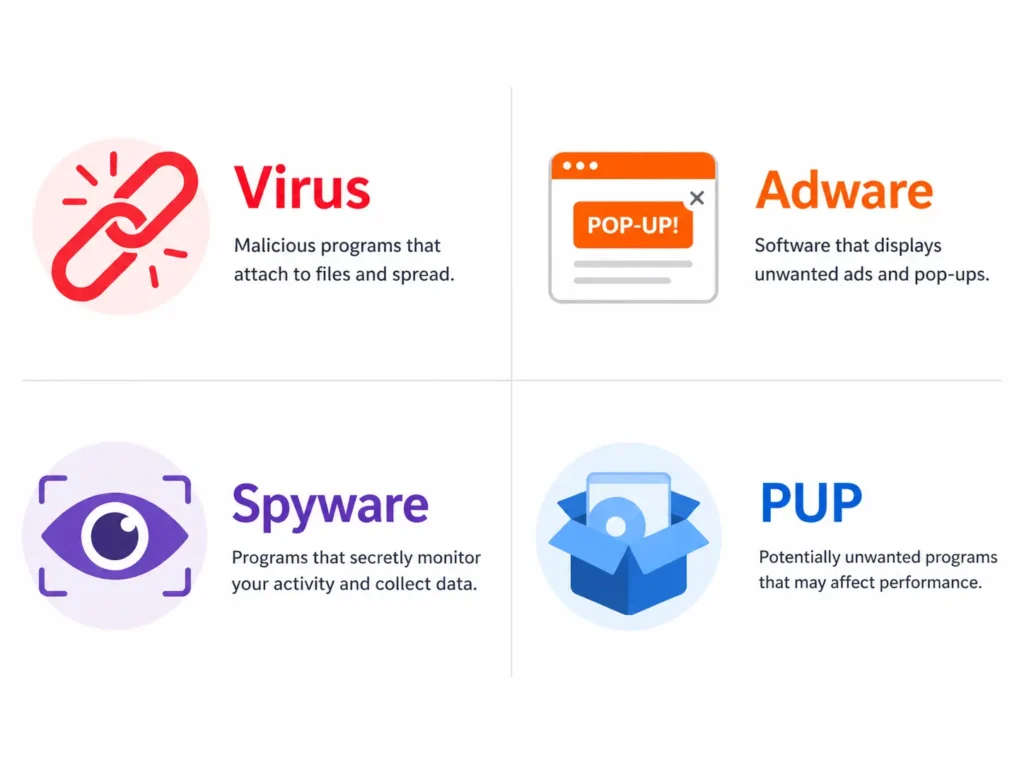
Viruses are self-replicating programs that attach themselves to legitimate files and spread across your system without your permission. Viruses are less common on Mac than on Windows, but Mac targeted viruses do exist and have caused real-world infections.
PUPs, or Potentially Unwanted Programs, are the most common threat I encounter on Macs. PUPs sneak onto your system bundled inside legitimate software installers.
You download one free app and two or three suspicious programs arrive alongside it. Research suggests that roughly one in five Macs may already have a PUP running right now, completely undetected
Adware is software that floods your screen with unwanted pop-up ads, redirects your browser to sketchy websites, and slows your Mac down noticeably. If you suddenly see ads appearing where they never did before, adware is often the cause.
Spyware works silently in the background. It collects your passwords, browsing habits, and personal data without showing any obvious symptoms. Mac malware detection tools are often the only way to catch it.
PUPs, or Potentially Unwanted Programs, are the most common threat I see on Macs. PUPs sneak onto your system bundled inside legitimate software installers. You download one free app, and three suspicious applications on Mac come along for the ride. Research suggests that roughly one in five Macs may already have a PUP running right now without the owner knowing.
Macs may have one running right now
Why macOS Alone Cannot Fully Protect You
Apple built sandboxing into macOS to isolate apps from accessing sensitive system files. Sandboxing is a genuine layer of protection, but it is not a complete shield.
A real-world example makes this clear. The Silver Sparrow virus was discovered in December 2020 and specifically targeted Macs running Apple Silicon chips.
According to security researchers at Red Canary who identified the threat, Silver Sparrow infected over 29,000 devices across 152 countries before Apple revoked its developer certificates to stop further spread That incident proved that even the newest Mac hardware is not immune to malware when a determined attacker finds the right entry point.
The lesson here is straightforward. macOS gives you a solid security foundation, but it cannot replace active awareness and regular Mac virus symptom checks on your part.
According to security researchers at Red Canary, who first documented the threat in detail, the Silver Sparrow malware infected more than 29,000 Macs across 152 countries before Apple revoked its developer certificates to stop further spread. If you want to see the specific data, you can view the full Red Canary report here.
9 Warning Signs Your Mac Might Have Malware Right Now
Before you run any scan or check any settings, your Mac may already be showing you warning signs. The signs of malware on a Mac are not always dramatic. Sometimes the changes are subtle enough that most people write them off as the Mac getting older or running low on storage. Knowing what to look for is the first step in any proper Mac security scan
Here are the nine warning signs I look for when checking whether a Mac is infected.
1. Your Mac Has Slowed Down for No Clear Reason
A sudden and unexplained drop in performance is one of the most common Mac virus symptoms. Malware consumes CPU and memory in the background, leaving fewer resources for the apps you are actually trying to use. If your Mac feels sluggish even when you have nothing open, that slowdown deserves attention.
2. Pop-Up Ads Are Appearing Where They Never Did Before
Pop-up ads showing up outside of your browser, or appearing on websites that never showed ads before, are a reliable sign your Mac is infected with adware. Adware injects advertisements directly into your browsing session and sometimes even onto your desktop.
3. Browser Extensions Appeared That You Did Not Install
Open your browser extensions list right now. If you see extensions sitting there that you have no memory of installing, treat that as a serious red flag. Malware frequently plants browser extensions to track your activity, redirect your searches, or serve you more ads.
4. Files Showed Up in Your Downloads Folder That You Never Downloaded
One warning sign I always check is the Downloads folder. Suspicious programs sometimes copy themselves into the Downloads folder disguised as harmless files. If you see installers, compressed files, or applications in your Downloads that you did not intentionally save there, do not open them.
5. Your Battery Is Draining Much Faster Than Usual
A battery that suddenly loses charge at double its normal rate is often a sign that something is running hard in the background. Cryptomining malware, which uses your Mac’s processor to generate digital currency for someone else, is particularly notorious for destroying battery life without triggering obvious visible symptoms.
6. Your Fans Are Running Constantly and Loudly
Your Mac’s fans respond to heat, and heat comes from processor load. If your fans are spinning loudly while your Mac sits idle with nothing open, a background process is working your CPU harder than it should be. Malware is one of the most common causes of this pattern.
7. Your Homepage or Search Engine Changed Without Your Permission
If you open your browser and your homepage is suddenly a website you have never visited, or your searches are routing through an unfamiliar search engine, your browser has almost certainly been hijacked. Browser hijackers modify these settings through malicious extensions or installed profiles, and the changes feel jarring the moment you notice them.
8. Fake Security Alerts Are Demanding Immediate Action
Fake Mac system alerts are one of the clearest signs of either an active infection or an attempted one. Legitimate macOS security warnings never appear as pop-ups inside a web browser demanding you call a phone number or download software immediately. If you see an alert like that, close the browser tab and do not interact with the warning.
9. A New User Account Appeared in System Settings
This one surprises most people. Some Mac malware creates a new user account on your system to run processes that appear to belong to the operating system rather than an obvious suspicious program. If you open System Settings and see a user account you did not create, that is a serious warning sign that warrants immediate investigation.
Spotting one of these signs does not automatically confirm an infection. But seeing two or more of them together is a clear signal to start a proper check. The steps below show you exactly how to check for malware on Mac, covering every location where infections commonly hide.
How to Check for Malware on Mac Manually (7 Places to Look)
When I want to thoroughly check my Mac for malware, I never rely on just one location or one tool. Malware hides in multiple locations across macOS and missing even one of them means you could clear the obvious signs while the real problem stays buried.
This section walks through all seven places I check every time, in the order I find most effective.
Work through these checks one by one. Each takes only a few minutes and together they give you a complete picture of what is actually running on your Mac.
Check 1: Open Activity Monitor and Start on the Energy Tab First
Most guides tell you to open Activity Monitor and look for suspicious processes. What most guides do not tell you is which tab to check first, and that missing detail makes a significant difference.
Activity Monitor is a built-in macOS tool that shows every process currently running on your Mac across five tabs: CPU, Memory, Energy, Disk, and Network. Each tab reveals different information about how your system is behaving.
Here is how I approach each tab:
Energy tab first. The Energy tab is the best starting point for mac malware detection because it surfaces background processes that are consuming power while doing nothing visible. On an idle Mac, the Energy tab should be quiet. If you see an unfamiliar process drawing significant energy when you have no apps open, that warrants immediate investigation.
CPU tab second. On a Mac that is sitting idle, CPU usage across all processes should be very low. A process consuming 40, 60, or 80 percent of your CPU while your Mac sits untouched is a serious red flag.
Memory tab third. Look at the Memory Pressure graph at the bottom of the window. If the graph is climbing steadily while your Mac is idle and you have nothing open, something is consuming RAM without your knowledge.
Network tab fourth. The Network tab shows which applications are sending and receiving data. If an application you do not recognize is transmitting data to external addresses, that is worth researching immediately.
A note worth remembering: Google Chrome is one of the most resource-intensive browsers available, and seeing Chrome at the top of Activity Monitor is completely normal. High Chrome usage alone is not a sign of infection. Only flag processes that are unfamiliar and consuming significant resources simultaneously
The User column is worth checking too. Some Mac malware creates a new user account specifically to run its processes, making those processes look like legitimate system activity. If you see an unfamiliar username in the User column next to a process you do not recognize, treat that combination as a serious warning sign.
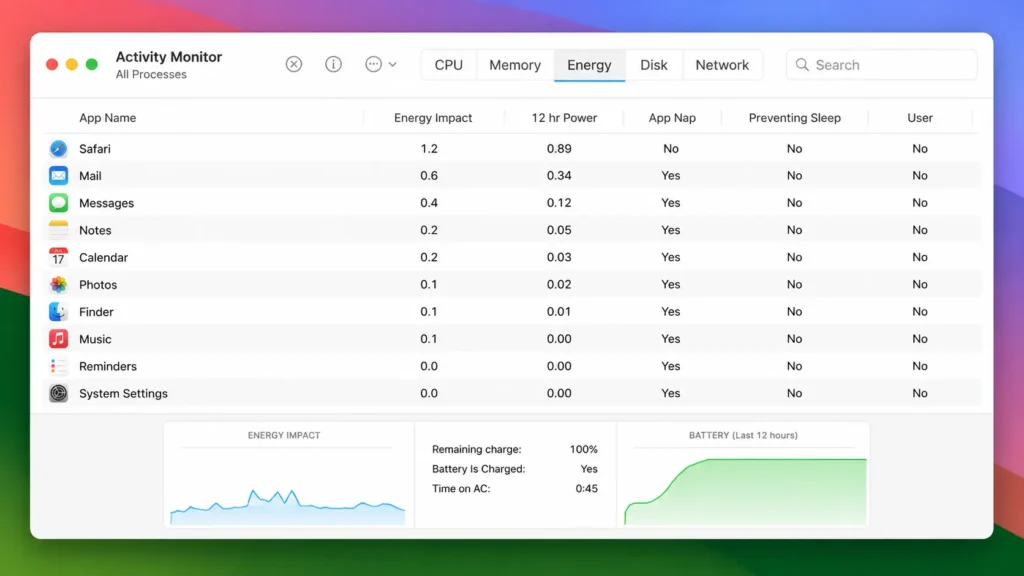
suspicious idle processes appear here first.
If you find a suspicious process, search its exact name online before taking any action. Many legitimate system processes have unfamiliar names. Research first, then decide.
Move this sentence to the opening of the Activity Monitor section, directly after “What most guides do not tell you is which tab to check first
If you are not completely sure an app has been removed properly, it is worth taking a few extra minutes to uninstall it the right way. I have a detailed guide on how to completely uninstall apps on Mac that walks through removing leftover files and hidden system data.
Doing a full uninstall helps prevent suspicious software from leaving junk files behind that could keep parts of it running in the background.
Check 2: Review Your Login Items for Programs You Never Approved
Login Items are programs that launch automatically every time your Mac starts. Malware frequently embeds itself here because login items ensure the malicious process restarts even if you manually force-quit it.
To check your login items, open System Settings, select General, then choose Login Items. You will see a list of everything set to open at startup.
Go through the list carefully. If you see an application you do not recognize and did not intentionally add, select it and click the minus button to remove it. After removing anything suspicious, restart your Mac so the changes take effect.
If a program reappears in your login items after you remove it and restart, that persistence is itself a sign something more serious is happening, and the malicious profiles check below becomes especially important.
Check 3: Look Through Your Applications Folder for Software You Did Not Install
Open Finder and navigate to the Applications folder. Sort the contents by Date Added so the most recently installed apps appear at the top.
Look for anything unfamiliar. Malware often disguises itself using names that sound like helpful system tools generic names like ‘Mac Cleaner,’ ‘Search Helper,’ or ‘System Optimizer’ are common patterns. If you see an app with a vague utility style name that you have no memory of installing, research the exact name before removing anything
To remove a suspicious application properly, drag it to the Trash. Then open Finder, press Command and Shift and G together, and type the application’s name in the search box to find any associated files it may have left behind. Delete those too, then empty the Trash.
Simply dragging an app to the Trash often leaves system files behind. That extra search step ensures a complete removal.
Check 4: Scan Your Downloads Folder for Files You Did Not Save There
The Downloads folder is one of the places malware uses as a staging area. Suspicious programs sometimes drop copies of themselves here disguised as ordinary files.
Open Finder, go to your Downloads folder, and sort the contents by Date Downloaded so recent items appear first. Look for anything you do not remember saving, particularly DMG files, PKG files, or applications that appeared without a clear reason.
If you find files you cannot account for, do not open them. Delete the files directly, then empty the Trash immediately.
Check 5: The Profile Check That Most Mac Users Have Never Done
This is the check that solves the mystery when everything else seems fine but the problem keeps coming back.
Malicious profiles are installed by adware and browser hijackers to take control of your browser settings, your search engine, and your homepage. The reason browser hijacking can feel impossible to fix is that deleting the extension or the app does not remove the profile. The profile reinstalls the hijacker automatically.
Here is how to check for malicious profiles on your Mac. Open System Settings, then type “Profiles” into the search box at the top. If a Profiles section appears, open it and look at every profile listed. If you see any profile that you did not explicitly install yourself and cannot identify, select it and click the minus button to delete it.
If no Profiles section appears at all, your Mac has no profiles installed, which is perfectly normal and means you can skip this step.
This Mac system preferences security check takes less than two minutes and is the most overlooked step in any manual malware check.
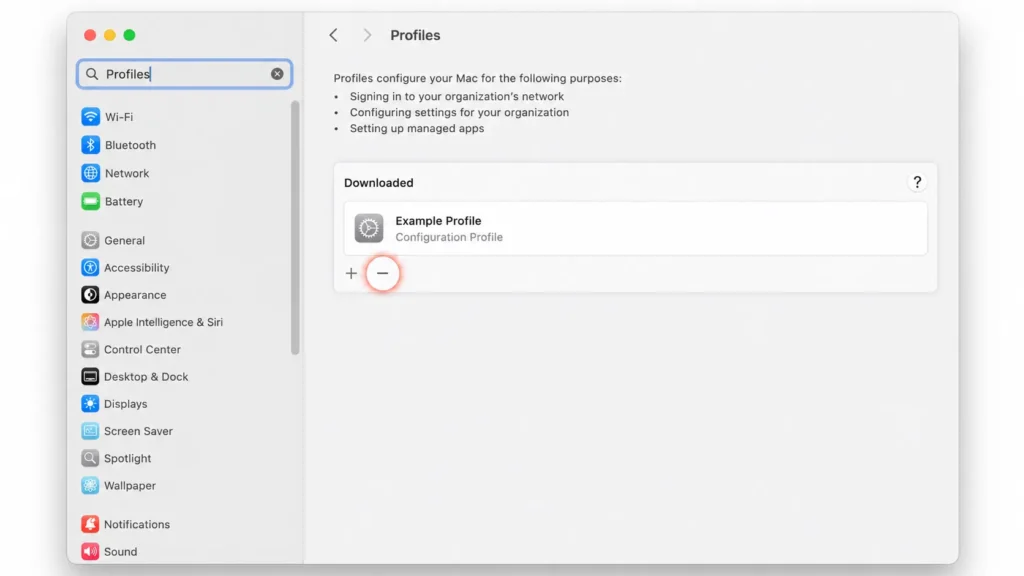
entry you should only see profiles you installed.
Check 6: Check Your Browser Extensions in Safari, Chrome, and Firefox
Browser extensions are one of the most common ways malware maintains a presence on your Mac. A malicious extension can redirect your searches, inject ads into websites, and harvest your browsing data without any obvious sign that something is wrong.
Check each browser you use separately.
Safari: Open Safari, go to the Safari menu at the top of your screen, select Settings, and then choose Extensions. Review every extension listed. If you see one you did not install or no longer recognize, select it and click Uninstall. While you are in Settings, check the General tab to confirm your homepage has not changed, and check the Search tab to confirm your default search engine is still what you set it to.
Google Chrome: Open Chrome, click the three-dot menu in the top right corner, hover over Extensions, and select Manage Extensions. Look through the full list. Disable anything unfamiliar by toggling it off, then click Remove to uninstall it completely. Go to Chrome Settings and verify your search engine and homepage are still correct.
Firefox: Open Firefox, click the three-line menu in the top right corner, and select Add-ons and Themes. Review your extensions list and remove anything you do not recognize. Check your Firefox homepage and search settings to confirm nothing has changed without your permission.
Check 7: Run Disk Utility First Aid to Repair What Malware May Have Damaged
This is a step that zero editorial competitors include, and I think that is a significant oversight. File system errors are vulnerabilities that some malware exploits to persist on your system. Disk Utility First Aid is a free built-in macOS tool that repairs those errors, and running it takes only a few minutes.
To run Disk Utility First Aid, open Finder, go to the Go menu at the top of your screen, select Utilities, and open Disk Utility. On the left side of the window, you will see a list of drives and volumes. Select each item in that list one at a time, starting from the top, and click the First Aid button, then click Run. Work through every item in the list until each one completes with a green checkmark.
Running First Aid on every listed volume repairs file system errors and removes one set of vulnerabilities that malware can use to maintain its foothold. Multiple Mac security practitioners independently recommend this step as part of a complete malware check, which is exactly why I include it here.
The Fastest Way to Scan Your Mac for Viruses Using Free Tools
The manual checks in the previous section are essential, but running a dedicated scanner gives you a second layer of confirmation.
A good scanner catches threats that manual inspection misses, particularly hidden files and processes that do not show obvious signs in Activity Monitor or your Applications folder.
For free Mac antivirus scanning, two tools consistently stand out based on recommendations from hands-on security practitioners: Malwarebytes and Avast. I use both in sequence because running them together catches more than either tool catches alone.
There is one honest thing I want to say upfront before walking through the steps. Free antivirus tools require deep system permissions to do their job.
Those permissions are necessary for scanning, but they also mean the app has broad access to your system data. Keeping free Mac antivirus software installed permanently after scanning is not something I recommend for privacy-conscious users. Scan thoroughly, then uninstall.
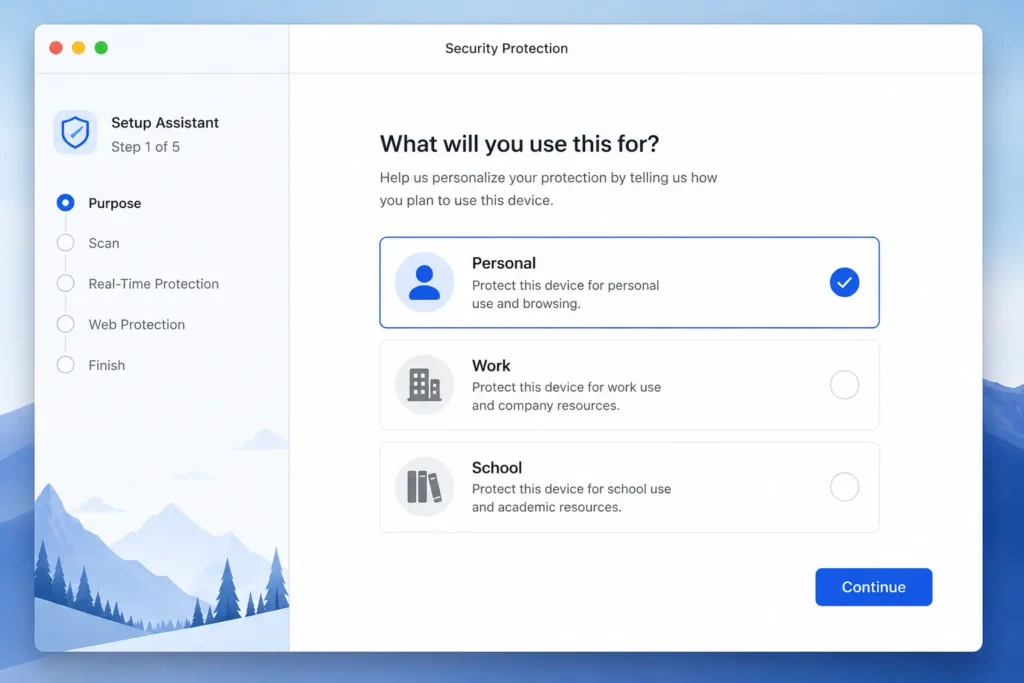
to stay on the free version with no billing commitment.
How to Use Malwarebytes Free on Mac (Without Getting Trapped in the Trial)
Malwarebytes is the most widely recommended free scanner for Mac, and for good reason. Malwarebytes is particularly effective at catching PUPs and adware that other tools sometimes overlook.
Here is the exact setup process I follow to use Malwarebytes without accidentally starting a paid trial:
Format as a clean numbered list:
- Download Malwarebytes directly from the official Malwarebytes website. Always go to the source to avoid unofficial versions that may themselves contain unwanted software.
- Open the installer. When setup asks what you are using Malwarebytes for, select Personal. On the next screen, click Maybe Later when the premium trial offer appears. This keeps you on the free version without any billing commitment.
- Once Malwarebytes opens, click the gear icon to enter Settings. Find the Potentially Unwanted Programs section and set the detection response to Quarantine. This ensures PUPs are held safely rather than silently ignored.
- Click Check for Updates before scanning. Running a scan with outdated definitions means newer threats may not be detected.
- Click Scan Now and let it run to completion. Review the results and quarantine or remove everything flagged.
After the scan is complete, I recommend going to System Settings, finding Malwarebytes in your Privacy and Security permissions, and revoking its full disk access. If privacy is a priority, uninstall Malwarebytes entirely using the manual method: open Finder, search for “Malwarebytes,” click the plus icon to filter by System Files set to Included, select all associated files, and drag them to the Trash. Empty the Trash and restart your Mac.
Running a Second Scan with Avast for Double Coverage
No scanner has a perfect detection rate, which is why I always run a second tool after Malwarebytes. Avast Security offers a free Deep Scan that examines your Mac at a more thorough level and often catches things a first scan misses.
Before starting the Avast scan, go into Malwarebytes Settings and disable Real-Time Protection. Running two scanners with active real-time protection simultaneously causes conflicts and produces unreliable results. Turn real-time scanning off in Malwarebytes first, then proceed with Avast.
Here is the process:
- Download the free version of Avast Security from the official Avast website.
- Open the installer and follow the setup steps. If macOS blocks Avast from running, open System Settings, go to Privacy and Security, scroll down to the security notice about Avast, and click Allow. This is a standard macOS security prompt for new applications.
- Before scanning, check for updates inside Avast to ensure threat definitions are current.
- Select Virus Scan from the main screen and choose Deep Scan. A Deep Scan is thorough and may take anywhere from 30 minutes to several hours depending on how much data is stored on your drive. Let it run to completion.
- Review the results and remove any detected threats.
Once the mac security scan is finished, uninstall Avast using its built-in uninstaller. Open the Avast menu at the top of your screen and select the uninstall option from there. Avast includes a proper uninstaller that removes all associated files cleanly, which makes the process straightforward.
Restart your Mac after both scans are complete. A clean restart confirms all changes have taken effect and gives you a fresh baseline to compare against if any concerns arise later.
Mac’s Built-In Virus Detection What XProtect Does (and What It Misses)
Most Mac users have never heard of XProtect, which is a little surprising given that XProtect has been quietly protecting their Mac every single day. XProtect is Apple’s built-in automatic malware detection system, a background tool that runs silently on every Mac and scans files for known malicious signatures before those files get a chance to cause harm.
The key word there is “known.” XProtect works from a database of identified threats. When a new piece of malware appears that Apple has not yet catalogued, XProtect cannot catch it. That is not a criticism of Apple’s engineering so much as an honest description of how signature-based detection works across the entire security industry.
Here is what concerns me more than that limitation though. XProtect has no user-facing dashboard. Apple gives you no notification, no status indicator, and no alert if XProtect stops updating or gets disabled. Your Mac shows you nothing. You would have no way of knowing XProtect had stopped working unless you specifically went looking.
And that is exactly what some malware exploits. Certain infections disable XProtect updates as one of their first actions, specifically to prevent XProtect from recognising and removing them later. A Mac that appears to be protected by its built-in security tools may actually be running an outdated and partially neutralised version of XProtect without the owner ever suspecting it.
This is the gap in Mac built-in security tools that almost no guide addresses. The manual checks and scanner scans covered earlier in this article are important, but verifying that XProtect itself is healthy and active is an entirely separate and equally important step.
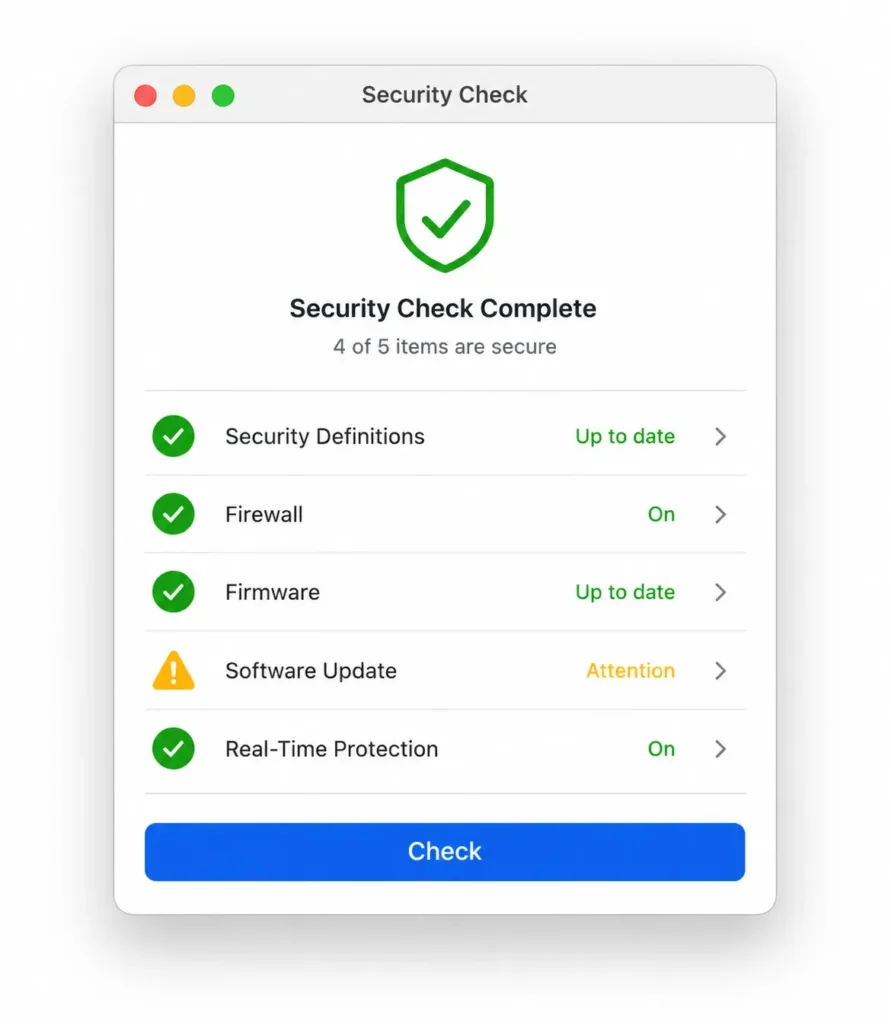
security is active. A red X requires immediate action.
How to Check If XProtect Is Actually Running on Your Mac
There are two ways I check XProtect status. The first uses settings already built into macOS. The second uses a free third-party tool that gives you a much clearer picture.
Method 1: Check Your macOS Security Settings Directly
Start with System Settings. Open System Settings, select General, then click Software Update. You will see a small information icon next to “Automatic Updates.” Click that icon. In the list that appears, make sure the option labelled Install security responses and system files is turned on. This setting controls whether XProtect receives automatic definition updates. If this toggle is off, XProtect stops receiving new threat data.
Next, go back to System Settings, select Privacy and Security, and scroll down to Full Disk Access. Check that XProtect appears in the list and is enabled. XProtect needs full disk access to scan files across your entire system. If XProtect is missing from that list or toggled off, Mac system preferences security has been compromised at a level that warrants immediate attention.
Method 2: Use Silent Knight for a Complete Security Check
Silent Knight is a free utility developed by Howard Oakley at eclecticlight.co, and Silent Knight is the most straightforward way for an average Mac user to verify XProtect status at a glance.
To use Silent Knight, visit eclecticlight.co and download the app. Unzip the downloaded file, drag Silent Knight to your Applications folder, and open it. Click the Check button and let the tool run its verification.
Reading the results is straightforward. A green icon next to any item means that component is current and functioning correctly. A red X means updates are missing and action is needed. A warning icon typically points to a specific setting worth reviewing, though some warnings relate to optional features rather than critical failures.
If Silent Knight shows XProtect as disabled or flags that XProtect updates are not running, I would treat that as a serious signal. The recommended action in that situation is to contact AppleCare directly, because a disabled XProtect combined with an unexplained Mac infection is one of the clearest signs that something has actively interfered with your Mac’s built-in defences.
Found Something? Here Is How to Remove Malware from Your Mac
Finding malware on your Mac is unsettling, but it is not a reason to panic. Mac virus removal is a methodical process, and working through it in the right order makes a real difference to how completely you clear the infection. Rushing straight to deleting files without preparing your Mac first often leaves traces behind that allow the problem to return.
Here is the sequence I follow when something turns up during a check.
Restart in Safe Mode Before You Delete Anything
The first thing I do before removing anything is restart the Mac in Safe Mode. Mac Safe Mode is a special startup environment that loads only the essential software macOS needs to operate. When your Mac starts in Safe Mode, it prevents third-party programs and startup items from loading automatically, which means malware that normally launches at startup cannot run during the cleanup process.
To enter safe mode on a Mac, the steps differ depending on which chip your Mac uses.
Intel Mac: Restart your Mac and immediately hold the Shift key. Keep holding Shift until you see the login screen. Release Shift and log in normally.
Apple Silicon Mac (M1, M2, M3, or later): Shut down your Mac completely. Press and hold the Power button until you see the startup options screen. Select your startup disk, hold the Shift key, and click Continue in Safe Mode.
Once you are in Safe Mode, run your Malwarebytes scan again. Scanning in Safe Mode sometimes catches threats that were actively hiding during a normal startup because the malware process itself is no longer running and blocking detection.
Delete the Files, Clear the Cache, Empty the Trash
With your Mac in Safe Mode, go through your Applications folder and drag any suspicious application directly to the Trash. Do not empty the Trash yet.
Next, clear your cache to remove any hidden malicious files the app may have stored. Open Finder, click the Go menu at the top of your screen, and select Go to Folder. Type the following path exactly as shown and press Enter:
~/Library/Caches
Inside this folder, look for any subfolder named after the suspicious application you just removed. Delete those specific folders. Avoid deleting folders you do not recognise from this location, as some belong to legitimate system processes.
Once you have removed the app and cleared its associated cache folders, empty the Trash. Then restart your Mac normally and check whether the symptoms have cleared.
When Nothing Works Create a Fresh User Profile
This is a step that most Mac security guides overlook and I think that is a significant gap. File system errors create the kind of low level vulnerabilities that persistent malware can exploit to maintain its presence even after surface level removal attempts.
Some Mac infections embed themselves deeply enough that standard removal steps cannot fully dislodge them. When malware gains administrative control over a specific user profile in macOS, that profile can become compromised at a level where cleaning it thoroughly is more difficult than simply starting fresh.
If you have completed every removal step and the symptoms persist, creating a new user profile bypasses the compromised environment entirely without requiring a full macOS reinstall.
Here is how to do it. Open System Settings and navigate to Users and Groups. Click the lock icon and enter your password to unlock the settings. Click the plus button to add a new user. Give the new account Administrator privileges so you have full control from within the new profile.
Log out of your current account and log in to the new one. From inside the new profile, open Finder and navigate to your old user folder under the Users directory. Copy only your essential personal folders across: Documents, Photos, Desktop, and Downloads. Do not copy your Applications folder or your old Library folder, as either of these could carry the infection into your new clean environment.
Check your Mac login items in the new profile and confirm the startup list is empty before adding anything back. This approach gives you a genuinely clean starting point while preserving the data that matters to you.
If the infection is severe enough that even this approach does not resolve the problem, macOS Recovery Mode is the final option.
Restarting into Recovery Mode allows you to reinstall macOS from scratch while keeping your personal files intact, effectively wiping the system layer clean. That level of action is rarely necessary, but it is worth knowing the option exists.
Four Settings to Change in macOS Right Now
These four settings take less than five minutes to configure, and each one adds a meaningful layer of protection to your Mac. I consider all four non-negotiable for anyone who takes Mac system preferences security seriously.
1. Enable automatic security updates
Open System Settings, select General, then Software Update. Click the information icon next to Automatic Updates and make sure Install security responses and system files is turned on. This keeps XProtect and other Mac built-in security tools updated automatically without requiring any action from you.
2. Turn on the Mac Firewall
Open System Settings, select Network, then Firewall. If the Firewall is off, turn it on. Mac firewall settings control which applications are allowed to accept incoming connections, and having the firewall active adds a protective barrier against network-based threats.
3. Enable FileVault disk encryption
Open System Settings, select Privacy and Security, then scroll down to FileVault. Turn FileVault on if it is not already active. FileVault encrypts everything stored on your drive, which means your personal data stays protected even if your Mac is lost or stolen.
4. Enable DNS over HTTPS in your browser
DNS over HTTPS encrypts your DNS queries, which helps protect against a category of attack where malicious software redirects your web traffic without your knowledge. In Chrome, go to Settings, then Privacy and Security, then Security, and enable the Secure DNS option using a provider like Cloudflare. In Firefox, go to Settings, then Privacy and Security, scroll to DNS over HTTPS, and enable it. Mac DNS settings configured this way add meaningful network-level protection that most users never think to set up.
Download Habits That Keep Malware Off Your Mac
Most Mac infections do not happen through sophisticated attacks. They happen because something got downloaded and opened that should not have been. Developing a few consistent habits around what you download and where you download from eliminates the vast majority of risk.
Download from trusted sources only. The Mac App Store is the safest place to get software because every app goes through Apple’s review process before appearing there. For software that is not on the App Store, download only from the developer’s official website. Avoid downloading apps from third-party download sites, file-sharing platforms, or links sent through messages you were not expecting.
Ignore fake security alerts completely. Fake Mac system alerts are one of the most common tricks used to get people to install malware voluntarily. A genuine macOS security warning never appears as a pop-up inside a web browser, and macOS never asks you to call a phone number or download a tool to fix a problem. If you see an alert like that while browsing, close the browser tab and move on.
Check file types before you open anything. DMG and PKG files are installer formats that can execute code the moment you open them. If you receive a DMG or PKG file from a source you did not specifically request software from, delete the file without opening it.
Keep macOS and all your apps updated. Software updates patch the security vulnerabilities that malware uses to get onto your system in the first place. Avoiding malicious software downloads becomes significantly more effective when the software already on your Mac has no known exploitable weaknesses. Turn on automatic updates and let macOS handle the rest.
Free vs Paid Mac Antivirus — What the Real Test Data Shows
If you are wondering whether you actually need paid Mac antivirus software, the honest answer is this: most everyday users do not need a paid tool if they run regular scans and follow good security habits. However, if you want continuous real time protection running in the background, paid antivirus software offers stronger and more automated defense.
Instead of repeating marketing claims, I prefer to look at real test results. In one controlled test, security reviewers loaded a system with 100 malicious files and measured how many threats each tool detected.
Bitdefender detected 93 out of 100 threats, the highest detection rate in that comparison. Norton detected 81 out of 100 threats. Total AV detected 80 out of 100 threats. Those numbers give a clear performance hierarchy.
Here is how I interpret that data for real world use.
Bitdefender is the strongest pure security option. It caught the most threats, but it also consumed the most system resources during deep scans. If you want maximum protection and do not mind heavier scans, Bitdefender is a solid choice.
Norton offers strong protection with deep customization options. Norton includes features like firewall controls, backup tools, and additional security layers that advanced users appreciate. If you like tweaking settings and managing security in detail, Norton makes sense.
Total AV is the simplest for beginners. The interface is straightforward, and everything is clearly labeled. If you want something easy to understand with minimal learning curve, Total AV works well.
Surfshark stands out as a value bundle. Surfshark includes antivirus protection along with a VPN and additional privacy tools, and its scans are lighter on system performance.
For most Mac users who already run Malwarebytes Mac periodically as a manual scan tool, paying for full time antivirus protection may not be necessary. Malwarebytes is effective at catching adware and PUPs, especially when used carefully and kept updated.
One important note that rarely gets mentioned: free antivirus tools should not be left installed indefinitely without thought. Long term use of free security tools often requires broad system permissions. After completing a scan and confirming your system is clean, uninstalling the free tool reduces unnecessary background access.
Other options like Kaspersky Mac also provide solid protection, but the key decision is simple. If you want automatic real time defense without manual effort, choose a reputable paid solution. If you prefer occasional scans combined with strong built in macOS protections, a periodic Malwarebytes scan and good habits may be enough.
The right choice depends on your risk tolerance and how much automation you want.
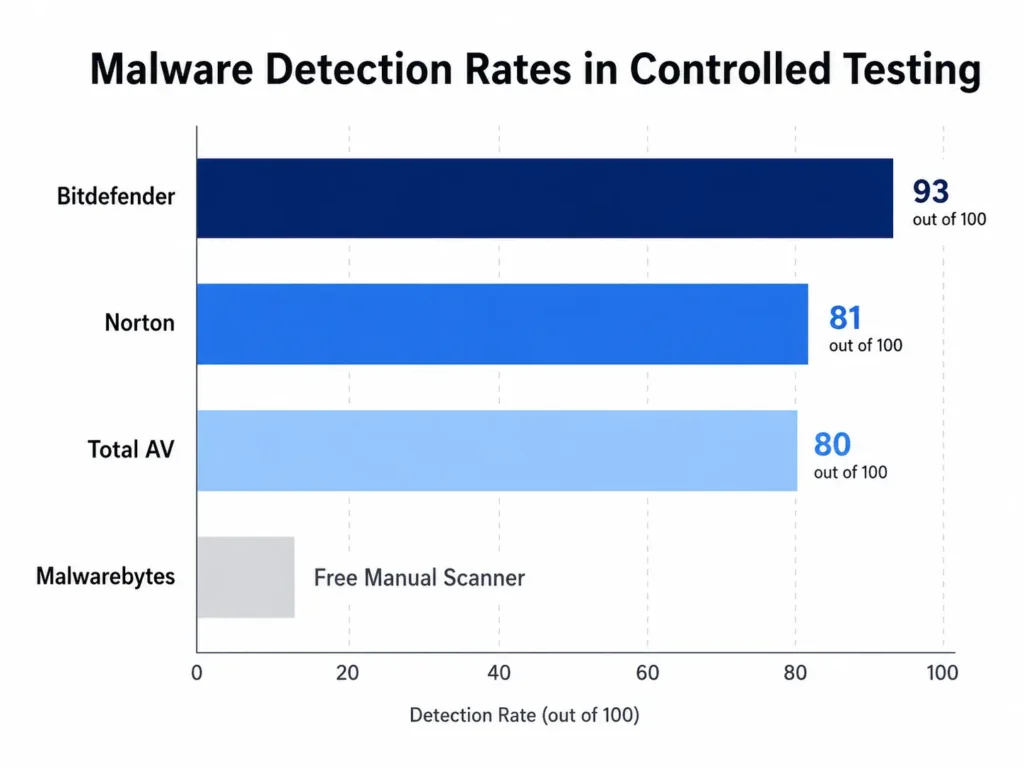
also used the most system resources during scans.
Your Mac Security Checklist Run This Every Month
If you only do one thing after reading this guide, make it this: set a reminder to run a simple monthly Mac security scan. Consistency matters more than complexity. A short routine once a month dramatically reduces the chance that malware sits unnoticed on your system.
Here is the exact checklist I personally follow.
1. Open Activity Monitor and check the Energy tab
Look for unfamiliar processes using significant energy while your Mac is idle. Activity Monitor often reveals early warning signs before obvious Mac virus symptoms appear.
2. Review your Login Items
Go to System Settings, select General, then Login Items. Remove anything you do not recognise. Startup programs are a common hiding place for persistent threats.
3. Run a Malwarebytes scan
Download Malwarebytes Mac, update the definitions, and run a full scan. After the scan, uninstall the app if you prefer not to keep free antivirus software installed long term. This habit balances mac malware detection with privacy.
4. Verify XProtect is updating
Go to System Settings, select General, then Software Update, and confirm that security responses and system files are enabled. XProtect can be disabled silently by infections, so checking it periodically protects your Mac at the system level.
5. Check browser extensions and homepage settings
Open Safari, Chrome, or Firefox and review extensions. Remove anything unfamiliar and confirm your homepage and search engine have not changed.
6. Review your Applications folder
Sort by Date Added and look for new software you did not intentionally install.
7. Install macOS updates
Keep macOS fully updated. Updates patch vulnerabilities that malware exploits.
Following this checklist is the simplest way I know how to protect your Mac without becoming overly paranoid. If you ever discover something suspicious during this routine, revisit the earlier steps on how to check for malware on Mac and follow the full removal process.
And if the issue turns out to be persistent, my in-depth guide on complete Mac malware removal walks you through every recovery option in detail.
Frequently Asked Questions
Do Macs actually get viruses, or is that still just a Windows problem?
Macs absolutely get viruses and malware. This is one of the most persistent myths in personal computing, and believing it leaves Mac users genuinely exposed.
Research suggests that roughly one in five Macs may already have a Potentially Unwanted Program running without the owner knowing. In 2020,
the Silver Sparrow virus specifically targeted Apple M1 Macs and infected over 29,000 devices across 152 countries.
macOS sandboxing reduces the risk of infection, but sandboxing does not eliminate it. Anyone still telling you Macs are immune is repeating advice that stopped being accurate years ago.
Should I keep Malwarebytes installed permanently on my Mac?
For the free version, I would not recommend permanent installation. Free antivirus tools require broad system permissions to function, and those permissions remain active as long as the app is installed.
The approach I follow is straightforward: download Malwarebytes, run the scan, review the results, then uninstall the app completely.
If you want continuous real time protection running in the background, a paid antivirus tool with a clear privacy policy is a better long term choice than keeping a free tool installed indefinitely.
What is XProtect and is it enough to protect my Mac?
XProtect is Apple’s built-in malware scanner that runs silently in the background on every Mac. XProtect checks files against a database of known malicious signatures before those files can cause harm.
The limitation is that XProtect only catches threats Apple has already identified. New or unknown malware can bypass it entirely.
Some infections also disable XProtect updates specifically to avoid detection and Apple provides no alert when this happens.
XProtect is a solid first layer of defense, but it works best when combined with periodic manual checks and an occasional dedicated scan.
How long does a Malwarebytes scan take on a Mac?
A Malwarebytes scan on a Mac typically takes between 5 and 15 minutes, depending on how much data is stored on your drive.
An Avast deep scan is considerably more thorough and can take anywhere from 30 minutes to several hours on a large drive.
Running Malwarebytes first gives you fast initial results and following up with an Avast deep scan provides a more comprehensive second layer of coverage without waiting hours for a single tool to finish.