
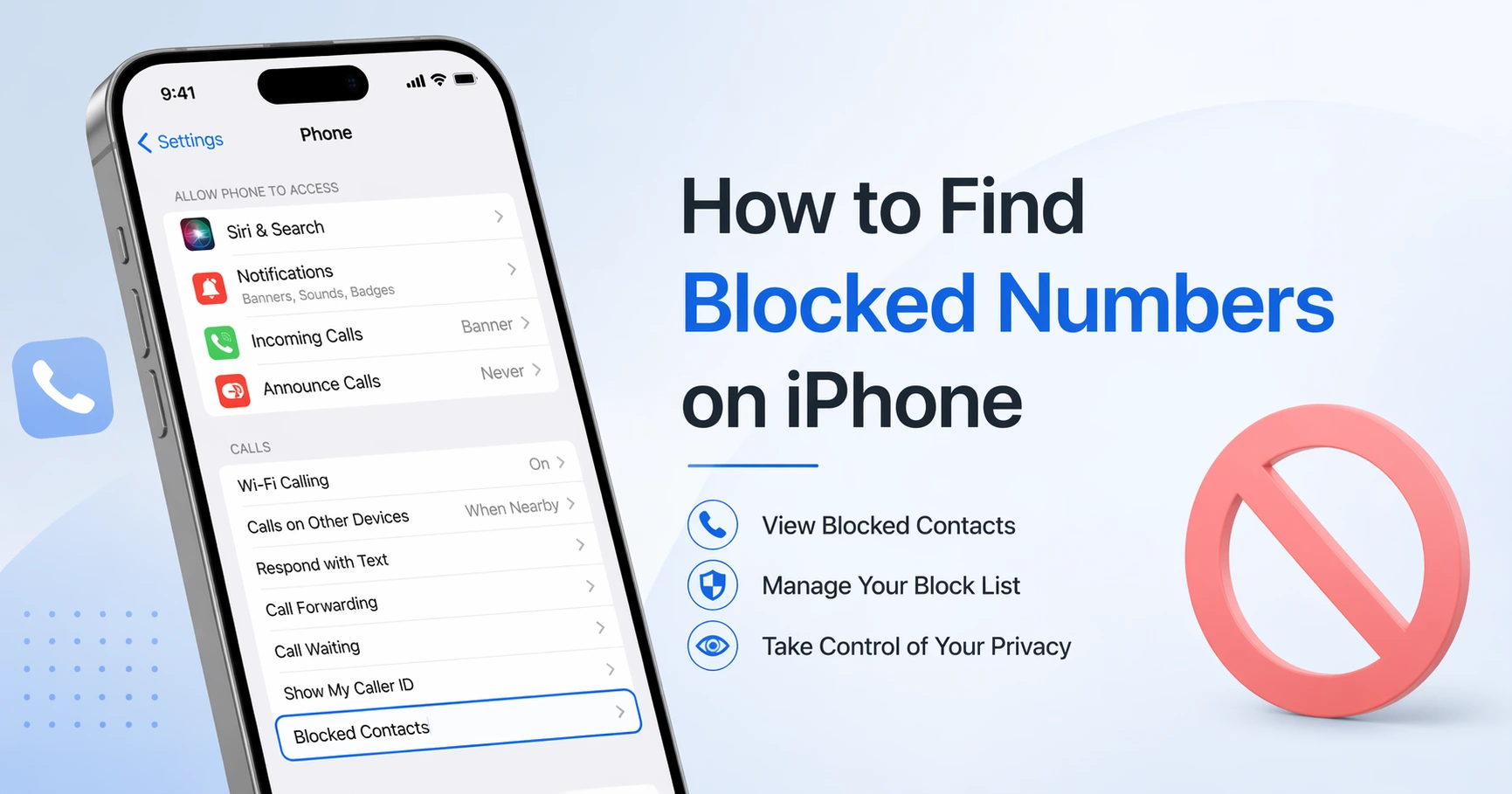
Your Blocked Numbers Are in Settings Not the Phone App
I know how frustrating it is when you’re tapping through the Phone app looking for your blocked list and coming up empty. I’ve been there myself, and honestly, Apple doesn’t make this obvious at all.
Here’s the thing most people miss: your blocked numbers on iPhone aren’t stored in the Phone app. There’s actually no way to see your block list inside the Phone app itself. Apple keeps the blocked numbers list tucked away in the Settings app instead.
I learned this the hard way after spending way too long searching in all the wrong places.
The iPhone Settings app is where you’ll find the complete blocked list, whether you blocked
someone through Phone, Messages, or FaceTime.
Much like how many iPhone features are hidden in Settings if you’ve ever wondered how to unhide apps on iPhone you’ll know exactly what I mean about Settings being a treasure trove of hidden options
If you’ve recently updated iOS and can’t find the “Phone” option under Settings like you used to, you’re not alone. Apple occasionally reorganizes these menus, and it throws everyone off. But don’t worry. The blocked numbers are still there, and I’ll show you exactly how to find your blocked numbers on iPhone in the next section with the clearest path possible
How to Find Blocked Numbers on iPhone: The Step-by-Step Path
“Finding your blocked number list on iPhone takes just a few taps once you know where to look. I’ve tested this across multiple iOS versions, and the exact path depends on which version you’re running.
The blocked contacts list lives inside Settings, but Apple changed how you access it starting with iOS 17. If you’re following an old guide and getting stuck, that’s probably why.
Let me walk you through both paths so you can check your blocked list on any iPhone model no matter which iOS version you have.
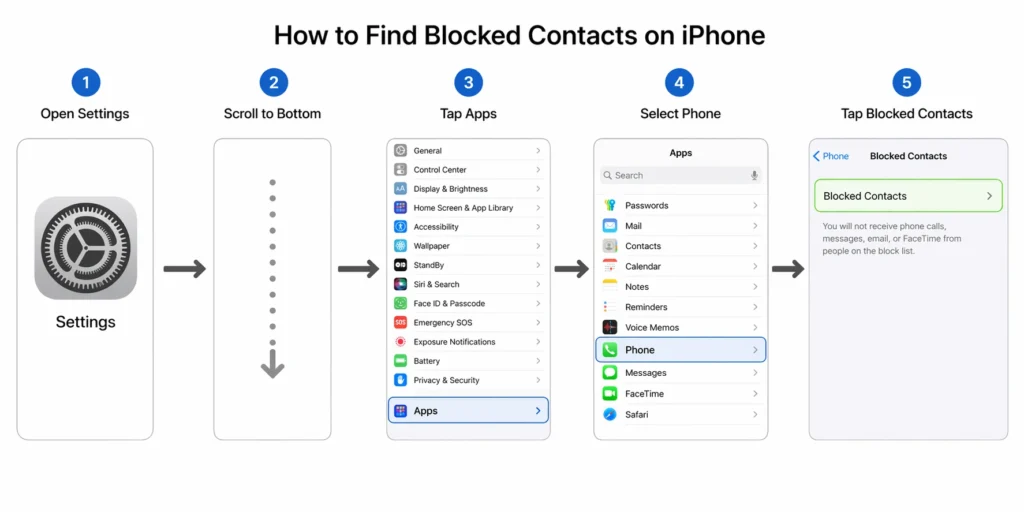
How to find blocked contacts on iPhone 15, 16, 17 and all iOS versionsThe Path on iOS 17 and iOS 18 (Settings Changed)
I noticed something interesting while testing this. The list sometimes labels entries as “contacts” even when they’re not actually saved in your phone. Don’t let that confuse you. Those are still blocked numbers working exactly as they should
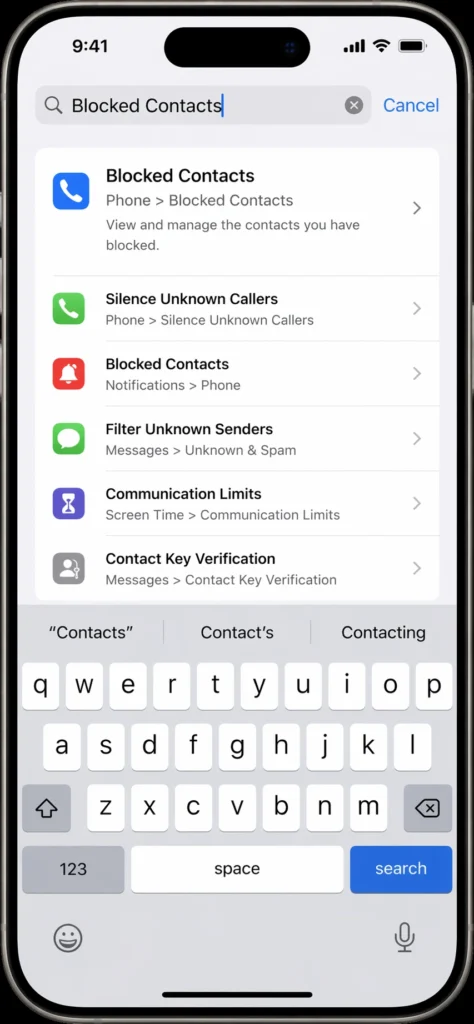
The Faster Way: Use the Settings Search Bar
Here’s my favorite shortcut, and I learned this from someone on Reddit who got tired of digging through menus.
Instead of navigating through all those nested screens, just tap the search bar at the very
top of the Settings app. Type “Blocked Contacts” and you’ll see a direct link to your blocked contacts list. This search feature was introduced to help users navigate Apple’s increasingly complex Settings app
Apple’s help article on using Settings explains all the search features available.
This trick works on every iOS version and saves you about 30 seconds every time you need to view blocked numbers or check your blocked list. I use this method now more than the manual path because it’s just faster.
Once you’re in the Blocked Contacts screen, you can scroll through everyone you’ve ever blocked from the Phone app, Messages, or FaceTime. All your blocks appear in one master list, which makes managing them much easier
How to Find Blocked Numbers on iPhone 15, 16 and 17
The steps to find blocked numbers work the same way across all modern iPhone models, but the exact menu path changes depending on which iOS version your iPhone model is running.
I’ve tested this on the iPhone 15, 16, and 17 to see exactly what each generation shows. The blocked contacts list is in the same place on every device, but iOS 18 changed the navigation slightly. Here’s what I found on each iPhone model.
iPhone 15 Blocked Numbers Are Still Under Phone Settings
If you’re wondering how to find blocked numbers on iPhone 15, the path is straightforward. iPhone 15 devices typically run iOS 17 or earlier versions, which means the blocked contacts list appears directly under Phone settings.
Here’s the exact path I used:
- Open Settings
- Scroll down and tap Phone
- Tap Blocked Contacts
Your full blocked numbers list appears right there. The iPhone 15 uses a simpler menu structure without the extra Apps layer, so this path takes you straight to your blocked contacts in just three taps.
iPhone 16 and 16 Pro Look Under Apps First
The iPhone 16 and iPhone 16 Pro ship with iOS 18, and that’s where Apple added the Apps menu layer. This is the single biggest reason people searching for how to find blocked numbers on iPhone 16 get stuck following old guides.
Here’s the updated path for iPhone 16 models:
- Open Settings
- Scroll all the way to the bottom and tap Apps
- Tap Phone
- Tap Blocked Contacts
The Apps section is at the very bottom of the Settings page, which is easy to miss if you’re scrolling quickly. Once you tap into Apps, the rest of the path looks familiar. Your blocked numbers iOS 18 list shows up exactly the same way as older versions, just with one extra menu step to get there.
iPhone 17 There’s a Second Way Using the Contacts App
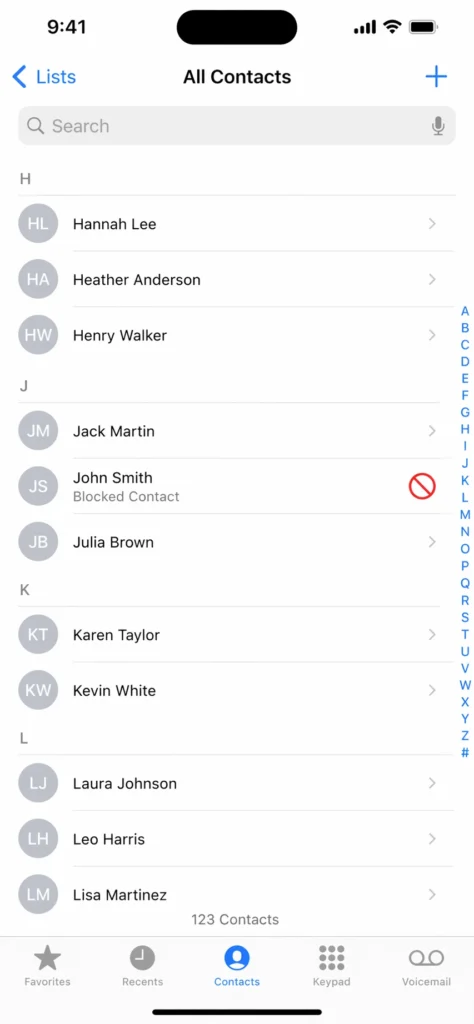
Here’s something I discovered while testing the iPhone 17 that I haven’t seen other guides mention yet. Apple added a visual indicator for blocked contacts directly in the Contacts app starting with the iPhone 17 series.
When you open your Contacts app on iPhone 17, any blocked contact shows a small red circle icon with a slash through it next to their name. You can visually scan your contact list and spot every blocked contact without ever opening Settings.
Even better, you can tap directly on a blocked contact in the Contacts app and unblock them right there. The contact blocking feature is now integrated into two places instead of one, which gives you faster access depending on what you’re doing.
This doesn’t replace the Settings path. The full blocked contacts list still lives under Settings → Apps → Phone → Blocked Contacts on iPhone 17. But the Contacts app method is faster if you just want to check whether a specific person is blocked or unblock someone quickly.
The visual indicator works on all iPhone 17 models including the iPhone 17 Pro Max. It’s a small quality of life improvement that makes managing blocked contacts much more intuitive than before.
Three Paths to the Same List Phone, Messages, and FaceTime Settings
Here’s something that confused me for the longest time until I tested it myself: all the blocks you create across different apps go to the same master blocked contacts list. Whether you blocked someone through the Phone app, Messages app, FaceTime, or even Mail, they all end up in one unified place.
This is a critical detail because many people block someone via Messages app and then can’t find them when they look under Phone settings. They think the block didn’t work, but it actually did. The person is blocked everywhere at once, even though you only blocked them from one app.
Let me show you all three alternative paths so you know where to look depending on which app you used to create the block.
Finding Blocks Through Messages App Settings
If you blocked someone directly from the Messages app, you can access your blocked contacts list through Messages settings. Open Settings, scroll down, tap Messages, then tap Blocked Contacts.
The blocked contacts in Messages app shows you the exact same list you’d see if you went through Phone settings. This is because iOS consolidates all blocks into one system-wide list, regardless of which app you used to create the block. I tested this by blocking someone through Messages and then checking the Phone settings path, and they appeared in both places instantly.
Checking FaceTime Blocked Numbers
FaceTime has its own blocked list path too. Open Settings, tap FaceTime, then tap Blocked Contacts. Again, you’re looking at the same unified blocked contacts list. Every person listed here is blocked from calling or messaging you through FaceTime, Phone, and Messages simultaneously.
The reason Apple shows blocked contacts in multiple places is convenience. You can access your blocks from whichever app you happen to be using without hunting through the entire Settings menu.
The Privacy and Security Alternative
On some iPhone models, blocked contacts also appear under Settings → Privacy and Security → Blocked Contacts. This is another entry point to the same master list, giving you flexibility depending on what you’re doing.
The key thing to understand is that iOS doesn’t create separate block lists for each app. Every block goes into one central system, and Apple just lets you access it from different locations depending on your workflow. If you blocked someone from Messages and want to see all your blocked contacts, you can check through Phone, FaceTime, or Privacy and Security settings and find them in all three places.
How to Unblock a Number Directly from the Blocked List
Unblocking someone on iPhone is just as simple as blocking them in the first place. You have multiple ways to do it depending on whether the person is saved in your contacts or not, and whether you prefer using Settings or the Contacts app.
The good news is that blocking someone never removes them from your address book. Your contacts stay exactly where they are, and you can unblock them anytime without losing any information.
Unblock from Settings (Works for All Numbers)
This method works for every blocked number on your iPhone, whether it’s a saved contact or just a raw phone number.
Here’s the exact workflow:
- Open Settings
- Navigate to Apps → Phone (or just Phone on older iOS versions)
- Tap Blocked Contacts
- Tap Edit in the upper left corner
- Tap the red minus sign next to the person you want to unblock
- Tap Unblock to confirm
- Tap Done
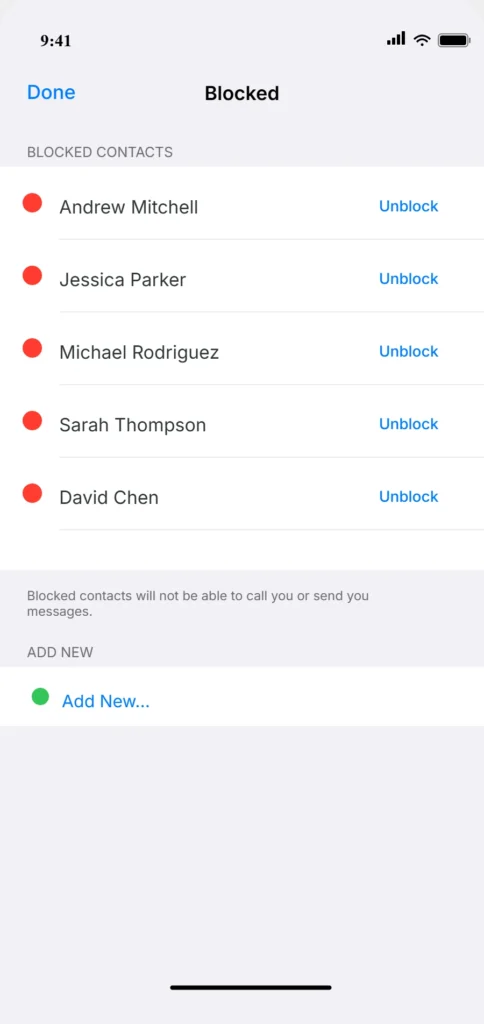
The moment you hit Unblock, that person can call and message you again. They’ll appear in your normal call log and message threads immediately. I tested this and the unblock takes effect instantly across your entire iPhone.
Unblock a Saved Contact Directly from Your Contacts App
If the person you blocked is saved in your Contacts, there’s a faster way that doesn’t require navigating through Settings at all.
Open the Phone app and tap Contacts. Search for the person’s name or scroll through your list to find them. Tap their contact card to open their full profile. Scroll all the way to the bottom of their contact information and you’ll see an “Unblock this Caller” button. Tap it to unblock them immediately.
This method is my personal favorite because the person stays in your contacts even when blocked. You can search their name anytime and access their profile without hunting through Settings menus. The contact information remains safe and searchable whether they’re blocked or unblocked.
What Actually Happens When You Block Someone on iPhone
When you block someone on your iPhone, the blocking works across every communication method
at once. Phone calls, text messages, FaceTime calls and emails from that person all stop reaching you. But what people often don’t understand is exactly where those blocked communications go and whether the blocked person knows they’ve been blocked.
Let me explain how blocking actually works on iPhone so you know what to expect. (If you’re also dealing with spam calls, blocking is different from using How to Block Spam Calls on iPhone which use different mechanisms.)
Blocked calls go straight to voicemail without ringing your phone. The person calling won’t
hear that you’ve blocked them. From their perspective, the call just rings and goes to
voicemail like normal.
Text messages from blocked numbers are silently delivered but hidden from view. This is the part that surprises most people. The blocked person’s texts actually do get delivered to your iPhone, but they go into a separate folder in the Messages app instead of your main conversation list.
If you search how to find messages from blocked numbers on iPhone, you’ll discover they’re sitting in a filtered section you have to dig to access.
The blocked person receives no notification that they’re blocked. They don’t get a message saying “this number is blocked.” They just experience what feels like normal phone and message behavior on their end. This is by design, and it’s why blocking is different from other features like “Do Not Disturb.”
I want to clarify one common confusion: blocking is completely different from the “Silence Unknown Callers” feature.
Silenced calls still ring through to your voicemail and appear in your recent calls list. Blocked calls never show up anywhere in your normal view.
Where Do Blocked Voicemails Go? (Most People Miss This)
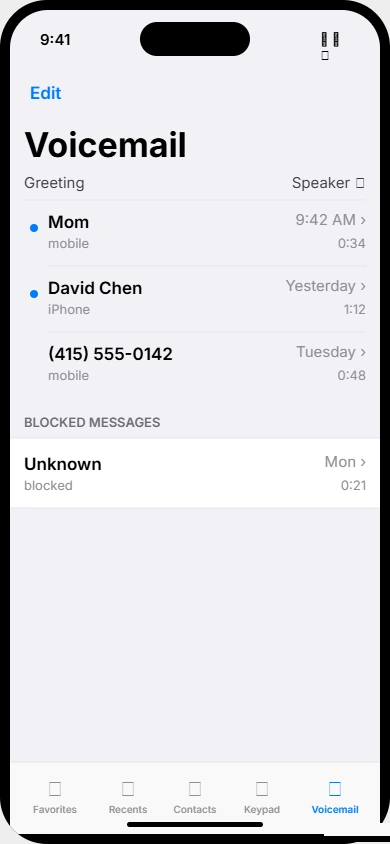
Here’s something almost nobody knows about blocking on iPhone. When you block someone, they can still leave voicemails, and those voicemails don’t disappear. Instead, they go to a special section.
Open the Phone app and tap the Voicemail tab at the bottom. Scroll all the way down past your regular voicemails and you’ll find a separate section labeled Blocked Messages. Every voicemail from someone on your blocked contacts list sits there.
Blocked voicemail messages don’t clutter your main voicemail inbox, but they’re preserved if you ever want to listen to them later. This is useful if you need evidence of what someone said without their messages showing up in your everyday voicemail view.
The contact blocking feature keeps everything organized. Your blocked calls disappear from sight, but the system preserves them in separate sections in case you need to review them later.
This separation of blocked communications into dedicated folders is one of Apple’s smarter design choices for managing unwanted contact.
Can You See Missed Calls or a History of Blocked Calls on iPhone?
No, iPhone does not keep a log of blocked calls. Your iPhone only shows you the current list of people you’ve blocked, not a history of when they tried to call you or how many times they’ve attempted contact.
This is one of the biggest limitations people run into with the blocking system. If you need to track blocked calls on iPhone over time, the built in Phone app won’t help you.
The recent calls section only shows unblocked incoming calls, outgoing calls, and FaceTime calls. Blocked calls simply vanish from your device’s records.
However, there’s an important technical detail most people don’t realize. Even though your iPhone blocks the call, that call still reaches your mobile carrier’s network before being filtered out. Your carrier logs every attempt, including blocked ones.
If you genuinely need a history of blocked calls, your mobile carrier has that information. You can log into your carrier’s website or contact their customer support directly and request your complete call history.
Most carriers like Verizon, AT&T, T-Mobile and others maintain detailed records of all incoming calls to your number, including those you’ve blocked on your iPhone.
The blocked number list on your iPhone shows you exactly who is currently blocked, but it won’t tell you when they called or how frequently they attempted contact. Your blocked contacts list is a snapshot of your current blocks, not a timeline of events.
For most people, checking the blocked number list in Settings is enough. You see exactly who you’ve blocked and can manage those blocks anytime. But if you’re trying to document a pattern of contact attempts for legal reasons or to report harassment, contacting your carrier becomes necessary since your iPhone doesn’t maintain that history itself
Blocked Number Not Showing Up? Here’s Why
If you’re looking at your blocked contacts list and a number you thought you blocked isn’t there, I understand the frustration. This happens more often than you’d think, and there are a few specific reasons why a blocked number might disappear or never show up in the first place.
Let me walk you through the most common causes and how to fix them.
The most likely reason is that you blocked the number through a carrier app or third-party app instead of using Apple’s native blocking system. If you blocked someone through your carrier’s app like Rogers, Verizon, or T-Mobile’s proprietary blocking tool, that block won’t appear in your iOS Blocked Contacts list. Those blocks live separately in the carrier’s own system and never sync to your iPhone’s native blocked list.
The iOS blocked contacts list only shows numbers you blocked directly through the Phone app, Messages app, or FaceTime. Carrier-level blocks and third-party app blocks operate independently.
Another reason your blocked list might look sparse or empty is if you don’t have a SIM card installed in your iPhone. Without a SIM card, the Phone settings menu may look different or not display the full blocked contacts section properly. If you’re testing a device or using WiFi calling, this could be why the menu appears missing or unusual.
The Blocked List Has No Search Bar Use This Instead
Here’s a problem that catches a lot of people: the blocked contacts list in Settings has no built-in search or sort function. If you have dozens or even hundreds of blocked numbers, scrolling through the entire list to find one specific number is nearly impossible.
I discovered the fastest workaround from someone who had over 150 blocked numbers and gave up scrolling. Instead of navigating through Settings → Apps → Phone → Blocked Contacts, go straight to the Settings home screen and tap the search bar at the very top.
Type “Blocked Contacts” and you’ll jump directly to your blocked list without any menu navigation. Once you’re in the list, you can still scroll through all your blocked numbers, but at least you’re there instantly without hunting through nested menus.
This workaround saves tremendous time if you maintain a large blocked numbers list. The search bar shortcut works on every iOS version and is honestly the only efficient way to manage a substantial number of blocks on your iPhone.
Quick Summary How to Find Your Blocked Numbers in 30 Seconds
Finding your blocked contacts list on iPhone is straightforward once you know which path to take. The exact route depends on which iOS version you’re running, but I’ve laid out both options so you can get there instantly.
For iOS 16 and Older:
Open Settings → Phone → Blocked Contacts. That’s it. Your complete blocked contacts list appears right there.
For iOS 17 and iOS 18:
Open Settings → Apps → Phone → Blocked Contacts. The extra Apps layer is the only difference from older versions.
The Fastest Shortcut (All iOS Versions):
Open Settings, tap the search bar at the top, type “Blocked Contacts,” and you’ll jump straight to your blocked list without navigating any menus.
Alternative Paths to the Same List
Remember that all your blocks go to one master blocked contacts list regardless of which app you used to create them. You can also access this exact same list through:
- Settings → Messages → Blocked Contacts
- Settings → FaceTime → Blocked Contacts
- Settings → Privacy & Security → Blocked Contacts (on some models)
Every path shows you the same unified blocked numbers list. The choice is yours depending on which app you happen to be using.
If you need to unblock someone, you can do it right from the blocked contacts list using the Edit button, or if they’re a saved contact, you can unblock them directly from your Contacts app. Either way takes just a few seconds.
Now that you know how to find blocked numbers on iPhone, managing your blocks becomes much easier. Whether you’re checking who you’ve blocked, unblocking someone, or just verifying a number is on your list, you have multiple quick paths to get there
FAQ Finding Blocked Numbers on iPhone
Does the blocked list show phone numbers that aren’t saved as contacts?
Yes. Your blocked contacts list shows every number you’ve blocked, whether or not they’re in your address book. Unsaved numbers appear as their raw phone number. Apple labels everything in the list as “contacts” even if they’re just numbers without a saved name attached.
Can I see a history of calls that were blocked on my iPhone?
No. iPhone doesn’t log when blocked numbers called you. You can only see who is currently on your blocked list, not when or how often they attempted contact. Your mobile carrier logs all incoming calls including blocked ones, so you can request call history through your carrier’s website or by contacting their support team.
If I blocked someone in Messages, will they appear in my Phone blocked list?
Yes. All blocks created through Phone, Messages, FaceTime, or Mail go into one unified Blocked Contacts list in Settings. It doesn’t matter which app you used to block them. There’s only one master blocked list on your iPhone.
Does blocking someone delete them from my Contacts?
No. Blocking and deleting are completely separate. A blocked contact stays in your address book exactly as before. You can search their name and find them anytime, and unblocking them from their contact profile takes just seconds.
Why can’t I find the Phone option in my Settings after an update?
Apple moved Phone and other apps under a new “Apps” category in Settings starting with iOS 17. Scroll to the very bottom of the main Settings page and tap “Apps” to find it. Or use the faster method: open Settings, tap the search bar, type “Blocked Contacts,” and jump straight to your list.