
Your App Isn’t Gone Here’s Where It Actually Went
I know how frustrating it feels when an app suddenly vanishes from your iPhone. One moment it’s right there on your home screen, and the next moment it’s completely gone. I’ve been there myself, and I spent way too much time swiping through pages trying to figure out where it went.
Here’s the good news: Your missing app isn’t actually deleted. It’s just hidden somewhere on your iPhone, and I’m going to show you exactly where it went
Why Apps Disappear on iPhone
When an iPhone app is not showing on your home screen, it usually happens for one of four reasons.
First, you might have accidentally tapped “Remove from Home Screen” instead of deleting the app. This is the most common reason apps disappear.
The app and all its data stay on your phone, but the icon is removed from the visible pages. The app moves to the App Library, and I’ll show you exactly how to retrieve it from there.
Second, the app could be hidden using the iPhone hide app feature with Face ID lock. On iOS 18 and newer versions, you can move apps into a special Hidden folder that requires Face ID, Touch ID, or your passcode to open.
When an app is in this folder, you won’t see it anywhere on your home screen or in the normal App Library view. This is different from just removing it from the home screen.
Third, the entire home screen page where your app lives might be hidden. I didn’t even know this was possible until it happened to me. You can accidentally hide whole pages of apps, which makes it look like multiple apps disappeared at once.
Fourth, a third party app designed to hide other apps could be involved. These are sometimes called vault apps and they’re extremely good at making apps completely invisible.
Locked vs Hidden: What’s the Difference?
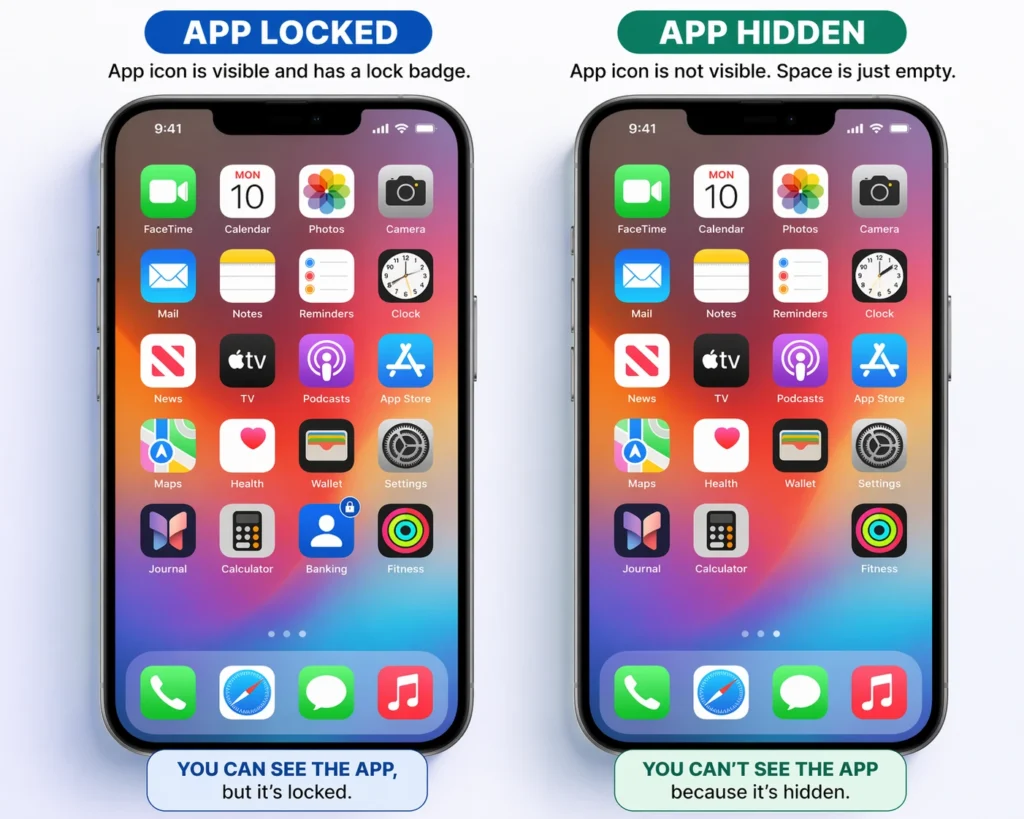
Before I show you the methods to find your hidden apps, I need to clear up one thing that confuses a lot of people: Locking an app and hiding an app are not the same thing.
When you lock an app, it stays visible on your home screen. You can see the icon right there where it always was. But when you tap it, your iPhone asks for Face ID, Touch ID, or your passcode before it opens. The app is protected, but it’s not hidden from view.
When you hide an app, it’s completely removed from your home screen. It moves to the Hidden folder in the App Library and you need to authenticate to even see the folder.
Hidden apps don’t appear in searches, don’t send notifications, and don’t show up in your normal app views. This gives you complete app visibility control.
Apple’s default apps like Photos, Messages and Mail cannot be fully hidden. You can lock them with Face ID so they require authentication to open,
but they will always remain visible on your home screen. Only third-party apps and some App Store-downloaded Apple apps can be moved to the Hidden folder.
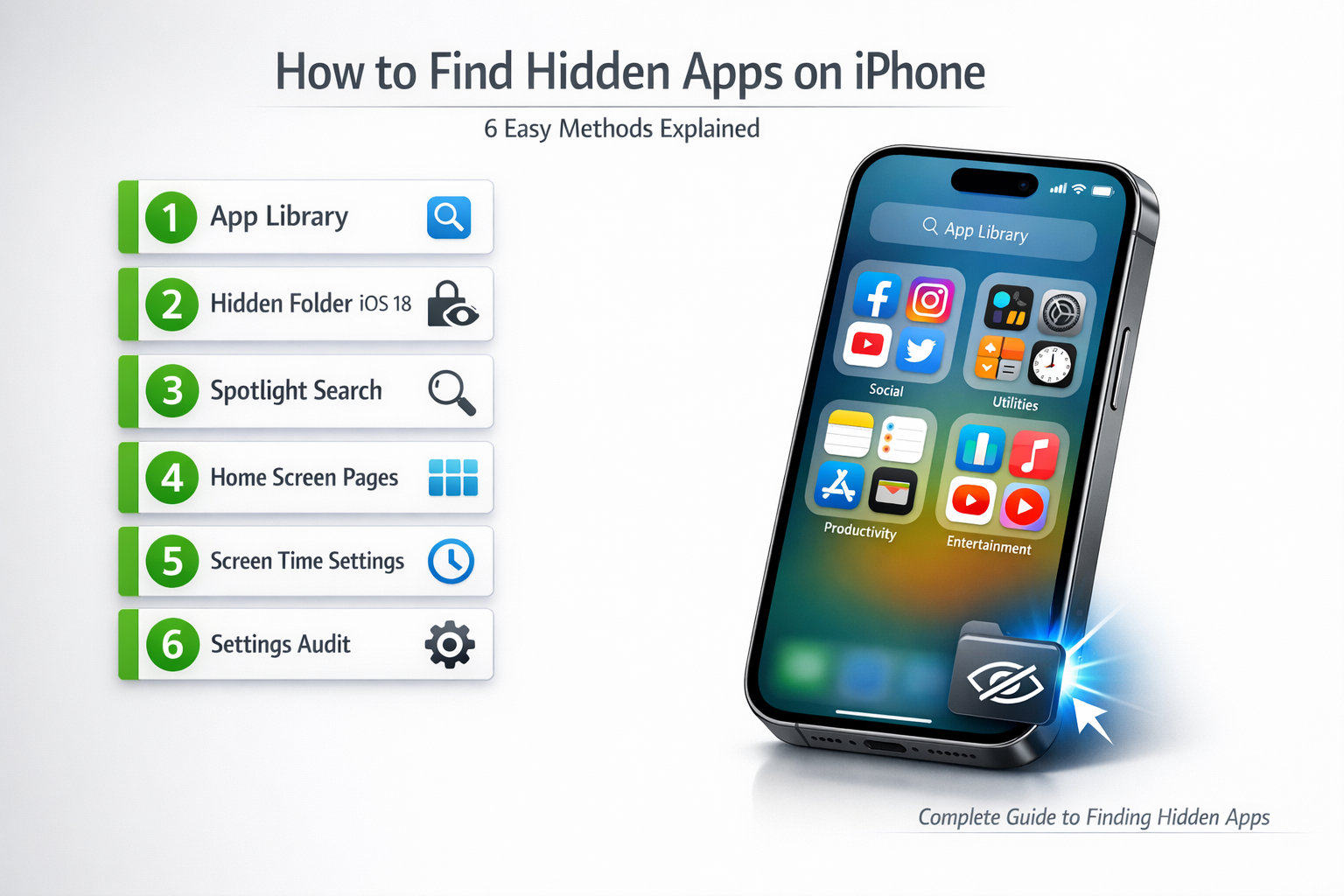
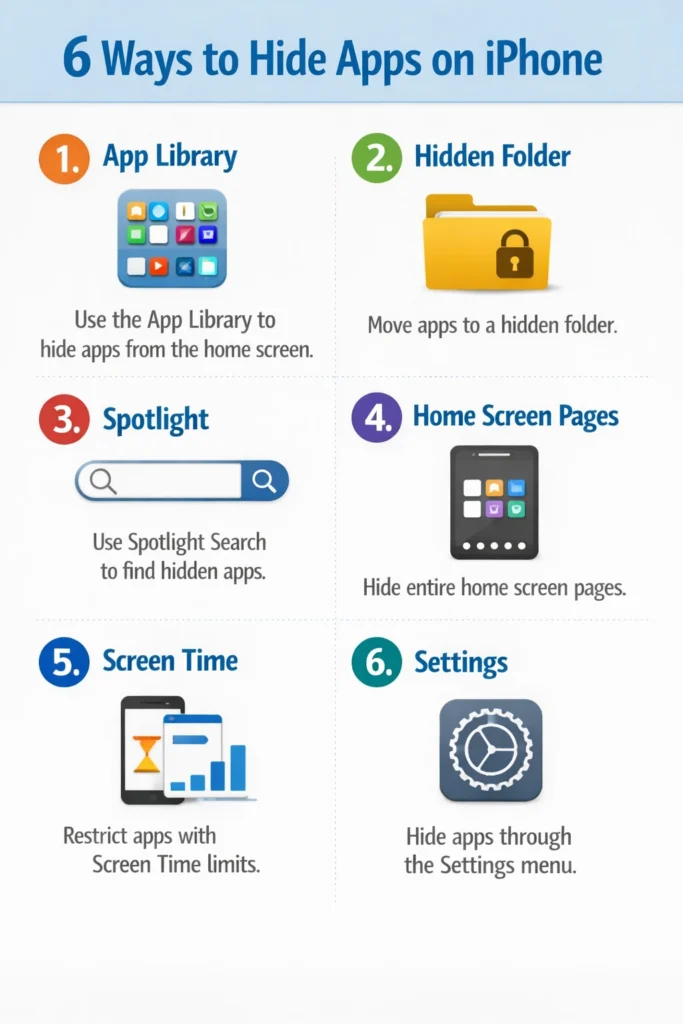
Now that you understand where apps actually go when they disappear, I’m going to walk you through six different methods to find any hidden app on your iPhone.
Each method works for different hiding scenarios, so if one doesn’t work for you, move on to the next one.
Method 1: Check the App Library First (Works for Most People)
The App Library on iPhone is the first place I always check when an app goes missing. This is where most hidden apps end up, and finding them here takes less than 30 seconds once you know where to look.
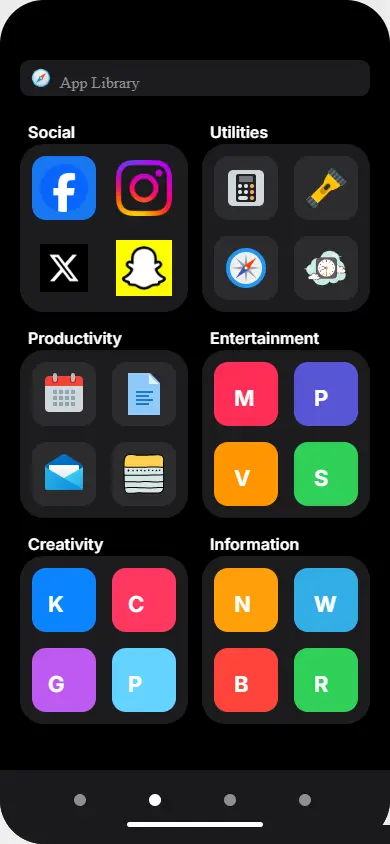
The App Library is a special screen at the very end of your home screen pages. It automatically organizes all your apps into categories like Social, Utilities, Productivity, and Entertainment.
Even if you removed an app from your home screen, it still lives in the App Library.
To get to the App Library, swipe left across your home screen pages, keep swiping past every page, and you’ll eventually reach it. You’ll know you’re there when you see apps grouped into labeled folders instead of your usual home screen layout.
Once you’re in the App Library, you have three ways to find your app
How to Search the App Library by Name
The fastest way to locate a specific app is using the iOS App Library search feature.
At the top of the App Library screen, you’ll see a search bar. Tap that search bar, and your iPhone will instantly show you a complete alphabetical list of every app installed on your device.
This list includes apps you removed from your home screen, apps you haven’t used in months, and apps buried inside folders.
Just start typing the name of the app you’re looking for. As soon as you type the first few letters, the app will appear in the search results. Tap the app icon to open it right away, or keep reading to learn how to restore the app to your home screen.
I use this search method all the time because it’s the quickest. If you know the app’s name, you don’t need to browse through category folders or scroll through pages.
Browsing Category Folders
If you don’t remember the exact name of the app, you can browse the App Library by category instead.
The App Library groups your apps into folders like Social, Utilities, Productivity, Entertainment, and more. Each folder shows a few app icons on the front, but many folders contain way more apps inside than what you see at first glance.
Tap on any folder to open it. Inside, you might see a second or even a third page of apps. I’ve found apps hidden inside these sub pages that I completely forgot I had. The App Library can hide apps inside the second or third page within a folder, so don’t stop after checking just the first page.
Swipe left inside the folder to see if there are more pages. This is especially helpful if you’re looking for an app but you’re not 100% sure what it’s called.
How to Drag an App Back to Your Home Screen
Once you find your app in the App Library, you can restore it to your home screen in just a few seconds.
Press and hold the app icon until a menu pops up. Tap “Add to Home Screen” from the menu. Your iPhone will immediately place the app icon back on your home screen, usually on the first available empty spot or on a new page.
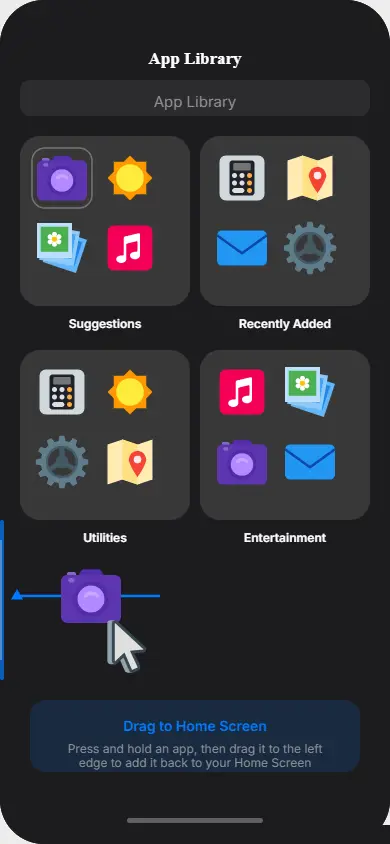
If you want more control over where the app goes, you can drag it manually instead. Press and hold the app icon, then drag it to the left edge of the screen.
Keep dragging, and your iPhone will start moving backwards through your home screen pages. Drop the app wherever you want it to live.
I prefer the drag method because I like organizing my apps exactly where I want them. It takes a couple extra seconds, but it saves me from having to move the app again later.
The App Library method works for the majority of missing apps. If your app isn’t showing up here, don’t worry. That just means it’s hidden using one of the other methods I’ll cover next.
Once you find your app using one of these 6 methods, you’ll want to know how to restore it properly. Check out my complete guide on how to unhide apps on iPhone for detailed step-by-step instructions on restoring your apps to your home screen
Method 2: Find the Hidden Folder in iOS 18 (The Locked Folder Most People Miss)
If you’re running iOS 18 on your iPhone, there’s a special Hidden folder that most people don’t even know exists. This is where apps go when you choose to hide them with Face ID or passcode protection.
The Hidden folder is different from just removing an app from your home screen. Apps in the Hidden folder are locked behind authentication and they won’t show up in normal App Library searches unless you unlock the folder first.
I’m going to show you exactly how to find hidden apps on iPhone iOS 18 using this feature, because it’s one of the most overlooked places people forget to check.
Step-by-Step: Opening the Hidden Folder
The Hidden folder lives at the bottom-right corner of the App Library screen. It has a unique icon that looks like an eye with a line crossed through it, which is Apple’s way of showing that apps inside are hidden from view.
To access the Hidden folder on your iPhone, follow these steps:
First, swipe left across your home screen pages until you reach the App Library. Once you’re in the App Library, scroll all the way down to the bottom of the screen.
Look at the bottom-right corner, and you’ll see the Hidden folder icon.
The Hidden folder appears on all iOS 18 devices, even if you don’t have any apps hidden inside. Apple shows the folder by default so you always know the feature exists. For additional details on this feature, you can also review Apple’s official support documentation on managing hidden apps
Tap on the Hidden folder icon. Your iPhone will immediately ask you to authenticate using Face ID, Touch ID, or your passcode. This security step prevents anyone else from seeing which apps you’ve chosen to hide.
After you authenticate, the Hidden folder opens and shows you every app that’s been hidden using the “Hide and Require Face ID” option.
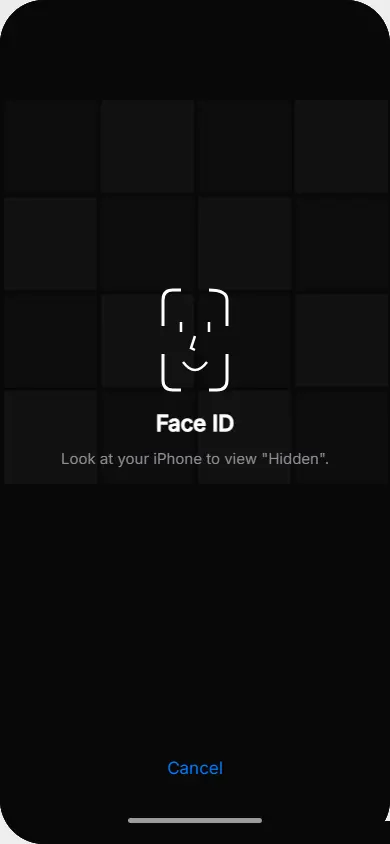
If the folder is empty, that means no apps are currently hidden using this method.
How to Unhide an App and Restore It to Your Home Screen
Finding the app inside the Hidden folder is only half the process. To actually unhide apps on iPhone and get them back to your home screen, you need to follow a two-step process.
Step one is removing the Face ID requirement. Press and hold the app icon inside the Hidden folder until a menu appears. In that menu, you’ll see an option that says “Don’t Require Face ID” or “Unhide App.” Tap that option.
Your iPhone will ask you to confirm by authenticating one more time with Face ID, Touch ID, or your passcode. Once you confirm, the app is no longer locked inside the Hidden folder.
But here’s the part that confuses people: Even after you remove the Face ID requirement, the app doesn’t automatically jump back to your home screen.
The app is still in the App Library, just no longer in the Hidden folder.
Step two is adding the app back to your home screen. Press and hold the app icon again, and this time tap “Add to Home Screen.” The app will now appear on your home screen just like it did before you hid it.
You can also drag the app manually if you want to place it in a specific spot. Just press, hold, and drag the app icon to the left until you reach your home screen pages. Drop the app wherever you want it.
Here’s a common mistake I see all the time: You cannot unhide apps from the Settings menu on iPhone. A lot of people try to go to Settings, find the hidden apps list, and tap something to restore them, but that doesn’t work.
Settings will show you a list of hidden apps if you go to Settings > Apps, then scroll to the bottom and tap Hidden Apps. But that screen is just for viewing the list.
You can’t actually unhide the apps from there. You have to go back to the App Library Hidden folder to restore them.
This two-step process might seem a little long, but once you do it once, it becomes second nature. The Hidden folder is one of the most secure ways to keep apps private on iPhone, and knowing how to access it means you’ll never lose track of an app again
Method 3: Use Spotlight Search to Find Any Hidden App in Seconds
Spotlight Search on iPhone is the fastest way to find an app that’s not showing on your home screen. This method takes literally five seconds, and it works for almost every app on your device.
Spotlight Search is Apple’s built-in search tool that lets you search your entire iPhone from one place. You can find apps, contacts, messages, files, and more just by typing a few letters.
To use Spotlight Search to locate a hidden app, follow these steps:
Swipe down from the middle of any home screen page. Not from the very top where Control Center lives, but from the center of the screen. A search bar will appear with the word “Search” inside.
Start typing the name of the app you’re looking for. You don’t even need to type the full name. Just type the first few letters, or even the initials of the app name if you’re not sure of the exact spelling. Spotlight Search is smart enough to figure out what you’re looking for.
If the app is installed on your iPhone, it will appear in the search results instantly. Tap the app icon to open it right away. The app launches even if the app icon isn’t visible anywhere on your home screen.
This method works perfectly for apps that were removed from the home screen but are still in the App Library. It also works for apps that are locked with Face ID but not fully hidden.
However, there’s one important limitation you need to know about. If an app is hidden using the “Hide and Require Face ID” option in iOS 18, that app will NOT appear in Spotlight Search results.
Apps in the Hidden folder are completely invisible to Spotlight until you unhide them using the method I showed you earlier.
So if you search for an app in Spotlight and nothing shows up, that doesn’t mean the app isn’t installed. It might just be locked inside the Hidden folder
Bonus Tip: Use Siri to Launch Hidden Apps
Here’s a trick that very few people know about: You can ask Siri to launch a hidden app by voice command, and Siri will open the app even if the app icon is invisible on your home screen.
Just activate Siri by saying “Hey Siri” or holding the side button, then say “Launch” followed by the app name. For example, say “Launch Instagram” or “Launch Netflix.” Siri will open the app immediately if it’s installed on your iPhone.
This voice command method works for apps removed from the home screen and apps locked with Face ID. The only apps Siri can’t open are apps hidden inside the iOS 18 Hidden folder with full Face ID protection.
I use this Siri trick all the time when I can’t remember where I put an app. It’s faster than scrolling through the App Library or typing in Spotlight, especially if you’re driving or your hands are busy.
Spotlight Search and Siri are two of the quickest ways to find iPhone hidden apps without Face ID authentication. If these methods don’t work, it’s time to check the more advanced hiding methods I’ll cover next
Method 4: Check If Entire Home Screen Pages Are Hidden
Did you know that you can hide entire pages of apps on your iPhone, not just individual app icons? This is one of the most overlooked reasons why multiple apps seem to disappear at the same time.
When a home screen page is hidden, every single app on that page becomes invisible. You won’t see the page thumbnail when you swipe through your home screens, and the apps won’t show up in normal searches. It’s like an entire section of your iPhone just vanishes.
This happened to me once, and I spent way too long looking for apps before I realized a whole page was hidden. Let me show you how to fix this.
Finding and Unhiding Hidden Home Screen Pages
The key to seeing all your home screen pages is entering what’s called jiggle mode.
Press and hold any empty area of your home screen until the app icons start to wiggle and shake. This is jiggle mode. Once the icons are wiggling, look at the very bottom of the screen.
You’ll see a row of dots. Each dot represents one of your home screen pages.
Tap that row of dots at the bottom. A full view of all your home screen page thumbnails will appear. This shows you every page on your iPhone, including the ones that are currently hidden.
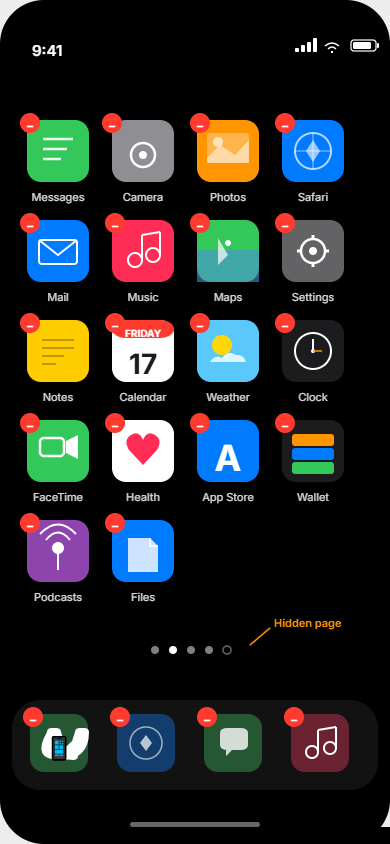
Look carefully at each page thumbnail. If a page has a checkmark next to it, that page is visible and active. If a page does NOT have a checkmark, that page and all the apps on it are currently hidden from view.
To unhide a hidden page, simply tap on the page thumbnail. The checkmark will appear, and the page will immediately become visible in your normal home screen rotation.
All the apps that were on that hidden page will now appear again when you swipe through your screens.
This is often the reason multiple apps seem to disappear at the same time. During a home screen reorganization, it’s easy to accidentally uncheck an entire page without realizing it.
One moment you’re tidying up your layout, and the next moment you look up and wonder where half your apps went.
The Reset Option: When You Just Want Everything Back to Normal
If you want to restore your iPhone to its original home screen layout without all the customization, there’s a nuclear option that will unhide every hidden page and reset everything to alphabetical order.
Go to Settings > General > Transfer or Reset iPhone > Reset. You’ll see an option called Reset Home Screen Layout. Tap that option.
Your iPhone will ask you to confirm the reset. Once you confirm, your home screen will instantly return to its original state. All hidden pages will reappear.
All apps will return to alphabetical order. All customization you’ve done to organize your home screens will be erased.
I only recommend this option if you’re really frustrated and want a completely fresh start. If you’ve spent time organizing your apps into specific layouts, you’ll lose all that work.
But if you just want to find your hidden apps fast and don’t care about your current organization, this reset is the quickest solution.
For most people, just finding the hidden pages and tapping the checkmark to re-enable them is the better choice. It takes about 30 seconds and keeps your existing home screen setup intact
Method 5: Check Screen Time and Parental Control Settings
Screen Time on iPhone can make apps completely disappear from your device. If you’ve set up parental controls or Screen Time restrictions, certain apps might be hidden without you realizing it.
Screen Time is Apple’s built-in tool for managing app usage and setting restrictions on your iPhone. When you create apps hidden by parental controls through Screen Time, those apps vanish from your home screen, the App Library, and even Spotlight Search. It’s a thorough hiding method that catches a lot of people off guard.
If you or someone else set up Screen Time restrictions on your iPhone, this is definitely worth checking.
How to Check Screen Time Allowed Apps
Go to Settings > Screen Time on your iPhone. If Screen Time is enabled, you’ll see several options. Look for Content & Privacy Restrictions and tap it.
Inside Content & Privacy Restrictions, tap Allowed Apps. This screen shows you every app that’s currently allowed to appear on your iPhone. Any app that has the toggle switched off is being hidden from view.
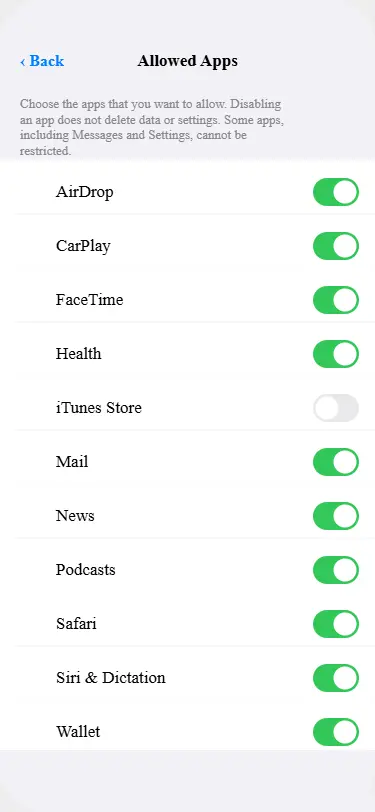
If you see apps listed here with the toggle turned off, that’s why those apps are missing from your home screen. The apps are still installed on your iPhone, but Screen Time is blocking them from being visible.
To restore these apps, simply tap the toggle next to each app you want to unhide. Turn the toggle on, and the app will immediately reappear on your home screen and in the App Library.
Before you can make changes to Screen Time settings, you’ll need to enter the Screen Time passcode. If you don’t know the passcode, you’ll need to ask whoever set up Screen Time on your device.
I recommend checking Screen Time even if you don’t remember setting up restrictions. Sometimes parental controls get enabled during device setup and then forgotten about. The Screen Time app limits might be so strict that you didn’t even notice certain apps were restricted.
Interestingly, hidden and offloaded apps can sometimes contribute to battery drain if they’re running background processes before being hidden. If you notice your battery draining faster than usual after finding hidden apps read my article on why your phone battery drains so fast it covers hidden app activity as a potential culprit and includes solutions to optimize your iPhone’s battery performance
Offloaded Apps: When the App Icon Has a Cloud Symbol
Sometimes an app isn’t hidden at all it’s just offloaded, which is different.
Offloaded apps are apps that your iPhone temporarily removed to save storage space. The app’s data and settings are still stored in iCloud, but the actual app file was deleted from your device to free up space.
When an app is offloaded, it shows up in Settings > General > iPhone Storage with a small cloud icon next to the app name. You won’t see the app icon on your home screen, but it’s not truly hidden or deleted.
To restore an offloaded app, go to Settings > General > iPhone Storage and find the app you want. Tap the app name, then tap Reinstall App. Your iPhone will download the app again from the App Store, and it will reappear on your home screen with all your settings intact.
Offloaded apps usually happen automatically when your iPhone is running low on storage. If you’ve noticed several apps disappearing, especially on an older iPhone with limited storage space, checking the iPhone Settings storage apps list in this menu will show you exactly which apps have been offloaded.
This is a completely normal feature and nothing to worry about. Your apps aren’t gone forever. They’re just temporarily stored in the cloud to make room on your device.
If you’re consistently running low on storage and noticing apps disappear regularly, another effective solution is clearing app cache. Read my guide on how to clear app cache on iPhone to reclaim gigabytes of storage space without deleting your apps or losing any data.
Method 6: The Settings Audit: The Most Reliable Way to Find Hidden Apps on Your iPhone
If you’ve tried all the other methods and still can’t find your app, the Settings app holds the definitive answer. There’s a hidden list in Settings that shows every app installed on your iPhone, no matter how deeply it’s been hidden.
This is the most reliable method to find hidden apps on your iPhone because it bypasses all the hiding tricks. Even apps locked in the Hidden folder, apps removed from the home screen, and apps hidden by Screen Time restrictions will show up here.
I discovered this method when an app search returned no results in the App Library, but scrolling through Settings revealed the app was still installed all along
The Master App List at the Bottom of Settings
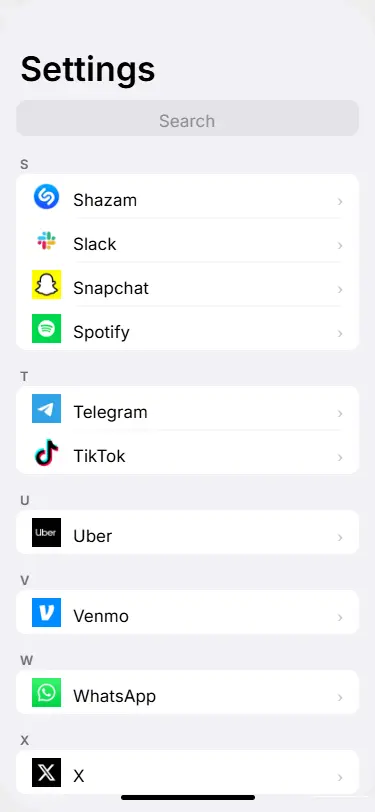
Open the Settings app and scroll all the way to the bottom of the main menu. You won’t see any special section title, but if you keep scrolling past all the settings categories, you’ll eventually find a complete alphabetical list of every app installed on your iPhone.
This list shows every third-party app on your device, organized alphabetically from A to Z. Default Apple apps like Settings, Phone, and Messages don’t appear in this list because
they can’t be removed. But every app you downloaded from the App Store will be listed here somewhere.
I use this list as my definitive audit because it works in every situation. Apps hidden in the Hidden folder appear here. Apps removed from the home screen appear here.
Apps blocked by Screen Time appear here. Even apps hidden by third-party vault apps sometimes show up in this list.
Just scroll through the entire list and look for the app you’re searching for. If the app appears in this Settings list, that confirms it’s definitely installed on your iPhone.
If it doesn’t appear, the app was either never downloaded or has been completely deleted from your device.
iOS 18: The Hidden Apps Folder in Settings
If you’re running iOS 18, there’s another Settings location worth checking. Go to Settings > Apps and scroll all the way to the bottom of the Apps menu. You’ll see a folder labeled Hidden Apps.
The Hidden Apps folder in Settings shows you every app that’s currently in the iOS 18 Hidden folder with Face ID or passcode protection.
Tap the Hidden Apps folder, authenticate with your Face ID, Touch ID, or passcode, and you’ll see the complete list of locked apps.
This is a viewing only section. You can see which apps are hidden, but you cannot unhide them from this menu.
To actually restore a hidden app to your home screen, you need to go back to the App Library, open the Hidden folder there, and follow the unhiding steps I showed you in Method 2
Check App Store Purchase History for Deleted Apps
Sometimes people want to know which apps were downloaded on their device in the past, even if those apps were deleted long ago.
The App Store keeps a complete record of every app ever downloaded on your Apple ID.
Open the App Store app > Tap your profile icon in the bottom-right corner > Select Purchased > My Purchases to see every app you’ve ever installed using your Apple ID.
In this purchase history, look for apps with a cloud icon next to them. A cloud icon means that app was previously downloaded and installed on this device, but it’s no longer installed right now. The app was either deleted or removed at some point.
This view reveals hidden downloaded apps and Apple ID purchased apps that might have slipped your mind.
Some people use this method to find apps they installed years ago but completely forgot about. Others use it to track which apps their family members have downloaded if they share an Apple ID.
The App Store purchase history is the most complete record of app activity on your device. Even if an app was deleted months ago, you can see it listed here with the cloud icon.
This is especially helpful if you’re trying to remember what apps you’ve used in the past or if you want to review your download history for any reason.
Once you’ve found your app in either the Settings list or the App Store purchase history, you now know for certain it’s installed on your iPhone.
If it’s in the Hidden Apps folder in Settings, go back to Method 2 to unhide it. If it has a cloud icon in purchase history, you can tap it in the App Store and reinstall it immediately.
What If the App Store Trick Reveals an App That’s Not Anywhere Else?
There’s one method that works when absolutely nothing else does. This is the most powerful trick for finding hidden apps on iPhone, and it bypasses every hiding method Apple offers.
Search for the suspected app in the App Store. Look at the button next to the app name. If the button says “OPEN” instead of “Get,” that app is definitely installed on your iPhone, no matter how hidden it is.
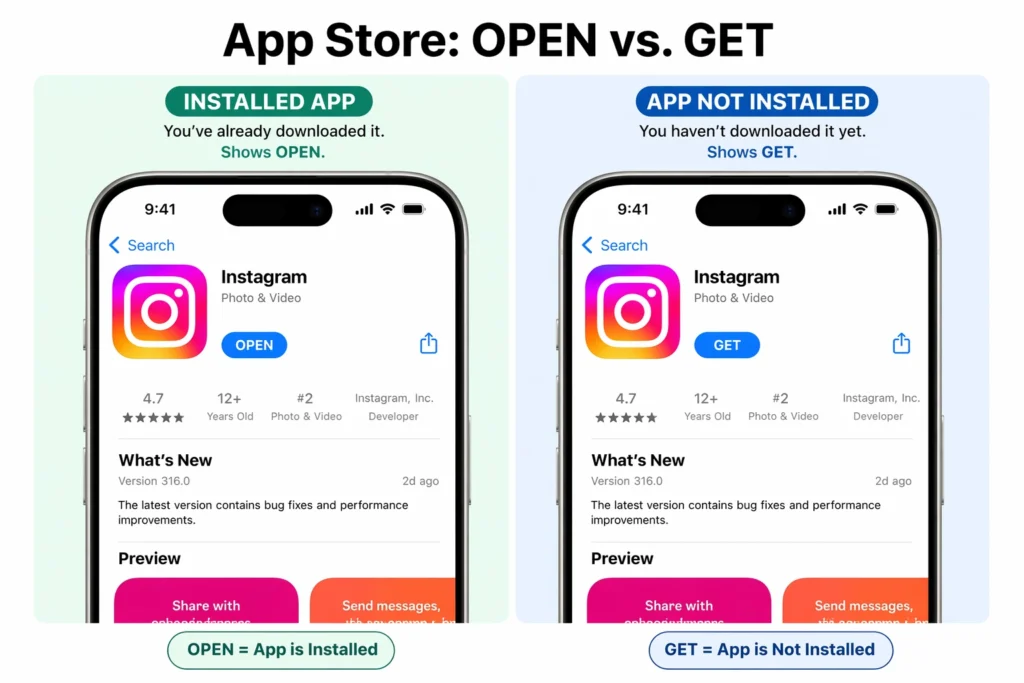
When an app is not installed, the App Store shows a button that says “Get” with a cloud icon. When an app is installed, it shows “OPEN” instead.
This distinction is the key to discovering apps that are invisible everywhere else on your device.
You can even tap the “OPEN” button to launch the app directly from the App Store. The app will open immediately, which confirms it’s installed and functional on your iPhone.
This method works regardless of which hiding technique was used. It bypasses home screen removal, App Library hiding, the iOS 18 Hidden folder with Face ID lock, Screen Time restrictions and everything else. The App Store’s installation status cannot be fooled.
When Standard Methods Fail: Third-Party Vault Apps
The reason this App Store trick is so powerful becomes clear when you understand third-party vault apps like Cloak.
Vault apps are designed to hide other apps so thoroughly that they become virtually invisible. When you use an app like Cloak to hide certain apps, those apps disappear from your home screen, vanish from the App Library, and won’t show up in Spotlight Search.
The hidden messaging apps, hidden tracking apps, and other sensitive applications are removed from every standard location where you’d normally look.
Standard discovery methods fail completely when vault apps are involved. The App Library search returns no results. Spotlight finds nothing.
Even the Settings list at the bottom of the main settings menu might not show these apps clearly because the vault app has essentially cloaked their presence.
But the App Store always knows. The App Store maintains its own installation registry that’s separate from iOS’s home screen and app visibility systems.
Vault apps cannot trick the App Store because they don’t control the App Store’s backend data.
This is why the App Store “OPEN vs GET” test is the most reliable universal method. It checks Apple’s actual installation records rather than relying on the visible interface.
A Factual Note About Privacy Concerns
I want to address this directly and honestly. I know some people search for this information because they have relationship concerns.
They might be wondering how to find hidden dating apps on iPhone or trying to find hidden spy apps that someone else might be using.
I’m sharing this information purely for educational purposes. This method reveals apps that are installed on a device you own and have access to.
Checking your own device is completely reasonable and legitimate. Understanding how apps can be hidden helps you protect your own privacy and security.
That said, attempting to access someone else’s iPhone without their knowledge or permission raises serious privacy and legal concerns. I’m not endorsing that behavior.
These methods are tools for finding your own apps or understanding your own device security, not for unauthorized access to someone else’s phone.
If you have genuine concerns about someone’s device usage, the appropriate response is open communication and trust not surveillance techniques. Beyond app management, protecting your iPhone’s privacy involves multiple layers of security.
If you’re also dealing with unwanted contact attempts or spam communications, check out my guide on block spam calls on iphone to add another important security layer to your device and reduce unwanted interruptions.
What to Do Once You Find the Hidden App
If the App Store shows “OPEN” for an app you were looking for, congratulations. You’ve confirmed the app is installed. Now you need to find where it’s hidden and restore it to a visible location.
If the app appears in the Settings list but nowhere else, it’s likely hidden by Screen Time restrictions. Follow the Screen Time method in Section 6 to restore it.
If the app appears in the Settings Hidden Apps folder, use the unhiding method from Section 2 to restore it to your home screen.
If the app shows “OPEN” in the App Store but appears nowhere in Settings or the Hidden folder, a third-party vault app is probably involved.
You’ll need to open that vault app and unhide the app from within its interface. The vault app controls the visibility of any apps it’s hiding, so you have to go through that app to restore normal access.
The App Store method is your confirmation tool. It tells you definitively whether an app is installed. The other methods show you where it is and how to restore it.
One Warning Before You Start Looking
Before you use these methods to find your hidden apps, I want to share three important things you should know. These aren’t deal-breakers, but they’ll save you from confusion and frustration later.
Hidden Apps Don’t Send Notifications
When you hide an app on your iPhone, that app goes completely silent. You will not receive notifications, calls, or alerts from a hidden app while it’s in the Hidden folder.
Even if someone tries to reach you through that app, you won’t see the message or get a notification.
This is especially important for messaging apps or communication tools. If you hide WhatsApp, Instagram, or your email app, you won’t know when someone tries to contact you. Calls won’t come through.
Text messages won’t alert you. It’s like the app is completely dormant from a notification standpoint.
I learned this the hard way when I hid an app I thought I didn’t need anymore, then missed an important message because I forgot about the notification restriction.
If you need to stay reachable, consider locking the app with Face ID instead of hiding it. Locked apps stay visible on your home screen and still send notifications. They just require authentication to open.
You Can’t Unhide Apps from Settings
This trips up a lot of people. You can go to Settings and see a list of hidden apps, but you cannot actually unhide them from that menu. Settings shows you the list only for viewing purposes.
To actually restore a hidden app to your home screen, you must go through the App Library and use the Hidden folder method I explained in Method 2.
There’s no unhide button in Settings. You have to use the App Library to complete the restoration process.
Your iPhone Needs the Latest iOS Update
The Hidden folder and advanced hiding features are relatively new. If you’re running an older version of iOS, you won’t have access to these features at all.
Check Settings > General > Software Update to see if your iPhone is running the latest version of iOS. If your iPhone is several versions behind, you might need to update before some of these methods work properly. The iOS 18 Hidden folder specifically requires iOS 18 or newer.
If you’re running iOS 17 or older, the dedicated Hidden folder won’t exist on your device. Hidden apps will still work, but they’ll be stored in the regular App Library instead of a special locked folder. The core methods still apply, just without the Face ID protected Hidden folder feature.
These warnings aren’t meant to scare you. They’re just reality checks so you know what to expect when you hide apps and what to keep in mind when unhiding them.
Armed with this information, you can use the iPhone hide app feature confidently and avoid the common pitfalls.
Hidden Apps on iPhone: Quick Answers to Common Questions
Is there a “Hidden Apps” folder on iPhone and where do I find it?
Yes, on iOS 18 there’s a dedicated Hidden folder with a crossed-out eye icon at the bottom-right of the App Library. Tap it and authenticate with Face ID, Touch ID, or passcode to see all hidden apps.
On older iOS versions, this folder doesn’t exist hidden apps just stay in the general App Library instead.
Can I find hidden apps on iPhone without using Face ID?
Yes. Scroll to the bottom of the main Settings app to see every installed app listed alphabetically. Or search for the app in the App Store if “OPEN” appears instead of “Get,” it’s installed. Both methods bypass the Face ID-locked Hidden folder completely.
If I hide an app, will I still get notifications from it?
No. Hidden apps stop all notifications, calls, and Siri alerts while in the Hidden folder. If you need notifications from an app, use the Lock option instead of Hide. Locked apps stay visible on your home screen but require Face ID to open.
How do I find apps that were downloaded and then deleted?
Open the App Store, tap your profile icon, select Purchased, then My Purchases. Apps with a cloud icon were previously downloaded on your Apple ID but are no longer installed. This shows your complete download history even for apps deleted months ago.
Does hiding an app on iPhone work the same way on all models?
The App Library and Hidden folder methods work on all iPhones running iOS 14 and later (iPhone 6s and newer).
The iOS 18 Hidden folder with Face ID lock requires iOS 18 specifically. iPhones running iOS 13 or older won’t have App Library at all only Spotlight Search works there.
What’s the difference between hiding an app and Focus mode hidden apps on iPhone?
Hiding an app moves it to the Hidden folder and makes it invisible. Focus mode is completely different.
Focus modes let you filter which notifications and calls you see from specific apps and contacts based on your current activity.
When you enable Focus mode, apps aren’t actually hidden from your device. They’re still visible on your home screen and in the App Library. Focus mode just controls whether you receive notifications from them.