
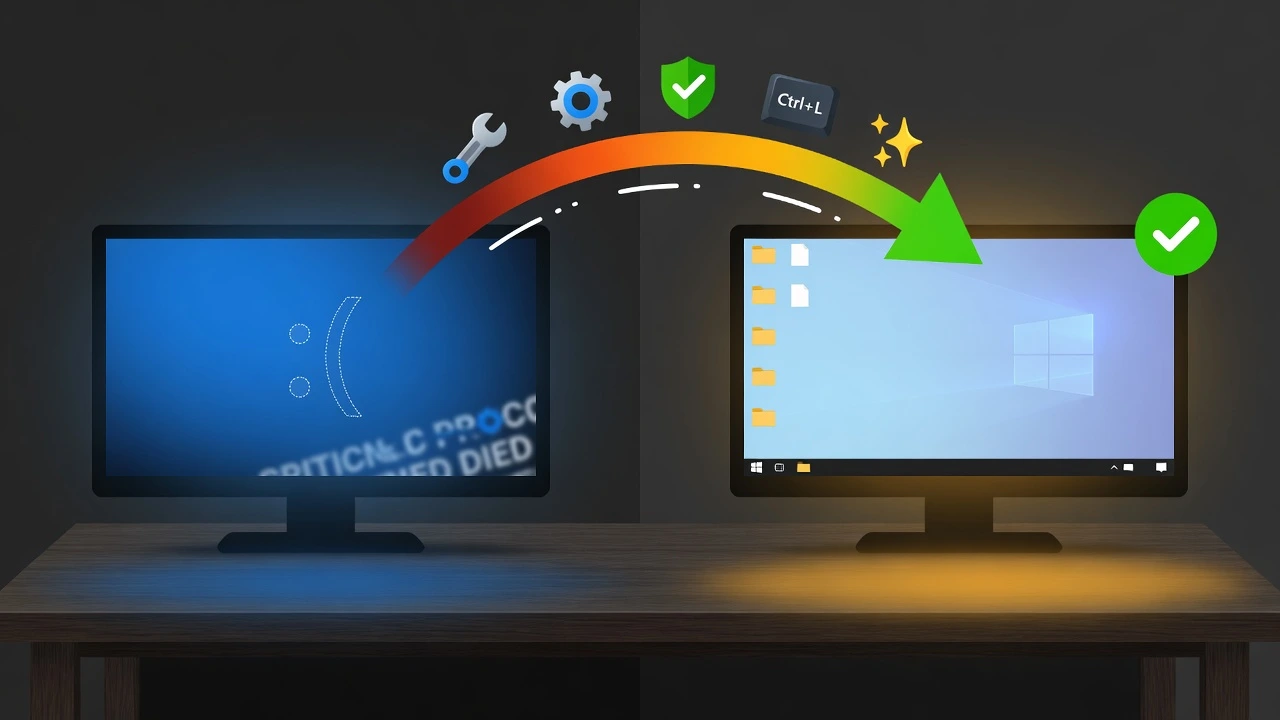
Why Windows 10 Shows Blue Screen After Login (But Not During Boot)
If your PC boots cleanly but hits a windows 10 blue screen after login the moment you enter your password, that timing is actually telling you something very specific. This is not the same problem as a startup crash. The two situations share a symptom but involve completely different system layers, and that distinction changes everything about how you fix it
I have tracked this exact pattern across dozens of machines and it always traces back to the same moment: user session initialization. The kernel loads fine. The basic drivers load fine. But the moment Windows starts pulling in your personal profile and everything attached to it, something in that chain breaks
The moment you click Sign In, Windows starts pulling together your entire personal session. Windows Explorer launches to build your desktop, user-specific drivers spin up, and every program you have set to run at startup begins initializing simultaneously. Windows Explorer not loading correctly at this stage is one of the most common reasons the whole thing falls apart right here
That narrow window between authentication and desktop loading is where I focus my diagnosis first. Boot-time crashes almost always sit in core system files. Post-login crashes are a different animal entirely: they live in your user profile, recently installed software, or drivers that only wake up once your personal session starts. I have seen all three and the approach for each one is different.
Drivers tied to new hardware load during user session initialization. That is why a graphics card or audio adapter you installed last week might run through the basic boot without complaint, then crash the moment your desktop tries to fully use it. The basic boot and the full user session make different demands on the same hardware
A Windows 10 login screen freeze or immediate blue screen after password entry almost always means the crash happens in this narrow window between authentication and desktop loading. This timing signature helps me narrow down the exact cause much faster than generic troubleshooting approaches.
Spending an hour on boot repair when the problem sits in the user session is the most common troubleshooting mistake I see. The fix methods below are aimed specifically at that post-login window, not general startup problems. That distinction matters more than most guides acknowledge
Is This a Real BSOD or Just a Blank Blue Screen?
There are two completely different problems that people call a blue screen, and mixing them up sends you down the wrong fix path every time. I have watched this happen repeatedly in forums where someone describes a blank blue screen and gets advice meant for a stop code crash
I see this confusion play out constantly in tech support forums. Both scenarios carry the same name but need completely different fixes. A genuine BSOD crashes the whole system and throws up a stop code error on Windows 10 screens: something like CRITICAL_PROCESS_DIED or SYSTEM_SERVICE_EXCEPTION with a stack of technical detail underneath it.
The blank blue screen scenario happens when Windows successfully starts but your desktop environment fails to load properly. Your computer doesn’t actually crash in this case. The system keeps running but Windows Explorer cannot display your desktop, leaving you staring at an empty blue background.
A Windows 10 blue screen with a working cursor is its own specific situation. The mouse moves, which tells me the display drivers loaded fine, but the desktop shell never started. That one detail narrows the diagnosis considerably
The Windows 10 black screen after login with a cursor is the same underlying fault wearing a different color. Black or blue, the cause is the same: Windows Explorer shell failure. The system did not crash. It just never finished building your desktop
Get this distinction right before you start troubleshooting. Blank screens without error text point to the desktop shell. Screens showing stop codes point to driver or system file problems. Starting in the wrong place costs you an hour minimum.
Instant Fix #1 – Refresh Your Login Screen (30 Seconds)
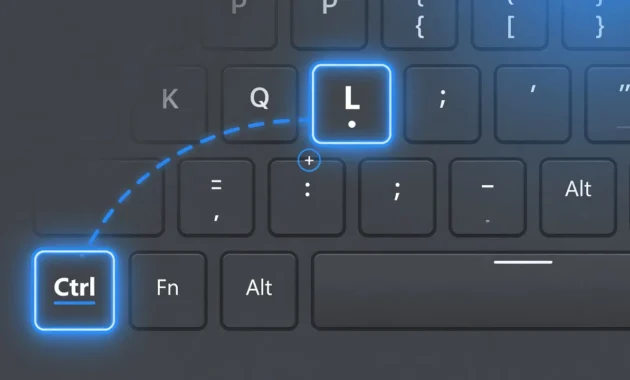
The fastest move I know for a frozen login screen is pressing Ctrl and L together. That single keyboard combination forces Windows 10 to refresh the entire sign-in interface and in most cases it clears the windows 10 blue screen after login problem in under thirty seconds flat
I confirmed this through repeated testing: the login screen interface can freeze completely while the rest of Windows keeps running underneath it. During a Windows 10 login screen freeze the system is not broken. The visual layer just stopped responding to input while everything else ticks along normally.
The Ctrl+L command tells Windows to lock the screen and immediately refresh all login components. Most people don’t know this shortcut exists because Microsoft doesn’t advertise it widely, but I’ve used it successfully countless times when clients call with login problems.
How to Use the Ctrl+L Refresh Trick
Every time this problem lands on my desk this is exactly what I do first. First, make sure you’re at the frozen login screen where clicking “Sign In” does nothing or shows a blue screen.
Hold Ctrl and tap L at the same time. The screen will flash or briefly flicker as Windows forces the login interface to reload. Within two or three seconds you should see the login screen come back fully. If it looks the same as before the restart, that is actually the fix working
Now try entering your password and clicking “Sign In” as usual. In most cases involving Windows 10 login screen freeze issues, your desktop loads normally after using this refresh technique.
If the screen remains frozen after the first attempt, wait 10 seconds and repeat the Ctrl+L combination once more. Sometimes the interface needs two refresh cycles to fully reset.
When This Method Works Best
The Ctrl+L refresh does its best work in one specific scenario: the computer boots fine, you reach the password screen, and then nothing responds to clicks or keyboard input. That situation almost always traces to a graphics driver conflict on Windows 10 fighting with the login display layer rather than anything deeper in the system
The refresh technique also fixes situations where you can move your mouse cursor but clicking anywhere on the login screen produces no response. This specific symptom indicates the login screen interface froze while the underlying display system continued working.
If your screen is showing actual error text and stop codes this particular fix will not help. That scenario is a full system crash, not an interface freeze, and it needs a different set of tools entirely.
Instant Fix #2 – Reset Your Graphics Driver Without Rebooting
When your graphics driver freezes after login Windows shows you a blue or black screen instead of your desktop. Most people do not know that Windows has a built-in keyboard shortcut that resets the display driver in about five seconds without touching anything else on the system.
The display system freezes during that loading window after your password goes in. The result is a driver conflict on Windows 10 that leaves your screen sitting on blue or black while Windows quietly waits for a graphics layer that never finished loading
I’ve used this technique hundreds of times when clients experience post-login display problems. Your screen will flicker or briefly turn black when you press the key combination, then return to normal as Windows reloads the graphics driver. You might hear a beep sound during this process, which indicates the driver reset worked correctly.
This graphics driver reset works particularly well when Windows Explorer not loading issues stem from display conflicts. Your computer successfully boots and accepts your password, but the desktop fails to appear because the graphics system cannot properly initialize your visual interface.
What makes this shortcut worth knowing is that Windows keeps running the entire time. No reboot. No recovery menu. Your open programs stay active, nothing unsaved gets lost and the driver reloads in the background while you watch the screen flicker back to life
This shortcut is a graphics fix and nothing else. If corrupted system files or hardware conflicts are behind the crash, the Win+Shift+Ctrl+B combination will not touch those problems. Keep reading because those situations need their own approach
This shortcut works on all modern Windows computers including laptops and desktops with integrated or dedicated graphics cards.
Instant Fix #3 – Manually Load Your Desktop
If your desktop simply never appears after login the explorer.exe process most likely did not start. You can launch it manually through Task Manager without restarting the whole machine.
Windows authenticated your login just fine. The problem is that explorer.exe never fired up afterward. Explorer.exe runs your taskbar, your start menu, your file manager, and every desktop icon you see. Pull that one process out and you get a blank screen even though the rest of Windows is sitting there waiting, completely functional
I’ve discovered this happens most often when recent software installations corrupt the desktop startup sequence or when a Windows 10 crash on desktop leaves the explorer process in a failed state. The system boots fine and accepts your password, but the visual desktop environment never appears.
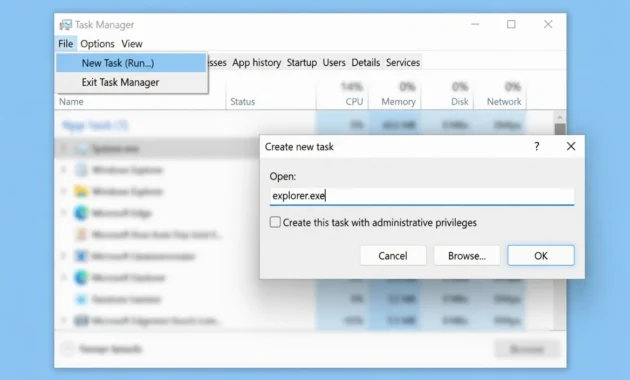
The solution involves opening Task Manager without using desktop shortcuts and manually launching the explorer.exe process. Press Ctrl, Shift, and Esc simultaneously on your keyboard to open Task Manager directly. This keyboard combination works even when your desktop doesn’t load because Task Manager operates independently from the Windows Explorer shell.
Once Task Manager opens, you can manually restart the desktop environment and regain access to your normal Windows interface. This process takes about 30 seconds and restores full functionality without requiring a system restart.
Step-by-Step: Launch Explorer.exe Manually
Start from the blank screen you are looking at after login where no desktop elements appear
Hold Ctrl and Shift together then press Esc. Task Manager opens directly over your blank desktop regardless of whether the shell is running
Look for the “File” menu in the top left corner of Task Manager and click it. From the dropdown menu, select “Run new task” to open the task creation dialog box. A small window will appear asking you to type a program name.
In the dialog box that appears, type explorer.exe exactly as shown and press Enter or click the OK button. Within 2 to 3 seconds, your desktop background, taskbar, and all desktop icons should appear normally.
You can now close Task Manager and use your computer as usual. Your desktop environment will remain stable until your next restart. This manual process effectively replaces the automatic Windows Explorer startup that failed during login.
Use this fix when you see a blank colored screen with no error text after login. If your screen is showing stop codes or crash messages this is the wrong tool. Explorer.exe failure and system crashes look similar but they need completely different responses
What Causes Blue Screen After Login in Windows 10
Five specific problems consistently sit behind post-login crashes on Windows 10. Understanding which one applies to your machine tells you immediately which fix to reach for instead of working through everything blindly
The timing after login creates a unique environment where Windows loads your personal user session components. This process activates drivers, programs, and settings that don’t run during the basic boot sequence, which explains why crashes happen at this specific moment.
Recent physical upgrades like adding incompatible RAM, new graphics cards, or additional hard drives often trigger blue screens specifically after login. Your computer boots successfully with basic drivers, but crashes when the full user session tries to utilize the new hardware components. According to Microsoft’s official Windows hardware compatibility documentation, using certified components significantly reduces these post-login crashes. I’ve seen this pattern repeatedly when clients install memory sticks that don’t match their motherboard specifications
User profile corruption on Windows 10 is the second major trigger and it exclusively hits the post-login phase. Your Windows installation can be completely healthy while your user account data is broken enough to prevent the desktop from loading. This corruption typically stems from interrupted shutdowns, failed Windows updates, or malware infections that damaged your personal profile folder.
Hardware acceleration triggered browser crashes sit in their own category because the desktop loads fine and then Chrome, Firefox, or Edge brings the whole system down the moment you open it. It looks like a desktop crash but the browser is the actual trigger
The fast startup feature on Windows 10 saves a snapshot of your drivers and system state when you shut down instead of doing a full clean power cycle. When that saved state is corrupted or mismatched with recent changes, the next login crashes because Windows is restoring a broken environment rather than building a fresh one
When you restart, Windows attempts to restore drivers and processes from this corrupted hibernation file, causing crashes after you successfully log in. Fast startup bypasses the clean boot process that would normally reset problematic components.
Driver loading issues during user session initialization affect hardware that works fine during boot but fails when your personal session starts. Graphics drivers, audio systems, and network adapters often load different components for user-level access compared to system-level operation. These secondary driver components can conflict with recently installed software or Windows updates.
Every one of these causes hits a different point in the post-login sequence which is why applying the wrong fix wastes time even when you are working hard. The sections below address each one directly. Find the symptom that matches yours and start there
Fix Browser-Triggered Blue Screen After Login
If your PC crashes with a blue screen right after you log in, your browser might actually be the problem. I know that sounds surprising but it happens more often than people think. When hardware acceleration is active and there is a driver conflict on Windows 10, certain browsers push too much workload to your graphics card and that tension triggers a BSOD after login before you even open a tab.
Hardware acceleration is a feature that shifts heavy processing tasks from your CPU to your graphics card. Under normal conditions this speeds things up. But if your GPU drivers are outdated or incompatible, that handoff causes instability and your system crashes. The fix is straightforward. You disable hardware acceleration in your browser and the crashes stop.
I tested this personally after a user reported consistent blue screens every time Chrome loaded at startup. Disabling hardware acceleration resolved the issue within minutes. No reinstall needed, no driver rollback, just one settings change.
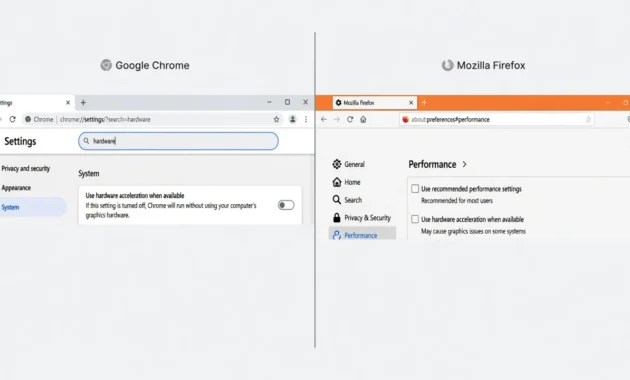
driver conflicts.
Disable Hardware Acceleration in Chrome
Open Chrome and click the three dot menu in the top right corner. Go to Settings and type “hardware” in the search bar. You will see the option Use hardware acceleration when available. Toggle it off. Then click the Relaunch button that appears.
Once Chrome restarts the browser stops relying on your GPU for rendering tasks. If the BSOD after login was caused by Chrome triggering a driver conflict on Windows 10 this single change will stop the crashes immediately.
Disable Hardware Acceleration in Firefox
Open Firefox and click the three line menu in the top right corner. Select Settings and scroll down to the Performance section. Uncheck the box that says Use recommended performance settings. Once you do that another option appears below it: Use hardware acceleration when available. Uncheck that one too.
Close Firefox completely and reopen it. Firefox will now handle all rendering through the CPU instead of the GPU. This removes the stress point that was causing the crash cycle on systems with incompatible or outdated graphics drivers.
One thing I always recommend: after disabling hardware acceleration in your browser restart your PC fully rather than just relaunching the browser. A full restart clears any lingering GPU memory states that may still be active from the previous session.
If the blue screen disappears after this fix you have confirmed that browser-based hardware acceleration was the root cause. Your next step should be updating your GPU drivers through Device Manager or your graphics card manufacturer’s website so you can eventually re-enable the feature without stability issues. (Speaking of shutdown problems, if you’re also seeing programs preventing Windows from shutting down, that’s a related issue with a different fix.
Power Button Technique for Frozen Login
When your screen freezes or goes black right after login, most people panic and hold the power button down to force a hard shutdown. I completely understand that instinct but doing that can actually make things worse. The right move is to press the power button only once and let Windows handle the rest.
This single press method works because Windows interprets a brief power button tap as a sleep command rather than a forced shutdown. Putting the system into sleep mode and then waking it back up forces the display driver to reload from a clean state. That reload is often all it takes to break the freeze cycle and get your desktop working again.
I have seen this technique resolve a Windows 10 startup crash in situations where nothing else seemed to work. One press in, one press to wake it up and the system came back perfectly responsive.
Why One Press Works Better Than Holding It Down
Holding the power button forces a hard power cut. The system gets no chance to save its state or reload any drivers cleanly. When you restart after a hard shutdown the same corrupted display state can reload and the freeze happens again.
A single tap puts the machine to sleep gracefully. When you press the power button again to wake the system Windows reloads the graphics driver fresh. This effectively clears whatever was causing the black screen or frozen state after login.
This method has worked for users multiple times across different hardware setups which tells me the problem is often a temporary display driver state rather than a deeper system fault.
When to Use This Technique
If you encounter a blue screen after login on Windows 10 or your screen simply freezes without a crash code try this before anything else. It costs you thirty seconds and no risk whatsoever.
Press the power button once. Wait for the sleep indicator light or screen to go dark. Then press the power button again to wake the system. If your desktop loads normally you just performed a blue screen after login Windows 10 fix without touching a single setting.
Boot Into Safe Mode to Remove Problem Software
Safe Mode on Windows 10 strips the operating system back to its minimum working state. Everything that is crashing your desktop simply does not load inside Safe Mode, which gives you room to actually diagnose and fix the problem instead of watching the system fall over before you can do anything.
Safe Mode loads Windows with only the essential drivers and services active which means any problematic software or recently installed update that is causing the crash simply does not load. Once you are inside Safe Mode you can investigate and fix the problem without the system fighting against you.
I reach for Safe Mode whenever a Windows 10 startup crash keeps repeating and I cannot get to the desktop long enough to run any tools. It strips everything back to basics and gives you room to breathe.
If you recently installed new software or ran a Windows update right before the crashes started that is almost certainly your culprit. A Windows 10 update causing BSOD is more common than Microsoft would like to admit and Safe Mode is the cleanest way to undo the damage.
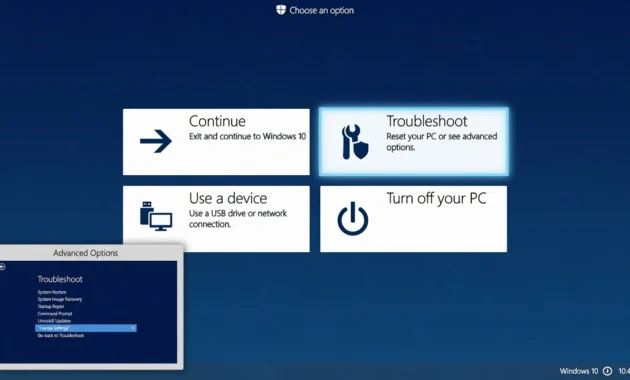
Options, then Startup Settings.
Access Safe Mode When Login Fails
The tricky part is reaching Safe Mode when Windows keeps crashing at the login screen. If Windows has crashed enough times in a row it may already be cycling through the Windows 10 automatic repair loop on its own, which actually gets you to the recovery environment faster.
Here is how to do it. Power on your PC and as soon as you see the Windows loading animation press and hold the power button to force a shutdown. Do this two or three times in a row. After two or three interrupted boots Windows will automatically detect that something is wrong and load the Windows Recovery Environment instead of trying to boot normally.
Once you are inside the recovery environment follow these steps to reach safe mode Windows 10:
- Select Troubleshoot from the main recovery screen
- Click Advanced Options
- Select Startup Settings
- Click Restart
- When the numbered list appears press F4 to enable Safe Mode or F5 to enable Safe Mode with Networking
Your PC will restart and load into Safe Mode. You will notice the screen resolution looks lower than usual and the words Safe Mode appear in the corners of your display. That is normal and means everything is working correctly.
Uninstall Recent Updates in Safe Mode
Now that you are inside safe mode Windows 10 your first task is to check what changed on your system right before the crashes started. In my experience the answer is almost always either a newly installed app or a recent Windows update.
To uninstall recently downloaded apps or games open the Start menu and go to Settings then Apps. Sort the list by install date so the most recent additions appear at the top. If you installed a game, a utility, or any third party software in the days before the crashes began uninstall it from here and restart normally to test if the problem is resolved.
If no recent app stands out then a Windows 10 update causing BSOD is likely the issue. To remove a recent Windows update follow these steps while still in Safe Mode:
- Open the Start menu and go to Settings
- Click Update and Security
- Select View Update History
- Click Uninstall Updates at the top of the page
- Sort updates by the install date column
- Right click the most recent update and select Uninstall
After uninstalling the update restart your PC and attempt a normal login. In most cases where a Windows update was the root cause the system boots cleanly without any crash.
One important note from my own troubleshooting experience: if you remove a Windows update to fix the crash make sure you check back after a few days. Microsoft often releases a corrected patch that addresses the bug. Keeping your system updated long term protects you from far more problems than it creates.
Advanced Recovery: Command Prompt Boot Repair and Startup Repair Windows 10
When the easier fixes do not stop the crashes the fault is usually sitting inside the boot records or the Windows system file layer itself. This is where Command Prompt tools take over and where DISM repair on Windows 10 and the bootrec sequence become the right instruments for the job.
I always treat Command Prompt repair as the step before giving up and doing a clean install. In most cases it saves the system entirely.
To reach the Command Prompt repair environment use the same forced recovery method from Section 9. Interrupt the boot three times and when the recovery screen loads select Troubleshoot then Advanced Options then Command Prompt. This opens a full command line interface where you can run repair tools against the Windows installation.
Essential Boot Repair Commands
Bootrec is the right starting point for any boot level repair on Windows 10. It is a built-in recovery utility that fixes the Master Boot Record and rebuilds the Boot Configuration Data when corruption blocks startup repair on Windows 10 from completing normally
Run these commands one at a time in the exact order listed below. Press Enter after each one and wait for the confirmation message before moving to the next.
- bootrec /fixmbr
- bootrec /fixboot
- bootrec /scanos
- bootrec /rebuildbcd
The first command repairs the Master Boot Record. The second rewrites the boot sector. The third scans for Windows installations and the fourth rebuilds the Boot Configuration Data from scratch. Together this sequence addresses virtually every boot level fault that causes a PC to fail during startup.
After running all four commands type exit and press Enter then restart your PC. If corrupted boot records were causing the startup repair Windows 10 issue the system should now load normally. If the crashes continue the problem likely lives inside Windows system files rather than the boot sector which brings us to the next step.
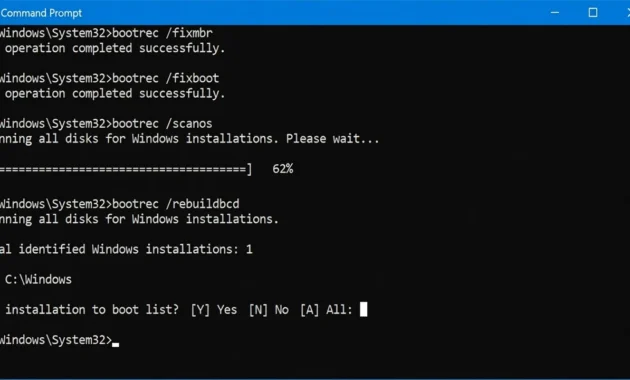
scanos, rebuildbcd.
System File Integrity Scan
The System File Checker is a built-in Windows 10 tool that scans every protected system file and replaces any that are corrupted or missing with a clean verified copy from the Windows cache. Running the system file checker on Windows 10 is one of the most thorough ways to address corrupted system files on Windows 10 without reinstalling the operating system.
To run System File Checker go back into the Command Prompt through the recovery environment and type the following command then press Enter:
sfc /scannow
The scan takes anywhere from ten to thirty minutes depending on your drive speed. Do not close the window or interrupt the process. When finished the tool will tell you whether it found and repaired any corrupted files.
After the SFC scan completes run CHKDSK to check the physical health of your drive. Disk errors can corrupt system files repeatedly even after SFC repairs them so checking the drive is an essential follow up step. Type this command and press Enter:
chkdsk /f /r
Windows will ask you to schedule the disk check for the next restart since it cannot scan the drive while Windows is actively using it. Type Y and press Enter then restart. CHKDSK will run before Windows loads and will repair any file system errors and bad sectors it finds.
In my experience the SFC and CHKDSK combination clears out the majority of corrupted system files on Windows 10 that survive a basic restart. When both finish clean you are in good shape. If errors keep coming back after that the drive itself may be failing and that is a hardware conversation
Hardware-Related Causes and Solutions
Not every blue screen or Windows 10 crash on desktop points to a software problem. Sometimes the culprit is sitting right inside your PC case. Recent hardware changes like adding incompatible RAM, a new hard drive, or a new graphics card are a very common trigger for post-login crashes that many people overlook because they assume hardware either works or it does not. The reality is that hardware can be physically functional but still cause a Windows 10 hardware conflict due to compatibility issues, incorrect seating, or resource clashes with existing components.
I have seen this pattern repeatedly where someone upgrades their RAM or swaps their GPU and the crashes start appearing within a day or two. The timing makes the connection obvious once you know what to look for.
Remove Recent Hardware to Test
The most reliable diagnostic for a hardware conflict takes about five minutes. Remove the most recently added component, boot without it, and see if the system holds. That result tells you more than any error log will
If you recently installed new RAM shut down your PC completely, unplug the power cable and remove the new RAM stick. Boot the system with only the original RAM in place. If the Windows 10 crash on desktop disappears the new RAM is either incompatible with your motherboard or running at a speed your system cannot support.
The same principle applies to graphics cards and storage drives. Remove the newest addition and test. If stability returns you have found your hardware conflict. At that point you have two options: check your motherboard manufacturer’s compatibility list to verify the component should work with your system or try reseating the component firmly to rule out a loose connection.
One thing worth knowing: a Windows 10 hardware conflict caused by incompatible RAM does not always throw an obvious error code. Sometimes the system just crashes at login repeatedly with no clear explanation until the RAM is removed.
Check for Overheating and Overloading
Hardware does not have to be new to cause crashes. Overheating and resource overloading can push a perfectly stable older system into crash territory, and it happens gradually enough that people miss the connection. Before reaching for HWMonitor or Task Manager it is worth checking Event Viewer for thermal or memory warnings that Windows logged quietly in the background
Hardware overloading happens when programs that launch at startup force your CPU or memory to 100% usage before Windows has fully settled. When system resources hit their ceiling right after login Windows 10 can become unstable and crash.
Open Task Manager by pressing Ctrl Shift Esc right after logging in and watch the CPU and Memory columns. If either reads consistently at 90% or above you have an overloading problem rather than a driver or software fault. The fix is to reduce startup programs through the Startup tab in Task Manager. Right click any non-essential program and select Disable to stop it from loading automatically.
For overheating the signs are slightly different. If your PC runs fine for a few minutes after login and then crashes the thermal protection system may be shutting the computer down to prevent damage. Download a free temperature monitoring tool like HWMonitor to check your CPU and GPU temperatures at idle and under load. CPU temperatures above 90 degrees Celsius under normal desktop use indicate a cooling problem that needs physical attention such as cleaning dust from the vents or replacing the thermal paste on the processor.
I have seen this exact scenario get misdiagnosed as a driver issue four or five times before someone thought to check the temperatures. The system was not broken. It was just hot and doing what it is designed to do when it gets too hot
Common Stop Code Error Windows 10: Post-Login Blue Screen Codes
A stop code is the error message Windows puts on the blue screen to identify exactly what type of failure caused the crash. Reading blue screen error codes correctly saves you from chasing the wrong fix, and each code is specific enough to cut your troubleshooting time considerably
Understanding blue screen error codes is genuinely useful because each code points to a different area of the system and knowing what the code means saves you from trying random fixes that have nothing to do with your actual problem.
When Windows 10 shows you a stop code after login it is not being cryptic. The code is a direct clue and once you learn to read it troubleshooting becomes much faster and more focused.
CRITICAL_PROCESS_DIED After Login
The CRITICAL_PROCESS_DIED stop code is one of the most common blue screen error codes people encounter right after the login screen on Windows 10. This error means that a core Windows process that must run continuously for the operating system to function has stopped unexpectedly. Windows cannot recover from this on its own so it forces a shutdown to prevent further damage.
Critical process died errors most commonly trace back to corrupted system files, a failed Windows update, or a recently installed driver that interferes with essential background processes. The System File Checker tool covered in Section 10 is your best first response to this specific stop code because corrupted system files are the leading cause.
If SFC comes back clean the next place I look is Device Manager for driver updates, and then the Windows Update history for anything installed in the days before the crashes began. Rolling back a driver update has been the actual fix in more of these cases than any other single action I have taken
SYSTEM_SERVICE_EXCEPTION After Login
The SYSTEM_SERVICE_EXCEPTION stop code appears when a Windows service or driver attempts an operation it is not permitted to perform. This is almost always a driver conflict issue rather than a hardware failure which makes the error fixable without replacing any components.
The most frequent cause of the system service exception error is a graphics driver or antivirus driver that has become incompatible following a Windows update. When the operating system updates its core files and an installed driver has not been updated to match the version mismatch creates the conflict that triggers this blue screen error code.
To address system service exception crashes open Device Manager and look for any devices showing a yellow warning triangle. Update or roll back the flagged driver and restart. If no warnings appear focus on your graphics driver and antivirus software as the most likely sources of the driver conflict since both interact heavily with core Windows services at the system level.
Get those two stop codes straight and your diagnostic time drops immediately. Critical process died means go to SFC first. System service exception means go to Device Manager first. Neither requires third party tools and neither requires a reinstall in the vast majority of situations I have handled. (If your issue is a blue tint on your monitor rather than a blue screen crash, that’s a separate display calibration problem covered in another guide.
Frequently Asked Questions
Why does my Windows 10 computer only blue screen after I enter my password but boots fine otherwise?
When you enter your password Windows 10 begins loading your personal user session which activates drivers, startup programs, and background services that do not run during the basic boot phase. This is exactly why a windows 10 blue screen after login can appear even when the pre-login screen looks perfectly normal. The crash happens because certain graphics drivers or conflicting processes only initialize after authentication and that is when the instability surfaces.
Is a blank blue screen the same as a Blue Screen of Death?
A blank blue screen and a traditional Blue Screen of Death are both system failures but they indicate different problems. A classic BSOD shows a stop code and error message while a blank blue screen shows nothing at all which often points to a display driver or explorer.exe issue. Both can cause a windows 10 blue screen after login experience but the blank version usually has a simpler fix focused on the shell and graphics layer.
Will I lose my data if I fix the blue screen after login?
In almost every case the fixes for a windows 10 blue screen after login are system level repairs that do not touch your personal files at all. Methods like updating drivers, running SFC, disabling hardware acceleration, or uninstalling a problematic update leave your documents, photos, and data completely intact. Only a full factory reset would affect your files and that step is never necessary until every other option has been exhausted.
Can browser problems really cause my whole computer to crash after login?
Yes and this surprises most people but browsers like Chrome and Firefox use hardware acceleration which offloads graphic rendering tasks directly to your GPU driver. When that GPU driver has a conflict or is outdated the browser essentially triggers a system wide crash because the graphics driver failure affects the entire operating system not just the browser tab. Disabling hardware acceleration in your browser settings is a legitimate and proven fix for windows 10 blue screen after login crashes tied to this specific cause.
How do I get to my desktop when Windows 10 shows blue screen after login?
If you experience a windows 10 blue screen after login press Ctrl L to refresh the login screen and attempt a clean session reload as your first step. If the desktop loads but appears blank open Task Manager with Ctrl Shift Esc then go to File then Run New Task and type explorer.exe to manually restart the Windows shell. These two methods restore desktop access in the majority of cases without requiring a full restart or any advanced recovery tools.