
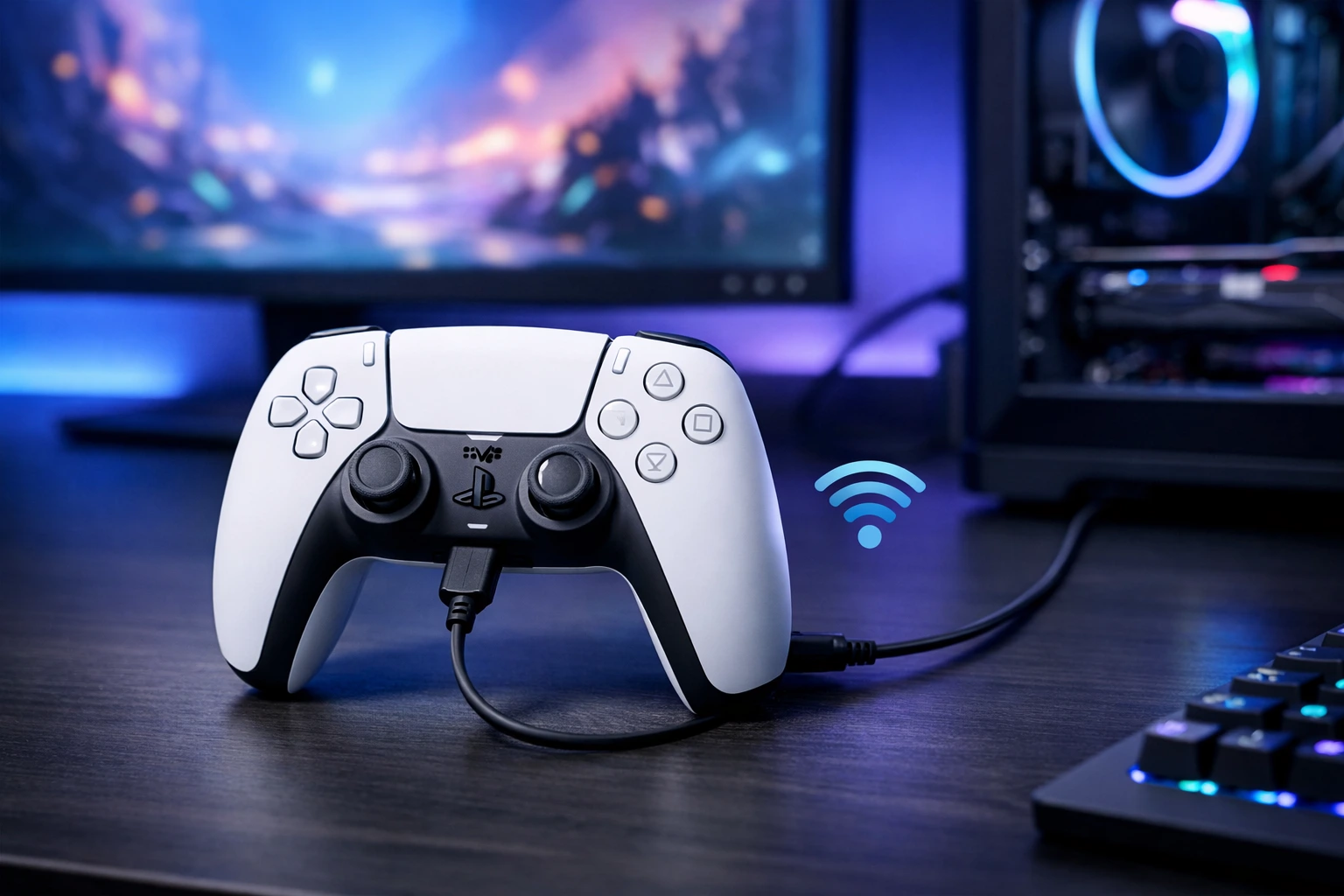
Can You Use a PS5 Controller on PC?
How to connect a PS5 controller to PC is one of the most common questions among gamers in 2026, and the answer is simpler than most people expect. The PS5 DualSense controller works on PC right out of the box with no special hardware or paid software required.
Whether you play on Steam, Epic Games Store, or standalone titles, you can connect using a USB-C cable or Bluetooth and be gaming within minutes. Sony designed the DualSense to work beyond the PlayStation 5 console, and Windows 10 and Windows 11 both recognize it the moment you plug it in or pair it wirelessly.
The short answer is that Steam offers the best native support. Games purchased through the Microsoft Store or played through emulators may need an extra free tool called DS4Windows to function properly. We will cover all of that in detail further down in this guide.
If you have been wondering how to connect a PS5 controller to PC for the first time, you are in the right place. This guide walks you through every method step by step so you can pick the one that fits your setup best.
Learn how to connect a PS5 controller to PC using USB, Bluetooth and DS4Windows in simple steps.
Watch this complete video tutorial to learn how to connect your PS5 DualSense controller to your PC using three different methods: USB-C wired connection wireless Bluetooth pairing and the official PlayStation Link adapter.What Is the PS5 DualSense Controller?
The DualSense is the official wireless controller that ships with every PlayStation 5 console. Sony released it in November 2020 alongside the PS5 and it replaced the older DualShock 4 from the PS4 generation.
What makes the DualSense stand out from other controllers is its advanced haptic feedback system and adaptive triggers. Haptic feedback replaces the old rumble motors with precise vibrations that let you feel different textures and surfaces during gameplay.
Adaptive triggers add physical resistance to the L2 and R2 buttons so actions like drawing a bowstring or pressing a car brake pedal feel more realistic under your fingers.
The controller also features a built in microphone and speaker, a large touchpad in the center, a 3.5mm headphone jack, and a USB C port for charging and wired connections. The light bar sits around the edges of the touchpad instead of on top like the DualShock 4 which gives it a cleaner and more modern look.
For PC gamers the DualSense is one of the most popular controller choices in 2026 because it combines premium build quality with haptic feedback and adaptive triggers that no Xbox controller currently matches at the same price point.
Does Windows 10 and Windows 11 Support the DualSense Natively?
Both Windows 10 and Windows 11 recognize the DualSense controller without any extra driver installation. When you plug it in through USB C, Windows automatically installs a generic controller driver and the controller becomes usable almost instantly.
For Bluetooth connections, both operating systems detect the DualSense through their standard Bluetooth settings menu. You simply put the controller into pairing mode and select it from the available devices list on your PC.
However there is an important distinction between basic support and full feature support. Windows alone will handle standard inputs like buttons, analog sticks, and triggers.
But advanced features like haptic feedback, adaptive triggers, and touchpad functionality require either Steam or DS4Windows to unlock their full potential. Without these tools, you get a fully working controller but you miss out on the features that make the DualSense special.
What You Need Before Connecting Your PS5 Controller to PC
Before you start connecting your PS5 DualSense controller to your computer, it helps to make sure you have everything ready. There is nothing worse than getting halfway through the setup process only to realize you are missing a cable or a piece of software.
This quick checklist covers every item you need for all three connection methods so you can pick your preferred approach and get gaming without any interruptions.
Most PC gamers already have everything needed to get started.The DualSense was designed to work with minimal setup on Windows and the few extra tools that unlock its full potential are completely free to download.
Hardware Requirements
For a wired connection you need a USB C to USB A cable. This is the same type of cable that comes inside the PS5 box. If you have lost yours or never owned a PS5 console, any standard USB C data cable will work.
Just make sure it is a data cable and not a charge only cable because charge only cables cannot transmit controller inputs to your PC.
For a wireless connection your PC needs built in Bluetooth or an external Bluetooth adapter plugged into a USB port. Most modern laptops from 2018 onward have Bluetooth built in. Desktop PCs usually do not unless your motherboard specifically includes a WiFi and Bluetooth combo module.
If your desktop lacks Bluetooth, a small USB Bluetooth dongle costs around five to ten dollars and works perfectly.
There is also a third option which is the official PlayStation Link USB adapter. This small wireless dongle plugs into your USB port and provides a dedicated low latency wireless connection without using Bluetooth at all.
Software Requirements
For basic plug and play functionality you do not need to install anything. Windows 10 and Windows 11 both detect the DualSense automatically through their built in drivers when connected via USB or Bluetooth.
If you encounter any issues with Windows recognizing your controller or detecting it properly, our guide on fixing Steam app compatibility issues on Windows 11 covers the broader troubleshooting steps that apply to most Windows controller problems.
However if you want full compatibility across every game and platform you should download DS4Windows.
This free open source tool is available on GitHub from the developer Ryochan7. It makes Windows treat your DualSense as an Xbox controller which solves compatibility issues with games that do not natively support PlayStation controllers.
DS4Windows requires the .NET 8.0 Desktop Runtime from Microsoft to run. You can download it directly from the official Microsoft .NET download page. Also note that the project is now maintained by ds4windowsapp on GitHub search for “DS4Windows ds4windowsapp” to find the current active repository. You can download it directly from the official Microsoft website in under a minute.
Once both are installed you are fully set up to use your PS5 controller with any game on your PC regardless of the storefront or launcher.
Method 1 How to Connect PS5 Controller to PC (USB Method)
The wired method is the fastest and most reliable way to connect your PS5 controller to PC. There is no pairing process, no software to configure, and no delay between pressing a button and seeing the action on screen. If you want zero hassle, this is where you start.
Step by Step Plug and Play USB C Connection
Grab a USB C to USB A cable. If your PC has a USB C port you can also use a USB C to USB C cable instead.
Plug the USB C end into the port on the top of your DualSense controller. Connect the other end into any available USB port on your PC or laptop.
Windows will automatically detect the controller within a few seconds. You will hear the familiar USB device connected sound and the light bar on your controller will glow a solid color. That is it. You are ready to play.
There is no driver to install and no settings to change. Open any controller supported game and it will recognize the DualSense immediately. Steam games will even show PlayStation button prompts automatically if you have PlayStation Configuration Support enabled in the Steam controller settings.
One important thing to know is that plugging the DualSense into a PC does not pair it the way plugging it into a PS5 does. On a PS5 the USB connection creates a persistent Bluetooth pairing so you can unplug and keep playing wirelessly. On PC the connection only lasts as long as the cable stays plugged in.
The moment you disconnect the cable the controller stops working until you plug it back in or set up Bluetooth separately.
Does the PS5 Controller Charge While Connected to PC via USB?
Yes it does. Whenever the DualSense is connected to your PC through a USB cable it charges the internal battery at the same time.
The light bar near the touchpad will pulse with a slow orange glow while charging and the light turns off once the battery is full.
This makes wired play a practical choice for gamers who forget to charge their controller between sessions. You can game and charge simultaneously without any performance difference compared to a fully charged wireless connection.
Keep in mind that the charging speed depends on the USB port you use. A USB 3.0 port delivers more power than an older USB 2.0 port so your controller will charge faster if you plug it into a blue USB port on your PC. Most modern desktops and laptops have at least two or three USB 3.0 ports available.
Method 2 How to Connect PS5 Controller to PC with Bluetooth
Going wireless gives you the freedom to sit back on your couch or move around without worrying about cable length. The Bluetooth connection works natively on Windows 10 and Windows 11 with no extra software required for basic functionality.
How to Put Your PS5 Controller in Bluetooth Pairing Mode
Make sure the controller is turned off before you begin. If it is currently connected to another device via USB, unplug the cable first.
Press and hold the PlayStation button and the Create button at the same time. The Create button is the small button on the upper left side of the controller next to the directional pad.
Hold both buttons for about three seconds until the light bar starts flashing rapidly with a blue light. This rapid flashing means the controller is now in pairing mode and actively searching for a device to connect to.
Do not confuse this with the slow pulsing light that indicates the controller is simply turning on. You need the fast blinking flash to confirm pairing mode is active.
Step by Step Pair DualSense via Windows Bluetooth Settings
Open the Settings app on your PC and navigate to Bluetooth and devices. Make sure the Bluetooth toggle is turned on.
Click Add device and then select the first option labeled Bluetooth. Your PC will start scanning for nearby devices.
Within a few seconds you should see Wireless Controller appear in the list. Click on it and Windows will complete the pairing process. The light bar on your DualSense will stop flashing and change to a solid color confirming the connection is established.
The controller is now ready to use wirelessly in any game that supports controller input.
How to Disconnect or Remove PS5 Controller from PC Bluetooth
To temporarily disconnect the controller simply press and hold the PlayStation button for about ten seconds until the light bar turns off. The controller will power down but remain paired with your PC so it can reconnect quickly next time.
To remove the pairing entirely go to Bluetooth and devices in your PC settings. Find Wireless Controller in the list of paired devices and click Remove device. This is useful when you want to pair the controller with a different PC or reconnect it to your PS5 console.
Method 3 How to Connect PS5 Controller to PC Using a Wireless Adapter
If your PC does not have Bluetooth or you want a more stable wireless connection with lower latency, using a wireless adapter is the best alternative.
This method gives you the convenience of wireless play without the occasional connectivity hiccups that Bluetooth can sometimes introduce.
What Is the PlayStation Wireless Adapter?
The PlayStation Link USB adapter is a small dongle made by Sony that plugs into any USB A port on your computer. It creates a dedicated wireless connection between your DualSense controller and your PC using a proprietary signal instead of Bluetooth.
The main advantage of using this adapter over standard Bluetooth is reduced input lag. Bluetooth connections can introduce a few milliseconds of latency that most casual gamers will never notice, but competitive players or anyone sensitive to input delay will appreciate the faster response time the dedicated adapter provides.
The adapter is sold separately and typically costs between twenty and thirty dollars depending on your region. It is a one time purchase that works with any DualSense controller including the DualSense Edge.
Step by Step Connect DualSense via USB Dongle
Plug the wireless adapter into an available USB port on your PC. Windows will automatically recognize the device and install the necessary drivers within a few seconds.
Press and hold the pairing button on the adapter itself. A small LED light on the dongle will start blinking to indicate it is ready to pair.
On your DualSense controller press and hold the PlayStation button and the Create button simultaneously until the light bar begins flashing. This is the same pairing mode used for Bluetooth connections.
The adapter and controller will find each other automatically and establish a connection. The light bar on the controller will turn solid once paired and the LED on the adapter will also stop blinking.
From this point on the controller will automatically connect to the adapter whenever you turn it on, as long as the dongle is plugged into your PC.
There is no need to repeat the pairing process each time you want to play.
How to Set Up PS5 Controller on Steam
Steam offers the best native support for the DualSense controller on PC. Once you enable the right settings, Steam handles everything from button mapping to advanced features like haptic feedback and adaptive triggers.
If most of your gaming library lives on Steam, this is the only setup you really need and you can skip DS4Windows entirely for those games.
How to Enable PlayStation Configuration Support in Steam
Open Steam on your PC and click on the Steam menu in the top left corner. Select Settings from the dropdown list.
In the Settings window navigate to the Controller tab on the left side. You will see a section labeled External Gamepad Settings. Find the option that says PlayStation Controller Support and make sure it is turned on.
Once this setting is enabled Steam will automatically detect your DualSense controller whenever it is connected to your PC through USB or Bluetooth.
Games launched through Steam will recognize it as a PlayStation controller and display the correct PlayStation button prompts on screen instead of Xbox prompts.
This single setting is what separates a smooth experience from a frustrating one. Without it enabled many Steam games will either ignore the controller completely or treat it as a generic input device with no proper button mapping.
How to Customize DualSense Light Bar Rumble and Name in Steam
After enabling PlayStation Controller Support, connect your DualSense and go back to the Controller section in Steam Settings.
You will see your controller listed as PlayStation 5 Controller. Click on it to open the Preferences panel where you can personalize several features.
You can rename the controller to anything you want which is helpful if you use multiple controllers and need to tell them apart.
Below the name field you will find a toggle for Rumble that lets you turn vibration on or off depending on your preference.
The most fun option is the Light Bar customization. Steam lets you change the color of the LED strip around your touchpad to any color you like. You can pick from a full color spectrum and adjust both the brightness and saturation levels.
This is purely cosmetic but it adds a nice personal touch especially if you game in a darker room where the light bar glow is visible.
These personalization options only apply when playing games through Steam. If you launch a game outside of Steam the controller will revert to its default light color and settings.
Does the PS5 Controller Work in Steam Big Picture Mode?
Yes and Big Picture Mode actually provides the most complete controller experience Steam offers. Big Picture Mode transforms the Steam interface into a console style layout designed entirely for controller navigation. You can browse your library, access the store, adjust settings and launch games without ever touching your keyboard or mouse.
To enter Big Picture Mode click View in the top menu bar and select Big Picture Mode. Steam will switch to a full screen interface that your DualSense can navigate using the analog sticks, directional pad, and face buttons.
Within Big Picture Mode you also get access to advanced controller configuration options for individual games.
You can remap every button, adjust stick sensitivity, set up radial menus, and create custom profiles that load automatically when you launch a specific game. This level of control goes far beyond what the standard Steam desktop interface offers.
How to Use DS4Windows to Connect PS5 Controller to Any PC Game
Not every game supports the DualSense natively. Games from the Microsoft Store, Xbox Game Pass titles, older games, and most emulators often do not recognize PlayStation controllers at all.
DS4Windows solves this problem completely by making your PC treat the DualSense as an Xbox controller so it works everywhere.
What Is DS4Windows and Why Do You Need It?
DS4Windows is a free open source program that acts as a translation layer between your DualSense controller and Windows. It intercepts the signals from your PlayStation controller and converts them into Xbox controller inputs before they reach the game.
The reason this works so well is that nearly every PC game ever made supports Xbox controllers natively. By disguising your DualSense as an Xbox device, DS4Windows gives you instant compatibility with thousands of games that would otherwise ignore your controller.
You need DS4Windows specifically when a game does not respond to your DualSense at all, when a game works but vibration and haptic feedback are missing, or when you want to use the DualSense touchpad as a mouse for navigating menus and desktops.
How to Download and Install DS4Windows
Search for DS4Windows by Ryochan7 on GitHub. This is the official and actively maintained version of the software. Do not download it from random third party websites.
On the GitHub releases page download the latest x64 zip file. Extract the contents into a folder on your PC. There is no traditional installer so you simply run the application directly from the extracted folder.
Before launching DS4Windows you need to install the .NET 8.0 Desktop Runtime from Microsoft. .NET download page and grab the x64 version for Windows. Run the installer and follow the prompts. This takes less than a minute.
Now open the DS4Windows folder and double click ds4windows.exe. The application icon is colorful and easy to spot. On the first launch it will ask where you want to save settings. Select Program Folder to keep everything contained in one place.
DS4Windows will then prompt you to install the necessary controller drivers. Follow Step 1 in the driver installation window and let it complete. Restart your PC after the driver installation finishes to make sure everything loads correctly on the next boot.
How to Enable DualSense Controller Support in DS4Windows
After restarting your PC open DS4Windows again. If your controller is already connected via USB or Bluetooth it should appear in the main window automatically.
If the controller does not show up, click on the Settings tab at the top of the DS4Windows window. Look for a button labeled Device Options and click it. Inside you will find a checkbox for DualSense Controller Support. Make sure it is checked.
After enabling this option go back to the main DS4Windows window and click Stop at the bottom of the screen, then click Start again.
This refreshes the application and forces it to scan for your controller using the updated settings. Your DualSense should now appear in the controller list with a green status indicator.
Does DS4Windows Make the PS5 Controller Act Like an Xbox Controller?
Yes that is exactly what it does. DS4Windows maps every DualSense button to its Xbox equivalent. The Cross button becomes A, Circle becomes B, Square becomes X and Triangle becomes Y.
The touchpad can function as a mouse click and the motion sensors can be mapped to additional inputs if you want.
Because your PC now sees the controller as an Xbox device, every game that supports Xbox controllers will work perfectly with your DualSense.
The tradeoff is that in game button prompts will show Xbox icons instead of PlayStation icons. So when a game tells you to press A you will need to remember that means Cross on your DualSense.
For most gamers this tradeoff is completely worth it because it unlocks universal compatibility across every storefront and launcher on PC.
You only need DS4Windows running in the background while you play. Once you close the game you can close DS4Windows too and your controller goes back to being recognized as a standard DualSense.
PS5 Controller PC Compatibility Which Games and Platforms Work?
Connecting your PS5 controller to PC is only half the equation. The other half is knowing which games and platforms will actually recognize it without extra configuration.
The compatibility landscape in 2026 varies significantly depending on where you buy and launch your games.
Steam Games
Steam provides the most seamless DualSense experience on PC. With PlayStation Configuration Support enabled in your controller settings, Steam automatically detects the DualSense and maps all buttons correctly.
| Platform | DualSense Works | Button Prompts | Haptic Feedback | DS4 Windows Needed |
|---|---|---|---|---|
| Steam | Yes. | PlayStation icons | Yes (USB only) | No |
| Epic Games Store | Yes | Varies by game | Limited | Optional |
| Microsoft Store / Xbox Game Pass | Partial | Xbox icons | No | Yes |
| Emulators (RetroArch, PCSX2, RPCS3) | Yes. | Varies | Basic rumble | Optional |
| Standalone EXE games | Varies | Varies | Rarely | Recommended |
Most Steam games will display PlayStation button prompts on screen and many newer titles like Returnal, Death Stranding Directors Cut and Final Fantasy XVI even support the advanced haptic feedback and adaptive trigger features that make the DualSense special.
If a particular Steam game does not respond to the controller, open the game properties within Steam, go to the Controller tab and make sure it is set to Enable Steam Input.
This forces Steam to handle the controller mapping for that specific game.
Epic Games Store
The Epic Games Store has improved its controller support considerably over the past year. Most major titles downloaded through Epic will recognize the DualSense when connected via USB or Bluetooth without any extra software. Games like Fortnite, Rocket League, and Alan Wake 2 work out of the box.
However Epic does not offer the same level of controller customization that Steam provides. There is no built in option to remap buttons, adjust stick deadzone, or customize the light bar through the Epic launcher. If you need those features for Epic games you will want to run DS4Windows in the background.
Microsoft Store and Xbox Game Pass Games
This is where things get tricky. Games downloaded from the Microsoft Store and Xbox Game Pass titles are designed primarily for Xbox controllers.
The DualSense often connects but is not properly recognized, resulting in missing vibration, incorrect button mapping, or the game ignoring the controller entirely.
The most reliable fix is using DS4Windows which converts your DualSense inputs into Xbox controller signals. Once DS4Windows is running in the background, every Game Pass title will treat your PS5 controller as if it were an Xbox controller and function perfectly.
Emulators RetroArch PCSX2 RPCS3
Emulators have excellent DualSense support in 2026. RetroArch detects the controller automatically and lets you map buttons for any retro console from NES to PlayStation Portable. PCSX2 for PlayStation 2 games and RPCS3 for PlayStation 3 games both support the DualSense natively with full vibration feedback.
For the best emulator experience connect through USB so the controller is recognized instantly without any Bluetooth pairing delays.
Some emulators also support the DualSense touchpad as a mouse which makes navigating emulator menus much easier without switching to your keyboard.
USB vs Bluetooth vs Wireless Adapter Which Connection Method Is Best?
Each connection method has clear strengths and tradeoffs. The right choice depends on how you game and what matters most to you. Here is a side-by-side breakdown to help you decide.
| Feature | USB Wired | Bluetooth | PlayStation Link Adapter |
|---|---|---|---|
| Setup Difficulty | Plug and play | Pairing required | One-time pairing |
| Input Latency | Lowest | Slightly higher | Very low |
| Haptic Feedback Support | Full support | Not supported | Full support |
| Adaptive Triggers | Full support | Not supported | Full support |
| Battery While Playing | Charges while playing | Drains battery | Drains battery |
| Range | Limited by cable length | Up to 30 feet | Up to 30 feet |
| Extra Hardware Needed | USB-C data cable | Bluetooth adapter for desktops | PlayStation Link dongle |
| Approximate Cost | Free with included cable | Free if the PC has Bluetooth | $20–$30 |
| Best For | Competitive gaming and desktop setups | Casual couch gaming | Low-latency wireless gaming |
If you play competitive multiplayer games where every millisecond counts, USB wired gives you the lowest possible input lag with zero battery concerns.
For casual single-player gaming from your couch, Bluetooth is the most convenient option since there are no cables involved. If you want wireless freedom without the minor latency penalty of Bluetooth, the PlayStation wireless adapter is the premium middle ground worth the extra cost.
Troubleshooting PS5 Controller Not Connecting to PC
Even with the right setup things can sometimes go wrong. Before you get frustrated and start questioning your purchase, run through these common issues and their fixes. Most problems have a simple solution that takes less than two minutes to resolve.
PS5 Controller Not Detected via USB
If you plug in your DualSense through USB and nothing happens, the first thing to check is your cable. Not all USB C cables support data transfer. Some cheaper cables are designed only for charging and they will power the controller without sending any input signals to your PC. Try a different USB C cable and make sure it is a data capable cable.
If the cable is fine, try plugging it into a different USB port on your computer. Front panel USB ports on desktop PCs sometimes have weaker connections than the ports directly on the motherboard at the back.
Also open Device Manager on Windows and look under Human Interface Devices to see if the controller appears there. If you see an unknown device or a yellow warning icon, right click it and select Update Driver to let Windows search for the correct driver automatically.
PS5 Controller Not Showing in Bluetooth Devices
The most common reason the DualSense does not appear in your Bluetooth device list is that it is not actually in pairing mode. A slow pulsing light means the controller is simply turning on. You need a fast rapid flash to confirm pairing mode is active
Press and hold the PlayStation button and the Create button together for at least three full seconds until the light bar starts blinking quickly.
If the controller still does not appear, make sure no other device is currently connected to it. The DualSense can only pair with one device at a time. If it was previously connected to a PS5 or another computer, it may still be trying to connect to that device instead.
Reset the controller by inserting a small pin into the tiny reset hole on the back near the L2 button and holding it for five seconds.
PS5 Controller Keeps Disconnecting from PC
Random disconnections during Bluetooth gameplay usually happen because of wireless interference or power saving settings. Open Device Manager, expand Bluetooth, right click your Bluetooth adapter, go to Properties, select the Power Management tab and uncheck the option that says Allow the computer to turn off this device to save power.
This prevents Windows from cutting power to your Bluetooth adapter during gameplay.
PS5 Controller Buttons Not Working in Game
If the controller connects but buttons do not respond in a specific game, the game likely does not support PlayStation controllers natively. Launch DS4Windows in the background to translate your DualSense inputs into Xbox controller signals.
Also check that you do not have multiple controller emulation programs running simultaneously as they can conflict with each other.
How to Update PS5 Controller Firmware on PC
Sony releases firmware updates for the DualSense that fix bugs and improve connectivity. Download the PlayStation Accessories app from the Microsoft Store on Windows.
Connect your controller via USB, open the app, and it will automatically detect if a firmware update is available. Follow the on screen instructions and do not disconnect the controller until the update finishes.
Input Lag or Latency When Using Bluetooth
If you notice a slight delay between pressing buttons and seeing the action on screen while using Bluetooth, try moving closer to your PC and removing any obstacles between the controller and the Bluetooth adapter.
USB 3.0 devices plugged into nearby ports can sometimes cause interference with Bluetooth signals. If the lag persists switching to a wired USB connection or the PlayStation wireless adapter will eliminate the latency entirely.
How to Reconnect Your PS5 Controller Back to PS5 Console After Using on PC
Once you pair your DualSense controller with your PC through Bluetooth, it will no longer automatically connect to your PlayStation 5 the next time you turn it on.
This catches a lot of people off guard because they assume the controller remembers both devices. It does not. Understanding why this happens and how to fix it takes less than a minute.
Why Your Controller Won’t Auto Connect to PS5 After PC Use
The DualSense can only maintain one active Bluetooth pairing at a time. When you pair it with your PC, that new connection overwrites the previous pairing with your PS5 console. So the next time you press the PlayStation button expecting it to connect to your console, the controller instead tries to reach your PC.
This is not a bug or a malfunction. It is how Bluetooth pairing works on every wireless controller from every manufacturer. The controller always connects to the last device it was paired with unless you manually tell it otherwise.
Step by Step Re Pair DualSense to PS5
To reconnect your controller to your PS5, grab a USB C cable and plug one end into the controller and the other end into the front USB port on your PlayStation 5 console.
Press the PlayStation button on the controller. The console will instantly recognize the DualSense and re establish the Bluetooth pairing. The light bar will glow its assigned player color confirming the connection is active.
Once this pairing completes you can unplug the USB C cable and use the controller wirelessly with your PS5 as usual. The entire process takes about five seconds.
Keep in mind that pairing it back to your PS5 means it will no longer auto connect to your PC. You will need to repeat the Bluetooth pairing steps on your computer the next time you want to use it for PC gaming.
Pro Tips for Using PS5 Controller on PC
Beyond basic connectivity there are several features most people never explore that make the DualSense an even better PC controller once you know how to unlock them.
How to Use the DualSense Touchpad as a Mouse on PC
When DS4Windows is running in the background your DualSense touchpad can function as a mouse cursor. Simply slide your finger across the touchpad to move the cursor on screen.
Pressing down on the left side acts as a left mouse click and pressing the right side acts as a right click. This is especially useful for navigating desktop menus or launcher interfaces without reaching for your actual mouse.
How to Enable Haptic Feedback and Adaptive Triggers on PC
Steam is currently the only platform on PC that fully supports DualSense haptic feedback and adaptive triggers. To enable these features open Steam Settings, go to the Controller tab, and make sure PlayStation Controller Support is turned on. One important requirement: haptic feedback and adaptive triggers only work when the DualSense is connected via USB cable.
These features do not transmit over Bluetooth, so if you want the full sensory experience you will need to plug in. Games that natively support these features will activate them automatically when launched through Steam.
Best PC Games That Support DualSense Features in 2026
Several PC titles now take full advantage of the DualSense hardware. Returnal, Death Stranding Directors Cut, Final Fantasy XVI, Alan Wake 2 and Spider Man 2 all deliver haptic feedback and adaptive trigger effects on PC when played through Steam. The list continues to grow as more developers integrate DualSense support into their PC releases.
Can you connect a PS5 controller to PC without Bluetooth?
Yes you can. Just plug a USB C cable into the controller and connect the other end to any USB port on your PC. Windows will detect it instantly and you can start playing right away. You can also use the official PlayStation Link wireless adapter if you want a wireless connection without using Bluetooth at all.
Does the PS5 controller work on PC without Steam?
Yes it does. The DualSense works as a basic controller on any PC game when connected through USB or Bluetooth. However without Steam you will miss out on advanced features like haptic feedback, adaptive triggers, and light bar customization. For games outside of Steam you can use DS4Windows to get full compatibility.
Can I use two PS5 controllers on one PC at the same time?
Yes you can connect two DualSense controllers to one PC simultaneously. If you are using USB just plug both controllers into separate USB ports. For Bluetooth you will need to pair each controller individually through your Windows Bluetooth settings. DS4Windows also supports multiple controllers at once which is great for local co op games.
Is there input lag when using PS5 controller on PC via Bluetooth?
There is a very slight delay compared to a wired USB connection but most people will never notice it during casual gameplay. The difference is only a few milliseconds. If you play competitive multiplayer games where every frame matters then a wired connection or the PlayStation wireless adapter will give you the lowest possible latency.
Do I need DS4Windows for every game?
No you do not. Steam games work perfectly with the DualSense without DS4Windows as long as you have PlayStation Controller Support enabled in Steam settings. You mainly need DS4Windows for games from the Microsoft Store, Xbox Game Pass titles, older games, and emulators that do not recognize PlayStation controllers natively.
Can you use PS5 controller on PC with Epic Games Store?
Yes the DualSense works with most Epic Games Store titles when connected through USB or Bluetooth. Games like Fortnite and Rocket League recognize the controller automatically. However Epic does not offer built in button remapping or light bar customization like Steam does so you may want to run DS4Windows in the background if you need those extra features.
Does the PS5 controller have haptic feedback on PC?
Yes, but only when connected via USB cable and only in games that natively support DualSense features. Haptic feedback and adaptive triggers do not work over Bluetooth on PC. Steam is the primary platform that enables these features with PlayStation Controller Support turned on in Steam settings, compatible games like Returnal, Death Stranding Directors Cut, and Final Fantasy XVI will activate haptic feedback and adaptive triggers automatically when you plug in your DualSense via USB.
Final Verdict Best Way to Connect PS5 Controller to PC in 2026
There is no single best method because it depends on how you play. If you want the most reliable zero lag experience plug in a USB C cable and start gaming immediately. If you prefer wireless freedom for casual sessions Bluetooth gets the job done without spending anything extra. And if you want the best of both worlds with low latency and no cables the PlayStation wireless adapter is worth the investment.
No matter which method you choose the DualSense works beautifully on PC in 2026 and the setup takes just minutes.
| Detail | Information |
|---|---|
| Website | futuretechtips.com |
| Content Category | Technology Gaming & PC Hardware |
| Article Author | Mustahsan Tariq |
| Author Profile | futuretechtips.com/author/mustahsantariq/ |
| Article Topic | PS5 DualSense Controller on PC |
| Primary Keyword | How to connect PS5 controller to PC |
| Last Updated | September 2026 |
| Content Type | How-To Guide |
| Target Audience | PC gamers using PlayStation controllers |