
Does Android Have a Trash Folder?
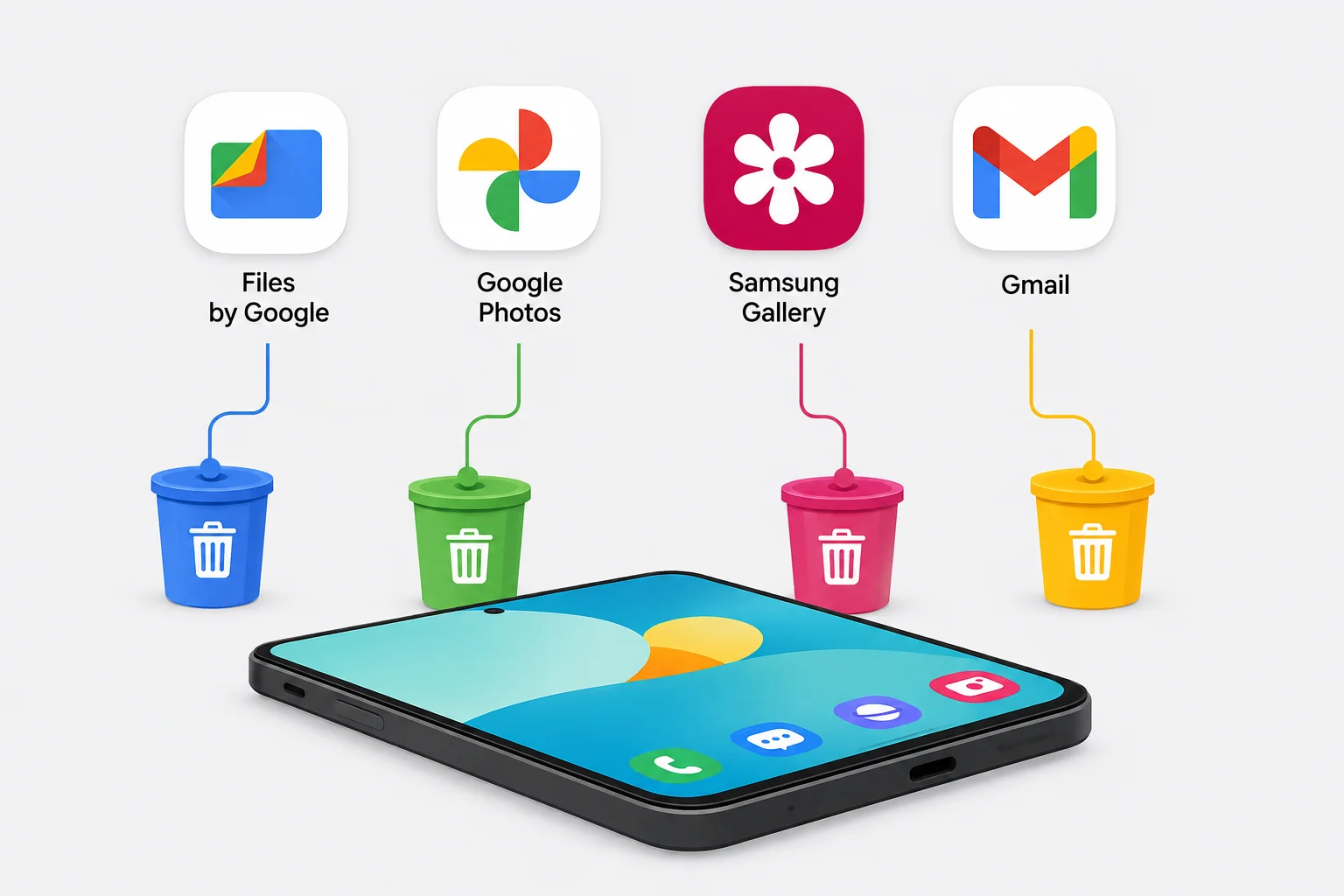
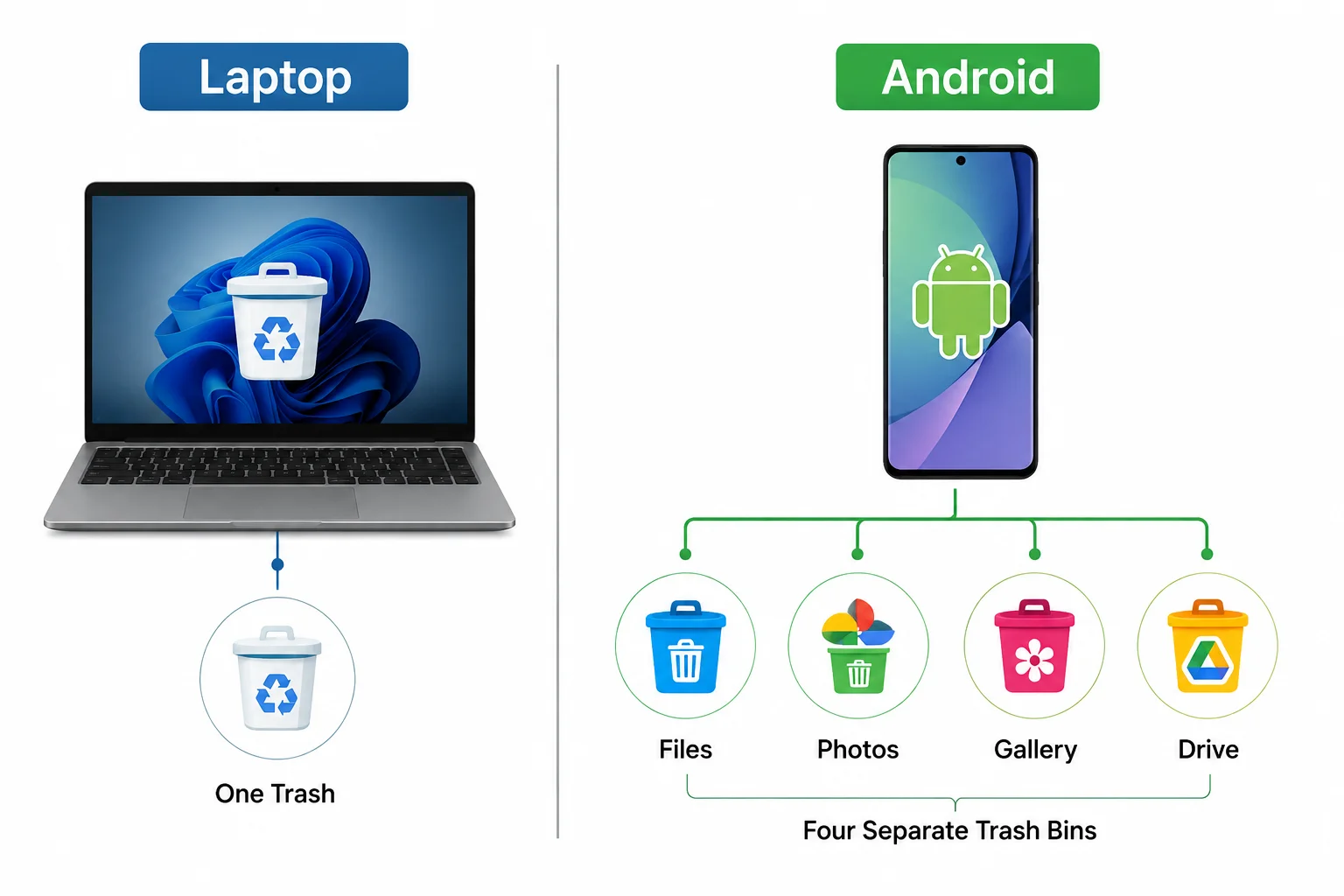
I used to assume Android worked like my laptop. You delete something, it lands in one trash bin, and you empty it once. That is not how it works at all. Android does not have a single universal recycle bin. There is no hidden folder called trash sitting in your internal storage where everything collects together. Instead, every app keeps its own deleted items separately.
Files by Google has its trash folder. Google Photos has its own. Samsung Gallery has yet another. Gmail and Drive manage their own too. When people ask me where the recycle bin is, I tell them the same thing: it depends on which app you used to delete the file. This is the first thing that confuses almost every new Android user, and I completely understand why.
Android 11 introduced something called the Trash API. It sounds technical, but the idea is simple. Apps can move deleted files into a temporary state instead of removing them immediately. Most files stay there for 30 days automatically. Photos backed up in Google Photos stay for 60 days. Google Keep only holds them for 7 days. During that time, the deleted items still occupy real storage space on your device. I have seen users recover over 10 GB just by emptying these separate trash bins.
| Android App | Trash Location | Typical Retention | Can Restore? | Permanently Deletes Files? |
|---|---|---|---|---|
| Files by Google | Menu → Trash | Up to 30 days | Yes | Yes |
| Google Photos | Collections/Library → Trash | 60 days for backed-up items* | Yes | Yes |
| Samsung Gallery | Gallery → Trash | Up to 30 days* | Yes | Yes |
| Samsung My Files | Menu → Recycle Bin | Up to 30 days* | Yes | Yes |
| Google Drive | Trash | 30 days | Yes | Yes |
| Gmail | Trash | 30 days | Yes | Yes |
| Google Keep | Trash | 7 days | Yes | Yes |
Android does not have one universal trash folder. Deleted files are usually stored in the trash or recycle bin of the app that deleted them. To free storage immediately, open the app you used to delete the file and empty its Trash or Recycle Bin.
Many people think deleting a file frees space right away. It does not. The storage stays full until you manually empty the trash or the automatic deletion period passes. That hidden retention is exactly why your phone still shows low space after you cleaned up your gallery.
Photos and videos consume roughly 60 percent of average Android storage, so many users prefer to save videos to cloud rather than keep everything local.. That makes the Google Photos trash folder one of the most important places to check. If you never delete anything, you are not alone. Surveys show about 13 percent of users never attempt to declutter their devices, while 55 percent do it regularly. I fall somewhere in between, but after learning about these separate trash locations, I check them much more often.
The surprising truth is that some Samsung phones even keep hidden original backups of edited photos indefinitely. When you tap save instead of save copy in the Gallery app, the original file stays buried in storage with no expiration date. That is a huge hidden drain that almost no one notices until their storage is almost full.
If you are wondering whether Android has a trash folder like Windows, the direct answer is no. There is no system-wide recycle bin. Each app manages its own deleted files independently. Understanding this one fact saves you a lot of confusion when you try to free up space.
Why Your Storage Stays Full After Deleting Files
Every time I delete something from my gallery and check storage right after, I expect to see free space appear. It almost never does. I used to think my phone was broken or the storage meter was wrong. The real reason is simple. Deleting a file on Android does not erase it immediately. It just moves the file into that app’s private trash folder, where it sits quietly using the same amount of space.
Most trash folders keep items for 30 days by default. That applies to Files by Google, Gmail, Google Drive, and Samsung Gallery. Google Photos is the exception. If your photos are backed up, they stay in trash for 60 days. If backup is turned off, the retention drops to 30 days. Google Keep is even shorter at just 7 days. During all of those periods, the deleted content remains fully stored on your device.
| Problem | Why Storage Is Still Used | What to Do |
|---|---|---|
| Deleted photos | Still in Photos/Gallery Trash | Empty Trash |
| Deleted files | Still in Files/My Files Recycle Bin | Empty Recycle Bin |
| Cloud-backed photos | May remain in Google Photos Trash | Empty Google Photos Trash |
| App cache | Temporary app data remains | Clear cache |
| Large downloads | Files were never deleted | Check Downloads |
| Duplicate/original media | Extra copies still exist | Review large files |
That hidden retention explains why cleaning your gallery does not always fix the low storage warning. You emptied one trash folder, but maybe not the Google Photos trash. Or maybe not the Samsung My Files trash. Each one holds onto its own deleted items independently. I have recovered over 10 GB before just by emptying all of them in sequence.
Photos and videos consume roughly 60 percent of storage on a modern Android phone. That is why the Google Photos trash folder matters more than almost any other. Even a short video can take hundreds of megabytes. When you delete ten videos thinking you freed space, you may have only moved them to a 60-day holding area.
Some users assume the system handles everything automatically. It does delete trash files eventually. But waiting for that automatic cleanup means living with full storage for up to two months. I prefer to empty trash manually right after a cleanup session. It takes less than a minute and the space returns immediately.
Many people also confuse clearing cache with emptying trash. Clearing cache removes temporary data that apps rebuild quickly. Emptying trash removes files you actually deleted. They do completely different things. If your storage is full and you only cleared cache, the real deleted files are probably still sitting in each app’s trash folder.
How to Empty Trash in Files by Google (Quick Steps)
This is the first place I always check when I want to clean up an Android phone. Files by Google acts as the main trash manager on most modern Android devices. If you have a Pixel, it comes preinstalled. If you use Samsung or another brand, you may need to download it from the Play Store first. Once it is open, the process is straightforward.
Swipe up from your home screen and open the Files app. If you are inside a folder, press the back arrow until you reach the main screen. Look at the top left for the menu icon, which looks like three horizontal lines. Tap it, then select Trash from the dropdown. This screen shows every file you deleted through this app over the past 30 days.
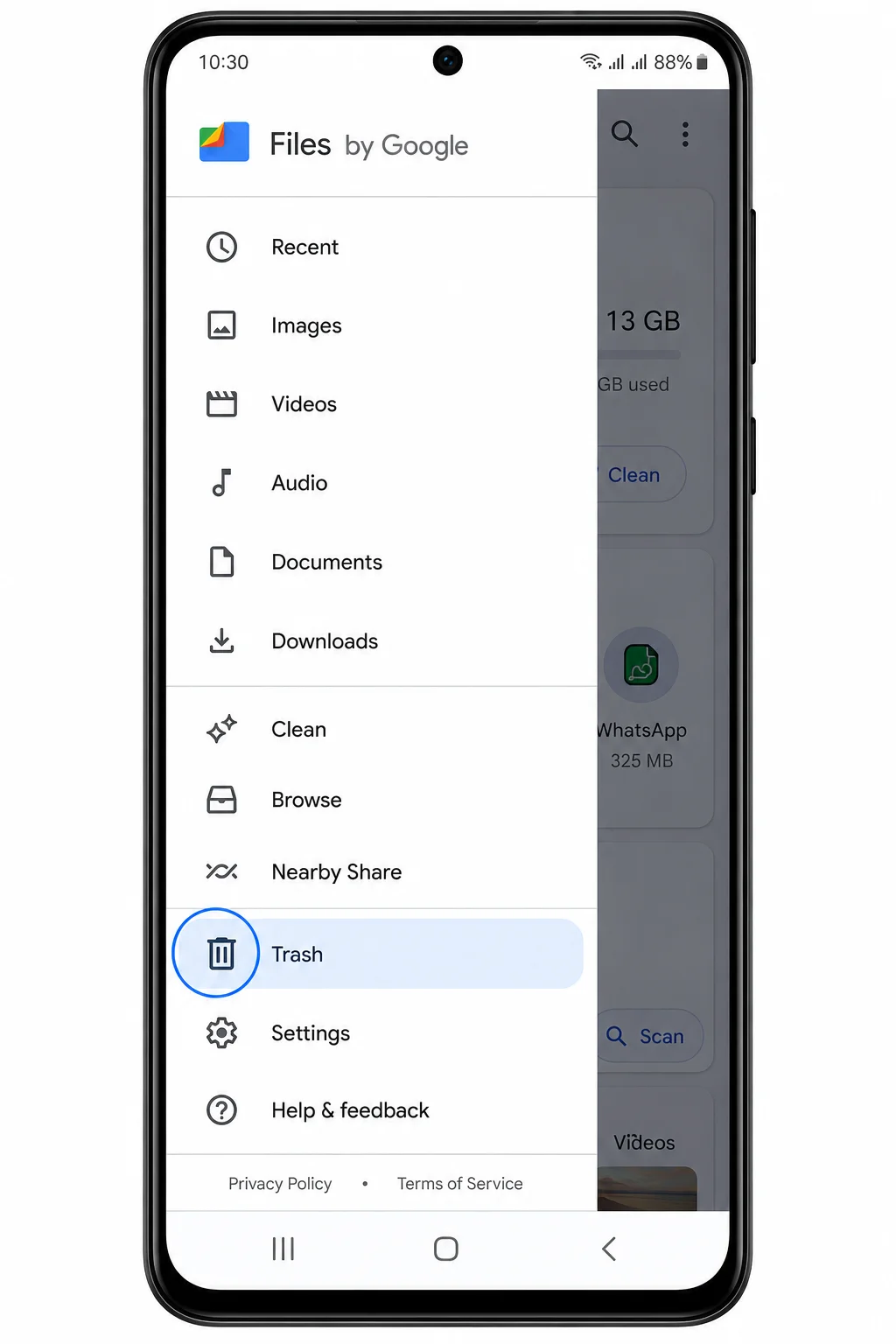
You have a few choices here. You can select individual files by tapping them one by one. You can select everything at once by tapping the select-all bubble at the top. Once you choose what to remove, tap the Delete button at the bottom. A confirmation will appear asking if you want to delete permanently. Confirm it. Those files are gone immediately and the storage is freed right then.
What You See in the Trash Folder
Inside the trash screen, you will see a list of deleted files with their names, sizes, and dates. Each item shows whether it was deleted recently or closer to the 30-day limit. You can also restore something by accident here. Just select the file and tap Restore. It moves back to its original location instantly.
That restore option is useful, but I recommend checking before you confirm the final delete. Once you press delete permanently, the file does not go into another backup layer. It is removed from this trash folder for good. If you are unsure, leave it until the automatic 30-day cleanup handles it.
How to Empty Trash on Samsung (My Files + Gallery)
Samsung phones handle trash differently from Pixel or standard Android devices, and if you need to delete apps on Samsung, the process is similar.If you own a Galaxy phone, you actually have two separate trash locations to check. One is inside Samsung My Files. The other is inside the Gallery app. They do not connect to each other. Emptying one does not empty the other. I learned this the hard way after deleting a batch of photos and wondering why my storage barely changed.
Open your app drawer and find My Files. Once it is open, look for the hamburger menu in the upper left or the three-dot menu depending on your One UI version. Tap it, then select Recycle Bin. This folder holds deleted files from the file manager, including documents, downloads, and some media. You can choose individual items or select all, then tap Empty or Delete All. Confirm when prompted. Those files are removed permanently and the space frees up immediately.
Now go to the Gallery app. Open it and look at the bottom right or lower menu area for the hamburger icon. Tap it, then select Trash. This is where deleted photos and videos from the camera roll stay for 30 days. Just like in My Files, you can select all and empty it. The delete button appears in the bottom right. Confirm the permanent removal and the space comes back right away.
The Hidden Storage Drain on Samsung Phones
There is something almost no standard guide mentions. When you edit a photo or video in Samsung Gallery and tap Save instead of Save Copy, the app keeps a hidden original backup of the file. These backups have no expiration date. They accumulate forever in hidden storage. I have seen edited videos double in size because the original and edited version both remain buried in the system.
To avoid this, always choose Save Copy when you edit something. That creates a new file and leaves the original unchanged, which is easier to manage. If you have been using Save for a while, go through your edited media and delete the originals manually. You will be surprised how much space they take up.
On Samsung devices running One UI 6.0 and newer, the recycle bin feature in both My Files and Gallery cannot be turned off. Even if you do not want deleted files to stay for 30 days, the system keeps them anyway. That makes manual emptying even more important. I empty both trash folders at the end of every week. It takes less time than waiting for the phone to slow down from full storage.
Clear Trash in Google Photos and Gallery Apps
Google Photos manages trash differently from the others. When you delete a backed-up photo or video, it stays in the trash for 60 days. That is twice as long as most other Android apps. If backup is turned off, the retention drops to 30 days, which is the same as Files by Google. I keep backup enabled for most of my photos, so I always remind myself that deleted items sit there for a full two months.
To empty it, open the Google Photos app. At the bottom, tap Library or Collections, depending on your app version. Then tap Trash. You will see all recently deleted items listed with thumbnails. Tap the three-dot menu at the top right, then choose Empty Trash. Confirm the action. Those files are removed from both your device and the cloud backup if it is active. That is an important distinction. Emptying Photos trash affects every synced device.
For the standard Gallery app that comes with non-Samsung phones, the steps are similar but simpler. Open Gallery, tap the menu, then Trash. Select everything, then delete permanently. The retention period is usually 30 days. Some third-party gallery apps do not have trash at all. In those cases, deleting a file removes it immediately with no recovery window. I prefer apps that include a trash feature because it gives me a safety net.
If you use multiple gallery apps, check each one separately. I once thought I had emptied everything in one gallery, only to find another app holding onto deleted images from months earlier. The best practice is to know which app handles your camera roll and stick to that one trash folder. It saves time and prevents confusion.
Why Your Android Trash Won’t Empty (And How to Fix It)
I emptied trash yesterday and my storage barely moved. That usually means I checked the wrong trash folder. Android does not have a universal trash folder; each app keeps its own temporary storage separately. The trash in Files by Google is different from Google Photos trash, which is different again from Gallery trash on Samsung phones.
Sometimes trash won’t empty because an SD card holds deleted files the main file manager never reaches. I have seen hidden Trash folders in file browsers taking 11 GB or more, and they do not show up in the standard trash menu at all. Clearing app cache is not the same as emptying trash — they solve different problems.
Check the correct app trash first. Then look in Internal Storage under the Android folder if you are using a third-party file manager. If nothing is there, the files were likely deleted permanently already. That last discovery usually fixes the confusion faster than people expect.
Quick Tips to Free More Space After Emptying Trash
After I empty trash I always check Downloads next. Photos and videos usually take up about 60 percent of my internal storage, so reviewing large video folders makes the biggest difference quickly.
Clearing app cache helps too, though it does not replace emptying trash. If storage full is still a problem, moving media to an SD card frees space without deleting anything permanent.
And this is where most guides stop. But the real clean up is checking if I saved original copies in Samsung Gallery — that hidden backup can quietly take several gigabytes. Not every time. But often enough that I check it automatically now.
Frequently Asked Questions About Emptying Trash on Android
Q1: Does Android have a trash folder?
No universal trash folder exists. Each app — Files by Google, Google Photos, Samsung Gallery — manages its own recycle bin separately.
Q2: How long do deleted files stay in Android trash?
Most apps keep deleted files 30 days. Google Photos holds backed-up items 60 days; Google Keep removes them after 7 days.
Q3: Why is my storage still full after emptying trash?
I usually emptied only one app’s trash. Gallery trash, Photos trash, and hidden original backups can all remain behind.
Q4: Can I recover files after emptying trash?
Not through the app once permanently deleted or past retention. Some third-party recovery may work before data is overwritten.
Q5: Where is the recycle bin on my Samsung?
Samsung My Files and Gallery keep separate trash menus. I check both.
Q6: How much storage can I recover by emptying trash?
It varies widely. Photos and video trash usually deliver the biggest gain — several gigabytes in most cases.