

Yes, for most people in 2026. If your PC officially supports Windows 11, upgrading is usually the better choice because Windows 10’s standard support ended on October 14, 2025. Windows 11 continues to receive security updates and remains Microsoft’s main consumer Windows platform.
The main exceptions are older PCs that do not meet the supported hardware requirements, machines that depend on incompatible software or hardware, and users who need a temporary transition plan. In those cases, check whether Windows 10 Consumer Extended Security Updates are available for your device before running an unsupported installation.
Here is what 2026 actually looks like. Windows 10 has stopped receiving updates, Windows 11 is where every new Microsoft feature is heading, and AI tools like Copilot are moving into the system whether you asked for them or not. The good news and the annoying news arrive in the same update, which is why my answer depends on who you are.
Find yourself in these four lines:
- If you game, upgrade on any modern PC. Developers target Windows 11 first now, and the faster loading tech gives you a real advantage.
- If you work or study on your PC, upgrade. Security alone justifies the move.
- If your PC is aging, the honest answer is maybe. That one comes with a checklist, and it is in the section on when not to upgrade.
- If you are buying a new computer, it ships with Windows 11 anyway. Your real question is which edition to pay for, and that gets its own section.
| If you are… | My recommendation | Why |
|---|---|---|
| Using Windows 10 on a supported PC | Upgrade to Windows 11. | Windows 10 standard support ended in October 2025. |
| Gaming on modern hardware | Upgrade | Better long-term Windows gaming direction and modern platform support |
| Working or studying | Upgrade | Continued Windows security and support |
| Using an old unsupported PC | Check TPM, Secure Boot, and CPU first. | Some failures are configuration-related; others are genuine hardware limits. |
| Unable to upgrade immediately | Consider Windows 10 Consumer ESU. | Temporary security bridge through the supported ESU period |
| Buying a new PC | Get Windows 11 | It is the current Windows platform for new consumer PCs. |
| Choosing Home vs. Pro | Buy based on features you need. | Performance is effectively the same |
And if you have been complaining, you are not the only one. Reports say Microsoft is working on a major cleanup of Windows 11 instead of rushing out a Windows 12. Take that for what it is worth, because the cleanup has not shipped yet.
Every answer above has a catch. The catches matter more than the yes, so read the sections in order.
Table of Contents
Before You Upgrade: Check These 5 Things
| Check | Why it matters | What to do |
|---|---|---|
| Windows version | Upgrade eligibility | Update Windows 10 first if needed. |
| CPU | Supported hardware requirement | Check PC Health Check |
| TPM 2.0 | Windows 11 requirement | Check whether the firmware TPM is disabled. |
| Secure Boot | Supported security baseline | Enable in UEFI if hardware supports it. |
| Storage and backup | Upgrade recovery | Back up important data before starting |
Why Staying on Windows 10 Is Now a Security Decision
The answer is one date: October 14, 2025. On that day, Microsoft ended support for Windows 10. No more free security patches. No bug fixes. No technical support. A Windows 10 PC has not received a patch for a new threat since, and that changes what staying on the old system actually means.
Here is how I explain the risk to people who are not technical. Every operating system has small flaws, and when researchers find one, Microsoft ships a patch that closes the hole. The patch supply has stopped for Windows 10. So the holes stay open, and anyone studying how to break in can see exactly which ones have no fix coming.
Those are the easiest holes to exploit, because a fix is not on the way. And that list only grows, month after month.

People tell me their antivirus software will cover them. It will not. Antivirus watches for known bad files and suspicious behavior, but it cannot close a hole in the operating system, and that is exactly what a missing patch leaves behind.
Microsoft does offer Extended Security Updates for Windows 10, and this is one area where older advice is now outdated.
The program is not limited to businesses: Microsoft also offers a Consumer ESU option for eligible Windows 10 devices. It can extend critical and important security updates beyond the October 14, 2025, end-of-support date, with consumer coverage available through October 12, 2027.
That does not make Windows 10 the better long-term platform. ESU is a temporary bridge, not a return to normal Windows 10 support, and it does not restart the feature-update cycle.
But if your PC cannot run Windows 11 or you need more time before replacing it, staying on Windows 10 with Consumer ESU is a more accurate option than simply running an unsupported machine without patches.
The other thing I notice is that this stopped being a someday problem. Windows 10 has been past its end of support date for months, so the machines still running it are the ones sitting unpatched right now, while the Windows 11 security updates keep flowing. That gap is the whole argument.
7 Reasons Windows 11 Is Worth It (Honest Versions)
If all you saw were the screenshots, the Windows 11 new features would look like the whole story. They are not. The changes that matter sit under the hood, in the security layer, the way Windows routes work to your CPU, and the gaming stack.
The new look is the least important part of the package. Here are the seven reasons I give when someone asks if Windows 11 is worth it, and I attach the caveat to every single one.
The honest case for Windows 11 for gaming is strongest on modern hardware. And that edge shrinks on weak machines, which is exactly what the checklist in Section 6 is for.”
“One correction I always make, because guides keep getting it wrong: DirectStorage also exists on Windows 10 in some games, so the load-time edge is real but not exclusive.
So the old question, Windows 10 or 11 for gaming, has a lean answer: Windows 11, because most of the PC gaming base is already there. The one gaming problem I still get sent constantly is a launch failure, and the fix for Steam’s ‘This app can’t run on your PC’ error is the page for that one.”

1. Your PC’s security foundation gets rebuilt, not refreshed.
Windows 11 builds security into the hardware instead of bolting it on in software. TPM 2.0 and Secure Boot create a root of trust before the operating system starts, and virtualization-based security walls off the critical system parts from the rest of the machine. That is a structural change, not a settings page.
The honest part: none of this replaces antivirus, because a locked door does not stop someone from trying the window.
2. It can genuinely feel faster (on the right hardware).
On a modern processor, Windows 11 performance shows up as small wins that add up. The scheduler sends heavy work like games and video edits to the fast cores and shunts background chores to the small, efficient ones.
That saves battery and trims the stutters you notice more than any benchmark score. I call the performance boost real but modest, and it assumes an SSD and 8GB of RAM.
On a weak budget machine the upgrade can run the other way, and that is what the checklist in Section 6 exists for.
3. The features you will actually touch daily.
Snap Layouts is the one most people keep. Hover over the maximize button, and window arrangements appear, and Snap Groups remember your setup on the taskbar. The new user interface centers the taskbar by default, and one setting moves it back to the left. The widgets panel puts weather and headlines one click away.
The Microsoft Store even carries real software now, like Firefox and Zoom. And if none of that touches your workflow, none of it is a reason to move.
4. Gamers get a real forward edge.
Windows 11 is where developers optimize for gaming first. It is also worth keeping the comparison honest: DirectStorage is not exclusive to Windows 11, and some supported Windows 10 systems and games can use it as well.
The stronger argument for Windows 11 is its long-term direction as Microsoft’s current gaming platform, alongside features such as Auto HDR and continued support for newer Windows gaming technologies.
So, for the question “Windows 10 or 11 for gaming?” the answer generally leans toward Windows 11 on modern hardware—but DirectStorage alone should not be presented as the deciding factor.
The benefit depends on the game, storage, graphics hardware, and configuration, so it is not a universal FPS boost.
It is also worth keeping the comparison honest: DirectStorage support is not exclusive to Windows 11. Some Windows 10 configurations and games can use it too.
The larger argument for Windows 11 gaming is the platform’s long-term direction and support for newer Windows gaming technologies rather than one feature alone. Auto HDR lifts older titles toward HDR color on a capable monitor. One correction most articles miss: DirectStorage also exists on Windows 10 in some games, so the load-time edge is real but not exclusive.
The question becomes Windows 10 or 11 for gaming, and the honest answer leans Windows 11, because most of the PC gaming base is already there.
5. The AI future is Windows 11-only.
Microsoft is building its AI features into Windows 11 only. Copilot sits in the taskbar, and the new class of AI PCs with a dedicated neural chip runs local features that Windows 10 will never receive. If you care where the operating system is headed, this is the reason that gets truer every quarter. There are also reports of a project some have called K2, which would refine Windows 11 in place rather than ship Windows 12. Treat that one as a rumor until Microsoft confirms it.
6. A longer support runway ahead
Windows 10 finished its run on October 14, 2025, and the end of support for Windows 10 is not a date you renegotiate. Windows 11 is the version that still receives security updates, bug fixes, and the small conveniences like Windows Hello sign-in. But stacked on top of the reasons above, it is the one that gets more expensive to ignore.
7. The upgrade path itself is unremarkable, in a good way.
The upgrade process itself is routine for a healthy, supported PC. The risk usually comes from timing and preparation rather than the Windows installer. Do not start a major operating-system upgrade immediately before an important deadline. Give yourself enough time for restarts, driver checks, and recovery if something unexpected happens.
The Honest Criticism: What Still Annoys People in 2026
The first thing I do with a complaint is check whether it is still true. That habit saved me from a lot of outdated criticism. Some of the old gripes about the new user interface did get fixed, and the Bing results in Start search are the best example. Most did not. So here is the list as it stands in 2026, each item with its real scope and a fix where one exists.
The AI Fear vs. Its Actual Scope (Most PCs Don’t Have Recall)
Recall has the scariest reputation of anything on this list. I verify whether it even exists on your machine before I worry about it, because most PCs do not have it at all. It only runs on Copilot+ PCs, the newer hardware with a dedicated neural chip, and the badge shows up in Settings under About if you have one.
Recall has the scariest reputation of anything in this discussion, so the first question is whether your PC can use it at all. Recall is designed for qualifying Copilot+ PCs, not standard Windows 11 computers.
Even on a supported Copilot+ PC, saving Recall snapshots requires user opt-in. If you do not enable snapshot. saving, Recall does not build a history of your screen activity.
Microsoft also says the snapshots and related data are stored locally and protected with encryption and Windows Hello security.
So the practical rule is simple: first check whether you have a Copilot+ PC. If you do, review the Recall settings and decide whether you want snapshot saving enabled. If you do not have a supported AI PC, Recall is not part of your Windows experience in the same way.
There are also open concerns about the wider agentic AI direction, the next step after the Copilot button on your taskbar, and I would not call those settled yet. Check the badge first. Then worry if you need to.
The Small Stuff That Adds Up: Forced Accounts, Bing Search, Right-Click Menus
None of these are big on their own. Together they are why the Windows 11 user experience feels pushy to a lot of people. New installs want a Microsoft account, and the old offline setup path is gone.
The Start menu search used to pad every result with Bing web links, and there is a toggle for it now, though it took years to arrive.
The right-click menu still hides the classic options behind “Show more options,” and the new text labels make the icons noisier. Even the small wins land slowly.
The battery percentage icon took six years to reach the taskbar. I mention that because it tells you the pace to expect for the rest of this list.
Ads and Bloat: Real, Bounded, and Removable
Yes, Windows 11 shows you things you did not ask for. The Start menu recommends apps, the lock screen pushes tips, and setup nags you toward OneDrive and Teams.
I have heard people call the desktop a billboard full of bloatware, and on a slow budget machine I get it, because every background app you never use costs battery and speed.
The scope matters, though. The promotional surface is a short list of toggles; the advertising ID, recommendations in Start, tips in Settings, and one sitting are enough to switch all of it off.
The preinstalled apps uninstall like any other program, and the cleanup section later in this article shows you where to start. And every batch of new features adds another prompt somewhere, usually before the setting to control it shows up. That is the cost of doing nothing. Not a growing problem.
Windows 10 vs Windows 11: The Differences That Actually Matter
The honest answer in the Windows 11 vs. Windows 10 debate fits in one sentence.
Table cell: “Copilot and the AI lane Microsoft is building. Copilot+ hardware is Windows 11 only.”
One of these operating systems still receives security patches, and the other does not. Everything else in the table below is a preference, not a risk. That is why the support row sits at the very top.
| Category | Windows 10 | Windows 11 |
|---|---|---|
| Support status | Standard support ended October 14, 2025. | Actively supported |
| Security updates | Consumer ESU may provide temporary extended coverage. | Regular security updates |
| Hardware security baseline | Depends more heavily on device configuration | TPM 2.0 and Secure Boot are part of the supported hardware baseline. |
| Modern CPU optimization | Good general compatibility | Better aligned with newer hardware architectures |
| Gaming | Broad game compatibility | Current Windows gaming platform with DirectStorage and Auto HDR support where hardware and games support them |
| Window management | Traditional Snap Assist | Snap Layouts and Snap Groups |
| AI features | Limited compared with Windows 11 | Copilot and Copilot+ features are centered here. |
| Long-term direction | No normal feature roadmap | Microsoft’s current consumer Windows platform |
The support row is the whole argument, and I will not dance around it. Windows 10 keeps running fine day to day, and your files and apps do not care which operating system sits underneath them.
What Windows 10 stopped doing is receiving fixes, and that is the part that quietly gets worse every month while Windows 11 keeps getting patches for the flaws people discover.
The rest of the table is where the two feel different. Windows 11 on a modern processor usually feels at least as quick as Windows 10, sometimes a touch snappier, and the difference is small in daily use.
The gaming row is where I add an asterisk. As far as Windows 11 for gaming goes, it is the better platform on modern hardware. And that edge shrinks on weak machines, which is exactly what the checklist in Section 6 is for.
The exceptions are short, and you can name them. A PC that fails the TPM 2.0 or CPU check. A small group of people running software that refuses to work on Windows 11. If your machine is neither of those, the answer to the question “Is Win 11 better than Win 10?” sits in the first row of the table.
When Windows 11 Is NOT Worth It (Don’t Skip This Part)
Most upgrade articles are afraid of the word no. People in the comment sections say it more bluntly. Their computer is just too old. Or too weak. Both are fair, and both deserve a straight answer.
The three situations below earn the word “no,” and the last one is the one almost nobody writes about. Run this decision tree before you spend an evening on the upgrade.
Your PC doesn’t pass the check (and that’s fine).
If the check says no, the check is giving you information, not a verdict on you. Windows 11 system requirements are strict, and the check does not negotiate. If the check says no, treat the result as a diagnosis rather than a verdict.
A failure related to TPM 2.0 or Secure Boot may simply mean that the required feature is disabled in BIOS or UEFI settings. Other failures, particularly an unsupported processor, may represent a genuine hardware limitation.
Check the exact reason before deciding that the PC cannot run Windows 11. I offer two honest options, plus one rare exception. First, a used or used-new machine that passes the check often costs less than people expect, and it keeps getting patches for years.
Second, you can stay on what you have with your eyes open, and the full warning about forcing the install lives in Section 7 for a reason.
The exception is a machine locked to one old program that refuses to run on Windows 11, and that is a real reason to wait.
My verdict in one line: you can leave Windows. Most of the games you own will tell you to stay.
The Minimum-Spec Trap: “It Runs” Is Not the Same as “It’s Fine”
Now the trap. The minimum requirements for Windows 11 say 4GB of RAM, and a machine with 4GB of RAM and a spinning hard drive will pass the check and install Windows 11 without complaint. From what I see on budget laptops, that is the worst place to run it, with stutters in the middle of games and freezes opening files, and it gets worse on a hard drive than on anything else. The SSD is the real differentiator, more than the RAM number.
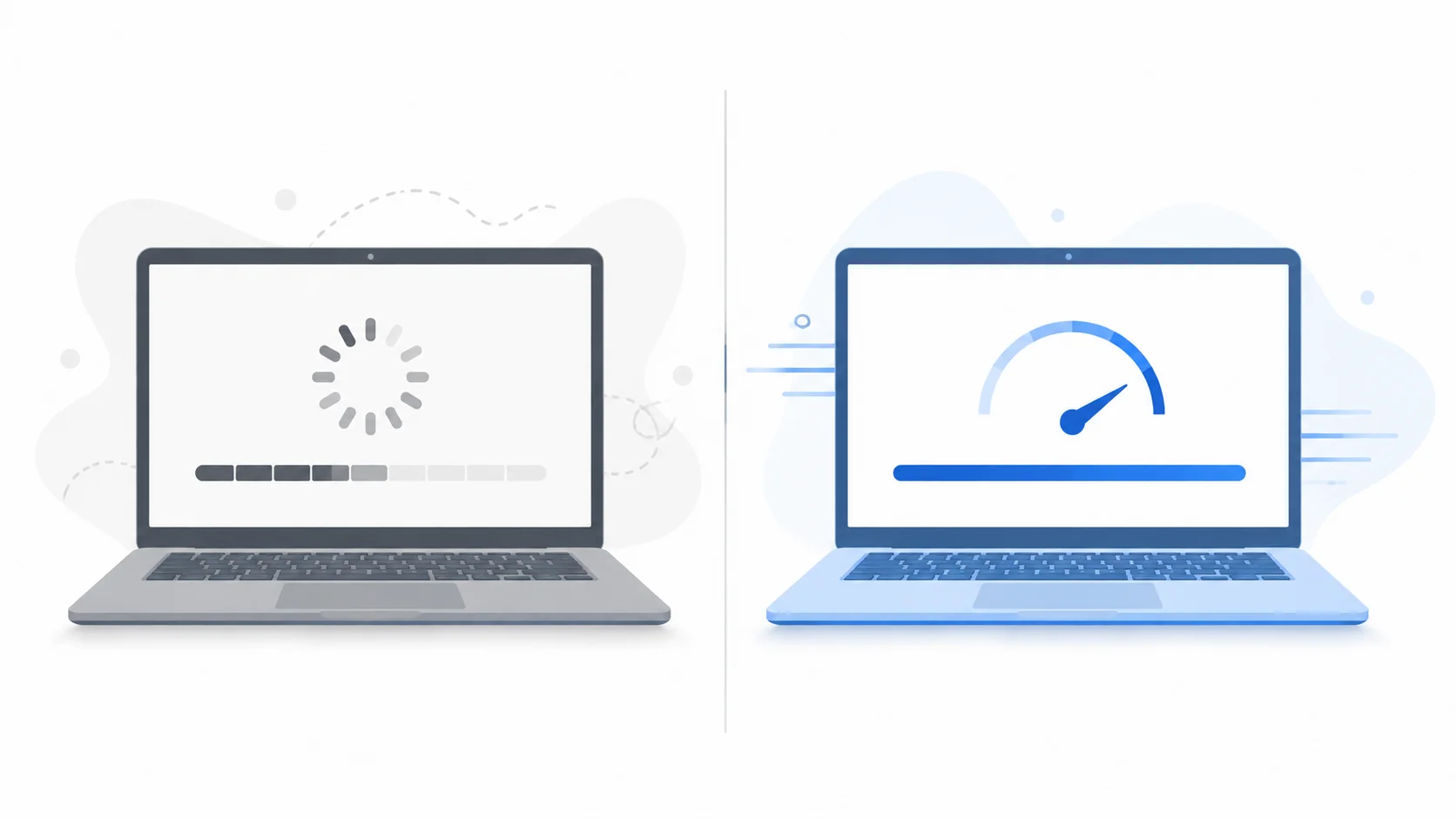
I treat 8GB of RAM plus an SSD as the comfort line. That is experience, not a measurement, but I have watched too many machines cross the minimum line and end up slower than the Windows 10 they replaced. Passing the check can be the worst kind of pass.
You Want to Leave Windows Entirely (The Honest Answer)
The last question is the one nobody writes about. What if you just want out of Windows? It is a fair question in 2026. SteamOS is real, it is fast and light for gaming, and Linux has genuinely good desktop options now. The wall is the games themselves.
A large share of online games run anti-cheat at the kernel level, and that does not run on Linux, so the library you actually play decides this for you. The Steam numbers back it up, with the overwhelming majority of the PC gaming base still on Windows.
Developers hit one more snag, because Secure Boot makes dual-booting Linux more annoying on Windows 11 than on the old system. My one-line verdict: you can leave Windows. Most of the games you own will tell you to stay.
Windows 11 Problems After Upgrade: What’s Real and What’s Already Fixed
When someone reports Windows 11 problems after an upgrade, the first thing I do is sort the problem. And half of the scary stories I hear in 2026 are about bugs that no longer exist. I recheck complaints the way a doctor rechecks symptoms before prescribing.
Some are still true. Some got fixed. Here are the five problems people actually run into, in the order I diagnose them.
You Probably Already Have TPM 2.0—It’s Just Switched Off
Rule one: don’t believe the check on the first try.
“Third-party antivirus tools, outdated drivers, and aggressive driver-updater utilities can create compatibility problems after a major Windows upgrade. If crashes begin after the upgrade, check the software installed immediately before or after the problem appeared, then review Reliability Monitor and the manufacturer’s driver releases.
In troubleshooting, removing an outdated security or driver-management utility can sometimes resolve post-upgrade instability, but the goal should be to identify the actual cause rather than uninstall software blindly. Most CPUs from about 2017 onward have TPM 2.0 built into the chip, Intel calling it PTT and AMD calling it fTPM. But most of the time it is sitting there, switched off in the BIOS, and that is the whole story of most failed checks.
I check the firmware settings before I write off a machine. If you have never opened the BIOS before, how to enter BIOS on Windows 11 covers the three ways in.
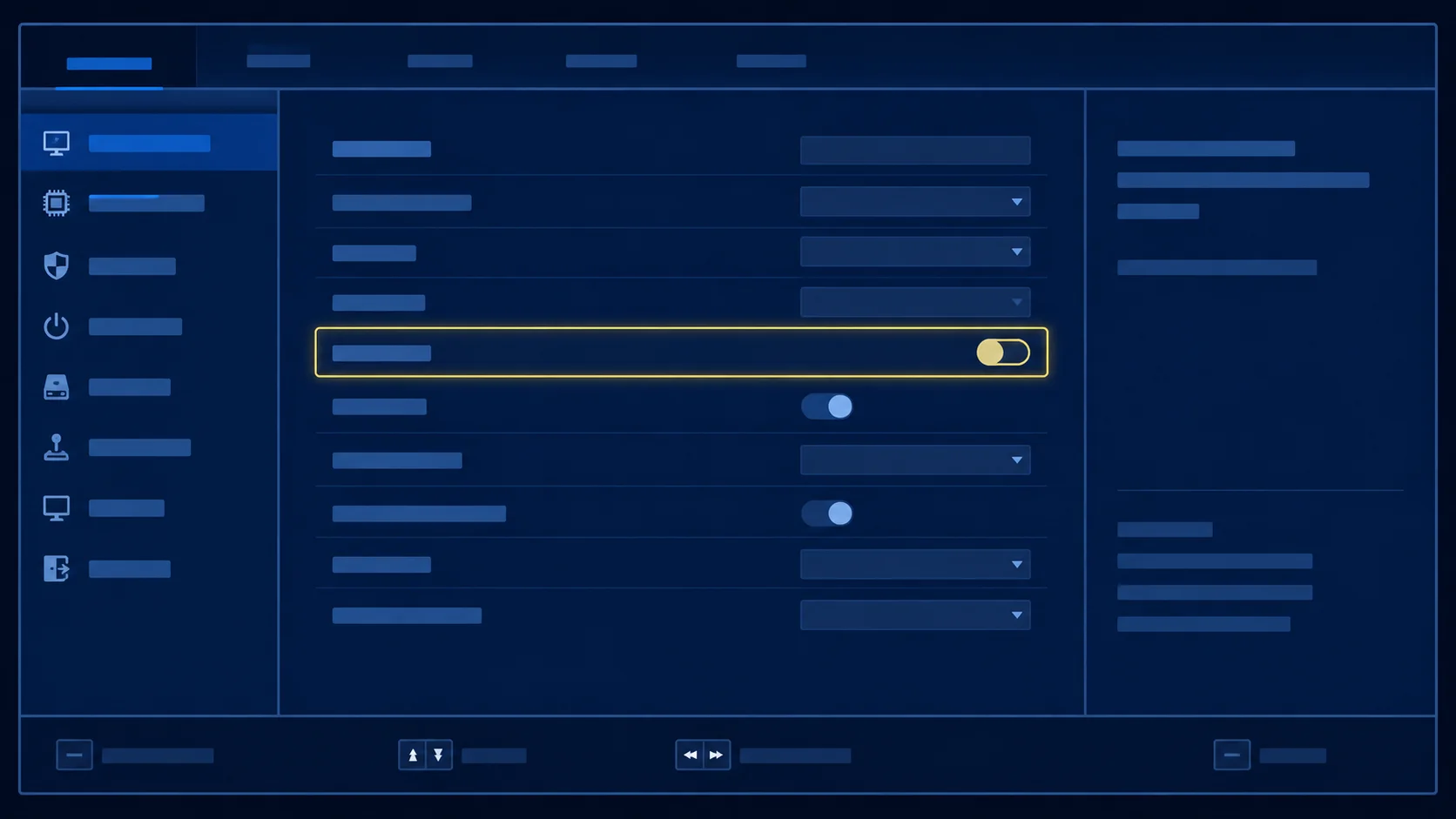
If the check still fails, the free tool WhyNotWin11 tells you exactly which requirement is broken, and the answer usually points at a setting, not a part. A registry bypass exists, and I skip it because a machine outside the supported line doesn’t get the official security updates. The TPM 2.0 and Secure Boot wall is one toggle away far more often than people think.
The 2021 Slowdown Bug Is Dead
The most repeated fear is that Windows 11 slows the PC down. Most of it traces to one real bug from launch year. Early builds had an L3 cache issue on some AMD Ryzen processors, and it cost a few percent of FPS in games. Microsoft and AMD patched it within months of launch. It is dead. If your machine feels slow in 2026, that bug is not the cause, and the Windows 11 performance question has moved on to your hardware, which is what Section 6 is for.
Crashing or Slowing Down After Upgrading? Blame Old Software First
Old antivirus tools and driver utilities came from the Windows 10 era, and some of them fight the new security model instead of helping it. Audio drivers show up in this more than any other class, and if your sound acts up after the upgrade, how to disable Realtek audio on Windows 11 is the page I point people to. “I have seen crashes and slow days clear up the day a legacy security tool was removed.
The worst offenders are the third-party driver updater programs, because they install generic packages and create the very problems they claim to fix.
The fix is boring, and it works. Update or remove those tools before you upgrade, and if something breaks afterward, open Reliability Monitor and read the timeline. That tool dates the first crash, and a date turns a mystery into a checklist.
An Update Broke Your Gaming? Here’s the fix.
This is the one with a real 2026 pattern. A Windows update lands on a Tuesday, and by the weekend your frame rate is down. On some machines the drop is bad enough that people roll back just to play. The fix is a ladder, and I work it from the top.
Open Update history in Windows Update, find the KB number that matches the day things broke, and uninstall that update.
Then pause Windows Update for a week or two so the same patch does not come back. If the machine is badly stuck, newer builds include Point-in-Time Restore. With On-supported Windows 11 configurations, Point-in-Time Restore can automatically capture recent system states.
Microsoft documents a default retention period of about 72 hours, and devices with an OS volume of 200 GB or more may have the feature enabled by default depending on the device’s management configuration. For graphics problems, roll the GPU driver back from the vendor’s site instead of Windows Update. Their releases are newer and tied to actual game fixes.
The One Warning With Teeth: Don’t Force the Install
The last problem is the only one I refuse to make light of. If your PC fails the check, do not force it through with a registry hack or a modified install file.
The last warning is the one I would take seriously. If your PC fails Windows 11’s supported hardware requirements, forcing the installation is a gamble, not an upgrade path Microsoft recommends. An unsupported device may continue to work, but Microsoft does not guarantee that it will receive future updates, including security-related updates.
That is why I would not present a registry bypass as a normal solution.
First check whether TPM 2.0 or Secure Boot is simply disabled in the firmware. If the hardware genuinely falls outside the supported requirements, the safer choices are to use Windows 10 with Consumer Extended Security Updates for a limited transition period, replace the device, or consider another operating system if your software needs allow it.
The Windows 11 system requirements exist because the security architecture depends on them, not because Microsoft wants to sell you a new PC. Respect the check.
Is Windows 11 Pro Worth It? Home vs. Pro in 60 Seconds
Start with the part most comparison articles bury. Home and Pro run the same operating system, and the performance gap between them is zero. So the Windows 11 Home vs. Pro decision is a needs question, not a quality question.
You are not buying a faster computer with the pro edition. Windows 11 Home and Pro deliver essentially the same everyday performance. Pro is not a faster version of Windows; it adds management, security, virtualization, and business-oriented features.
For most home users, Windows 11 Home is enough. Windows 11 Pro becomes worth paying for when you specifically need features such as BitLocker management, Hyper-V, Remote Desktop hosting, Windows Sandbox, domain or organization management, or advanced policy controls.
The decision is simple: buy Pro because you need one of its features, not because you expect better gaming or faster everyday performance.
| Feature | Windows 11 Home | Windows 11 Pro |
|---|---|---|
| Everyday performance | Same | Same |
| Gaming performance | Same | Same |
| BitLocker features | Limited/basic depending on device | Full business-oriented management options |
| Hyper-V | No full Hyper-V management | Available |
| Remote Desktop Hosting | No | Yes. |
| Windows Sandbox | No | Yes. |
| Group Policy tools | Limited | Available |
| Business/domain management | Limited | Available |
| Best for | Most home users | Professionals, businesses, and advanced users |
Three Questions That Decide Home vs. Pro
Run these three questions and let the answers do the deciding. One, does your work require full disk encryption for compliance, or do you handle files that must stay unreadable if the drive ever leaves your desk? That is the BitLocker question.
Two, do you run virtual machines, even occasionally, for testing or work? That is the Hyper-V question. Three, do you need to remote into this computer from another machine, rather than remote out of it? That is the Remote Desktop host question.
The home edition answers no to all three, and for most people it is the right purchase. The pro edition answers yes to all three. If any one answer is yes, I buy Pro at the counter.
Don’t Buy the Wrong Edition (Fixing It Later Costs More)
The mistake I see most often is sticker-price thinking. Someone buys the home edition because it costs less, and six months later the job needs BitLocker or a virtual machine. The fix is a paid edition upgrade on a working machine or a full reinstall with the Pro key. The gap between the two license prices is small and one-time.
The later path is bigger and disruptive. So the answer to the question “Is Windows 11 Pro worth it?” comes down to the three questions above. Not better or worse. Needed or not. Two other Pro-only details worth knowing.
Group Policy is the settings layer that survives Windows updates in a way registry edits do not, and for the people who use it, it is the single feature that most justifies Pro. And Windows Sandbox gives you a throwaway copy of Windows for dubious installers and attachments, one that wipes itself on exit.
How to Upgrade to Windows 11 Without the Headaches
Most of the how-to upgrade to Windows 11 guides I have read treat the button like the whole story.”
“If you upgrade on a Thursday before a deadline, you are taking a risk with a timer running, and the machine reboots several times without warning. It is not.
The button takes about twenty minutes of your attention and up to two hours of your machine’s time. And the difference between a smooth upgrade and a disaster story almost always happens before you click anything.
That is why this section starts with preparation, kills one myth, and only then gives you the steps in the order I run them.
| Check before upgrading. | Why it matters | What to do |
|---|---|---|
| PC compatibility | Confirms official Windows 11 support | Run PC Health Check |
| TPM 2.0 | Required security hardware baseline | Check whether the firmware TPM is enabled. |
| Secure Boot | Part of the supported Windows 11 configuration | Verify UEFI settings. |
| CPU | Unsupported processors cannot be officially supported through settings alone. | Check compatibility results. |
| Storage | Updates need free space. | Free up storage before upgrading. |
| Backup | Protects important files | Back up important data before starting |
| Drivers | Reduces compatibility problems | Update important device drivers. |
| Antivirus utilities | Some older tools can cause conflicts. | Remove outdated or unnecessary software if troubleshooting requires it |
The Pre-Flight Checklist Most Upgrade Guides Skip
Four items, and I would do all of them the day before. First, pick a window with real downtime in it. The Windows 11 upgrade process is routine for a healthy, supported PC, but timing still matters. Do not start a major operating-system upgrade immediately before an important deadline or when you need the computer for critical work.
Give yourself enough time for downloads, restarts, driver checks, and recovery if something unexpected happens. Second, make a full disk image, not just a file backup. Windows deprecated its built-in system image tool years ago, so use a free imager like Hasleo Backup Suite, AOMEI Backupper, or Veeam Agent, and keep the bootable rescue media on a USB stick.
A backup you cannot boot into is a hope, not a plan. Third, refresh the stack. Update your drivers, and remove any legacy antivirus or driver utility that has been riding shotgun since the Windows 10 days, because that group causes the post-upgrade crashes I described in Section 7. Fourth, find your license and note where it lives.
Once all four are done, the Windows 11 upgrade stops being scary. It becomes a boring, reversible afternoon.
In-Place Upgrade vs. Clean Install: You Probably Don’t Need a Wipe
Here is the myth I still hear from people who upgraded back in the Windows 7 era. A clean install is the only way to do this properly. It is not.
The in-place upgrade through Windows Update is the tested mainstream path, and it keeps your files, apps, and settings because Microsoft builds and tests that route specifically.
A clean install is a refresh option for a bloated old machine. And on some machines it is the better long-term choice, but it is an option, not a requirement. If your current system is healthy, do not wipe it to feel responsible.
The Actual Steps (and Where the Account/License Questions Land)
Run these in order.
- Check eligibility first. Run the PC Health Check app. If it says no, do not close the tab. Section 7 covers the BIOS toggle that fixes most of those failures, and WhyNotWin11 names the exact requirement that broke.
- Start the upgrade from Windows Update. On an eligible PC the offer appears as a normal feature update, and the free upgrade path is still the default route for Windows 10 machines. When it does fail, 0x80004005 is the error code I see most often, and the 0x80004005 error on Windows 11 fix is the exact fix for it.
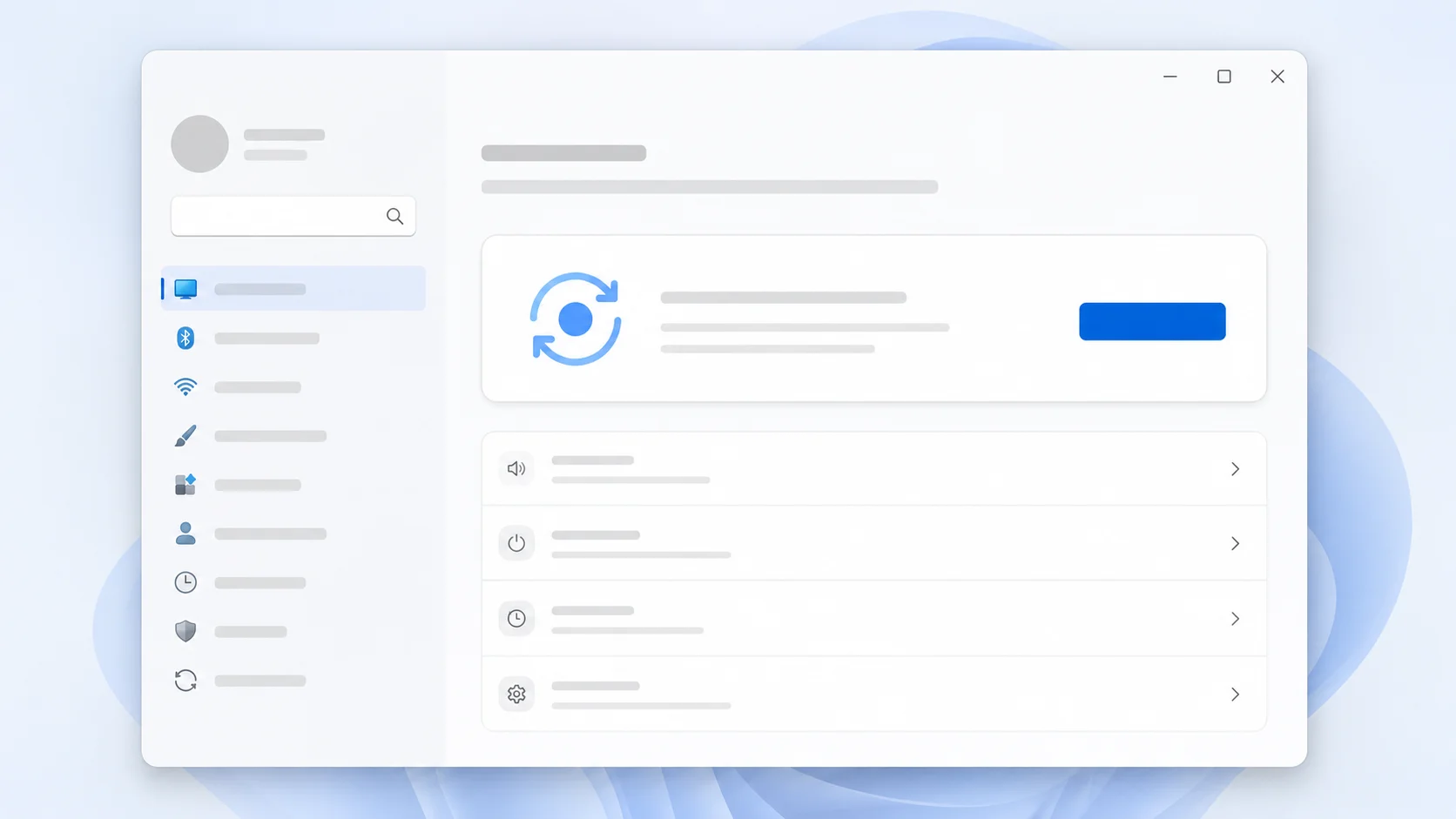
- Expect the boring parts. The machine reboots several times, the whole pass takes an hour or two, and Windows will ask you to sign back into a few apps when it finishes. If a reboot hangs, a program is usually holding a file open, and This Program Is Preventing Windows From Shutting Down shows how to find the culprit.
- If setup asks for a Microsoft account, you are looking at a new install rather than an upgrade. New machines expect a Microsoft account now, the old offline path is gone, and Microsoft is phasing the old command line workaround out on newer devices. Do not build a purchase plan around a workaround that is dying. Verify the current setup behavior before you rely on it.
- On licensing, older Windows keys generally still activate Windows 11, which is why the upgrade stays free for most people. Treat that as the current norm, not a promise. Microsoft has not written it in stone, so confirm the status at the time you upgrade.
By the time you finish step 3, the question has already changed. It is no longer worth upgrading to Windows 11. It is which of the two sections after this one you actually need.
The 10-Minute Cleanup After Upgrading (Do This, Not That)
People describe a bloated Windows 11 desktop as a billboard, and after a fresh upgrade I understand why. Most Windows 11 problems after the upgrade that I hear about trace back to one of two things. Skipping this cleanup. Or doing it without a restore point.
So here is the 10-minute cleanup I run on a new Windows 11 machine. The first half is a short list of background services you can safely turn off.
The second half is a short list of things you should never touch, and it matters more, because the damage in this area comes from overconfidence. None of the first-half moves are a benchmark. You are buying back the feel, not the score.
Background Services to Review Before Disabling
Before you touch anything, create a restore point. It takes 60 seconds, and it is the only thing standing between a clean tweak and a mystery. Then open the Services app, find each of these four, and set its startup type to Disabled.
| Service | Recommendation |
|---|---|
| SysMain | Leave enabled unless troubleshooting a reproducible performance issue |
| Downloaded Maps Manager | Can be disabled if you never use offline maps |
| Connected User Experiences and Telemetry | Privacy preference: understand feature impact before disabling |
| Windows Health/optimization service | Verify what the service does on your Windows version before changing it |
Windows Health and Optimized Experiences arrived in 2025. It watches CPU load, thermals, and battery, and records a local trace when the system slows down. If you want to see the temperature side yourself, how to check CPU temperature on Windows 11 walks through the tools I use.
The internet called it spyware, but a Microsoft VP debunked that. The data stays on your machine and only leaves with consent. Before disabling this service, verify that it is present on your specific Windows version and understand what features depend on it.
Some optimization and diagnostic services may provide useful information about system performance, thermals, battery behavior, or reliability.
I would not recommend disabling it automatically based only on whether you use a desktop or laptop. If you are troubleshooting a specific performance or privacy concern, document the current setting, test the change, and confirm that no important functionality is affected.
SysMain, previously called Superfetch, tries to improve responsiveness by learning which apps you use frequently and preparing data in advance. On some older or resource-constrained PCs, especially machines experiencing persistent high disk activity, it can become part of the troubleshooting process.
I would not disable it automatically on every Windows 11 PC, including every SSD-based system. If your computer is running normally, leave it alone. If Task Manager shows repeated disk or CPU activity connected to SysMain and you can reproduce the slowdown, test the system with the service disabled and compare the result.
The better rule is to troubleshoot the process causing the problem instead of disabling services just because a cleanup list says to.
Downloaded Maps Manager updates offline maps in the background. If you have never downloaded an offline map, it is working for no one, and the CIS Benchmarks, the hardening guidelines IT teams use, recommend disabling it.
Connected User Experiences and Telemetry, known by its old name DiagTrack, collects usage data and sends it to Microsoft based on your diagnostic settings. On a healthy desktop the cost is small, so this one is only for the privacy-focused.
What You Should NEVER Disable (Defender, Windows Update, Random Services)
Now the list that protects you from yourself. Microsoft Defender scores full marks in independent antivirus testing, and tamper protection now blocks the old disabling tricks. The only legitimate reason to turn it off is a third-party antivirus taking over, and Windows handles that switch by itself.
Windows Update is next. Pause it from Settings when you need to. Do not break the pipeline by stopping the service or blocking updates. A PC that stops receiving patches falls behind in a way that gets harder to fix the longer you wait, and unpatched flaws are exactly what attackers target first.
The disease to avoid is the “50 services you can safely disable” list. Windows services hide dependencies, and switching one off can break updates, printing, audio, or your network, usually at the next reboot.
A machine with 16GB of RAM will not notice the savings. Measure first with Task Manager, and kill the one process you can actually see eating resources.
And skip the one-click debloat scripts you cannot read, because they leave no record of what changed when something breaks.
One optional fifth item. If you dual boot or fight driver quirks, switch off Fast Startup in Power Options. It saves a few seconds on an old drive and causes more shutdown problems than it fixes.
Should I Get Windows 11 on a New PC in 2026?
The easy part first. If you are buying new in 2026, most of this decision was made before you opened the store. Almost every new laptop and desktop ships with Windows 11 by design, and asking for anything else is choosing a downgrade. If the machine you are shopping for is a gaming one, are gaming laptops worth it? They run through the hardware math before you pay for them.
So the question is, should I get Windows 11? It comes down to one thing for buyers, and that is the edition, which is what Section 8 is for.
There is one new variable worth knowing. The new class of AI PCs with a dedicated neural chip runs Windows 11 only, by design, so on those machines the question “Is Windows 11 worth installing?” answers itself. But if you are shopping for a handheld, the market is splitting.
Some models, like parts of the Lenovo Legion Go line, now ship with SteamOS, so check what your specific device runs before you assume.
That is the whole buyer’s answer. Pick the machine you want, pick the edition Section 8 walks you through, and stop negotiating with the operating system.
Is Windows 11 Worth It? Quick Answers to the Questions People Actually Ask
These are the questions that come up most, answered the way I would answer them to a friend at a desk next to mine. Start short, and detail only where it matters.
Will Windows 11 slow down my PC?
On an SSD with 8 GB of RAM, Windows 11 feels the same or a little faster on hardware that meets the comfort line. The famous slowdown was a real bug from 2021 on some AMD Ryzen chips, and it was patched within months of launch. If your machine feels slow in 2026, the cause is almost always the hardware, and Section 6 is the checklist for that.
What happens if I don’t upgrade from Windows 10?
Your PC keeps working. That part is the easy one to hear. The other part is that free security patches for Windows 10 stopped on October 14, 2025. Your PC will continue to work, but Windows 10 no longer receives normal free security updates after its October 14, 2025, end-of-support date.
That means newly discovered vulnerabilities may remain unpatched unless your device is covered by an available Extended Security Updates program. Antivirus software can help detect malicious files and behavior, but it does not replace operating-system security patches.
If you cannot move to Windows 11 immediately, check whether your device is eligible for Windows 10 Consumer ESU as a temporary transition option.”
“And when the phrase ‘Windows 11 is worth it’ comes up at your desk again, you will answer it like the person who did the homework. “That is the honest part.
The other honest part is that free security patches for Windows 10 stopped on October 14, 2025, so every new flaw found in the system stays open on your machine.
Antivirus software does not close operating system holes, and the risk grows with every month you wait.
Can my PC run Windows 11?
Run the PC Health Check app and believe the result, with one exception. If it fails on TPM 2.0, check the BIOS first, because the module usually sits in the chip, just switched off. Section 7 walks through that. If the processor itself is unsupported, that is a hard no, and no amount of tweaking changes it.
Is Windows 11 worth it for gaming?
Yes, on modern hardware. DirectStorage, Auto HDR, and better refresh rate support are real, and new games land on Windows 11 first. The frustration about bloat and bad updates is legitimate. But the exit door is narrow, because most online games run kernel-level anti-cheat that Linux cannot run, which is why the ecosystem keeps choosing Windows.
Is an upgrade to Windows 11 worth it if I’m happy on Windows 10?
Yes. And the math changed under you. While Windows 10 was still supported, it was worth upgrading to Windows 11, which was a features question, and the answer could be no. Since the free patch supply ended, it is a security calendar question, and the answer is when, not whether.
The 10-minute cleanup in Section 10 handles the annoyances that make people hesitate.
Is it worth upgrading to Windows 11 with 8GB of RAM?
Yes, with one condition. The SSD. Microsoft’s minimum requirement is 4GB of RAM, but minimum requirements answer only one question: whether Windows can install. They do not guarantee a comfortable everyday experience.
For normal browsing, office work, video calls, and multitasking, I would treat 8GB of RAM and an SSD as a practical baseline rather than an official requirement. A PC with 4GB can technically meet the minimum, but the experience may become frustrating once you add browser tabs, background applications, and larger Windows updates.
The SSD matters just as much. A system with modest RAM and fast storage can feel more responsive than a machine with more memory but a slow mechanical hard drive.
Eight gigs on a spinning hard drive is where budget laptops earn their reputation, with stutters in games and freezes opening files. If you have the RAM but not the drive, the drive is the upgrade that actually matters.
Can I turn off the AI features in Windows 11?
Yes, further than most people think. The Copilot app uninstalls like any other program, and the Hey Copilot wake word is off by default. Recall, the feature that scares people does not exist at all on non-Copilot+ PCs. So check for the Copilot+ badge in Settings before you worry. If it is not there, there is nothing to turn off.
Who Should Upgrade to Windows 11 in 2026?
| User | Recommendation |
|---|---|
| Supported Windows 10 PC | Upgrade |
| Modern gaming PC | Upgrade |
| Work or study PC | Upgrade |
| PC with unsupported CPU | Check alternatives before forcing installation. |
| PC with TPM disabled | Check BIOS/UEFI settings first. |
| PC with 4GB RAM and HDD | Consider hardware improvements or test carefully. |
| Legacy software dependency | Check compatibility before upgrading. |
| User needing more transition time | Check Consumer ESU eligibility. |
| Buying a new PC | Choose Windows 11 |
If you game, upgrade. The loading tech, the refresh rate support, and the direction of new releases all point to Windows 11. If you use your PC for work or school, upgrade. Security alone justifies the move. If your PC fails the check, you have two honest options.
A used machine that passes or stays put with your eyes open. Neither is a failure. If you are buying a new computer, the operating system is already decided, so run the three-question edition test in the Windows 11 Home vs. Pro section instead.
And if you are still sitting on Windows 10, the Windows 11 upgrade is no longer a preference question. It is a scheduling question. Run the PC Health.
Check this week. Do the cleanup after the upgrade. And when the question of whether Windows 11 is worth it comes up at your desk again, you will answer it like the person who did the homework.