
The Fastest Way to Turn Off Any Android Phone
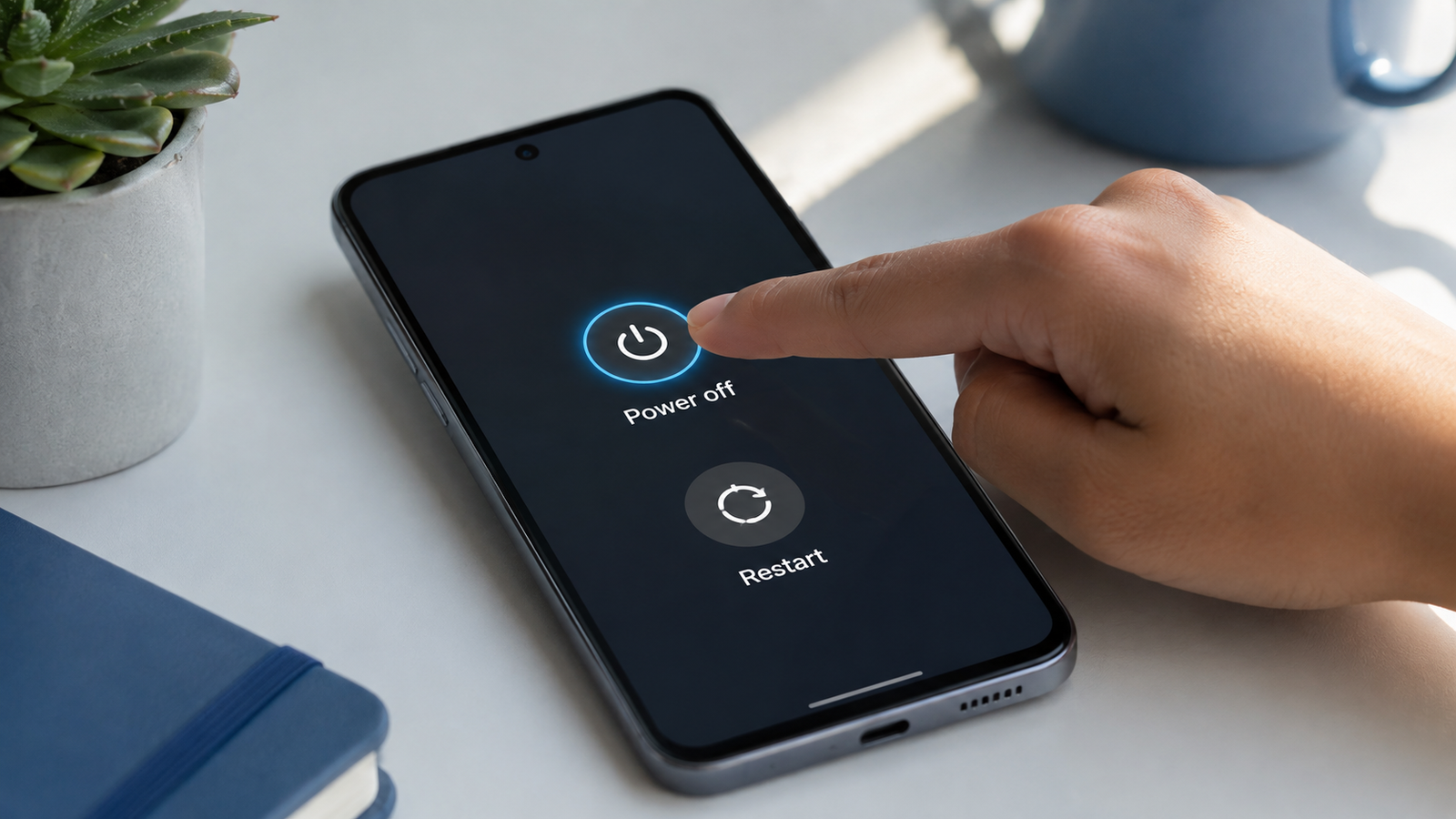
Press and hold the power button on the side of your phone until the power menu appears, then tap Power off. That is the fastest way to turn off Android phone models from almost every brand, and it usually takes about three seconds from start to finish.
Here is the exact order I follow.
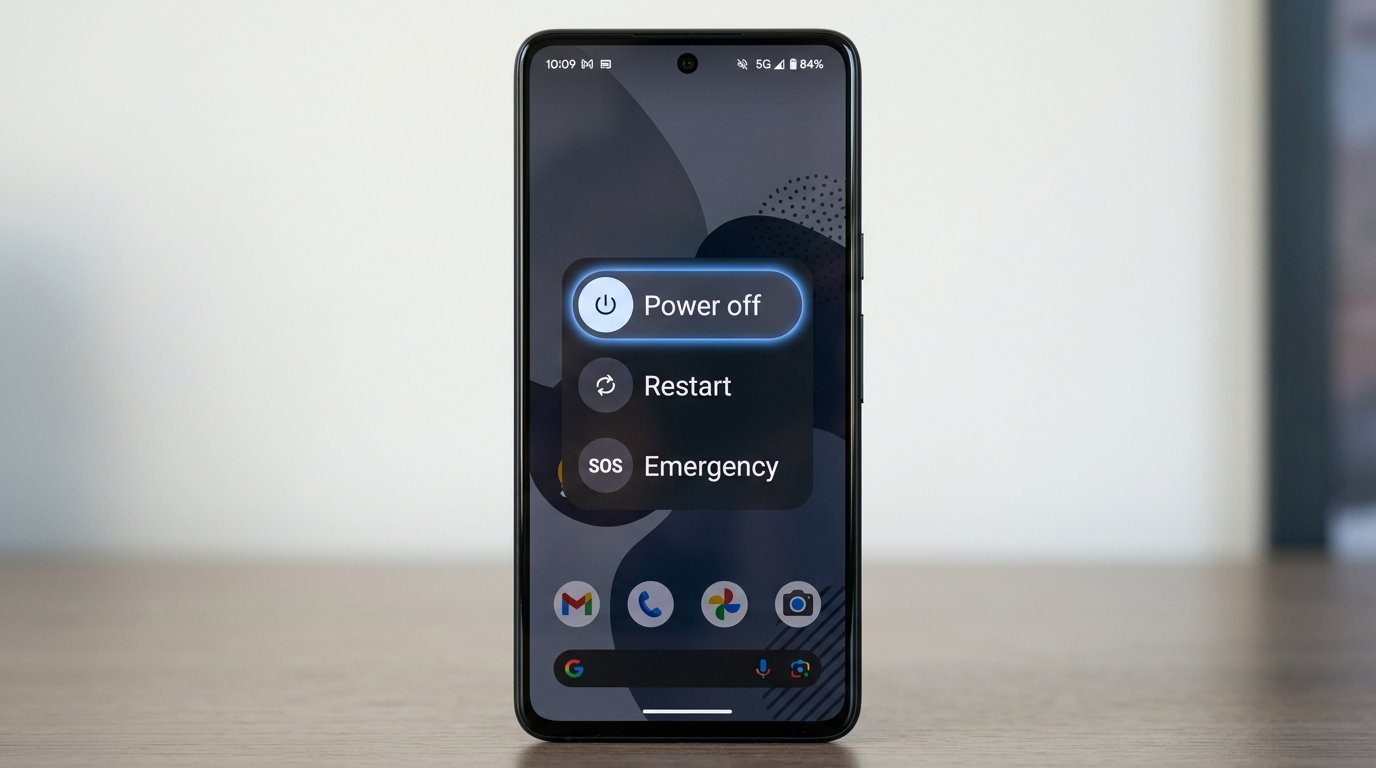
One detail trips people up more than it should. The menu usually shows three options, and Power off sits at the top with Restart directly below it. I have watched friends tap Restart by accident, then wonder why the screen went dark for a second and came right back.
And if holding the button opens an assistant instead of a menu, or your power button is physically broken, or your screen is frozen solid? Keep reading. The next four methods handle each of those situations, one by one.
Why Your Power Button Opens an Assistant Instead of Powering Off
One is the button combination that still opens the power menu, and the next section walks through it brand by brand. The other is taking the button back entirely through a setting, and that fix appears later in this guide.
That is the entire explanation. But the backstory matters.
For more than a decade, every Android phone handled this the same way. Hold the power button, and the power menu appears. Simple. Recent Android versions scrapped that assumption. Manufacturers started mapping long presses on the power button to their AI assistants instead. On Samsung Galaxy phones the side key now opens Gemini, or Bixby on older Galaxy software. On Pixel and Xiaomi phones, Google Assistant or Gemini pops up first and the menu never shows.
Almost everyone hits this on the same day. Right after a software update. One evening the phone shuts down normally, and the next morning an assistant stares back at you. I have read people in forums call this change diabolical, and honestly the anger makes sense. Manufacturers switched the setting on by default and never asked. Nobody got a choice in the matter.
The expensive mistake here is assuming the phone is broken. I have watched people factory reset perfectly healthy phones over this exact problem. Nothing is damaged. The button still works. It just does a different job now, one you never assigned to it.
There are two ways out. One is learning the button combination that still opens the power menu, which is exactly what the next section covers. The other is taking the button back entirely, and there is a setting for that too. I will show you both.
Method 1: How to Turn Off Android Phone by Brand (The Button Combos)
| Android Brand | Buttons to Press | What to Do |
|---|---|---|
| Samsung Galaxy | Side key + Volume Down | Hold for about 2 seconds → tap Power off |
| Google Pixel 6 and newer | Power + Volume Up | Hold until the power menu appears → tap Power off |
| Older Google Pixel | Power button | Hold until the power menu appears |
| Xiaomi / Redmi | Power button | Keep holding after the assistant appears until the power menu shows |
| Motorola | Power + Volume Up or Down | Try Volume Up first; combo varies by model |
| Realme | Power button | Hold for around 3 seconds |
| OnePlus / Oppo | Power + Volume Up | Hold until the power menu appears → tap Power off |
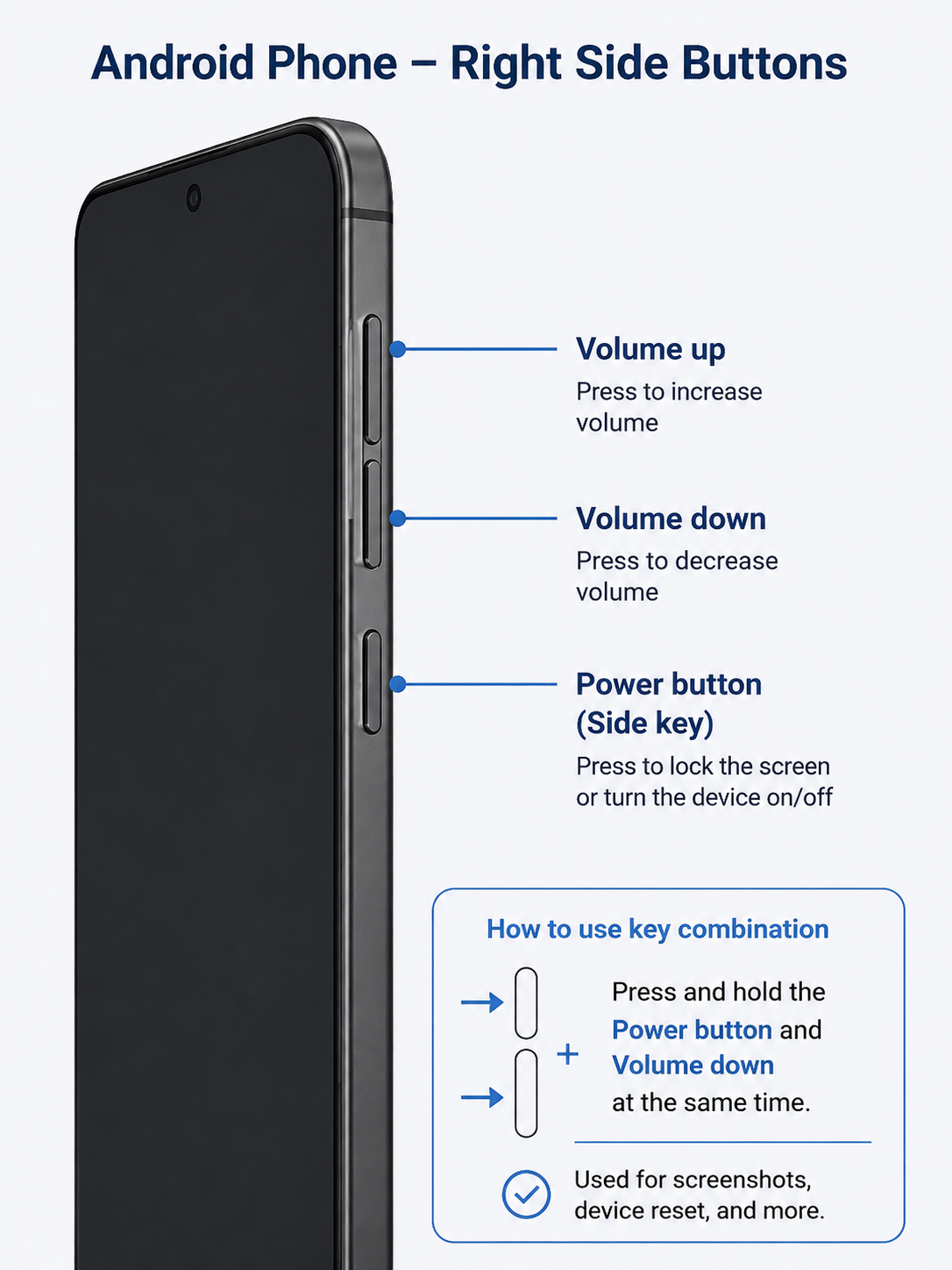
If you have been searching how to turn off Android phone Samsung style, here is the answer. Press the side key and the volume down button together for about two seconds, then tap Power off.
Here is the rhythm that works across every phone in this section, and it is the one I see experienced users describe in forums. Press and hold the volume button first, add the power button, and keep both held for about two seconds. When the power off menu shows up, tap the gray Power off button at the top.
Samsung Galaxy: Side Key + Volume Down
Wondering how to turn off Android phone Samsung style? Press the side key and the volume down button together for about two seconds, then tap Power off. Samsung calls the power button the side key on newer Galaxy phones, and the side key sits below the volume keys on the right edge. Older Samsung phones with a dedicated power key still shut down the classic way, one button held on its own.
I held volume up out of habit the first time I tried this. Nothing happened. The direction genuinely matters here.
Google Pixel: Power + Volume Up (Newer Models)
On a Google Pixel 6 or newer, hold the power button and the volume up button together until the power menu appears. Older Pixel phones, the Pixel 5a and earlier, still use the classic move. Just hold the power button by itself for a few seconds.
Want to change what the button does? On a Google Pixel you can reassign the press and hold action under Settings, then System, then Gestures. That option comes in handy if the assistant keeps getting in your way.
Xiaomi, Redmi & HyperOS: The Hold Through Trick + Hidden Shortcut
Xiaomi and Redmi phones need patience, and this is where most people get stuck. Hold the power button and the assistant pops up first. Do not let go. Keep holding for about three more seconds and the power menu appears right over it. The moment the assistant shows up is exactly when most people release the button, which is why the menu never comes.
There is also a hidden shortcut on phones running HyperOS. Open Settings, then Additional settings, then Gesture shortcuts, and you will find a Power off option there. One thing caught me off guard. The power off shortcut and the assistant launch setting are linked, so switching one on automatically turns the other off. Pick the behavior you actually want before you change anything.
Motorola, Realme, OnePlus & Oppo
Motorola is the odd one out. Some Motorola phones need power plus volume up, and others need power plus volume down. Try volume up first, and if no power off menu shows, repeat the hold with volume down. Realme phones usually want a slightly longer hold, closer to three seconds, before the menu appears. OnePlus and Oppo phones both use power plus volume up, then a tap on Power off.
Every Brand’s Shutdown Combo in One Table
| Brand | Button combo | Note |
|---|---|---|
| Samsung Galaxy | Side key + volume down button | Older models shut down with a single held button |
| Google Pixel 6 and newer | Power + volume up button | Older Pixels use one held button |
| Xiaomi and Redmi | Hold power through the assistant | Or use Gesture shortcuts, then Power off |
| Motorola | Power + volume up or volume down | Varies by model, so try up first |
| Realme | Hold the power button | Hold closer to three seconds |
| OnePlus and Oppo | Power + volume up button | Then tap Power off |
If your phone is not in that table, the next section covers you. The on screen power icon works the same way on nearly every Android device, and that icon does not care which brand made your phone.
Method 2: Turn Off Android Phone Without the Power Button
To turn off an Android phone without the power button, swipe down from the top of the screen, open the Quick Settings panel, and tap the power icon. That single move replaces the physical button entirely, and it works on nearly every Android device.
A broken or hijacked button is not a rare problem either. On one Google support thread, 139 people clicked “I have the same question” about powering off without a button. Hardware buttons wear out, and the assistant takeover I described earlier made this situation a lot more common.
Use the Quick Settings Power Icon (Works on Nearly Every Android)
This is the route I point people to first.
- Swipe down from the top of the screen once. The swipe down gesture opens your notifications and quick toggles.
- Swipe down a second time to fully expand the Quick Settings panel.
- Find the power icon. On most phones the power icon sits in the bottom right corner, right next to the settings gear.
- Tap the power icon, then tap Power off on the menu that appears.
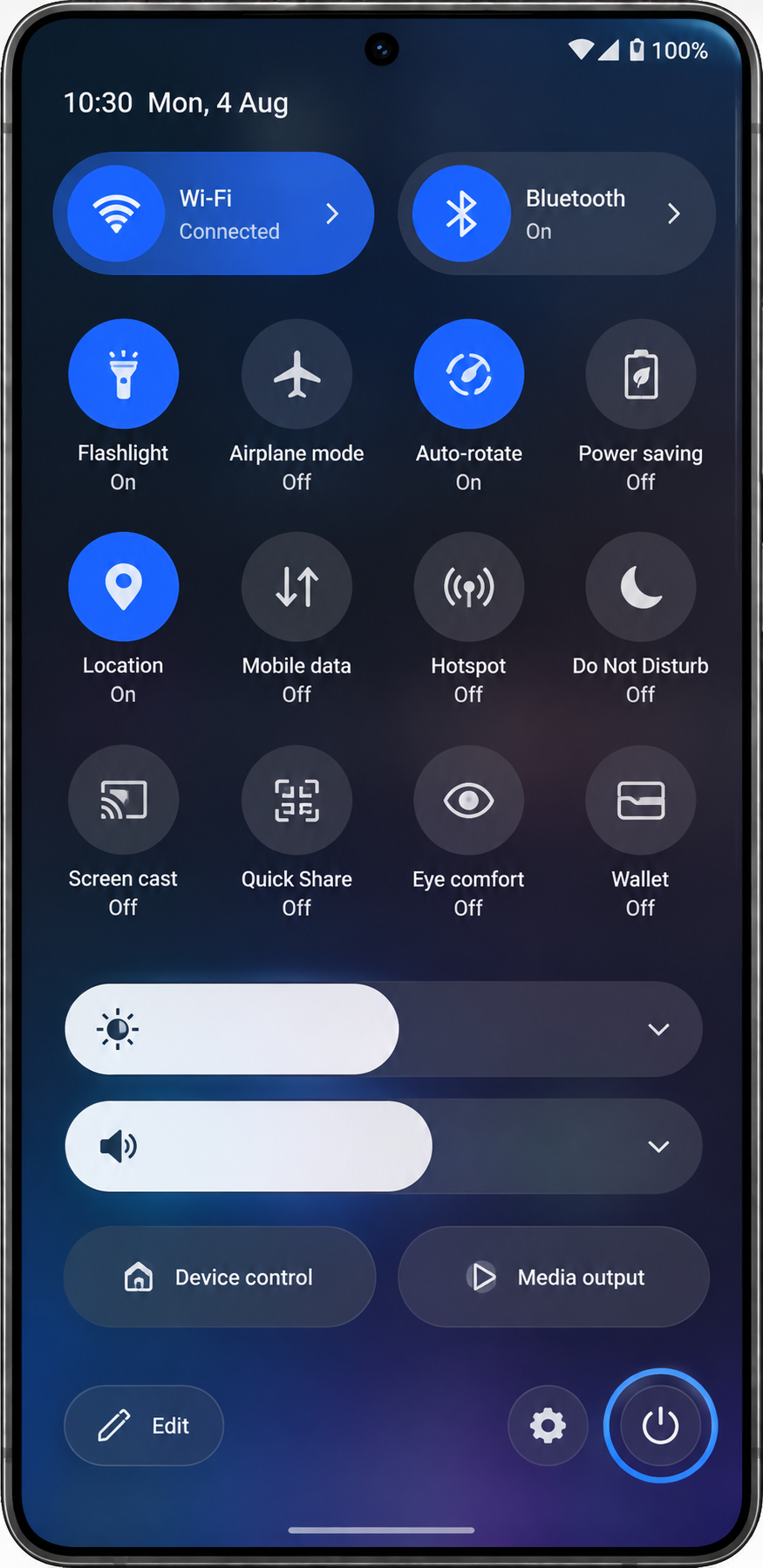
This same swipe down trick is exactly what Samsung’s own community experts hand to Galaxy owners who lose the side key, which tells you the method is solid. And it covers most of what people mean when they ask how to shut down Android phone in Settings without touching hardware.
One honest caveat. The Quick Settings panel needs a working touchscreen, so this route fails when the screen is frozen. That scenario gets its own fix later in this guide.
Turn On the Floating Assistant Menu for One Tap Power Off
If your power button is permanently broken, set this one up today. Do not wait for the day you need it.
Open Settings, then Accessibility, then a menu named something like Interaction and dexterity. The exact wording changes slightly by brand. Switch on the Assistant menu option and a small floating button appears on your screen. Tap that floating button and the power options sit right there, no hardware involved.
I keep the accessibility menu enabled on older test phones with worn out buttons, and the floating button has never once failed to appear. Which is exactly what you want from an emergency control.
Broken Button? How You’ll Turn It Back On
Here is the question nobody thinks about until it is too late.
On many Android phones, plugging the device into a charger wakes the screen and lets you interact with the phone again, and some devices power back on by themselves the moment charging starts. If plugging it in changes nothing, the trouble is usually the cable, the port, or the battery rather than the button — why your phone won’t charge walks through the usual culprits. There is also a scheduled power on and off option hidden in the battery settings on certain brands, where the phone turns itself back on at a fixed time each day. Not every manufacturer includes that feature, so check your settings before you count on it.
If your phone does neither, there is a dedicated walkthrough for turning a phone back on without the power button, and I have linked it right here for that exact situation.
Method 3: Say It Out Loud — Power Off With Google Assistant or Bixby
If your hands are full, or the buttons are fighting you, just say it. Tell Google Assistant “Hey Google, turn off my phone,” or even “shut my phone off,” and the assistant understands both phrases. A confirmation prompt appears on the screen, you tap once, and the phone powers down.
That tap catches people off guard. The voice command starts the shutdown process, but the phone still asks permission before the screen actually goes dark. So this method is hands free right up until the final second. Not fully hands free.
On a Samsung Galaxy, the same trick runs through Bixby. Wake the assistant and say “turn phone off.” I read one Samsung owner in a community forum admit that saying it to Bixby had simply become the fastest way to shut down after the update changed the side key. That is real adoption, not marketing.
But the voice method has one catch. Google Assistant needs to be set up and listening before the command does anything. If you have never said “Hey Google” to that phone, the phrase just hangs in the air. Switch the assistant on once in Settings, and the command works every time after that.
Why Can’t I Switch Off My Phone? Fixing a Frozen Screen
A force shutdown cuts power at the hardware level, which is why it works even when the touchscreen ignores everything you do
Force Shutdown: Which Buttons, and How Long to Actually Hold Them
| Phone Brand | Buttons to Hold | Approx. Hold Time |
|---|---|---|
| Samsung Galaxy | Power + Volume Down | 10–20 seconds |
| Google Pixel | Power button | Around 30 seconds |
| Other Android phones | Power button or Power + Volume buttons | Up to 60 seconds |
Here is the part most guides get wrong. The buttons are easy. The patience is the hard part.
- Press and hold the power button. On most Android phones, hold the power button for at least 15 to 20 seconds.
- If the screen stays frozen, press and hold the power button together with both volume buttons for 10 to 15 seconds.
- Let go when the screen goes dark. The darkness means the force shutdown worked.
Hold times change by brand, and this table reflects the timing I have seen work in practice:
| Phone | Hold this | Rough hold time |
|---|---|---|
| Samsung Galaxy | Power + volume down | 10 to 20 seconds |
| Google Pixel | Power button alone | Around 30 seconds |
| Most other Android phones | Power, or power + both volume buttons | Up to a full minute |
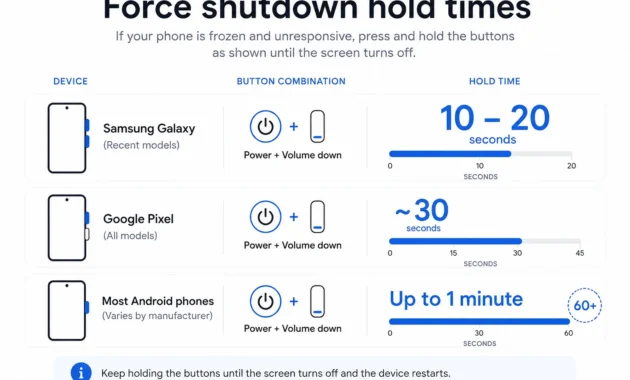
This is where most people fail. They hold for five seconds, see nothing happen, and decide the phone is gone. A force restart simply needs time, and letting go too early is the number one reason this fix “does not work.” Keep holding. Even when it feels ridiculous.
And one thing never to do: do not try removing the battery. On an old phone with a removable back cover, pulling the battery is an emergency option only. On any modern Android phone, prying the case open causes permanent damage, and there is nothing to pull out anyway. The battery sits sealed inside.
If the phone still refuses to shut down after two honest attempts, plug the charger in, wait five minutes, and try the button combination again. Some phones need a little power in the battery before the hardware buttons respond at all.
Samsung Owners: Get the Old Power Menu Back With One Settings Change
Samsung does not force you to live with the assistant, and that is the part most Galaxy owners never hear. You can switch the side button back to its original job in about twenty seconds.
Open Settings, then tap Advanced features, then tap Side button. Change the press and hold action from Bixby or Gemini to the power off menu, and from that moment a long press shuts the phone down the way it always did. This is not a buried workaround either. Recent One UI versions ship this switch as a standard option.
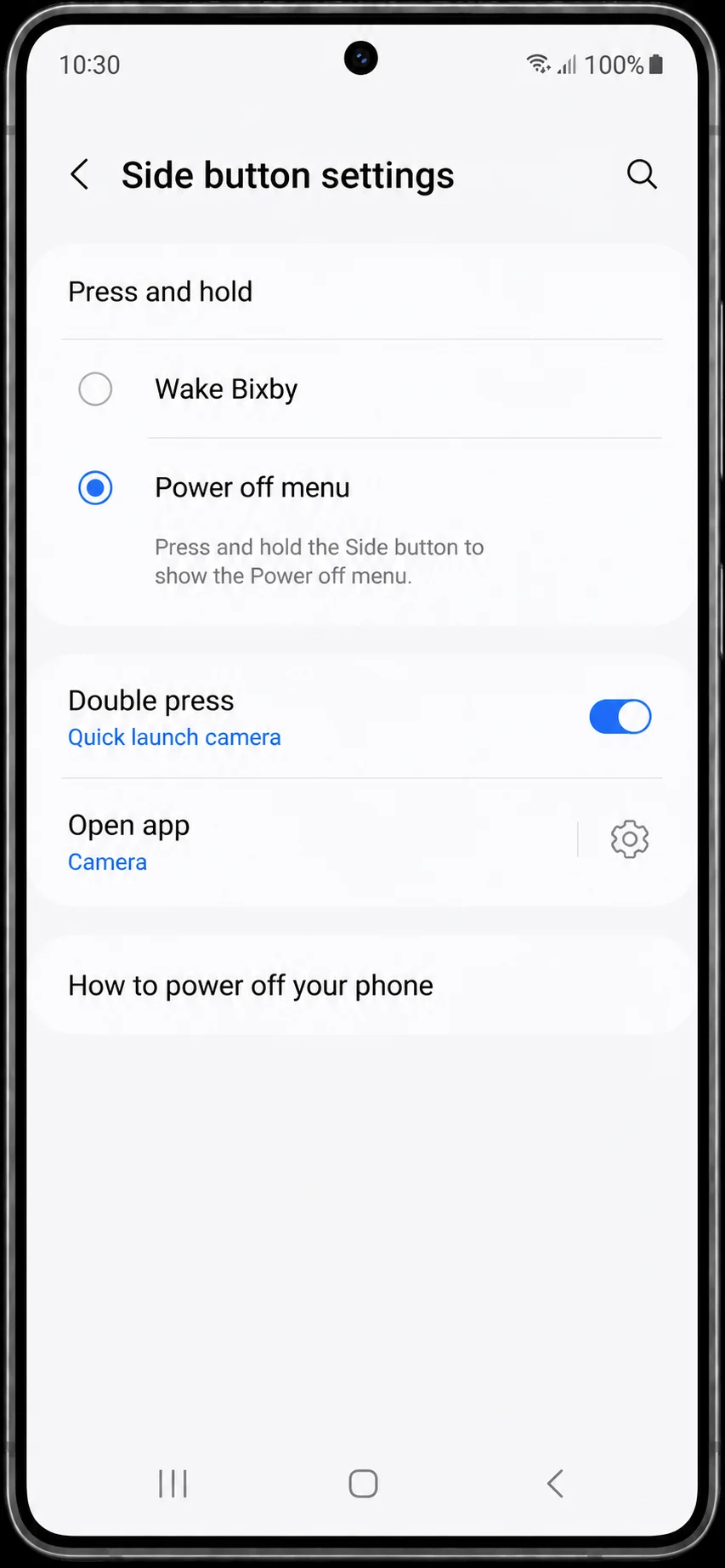
And this is the exact fix that took over the Samsung community forums after the update that broke the power button for so many people. One thread about the problem pulled nearly 100,000 views, and the original poster came back to confirm the side button change worked. Then person after person did the same.
Which is why it frustrates me a little when people call the new behavior permanent. It is not. Samsung gave you a choice. The choice just hides inside a menu nobody thinks to open.
One edge case worth knowing. A few phones have had the side button settings page refuse to load right after an update. If that page will not open on your Samsung, use the Quick Settings power icon in the meantime, and check the settings page again after the next software patch arrives.
Stuck in Safe Mode? How to Turn Off Safe Mode on Android Phone
A tiny “Safe mode” label appears in the corner of your screen, and suddenly half your apps are gone. That is what this looks like, and the first time I saw it I assumed something serious had broken. The reality is much calmer. Safe Mode is a diagnostic state where Android starts with only the preinstalled apps running, so you can test whether a downloaded app is causing trouble.
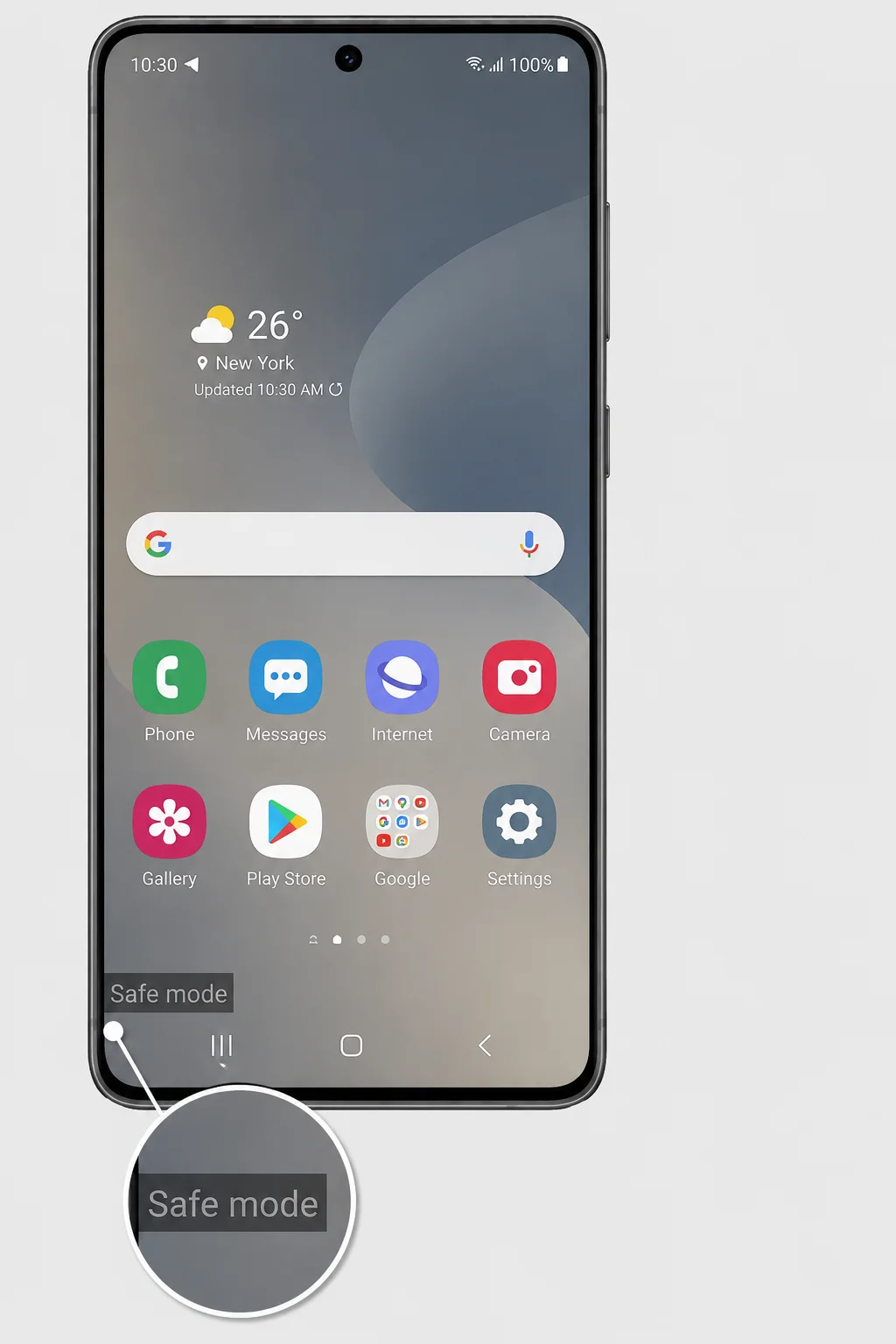
And the way out is simpler than most people expect. When you need to turn off safe mode on Android phone after it appears, a normal restart is all it takes.
The Normal Exit: Just Restart
Restart your phone and Safe Mode goes away. That is genuinely the whole fix most of the time.
Hold the power button and tap Restart, or swipe down to the Quick Settings panel, tap the power icon, and choose Restart there. When the phone boots back up, your apps return and the label disappears. If one app is still missing after the restart, recover deleted apps on Android shows how to bring it back
If the Restart option never shows up, or the phone ignores the tap, force it. Hold the power button for 15 to 30 seconds until the screen goes completely black. The phone should reboot on its own, and it should boot out of Safe Mode this time. If the screen stays black, press the power button once to switch the phone back on manually.
Safe Mode Keeps Coming Back? Check for a Stuck Volume Button
Here is the part nobody tells you. Safe Mode is not random. Android boots into Safe Mode when a volume button is held down during startup, so a phone that lands in Safe Mode every single time usually has a volume button that is physically stuck.
That is the first thing I check on any phone stuck in this loop.
Take the phone case off first. A tight case presses on the volume buttons constantly, and that pressure alone can trigger Safe Mode at every boot. Then press each volume button repeatedly until the buttons feel springy again. If a button feels sticky or dull, blow firmly into the gap around it, because dust and crumbs jam those mechanisms more often than you would think.
Once the volume buttons move freely, restart the phone one more time. For most people, that restart is the last time Safe Mode ever appears.
Power Off vs. Restart vs. Force Restart: Which One Do You Actually Need?
| Action | What Happens | Does It Delete Data? | Best Use |
|---|---|---|---|
| Power off | Phone shuts down and stays off | No | When you want the phone completely off |
| Restart | Phone shuts down and boots again automatically | No | Fixing minor glitches |
| Force restart | Hardware-level reboot when the phone is frozen | No | Frozen or unresponsive screen |
| Factory reset | Erases the phone and restores factory state | Yes | Selling the phone or major software problems |
Here is the short answer most people never get. Power off and restart do nearly the same thing to your phone. Both close every running process and give the system a fresh start. The only real difference is what happens next. Power off leaves the phone off until you decide to turn it back on. Restart brings the phone right back up on its own.
Once you know that, the choice gets easy.
| Action | What happens | Your data | When I reach for it |
|---|---|---|---|
| Power off, or shut down | The phone powers down completely and stays off | Safe | Travel, storage, or any stretch without the phone |
| Restart, or reboot | The phone resets and boots straight back up | Safe | Laggy apps, odd glitches, weird behavior after an update |
| Force restart | A hardware forced reboot that skips the frozen screen | Safe | A screen that ignores every tap |
| Factory reset | Wipes the phone back to its out of box state | Erased | Selling the phone, or a software problem nothing else fixes |
Notice the pattern in that table. The first three options never touch your files. Only factory reset deletes anything, and factory reset lives in Settings, not in the power menu. I point this out because fear of data loss stops people from using the first three options at exactly the moment those options help the most.
My own rule is simple. Glitchy but responsive? Restart. Frozen solid? Force restart. Putting the phone away for a while? Power off.
And here is the vocabulary trick that confuses people. Reboot and restart are the same action with two names. Shut down is just the formal name for power off. The menu looks more complicated than the decision ever is.
5 Mistakes That Keep Your Android From Turning Off
Avoiding force restart out of fear. A force restart touches nothing you own. Your photos stay, your apps stay, your settings stay. It simply cuts power and starts fresh. But the name sounds like factory reset, so people leave frozen phones sitting in a drawer for days instead of fixing them in one minute.
1. Holding only the power button. On newer Android phones, a single held button wakes the assistant instead of opening the power menu. That is not a glitch. That is the new default behavior, and recent Samsung Galaxy and Google Pixel models both do it. Use the button combination for your brand, or remap the button in Settings.
2. Pressing the wrong volume direction. Samsung wants volume down. Pixel wants volume up. Motorola flips between the two even within its own lineup. If the power menu never appears, try the other volume button before you decide the instructions are wrong.
3. Letting go too soon. Force shutdown asks for patience, and most people release the buttons after five seconds. Nothing happens, so they quit. The phone needed twice that long, sometimes three times as much. Hold the buttons until the screen goes dark.
4. Avoiding force restart out of fear. A force restart erases nothing. Your photos stay, your apps stay, your settings stay. A force restart only cuts power, the same way unplugging a computer does. But the name sounds like factory reset, so people leave frozen phones sitting in a drawer for days instead of fixing them in one minute.
5. Never checking for the settings fix. This one gets me the most. People live with the assistant hijacking their power button for months, when a two minute remap in Settings ends the annoyance permanently. One Xiaomi owner told me she had no idea an option even existed until a stranger in a forum pointed it out. The fix was always sitting in her phone.
Run your failed attempt back through this list if the steps did not work the first time. Nine times out of ten, the phone was fine the whole time.
| Problem | Likely Reason | Solution |
|---|---|---|
| Power button opens assistant | Long-press is assigned to Assistant/Gemini/Bixby | Use the brand button combo or change the setting |
| Power menu won’t appear | Wrong button combination | Try the correct combination for your brand |
| Touchscreen is frozen | System is unresponsive | Use a force restart |
| Power button is broken | Hardware failure | Use Quick Settings or Assistant menu |
| Phone keeps entering Safe Mode | Volume button may be stuck | Remove case, check the volume buttons and restart |
| Phone won’t turn back on | Battery, charger, port or button issue | Connect charger and try powering it on again |
| Samsung side key opens assistant | Side button setting | Settings → Advanced features → Side button |
Your Android Power Questions, Answered
These are the questions I get most often after walking people through the five methods, and the answers are shorter than most people expect.
Where is the power button on my Android phone?
On most Android phones, the power button sits on the right edge, either level with the volume buttons or just below them. Samsung calls this button the side key. A few models place the button on the left edge or along the top, so check the other two sides before you assume the button has failed.
How do I completely shut off my Android phone?
Open the power menu and tap Power off, not Restart. Power off shuts the phone down completely and keeps the phone off until you switch the phone back on. Restart performs the same reset but brings the phone straight back up, which is why people think their phone never truly switched off.
Can I turn off my Android phone when it’s locked?
Yes. The button combinations work from the lock screen, so you never need a PIN or fingerprint to shut the phone down. Hold the combination, tap Power off, done. One honest caveat. When you turn the phone back on, the phone will still ask for your unlock credential before anything else loads.
Does turning off my Android phone save battery?
Barely, and not in the way most people hope. Modern lithium ion batteries age on their own schedule, losing capacity over time and charge cycles whether the phone stays on or sits powered down. Turning the phone off overnight saves a sliver of charge. But the habit will not meaningfully stretch the battery’s lifespan. If your battery is losing charge noticeably faster than it used to, why your phone battery drains so fast covers the real causes
How often should I turn off my Android phone?
There is no strict rule, and I would not stress about it. Many tech experts suggest a full power down about once a week as good digital hygiene, because the occasional cold boot clears stuck background processes. Daily shutdowns buy you nothing. An occasional one keeps the phone feeling fresh.
How do I turn off a Xiaomi or Redmi phone?
Hold the power button, and keep holding after the assistant appears. On Xiaomi and Redmi phones, the power menu shows up a few seconds later if you simply refuse to let go. Power plus volume up works on most models too, and HyperOS adds a Power off gesture shortcut under Additional settings for anyone who prefers the software route.
My button is broken. How do I turn the phone back on?
Plug the phone into a charger. Many Android phones wake their screen the moment charging begins, and some models power back on automatically once connected to power. A few brands also ship a scheduled power on option in the battery settings. If your device does none of that, the dedicated guide to turning a phone on without the power button covers the remaining options. And if the phone never wakes up again, extracting photos from a damaged Android phone gets your data off first before you give up on it.
Can my phone turn itself off on a schedule?
Some phones can. Certain brands hide a scheduled power on and off option inside the battery settings, where the phone shuts down and restarts itself at fixed times each day. Not every manufacturer includes the feature, though, so check your battery settings before you plan around it.