
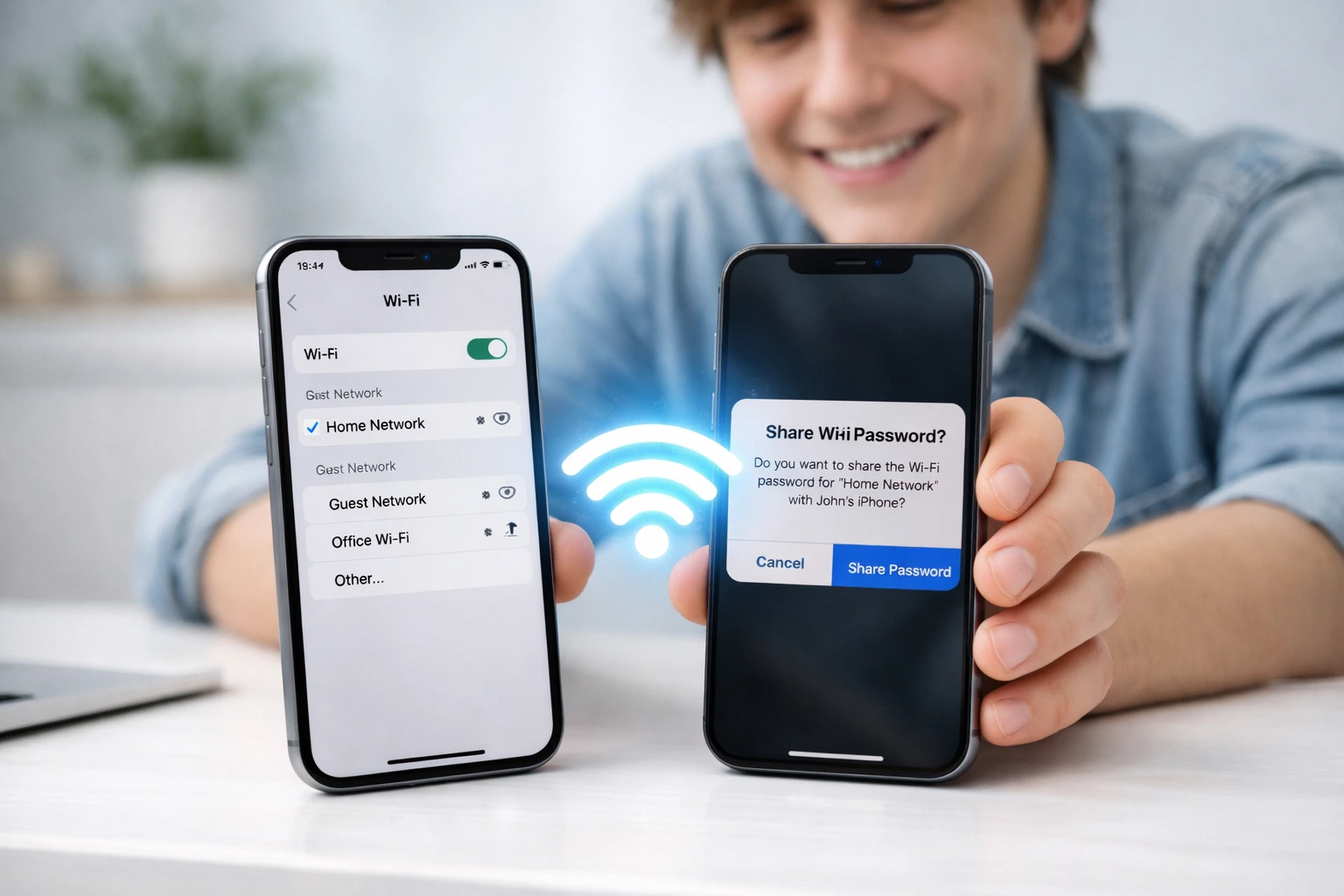
What You Need Before You Start Sharing Your WiFi Password
How to share WiFi password on iPhone is something millions of people search for every day. And honestly, I understand why.
You try to share your WiFi… but nothing happens. No popup. No prompt. Just silence while the other person waits.
The truth is, iPhone WiFi password sharing does not work automatically unless a few important settings are correct.
The good news? Once you understand these simple requirements, sharing your WiFi password becomes effortless and takes just a few seconds.
Let’s start with the exact checklist you need before sharing your WiFi password on iPhone.
The Quick 60 Second Checklist
Before anything else, run through this checklist on both iPhones. Every single item here matters. Missing even one can stop the sharing process completely.
The two most critical settings to check on each device are Wi-Fi and Bluetooth both must be active at the same time for the sharing feature to work.
On the iPhone that is sharing the password:
- WiFi is turned ON and connected to the network you want to share
- Bluetooth is turned ON (this is how the two iPhones find each other)
- Personal Hotspot is turned OFF (this one trips up a lot of people)
- Your iPhone is unlocked and awake
- The other person’s Apple ID email address is saved in your Contacts app
On the iPhone that is receiving the password:
- WiFi is turned ON
- Bluetooth is turned ON
- Personal Hotspot is turned OFF
- They have tapped your network name in their Settings > WiFi screen
Both devices need to be physically close to each other. I recommend keeping them within one to two feet apart. The closer the better.
One thing people always forget is the Contacts requirement. This is not optional. Apple uses your Contacts list to verify the person you are sharing with. If their Apple ID email is not saved in your Contacts, the Share Password popup will never appear on your screen. I will explain exactly why Apple does this in the next section.
Which iOS Version You Have and Why It Changes Everything
Not all iPhones share WiFi passwords the same way. The method that works for you depends entirely on which version of iOS your iPhone is running. This is something no one talks about clearly and it causes a lot of confusion.
Here is a simple breakdown so you know exactly where you stand.
iOS 11 to iOS 16: You can use the basic proximity sharing method. This is the tap to share method where a popup appears on your screen and you tap Share Password. This is the most common method and works great between two Apple devices.
iOS 17: Apple added QR code sharing in this version. You can now go to Settings then Passwords, find your WiFi network, and tap Show QR Code. This QR code works with Android phones, iPads, and any device that has a camera. This was a big update that made cross-platform sharing much easier.
iOS 18: Apple moved WiFi passwords into a dedicated Passwords app. The QR code feature still works but the path changed slightly. Instead of going through Settings you now open the Passwords app directly, tap WiFi, select your network, and tap Show Network QR Code.
To check your iOS version right now, go to Settings then General then About. You will see your software version listed there.
Knowing your iOS version before you start saves you from trying steps that simply will not work on your device. Once you confirm your version and complete the checklist above, you are ready to share your WiFi password on iPhone without any problems.
iOS Version Differences for WiFi Sharing on iPhone
Not all iPhones support the same WiFi sharing features. The method you can use depends on your iOS version.
🔍 WiFi Sharing Features by iOS Version
| iOS Version | WiFi Sharing Method | Works With | Key Feature |
|---|---|---|---|
| iOS 11 – 16 | Share Password Popup | iPhone, iPad, Mac | Automatic password sharing via Bluetooth |
| iOS 17 | QR Code + Share Password | iPhone, Android, all devices | Added cross-platform QR code sharing |
| iOS 18 | Passwords App + QR Code | All devices | Dedicated Passwords app with WiFi QR code |
How to Share WiFi Password on iPhone to iPhone The Fastest Method
If both you and your friend are using iPhones, you are in luck. The fastest way to share a WiFi password between two iPhones is using Apple’s built in sharing feature. It takes less than 60 seconds and requires no typing.No reading out a long string of letters and numbers.
Just a quick tap and the other person is connected.
Apple built this feature directly into iOS and it works beautifully when both devices meet the requirements from the checklist above. Let me walk you through every step so you get it right the first time.
If you prefer a visual guide, watch this quick video to see exactly how to share WiFi password on iPhone.
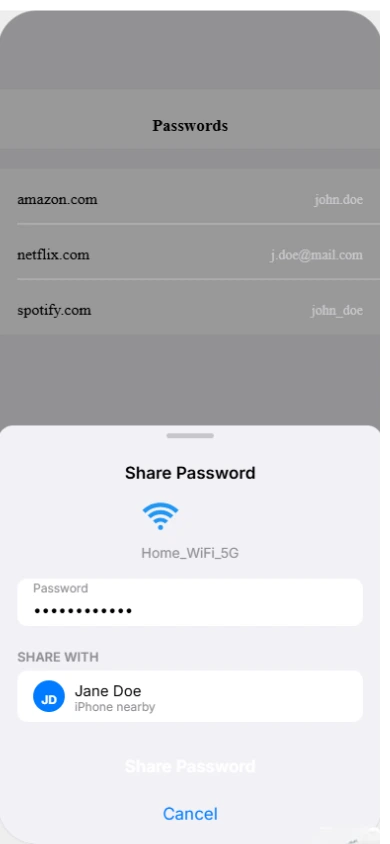
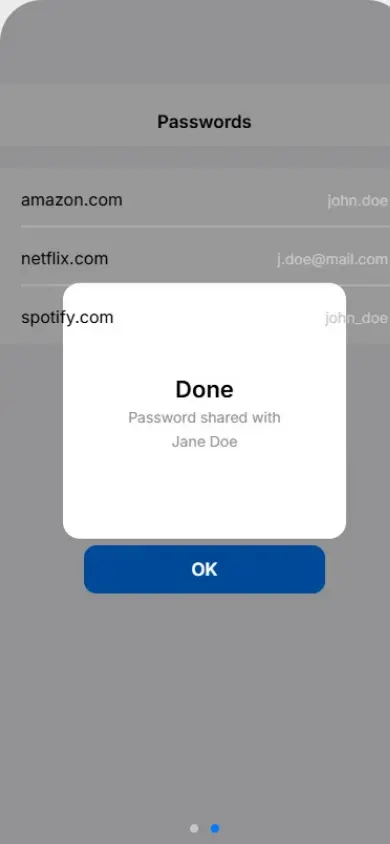
Step by Step Connected in Under 60 Seconds
I have done this many times and the whole process takes less than a minute when everything is set up correctly. Here is exactly what to do.
On your iPhone (the one sharing the password):
Open the Control Center by swiping down from the top right corner of your screen. Make sure WiFi is showing as connected and Bluetooth is turned on. Then go to Settings and tap WiFi. Confirm you are connected to the network you want to share.
On your friend’s iPhone (the one receiving the password):
They need to open Settings and tap WiFi. Then they tap the name of your network from the list. A password field will appear on their screen. They should stay on that screen and not close it.
Back on your iPhone:
Within a few seconds a popup notification will appear automatically on your screen. It will ask if you want to share your WiFi password with your friend. Tap Share Password. That is it.
Your friend’s iPhone will connect to the network automatically. They do not type anything. The password transfers silently and securely in the background. Once connected you will see a message saying the process is complete.
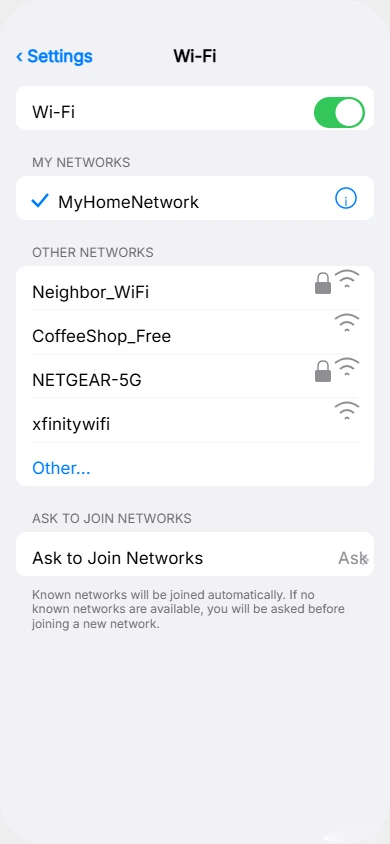
Steps to share WiFi password on iPhone:
- Open Settings > WiFi on both devices
- On the receiving iPhone, tap your network
- Keep both devices close together
- On your iPhone, tap Share Password
- Tap Done
Why Apple Requires Your Contacts to Be Saved
This is the question I get asked the most. Why does Apple need your friend saved in Contacts just to share a WiFi password? It sounds unnecessary but there is a genuine reason behind it.
Apple uses your Contacts list as a trust verification system. When your friend’s iPhone tries to connect to your network, your iPhone checks whether that person’s Apple ID email exists in your Contacts. If it does, Apple treats them as a trusted person and shows you the Share Password prompt.
If their Apple ID email is not saved in your Contacts, your iPhone never shows the popup. It simply does nothing. This is why so many people think the feature is broken when it is actually just a missing contact entry.
To fix this quickly, ask your friend what email address they use for their Apple ID. Save that email in a new contact on your iPhone. Then try the process again and the popup will appear.
What the Share Password Popup Looks Like
A lot of people miss the popup because they do not know what to expect. I want to describe it clearly so you recognize it immediately.
The popup appears as a small notification banner near the middle or bottom of your screen. It shows your friend’s name exactly as it appears in your Contacts. Below the name it says something like “wants to join WiFi network” followed by your network name.
You will see two options. One says Share Password and the other says Do Not Share. Tap Share Password and the process completes within two to three seconds.
Your iPhone needs to be unlocked and awake when this popup appears. If your screen locks before you tap it the popup may disappear. Just have your friend retry connecting from their Settings and the popup will appear again on your screen.
How to Share WiFi Password from iPhone to Android
This is the section most people actually need and most articles get completely wrong. I have seen friends standing next to each other for five minutes trying to share a WiFi password between an iPhone and an Android phone using the wrong method. It simply does not work that way and I want to save you that frustration right now.
Sharing your WiFi password from iPhone to Android is absolutely possible. You just need to use the right method for it. And once you know how, it takes less than thirty seconds.
Why the Normal Method Does Not Work on Android
The proximity Share Password feature that works so beautifully between two iPhones is an Apple only technology. It uses a combination of Bluetooth and Apple’s own secure framework to transfer WiFi credentials between Apple devices.
Android phones are not part of Apple’s ecosystem. They cannot receive or trigger the Share Password popup that appears on your iPhone. So if your Android using friend taps your network name and waits for something to happen on your iPhone, nothing will appear. Your iPhone simply does not detect Android devices as eligible for proximity sharing.
This is not a bug. It is just how Apple designed the feature. The good news is that Apple added a proper solution for this in iOS 17 and made it even easier in iOS 18. That solution is WiFi QR code sharing and it works perfectly across platforms.
How to Create a WiFi QR Code on iPhone (iOS 17 and iOS 18)
This is the correct method for sharing your WiFi password from iPhone to Android and I use it all the time when friends visit.
If your iPhone is running iOS 17:
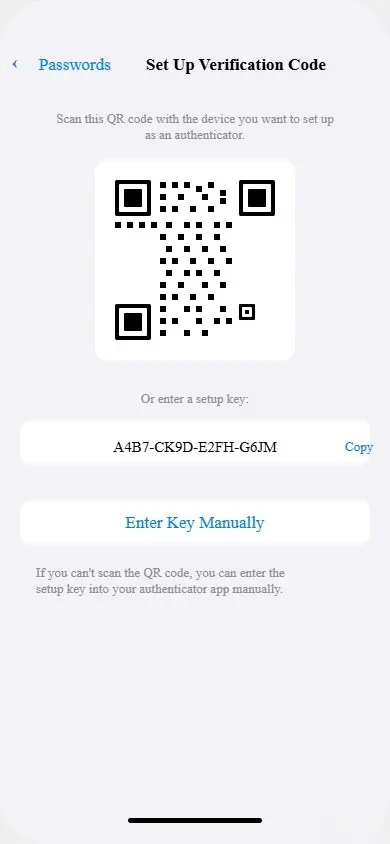
Open Settings and scroll down to tap Passwords. Your iPhone will ask you to authenticate using Face ID, Touch ID, or your passcode. After verification, look for the WiFi section or search for your network name at the top. Tap your network name from the list. You will see an option that says Show QR Code. Tap it and a QR code will appear on your screen.
If your iPhone is running iOS 18:
Apple created a dedicated Passwords app in iOS 18. Open the Passwords app directly from your home screen. Tap the WiFi section inside the app. Find and tap your current network name. Then tap Show Network QR Code and the QR code will appear.
The QR code contains your network name and password in an encoded format. It works with any device that has a camera including all Android phones, tablets, laptops, and smart TVs.
How the Android User Scans and Connects
Once you have the QR code displayed on your iPhone screen, the process for the Android user is very straightforward.
Ask your friend to open the Camera app on their Android phone. They should point the camera directly at the QR code on your screen. Most Android phones running Android 10 or later will automatically detect the WiFi QR code and show a notification or banner at the top of their screen.
They tap that notification and their phone joins the network instantly. No typing. No reading out a password. It connects in seconds.
If the camera does not detect it automatically, they can also go to Settings then WiFi on their Android phone. Many Android devices have a QR code scan icon directly on the WiFi settings screen. They tap that icon and scan your QR code from there.
One practical tip I always follow is to make sure the brightness on your iPhone is turned up fully before showing the QR code. A bright clear screen makes scanning much faster and more reliable.
How to Share WiFi Password from iPhone to Mac
Most people do not realize that sharing a WiFi password from iPhone to Mac is just as easy as sharing it between two iPhones. I discovered this by accident one day when I was setting up a new MacBook and my iPhone automatically offered to share the password without me even asking. It felt like magic the first time it happened.
If you have never tried this before you are going to love how seamless Apple has made it. The two devices talk to each other through Bluetooth and the whole process takes about ten seconds once everything is properly set up.
Requirements on Both Devices Before Starting
Before you try sharing your WiFi password from iPhone to Mac, run through this quick check on both devices. Skipping any of these will stop the process before it even starts and you will be left wondering why nothing is happening.
On your iPhone:
Your iPhone must be unlocked and awake during the entire sharing process. If the screen locks at any point the prompt disappears and you have to start over. Make sure WiFi is turned on and your iPhone is already connected to the network you want to share. Bluetooth must also be turned on. You can check this quickly from the Control Center.
On your Mac:
Your Mac needs to be running macOS Ventura or a later version for this feature to work reliably. Open System Settings and confirm that WiFi is turned on. Also make sure Bluetooth is enabled on your Mac. You can find Bluetooth in System Settings under the Bluetooth section.
The contact requirement:
This part is slightly different from iPhone to iPhone sharing. For iPhone to Mac sharing both devices need to be signed in with Apple IDs that recognize each other. The simplest way to ensure this works is to make sure your own Apple ID is signed in on both devices. If you are sharing with someone else their Apple ID email needs to be saved in your Contacts on your iPhone.
Step by Step iPhone to Mac WiFi Sharing
Once both devices meet the requirements above the actual sharing process is very straightforward. Here is exactly what to do.
On your Mac click the WiFi icon in the menu bar at the top right corner of your screen. A dropdown list will appear showing available networks. Click the name of the network you want to join. Your Mac will show a password field and start looking for nearby devices that can help it connect.
At this point keep your iPhone nearby and make sure the screen is on and unlocked. Within a few seconds a notification will appear on your iPhone screen. It will show the name of your Mac and ask if you want to share your WiFi password with it.
Tap Share Password on your iPhone. Your Mac will then connect to the network automatically without you typing anything on the keyboard.
Once connected your Mac will show the WiFi icon as filled in the menu bar confirming the connection is active. The whole process from clicking the network name to being fully connected usually takes under fifteen seconds.
One thing I always do is keep my iPhone on the same desk as my Mac during this process. Distance matters here. The closer the two devices are to each other the faster and more reliably the prompt appears on your iPhone.
How to Find Your WiFi Password on iPhone to Share Manually
Sometimes the automatic sharing methods just do not apply to your situation. Maybe you need to connect a Windows laptop, a smart TV, a gaming console, or a device that simply cannot scan a QR code. In those cases you need to find your actual WiFi password on your iPhone and share it the old fashioned way.
I used to think this was impossible on iPhone. I assumed Apple hid passwords permanently and there was no way to see them. But starting from iOS 16 Apple made it very easy to view any saved WiFi password directly from your phone. Let me show you both ways to do it.
Using the Blue “i” Button in WiFi Settings
This is the quickest method and it works on iOS 16 and later. I use this one most often because it takes only a few taps to get to the password.
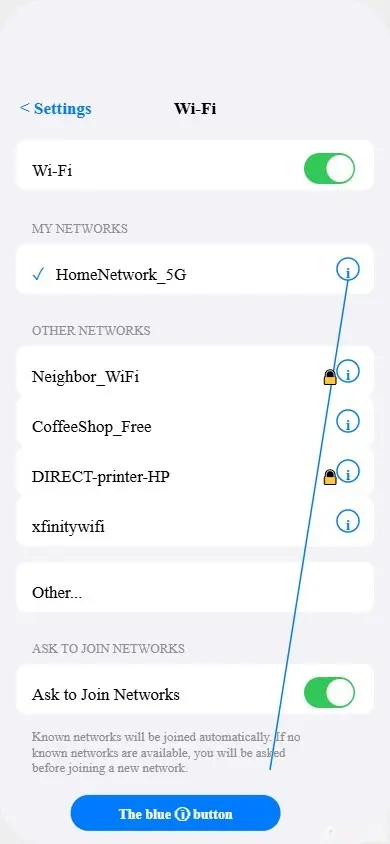
Open Settings on your iPhone and tap WiFi. You will see the network you are currently connected to at the top of the list with a checkmark next to it. Look for the small blue circle with the letter “i” inside it on the right side of your network name. Tap that blue “i” button.
A new screen will open showing the details of your network. Scroll down slightly and you will see a field labeled Password. The password will appear as dots to keep it hidden. Tap directly on the dots and your iPhone will immediately ask you to verify your identity using Face ID, Touch ID, or your passcode.
Once you authenticate the actual password appears in plain text. You can read it out to someone, show them your screen, or tap and hold on it to copy it to your clipboard.
Using the Passwords App on iOS 16 and Later
Apple also stores your saved WiFi passwords inside the Passwords section of your Settings and in the dedicated Passwords app on iOS 18. This method works especially well if you want to find a password for a network you are not currently connected to.
On iOS 16 and iOS 17 go to Settings and scroll down to tap Passwords. Authenticate with Face ID or Touch ID. Once inside tap the WiFi tab or use the search bar at the top to type your network name. Tap the network from the results and your saved password will be visible on that screen.
On iOS 18 open the Passwords app directly from your home screen. Tap WiFi from the main menu. Find your network name and tap it. The password displays right there on the screen after a quick Face ID confirmation.
Safe Ways to Share Your Password Without a Security Risk
Now that you can see your password I want to share something important. How you share it matters just as much as finding it.
The safest way to share your WiFi password manually is to show your screen directly to the person standing next to you. They type it in and you lock your phone immediately after.
Avoid sending your WiFi password through regular SMS text messages. Standard text messages are not encrypted and can be intercepted. If you need to send it digitally use iMessage which is end to end encrypted. AirDrop is another excellent option if the other person has an Apple device nearby.
Never write your WiFi password in a note and leave it visible on your screen for long periods. Once the person has connected successfully lock your phone and move on.
How to Share WiFi Using Personal Hotspot When Everything Fails
There are moments when nothing works. The Share Password popup refuses to appear. The QR code method is not an option. The other person does not have a compatible device. I have been in that exact situation and I know how annoying it feels when you just want someone to get online quickly.
This is where Personal Hotspot becomes your best friend. Most people think of Personal Hotspot only as a way to share mobile data. But it is also the most reliable backup method when regular WiFi password sharing is not cooperating. Instead of sharing access to your existing WiFi network you create a brand new temporary WiFi network directly from your iPhone that anyone can join instantly.
It is not the same as sharing your home WiFi password but it gets the job done every single time without any contact requirements, Bluetooth conditions, or iOS version restrictions.
Setting Up Personal Hotspot on Your iPhone
Setting up Personal Hotspot is straightforward and takes about one minute. Here is exactly how I do it.
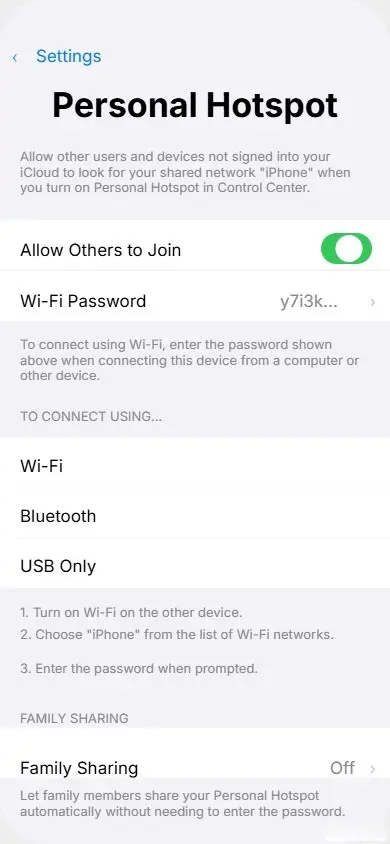
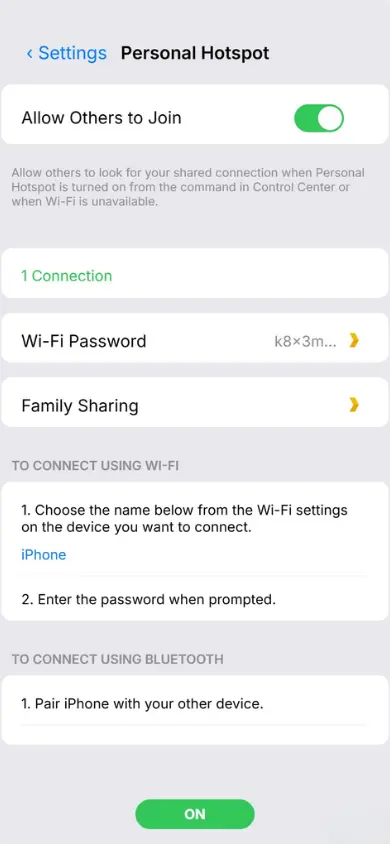
Open the Settings app on your iPhone. Tap on Cellular near the top of the menu. Make sure Cellular Data is toggled on because Personal Hotspot uses your mobile data to create the connection. Now go back to the main Settings screen and tap Personal Hotspot.
You will see a toggle at the top that says Allow Others to Join. Turn that on. Your iPhone will now broadcast a WiFi network that other devices can detect and connect to.
Before anyone connects I recommend setting a strong and easy to remember password. Tap WiFi Password on this screen and type in a password of your choice. Make it something simple enough to share verbally but not something obvious. Tap Done when you are finished.
Now go back to Settings and tap General then About. At the very top you will see the Name of your iPhone. This is the exact name that will appear as the WiFi network name on other devices. Share that name along with your hotspot password with the person who needs to connect.
On their device they simply open WiFi settings, find your iPhone name in the list of available networks, tap it, enter the password you set, and they are connected and online within seconds.
When to Use Hotspot Instead of WiFi Sharing
Personal Hotspot is not always the first choice but there are specific situations where it is clearly the better option. Knowing when to use it saves a lot of time and frustration.
Use Personal Hotspot when the other person does not have their Apple ID email saved in your Contacts and you do not want to go through the process of adding it just for a quick connection. It is also the right choice when you are trying to connect a Windows laptop, a gaming device, or any gadget that cannot scan a QR code or receive Apple sharing prompts.
I also use it when I am in a different location and do not have access to a home router at all. If someone needs internet access and the only connection available is through my iPhone cellular data, Personal Hotspot handles that perfectly.
One important thing to keep in mind is that Personal Hotspot uses your mobile data. If you have a limited data plan be aware of how long you leave it on. Turn it off as soon as the other person no longer needs the connection. You can turn it off quickly by going back to Settings then Personal Hotspot and toggling Allow Others to Join back to off.
Personal Hotspot is the ultimate backup and knowing how to set it up quickly makes you the most helpful person in any room when the WiFi situation gets complicated.
WiFi Password Sharing Not Working on iPhone: 7 Fixes
I have helped a lot of people troubleshoot this exact problem and I can tell you that in almost every case the fix is simpler than you think. The issue is rarely a serious software problem. It is usually one small setting that is out of place and once you correct it everything works perfectly.
Let me walk you through the most common problems and exactly how to fix each one.
Fix 1 Share Password Button Is Greyed Out or Missing
This is the most frustrating situation because you can see the option but you cannot tap it. Or sometimes the button does not appear at all. I have seen this happen many times and there are four specific reasons it occurs.
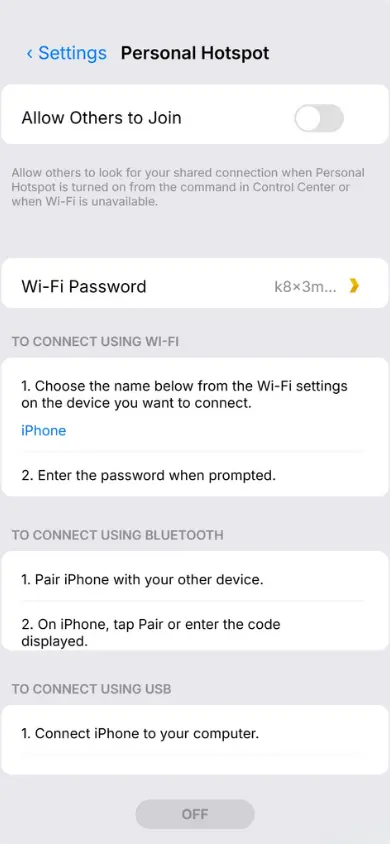
The first reason is that Personal Hotspot is turned on. Go to Settings then Personal Hotspot and turn off Allow Others to Join. This single fix solves the greyed out button problem for most people.
The second reason is that Bluetooth is off. The Share Password feature needs Bluetooth to detect the nearby device. Open Control Center and make sure Bluetooth is active on both iPhones.
The third reason is that the other person’s Apple ID email is not saved correctly in your Contacts. Double check by opening your Contacts app and searching for their name. Confirm that their Apple ID email address is listed there exactly as they use it for their Apple account.
The fourth reason is that the devices are too far apart. Move both iPhones within one to two feet of each other and try again.
Fix 2 The Popup Is Not Appearing on Your iPhone
You are waiting for the Share Password notification to appear on your screen but nothing shows up. This is a very common complaint and it almost always comes down to the same set of causes.
Start by restarting both iPhones. I know it sounds basic but a fresh restart clears temporary glitches that block the sharing prompt from appearing. After restarting go through the checklist again. WiFi on, Bluetooth on, Personal Hotspot off, contacts saved, devices close together.
If the popup still does not appear try toggling Bluetooth off and back on again on both devices. Sometimes Bluetooth needs a quick reset to detect nearby devices properly.
Fix 3 Password Shared But WiFi Still Won’t Connect
This one catches people off guard. The sharing process completed successfully but the receiving iPhone is still not connecting to the network. The Share Password notification said done but there is no internet connection.
The most effective fix here is to forget the network on the receiving iPhone and rejoin it. Go to Settings then WiFi on the receiving device. Tap the blue “i” button next to the network name and tap Forget This Network. Then try connecting again from scratch and use the sharing method again.
If that does not work check whether your router is broadcasting on both 2.4GHz and 5GHz bands. Sometimes iPhones have trouble connecting to a specific band. Restarting your router for thirty seconds often resolves this instantly.
Fix 4 QR Code Not Working for Android
You generated the QR code on your iPhone but the Android phone is not detecting it when pointing the camera at the screen.
First confirm that your iPhone is running iOS 17 or later because QR code sharing does not exist on earlier versions. Then make sure you are using the native Camera app on the Android device and not a third party QR scanner. Turn your iPhone brightness to maximum before showing the code. Poor screen brightness is the number one reason QR codes fail to scan properly.
If the camera still does not detect it automatically ask your Android using friend to go to Settings then WiFi on their phone. Many Android devices have a dedicated QR scan button right on the WiFi settings page that works more reliably than the camera app in some cases.
Quick Fix Checklist If Nothing Above Works
Run through this final checklist before giving up entirely.
- Update both iPhones to the latest iOS version available
- Sign out of iCloud on your iPhone and sign back in
- Go to Settings then General then Transfer or Reset iPhone then Reset then Reset Network Settings on the receiving device
- Restart your home router by unplugging it for thirty seconds
- Try using the Personal Hotspot method as a reliable alternative
If you have gone through every fix above and nothing has worked the Personal Hotspot method covered in the previous section will always get the other person connected regardless of what is blocking the standard sharing process.
How to Share Your WiFi Password With Multiple People at Once
Sharing your WiFi password one person at a time is fine when you have one or two guests. But what about when you have a group of people visiting and everyone needs to connect? Doing the tap to share method five or six times in a row gets old very quickly.
I figured out a much smarter way to handle this situation and it saves a tremendous amount of time when multiple people need to get online at the same moment.
Fastest Way to Connect Multiple Guests
The QR code method is hands down the best solution for connecting multiple people to your WiFi at once. Instead of going through the sharing process individually with each person you generate one QR code and every single person can scan it from their own device in seconds.
Here is what I do when I have guests over. I go to Settings then Passwords on my iPhone and authenticate with Face ID. I find my network name and tap Show QR Code. Then I simply hold my phone up or prop it against something visible and let each person scan it one by one with their own camera app.
The entire group can be connected within two minutes. It does not matter whether they have iPhones, Android phones, tablets, or laptops. Any device with a camera can scan the code and join the network automatically.
If you want an even more convenient setup you can take a screenshot of the QR code and display it on a larger screen like a tablet or laptop so multiple people can scan it simultaneously without waiting for each other.
One important thing to keep in mind is that the QR code contains your actual WiFi password in encoded form. Only show it to people you trust and do not leave it displayed publicly for longer than needed.
Setting Up a Guest Network for Long Term Sharing
If you regularly have visitors or you want a permanent solution for sharing WiFi without giving out your main network password then setting up a guest network on your router is the smartest long term approach.
A guest network is a separate WiFi network that runs alongside your main network. It gives visitors internet access without connecting them to your personal devices, shared files, or smart home equipment. I set one up at home specifically for guests and it has made life so much easier.
To create a guest network you need to log into your router’s admin page. Open any browser on your phone or computer and type your router’s IP address into the address bar. Most routers use 192.168.1.1 or 192.168.0.1 as their default address. Check the label on the back of your router if you are not sure.
Once logged in look for a section called Guest Network or Guest WiFi. Enable it, give it a simple name, and set a password that is easy to share verbally. Save the settings and your guest network will appear as a separate WiFi option on any nearby device.
Now whenever someone visits you simply share the guest network name and password. Your main network stays completely private and protected.
Is It Safe to Share Your WiFi Password on iPhone
Safety is something I think about every time I share my WiFi with someone. The good news is that Apple has designed the sharing process with privacy in mind. But there are still some important things to understand about what happens when you share your WiFi password on iPhone.
Does the Other Person See Your Actual Password
This is the question I get asked most often and the answer depends entirely on which sharing method you use.
When you use the proximity Share Password method between two Apple devices the password is never displayed to either person. It transfers silently and securely in the background. The receiving device connects automatically and the actual password string remains completely hidden. This is the most private sharing method available on iPhone.
When you use the QR code method the password is technically embedded inside the QR code in an encoded format. Most people will never extract it but someone with the right app could decode the QR code and see the password. So be thoughtful about who you share your QR code with.
When you share the password manually by showing someone your screen or reading it out they can see and remember your actual password. Use this method only with people you fully trust.
How to Revoke WiFi Access After Sharing
A lot of people do not realize that once you share your WiFi password there is no button to instantly disconnect a specific person. iPhone does not have a built in way to selectively remove one device from your network.
The only reliable way to revoke WiFi access after sharing is to change your router’s WiFi password. Once you change it every device currently connected gets disconnected immediately including the person you shared with. They would need the new password to reconnect.
To do this log into your router admin page, find the WiFi settings section, and update the password. After saving the new password reconnect your own devices using the updated credentials.
If you use a guest network for visitors this becomes much easier. You can change just the guest network password without affecting your main network or any of your personal devices.
How to Check Who Is Connected to Your WiFi
To see who is using your WiFi open your router’s admin page by typing your router’s IP address into any browser. Look for a section called Connected Devices or Device List. Every active device on your network will appear there by name.
Frequently Asked Questions
How Do I Share WiFi Without the Other Person Seeing the Password?
Use the proximity Share Password method between two Apple devices. The password transfers silently in the background and never appears on either screen. The receiving device connects automatically without displaying any password text.
Why Is the Share Password Option Not Showing on My iPhone?
The most common reasons are Bluetooth is off, Personal Hotspot is on, or the other person’s Apple ID email is not saved in your Contacts. Fix all three and the Share Password option will appear immediately
Can I Share iPhone WiFi Password With Android?
Yes but only using the QR code method. Go to Settings then Passwords on iOS 17 or open the Passwords app on iOS 18, find your network, and tap Show QR Code. The Android user scans it with their camera app and connects instantly.
What iOS Version Do I Need to Share WiFi Password?
You need iOS 11 or later for basic proximity sharing between Apple devices. iOS 17 or later is required for QR code sharing. iOS 18 introduced the dedicated Passwords app with the Show Network QR Code feature built in.
How Do I Stop Someone Using My WiFi After Sharing?
The only way to revoke WiFi access is to change your router’s WiFi password. Once changed every connected device gets disconnected immediately. Log into your router admin page and update the password under WiFi settings.
: Can I Share WiFi Password From iPhone to Windows Laptop?
There is no automatic sharing method between iPhone and Windows. You need to find your password manually by going to Settings then WiFi then tapping the blue “i” button next to your network name. Authenticate with Face ID and type the revealed password into your Windows laptop.
Which WiFi Sharing Method Is Right for Your Situation
After going through every method in this guide I want to make the decision simple for you. Different situations call for different approaches and picking the right one lets you quickly share your WiFi with anyone whether they are on an iPhone, Android, Mac, or laptop without the frustration of trial and error
Here is a straightforward breakdown based on real situations I have personally dealt with.
iPhone to iPhone Use Proximity Share Password This is the fastest and most private method available. Both devices need Bluetooth on, Personal Hotspot off, and contacts saved. The wifi password sharing happens silently in under ten seconds with zero typing involved.
iPhone to Android Use QR Code Method The proximity method simply does not work cross platform. Generate a wifi QR code through Settings then Passwords on iOS 17 or the Passwords app on iOS 18. The Android user scans it with their camera and connects instantly.
iPhone to Mac Use Proximity Share Password This works exactly like iPhone to iPhone sharing. Click the network name on your Mac and the share password prompt appears automatically on your nearby unlocked iPhone.
iPhone to Windows Laptop Reveal Password Manually Windows has no built in receiver for Apple’s wifi sharing feature. Find your saved wifi password using the blue “i” button in Settings then WiFi and type it manually into the Windows device.
Sharing With a Group Use QR Code or Guest Network Show one QR code and let everyone scan it from their own device. For regular visitors setting up a dedicated guest network on your router is the smartest long term solution.
When Nothing Works Use Personal Hotspot Skip the sharing process entirely and create a temporary wifi network directly from your iPhone using cellular data. Anyone can join it immediately without any contact requirements or iOS version restrictions.
Choose the method that matches your situation and you will always get people connected quickly and securely.