
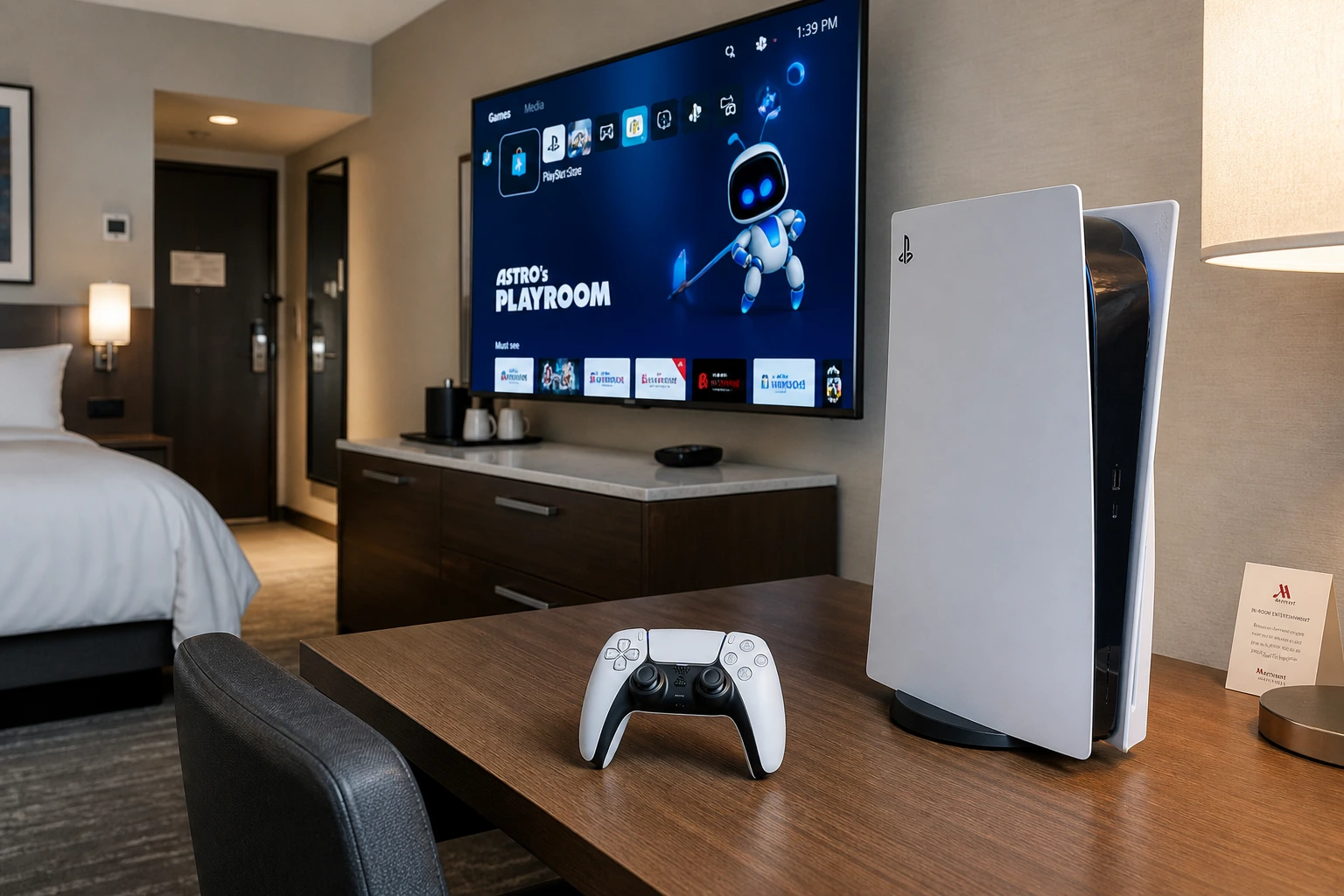
Why Your PS5 Won’t Connect to Hotel WiFi (The Real Problem)
I remember the first time I tried to connect PS5 to hotel WiFi. The connection test failed immediately, and I thought something was broken. But here’s what I learned: that “Failed” message doesn’t mean your PS5 is broken or that the hotel WiFi network won’t work it just means the network needs browser-based authentication, and your PS5 can’t automatically open that login page
Let me explain what’s actually happening.
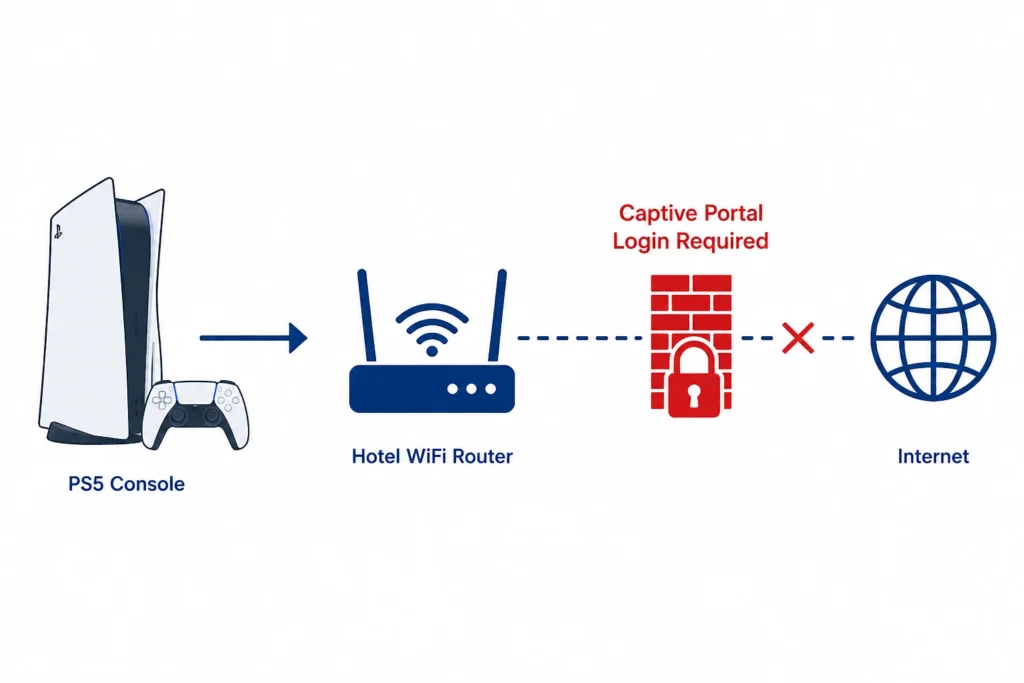
Most hotel WiFi networks use what’s called a captive portal. A captive portal is essentially a hotel wifi login page that pops up when you first connect to the network, asking you to agree to terms, enter a room number, or click “Connect.” You’ve probably seen this dozens of times on your phone or laptop at coffee shops, airports, and hotels.
Your phone and computer handle this smoothly because they automatically detect the captive portal and open a browser window. But the PS5 doesn’t do that. When your PlayStation 5 tries to connect to a hotel WiFi network, it runs a connection test expecting direct internet access. When it hits the hotel wifi login page instead, the test fails.
This is why you’ll see “Failed” or “Cannot connect to the WiFi network within the time limit” even though you selected the correct network and entered the password. The PS5 isn’t actually failing to connect to the network itself—it’s failing the internet connection test because the captive portal is blocking access until you authenticate through a browser.
Here’s the frustrating part: every hotel setup is different. Some hotels require just a single click to connect. Others ask for your last name and room number. Some need you to accept terms and conditions. A few even require you to contact the front desk to register your device’s MAC address. That’s exactly why this guide walks through five different methods—because what works at a Hilton might not work at an independent hotel down the street.
The good news? Once you understand that the “Failed” message is just the PS5’s way of saying “I need help getting past that login page,” the solution becomes straightforward. You’re not dealing with a broken console or incompatible network. You’re just dealing with hotel wifi authentication that requires a workaround.
Now that you know what’s actually causing the problem, let’s fix it.
The 30-Second Fix: Change One PS5 Setting Before You Start
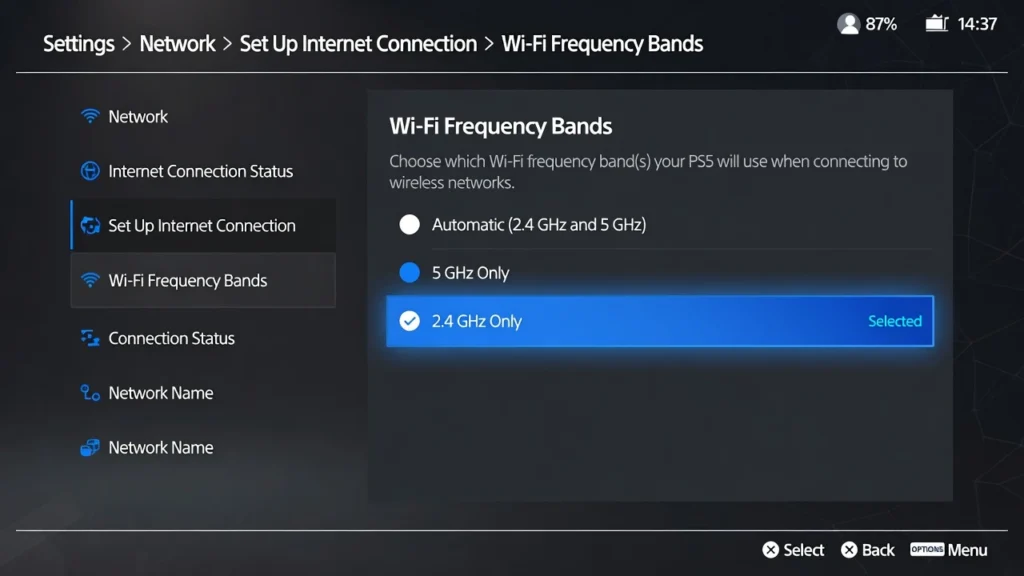
Here is something most guides skip entirely, and it made a huge difference for me. Before you try any method to connect PS5 to hotel wifi, change one setting on your PS5. It takes about 30 seconds and it dramatically improves your chances of connecting to hotel WiFi on the first attempt.
The setting is your WiFi frequency band.
By default, your PS5 is set to “Automatic,” which means it tries to connect on either 2.4 GHz or 5 GHz depending on signal strength. At home, that works perfectly. In a hotel, it can quietly sabotage your connection before you even get started.
Here is why this matters. Hotel routers are built for range, not speed. They broadcast across thick walls, long hallways, and multiple floors. The 2.4 GHz band travels farther and penetrates walls much more effectively than 5 GHz.
When your PS5 is set to Automatic and it picks 5 GHz, it might grab a weaker signal or struggle to maintain a stable connection with the hotel router. Switching to 2.4 GHz only gives your PS5 a better chance of finding and holding the hotel network signal long enough to complete authentication.
I tested this myself at three different hotels. Two of them connected immediately after I made this change. The third needed one additional step, but the frequency change was still part of the solution.
How to Change WiFi Frequency on PS5
This is the exact button sequence I use every time I arrive at a hotel. Follow these steps before you attempt any connection:
- Go to Settings on your PS5 home screen
- Select Network
- Select Set Up Internet Connection
- Highlight the hotel WiFi network name from the list
- Press the Options button on your controller (the small button on the right side)
- Select Wi-Fi Frequency Bands
- Change the setting from Automatic to 2.4 GHz only
- Now proceed with connecting to the network
That one change in your PS5 network settings adjusts how your console searches for and maintains a WiFi connection. It is a small step that most people never know about, and it consistently improves connection stability on hotel networks.
Pro Tip: Switch Back to 5 GHz After Connecting
Once you have successfully connected to the hotel WiFi and passed the authentication step, you do not have to stay on 2.4 GHz. If the hotel signal is strong in your room, switching back to 5 GHz can give you noticeably better speeds for gaming and downloading.
An experienced road worker who stays in hotels regularly shared this tip and I have used it myself. Go back into the same settings path after your connection is live and switch the WiFi frequency band back to 5 GHz only. If the hotel WiFi speed drops or becomes unstable, switch back to 2.4 GHz. Some hotel rooms have a strong enough signal to support 5 GHz and the improvement in hotel WiFi speed for gaming is worth testing.
Think of 2.4 GHz as your connection key and 5 GHz as your speed upgrade once the door is open.
Method #1: Use Your Phone to Authenticate (Fastest for Most Hotels)
This is the method I reach for first at every hotel I visit, and it works more often than any other approach. The phone authentication method is Sony’s own built-in solution for how to connect PS5 to hotel WiFi, and once you understand how it works, the whole process takes less than two minutes
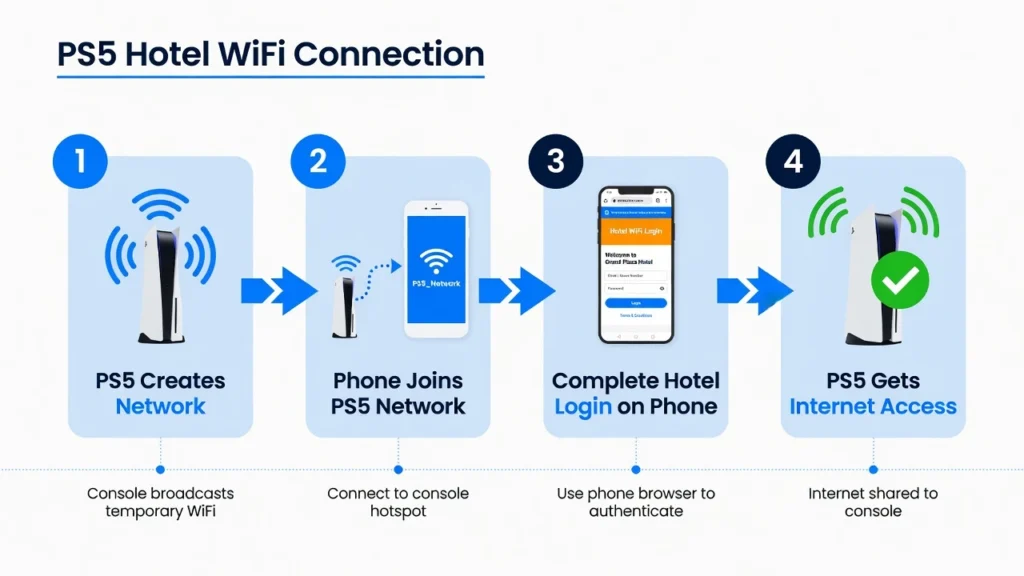
The basic idea is simple. Your PS5 temporarily creates its own small WiFi network. You connect your phone to that network, your phone browser automatically opens the hotel login page, you complete the hotel WiFi authentication on your phone screen, and your PS5 gains internet access. Your phone acts as the browser your PS5 does not have.
I was genuinely surprised the first time I tried this. I expected a complicated workaround. Instead it felt like Sony had quietly built the solution right into the console and just never told anyone about it.
Step-by-Step: Phone Authentication Method
Follow these steps exactly and the PS5 network setup process will handle most of the heavy lifting for you.
Step 1: On your PS5 home screen go to Settings
Step 2: Select Network then select Set Up Internet Connection
Step 3: Find the hotel WiFi network name in the list and select it
Step 4: If the network has a password enter it now. Many hotel networks have no password at this stage so you may just press connect.
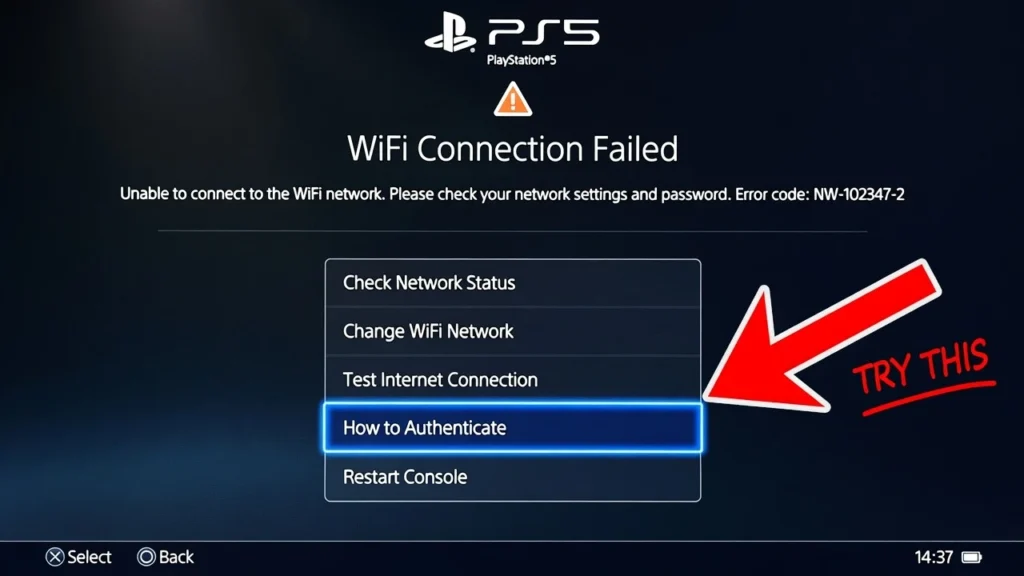
Step 5: The PS5 will run a connection test and show a “Failed” result. Do not close this screen. Look carefully at the options shown and select “How to Authenticate.”
Step 6: Your PS5 will now display a temporary network name on your TV screen. The network name will look something like “PS5-192” or a similar PS5 identifier. Write down or remember this network name and the unique passcode displayed below it.
Step 7: Pick up your phone and go to your WiFi settings. Disconnect from any current network and search for the network name shown on your TV.
Step 8: Connect your phone to the PS5 network and enter the exact passcode shown on your TV screen. The password is case sensitive so type it carefully.
Step 9: Once your phone connects to the PS5 network a browser window should open automatically on your phone showing the hotel login page. Complete the hotel network login form on your phone. This might ask for your room number, last name, or just a single button to accept terms.
Step 10: After you complete the hotel WiFi ps5 authentication on your phone your PS5 will detect the successful authentication and the connection test will pass automatically.
The PS5 uses your phone as a temporary browser to complete the wifi authentication process that the console cannot do on its own. Once authentication is complete your PS5 connects directly to the hotel internet and your phone returns to normal.
iPhone vs Android: Any Differences?
Honestly no. I have used this method on both an iPhone and an Android phone and the experience is identical on both platforms.
When your phone connects to the PS5 network both iOS and Android automatically detect that the network requires a login and open a browser window. This automatic detection is called captive portal detection and both operating systems have it built in natively.
You do not need a specific phone model or operating system version. As long as your phone can connect to a WiFi network and open a browser it will work. The wifi hotspot phone PS5 connection process is truly platform independent
Troubleshooting: Phone Will Not Connect to PS5 Network
If your phone is not connecting to the PS5 network or the hotel login page is not opening here are the fixes I have actually used myself.
Fix 1: Restart both devices
Turn your PS5 off completely using the power button. Restart your phone as well. Then go through the entire process again from Step 1. A fresh start clears most temporary connection errors.
Fix 2: Check the password you are entering
The passcode your PS5 displays on screen is case sensitive. One wrong letter or number and the connection will fail. Look at the TV screen again and type the password character by character.
Fix 3: Turn off your phone VPN
If you have a VPN app running on your phone it can block the PS5 wifi connection from completing properly. Go into your VPN app and disconnect it completely before attempting to connect to the PS5 network. You can turn your VPN back on after the PS5 is authenticated.
Fix 4: Forget and reconnect
If your phone previously connected to this PS5 network and saved incorrect settings go to your phone WiFi settings, find the PS5 network name, select “Forget this network” and then reconnect from scratch.
Fix 5: Move closer to your PS5
The temporary network your PS5 creates has a short range. If you are standing in the bathroom or on the other side of a large room your phone might struggle to pick up the signal. Move within a few feet of your console and try again.
Most PS5 hotel WiFi connection problems at this stage come down to a wrong password or a VPN running quietly in the background. Fix those two things first and the phone authentication method almost always works cleanly.
Method #2: Force the PS5 Browser to Show Hotel Login Page
If the phone authentication method does not work or you want a faster approach that skips using your phone entirely, you can force the PS5 internet browser to open the hotel WiFi login page directly. This method works surprisingly well and I have used it multiple times when my phone was charging across the room and I did not feel like getting up.
The PS5 does have a hidden browser built into the system. Sony does not advertise this feature and you cannot access the PS5 browser internet functions like a regular web browser, but the console uses this browser internally to display certain system pages.
When you trigger the browser in the right way it will automatically redirect to the captive portal login page the hotel network requires.
This method works best when you know the hotel WiFi requires a login page but the PS5 did not show the “How to Authenticate” option after your connection failed. Instead of waiting for the authentication prompt you manually force the browser to open and the hotel login page appears on your TV screen.
Using “View PSN Status” to Force Login Page
This is the primary browser forcing method I recommend. The PS5 system includes a menu option to check your PlayStation Network connection status. When you select that option while connected to a hotel network that requires authentication the PS5 tries to load the PSN status page but gets redirected to the hotel WiFi login page instead.
Here is how to do this:
Step 1: Go to Settings on your PS5 home screen
Step 2: Select Network then select Connection Status
Step 3: Look at the connection status screen and select “View PlayStation Network Status”
Step 4: Instead of showing the PlayStation Network status page your PS5 should automatically load the hotel login page on your TV screen
Step 5: Use your PS5 controller to navigate the hotel network login form. Fill in your room number, last name, or whatever information the hotel requires. Some hotels just ask you to click a single “Connect” or “Accept” button.
Step 6: After you complete the form and submit your information the PS5 will confirm the connection and you will have internet access
The captive portal detection happens automatically when the PS5 network settings try to reach an external webpage. The hotel router intercepts the request and serves the login page instead. Your PS5 displays whatever the hotel sends back and you complete the authentication directly on your TV.
I have used this method at hotel chains that use simple one click login pages and it worked smoothly every time. The form appears just like it would on your phone or laptop.
Alternative: Use Connection Test Instead
If selecting “View PlayStation Network Status” does not trigger the hotel login page you can try running a connection test instead. Some hotel network configurations respond better to the connection test method than the PSN status method.
Go back to Settings > Network > Connection Status and select “Test Internet Connection” at the bottom of the screen. The PS5 will run through its standard connection diagnostic and during that process the hotel login page may appear on your screen.
This is essentially the same browser triggering trick but initiated from a different menu path. The ps5 internet connection test tries to verify your connection to the internet and when the hotel router blocks that test the login page pops up as a redirect.
I keep this method as my backup plan. If one browser trigger does not work the other one usually does.
What If “How to Authenticate” Prompt Doesn’t Appear?
Sometimes after your PS5 connection fails you do not see the “How to Authenticate” option on the error screen. This happens more often than it should and it left me confused the first time I encountered it.
When the authentication prompt does not show up do not sit there waiting for it to appear. Jump directly to the “View PlayStation Network Status” method described above. You are manually doing what the “How to Authenticate” button would have done for you automatically.
The hotel network login process does not depend on that prompt. The prompt is just a helpful shortcut Sony built into the connection failure screen. If the shortcut is missing you can still access the hotel WiFi login page by forcing the PS5 browser to open using the PSN Status or Connection Test triggers.
I ran into this issue at a smaller independent hotel and the View PSN Status method worked perfectly even though the connection failure screen gave me no authentication option at all. Do not let a missing button stop you from connecting.
Method #3: The “Pin to Side” Browser Trick (When Standard Methods Fail)
This is the method I save for difficult hotel networks where the standard authentication approaches do not work. The pin to side browser trick is more involved than the other methods but it has saved me multiple times when nothing else would connect. None of the popular guides mention this approach and I only discovered it after testing different PS5 features late one night in a hotel room.
The basic concept is clever. You temporarily connect your PS5 to a mobile hotspot from your phone just long enough to open the PS5 internet browser and pin that browser window to the side of your screen. Then you disconnect from your phone hotspot and switch your PS5 back to the hotel WiFi network.
The connection will fail as expected but because you have the browser already open and pinned the browser window stays active. You switch back to the pinned browser and when the page refreshes the hotel WiFi login page appears on your screen.
This works because the PS5 browser internet window remains open in memory even when your network connection changes. The pinned browser does not close when you switch networks. Once you reconnect to the hotel WiFi the browser tries to refresh and the hotel router intercepts that refresh request with the captive portal login page.
I know this sounds complicated written out step by step but once you do it once the process becomes straightforward. Think of it as opening a browser door before you walk through the hotel WiFi wall.
Step 1: Connect to Your Phone Hotspot
You need internet access briefly to open the PS5 browser so start by creating a mobile hotspot on your phone.
On your phone go to settings and turn on the mobile hotspot feature. Set a simple password you can remember. On your PS5 go to Settings > Network > Set Up Internet Connection and connect to your phone hotspot network. Enter the hotspot password and let the PS5 complete the connection successfully.
This connection only needs to last a minute or two. You are not going to game or download anything over your phone data. You just need a working internet connection long enough to load one single webpage.
Step 2: Open and Pin the Browser
Now that your PS5 has internet access through the wifi hotspot phone ps5 connection you need to open the hidden browser and pin it to your screen.
On your PS5 open the Messages app. Send a message to any friend or create a new message to yourself. In the message type a simple URL like google.com or neverssl.com and send the message. The PS5 will automatically detect the URL and turn the text into a clickable blue link.
Click on the link you just sent. The PS5 browser will open and load the webpage you chose.
Once the browser window opens press the Options button on your controller. A small menu will appear on the right side of the screen. Select “Pin to Side” from that menu and choose to pin the browser window to the left side of your screen.
The browser will shrink and lock itself to the left edge of your display. This pinned window will stay open even when you switch to other apps or change your network connection. That persistence is exactly what makes this method work.
Step 3: Switch to Hotel WiFi While Browser Is Pinned
Leave the browser pinned exactly where it is. Do not close the browser window. Now go back to your PS5 network settings.
Turn off your phone hotspot completely. On your PS5 go to Settings > Network > Set Up Internet Connection and disconnect from your phone hotspot. Select the hotel WiFi network instead and attempt to connect. The connection will fail just like it did before because the hotel network login page is blocking access.
That failed connection is expected and normal. Ignore the error message. Press the PS button on your controller to return to your home screen. The pinned browser should still be visible on the left side of your screen.
Double tap the PS button quickly. This switches your focus back to the pinned browser window. The browser will attempt to refresh the page and when the page reloads the hotel WiFi login page should appear in the browser frame.
Use your controller to navigate the hotel network login form. Fill in your room number or click accept on the terms page. Once you submit the form your PS5 will authenticate with the hotel network and gain full internet access.
The browser remains pinned to the side and the hotel internet access connection will stay active even if you close the browser later or restart your console. Once authentication is complete the hotel recognizes your PS5 and allows the connection.
How Much Data Does This Use?
I know some people worry about using their phone data for this method. The good news is the mobile hotspot ps5 connection only needs to stay active for about 30 to 60 seconds. You are loading one simple webpage and then immediately disconnecting.
A single Google homepage or NeverSSL page uses less than 1 MB of data. You are not streaming, gaming, or downloading system updates over your phone connection. The hotspot is purely a temporary bridge to open the browser and nothing more.
I have used this method on a limited phone data plan and the data usage was so small I could not even see the difference in my monthly total. If your phone plan has any data allowance at all this method will not make a noticeable impact.
Once your PS5 authenticates with the hotel WiFi all your actual gaming, downloads, and online play happens over the hotel internet access network. Your phone data is not involved beyond the initial 30 second browser setup.
Method #4: Ask Front Desk to Whitelist Your PS5’s MAC Address
This method requires the least technical effort from you but depends entirely on the hotel having competent IT support. I have used MAC address whitelisting at larger hotel chains and when the hotel staff knows what you are talking about the entire process takes less than five minutes. When they do not know what you are talking about this method goes nowhere fast.
MAC address whitelisting works by adding your PlayStation 5 console to the hotel network’s approved device list on the backend system. Once your device MAC address is registered in the hotel WiFi system your PS5 connects automatically without requiring any browser authentication. The hotel router recognizes your console as an authorized device and grants immediate internet access.
This is the same process hotels use for their smart TVs, lobby kiosks, and other devices that cannot complete browser login forms. The hotel IT team or their third party WiFi provider maintains a whitelist of approved devices and your PS5 can be added to that list if you ask the right person.
The biggest advantage of this method is simplicity. Once the hotel whitelists your PS5 MAC address you just select the hotel network and connect. No phone authentication, no browser tricks, no workarounds. The downside is that many smaller hotels and budget properties do not offer this service because they either lack dedicated IT staff or use a simplified WiFi system that does not support manual whitelisting.
How to Find Your PS5’s MAC Address
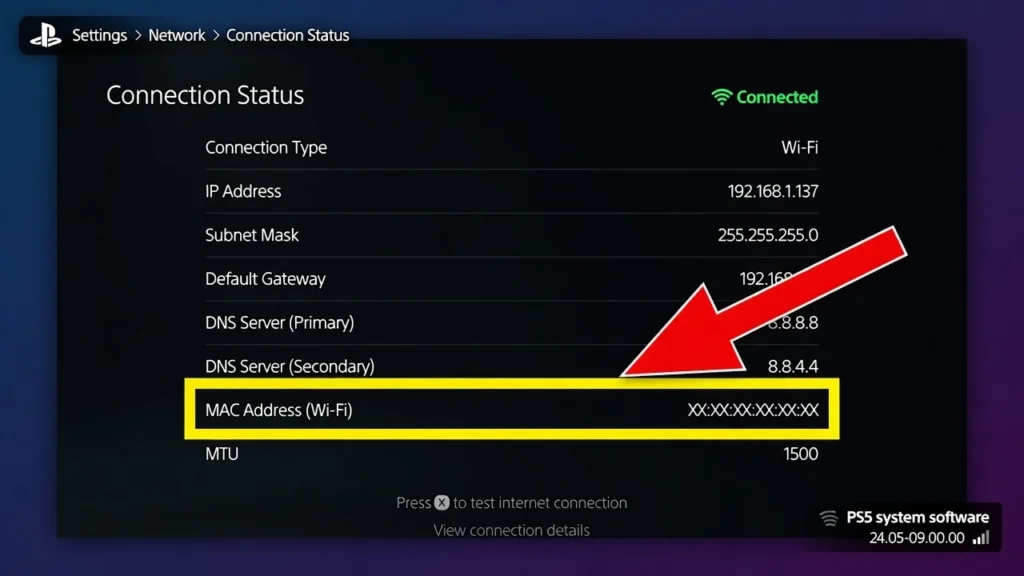
Before you contact the front desk you need to locate your PS5’s MAC address. Every network device has a unique MAC address which functions like a hardware fingerprint. The hotel IT system uses this MAC address PS5 identifier to whitelist your specific console.
On your PS5 home screen go to Settings then select Network. Select Settings again and then choose View Connection Status. Scroll down the connection status screen and you will see a line labeled MAC Address (Wi-Fi) with a series of letters and numbers like A1:B2:C3:D4:E5:F6.
Write down this MAC address exactly as it appears. You will need to provide this address to the hotel staff. Some people take a photo of the screen with their phone which works just as well. The ps5 network settings screen keeps this information visible as long as you need it.
What to Say to the Front Desk
Most hotel front desk employees are not familiar with MAC address whitelisting requests. You need to ask in a way that either triggers recognition if they know the process or gets you transferred to someone who does.
Here is the exact script I use when I call the front desk:
“Hi, I’m staying in room [your room number] and I need to connect my gaming console to the hotel WiFi. The console cannot complete the browser login. Can you provide your IT support contact number so I can request device whitelisting? My console’s MAC address is [read the address].”
If the front desk person sounds confused ask specifically for the phone number of the company that manages the hotel WiFi network.
Many hotels outsource their WiFi to a third party provider and that provider’s support team handles whitelisting requests directly. The front desk may have a dedicated support number posted near their computer.
At Hilton properties and IHG hotels I have had front desk staff who knew exactly what I needed and either whitelisted the device themselves or transferred me to the right department immediately. At smaller independent hotels the front desk often has no idea what a MAC address is and this method becomes a dead end.
When you reach the IT contact explain that you need a device whitelisted for hotel network login purposes and provide the MAC address you wrote down. The IT technician will add your PS5 MAC address to the system and tell you when the change is active. This usually takes between two and ten minutes.
Which Hotels Support MAC Whitelisting?
In my experience MAC address whitelisting works most reliably at business class hotel chains with dedicated IT infrastructure. Hilton hotel properties, IHG hotels like Holiday Inn and Crowne Plaza, Hyatt locations, and Marriott business tier hotels almost always have the capability to whitelist devices.
Budget hotels, motels, and smaller independent properties rarely support this method. They typically use basic consumer grade WiFi systems that lack backend device management features. If you are staying at a budget property try one of the other methods in this guide instead of spending time on a whitelisting request that the hotel cannot fulfill.
One helpful tip is to ask about this service when you check in. If the front desk confirms they can whitelist gaming consoles you can provide your MAC address immediately and have the connection ready before you even reach your room.
Method #5: Use a Travel Router (Best Long-Term Solution)
If you travel frequently and stay in hotels more than a few times per year, investing in a travel router will save you hours of frustration. A travel router is a portable device that solves the hotel WiFi authentication problem once and makes every future hotel stay effortless. I wish I had discovered this solution years ago instead of fighting with captive portals every single trip.
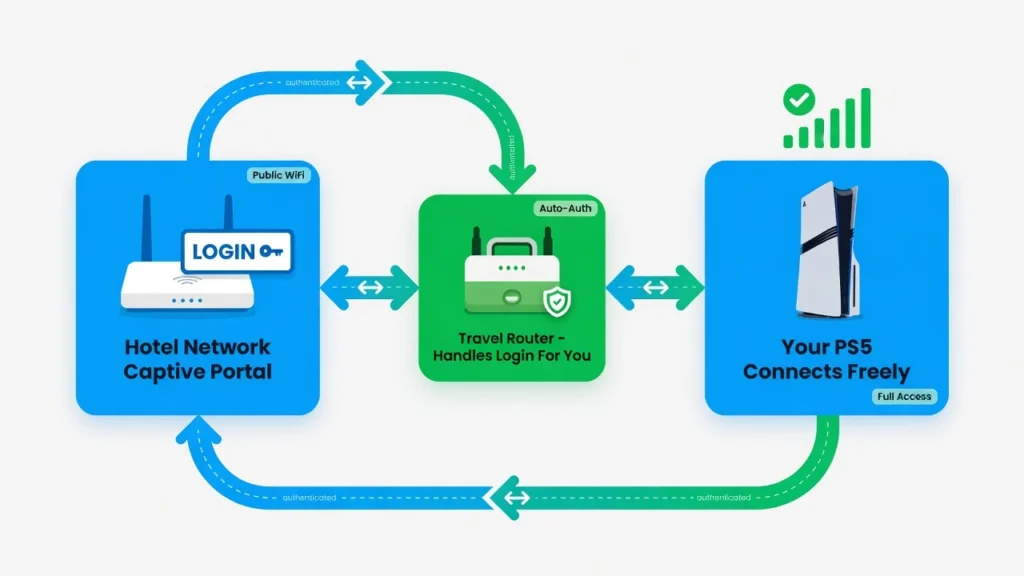
A travel router ps5 setup works by acting as a middleman between the hotel network and your PlayStation 5. You connect the travel router to the hotel WiFi using your phone or laptop browser to complete the captive portal authentication.
Once the travel router has internet access it creates its own WiFi network that your PS5 connects to just like your home network. Your PS5 never sees the hotel login page because the travel router handles all authentication on your behalf.
The travel router essentially converts the complicated hotel WiFi into a simple normal network your gaming console recognizes and trusts.
Beyond solving the captive portal problem travel routers offer several additional benefits that make them worth the investment. You can configure the router to VPN back to your home network for added security.
You can connect multiple devices through a single hotel login which is helpful if the hotel charges per device or limits connections. You can set the router to use the same network name and password as your home WiFi so your PS5 and other devices connect automatically without any manual setup.
One user shared that they used their travel router on a cruise ship where internet access cost money per device. The travel router connected to the paid ship WiFi and then shared that connection with their entire family’s phones, tablets, and laptops through one payment. That same flexibility applies to hotel stays.
What Is a Travel Router and Do You Need One?
A travel router is a small portable WiFi router about the size of a deck of cards that you pack in your luggage. The device plugs into a wall outlet or USB power source and connects to the hotel WiFi network on your behalf. After the travel router completes the hotel captive portal authentication process the router broadcasts its own secure WiFi signal that your PS5 and other devices join without needing any browser login.
Think of the travel router as a translator between the hotel network and your gaming console. The hotel speaks captive portal language and your PS5 speaks standard WiFi language. The travel router speaks both and handles the translation automatically.
Do you need one? If you stay in hotels only once or twice per year the other methods in this guide will work fine. If you travel monthly or work on the road regularly a travel router becomes one of the best purchases you can make. The device pays for itself in saved time and eliminated frustration after just a few trips.
Recommended Models (User-Tested)
The travel router brand that users consistently recommend is Glinet. I have seen multiple people mention Glinet routers specifically after years of personal use and these devices have earned a strong reputation among frequent travelers.
The Glinet Slate 7 is the newest model and offers the most current hardware and features. The Glinet Beryl is a slightly older model that remains highly reliable and costs a bit less. Both models handle hotel WiFi authentication smoothly and work well with PlayStation 5 consoles.
Price range for these travel routers typically falls between 40 and 70 dollars depending on the model and where you purchase. That cost is reasonable considering the device lasts for years and works at every hotel you visit.
One user mentioned they have been using their Glinet travel router for over two years across dozens of hotel stays with zero issues. That kind of real world testing carries more weight than any marketing description.
Travel Router Setup: Step by Step
Setting up a travel router takes about five minutes the first time you use the device and less than one minute on every subsequent hotel visit.
Initial Setup:
Plug the travel router into power in your hotel room. Connect your phone or laptop to the travel router’s default WiFi network. The network name and password are printed on a sticker on the bottom of the router. Open a web browser and go to the router’s admin page. The exact address is in the instruction manual but most Glinet routers use a simple local IP address.
From the router admin interface select the option to connect the router to an existing WiFi network. Choose the hotel WiFi from the list of available networks. If the hotel network requires a password enter it now.
The router will attempt to connect and when the captive portal appears you complete the hotel login form in your browser just like you would on your phone normally.
Once the travel router successfully authenticates with the hotel network the router admin page will confirm internet access. Now go to the router wireless settings and set up your own WiFi network name and password.
Pro Tip: Use the exact same network name and password as your home WiFi. When you do this your PS5 will automatically connect to the travel router network without you needing to manually select a new network or enter a password. Your console thinks it just connected to your home network and everything works instantly.
Connecting Your PS5:
On your PlayStation 5 go to network settings and select the travel router WiFi network you just created. Enter the password if needed or if you matched your home network settings the PS5 connects automatically.
Run a connection test and the PS5 will show a successful internet connection with no authentication errors.
From this point forward every time you stay in a hotel you only need to authenticate the travel router using your phone or laptop browser.
Your PS5 and any other devices you bring connect to the travel router network and gain immediate internet access without ever touching a captive portal page.
PS5 Hotel WiFi Not Working? Try These Fixes
Even when you follow the connection methods correctly your PS5 hotel wifi not working issues can still pop up for a dozen different reasons. I have encountered nearly every possible failure scenario during my hotel stays and most problems have straightforward solutions once you know what to look for.
The key to successful troubleshooting is identifying exactly where the connection process breaks down. Is the hotel network missing from your WiFi list?
Does the connection fail before you see any login page? Does the login page appear but reject your credentials? Each symptom points to a different underlying issue and requires a specific fix.
Most PS5 hotel WiFi problems fall into one of five categories and I have learned to diagnose the issue quickly by observing exactly what my PS5 displays when the connection attempt fails. Here are the most common failure scenarios and the fixes that actually work.
Hotel Network Doesn’t Appear in List
If you cannot see the hotel WiFi network name in your PS5’s available networks list the problem is usually a scanning or visibility issue rather than a connection problem.
Press the Triangle button on your controller while viewing the WiFi networks list. This forces your PS5 to scan for networks again and often reveals hotel networks that did not appear in the initial scan. Some hotel networks broadcast weakly or intermittently and require multiple scans to detect.
Contact the front desk to verify the exact network name. Hotels sometimes use different network names than what you expect and the front desk staff can confirm the correct SSID. Ask specifically if the network name includes spaces, numbers, or special characters that might make the network hard to spot in a long list.
Some hotels configure their ps5 network settings to hide the network name entirely. If the front desk confirms the network exists but you still cannot see the network name you may need to manually add the hidden network using your PS5’s advanced connection options.
Connection Says “Failed” and No “Authenticate” Option
When your PS5 connection fails but the system does not show the “How to Authenticate” option you need to manually trigger the hotel wifi captive portal using one of the browser forcing methods.
Go to Settings > Network > Connection Status and select “View PlayStation Network Status”. This should automatically redirect to the hotel login page even though the initial connection attempt did not offer an authentication option.
If the PSN Status method does not work try the pin to side browser trick described in Method #3. This approach bypasses the need for the authenticate prompt entirely and forces the hotel WiFi login page to appear through the pinned browser window.
Power cycle your PlayStation 5 completely by turning the console off and unplugging the power cord for 30 seconds. Sometimes a full restart clears temporary connection errors that prevent the authentication prompt from appearing properly.
Login Page Loads But Won’t Accept Credentials
When the hotel network login page appears on your screen but rejects your room number, last name, or other credentials the issue is usually with the information you are entering rather than the PS5 connection process.
Double check your room number with the information on your key card or registration paperwork. Some hotels use building numbers, floor numbers, or room suffixes that guests do not realize they need to include in the login form.
Check your email spam folder for a confirmation message from the hotel WiFi system. Some hotel networks send authentication codes or confirmation links to your email address and the login process will not complete until you click the email link.
Contact the front desk directly and explain that the hotel network login page is rejecting your credentials. The hotel staff can verify your room information and sometimes reset your authentication status on their system if you were previously logged in on another device.
Connection Works But Internet Still Fails
If your PS5 shows a successful connection to the hotel network but still cannot access the internet or PlayStation Network, you’re experiencing the classic WiFi connected but no internet problem.
This issue affects all devices, not just gaming consoles, and the problem is usually with DNS settings or network routing. For a comprehensive understanding of why this happens across different devices and additional troubleshooting methods, check out our detailed guide on WiFi connected but no internet fixes for all platforms.
Change your ps5 dns settings to use Google’s public DNS servers. Go to Settings > Network > Set Up Internet Connection and select your hotel network. Choose Advanced Settings and set the Primary DNS to 8.8.8.8 and Secondary DNS to 8.8.4.4. This bypasses potential DNS issues with the hotel network configuration.
Alternatively try Cloudflare’s DNS servers using 1.1.1.1 as primary and 1.0.0.1 as secondary. Some hotel networks block certain DNS providers and switching to a different service resolves the connectivity issue.
Run the ps5 internet connection test from Settings > Network > Connection Status > Test Internet Connection. This diagnostic will show you exactly which part of the connection is failing and whether the issue is with basic connectivity, DNS resolution, or PlayStation Network access specifically.
Everything Worked Yesterday, Not Working Today
Many hotel networks require daily re-authentication even if your PS5 connected successfully the previous day. This is a common security practice that catches travelers off guard when their console stops working after sleeping overnight.
Power cycle your PlayStation 5 completely and repeat whichever browser authentication method worked for you initially. The hotel system likely logged your device out automatically and you need to complete the wifi authentication ps5 process again from the beginning.
Some hotels reset their network settings or change passwords daily as a security measure. Contact the front desk to confirm the current network name and password have not changed since your last successful connection.
If you used the travel router method check that your travel router is still connected to the hotel network. The router may have lost its authentication overnight and needs to complete the captive portal login process again using your phone or laptop browser.
Connected But Can’t Play Online? Check Your NAT Type
This is the most frustrating discovery you can make after successfully connecting your PS5 to hotel WiFi. Your internet connection works perfectly, you can browse the PlayStation Store, download games, and access streaming apps, but when you try to join an online multiplayer match nothing happens. The game either cannot find other players or kicks you out of lobbies immediately.
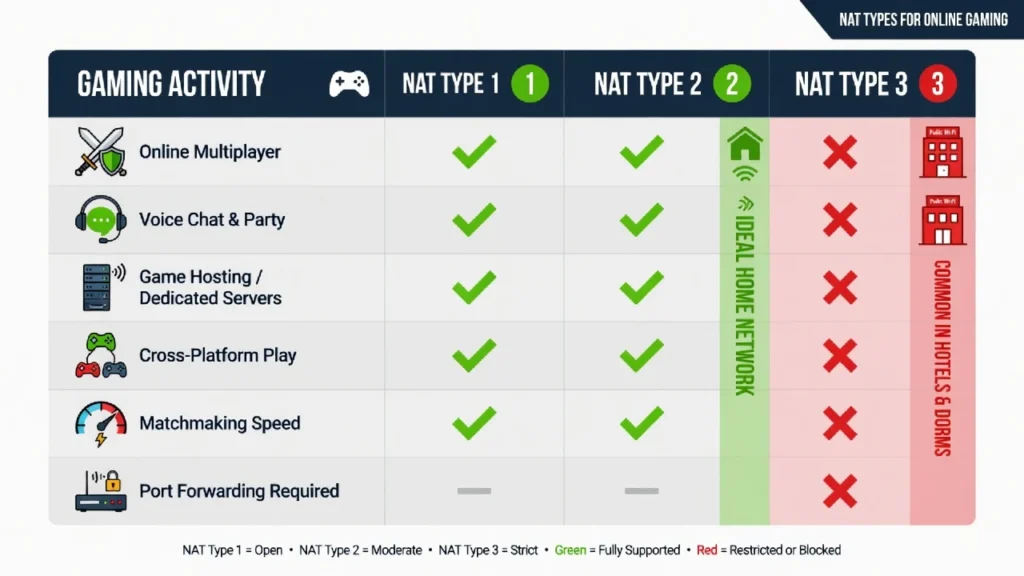
The culprit is almost always your NAT type. NAT stands for Network Address Translation and ps5 online gaming hotel performance depends heavily on which NAT type the hotel network assigns to your console. Most hotel networks automatically assign NAT Type 3 to guest devices, and NAT Type 3 creates significant restrictions for multiplayer gaming that you cannot easily overcome.
I learned this the hard way during a week long business trip when my PS5 connected to three different hotel networks flawlessly but I could not join a single online match in any game. The connection test showed everything was working but the hotel wifi gaming experience was essentially broken for peer to peer multiplayer games.
This is one of those problems where understanding what is happening helps you set realistic expectations and choose which games you can actually play during your hotel stay.
What Is NAT Type and Why Does It Matter?
NAT type determines how your PS5 communicates with other gaming consoles and game servers over the internet. Your PlayStation 5 can receive one of three NAT type assignments and each type offers different levels of connectivity for online gaming.
NAT Type 1 provides unrestricted communication and works with all online games and features. NAT Type 2 allows most online gaming with minor restrictions and is considered ideal for home networks. NAT Type 3 heavily restricts peer to peer connections and blocks many multiplayer gaming features entirely.
Hotel networks typically assign NAT Type 3 because they prioritize security and network management over gaming performance. NAT Type 3 prevents your console from accepting direct connections from other players, which makes peer to peer matchmaking nearly impossible in many games.
Games that use dedicated servers like Fortnite, Apex Legends, and Call of Duty typically still work with NAT Type 3 because your PS5 connects to the game company’s servers rather than directly to other players. Games that rely on peer to peer networking like many fighting games, racing games, and smaller multiplayer titles often fail to connect properly with NAT Type 3 restrictions.
The ps5 network setup cannot override the hotel’s NAT type assignment because the hotel router controls this setting at the network level. Your console receives whatever NAT type the hotel network provides and individual devices cannot change this configuration.
How to Check Your PS5’s NAT Type
You can view your current NAT type assignment through your PlayStation 5 network settings in about 10 seconds.
Go to Settings > Network > Connection Status on your PS5 home screen. Run the Test Internet Connection option and wait for the diagnostic to complete. The test results screen will display your current NAT type along with your connection speed and other network information.
If the test shows NAT Type 3 while connected to hotel WiFi you now know why certain multiplayer games are not working properly. The ps5 internet connection test confirms your internet access is functional but reveals the NAT type restriction that prevents optimal online gaming.
Can You Fix NAT Type 3 on Hotel WiFi?
Unfortunately there is no reliable way to change your NAT type when connected to hotel WiFi because the hotel controls this setting on their router and they rarely modify network configurations for individual guests.
Some users report that travel routers occasionally improve NAT type assignments but this is not guaranteed. A travel router creates an additional network layer that might change how the hotel system assigns NAT types, but many hotels still impose NAT Type 3 restrictions even through travel router connections.
Contact the hotel IT department if they offer that service and explain that you need NAT Type 2 for gaming. Some business class hotels with dedicated IT staff can whitelist your device for improved network access, but most standard hotel properties cannot accommodate this request.
The honest answer is that hotel wifi blocked gaming through NAT Type 3 represents a limitation you usually have to accept rather than a problem you can solve. I have tried multiple workarounds across different hotel chains and NAT Type 3 restrictions typically persist regardless of the connection method used.
Focus on games that use dedicated servers rather than peer to peer connections. Single player games, streaming services, and server based multiplayer games typically function normally even with NAT Type 3 restrictions. Save the peer to peer multiplayer gaming for when you return home to your own network with better NAT type support.
Bonus: Connecting PS5 Portal to Hotel WiFi
If you own a PlayStation Portal and wondered whether these same hotel WiFi connection methods apply, the answer is both yes and no. The PS5 Portal uses a completely different authentication approach that Sony added specifically to handle captive portal networks like hotel WiFi.
The Portal received a firmware update that includes a QR code authentication feature designed exactly for this scenario. Instead of struggling with browser workarounds or phone hotspot methods the Portal generates a QR code on its screen that you scan with your phone to complete hotel WiFi authentication.
This makes connecting the Portal to hotel networks actually simpler than connecting the PS5 console itself. Sony clearly learned from the PS5’s hotel WiFi struggles and built a dedicated solution into the Portal’s software.
The Portal also offers an additional advantage for hotel gaming through cloud streaming. Since PS5 Remote Play works over any internet connection you can stream games from your home PS5 to the Portal even if the hotel network blocks certain gaming features. This bypasses NAT type restrictions and network gaming limitations entirely.
QR Code Authentication for Portal
When you attempt to connect your PlayStation Portal to hotel WiFi that requires a login page the Portal automatically detects the captive portal and displays a QR code on its screen.
Open the camera app on your phone and scan the QR code displayed on the Portal. Your phone will open a browser window showing the hotel WiFi login page. Complete the hotel authentication form on your phone by entering your room number, last name, or accepting the terms of service.
Once you finish the wifi authentication ps5 portal process on your phone the Portal detects the successful authentication and connects to the hotel network automatically. The entire process takes less than a minute and eliminates the need for any of the workaround methods required for PS5 console connections.
This QR code method works because your phone acts as the browser the Portal cannot provide on its own. The Portal creates a bridge between its hardware and your phone’s browser capabilities, letting you complete the hotel login without any complex setup or technical knowledge.
Alternative: Use PS5 Remote Play Instead of Bringing Console
Sometimes the smartest solution to the hotel WiFi problem is avoiding it entirely. Instead of packing your PlayStation 5 console and dealing with captive portal authentication you can use PS5 Remote Play to stream games from your home console to a laptop, tablet, or even your phone while traveling.
This ps5 remote play alternative completely eliminates every hotel WiFi challenge discussed in this guide. Your laptop or phone connects to hotel networks exactly like any normal device. Hotel captive portal login pages work perfectly in regular browsers on laptops and tablets. You never need to worry about NAT types, authentication prompts, or browser workarounds because your PS5 stays safely at home on your reliable home network.
Remote Play lets you access your entire PS5 game library over the internet from anywhere with a decent WiFi connection. You download the official Remote Play app from Sony PlayStation, connect a wireless controller via Bluetooth and stream games directly to your travel device.
For detailed setup instructions and device compatibility requirements, Sony’s official Remote Play support page provides step-by-step guides for all supported platforms. The gaming experience feels nearly identical to playing on your console locally, assuming the hotel internet connection is stable
I have used this approach during longer business trips where packing the console felt excessive but I still wanted to play my PS5 games in the evening. The setup takes about two minutes and works on any device that supports the Remote Play app.
The biggest advantage beyond avoiding hotel WiFi complications is luggage space. Instead of packing a large console, cables, and accessories you only need to bring a controller and maybe a small accessory or two.
How Remote Play Solves the Hotel WiFi Problem
PS5 Remote Play transforms the hotel WiFi challenge into a non-issue because your PlayStation 5 console never interacts with the hotel network. Your console stays connected to your home internet where it has full access, proper NAT type settings, and no authentication barriers.
Your laptop, tablet, or phone handles the hotel WiFi connection using standard browser authentication that works the same way as connecting any normal device. Captive portal login pages appear in your device’s regular browser where you can easily enter room numbers, click acceptance buttons, or complete whatever form the hotel requires.
Once your travel device has internet access the Remote Play app connects to your home PS5 over the internet and streams your games in real time. The hotel network treats this as regular internet traffic, similar to watching Netflix or video calling, so there are no gaming specific restrictions or compatibility issues.
This approach works even when hotel networks assign NAT Type 3 or block gaming ports because Remote Play uses standard internet protocols rather than peer-to-peer gaming connections.
Samsung Dex Method (Phone to TV)
One clever approach shared by an experienced traveler involves using a Samsung phone with Dex mode to create a full TV gaming experience while traveling extremely light.
The setup requires a simple USB-C to HDMI dongle that costs about five dollars. Connect the dongle to your Samsung phone and plug the HDMI cable into the hotel room TV. Enable Samsung Dex mode on your phone and the TV displays a desktop-like interface that can run full applications.
Download the official PS5 Remote Play app on your Samsung phone and pair a PlayStation controller via Bluetooth. Launch the Remote Play app in Dex mode and the TV displays your PS5 games in full screen while your phone acts as the streaming device.
This method delivers a complete gaming setup using only a controller and a tiny dongle in your luggage. Your phone connects to hotel internet access normally through the browser, Remote Play handles the connection to your home PS5, and the TV provides the big screen gaming experience you want in your hotel room.
The total weight is under one pound and fits in a small pocket of any travel bag. For frequent travelers who want PS5 gaming without the hassle of console transport or hotel network complications this Samsung Dex approach offers an elegant solution that many people never consider.
What If Hotel TV HDMI Is Locked?
Here is a frustrating discovery that can ruin your gaming plans even after you successfully connect your PS5 to hotel WiFi. You unpack your console, connect all the cables, and discover the hotel TV will not switch to HDMI input or the HDMI ports have been completely disabled by the hotel management.
Hotels are increasingly locking down their TV HDMI inputs to force guests to purchase pay-per-view movies and premium channels instead of using their own devices. This practice has become more common as hotels realize they lose revenue when guests bypass the TV entertainment systems entirely.
I have encountered locked HDMI inputs at several hotel chains and the experience is infuriating. Your PS5 connects to the hotel internet access perfectly but you cannot display anything on the TV screen. The hotel essentially blocks you from using the TV as a monitor even though you brought your own gaming console.
Fortunately experienced travelers have developed several workarounds for this problem. Some solutions require minimal additional equipment while others involve packing alternative display options. The key is knowing these limitations exist before you travel so you can plan accordingly.
Universal Remote Workaround
Many hotel TVs with locked HDMI inputs can still be accessed using a universal remote control to reach hidden settings menus that the hotel remote cannot open.
Purchase a basic universal remote for about ten dollars before your trip. When you encounter a TV with disabled HDMI inputs use the universal remote to access the TV’s service menu or advanced settings. Most hotel room TVs use standard brands like Samsung, LG, or Sony, and universal remotes can often unlock settings that the provided hotel remote keeps hidden.
Look for options like “Input Settings,” “HDMI Control,” or “External Device” in the advanced menu. Many hotels simply disable the input switching option on the provided remote rather than physically blocking the HDMI ports themselves. A universal remote that accesses different menu paths can often re-enable the HDMI inputs that the hotel tried to lock.
This method works more often than you might expect. One experienced traveler mentioned successfully accessing HDMI inputs after some troubleshooting at most hotels where the inputs initially appeared to be locked. The universal remote approach requires patience and menu navigation but often reveals that the HDMI ports are functional once you access the right settings.
Bring Your Own Monitor
If you travel frequently and want to guarantee a display for your PS5 regardless of hotel TV restrictions consider packing a portable gaming monitor.
Portable monitors designed for gaming typically measure 15 to 17 inches and weigh between two and four pounds. These monitors connect directly to your PS5 via HDMI and USB for power, completely bypassing the hotel TV system. The monitors fit in most laptop bags or larger backpacks without requiring significant additional luggage space.
This solution costs more upfront than a universal remote but eliminates any uncertainty about display availability. Your portable monitor works at every hotel regardless of their TV restrictions, input limitations, or screen quality. You also avoid dealing with hotel TV interfaces, remote controls, or picture settings that may not be optimized for gaming.
For business travelers or extended hotel stays the investment in a portable monitor often pays for itself in reduced frustration and guaranteed gaming capability. You pack the monitor once and never worry about hotel TV compatibility again.
Use Laptop Screen with Remote Play
If the hotel TV is completely inaccessible and you did not pack a portable monitor your laptop screen combined with PS5 Remote Play provides a backup gaming solution.
Set up PS5 Remote Play on your laptop and connect your PlayStation controller via USB or Bluetooth. Your laptop handles the hotel WiFi connection through normal browser authentication and streams games from your home PS5 to the laptop screen. This approach works even when hotel TVs are completely locked down because you never interact with the TV at all.
Laptop gaming obviously provides a smaller screen than a hotel TV but the experience remains fully playable for most games. Fighting games, puzzle games, and story driven single player titles work particularly well on laptop screens. Racing games and first person shooters may feel more cramped but remain enjoyable.
The laptop Remote Play method also solves multiple problems simultaneously. You avoid hotel TV restrictions, bypass potential PS5 hotel WiFi authentication issues, and eliminate concerns about NAT type limitations. Your PS5 stays safely at home while you access your entire game library through your laptop’s reliable internet connection.
Is Hotel WiFi Safe for Gaming? (Security Real Talk)
I get this question frequently and the honest answer is that hotel WiFi does have security risks, but gaming on your PS5 is not the activity you should worry about most. The real security concerns with hotel WiFi involve activities like online banking, shopping with credit cards, or accessing sensitive work accounts.
Gaming traffic between your PlayStation 5 and Sony’s servers is encrypted by default, which means other users on the hotel WiFi network cannot easily see what games you are playing or intercept your gaming data. PlayStation Network login credentials are also transmitted securely through encrypted connections.
The biggest hotel WiFi security risks affect unencrypted web browsing, email access, and any situation where you enter passwords or financial information on websites that do not use proper security protocols. Gaming represents a relatively low risk activity compared to checking your bank account or entering credit card details on shopping sites.
That said, hotel WiFi networks are inherently less secure than your home network, and understanding the risks helps you make informed decisions about what activities to perform on hotel internet access connections.
What Are the Actual Risks?
Hotel WiFi networks present several security vulnerabilities because they are shared public networks with minimal access controls. Other guests share the same network and potentially malicious users could monitor unencrypted network traffic.
The primary risk is that hotel WiFi network connections often lack encryption between your device and the hotel router. This means other users on the network might be able to see unencrypted data you send or receive. Man-in-the-middle attacks are also possible when attackers create fake WiFi networks with names similar to the legitimate hotel network.
Your login credentials for websites and services that do not use HTTPS encryption could be intercepted by other network users. Credit card information, passwords, and personal data become vulnerable when transmitted without proper encryption over shared hotel networks.
However, modern gaming consoles and most major online services use encrypted connections by default. PlayStation Network traffic, game downloads, and online multiplayer communications are protected by encryption protocols that make interception and decryption extremely difficult for casual network snoopers.
Practical Safety Tips (No VPN Required)
You can use hotel WiFi for gaming safely by following basic security practices without needing to purchase additional software or services.
Avoid banking, shopping, or accessing sensitive work accounts while connected to hotel WiFi. Save these activities for when you return home or use your phone’s cellular data connection instead. Gaming, streaming Netflix, and general web browsing represent much lower security risks.
Never save payment information or passwords when using hotel networks. If you need to make an online purchase use a guest checkout option and enter your credit card details fresh rather than saving them in your browser or user accounts.
Verify that websites use HTTPS connections by checking for the lock icon in your browser address bar. Encrypted HTTPS sites protect your data even on unsecured hotel networks. Most major sites including PlayStation Network, Steam, and game publishers use HTTPS by default.
Log out of all accounts when you finish using hotel WiFi rather than leaving browser sessions open. A travel router adds an extra security layer by creating a barrier between your devices and the hotel network, but this is a convenience benefit rather than a security necessity for gaming activities.
The key is matching your security practices to the actual risks involved. Gaming on hotel WiFi is generally safe while financial transactions carry higher risk regardless of the connection method you use.
Frequently Asked Questions
Do I have to reconnect my PS5 every time I turn it on?
No, once you complete the wifi authentication ps5 process your console stays connected even after shutting down and restarting. You typically only need to repeat the how to connect ps5 to hotel wifi steps if the hotel requires daily logins or if you move to a different room.
Why does my PS5 say “Failed” when connecting to hotel WiFi?
This “Failed” message is completely normal and expected when you try to connect ps5 to hotel wifi. Hotel networks require web-based login pages that your PS5 cannot open automatically, so you need to complete authentication using one of the methods in this guide.
Will using my phone hotspot use a lot of data?
No, the mobile hotspot ps5 method only uses your phone data for 30 to 60 seconds to load one webpage, consuming less than 1 MB. Never use your phone hotspot for actual gaming or downloads, which would quickly drain your data allowance and trigger carrier throttling.
Should I use 2.4 GHz or 5 GHz WiFi on my PS5?
Start with 2.4 GHz when you first learn how to connect ps5 to hotel wifi because it penetrates walls better and works more reliably with hotel routers. After successful authentication you can switch to 5 GHz for faster speeds if the hotel signal is strong enough in your room.
Is hotel WiFi fast enough for online gaming on PS5?
Hotel wifi gaming speeds vary widely from 5 Mbps at budget properties to 100+ Mbps at business hotels. Most hotel connections work fine for single-player games and turn-based multiplayer, but competitive online games may experience lag due to higher latency than home internet