
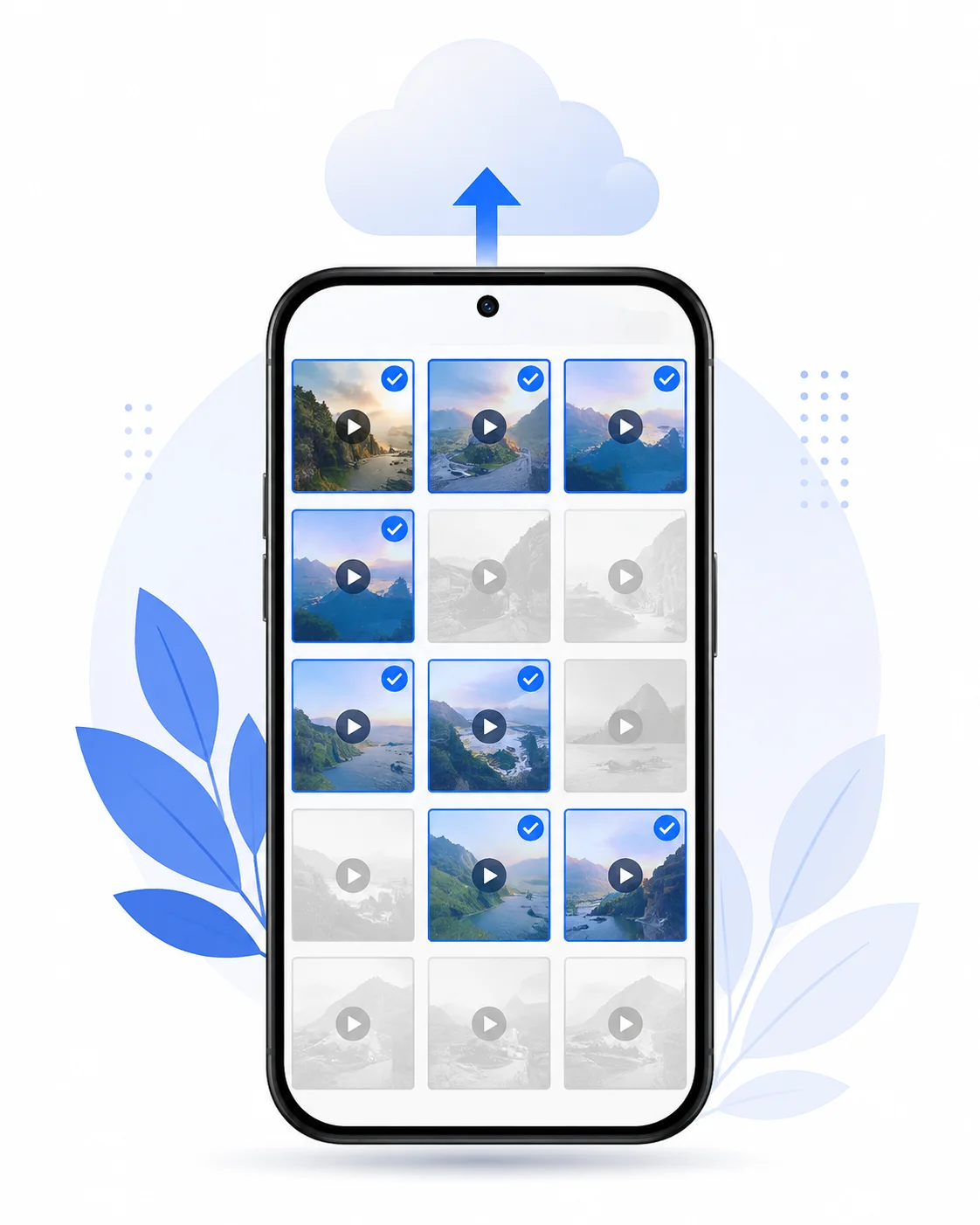
Yes. On Android you can save select videos to the cloud without turning on full gallery backup. You pick the clips you want, send only those, and leave the rest on the phone.
I see the same mess all the time. The phone is full of old videos from years of use. People are scared to delete anything, so they flip on automatic backup and hope for the best. Then WhatsApp clips, screenshots, and random downloads start filling cloud storage too. That is not what most people asked for when they typed how do I save videos to the cloud.
Selective cloud backup means you choose specific videos, or you limit backup to certain folders or albums. It is not a full dump of every file on the device. That difference matters more than most guides admit.
Some people already pay for cloud storage and still run out of space on the phone. Paying does not empty the gallery by itself. The phone only frees up after a real copy sits in the cloud and you remove the local file on purpose. I treat that as a later step, never the first one.
And no, you do not have to tap thousands of videos one by one forever. Batch multi select works. Folder filters work. Album sync on some phones works. File by file is only for the keepers you truly care about.
One more thing. Search results for this topic are packed with iPhone and iCloud steps. Those taps do not match Android. If you follow an iPhone guide on a Galaxy or Pixel, you will get stuck fast.
I wasted time on full automatic backup before I learned this. Control first. Full library sync only when you really want everything off the device.
Fastest Way to Save Select Videos to Cloud on Android Manually
| Method | Select Specific Videos? | Best For |
|---|---|---|
| Google Drive manual upload | Yes | A few specific videos |
| OneDrive manual upload | Yes | Selected videos and Microsoft users |
| Dropbox manual upload | Yes | Simple manual uploads |
| Google Photos folder backup | Limited | Ongoing backup of selected folders |
| Samsung Gallery + OneDrive | Yes by album | Large Samsung photo/video libraries |
| Files by Google / My Files → Share | Yes | Videos stored across different folders |
The fastest way to save select videos to cloud on Android manually is simple. Install your cloud app, multi select the clips, share them up, then confirm one file opens somewhere else before you relax.
I use this path when I only need a few keepers off the phone today. Not the whole gallery. Manual upload here means file level select. You touch the exact videos. Android sends those files. Nothing else rides along by accident.
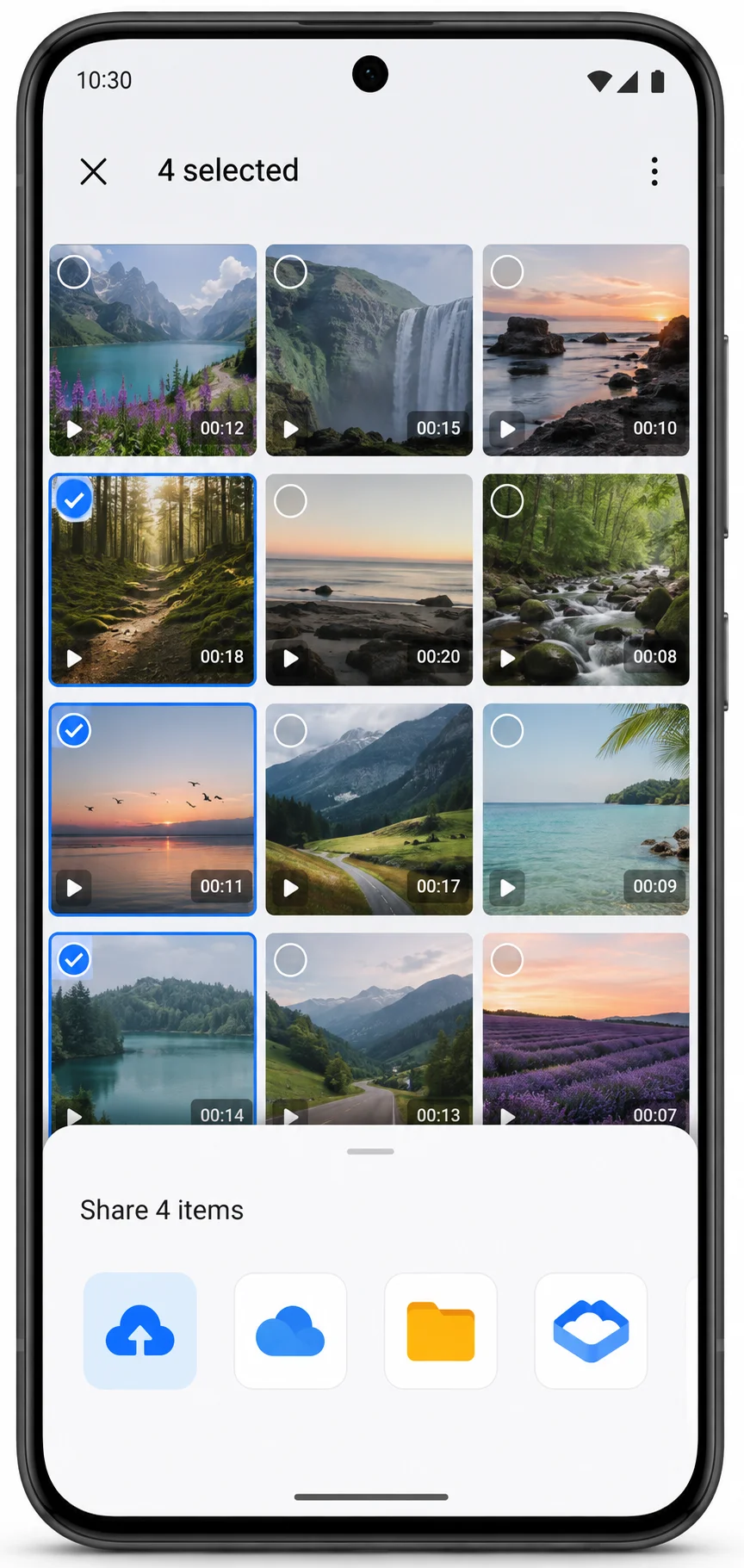
Do you need to tap thousands of videos one by one? No. Long press one video, tap the rest, then share once. That batch select is what people miss when they think cloud save means an endless chore.
60 second checklist before you start
I run this checklist every time. Skipping it is how uploads fail halfway.
- Connect to Wi-Fi for a safer wi-fi upload when the files are large
- Open the cloud app and check your account storage limit still has room
- Install Google Drive, OneDrive, or Dropbox before you hit Share
- Plug in the charger if you are moving long clips
If the cloud app is missing, the share sheet android menu often hides the target or acts flaky. I learned that the hard way after tapping Share and staring at a list with no Drive on it.
The quick steps
- Install Google Drive or OneDrive from the Play Store and sign in once.
- Open Gallery or Files on the phone.
- Long press a video, then tap every other clip you want.
- Tap Share or Send.
- Pick the cloud app and a folder if it asks.
- Wait until the upload finishes in the app, not just until the share sheet closes.
- Open one uploaded video on another device or in a browser.
That last check is the part most people skip. The phone can look done while the file never landed cleanly in the cloud.
This method is how I save selected videos when I upload from an android phone without turning on full backup. Same idea works from Files if the clip lives outside the main Camera album.
If your library is huge and batch select still feels endless, stop grinding file by file. Folder filters and album sync handle bulk better. I cover those next. For a handful of important clips though, share sheet plus manual upload is still the cleanest move I know.
How to Upload Selected Videos to Google Drive on Android
If you want to know how to upload selected videos to Google Drive, use the Drive app upload button or Share from Gallery. Both paths let you pick exact clips. Nothing else has to go with them.
Google Drive is the file locker I reach for first on Android. I use it when I need true picks, not a full camera roll sync. Google Photos can wait. Drive is cleaner for one off keepers and small batches.
One thing I check before I upload videos is free space on the same Google Account that powers Drive, Gmail, and Photos. That storage is shared. If the account is already full, the transfer fails or stalls and people blame the phone. I open Drive, glance at storage, then move files.
I also make a simple folder first. Something like Phone keepers. Folder upload into a named place beats dumping everything in My Drive root. Later you will thank yourself.
And I never trust the phone thumbnail alone. After the job finishes I open drive.google.com on a computer or second device and play one file. If it plays there, the copy is real.
Upload from the Drive app
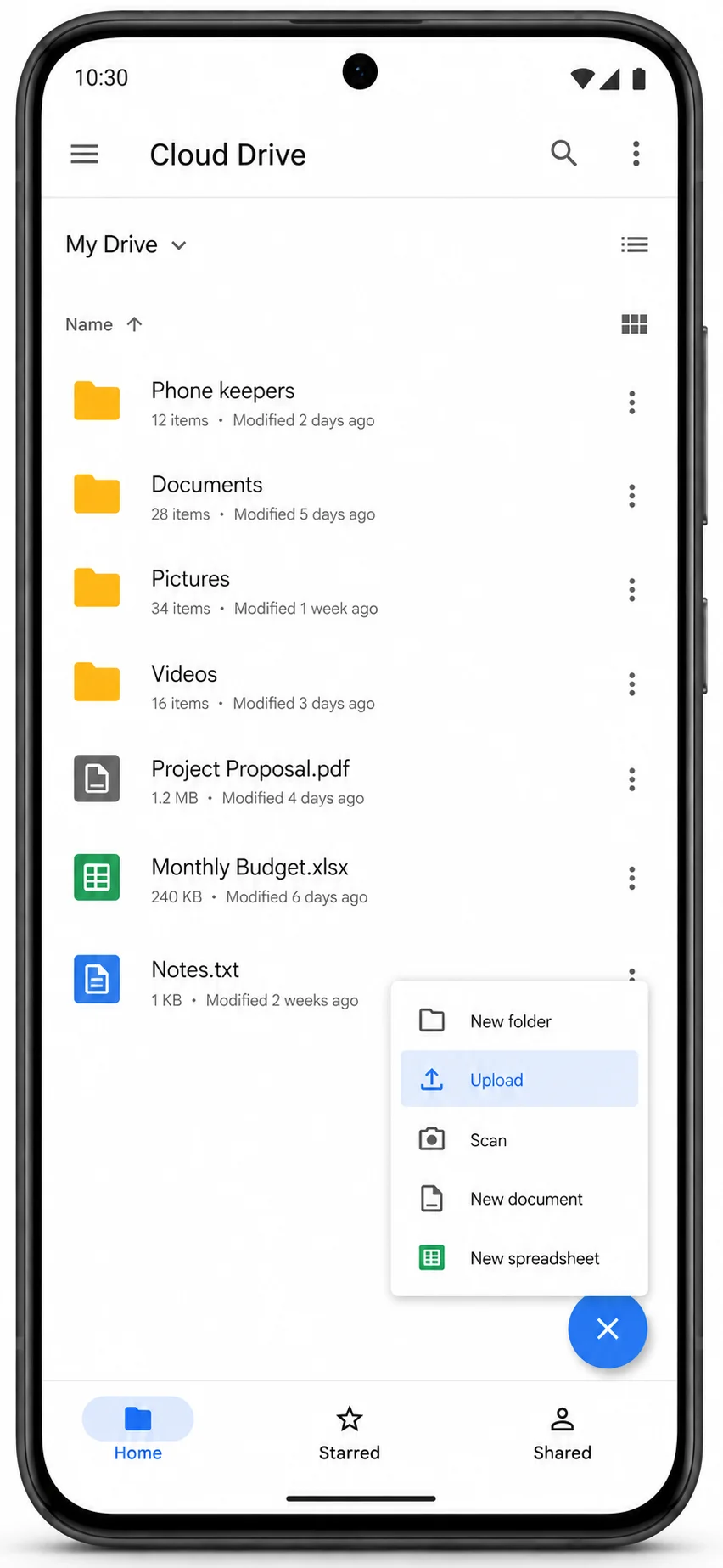
Share videos from Gallery straight into Drive
I pick Drive over Photos when the goal is a few specific videos in a folder I control. Photos is a library tool. Drive is a filing cabinet. Different job.
Do that confirm step on the web. That last habit is what stops false wins.”
Google Photos Won’t Let You “Pick” the Way You Think
Can Google Photos back up only certain videos? Only in a limited way. Automatic backup in Google Photos works at the folder level. It does not let you tap three random clips in settings and leave everything else out.
I used to think backup and sync meant I had already chosen my keepers. I had not. I had turned on a pipe. Whatever sat in the folders I left enabled kept flowing into the cloud library. WhatsApp videos. Screenshots. Random downloads. All of it.
That is the myth that burns free space. People say they selected what matters. The app heard something else. Select specific videos one by one is a Drive or Files job. Google Photos automatic backup is a folder job unless you use a manual push on single items.
When is Photos the right tool? When you want an ongoing camera roll style cloud library and you are willing to control which device folders feed it. When is Photos the wrong tool? When you only need five clips saved today. For that I open Drive or Files and skip the broad switch.
Folder backup toggles (Camera, WhatsApp, and the rest)
This is the first screen I open before I blame the phone.
- Open Google Photos.
- Tap your profile picture.
- Open Photos settings, then Backup.
- Find device folders or Back up device folders.
- Turn off folders you do not want in the cloud.
- Leave Camera on only if you truly want new camera videos backed up.
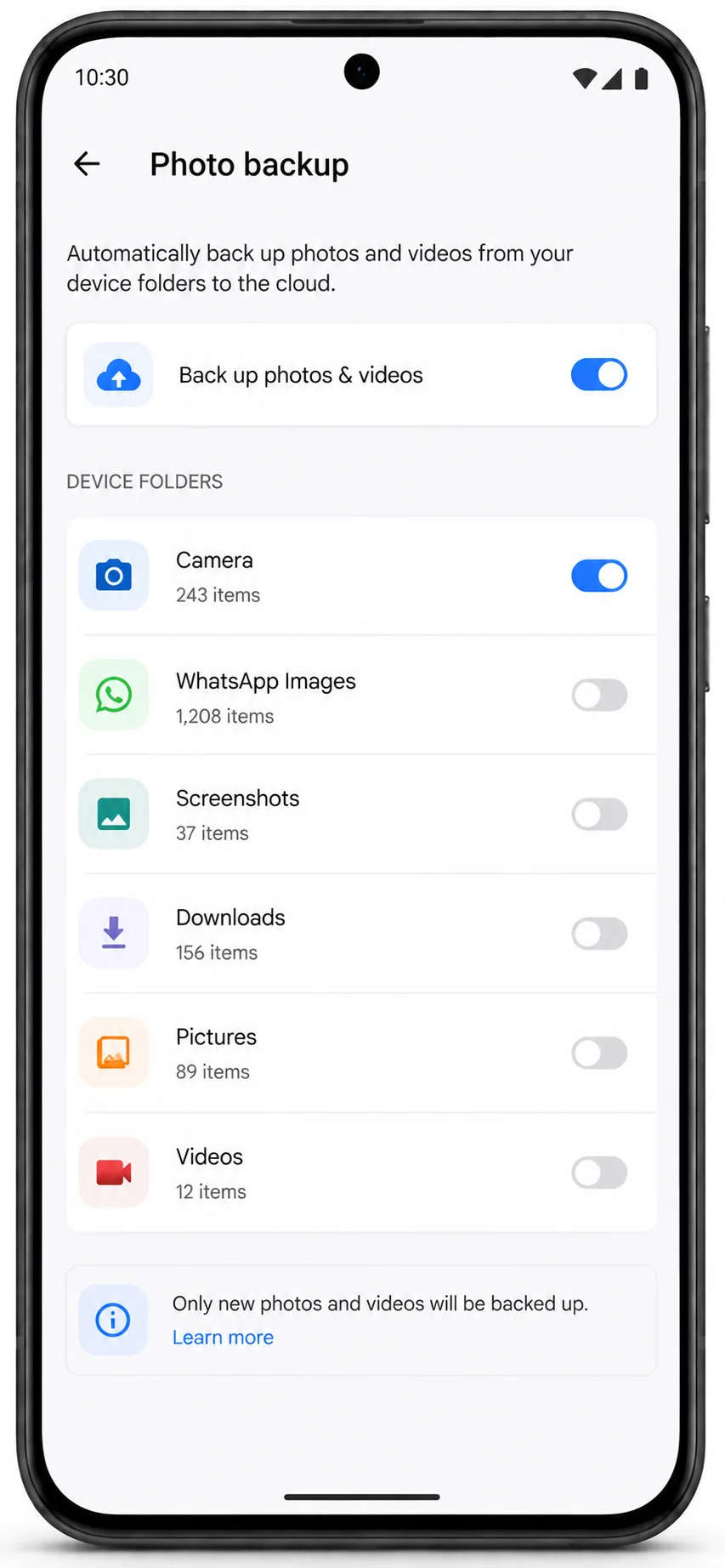
I always shut WhatsApp and Screenshots off first. Those two fill storage quietly. If every toggle stays on, your free Google space disappears faster than the videos you care about.
Turning Backup on without reviewing folders is the mistake I see most. The upload looks healthy. The cloud still fills with junk.
Newer selective options—check your Photos version first
Some Photos versions add extra ways to narrow what goes up, including options tied to items you mark as favorites. I will not promise a button you may not have.
Open Backup settings on your own phone and read what is actually there. If you see a favorites only style control, test it on one video before you trust it with a whole library. If you do not see it, you are not broken. You still have folder toggles and manual upload through Drive.
App menus change by version and account. Verify on the device in your hand.
How to see what’s eating your Google storage
Before you enable anything new on a huge library, audit the account.
- Open Google Photos.
- Tap your profile picture.
- Open Account storage or Manage storage.
- Look for large videos, duplicate photos and videos, and other heavy categories..
- Remove cloud junk you do not need, or free space another way, before a fresh backup wave starts.
I do this first when someone says backup will not finish. Half the time the account was already full.
Google Photos is strong as a living library with folder discipline. It is a weak fit for true one off picks. For those I still use Google Drive. Different tool. Clearer control.
OneDrive, Dropbox, and Samsung Gallery : Other Ways to Send Only the Clips You Want
| Cloud Service | Selective Upload | Album/Folder Control | Free Storage* | Best For |
|---|---|---|---|---|
| Google Drive | Yes | Folders | Check current account | Specific videos |
| Google Photos | Limited | Device folders | Shared Google storage | Photo/video library |
| OneDrive | Yes | Samsung album sync | 5 GB | Microsoft/Samsung users |
| Dropbox | Yes | Manual uploads | Check current plan | Existing Dropbox users |
Google Drive is not your only path. Microsoft OneDrive, Dropbox, and the Samsung gallery app can also move only the clips you choose. Each tool handles android cloud backup for videos differently, and the free space is not the same on every app.
I keep these as backups to Drive, not as slogans. Marketing loves auto backup. I want manual picks or album control.
Manual upload in the OneDrive app
On free Microsoft accounts, OneDrive gives 5 GB of cloud storage. That fills fast with long videos, so I check space before I start.
- Open the OneDrive app and sign in.
- Tap the plus button.
- Tap Upload.
- Browse the phone and multi select the videos.
- Confirm and wait until the transfer finishes.
You can also Share from Gallery and pick OneDrive if the app is installed. Same idea as Drive. Exact files only.
I use OneDrive when someone already lives in Microsoft apps. I do not turn on full camera backup unless they truly want everything. Manual upload is the selective path.
Samsung users—sync only certain Gallery albums to OneDrive
If you use a Samsung Galaxy and the library is huge, album sync beats tapping forever.
- Open the Samsung Gallery app.
- Open the menu, then Settings.
- Tap Sync with OneDrive and turn it on.
- Link your Microsoft account if Gallery asks.
- Choose which albums sync.
- Set WiFi only so big uploads stay off mobile data.
This is the move when multi selecting thousands of random files feels impossible. You still control the set. You just control it by album instead of by single thumbnail.
I tell Samsung owners to start with one album they care about. Not every album on day one.
Dropbox on Android—what works and what doesn’t
Does Dropbox let you choose what syncs on the phone the way the desktop app does? No. Selective sync like desktop Dropbox is not available on the Dropbox Android app in the same way.
What does work:
- Manual upload inside the Dropbox app
- Share from Gallery or Files into Dropbox
- Viewing files that already sit in your Dropbox account
What does not work:
- Expecting desktop style selective sync folders on mobile
I watched people hunt that setting for twenty minutes. It is not there. Upload the clips you want and stop looking for a ghost menu.
Free space also differs by service. OneDrive free starts at 5 GB. Other apps use their own limits. Do not assume every cloud gives the same room.
If you copied action cam video onto the phone first, treat those files like any other. Open Files or Gallery, then Share into Drive, OneDrive, or Dropbox after the copy lands.
Pick the tool that matches how you select. Drive or OneDrive for hand picked files. Samsung Gallery plus OneDrive for album batches. Dropbox for simple manual drops if you already use it. Honest limits beat pretty ads every time.
Use Files by Google or My Files When You Need True Multi-Select
When I need true multi select across a big library, I leave the gallery app and open an android files app instead. Files by Google or Samsung My Files lets me grab clips from real folders, then send only those files to the cloud.
Gallery is fine for camera roll picks. It gets awkward when videos sit in Downloads, Movies, WhatsApp folders, or a folder you made yourself. The file manager shows the storage tree. That is the difference.
I use this path when I want to upload from an Android phone in batches without opening Drive first and hunting through media pickers.
The bulk steps I actually use
- Open Files by Google, or open My Files on Samsung.
- Go to Internal storage, then DCIM, Camera, Movies, or Downloads.
- Long press one video.
- Tap every other clip you want in that folder.
- Tap Share, Send, or Copy to, depending on the phone.
- Pick Google Drive, OneDrive, or Dropbox.
- Choose the cloud folder and wait until the transfer finishes.
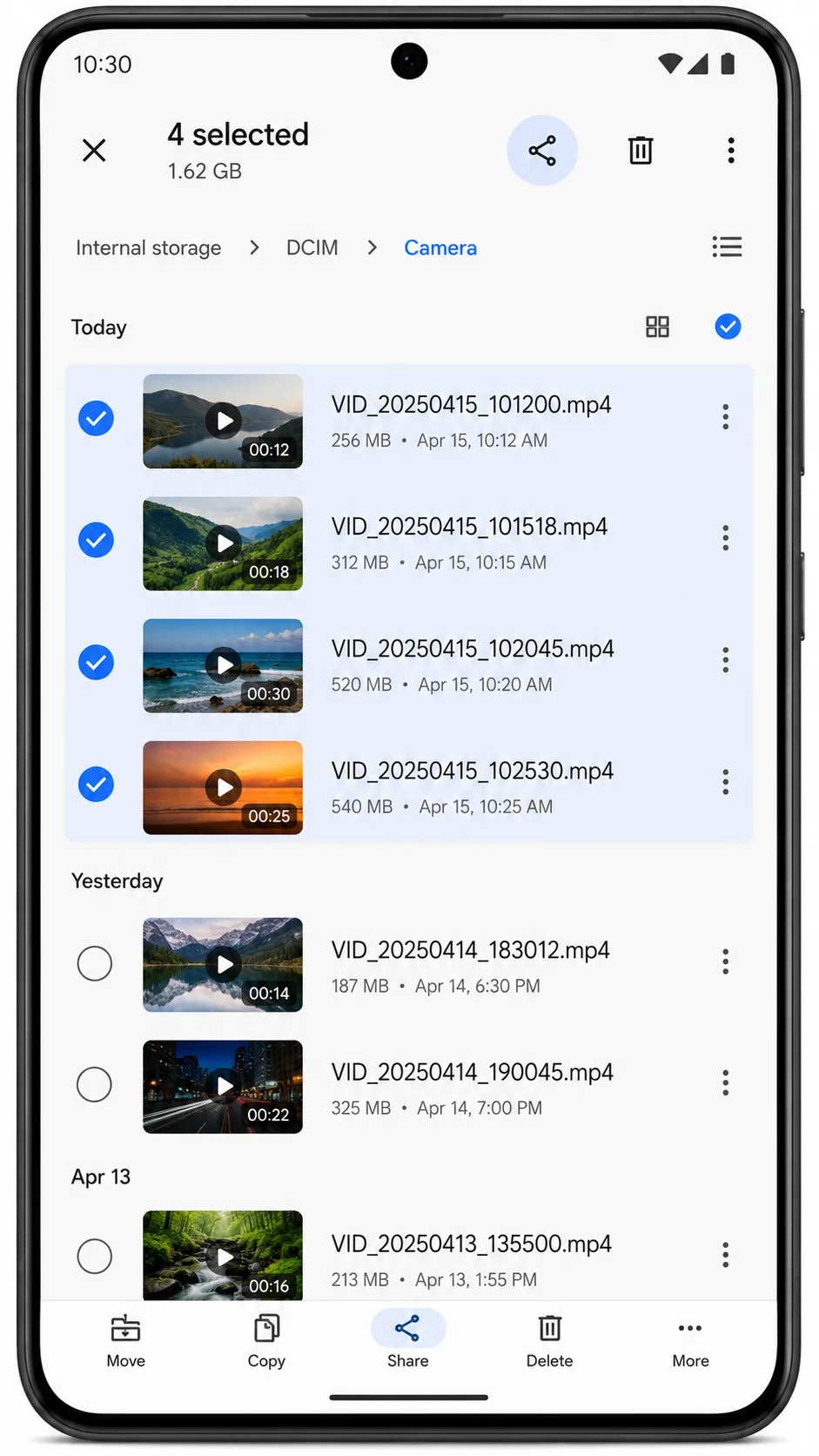
Install the cloud app before you hit Share. If Drive or OneDrive is missing, the share sheet Android list often hides the target. Open the cloud app once, sign in, then try Share again.
This is batch control without living inside one cloud app. You stay in the file list, select hard, and push out. For large libraries that feel impossible in Gallery, this is usually faster.
Stay on WiFi for long clips. Keep the screen on until the cloud app shows the upload done, not just until the share sheet closes.
Samsung My Files vs Files by Google—same idea, different name
Same job. Different label.
Files by Google is the common file manager on many Pixels and other Android phones. My Files is Samsung’s built in manager. Both browse folders, both multi select, both hand files to the share sheet.
If your phone shows My Files, use My Files. If it shows Files by Google, use that. Do not hunt for a third app unless your stock manager is missing or broken.
I reach for the file manager when Gallery sort order fights me, when clips live outside Camera, or when I want one clean multi select pass before anything hits the cloud. Pick the folder. Pick the videos. Share once.
Save Videos to Cloud Instead of Phone — Without Losing Them
Yes, you can save videos to cloud instead of phone and free up phone storage. But only after a real copy exists in the cloud and you have opened that copy somewhere else. Backed up is not the same as verified safe.
I get why people rush. Device storage is full. They pay for media backup already. They assume the paid plan empties the phone. It does not. The phone frees space only when you remove local files on purpose after the transfer videos to cloud step is truly done.
Uploads can pause quietly. A badge can look fine while the file is incomplete. I treat the cloud copy as the new master only after I play it on another device or on the cloud website. Until then the phone copy stays.
The only delete checklist you should trust
I use this exact order. No shortcuts on keepers.
- Finish the upload in Drive, Photos, OneDrive, or Dropbox.
- Open the same video on a computer or second phone while signed into that cloud account.
- Play more than one second. Confirm sound and picture.
- Only then delete the local video from Gallery or Files.
- Empty Recently deleted or Trash in Gallery so the space can return.
- Check free space again after a minute.
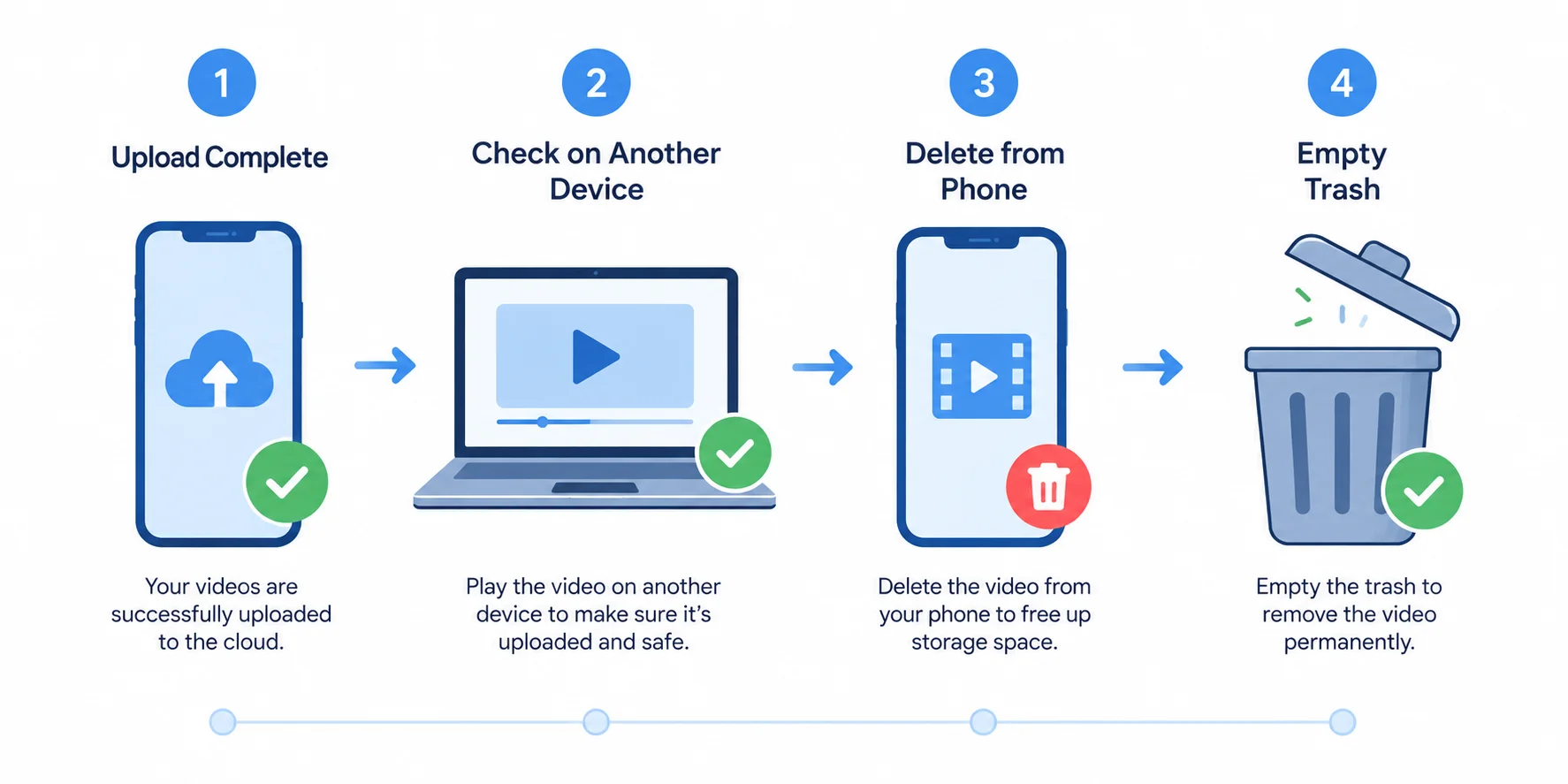
If step 2 fails, do not delete. Fix the upload first.
People wipe the phone the moment upload starts. That is the expensive mistake. Started is not finished.
“Optimize storage” options—read before you tap
Some apps offer a setting that keeps smaller stand-ins on the phone and leaves full offline originals in the cloud. Names vary by app and phone.
Read the screen before you enable anything. You may still see thumbnails in the gallery app while the heavy file lives online. Offline access then needs a download when you have no signal.
I use optimize style tools only after I trust the account and the network. I never treat them like a magic empty button. If the wording confuses you, skip the toggle and use the checklist above with a normal delete after verify.
Phone still full after you deleted videos?
This happens a lot.
First open Trash or Recently deleted and clear it. Deleted videos often sit there and still count.
Then reboot the phone and wait a bit. Storage numbers lag.
Then check that you deleted from the main Gallery view, not only from a shared album or a copy in another folder.
If space barely moves, look for large videos still on the device in Files under DCIM, Movies, or Downloads. Gallery delete and file delete are not always the same action on every phone.
I also refuse panic wipes of random system folders. That creates new problems and rarely fixes video bloat.
Paying for cloud only helps after you finish the handoff. Verify. Then remove. Then clear trash. That is how you keep the memories and still reclaim the phone.
Which Cloud App Is Best for Selected Android Videos?
| Your Situation | Best Option | Why |
|---|---|---|
| Only a few videos | Google Drive | Easy manual selection |
| Microsoft 365 user | OneDrive | Fits existing Microsoft account |
| Samsung Galaxy + large albums | OneDrive + Samsung Gallery | Album-based control |
| Want a full photo timeline | Google Photos | Better library experience |
| Already use Dropbox | Dropbox | Simple manual uploads |
| Videos are spread across folders | Files by Google / My Files | Easier multi-select |
For most people on Android, Google Drive manual select is the best default for selected videos. It is usually already on the phone, it picks exact files, and it behaves like a simple cloud storage locker.
Best is not one brand for everyone. It depends on how you want to select clips, how much free storage space you still have, and which account you already use every day.
I do not rank apps by pretty ads. I rank them by control. Android cloud backup for videos fails when the app grabs more than you meant to send, or when the account storage limit is already gone.
Quick pick guide
| App | How select works | Free space note | Best if |
|---|---|---|---|
| Google Drive | Manual file pick and Share | Shared Google Account pool with Photos and Gmail. Check the live number in the app | You want exact clips in folders |
| Google Photos | Mostly folder backup, plus manual pushes | Same shared Google pool as Drive | You want a timeline library and will police folders |
| OneDrive | Manual upload, plus Samsung album sync | Free tier is 5 GB on a normal Microsoft account | You already use Microsoft apps or Samsung Gallery sync |
| Dropbox | Manual upload on the phone | Free tier is smaller than many people expect. Check inside the app | You already live in Dropbox and only need simple drops |
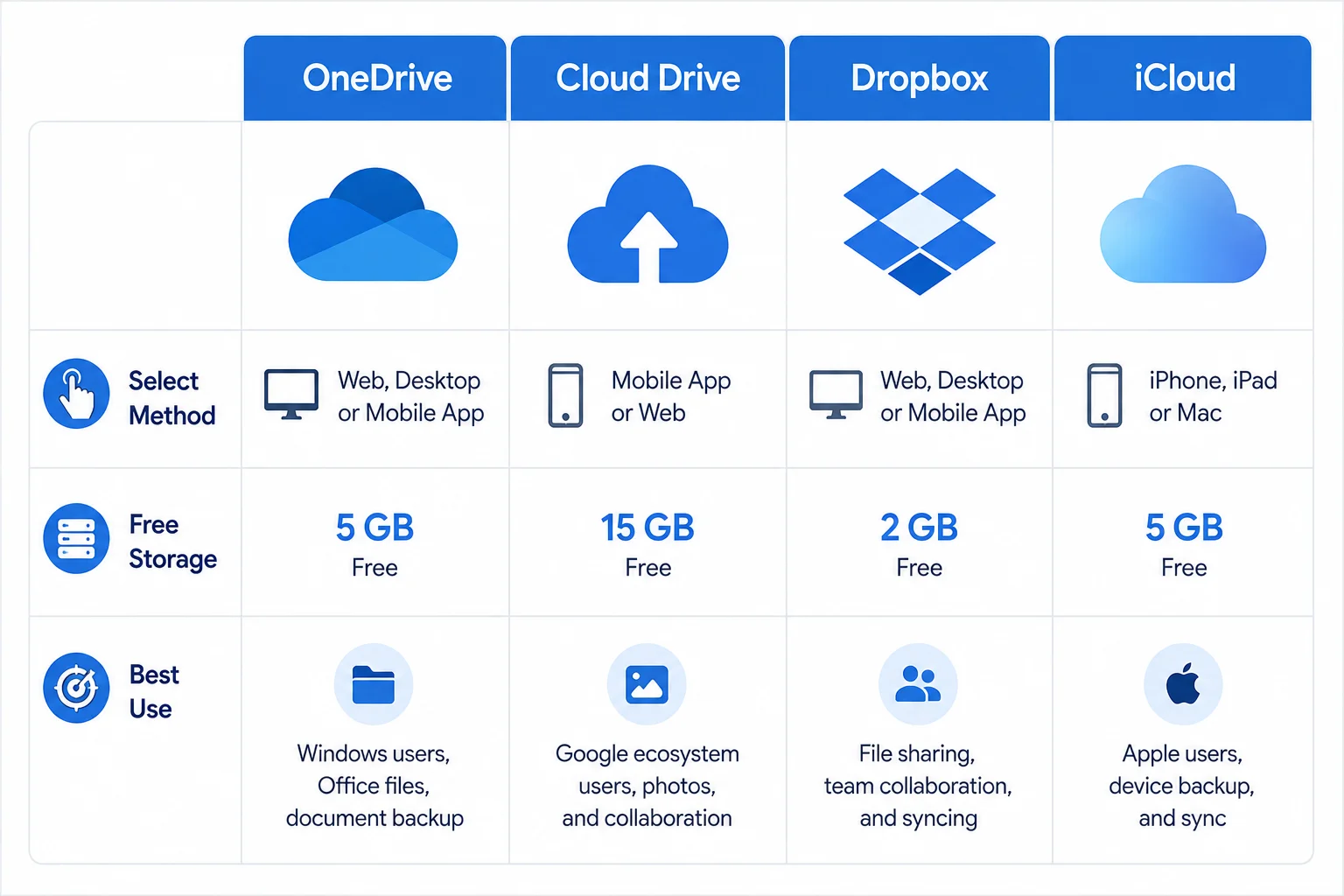
Those free amounts are not equal. That shock alone changes the plan for long videos.
Free storage showdown (read the fine print)
OneDrive free storage is 5 GB. I treat that as a hard ceiling for casual use unless you pay or already have a bigger Microsoft plan.
Google storage is shared across the Google Account. Drive, Photos, and Gmail pull from the same bucket, so the photos and videos on your phone compete with email attachments for the same space. A full inbox can block a video upload even when Drive looks empty at a glance.
Dropbox free space is its own product limit. Open the app and read your number instead of guessing from memory or old blog posts.
New Google accounts sometimes show less free space until account checks are finished. If your free total looks wrong, open the official storage page in the account and confirm what Google shows you today.
Videos burn free tiers fast. A few long clips can finish a small plan. Relying on one free account forever for all 4K video is how uploads suddenly stop with no clear warning.
Paid upgrades exist on every major app when free space dies. I only mention that as a fork in the road, not a sales pitch. Check current prices in the app before you buy anything.
Photos vs Drive if you already live in Google
| Feature | Google Photos | Google Drive |
|---|---|---|
| Upload individual selected videos | Limited/manual options | Yes |
| Folder-based backup | Yes | Not the same backup model |
| Best for | Full media library | Specific files |
| WhatsApp/Screenshots control | Folder toggles | Upload only what you select |
| Organization | Photo/video timeline | Folders |
| Best choice for 5–10 important clips | No | Yes |
Same storage pool. Different jobs.
I use Google Drive when I want selected files in a folder I name. Phone keepers. Trip 2026. School project. Clear shelves.
I use Google Photos when I want a living library and I am willing to turn device folders on or off with care. Photos is weaker when you only need five random clips today.
If both apps fight for the same gigabytes, clean junk in one place before you upload more in the other. The account does not care which app you prefer. Full is full.
My default and the exceptions
Default for selected Android videos: Drive manual upload or Share into Drive.
Exceptions I actually use:
- Microsoft 365 or heavy Office use: OneDrive makes more sense, especially with more than the free 5 GB
- Samsung Gallery habit: album sync to OneDrive for bulk control without endless tapping
- Timeline first person: Photos with strict folder toggles
- Already organized in Dropbox: manual Dropbox upload is fine. Do not expect desktop style selective sync on the phone
Taste is real. Some people like Dropbox’s layout more. Control and remaining storage space still win the decision for me.
Open each app, read your real free number, then pick the select model that matches the job. Exact files. Folders. Or albums. That choice matters more than the logo on the icon.
Why Select Videos Won’t Upload (and How to Fix It)
| Problem | Likely Cause | Fix |
|---|---|---|
| Video won’t upload | Cloud storage is full | Check account storage |
| Upload is stuck | Weak Wi-Fi or app issue | Use Wi-Fi and reopen the app |
| Cloud app missing from Share | App not installed or signed in | Install/open the cloud app first |
| Upload says complete but file is missing | Upload was not verified | Check the cloud website |
| Phone storage is still full | Local copy or Trash remains | Delete local copy after verification and empty Trash |
| Upload keeps stopping | Battery restrictions | Allow the cloud app to run during upload |
| Too many videos to select | Manual selection is inefficient | Use folders or album sync |
When a select upload fails, I check the boring stuff first. Cloud full. No Wi-Fi. App asleep. One huge file stuck in the queue.
Wi-Fi vs mobile data
Turn on Wi-Fi only for backup or upload inside Drive, Photos, or OneDrive when you can. A mobile data warning exists for a reason. Long clips on cellular drain caps and stall more often.
Large files and paused uploads
A paused upload is common on big video file size transfers. Leave the app open on Wi-Fi, keep the phone charged, and watch the progress until it clears. MP4 is the usual phone format; odd formats fail more often on some apps.
Force a stuck job
- Confirm free cloud space.
- Toggle upload or backup off, force close the app, reopen, turn it on again on Wi-Fi.
- If one file blocks the rest, remove that job and retry it alone.
- Confirm on the cloud website, not only the phone badge.
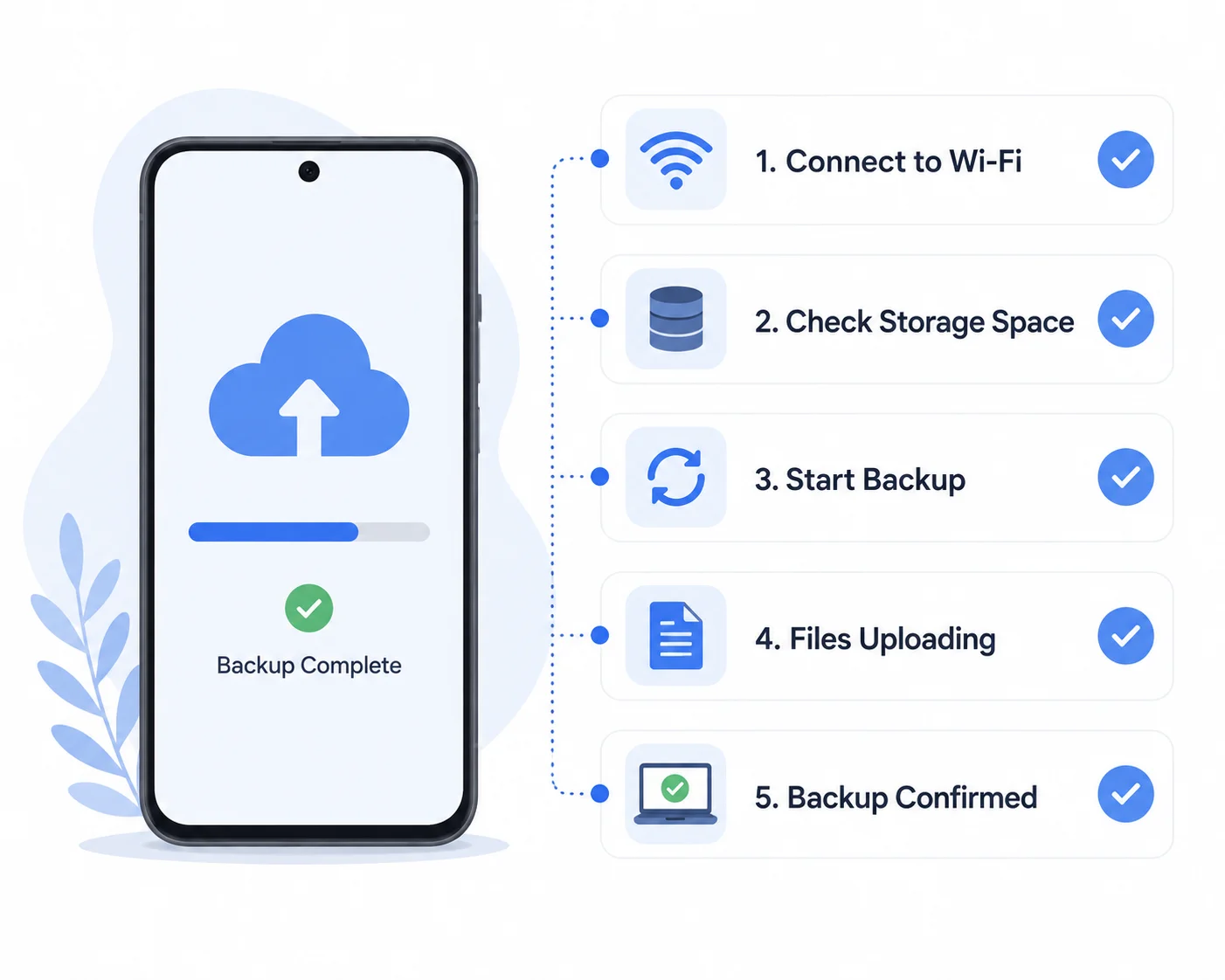
Battery saver killing background uploads is another quiet killer. I disable it for the cloud app during big batches.
Small Habits That Keep Cloud Video Backup From Turning Into a Mess
Long term media backup stays clean when you name folders, check real files on the web, and stop treating one free plan like endless room. Chaos usually comes from dumping everything into one pile and never looking again.
I keep the system boring on purpose. Boring survives travel weeks and full device storage better than clever setups I forget.
I name folders like Keepers, Family, or a trip label with the year. A labeled cloud library beats a root folder full of random dates. When I need one clip six months later, I know where to open first.
Once a month I open the cloud site on a computer and play a random video. Not the thumbnail on the phone. The real file. That single check catches silent failures better than any badge.
I also glance at free space before holidays or long trips. Big dumps land after the fact. If the account is almost full, new uploads stall and people think the phone broke.
I do not park every irreplaceable clip on one free tier forever. Free plans run out. For life videos I care about most, I keep a second copy somewhere else when I can. Phone plus one cloud is a start. Phone plus two places is calmer.
Major cloud apps encrypt data in transit and at rest under their standard account security. I still treat the login and 2-step verification as the lock I control.
I never delete the phone copy the moment upload starts. Habit first, cleanup second.
Do those few things and the backup stops turning into a junk drawer.
Name it. Spot check it. Watch the quota. Protect the login. I keep it that plain on purpose.
Start With One Video Today
You do not need a perfect system tonight. You need one clean win. Pick a single clip and practice how to save select videos to cloud on Android the simple way.
My default is still the same. Open Gallery or Files. Multi select if you want more than one. Share into Google Drive. Wait until the upload finishes. Open that video on a computer or second device. Only then think about delete if you need to free up phone storage.
Samsung owners can start with one Gallery album synced to OneDrive instead, if album control fits better than hand picks.
I would ignore full automatic backup on day one. Control first. Breadth later.
One verified upload teaches the habit faster than reading another overview. Do that once, then stack the rest when you have time.
FAQs About Saving Select Videos to Cloud on Android
How do I save videos to the cloud on Android without syncing my whole gallery?
Use manual upload. Open Gallery or Files, multi select the clips, Share into Google Drive or OneDrive, and leave full automatic backup off.
Google Photos backup is different. That path often pulls whole device folders, not just the few videos you had in mind. For true picks I stay with Drive or the file manager share sheet.
Can Google Photos back up only certain videos?
Only in a limited way. Automatic backup in Google Photos is mostly folder level. You turn Camera, WhatsApp, Screenshots, and other folders on or off. You do not get a simple settings list of three random clips.
For a handful of keepers I still use Google Drive. If your Photos app shows a newer favorites style control, test it on one video first. Menus change by version, so verify on your phone.
How do I upload only selected videos to Google Drive?
Two clean paths.
Open the Google Drive app, tap plus, tap Upload, multi select the videos, and choose a folder.
Or open Gallery, multi select, tap Share, and pick Drive.
I always confirm on drive.google.com after the phone says done. Phone thumbnails lie more often than people think.
Can I delete videos from my phone after they’re in the cloud?
Yes, after you verify. Finish the upload, open the same file on another device or the cloud website, play it, then delete from the phone. Empty Recently deleted or Trash so space can return.
I never delete when the upload only started. Started is not finished. Partial transfers are how people lose the only copy.
I already pay for cloud storage. Why is my phone still full?
Paid cloud does not empty the phone by itself. The plan holds files online. Device storage frees up only when you remove local copies after a verified cloud copy exists.
I see this mixup constantly. People pay, turn something on, and expect gigabytes to reappear. The handoff still needs your delete step.
Do I have to select thousands of videos one by one?
No. Long press and batch multi select. On Samsung, Gallery album sync to OneDrive can cover whole albums. In Google Photos, folder toggles control streams of new items.
One by one is for true keepers only. Huge libraries need batch, albums, or folders or you will quit halfway.
Does Dropbox on Android support selective sync?
Not like the desktop app. On Dropbox for Android I use manual upload or Share from Gallery and Files.
People hunt desktop style selective sync on the phone and waste time. That control is not the mobile model. Upload what you want and move on.
My upload is stuck, or it says done on my phone but I don’t see it on my computer.
First check WiFi, free cloud space, and whether one large file is frozen in a queue. Force close the cloud app, reopen it, and try again on WiFi.
Then confirm on the cloud website, not only the phone. A checkmark on the handset does not always mean the file is visible on a computer yet. One bad or huge clip can block the rest of the queue.
How much free cloud storage do I get for videos?
It depends on the app, and the free amounts are not equal.
OneDrive free storage is 5 GB on a normal Microsoft account. Google storage is a shared pool across Drive, Photos, and Gmail, so check the live number in your Google Account. Dropbox free space is its own limit, so read it inside the Dropbox app.
Photos and videos fill small free plans fast. I check quota before I move a batch, not after the upload fails