
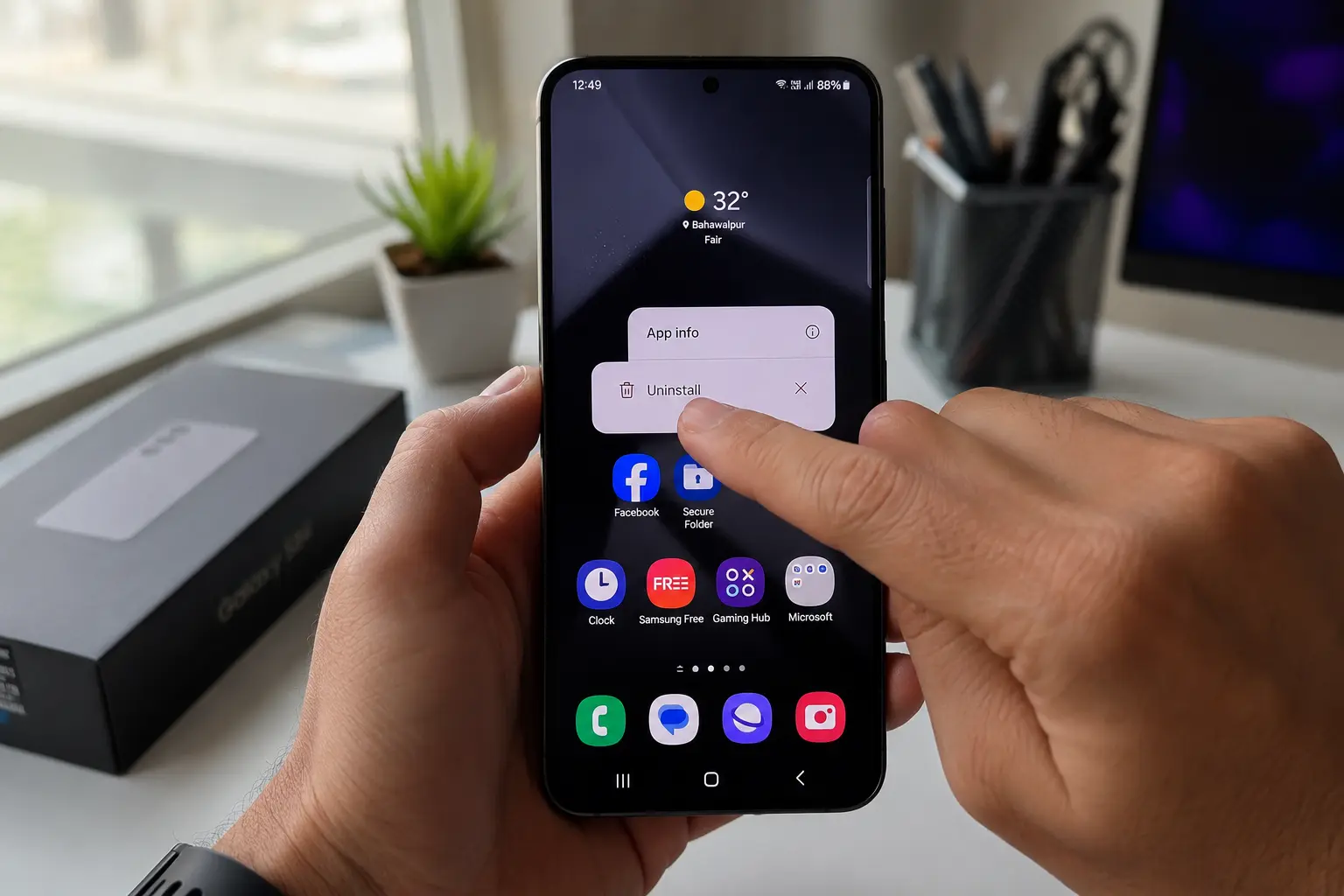
Tapping that little X on an app icon and assuming the app is gone that was my mistake the first time I switched to Samsung. The icon disappears. Everything looks clean. But the app is still sitting on your phone, still using storage, still running quietly in the background.That is the number one thing people get wrong when trying to delete apps on a Samsung phone, and I want to clear it up right at the start.
Samsung Galaxy phones run on One UI, which is Samsung’s own software layer built on top of Android. One UI 8 is the current version as of 2026, and it handles app management a little differently than what you might expect if you are coming from another platform. Knowing how One UI works makes the whole process click.
Here’s what’s actually in this guide: the quick home-screen delete, the Settings path for apps you can’t find anywhere else, how to clear out Samsung’s pre-installed bloatware (yes, even on the S24+), why some apps just won’t give you an Uninstall option no matter what you try, and how to undo it if you delete the wrong thing
The Fastest Way to Delete Apps on Your Samsung Phone
The quickest how to delete apps on Samsung phone is to press and hold the app icon until a menu appears, then tap Uninstall. That is it. Most apps are gone in about five seconds.
But the hold part matters more than people expect.
How to Delete Apps from the Home Screen
A lot of people tap the icon once, nothing happens, then they hold it down and freeze up over which option to pick. Here’s the exact sequence:
- Find the app icon on your home screen.
- Press and hold don’t just tap, hold it until a small menu pops up above the icon.
- Tap Uninstall from the menu.
- Tap OK to confirm.
The icon disappears immediately, and that means the app is fully removed from your phone. Done.
One thing I want to flag before you move on. That menu also shows a “Remove” option. Do not tap that one. Remove only takes the shortcut off your home screen. The actual app stays installed. I cover that in full detail in the next section.
How to Delete Apps from the App Drawer
Not every app shows up on the home screen. Samsung phones keep a complete list of everything installed in the app drawer, which is the full grid of apps you get when you swipe up from the bottom of the screen.
This is where I always go when I cannot spot an app on the home screen. On One UI 7 and One UI 8, the Samsung app drawer can scroll either vertically or horizontally depending on how your settings are configured, so just scroll through until you find what you are looking for.
Once you find the app:
- Swipe up from the home screen to open the app drawer
- Locate the app you want to delete
- Press and hold the app icon until the menu appears
- Tap Uninstall then tap OK
Same process. Same result. The app icon disappears and the app is gone from your phone.
If you are deleting a downloaded app like a game or a shopping app you no longer use, this method works every time without any issues.
The Mistake That Keeps Apps on Your Phone
When you long-press an app icon on your Samsung home screen, two options appear that look almost identical. One says Remove. One says Uninstall. And this is exactly where most people go wrong.
Tapping Remove doesn’t delete anything. The icon vanishes from your home screen, sure — but the app itself is still on your phone, still eating storage, still running in the background. I know because I did this exact thing with four different apps before I figured out what was happening
Samsung’s own documentation makes this distinction clear. Remove means “take this shortcut off my home screen.” Uninstall means “delete this app from my phone completely.” Same menu. Two very different outcomes.
So if you have been wondering why your storage is still full after “deleting” apps, this is almost certainly why. The apps are still there. You just cannot see their icons anymore.
The uninstall button is the one you want. Every time.
And if you have already done this with several apps, go back through Settings and check your full app list. You will probably find apps you thought were gone sitting right there, still installed, still taking up space.
Samsung’s official support documentation covers app management extensively and confirms this distinction between Remove and Uninstall options. According to Samsung’s help center, Remove only affects the home screen shortcut while Uninstall completely removes the app and its data from your device. This confusion between the two options is exactly why Samsung created separate menu items with different functions, even though they appear in the same context menu.
How to Delete Apps on Samsung Phone Using Settings
If you cannot easily locate the app icon you want to delete, or if the long-press method is not working for some reason, the Settings app is your next best option. This is also the method I use when I want to see how much storage an app is using before I decide to delete it.
The Galaxy settings menu shows you every single app on your Samsung phone. Every one. That includes apps without home screen icons, background services, and pre-installed apps that never show up in your app drawer. The apps list Samsung provides in the settings menu is the complete master list.Here’s the Settings route, step by step:
Tap OK to confirm
Open Settings.
Scroll down and tap Apps.
Find the app in the full list and tap it.
Tap Uninstall at the bottom.
The app is gone.
What I like about this method is that before you tap Uninstall, you can see exactly how much storage that app is taking up. Some apps balloon to several gigabytes over time even if you barely use them. Seeing the storage number right there makes the decision easier.
One small note. If you are on One UI 8 like most newer Samsung phones in 2026, the Settings menu shows Apps directly in the main list. On older versions of One UI, you might see Apps & Notifications instead. Same destination either way.
And this is the method that works every time, even when the home screen long-press does not give you the option you need. The application manager in Android settings does not hide anything from you.
Delete, Disable, or Archive What Actually Happens to Your App
Most people assume these three options all do the same thing. They do not. And the confusion between them is the reason so many Samsung users think they deleted an app when the app is actually still sitting on their phone taking up space.
Here is what each action actually does to your phone.
Uninstall removes the app completely. Gone. The app disappears, all app data gets deleted, and your storage space increases immediately. If you want the app back later, you have to reinstall it from the Google Play Store and start fresh.
Disable hides the app from your home screen and app drawer, stops the app from running in the background, and prevents the app from receiving updates. The app stays on your phone, which sounds like it would keep using storage, but here is the part most people do not know. When you disable a pre-installed app on Samsung, the Android OS reduces that app’s storage footprint down to nearly zero bytes. Built-in Samsung or Google system apps that cannot be uninstalled can be disabled instead, and the storage impact becomes almost nothing.
Archive is a newer option that shows up on some apps but not all. Archiving removes the app from your device but keeps the app icon visible and preserves your app data. You can reinstall the archived app later without losing your saved settings or progress. The icon stays on your screen with a small cloud symbol to show the app needs to be downloaded again before you can use it.
Disabling is not the same as uninstalling. The storage consequences alone prove that. Uninstalling frees up all the storage an app uses immediately. Disabling keeps the app installed but shrinks its footprint for system apps specifically, which is why both Samsung and Android recommend disabling as the preferred approach for pre-installed apps you cannot fully remove.
If the app can be uninstalled and you know you will never use it again, uninstall it. If the app is a system app that only gives you the option to disable, go ahead and disable it. The storage difference is small enough that it works.
How to Get Rid of Pre-Installed Apps and Bloatware on Samsung
Pre-installed apps on Samsung Galaxy phones eat up storage space from the moment you turn the device on, and that storage problem only gets worse over time. Out of the box, Samsung’s pre-installed apps eat up somewhere around 4GB. That number climbs. As those apps quietly accumulate cache files and data over months of use, the total can creep past 17GB — and most of that comes from apps you’ve genuinely never opened
This happens on every Samsung phone from budget models to the Galaxy S24+. Nobody escapes it.
Now for the honest part. Not all pre-installed apps can be deleted. Samsung divides these apps into three categories, and knowing which category your app falls into saves you a lot of frustration.
Some pre-installed apps like duplicate copies of Facebook or Netflix that Samsung bundled with your phone can be fully uninstalled just like any app you downloaded yourself. Others like Bixby, Galaxy Store, and most Samsung-branded apps are system apps. You cannot uninstall system apps, but you can disable them. A handful of core Android OS components cannot be touched at all because they keep the phone running.
The frustration usually starts when people try to uninstall a system app the same way they would delete a game or social media app. The Uninstall button is grayed out or does not appear at all, and the only option you see is Disable. That is not a bug. Samsung designed those apps to resist full deletion because they tie into core phone functions, whether you use those functions or not.
But disabling works. And disabling a pre-installed app reduces its storage footprint down to nearly zero bytes, which is almost as good as deleting it for most people.
Which Samsung Apps Are Safe to Disable
These apps are commonly pre-installed on Samsung phones and safe to disable if you do not use them. If you do use them, keep them. If you have never opened them, disabling them frees up space and stops background processes.
- Android Auto Disable if you do not use your phone with a car’s display system
- Bixby Samsung’s voice assistant. Disable if you use Google Assistant instead
- AR Zone and Avatar Stickers Augmented reality features. Disable if you never create AR content
- Galaxy Avatar Samsung’s avatar creation tool. Disable if you do not use it
- Link to Windows Syncs your phone to a Windows PC. Disable if you do not sync devices
- Microsoft SwiftKey Keyboard Third-party keyboard. Disable if you use Samsung Keyboard or Gboard
- Samsung Visit In Samsung’s location-based service. Disable if you do not use it
- Galaxy Store Samsung’s app store. Disable if you only use Google Play Store. One frustrating thing about Galaxy Store is that it sends promotional push notifications even when you turn notifications off
Go through the apps list in your Samsung settings and disable what you never use. The storage you get back adds up fast.
What to Do When a Disabled App Keeps Coming Back
Some disabled apps re-enable themselves after a software update. This is a known issue and it drives people crazy. Apps like AppCloud have a reputation for reappearing after Samsung pushes a system update, even though you already disabled them weeks ago.
Why does this happen? Software updates sometimes reset certain app states back to their default enabled condition. Samsung does not warn you when this happens. You just notice the app is back one day.
The fix is simple but annoying. After every major software update, go back into Settings > Apps and re-disable the apps that came back. Check your apps list a day or two after any update to catch the ones that returned.
If an app keeps reappearing and you want a more permanent solution, there are advanced methods using Android Debug Bridge that remove pre-installed apps without rooting your phone. But for most people, re-disabling after updates is easier and safer.
Why Some Apps on Your Samsung Won’t Let You Uninstall Them
When you try to delete certain apps on your Samsung phone and the Uninstall button is either grayed out or completely replaced by a Disable button, your first reaction is probably to think something is broken. Nothing is broken. Samsung and Android designed those apps to resist deletion on purpose.
The apps that will not let you uninstall them fall into three categories, and understanding which category your app belongs to tells you exactly what you can do about it.
Samsung core apps like Bixby, Samsung Health, Galaxy Store, and Samsung Messages are built-in system apps that Samsung considers part of the phone’s core functionality. You cannot uninstall these apps because they connect to other Samsung services and features throughout the operating system. Disable is your only option here, and disabling works well enough for most people.
Google core services like Google Play Services, Google Play Store, and the core Android system apps keep the Android OS running properly. These apps handle things like app updates, security patches, account syncing, and background services that other apps depend on. Google protects these from deletion. Same solution: disable if you absolutely must, but be careful. Some of these Google services should stay enabled or your phone will start behaving strangely.
Carrier-installed apps are the ones your mobile carrier added before they sold you the phone. Which apps appear here varies depending on whether you bought your Samsung phone from Verizon, T-Mobile, AT&T, or another carrier. Some carrier apps can be uninstalled. Others are locked down and can only be disabled. Check each one individually through the app manager to see what option you get.
The Disable option appearing instead of Uninstall is an intentional feature, not a malfunction. Samsung built the phone this way to prevent people from accidentally removing system components that break core phone functions. And before you go searching for rooting guides, know this. Rooting a modern Samsung phone damages Knox security, voids your warranty, and is significantly harder than it used to be. For bloatware removal, rooting is not worth the risk.
If you see Disable instead of Uninstall, just disable the app. That is what the option is there for. Built-in Samsung or Google system apps that cannot be uninstalled can be disabled instead, and the result is nearly the same for everyday use.
How to Disable Apps on Samsung When You Can’t Delete Them
Disabling apps on Samsung phones is not a workaround. It is the official method Samsung built for handling pre-installed apps that refuse to uninstall. Disabling an app hides it from your app drawer, stops it from running in the background, prevents the app from receiving updates, and shrinks its storage footprint down to nearly zero bytes for system apps.
Here is how to disable apps on a Samsung phone through the Galaxy settings menu:
- Open Settings on your phone
- Scroll down and tap Apps
- Find the app you want to disable and tap it
- Tap Disable at the bottom of the screen
- Tap Disable again to confirm
The app disappears from your app drawer immediately. It stops running, stops using background resources, and stops receiving updates. For pre-installed system apps, the storage reduction happens automatically.
If an app is being stubborn and the Disable option is grayed out, force stop the app first. Tap Force Stop at the top of the app’s info screen, then try tapping Disable again. That usually clears whatever process was blocking the disable action.
On One UI 8, you might see “Turn off” instead of “Disable” in some menus. Same function. Different label. Samsung changes the wording between One UI versions but the result is identical.
What if you change your mind later? Re-enabling a disabled app is simple. Go to Settings > Apps, tap the three-dot menu in the top right corner, select Show Disabled Apps, find the app you disabled, tap it, then tap Enable. The app comes back exactly as it was before you disabled it.
One warning. Do not accidentally stumble into the Disabled Apps section in your Android settings and start re-enabling things without knowing what you are doing. I have seen people disable bloatware, forget about it, then weeks later randomly browse through their settings and re-enable everything thinking those apps were supposed to be on. Check what an app is before you re-enable it.
After you disable pre-installed apps, background resource usage drops and phone storage gets optimized. Not dramatically. But enough that you notice the phone feels slightly less cluttered.
3 Ways Deleting Apps Makes Your Samsung Run Better
Most people assume deleting a few unused apps will not make much difference on their Samsung phone. I used to think the same thing until I measured the actual impact. Removing extra apps improves phone performance in three specific ways, and the storage benefit alone is bigger than most people expect.
1. Storage recovery that keeps growing. Pre-installed apps on Samsung phones start at around 4.2GB of storage when you first turn the device on. But here is what catches people off guard. Those same bloatware apps can balloon to 17GB or more over time as they accumulate cached data, app updates, and stored files you never see. Delete app data and clear app cache regularly, and you get that storage back. The longer you wait, the more space you recover.
2. Background RAM gets freed up. Unused apps still run background processes that consume system memory even when you never open them. Your Samsung phone has to manage these background tasks constantly. Remove unwanted apps from your Samsung device, and those background processes disappear. The phone has more RAM available for the apps you actually use.
3. Battery life improves measurably. Apps sitting unused on your phone still ping servers, sync data, and run maintenance tasks that drain battery power throughout the day. Even apps you have not opened in months can wake up your phone’s processor to perform background updates. Deleting apps that run these hidden processes stops the battery drain at the source.
The bloat problem gets worse over time, not better. Storage and memory issues compound as apps accumulate more data. That makes cleanup more valuable the longer you have owned your phone, not less.
Accidentally Deleted an App? Here’s How to Get It Back
The panic you feel when you delete an app you actually needed is real, but your apps are not gone forever. Samsung Galaxy phones and the Google Play Store both keep detailed records of everything you have installed, which means recovery is usually just a few taps away.
Method 1: Reinstall from Google Play Store. This works for 99% of situations. Open the Google Play Store app, tap your profile icon in the top right, then tap Manage apps & device. Select the Library tab to see every app you have ever downloaded or purchased. Find the deleted app and tap Install. Free apps reinstall immediately. Paid apps you already own reinstall without charging you again.
Method 2: Restore from Samsung Cloud backup. If you enabled Samsung Cloud backup before deleting the app, you can restore your entire phone to a previous state that includes the deleted app. Go to Settings > Accounts and backup > Samsung Cloud > Restore data.
Method 3: Check Samsung’s built-in recycle bins. Samsung apps like Gallery, My Files, Contacts, and Voice Recorder have their own recycle bins that hold deleted items for 30 days. If you deleted files along with an app, check these individual recycle bins first.
Quick tip for next time. Back up your Samsung Galaxy before doing major app cleanup sessions. Takes two minutes and saves a lot of stress later.
While Samsung phones have specific recovery methods through Samsung Cloud and the Galaxy ecosystem, Android users on other devices face similar app recovery challenges. The process varies slightly depending on your Android manufacturer, but the Google Play Store Library method works universally across all Android phones. If you need more detailed recovery options for non-Samsung Android devices, our complete guide covers additional methods that work when the standard Play Store approach falls short
Quick Recap Which Method Should You Use?
I get this question constantly, so here’s the fastest way to figure out which method fits your situation.
If you want to completely remove an app you downloaded, long-press its icon on your home screen and tap “Uninstall.” This works for anything you got from Google Play or installed yourself.
If you’re trying to uninstall app Samsung won’t let you remove (like Facebook or Bixby), go to Settings > Apps and use “Disable” instead. You can’t truly delete these, but disabling stops them completely.
If you accidentally deleted something, check your Play Store Library first. Most downloaded apps stay there for easy reinstall.
And if you just want to clean up your home screen without losing the app, use “Remove from home screen.” Just remember this only hides the shortcut.
The biggest mistake I see? People think removing an icon deletes the whole app from their Samsung Galaxy. It doesn’t free up any storage space at all.
Pick the right tool and you’ll save yourself the headache of wondering why something didn’t work like you expected.
Does removing an app icon from my home screen actually delete the app?
No, removing an icon only deletes the shortcut, not the actual app. The app stays installed and uses the same storage space until you properly uninstall it through long-press or Settings > Apps.
Why do I only see “Disable” instead of “Uninstall” for some apps?
Pre-installed Samsung and Google apps can’t be completely removed from your phone. Disable is Samsung’s way of letting you turn them off permanently without breaking your system.
What’s the difference between uninstalling and disabling an app on Samsung?
Uninstalling removes the app and all its data forever. Disabling hides the app and stops it from running, but keeps it installed so you can turn it back on later.
Will I lose my data if I delete an app on my Samsung?
Yes, uninstalling an app wipes all your saved data, game progress, and login information. If you might want the app back, disable it instead or back up your data first.
How do I get an app back after deleting it on Samsung?
Go to Play Store > Profile icon > Library to reinstall any app you previously downloaded. For deleted photos or files, check Samsung’s Recycle Bin in Gallery or My Files within 30 days.