
| Feature | Works on Android? | Notes |
|---|---|---|
| Music playback | Yes | Standard Bluetooth audio |
| Video audio | Yes | Works through Bluetooth |
| Phone calls | Yes | AirPods microphone works for calls |
| Play/pause controls | Yes | Supported on compatible models |
| Skip tracks | Yes | Gesture/control dependent on model |
| Noise Cancellation | Yes | Compatible AirPods models |
| Transparency Mode | Yes | Controlled from supported AirPods |
| Volume control | Yes | Supported stem controls on compatible models |
| Siri | No | Requires Apple device |
| Find My | No / Very limited | Apple’s Find My features require Apple ecosystem |
| Automatic Apple device switching | No | Requires Apple devices and iCloud |
| Native battery popup | No | Third-party Android apps can provide estimates |
| Apple firmware management | No | Requires access to an Apple device |
| Full Spatial Audio/head tracking | No | Apple’s full implementation requires Apple software |
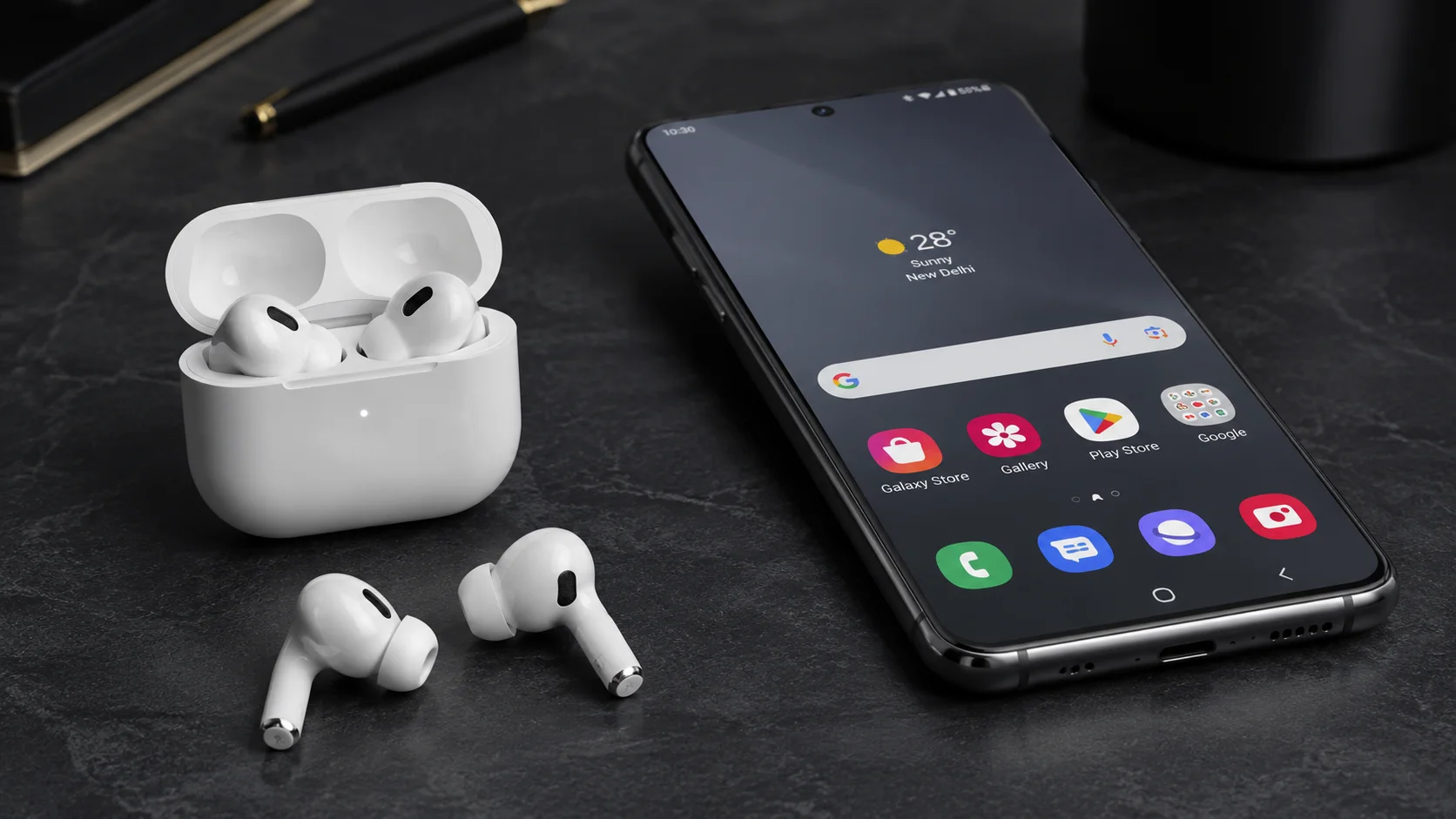
Yes, AirPods work with Android phones for music, video audio, and calls. I have found that the basic connection is usually quick because AirPods use standard Bluetooth, though the exact audio codec and a few small behaviors can vary from one Android phone to another.
Many people assume AirPods only work with iPhones because Apple presents them as part of the iPhone experience. That is not how the basic connection works. Once paired, AirPods behave like Bluetooth earbuds for the things most people do every day.
Music plays. Calls go through.
The earbud controls still handle playback and calls on supported models, and AirPods Pro can still switch listening modes from the stem. But Android does not receive the Apple software layer behind features such as Siri, automatic switching between Apple devices, Find My, and Apple’s battery popup.
That difference matters more than the Bluetooth connection itself. AirPods can be perfectly usable on Android, yet they do not feel as complete as they do with an iPhone.
How to Connect AirPods to Any Android Phone
A nearby iPhone, iPad, or Mac can stop AirPods from appearing in the Android Bluetooth list because the earbuds may reconnect to the Apple device first. I check for that before I start pairing.
To connect AirPods to a non Apple device, place the earbuds in the open charging case, put the case into pairing mode, and select the AirPods in your Android phone’s Bluetooth list.
Before You Start: Check for Nearby Apple Devices
If the AirPods were previously paired with an iPhone, iPad, or Mac, turn off Bluetooth on that Apple device before you begin. AirPods can reconnect to a remembered Apple device before the Android phone has a chance to discover them.
This is my first check when AirPods do not appear in the Android Bluetooth menu. If the AirPods have connected elsewhere, Android may not list them as available for pairing.
If turning off nearby Apple Bluetooth connections does not help, return both earbuds to the case and close the lid briefly. Then reopen the lid and try pairing again. Use a factory reset only after the AirPods still fail to appear.
How to Pair AirPods to Android for the First Time
| Step | What to Do |
|---|---|
| 1 | Open Bluetooth settings on Android |
| 2 | Put both AirPods in the charging case |
| 3 | Open the case lid |
| 4 | Enter pairing mode |
| 5 | Wait for the flashing white status light |
| 6 | Select AirPods from Android’s Bluetooth device list |
| 7 | Tap Pair or Connect |
Here is the manual Bluetooth pairing method I use
- Open Android Bluetooth settings.
Open Settings, then look for Bluetooth, Connected devices, or a similar connection menu. Turn Bluetooth on and keep that screen open while the phone searches. - Put both AirPods in the charging case.
Leave both earbuds inside and open the lid. Make sure the case has enough charge to enter bluetooth pairing mode AirPods discovery. - Start pairing mode on the case.
On AirPods cases with a rear control, press and hold the setup button AirPods case control until the status light flashing white appears. A flashing white light means the AirPods are available for a new Bluetooth connection.AirPods 4 cases use the front touch control instead of a rear setup button. With the lid open and both earbuds inside, use the AirPods 4 pairing sequence shown in Apple’s current support instructions.
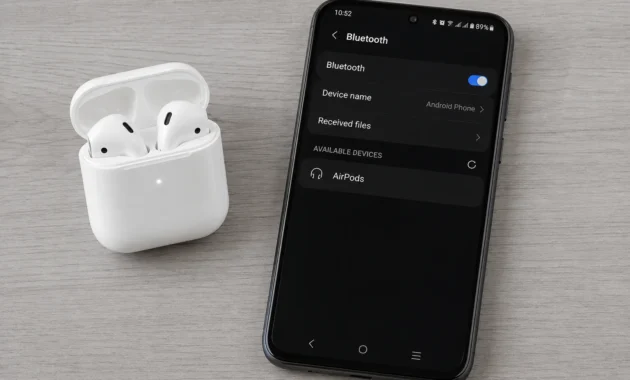
- Select the AirPods from the device list.
In Android Bluetooth settings, tap the AirPods name under available devices. The name may appear as “AirPods” or as the custom name assigned earlier. - Approve the pairing request.
Tap Pair, Connect, or Allow if your Android phone asks for permission. The Bluetooth menu should then show that the AirPods are connected.
What Actually Works: AirPods Features You Keep on Android
Android keeps the AirPods functions most people use every day: music playback, calls, playback gestures, and listening mode controls on compatible models. In my use, AirPods still behave like capable Bluetooth earbuds after pairing with Android.
The connection relies on standard Bluetooth audio and calling support. That is why basic listening works even though Apple only unlocks some advanced AirPods tools inside its own devices.
Noise Cancellation and Transparency Mode: Yes, They Work
Yes, noise cancellation Android AirPods use works without an Apple app on compatible models. Active Noise Cancellation and transparency mode Android controls remain available because the earbuds or headphones handle the mode change directly.
On AirPods Pro, press and hold the stem force sensor to switch listening modes. On AirPods Max, use the Noise Control button. Android does not need to run an Apple app for that control to work.
This catches many people off guard because ANC still responds immediately after an Android pairing. The settings available in the cycle can depend on the AirPods model and on options previously selected with an Apple device.
If an AirPods Pro pair only switches between ANC and Transparency mode, that can be normal. An Apple device may be needed later to change the listening modes assigned to the press and hold action.
AirPods Android Sound Quality: Is It Really the Same?
For everyday listening, AirPods Android sound quality can feel very close to the sound from an iPhone. The result depends on how the Android phone handles the AAC codec, the music source, and what differences you personally notice.
Bluetooth audio uses the A2DP profile across Android and Apple devices. Some Android phones use AAC with AirPods, while others may use the SBC codec. SBC can sound less detailed to some listeners, though many people will not notice a major change during casual listening.
I have seen both reactions from Android users. Some hear no real difference, but others notice softer detail or latency Android AirPods behavior during video playback and games. Phone specific Bluetooth software can affect that experience
Gestures, Calls, and Everyday Use
The physical controls remain useful on Android. You can use force sensor controls Android for:
- Press once to play, pause, answer, or end a call
- Press twice to skip forward
- Press three times to go back
- Press and hold to switch listening modes on compatible models
- Swipe up or down on supported AirPods Pro stems to adjust volume
That volume swipe works on Android. Many people miss it because the option is not shown in Android settings.
You can use one earbud at a time for single AirPod listening Android. Put the other AirPod back in the case and audio continues through the earbud you are wearing. Bluetooth range remains normal too, though walls and crowded wireless areas can shorten it.
The AirPods microphone Android works for calls through the universal HFP Bluetooth calling profile. Call quality can vary more than music quality, and some Android users report that the microphone sounds less consistent than it does with an iPhone. That tends to show up in noisy places, where the phone and AirPods have more work to do.
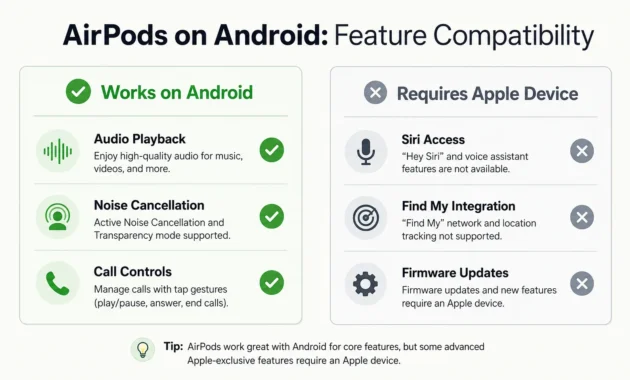
What You Lose: 7 AirPods Features Missing on Android and Why
| AirPods Feature | Android Support | What You Lose |
|---|---|---|
| Siri | No | Voice assistant integration |
| Automatic switching | No | Seamless switching between Apple devices |
| Find My | Limited/No | Apple’s full location and separation features |
| Native battery popup | No | Built-in Apple battery interface |
| Firmware updates | No | Requires Apple device access |
| Personalized Spatial Audio | No | Apple-specific setup and head tracking |
| Conversation Awareness | Limited/No | Apple device configuration required |
| Ear tip fit test | No | Requires Apple device |
| Fine Transparency controls | Limited/No | Apple settings are unavailable |
| Live Listen | No | Requires Apple device |
The missing parts are mostly convenience features, not the listening experience itself. I would put the real number at roughly seven to ten lost smart features, depending on your AirPods model. The dividing line is the Apple H1/H2 chip and its private connection with iOS, iPadOS, and macOS.
Android supports normal Bluetooth audio and call standards. Apple only exposes the extra AirPods controls inside its own operating systems. That is why the earbuds can still sound good and switch listening modes, yet miss a few details that make daily use feel smoother on an iPhone.
Big Losses: Features You’ll Miss Every Day
The first loss is automatic ear detection not working Android in the same reliable way it does on an iPhone. On Apple devices, removing an AirPod pauses media and putting it back resumes playback. Android phones may not receive that pause and resume command consistently, so music can keep playing after you remove an earbud.
That gets annoying fast. I notice it most when I take one AirPod out to speak to someone.
You also lose Apple’s instant battery pop up. The myth that you cannot check AirPods battery level Android at all is false. Third party Android apps can show battery estimates for each earbud and the case, but the readings are not as polished or dependable as Apple’s built in display.
Siri not working on Android is another obvious gap. You cannot summon Siri from an Android phone to send messages, set reminders, or control phone tasks. The press and hold gesture still changes ANC or Transparency mode on supported models, but Android has no Siri connection to receive voice commands.
Find My AirPods Android is limited too. Apple’s Find My network, precise nearby finding, and separation alerts need an Apple device and an Apple Account. An Android user can still remember the last place the AirPods were used, of course, but cannot access Apple’s location tools from the Android phone.
Then there is device switching AirPods Android. AirPods can automatically move between an iPhone, iPad, and Mac signed into the same Apple Account. That feature relies on iCloud syncing and Apple’s device ecosystem. On Android, changing from a phone to a laptop means disconnecting and pairing manually.
Minor Losses: Features You May Barely Notice
Some lost features sound bigger on paper than in daily life. The ear tip fit test Android is a one time check for AirPods Pro owners, and it requires an Apple device. I would borrow an iPhone once to run it if I had access to one, then move on.
These Apple only extras include:
- Spatial audio Android AirPods head tracking, which keeps sound positioned as you move your head
- Live Listen AirPods Android, which uses an iPhone or iPad microphone
- Conversation Boost AirPods, an accessibility feature configured through Apple settings
- Adaptive Audio and Conversation Awareness on newer AirPods Pro 2 and AirPods 4 models
- Fine control over Transparency mode and pass through volume
The last point is easy to miss. You can turn Transparency mode on from the stem, but Android does not give you Apple’s slider for adjusting how loud outside sound comes through.
Fixed spatial audio may work in some apps that provide their own surround sound, but Apple’s head tracked version needs Apple software. Adaptive EQ still operates inside the AirPods, though Android does not provide a screen for tuning it.
The Hidden Catch: AirPods Firmware Updates Require an Apple Device
This is the long term limitation I would consider before committing to AirPods on Android. AirPods firmware update Android support does not exist because Apple delivers firmware updates through a paired Apple device while the AirPods charge nearby.
Firmware updates can fix bugs, improve compatibility, and add support for newer features. Without occasional access to an iPhone, iPad, or Mac, your AirPods may remain on older firmware for a long time.
I have seen mixed reports here. One Android user reported that a firmware update disrupted Pixel 7 connectivity, while another used AirPods for years without updating and had no trouble. Neither experience guarantees what will happen with your pair. But if AirPods are your only earbuds and Android is your only platform, the update limitation is a real tradeoff.
AirPods With Samsung, Pixel, and Other Android Phones: Does It Matter?
| Android Brand | AirPods Compatibility | Expected Experience |
|---|---|---|
| Samsung Galaxy | Excellent | Good pairing, audio, calls and listening controls |
| Google Pixel | Excellent | Clean Bluetooth connection and core controls |
| OnePlus | Good | Model/software dependent |
| Xiaomi / Redmi | Good | Codec and connection behavior can vary |
| Budget Android phones | Good | Basic functions work but microphone, codec and reconnection may vary |
Yes, the Android phone brand can affect the AirPods experience, though basic pairing and controls work across all of them. Different phone makers handle Bluetooth audio, AAC support, and connection recovery in slightly different ways. I would expect the smoothest results from a current Samsung Galaxy or Google Pixel, especially with recent Android software.
Phones with Bluetooth 5.0 or Bluetooth 5.3 can pair with AirPods without a problem. The Bluetooth version alone does not guarantee better sound, though. Codec support and the phone maker’s software have more effect on connection stability and audio quality.
Samsung Galaxy: The Most Common Pairing
Do AirPods work with Android Samsung phones? Yes. Samsung Galaxy phones generally pair quickly with AirPods and handle AAC audio well, so music, calls, ANC, Transparency mode, and stem controls feel dependable for most people.
I would still turn off Bluetooth on a nearby iPhone before pairing. That avoids the familiar problem where AirPods reconnect to Apple hardware instead of appearing in the Galaxy Bluetooth list.
Samsung users who want every setting inside the phone may prefer Galaxy Buds, since Samsung builds those earbuds around its own phones. But if you already own AirPods, a current Galaxy phone is a sensible match. Android 14 and Android 15 improved Bluetooth stability on many devices, which helps with reconnecting after the AirPods leave the case.
Google Pixel and Other Brands
A Google Pixel usually gives AirPods a clean, uncomplicated Bluetooth connection. Pixel phones support the core functions well, including calls, playback controls, and listening modes. I have seen isolated user reports of a firmware update causing connection trouble with a Pixel 7, so I would forget and re pair the AirPods first if a new issue appears.
OnePlus and Xiaomi phones can work well too, but results vary more by model and software version. Some models use AAC smoothly. Others may fall back to the basic SBC codec, which can make the sound a little flatter or add a small delay during video.
Budget Android phones deserve the lowest expectations. AirPods will still play music and handle calls, but codec choice, microphone behavior, and reconnection speed may be less consistent. That is usually where the difference shows up.
3 Best AirPods Apps for Android
| App | Main Use | Battery Display | Extra Controls | Best For |
|---|---|---|---|---|
| MaterialPods | AirPods companion | Yes | Yes | Best overall |
| AndroPods | Battery + popup | Yes | Some | Alternative option |
| CAPod | Lightweight battery checking | Yes | Limited | Simple battery monitoring |
| LibrePods | Open-source AirPods companion | Developing | Developing | Users interested in open-source options |
The right app makes AirPods feel far less bare on Android, especially for battery checks and connection alerts. I would start with MaterialPods because it covers the everyday gaps without making the phone feel cluttered. These apps cannot add Apple only features such as Find My, firmware updates, or head tracked Spatial Audio, but they can restore useful software touches.
Install any AirPods companion app from the Google Play Store, pair your AirPods first, then approve only the permissions that match the features you want. Battery notifications need Bluetooth access. Ear detection simulation or a Google Assistant shortcut may ask for notification or accessibility access.
Third party battery numbers are estimates. AirPods do not expose every charging detail to Android in the same way they do to an iPhone, so a reading can lag behind the real percentage or update in larger steps.
MaterialPods: Best Overall
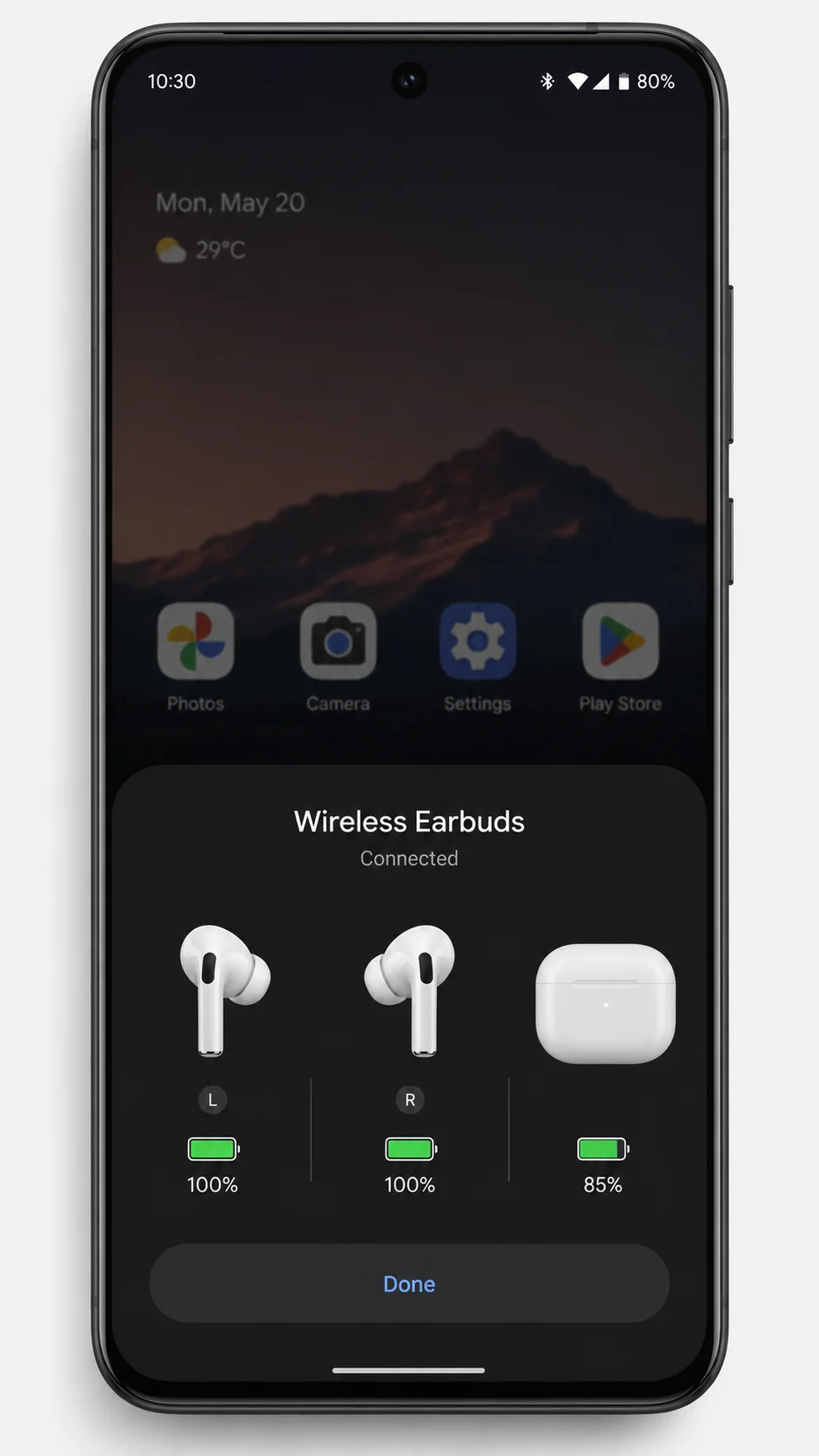
MaterialPods is the first app I would try. It shows an iPhone style battery popup when you open the AirPods case, plus separate readings for the left earbud, right earbud, and charging case.
The free version covers the essentials, including battery notifications, widgets, and a customizable popup. A paid upgrade removes ads and unlocks extra functions in many versions of the app, such as more control over automatic play and pause behavior.
MaterialPods can simulate ear detection by watching connection changes. That is helpful, though it cannot match Apple’s native in ear detection every time. An earbud may remain connected for a moment after you remove it.
For Google Assistant AirPods Android use, check the app’s gesture or assistant settings. MaterialPods can assign an AirPods gesture to launch Google Assistant on supported phone and AirPods combinations. It is a practical replacement for Siri, though the setup can vary with Android permissions.
AndroPods: Solid Alternative
AndroPods offers a similar idea with a different layout. It can show a case opening popup, report battery levels, and provide shortcut options for Google Assistant. I would choose AndroPods if MaterialPods does not recognize your AirPods reliably or if you prefer its simpler visual style.
AndroPods offers a free version with core battery display features, with paid options for more functions and fewer limits. Older AirPods graphics may appear in the popup, even with a newer model. Battery percentages can be slightly inaccurate too.
That is normal for this type of app.
CAPod: Lightweight Battery Checker
CAPod suits anyone who only wants a quick battery display and no extra controls. It focuses on showing the charge level of the AirPods and case, usually through a notification or compact popup.
I like this approach for a phone where I do not want background automation or extra setup. Install CAPod, allow Bluetooth access, connect the AirPods, and check whether the app detects both earbuds and the case. If the case percentage does not appear immediately, open the lid near the phone for a few seconds.
One project worth watching is LibrePods, an open source AirPods companion project that gained attention in late 2025. LibrePods is still developing quickly, so I would treat it as an interesting option rather than a replacement for a stable daily app.
Should You Buy AirPods for Android? A No Regrets Decision Guide
| Your Situation | Recommendation |
|---|---|
| You already own AirPods | Keep using them |
| You also use an iPhone/Mac/iPad | AirPods make more sense |
| Android is your only platform | Compare Android-native earbuds first |
| You want strong ANC | AirPods Pro are usable on Android |
| You need full battery/software controls | Choose Android-native earbuds |
| You found AirPods heavily discounted | They can be good value |
| You want full Find My and firmware support | Use them with Apple devices |
I would not give every Android user the same answer. AirPods work well as Bluetooth earbuds, but the value depends on why you want them and what you are paying. The Apple ecosystem vs Android gap matters far more with expensive AirPods than with a basic pair you already own or found at a good price.
The practical question is not “Do AirPods work?” They do. The better question is whether the missing Apple software features are worth the money you would spend.
When AirPods Make Sense for Android Users
AirPods make sense if you use both an iPhone and an Android phone. You still get the full Apple setup, firmware updates, Find My support, and advanced settings whenever you return to the iPhone. Your Android phone then works as a second device for music, calls, ANC, and playback controls.
I would keep AirPods if they fit your ears better than other earbuds. Comfort is personal, and no feature list can beat earbuds that you can wear for hours without irritation.
They are a sensible choice if you received them as a gift or found them on sale. At a lower price, AirPods work nicely as a straightforward Bluetooth headset with good controls and reliable noise cancellation on supported models.
Some Android owners are perfectly happy with that tradeoff. I have seen Samsung Galaxy S24 Ultra users say they enjoy their AirPods every day despite the missing Apple extras. They value the fit, sound, and simple hardware controls more than the settings screen.
When You Should Skip AirPods and Buy Something Else
I would skip AirPods if Android is your only platform and you are paying full price. You are paying for part of the H1/H2 chip experience, yet Android cannot access much of the software that makes the price feel justified.
Choose Android native earbuds if you want battery details, firmware updates, device finding, audio settings, and assistant support built into your phone. Galaxy Buds make the most sense for Samsung Galaxy users. Pixel Buds fit naturally with Google Pixel phones. Nothing Ear is a good cross brand choice for people who want detailed controls through an Android app.
Audio codec support matters too. AirPods usually rely on the AAC codec with Android, though some phones may use SBC codec instead. That can affect fine detail and latency Android AirPods in certain apps. Android focused earbuds may support codecs your phone handles more consistently.
AirPods Max Android offers the weakest value for Android only buyers. The headphones still play music and use ANC, but their high price is hard to justify without Apple’s full feature set.
Which AirPods Model Is Least Painful on Android?
| AirPods Model | Works with Android | ANC | Android Experience | Best For |
|---|---|---|---|---|
| AirPods 2 | Yes | No | Simple Bluetooth experience | Basic use / discounted price |
| AirPods 4 | Yes | Optional depending on model | Good | Open-fit users |
| AirPods Pro 2 | Yes | Yes | Very good hardware features but missing Apple software extras | ANC users |
| AirPods Max | Yes | Yes | Basic Bluetooth functions work but ecosystem features are missing | Existing owners who also use Apple devices |
The surprising answer is usually the cheaper model. Less money goes toward Apple only features that Android cannot reach.
- AirPods 2 are the best value if you find a genuine discounted pair. They work as uncomplicated wireless earbuds cross platform, and there are fewer advanced features to miss.
- AirPods 4 are a decent middle option, especially if you like the open fit. Models with ANC still offer stem controlled noise cancellation, but Apple only smart features remain unavailable.
- AirPods Pro 2 sound excellent and retain core ANC, yet many AirPods Pro Android features stay locked behind Apple software, including deeper listening mode controls and Apple ecosystem tools.
- AirPods Max are the least sensible Android purchase at full price. Their premium features make more sense inside Apple devices.
If the AirPods are already yours, use them. If you are shopping from scratch with an Android phone in hand, I would compare Galaxy Buds, Pixel Buds, and Nothing Ear before spending more on features your phone cannot fully use.
Quick Troubleshooting: Fix the Most Common AirPods Android Problems
Most AirPods Android problems come down to an old Bluetooth connection or a low battery. I start with a factory reset before trying complicated fixes. It clears the saved pairing record and fixes more issues than people expect.
- AirPods do not appear in the Bluetooth list
Likely cause: The AirPods connected to a nearby iPhone or never entered bluetooth pairing mode AirPods.
Fix: Turn off Bluetooth on nearby Apple devices. In Android Bluetooth settings, search for new devices. Open the AirPods case and hold the rear setup button until the status light flashes white. Then select the AirPods name. - AirPods show as connected but there is no sound
Likely cause: Android sent audio to the phone speaker or another Bluetooth device.
Fix: Open the volume panel during music playback and choose AirPods as the audio output. If needed, tap the AirPods entry in Android Bluetooth settings and confirm that Media audio is switched on. - AirPods keep disconnecting
Likely cause: Low charge, distance, or wireless interference.
Fix: Charge the case and both earbuds for at least 15 minutes. Keep the phone nearby and move away from crowded Bluetooth devices or WiFi equipment. Then forget the AirPods from Android and pair them again. - Only one AirPod works
Likely cause: The inactive earbud did not charge inside the case.
Fix: Wipe the charging contacts in the case and on the AirPod with a clean, dry soft cloth. Put both earbuds in the case, charge them, then reset the pair. - AirPods beep unexpectedly
Likely cause: A low battery alert, a connection change, or a listening mode change.
Fix: Check the battery level first. If the beeping continues during normal use, reset and re pair the AirPods. - How to factory reset AirPods
Place both AirPods in the case and close the lid for 30 seconds. Open the lid, then hold the rear setup button for about 15 seconds until the light flashes amber, then white. Forget the old AirPods entry in Android Bluetooth settings before pairing again.
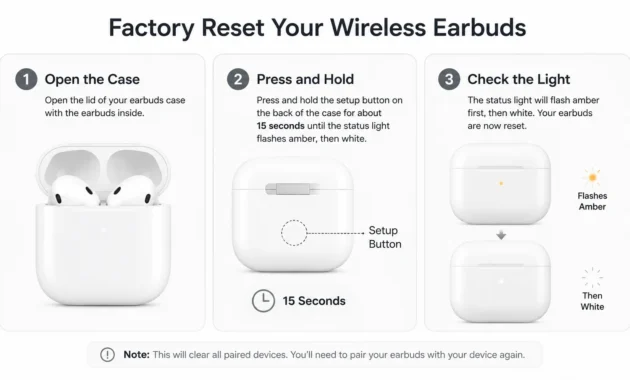
AirPods 4 use the front case touch control rather than a rear button, so follow Apple’s model specific reset sequence if your case has no setup button.
One Thing Most Guides Won’t Tell You: Keep Your AirPods Updated
The hidden problem with AirPods firmware update Android support is that Android cannot install or even check AirPods firmware. Apple delivers AirPods updates automatically through a nearby iPhone, iPad, or Mac connected to the internet.
I would not panic about this. Plenty of Android users go years without a firmware update and never see a problem. But firmware can fix connection bugs, improve call behavior, and help AirPods work properly after phone software changes. Ignoring updates removes one useful way to solve a future pairing issue.
The workaround is easy if you can borrow an Apple device. Pair the AirPods with a friend’s iPhone, iPad, or Mac, place the AirPods in their charging case, connect the case to power, and leave it close to that Apple device while the device has WiFi or mobile data.
Updates happen in the background. Apple does not provide a button or promise an exact time, so I would allow at least 30 minutes and avoid using the AirPods during that period. You do not need to sign into your own Apple Account to let an update occur, though the device owner should approve the temporary pairing.
I would check for an update only when I have access to an Apple device or when the AirPods begin acting oddly. It is a maintenance task, not something that needs weekly attention.
One Thing Most Guides Won’t Tell You: Keep Your AirPods Updated
AirPods can work with Android for years, but Android cannot manage AirPods firmware updates. That is the part many people discover only after a connection problem starts. Apple sends firmware updates through a paired iPhone, iPad, or Mac that is online.
Firmware updates happen quietly in the background. They can address Bluetooth bugs, improve call behavior, and keep AirPods working properly as phone software changes. An Android phone cannot start an update or show which firmware version your AirPods use.
I would not treat this as a reason to avoid AirPods. Some Android users skip updates for years and never notice a problem. But I would update the AirPods when I get the chance, especially if pairing becomes unreliable or one earbud behaves strangely.
The workaround is straightforward. Borrow a trusted friend’s iPhone, iPad, or Mac, pair the AirPods temporarily, put both earbuds in the charging case, and connect the case to power. Keep the case near the Apple device while that device has WiFi or mobile data.
There is no update button and no guaranteed finish time. I leave the AirPods charging near the Apple device for at least 30 minutes and avoid using them during that period. The device owner can check the installed firmware version in the AirPods settings afterward.
You do not need your own iPhone for this occasional maintenance. Access to an Apple device once in a while is enough.
| Problem | Likely Cause | Fix |
|---|---|---|
| AirPods don’t appear | Connected to nearby Apple device | Turn off Bluetooth on nearby Apple devices and enter pairing mode |
| Connected but no sound | Wrong audio output | Select AirPods as the media output |
| AirPods disconnect repeatedly | Low battery/interference | Charge them and re-pair |
| Only one AirPod works | Charging/contact problem | Clean contacts and recharge both |
| Unexpected beeping | Battery or connection notification | Check battery and reconnect |
| AirPods need a reset | Pairing/software issue | Forget AirPods on Android and reset the case |
Frequently Asked Questions About AirPods and Android
Do AirPods work with Android phones?
Yes. AirPods connect to Android phones through standard Bluetooth for music, videos, and calls. I can still use play, pause, skip, call controls, and listening mode controls after pairing.
AirPods Pro noise cancellation and Transparency mode work because the earbuds control those modes directly. Apple only features such as Siri, automatic switching between Apple devices, Find My, firmware management, and Apple’s full Spatial Audio experience need an Apple device. Third party apps can help with battery displays, but they cannot recreate every Apple feature.
Do AirPods work with Samsung Galaxy phones?
Yes, AirPods work well with Samsung Galaxy phones. The pairing process is the same as with any Android phone, and modern Galaxy models usually handle AAC audio smoothly.
I would expect solid sound quality, calls, stem controls, ANC, and Transparency mode. Galaxy Buds are still the better choice for someone who wants every setting, update, and battery detail inside Samsung’s own app.
Can I use AirPods noise cancelling on Android?
Yes. Active Noise Cancellation and Transparency mode work on Android with compatible AirPods because those functions are controlled from the earbuds.
On AirPods Pro, press and hold the stem to switch listening modes. AirPods Max uses its Noise Control button instead. No Android app or iPhone is required to turn ANC on or off.
How do I check AirPods battery on Android?
Android does not provide the same native AirPods battery popup as an iPhone. I use a third party app such as MaterialPods or AndroPods from the Google Play Store to see charge estimates for each AirPod and the charging case.
The physical case light gives a quick clue too. Green means the AirPods or case are fully charged. Amber means the charge is below full. App readings can update slowly or vary slightly from the real percentage.
Why won’t my AirPods connect to my Android phone?
The usual reason is a nearby iPhone, iPad, or Mac. AirPods often try to reconnect to the Apple device they already know instead of appearing in the Android Bluetooth list.
Turn Bluetooth off on nearby Apple devices first. Then forget the AirPods in Android Bluetooth settings and reset the case. For cases with a rear setup button, hold the button for about 15 seconds until the status light flashes amber, then white. The white light means the AirPods are ready to pair again.
AirPods 4 use the touch control on the front of the case instead of a rear button.
Are AirPods worth buying if I only use Android?
They can be worth it if you love the fit, received them as a gift, use an iPhone sometimes, or found a strong discount. AirPods remain capable Bluetooth earbuds for music, calls, and noise cancellation.
I would choose Galaxy Buds for Samsung phones or Pixel Buds for Pixel phones if I wanted full feature access from day one. Android native earbuds usually offer easier updates, better battery integration, and more settings for the same money.
Do AirPods 4 work with Android?
Yes, AirPods 4 work with Android for Bluetooth audio, calls, playback controls, and core hardware functions. AirPods 4 with Active Noise Cancellation can switch between ANC and Transparency mode from the case or earbud controls.
The newer Apple software features remain unavailable on Android. Adaptive Audio, Conversation Awareness, personalized Spatial Audio, Find My tools, and Apple device switching need Apple software. You still get the basic AirPods experience, but not the features that depend on the Apple ecosystem.